
Collecting Data with Tracking Links
Navigate to [Integrations]>[Ad Channel Integration] in your Airbridge dashboard and select Criteo. In the [Tracking Link] tab, you can create and manage tracking links to measure the performance of your Criteo campaigns. For detailed instructions on creating and managing tracking links in Airbridge, refer to the articles below.AttentionSet up postback before using tracking links. Postback must be set up before data collection to ensure all collected data is sent to the ad channel. If not, data collected through tracking links will not be sent to the ad channel.
Choose the tracking link type
When you complete the tracking link generation, you will get 3 tracking links: click-type, server-to-server click-type, and impression-type.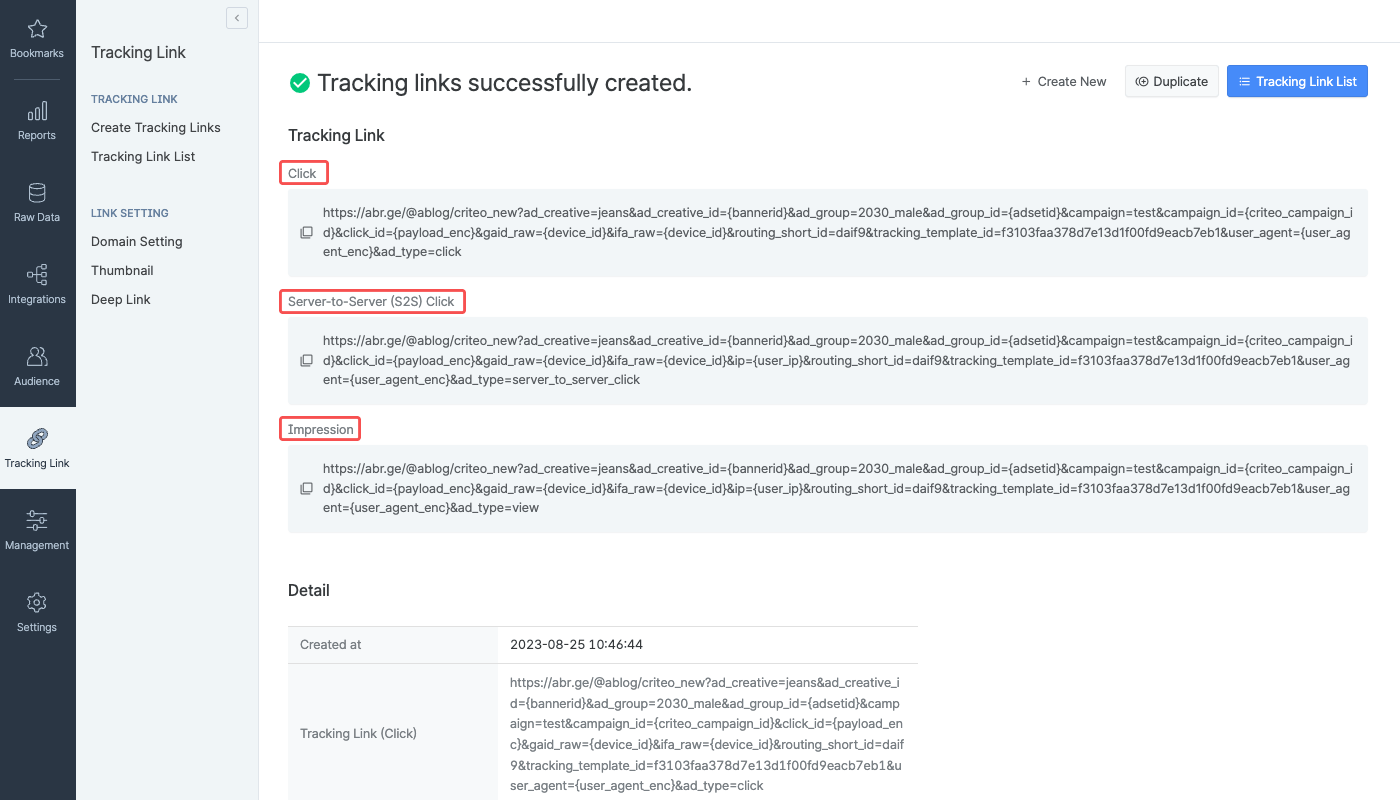
For user acquisition campaigns
For user acquisition campaigns
Share the click-type tracking link with your Criteo account manager. Users will be redirected to the destination configured in Airbridge.
For retargeting campaigns
For retargeting campaigns
Share the server-to-server click type tracking link and the scheme deep link with your Criteo account manager. Users will be redirected to the scheme deep link’s destination.
Not sure which tracking link type to use?Consult with your Airbridge CSM or your Criteo account manager.
Attribution rules
In the [Attribution Rules] tab, you can configure the lookback window and attribution window for Criteo. Click Go to edit page to move to the [Management]>[Attribution Rules] page, where you can edit attribution rules. Refer to this article for detailed instructions on configuring the lookback window and attribution window.Cost Integration Setup
- Navigate to [Integrations]>[Ad Channel Integration] in your Airbridge dashboard. Select Criteo_New.
- Select the [Cost Integration] tab. Switch on the Criteo Cost Integration toggle and click Log in to Criteo.
- Sign in to the Criteo account you want to connect with Airbridge. The Criteo account must have been assigned the administrator role in the Commerce Growth dashboard.
- Scroll down in the popup window and click Approve to grant access to Airbridge.
- Select the Criteo account to connect and click Confirm.
- When the popup window closes, the Criteo account connected to Airbridge will appear in the integrated account list. The status will show “Waiting” for up to 4 hours from the time the account is added and will change to “Success” when data is pulled for the first time.
Managing Cost Integration
Pause cost integration
Pause cost integration
Turn off the toggle to pause the integration. Airbridge stops collecting cost data once the integration is paused.Any data collected before the pause remains available in Airbridge reports.Airbridge retains the credentials of the integrated account, so you can resume the integration at any time by turning the toggle on. However, deleting the integrated account removes these credentials.
Delete integrated account
Delete integrated account
Select the account from the integrated account list and click Delete to remove the account. To re-integrate the account after deletion, set up the integration from the beginning.
Integration status
Upon submitting your ad account information to Airbridge, you can check if the integration is running. The status may show “Waiting” even when the account is successfully added if no data has been pulled yet. For more details on the integration status and data import schedule, refer to the below information.Cost integration status
Cost integration status
Cost data import schedule
Cost data import schedule
- Frequency: Every 4 hours, 6 times a day, starting at 3:00 PM UTC
- Import times: 3:00 PM, 7:00 PM, 11:00 PM, 3:00 AM, 7:00 AM, 11:00 AM UTC
- Data range: Current day (D-0) to 6 days ago (D-6)
Reporting
The data pulled from Criteo can be viewed in the Actuals Report using the metrics and GroupBys below.Metrics for cost data
Metrics for cost data
Difference between Clicks and Clicks (Channel)Both Clicks and Clicks (Channel) show click count, but the data source differs:
- Clicks: Collected through Airbridge tracking links
- Clicks (Channel): Provided by the ad channel
GroupBys for cost data
GroupBys for cost data
NoteUse the groupBys below to break down cost data in Airbridge reports. Available groupBys vary by ad channel.
Touchpoint
Device
Event Datetime
Unspecified ad account nameIf a user has not specified the ad account name in the Criteo dashboard, Airbridge receives a null value for the Ad Account ID. If you select “Ad Account ID” as GroupBy in the Actuals Report, it may show an empty column.
Postback Settings
In the [Postback] tab, you can configure postbacks and determine which in-app events and attribution results to send as postbacks. The data collected with the Airbridge SDK and tracking links enables you to optimize campaigns and make strategic decisions about budget allocation. For more details on postback settings, read this article.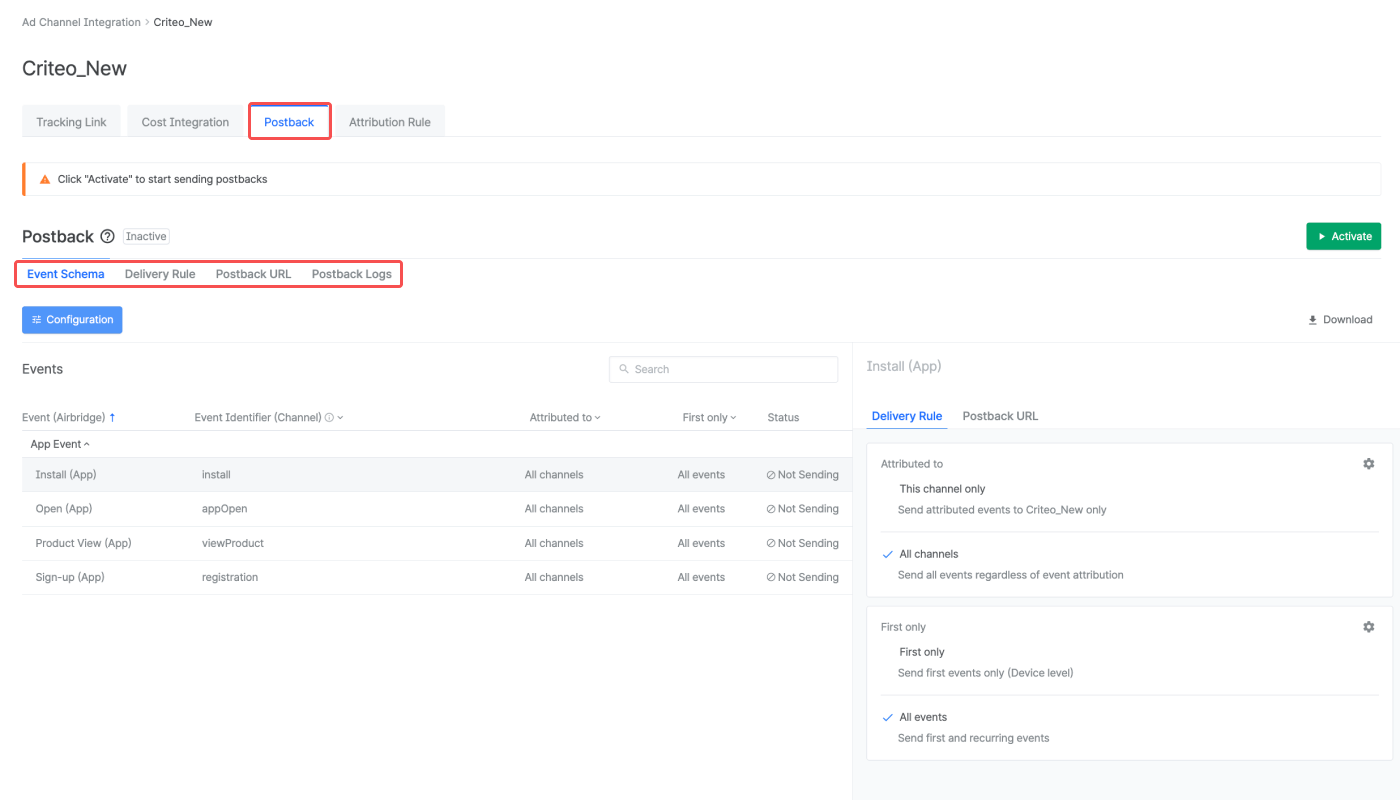
Agency Settings
Manage the access permissions of the agencies and have control over which agency has access to your campaign data.Attention
Discrepancy in cost data
Discrepancy in cost data
Airbridge pulls the cost data from the past 7 days, every 4 hours, 6 times a day starting at 3:00 PM (UTC). As the updates are not real-time, there may be data discrepancies between Airbridge and the ad channel, depending on the time of reporting.
GroupBys for the Cost (Channel) metric
GroupBys for the Cost (Channel) metric
The Cost (Channel) metric, which shows your ad spend reported by the ad channel, displays value only when used with specific GroupBys.Below are the GroupBys that can be used in the Actuals Report to view data with the metric:
- Channel
- Campaign
- Ad Group
- Ad Creative
App time zone and currency settings
App time zone and currency settings
The data pulled via cost integration is provided by the app time zone and app standard currency set within Airbridge.To minimize data discrepancy, align your app’s currency and time zone settings in your Airbridge dashboard and your ad channel’s dashboard.
Campaign details advised not to be edited
Campaign details advised not to be edited
Once the cost integration is enabled, the following campaign details are advised not to be edited to avoid any error in pulling data into Airbridge.
- Campaign name
- Ad group name
- Ad creative name