

 Install the Airbridge Expo SDK and implement the necessary settings following the steps below.
Install SDK
The Airbridge Unreal SDK can be installed using the method below. After installation, you can confirm whether the SDK has been properly installed through the Expo SDK Test. Use npm to installairbridge-expo-sdk and airbridge-react-native-sdk.
Install Restricted SDK
Initialize SDK
Add the following code to theapp.json.
APP_NAME is the App Name and APP_TOKEN is the App SDK Token that can be found on the [Settings]>[Tokens] page in the Airbridge dashboard.Configure SDK settings
Configure the SDK settings to use the Airbridge Expo SDK.- Create an airbridge.json file at the top level of the Expo project folder, input the JSON as above, and configure the SDK settings.
- Don’t input values for keys that are not necessary for your service.
References for configuring the SDK settings
References for configuring the SDK settings
Configure ATT prompt
- Prepare the text you will use in the ATT prompt.
- Provide the ATT prompt following this guide provided by Apple.
- If the install event is not collected, the Airbridge Expo SDK delays collecting install events for 30 seconds until the user allows tracking each time the app is launched. If the user exits the app before deciding whether to allow tracking, the SDK will not collect the install event and will try again at the next app launch.
autoDetermineTrackingAuthorizationTimeoutInSecond to set a sufficient delay time for collecting install events. The default value is 30 seconds, and it can be set to up to 3600 seconds (1 hour).
Opt-in and opt-out setup
- To limit advertising identifier collection, refer to Restricting Identifier Tracking or Install Restricted SDK.
- User identifiers and user attributes set through functions such as
setUserIDandsetUserEmailare sent as part of events, so they are not sent while event collection is stopped.
Opt-in setup
The opt-in policy collects events only after the user gives consent. In the SDK settings, set theautoStartTrackingEnabled to false and call the startTracking function at the point of time when you can collect events. The SDK will start collecting events when the startTracking function is called.
Opt-out setup
The opt-out policy collects events until the user declines. In the SDK settings, set theautoStartTrackingEnabled to true and call the stopTracking function at the point of time when you can no longer collect events. The SDK will stop collecting events when the stopTracking function is called.
SDK Signature
sdkSignatureSecret.
Deep Linking
Deep linking allows you to redirect users from ads to specific locations within your app. The data collected from the tracking link enables you to monitor the performance of the deep link in Airbridge.How Airbridge Deep Links work
Airbridge deep linking works in the following 3 steps.- A scheme deep link is embedded in the tracking link.
- When the user opens the tracking link, the app opens through an Airbridge Deep Link.
- The Airbridge SDK converts the Airbridge Deep Link back to the scheme deep link and passes it to the app.
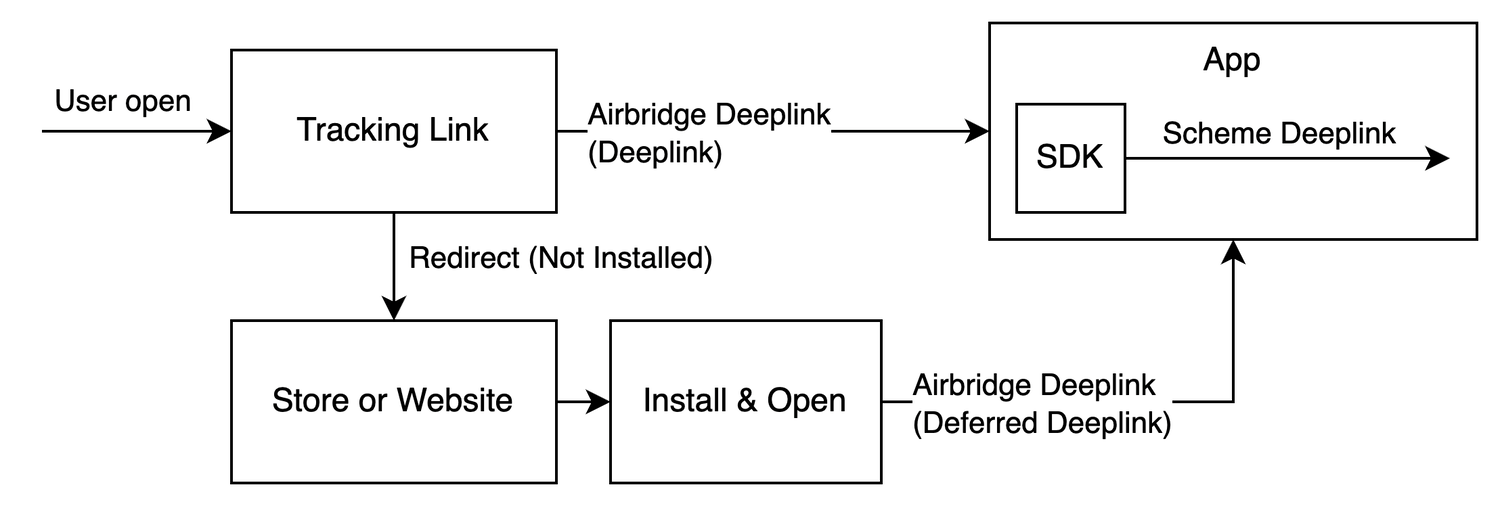
- Example scheme deep link embedded in the tracking link:
YOUR_SCHEME://product/12345
- HTTP deep link format 1:
https://YOUR_APP_NAME.airbridge.io/~~~ - HTTP deep link format 2:
https://YOUR_APP_NAME.abr.ge/~~~ - Scheme deep link format:
YOUR_SCHEME://product/12345?airbridge_referrer=~~~
- It determines whether the given deep link is an Airbridge Deep Link.
- It collects the information contained in the deep link and sends a deep link event.
- It converts the Airbridge Deep Link back to the scheme deep link embedded in the tracking link (
YOUR_SCHEME://product/12345) and passes it to the app.
Set up deep linking
For the deep linking setup, the following information is required.- Deep link information submitted in the Airbridge dashboard
- In-app location address for user redirection
How to enter the deep link information into Airbridge dashboard
How to enter the deep link information into Airbridge dashboard
iOS
- iOS URI scheme: The Airbridge Deep Link is converted to a scheme deep link using the iOS URI scheme.
- iOS App ID: The universal link domain of the Airbridge Deep Link is set using the iOS App ID.
Android
- Android URI scheme: The Airbridge deep link is converted to a scheme deep link using the Android URI scheme. This information is necessary for the App Link and URI scheme.
- Package name: This is the Android app identifier necessary for the App Link and URI scheme.
- Android sha256_cert_fingerprints: This is used for setting the App Link domain. This information is necessary for the App Link.
iOS
- Navigate to [Tracking Link]>[Deep Links] in the Airbridge dashboard.
- Enter the iOS URI scheme in the iOS URI Scheme field. Include
://. For example, if the iOS URI scheme isdemo, enterdemo://. - In the Apple Developer Dashboard, navigate to [Identifier] of the app you want to set up the deep link. Find the App ID Prefix and Bundle ID.
- The iOS App ID is in the format of
App ID Prefix+ . + Bundle ID. Enter the iOS App ID into the iOS App ID field. For example, if the App ID Prefix isprefixand the Bundle ID isexample, the iOS App ID isprefix.example.
Android
For apps that use Google Play’s Play App Signing, Google’s servers re-sign the APK after the developer uploads it. This changes the Android sha256_cert_fingerprints, so you must register the final signing value from the Google Play Console—not from your local keystore—for App Links to work correctly. Register the Android URI scheme, package name, and Android sha256_cert_fingerprints in Airbridge according to your signing method.- Play App signing
- using original key
- Naviagate to [Tracking Link]>[Deep Links] in the Airbridge dashboard.
- Enter the Android URI scheme into the Android URI Scheme field. Include
://. For example, if the URI scheme isdemo, you must enterdemo://. - Enter the package name in the Package name field.
- Go to the Google Play Console and select your app.
- Navigate to [App integrity].
- Copy the SHA-256 certificate fingerprint from the App signing key certificate section.
- App signing key certificate ← Use this value
- Upload key certificate ← Do NOT use this value
- Enter the SHA256 value into the sha256_cert_fingerprints field.
- App launch with Airbridge Deep Links
- Airbridge Deep Link event collection
- User redirection with Airbridge Deep Links
Enable app launch with Airbridge Deep Links
Enable app launch with Airbridge Deep Links
app.json.YOUR_SCHEME is the URI Scheme that can be found on the [Tracking Link]>[Deep Links] page in the Airbridge dashboard.Enable user redirection with Airbridge Deep Links
Enable user redirection with Airbridge Deep Links
OnDeeplinkReceived callback. If a deep link that is not an Airbridge Deep Link is executed, the deep link is passed directly to the callback without any conversion.Use the deep link passed to the callback to redirect the user to the intended destination.Set up deferred deep linking
When a user clicks on a tracking link with deferred deep linking capabilities and your app is not installed on the device, the Airbridge SDK collects the deep link as follows.How the Airbridge SDK collects deferred deep links
How the Airbridge SDK collects deferred deep links
- The
Airbridge.startTrackingfunction is called with the opt-in settings in place. Or, opt-in has not been set. - The ATT tracking response has been determined. Or, the event collection delay time set in the ATT prompt has expired.
Set up custom domain
- Enter the custom domain address into the Airbridge dashboard by referring to this article
- In the SDK Settings, enter the custom domain address in the
trackingLinkCustomDomains. TheYOUR_APP_CUSTOM_DOMAINshould be the Fully Qualified Domain Name (FQDN).
In-app Events
The Airbridge SDK collects user actions from the app as per settings and sends them as in-app events.Send in-app events
Airbridge.trackEvent function to send events. Refer to the information below about the required Airbridge.trackEvent function components and their types.
Event Category
Event Category
Attributes
Attributes
- Action, Label: Collect information that can be used as GroupBys in the Airbridge reports
- Value: Collect information that can be used for sales analysis. Airbridge can perform calculations using the collected data.
- Semantic Attribute: Collect predefined attributes by Airbridge.
- Custom Attributes: Collect attributes defined by Airbridge users.
Airbridge.trackEvent function and enter Custom Attributes using the customAttributes parameter.In the Airbridge.trackEvent function, you can enter Action, Label, Value, and Semantic Attributes using the semanticAttributes parameter and Custom Attributes using the customAttributes parameter.The semantic attributes predefined by Airbridge can be found in the user guide below.semanticAttributes.- An attribute that the SDK does not provide as a constant can still be passed as a string key, as long as it is on the list. For example,
"totalQuantity". - A key that is not on the list is not processed correctly by Airbridge when passed in
semanticAttributes. Pass your own attributes incustomAttributesinstead.
- JSON types: string, number, boolean, Record<string, JSON>, Array<JSON>
- Types that cannot be used in semantic attributes and custom attributes: Class, etc.
Event Category of Standard Events provided by the SDK (AirbridgeCategory)
Event Category of Standard Events provided by the SDK (AirbridgeCategory)
Semantic Attributes provided by the SDK (AirbridgeAttribute)
Semantic Attributes provided by the SDK (AirbridgeAttribute)
Additional in-app event settings
Configure in-app event sessions
Configure in-app event sessions
setSessionTimeout up to 604,800 seconds (7 days).Configure in-app event transmission frequency
Configure in-app event transmission frequency
setEventTransmitInterval to modify it to a maximum of 86,400 seconds (1 day).Configure in-app event storage
Configure in-app event storage
eventBufferCountLimit, and to limit the storage size of the SDK, use the eventBufferSizeLimitInGibibyte.Clear unsent in-app events
Clear unsent in-app events
setClearEventBufferOnInitializeEnabled to true to activate the event deletion option.Configure device IDs
Configure device IDs
Example codes
Airbridge collects in-app events that are classified as Standard Events and Custom Events. Standard Events are events predefined by Airbridge. Refer to the example codes below.Sign-up, Sign-in, Sign-out, Home Screen, Product Catalog
Sign-up, Sign-in, Sign-out, Home Screen, Product Catalog
Sign up
Sign in
Sign out
Home screen view
Product list view
Search Results, Product View, Add Payment Info, Add to Wishlist, Add to Cart
Search Results, Product View, Add Payment Info, Add to Wishlist, Add to Cart
Search results view
Product detail page view
Payment method registration
Adding to wishlist
Adding to cart
Initiate Checkout, Order Complete, Order Cancel, Start Trial, Subscribe, Unsubscribe
Initiate Checkout, Order Complete, Order Cancel, Start Trial, Subscribe, Unsubscribe
Start payment
Purchase complete
Purchase cancellation
Start trial
Subscription
Unsubscribe
Ad Impression, Ad Click, Complete Tutorial, Achieve Level, Unlock Achievement
Ad Impression, Ad Click, Complete Tutorial, Achieve Level, Unlock Achievement
Ad exposure
Ad click
Tutorial completion
Level achievement
Task completion
User Data
Airbridge sends user data along with events. User data allows for a more accurate ad performance measurement.Set up User ID
User IDs refer to the user identifier used in a service. User IDs should be unique IDs that can identify unique users across websites and apps.Send additional user information
Hash user information
WhenhashUserInformationEnabled is set to false in the SDK settings, user emails and phone numbers are passed without being hashed. The default setting is true.
Clear user data
You can reset user information with theAirbridge.clearUser function.
Include User Information in Install/Open Events
The SDK automatically sends install and open events immediately after the app launches. Therefore, if you call user information functions right after the app launches, the user information may not be included in the install/open events depending on the event transmission timing. To ensure user information is included in install/open events, control the timing of event transmission through Opt-In setup. Implement in the following order:- Set the
autoStartTrackingEnabledoption tofalsewhen Configure SDK settings. - Call user information functions to set user information.
- Call the
startTracking()function to start event collection.
Additional SDK Settings
Follow the instructions below for additional setup.Calculating SKAdNetwork Conversion Value on the Server
calculateSKAdNetworkByServerEnabled option to true.
Restricting Identifier Tracking
You can restrict the SDK from tracking identifier data.Restricting Identifiers During SDK Initialization
Restricting Identifiers During SDK Initialization
trackingBlocklist to specify which identifiers should be blocked. Events collected after this configuration will exclude the specified identifiers.Check the restricted data in the identifier restriction list.Restricting Identifiers During SDK runtime
Restricting Identifiers During SDK runtime
allowTrackingItem and blockTrackingItem functions to set the data to be restricted. The specified identifier items will be excluded or included. This does not affect events that have already been stored.Identifier Restriction List
Identifier Restriction List
AirbridgeTrackingBlocklist.SDK settings by build settings
AIRBRIDGE_ENVIRONMENT.
If the AIRBRIDGE_ENVIRONMENT is not specified, the SDK is initialized based on the airbridge.json which is the default settings file in the root folder.
The following table shows the SDK settings file that is applied depending on the set AIRBRIDGE_ENVIRONMENT value.
Integrate Google’s ICM attribution data
Create tracking links within the app
createTrackingLink function to create tracking links. Refer to the code examples and the parameter details below.
option parameter in the createTrackingLink function to configure tracking link options.
Create trackingLink option
Create trackingLink option
onSuccess callback in the createTrackingLink function to pass the AirbridgeTrackingLink.
Create tracking links that launch the app or redirect users to the app store
Create tracking links that launch the app or redirect users to the app store
Create tracking links that launch the app or redirect users to a webpage
Create tracking links that launch the app or redirect users to a webpage
Create tracking links that redirect users to the app store only
Create tracking links that redirect users to the app store only
Create tracking links that redirect users to a webpage only
Create tracking links that redirect users to a webpage only
Receive Airbridge Deep Links only
setOnDeeplinkReceived method of the Airbridge Expo SDK include not only Airbridge Deep Links but also deep links from other solutions.
isHandleAirbridgeDeeplinkOnly to true in the SDK settings, only Airbridge Deep Links will be passed to the setOnDeeplinkReceived callback. In this way, you can handle the deep links from other solutions separately from the Airbridge Deep Links.
Use tracking links within the app
Depending on how links are opened, it may be challenging to properly use the tracking link within the app. By using theAirbridge.click function or the Airbridge.impression function, you can properly use the tracking link within the app without sending users to an external browser.
When the user clicks a tracking link within the app
When the user clicks a tracking link within the app
Airbridge.click function is triggered. Depending on the tracking link settings, the scheme deep link is passed, or the user is redirected to the app store or website.When the user engages with a tracking link within the app
When the user engages with a tracking link within the app
Airbridge.impression function is called, and the impression event data is collected.Get attribution results
Airbridge.setOnAttributionReceived function to get the attribution data of install events.
When the attribution result exists
When the attribution result exists
attributedChannel contains information about the ad channel to which the ad performance is attributed.The attribution results are passed to the callback within 1 minute after SDK initialization. If the app is closed before the attribution result is passed, the previous attribution results will be passed to the callback within 1 minute the next time the app is launched. Depending on network conditions and other factors, there may be a delay of up to 5 minutes.When no attribution result exists (Organic)
When no attribution result exists (Organic)
Track only Airbridge Deep Links
The Airbridge SDK collects deep link events when the app is opened through a deep link, even if the deep link is not an Airbridge Deep Link. ConfiguretrackAirbridgeDeeplinkOnlyEnabled in the SDK settings to true to collect deep link events only if the app is opened through an Airbridge Deep Link and prevent unnecessary event collection.
Compliance with Google DMA
To comply with the Digital Markets Act (DMA), the user consent data must be sent to Airbridge. For more information about the DMA and whether it applies to your service, refer to the Airbridge user guide.Collecting user consent data through consent management platforms
Collecting user consent data through consent management platforms
- In the SDK settings, set the
collectTCFDataEnabledtotrueand theautoStartTrackingEnabledtofalse.
- After the user consent data is stored in the consent management platform, call the
startTrackingfunction.
Collecting user consent data using Airbridge.setDeviceAlias
Collecting user consent data using Airbridge.setDeviceAlias
- Check the location of the users who launched the app. If their location is within the EEA, check whether the user consent data has been previously collected. If not, user consent data collection is not required.
autoStartTrackingEnabled to false- If no user consent data has been collected previously, you may collect the data using a prompt or other means. The user consent data fields that need to be collected are
adPersonalization,adUserData.
eea) to the Airbridge SDK using the Airbridge.setDeviceAlias function.- After the user consent data and the user location data are sent to the Airbridge SDK, call the
startTrackingfunction.
Set up Meta deferred app links
Follow the steps below to use deferred deep linking in Meta ads. The Airbridge SDK collects the Meta deferred app links before it collects the Airbridge deferred deep links. If there are no Meta deferred app links, the Airbridge deferred deep links are collected. Note that Meta does not support Meta deferred app links for SKAdNetwork campaigns.- Install the Facebook SDK by referring to the Meta ads documentation for iOS and Android.
- Configure the
trackMetaDeferredAppLinkEnabledin the SDK settings totrue.
Enable and disable the Airbridge SDK
sdkEnabled in the SDK settings to false, the SDK can be initialized with all functions disabled.
Control the SDK at runtime
While the app is running, use the functions below to check the activation status or change it.
Set up Meta Install Referrer collection
To collect the Meta Install Referrer, enter the Meta App ID as the key value formetaInstallReferrerAppID in the SDK settings.
Note that the decryption key must be submitted to the Airbridge dashboard to read the decrypted Meta Install Referrer. Refer to this user guide to learn how to enter the decryption key.
Set up uninstall tracking
Airbridge sends a silent push every day between 3:00 PM and 4:00 PM (UTC) to users who performed an app event at least once in the last 6 months to check if the app has been deleted. You can check the uninstall event in the Airbridge reports and raw data export files. Refer to the article below for the detailed setup instructions.Integrate with third-party solutions
An additional SDK setup is required to integrate with some third-party solutions. It is recommended that you complete this setup before collecting data with the Airbridge SDK. Refer to the articles listed below for integrating with third-party solutions.Third-party platforms integrated with Airbridge
Third-party platforms integrated with Airbridge
SDK logs
The logs provided by the Airbridge SDK are categorized intoDebug, Info, Warning, Error, and Fault levels. The Debug level is the least critical log, while the Fault level is the most critical log.
By default, the Airbridge SDK provides logs at Warning, Error, and Fault levels. By entering a specific log level as the setLogLevel value in the SDK settings, the logs from that specified level up to the Fault level will be available.