Submit Credentials
Submit your Apple Developer or Google Cloud Console credentials to Airbridge.Get credentials from Apple Developer
Follow the steps below to get the required credentials from the Apple Developer Portal.APNs Authentication Key (p8) and Key ID
APNs Authentication Key (p8) and Key ID
To get the APNs authentication key, you need to turn on the app’s push notification from the Apple Developer Portal.
- Select [Identifiers] in the Apple Developer Portal.
- Find and click on the app you want to track uninstalls. Then, check “Push Notification.”
- Select [Keys]. Click + to generate a new key. Then, download the APNs authentication key (p8). The APNs authentication key can be downloaded only when creating the key for the first time and cannot be downloaded again. If lost, the key must be regenerated. Up to 2 APNs authentication keys can be generated at once.
- The Key ID can be found when clicking on the newly generated key in [Keys].
Bundle ID
Bundle ID
Navigate to [Certificates, Identifiers & Profiles]>[Identifiers] in the Apple Developer Portal. Click on the app you want to track uninstalls to find the Bundle ID.
Team ID (App ID Prefix)
Team ID (App ID Prefix)
Navigate to [Account]>[Membership details] in the Apple Developer Center to find the Team ID (App ID Prefix).
Get credentials from Google Cloud Console
Follow the steps below to get the required credentials from the Google Cloud Console.Enabling the API
Enabling the API
Follow the steps below to enable the Google Cloud API required for Android app uninstall tracking.
- Log in to the Google Cloud Console. Select the project for uninstall tracking from the dropdown list.
- Navigate to [APIs & Services] > [Library].
- Enter ‘Firebase’ in [Search for APIs & Services] and press Enter.
- Scroll through the search results and click on ‘Firebase Cloud Messaging API’.
- Click ‘Enable’.
Create a custom role
Create a custom role
Create a custom role following the steps below.
- Sign in to the Google Cloud console. From the drop-down list, select a project to create a custom role.
- Navigate to [IAM & Admin]>[Roles]. Click + Create Role.
-
Enter the following details:
- Title: Airbridge Uninstalls
- ID: abr_uninstalls
- Role launch stage: General Availability
- Click +Add Permissions.
- In the Enter property name or value field, enter “cloudmessaging.messages.create” and select it from the search results. Check the checkbox and click Add.
- Click Create to finish creating the custom role.
Create a service account
Create a service account
Create a service account by following the steps below.
- Navigate to [IAM & Admin]>[Service Accounts]. Click + Create Service Account.
- Enter “ABR Uninstall Service Account” as the service account name. Click Create and Continue.
- From the Select a role drop-down list, search and select “Airbridge Uninstalls.” Click Continue.
- Click Done to finish creating the service account.
Create a private key
Create a private key
Create a private key file of the service account.
- Navigate to [IAM & Admin]>[Service Accounts]. From the service account list, click the email of the service account whose name is “ABR Uninstall Service Account.”
- Select the Keys tab. Click Add Key and select Create new key.
- Select JSON as the key type and click Create. The JSON file containing the key file will be downloaded. Make sure to securely store the JSON file.
Submit credentials to Airbridge
iOS
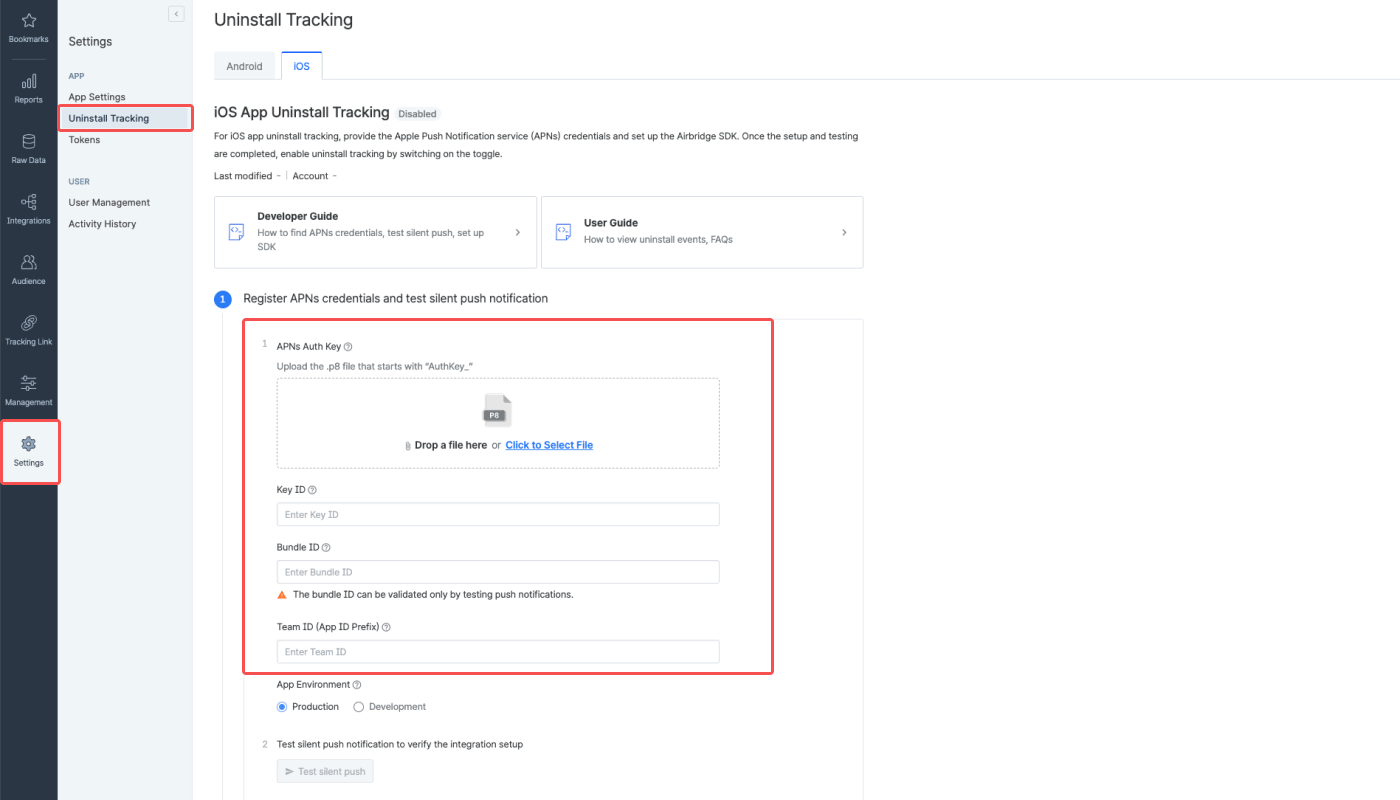
Follow the steps below to submit the credentials to Airbridge.- Navigate to [Settings]>[Uninstall Tracking] in the Airbridge dashboard.
- Select the [iOS] tab.
- Submit the required credentials.
Select app environment
After submitting all the required credentials to Airbridge, select the app environment to collect push tokens.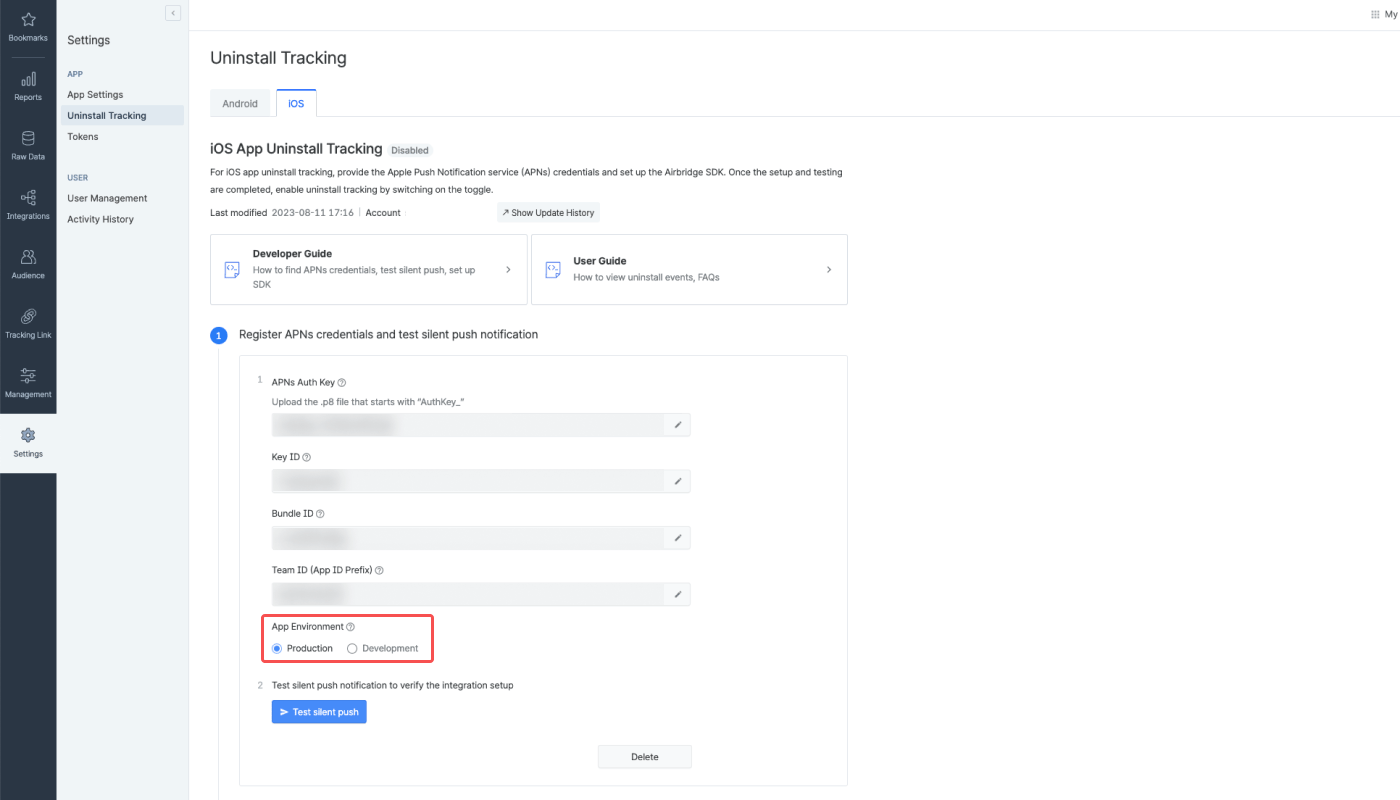
Production
Production
- Supported apps: Apps downloaded from the Apple App Store or test apps released via TestFlight, Ad Hoc, or Enterprise
- Push tokens collected: The actual push tokens used for uninstall tracking
Development
Development
- Supported app: Development apps for testing purposes that are not supported in the production environment
- Push token collected: Push token used in the development environment
Android
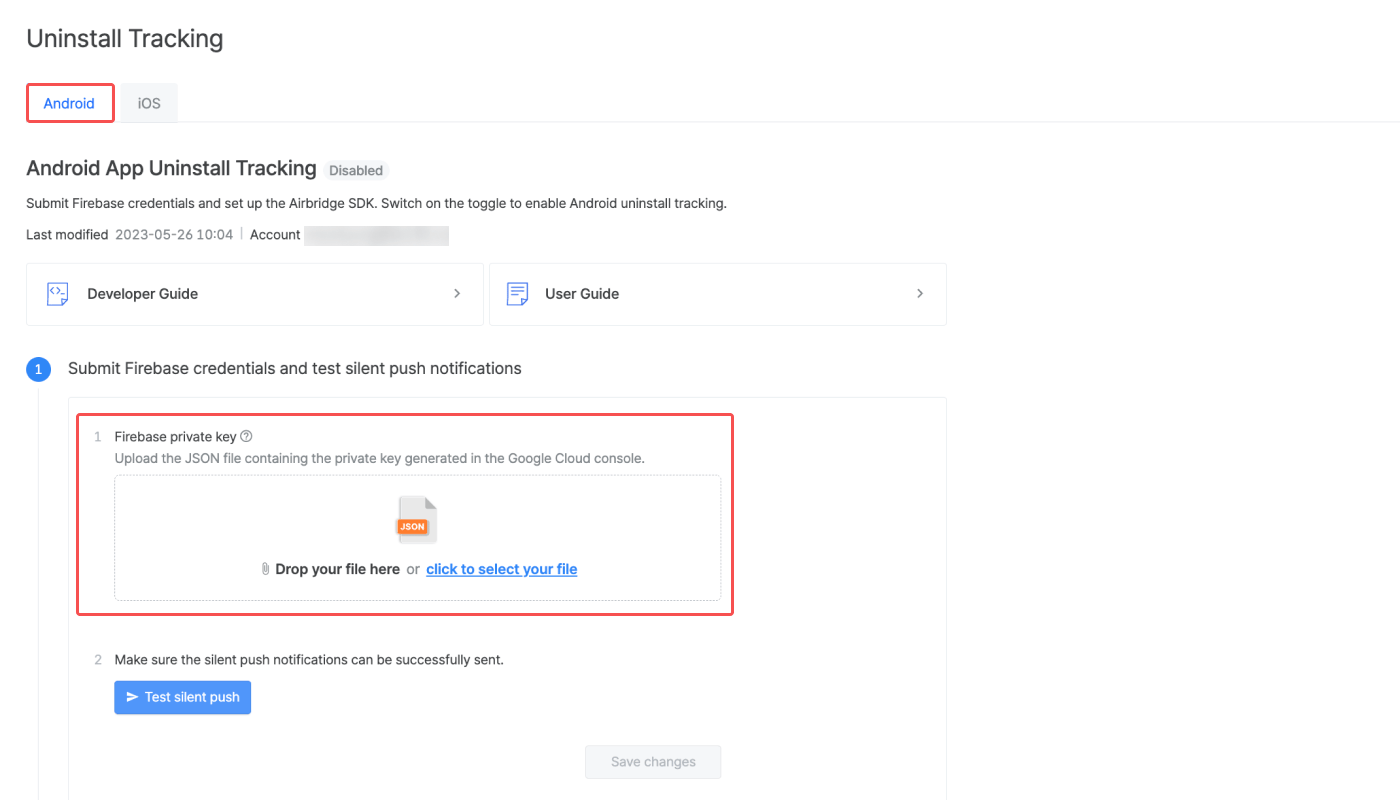
Follow the steps below to submit Firebase credentials to Airbridge.- Navigate to [Settings]>[Uninstall Tracking] in the Airbridge dashboard.
- Select the [Android] tab.
- Upload the JSON key file by dropping the file or clicking to select the file.
Test silent push notifications
iOS
Test silent push notifications to make sure the notifications are successfully sent to the devices. To proceed with the test, click Test silent push. The silent push test does not measure or generate uninstall events; therefore, uninstalls cannot be confirmed in the Airbridge dashboard. Conducting the silent push test is recommended as the Bundle ID, which is one of the required credentials for uninstall tracking, can only be validated through the silent push test.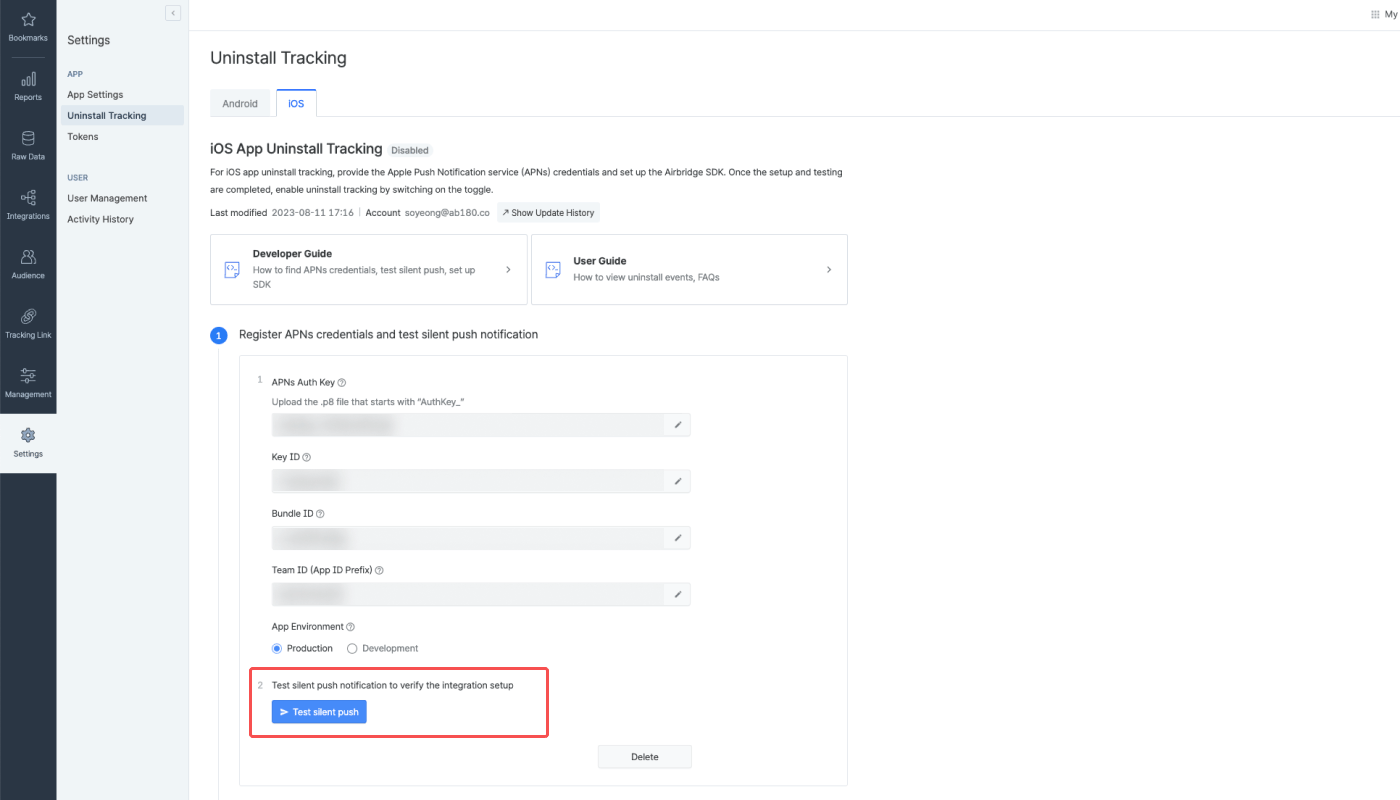
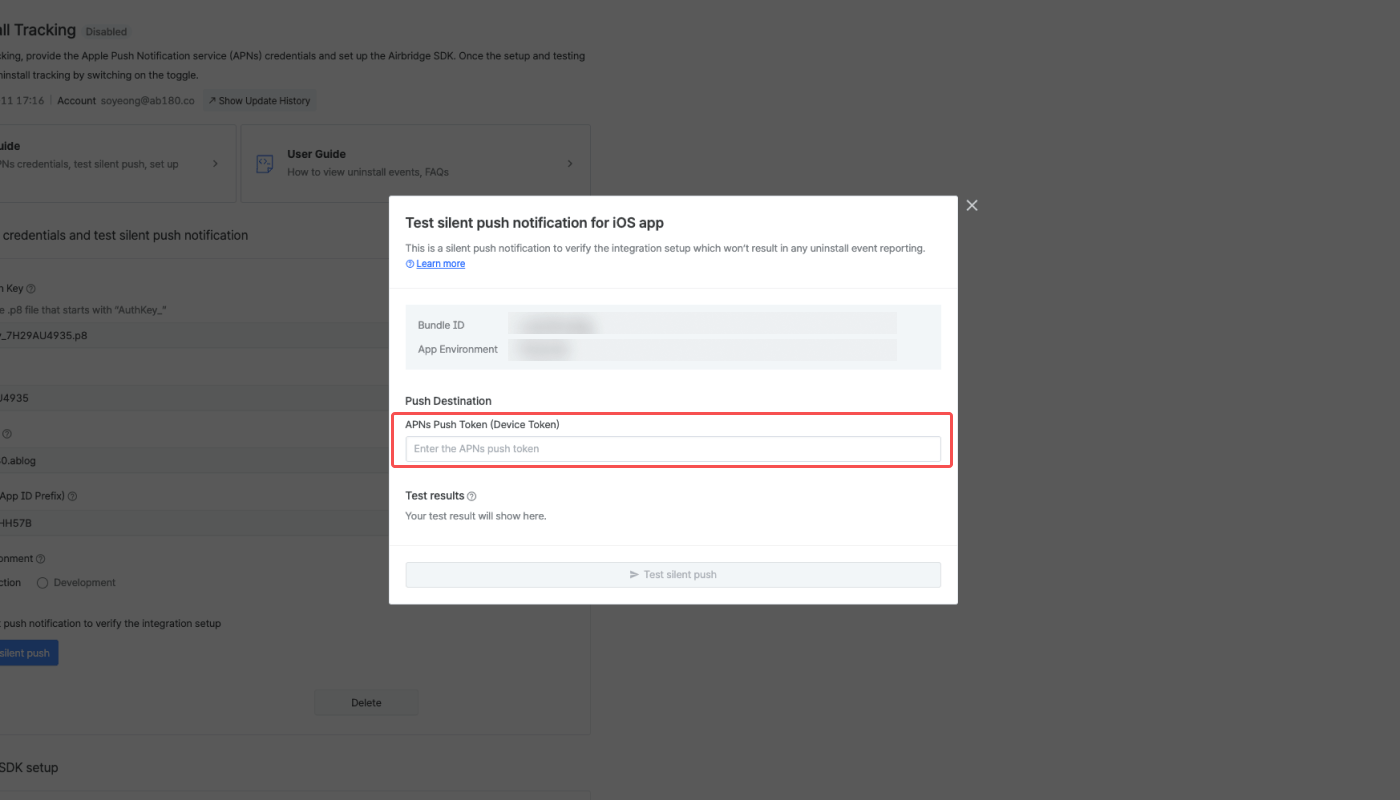
Error codes - Silent push test
Error codes - Silent push test
Some error codes that indicate that the app has been deleted could show as a result of the silent push test. Regardless, be reminded that the purpose of the silent push test is to verify whether silent push notifications are being sent successfully using the submitted credentials.Test the silent push notification on a device for testing purposes where the app has been installed recently and retained for the last 10 days.
AttentionYou can’t conduct silent push tests on iOS Simulators.
Android
Test silent push notifications to make sure the notifications are successfully sent to devices. To proceed with the test, click Test silent push and enter the FCM registration token of your test device. For detailed instructions on how to access your FCM registration token, refer to the Firebase documentation.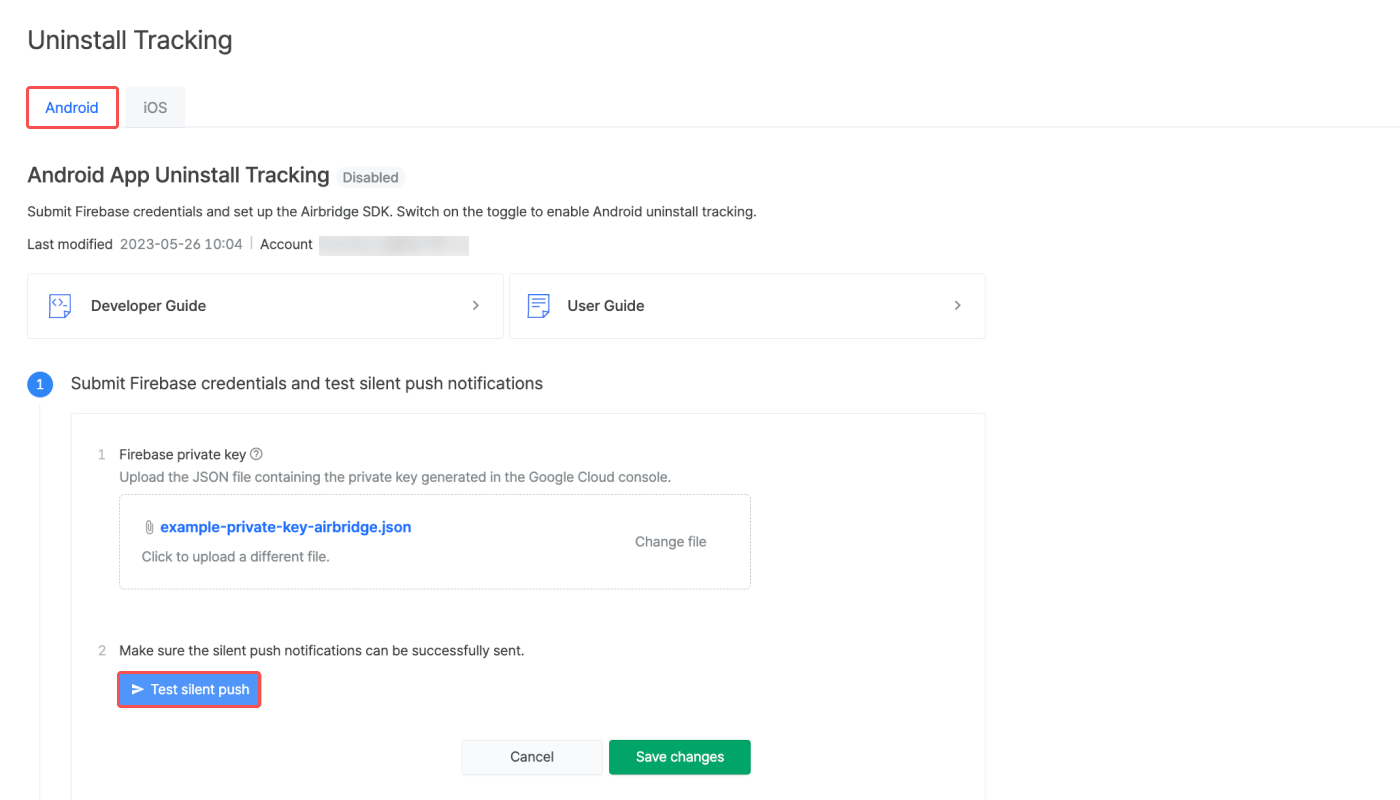
Error codes - Silent Push Test
Error codes - Silent Push Test
Set Up the Airbridge SDK
For uninstall tracking, you must complete the Airbridge SDK setup by following the instructions below.Enable push notifications
Airbridge tracks app deletions through silent push notifications. Therefore, you need to set up the app to receive push notifications.Send the push token
When the push token is generated, call theregisterPushToken function to send it to the SDK.
AttentionOn iOS, the APNS push token should be sent. On Android, the Firebase push token should be sent.
Silence push notifications
The silent push notifications Airbridge sends for uninstall tracking should not be displayed in the user’s app. By adding the exception handling code as below, the silent push will not be exposed to the user.Enable Uninstall Tracking
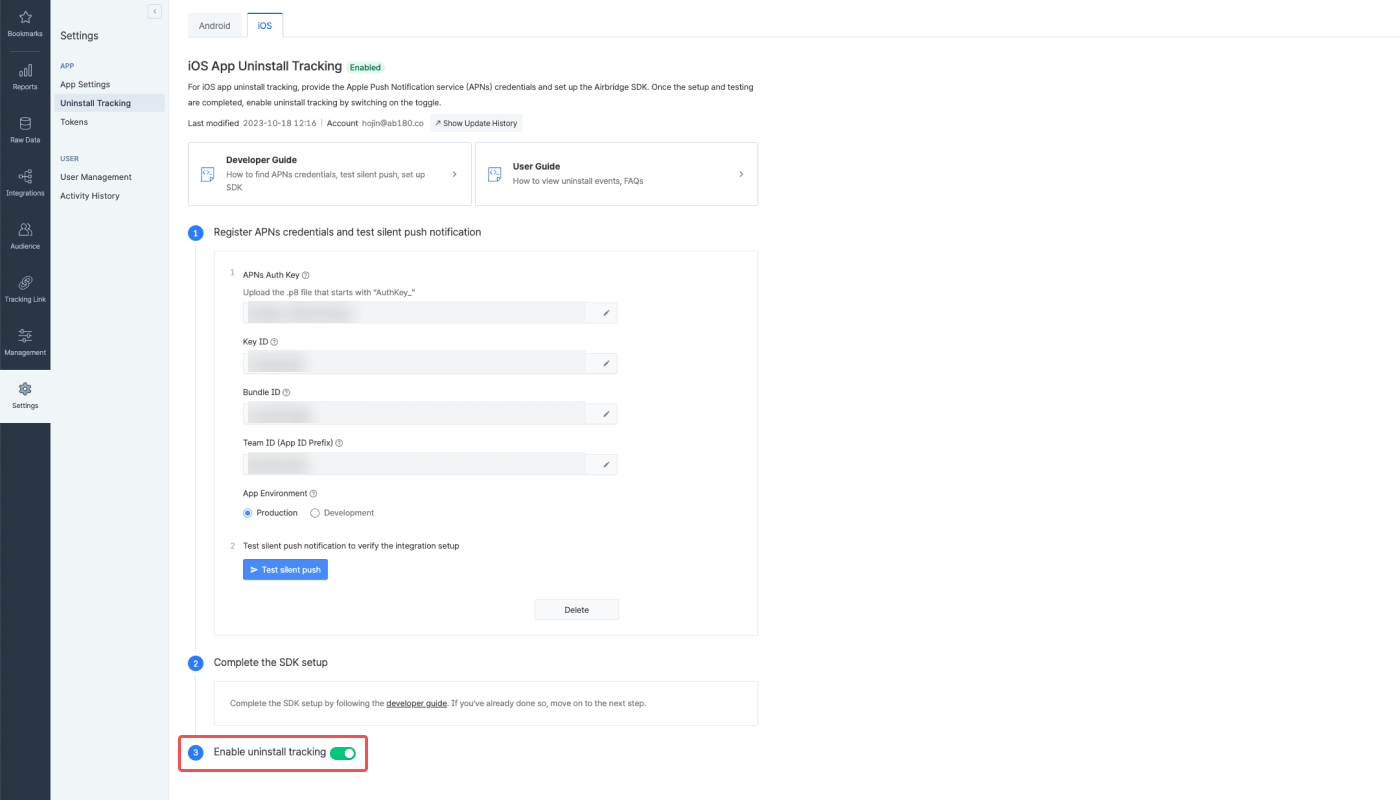
After submitting the credentials to Airbridge and completing the SDK setup, the [Enable uninstall tracking] toggle will be activated. Switch on the toggle to start tracking uninstall events. For more details about uninstall tracking, refer to this article.