
NoteThis guide explains how to test whether your tracking links work as expected in Airbridge. We recommend running this test alongside the tests provided by Self-Attributing Networks (SANs) or other ad channels.
Prerequisites
Prepare the following before you start testing your tracking link.
You can find the device ID using an app provided by Airbridge.
Check with the My Device ID by Airbridge app
Check with the My Device ID by Airbridge app
Download the My Device ID by Airbridge app using the QR code below to find your device ID. The app also shows device information such as the device model and operating system version. The available device ID types vary by operating system, so see the Identifiers guide.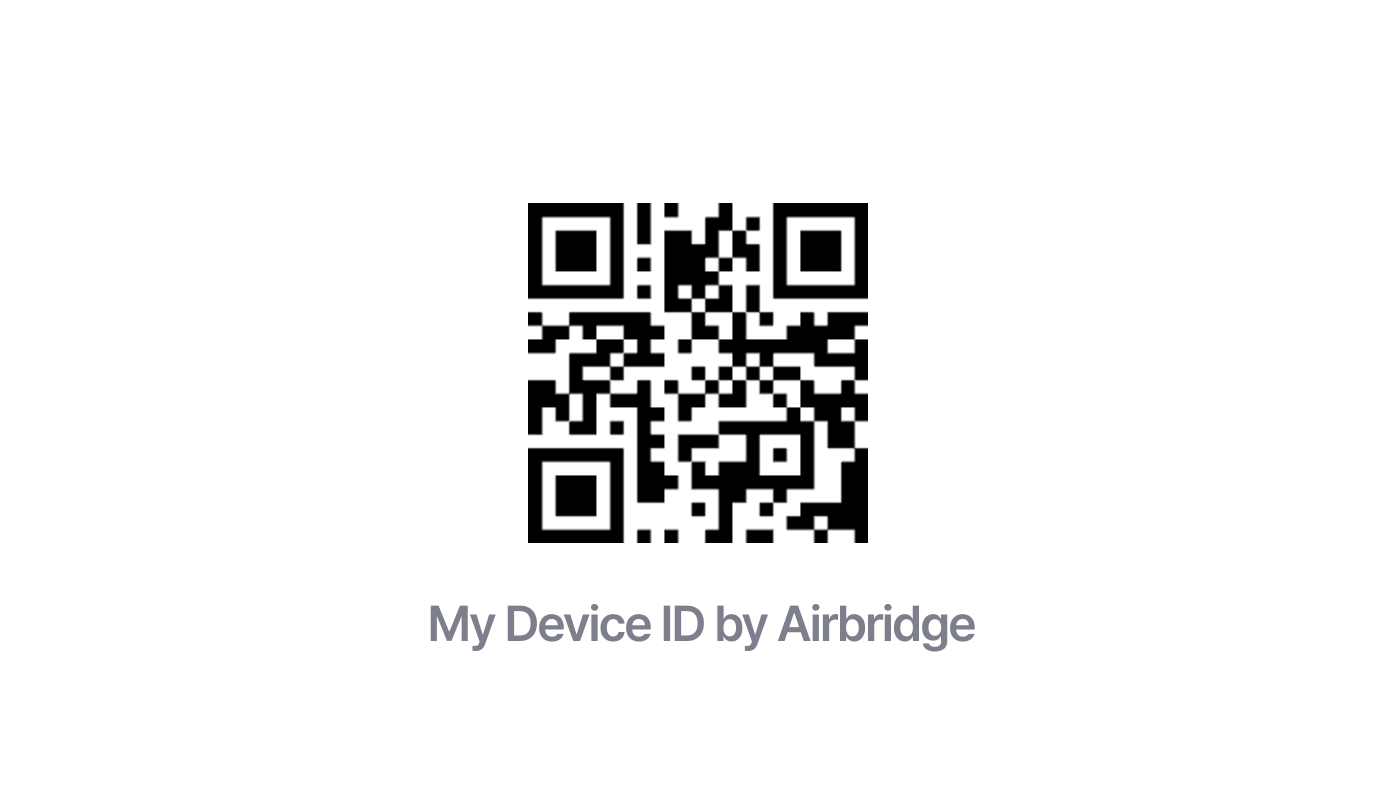
Test directly in Airbridge
Before you run campaigns on an ad channel, check in advance that events from your ads are collected in Airbridge and attributed as intended. The steps below cover testing for click (ad_type=click) touchpoints.
Add device ID parameters to the test tracking link
- Paste the test tracking link into a text tool such as Notepad.
- Type and add a parameter filled with your test device’s device ID. The parameter name is
gaid_rawfor Android andifa_rawfor iOS.
- Test tracking link example
https://abr.ge/@app_name/channel?click_id={click_id}&sub_id={sub_id}&tracking_template_id=e08703393962e4ec231d2ff1ff85ef68&routing_short_id=owgq4&ad_type=click
- Android example (with
gaid_raw)
https://abr.ge/@app_name/channel?click_id={click_id}&sub_id={sub_id}&gaid_raw=a4b7c084-da23-4e80-a9f2-d36c7afa134a&tracking_template_id=e08703393962e4ec231d2ff1ff85ef68&routing_short_id=owgq4&ad_type=click
- iOS example (with
ifa_raw)
https://abr.ge/@app_name/channel?click_id={click_id}&sub_id={sub_id}&ifa_raw=a4b7c084-da23-4e80-a9f2-d36c7afa134a&tracking_template_id=e08703393962e4ec231d2ff1ff85ef68&routing_short_id=owgq4&ad_type=click
Install the test app with the tracking link
- Click the completed test tracking link on your test device to install the test app.
AttentionWhen testing an iOS app, consent to the ATT prompt. For why ATT consent is needed, see Prerequisites.
- If needed, generate the in-app event whose attribution you want to test in the test app.
Check the results in the real-time logs
- In the Airbridge dashboard, go to [Raw Data]>[Real-time Log (App)] and search for your test device’s device ID. Enter the device ID exactly.
- Check the following in the search results.
- Event Category: Check whether the name of the event you generated in the test appears. If the event is collected, the event name appears here.
- Channel: Check whether the ad channel name for the tracking link appears. If attributed to the ad channel, the channel name appears here.