
Before you start
Prepare the following to import Sharelink data with Google Apps Script:- An Airbridge Sharelink URL
- Edit access to the Google spreadsheet you want to import the data into
Add the sample script
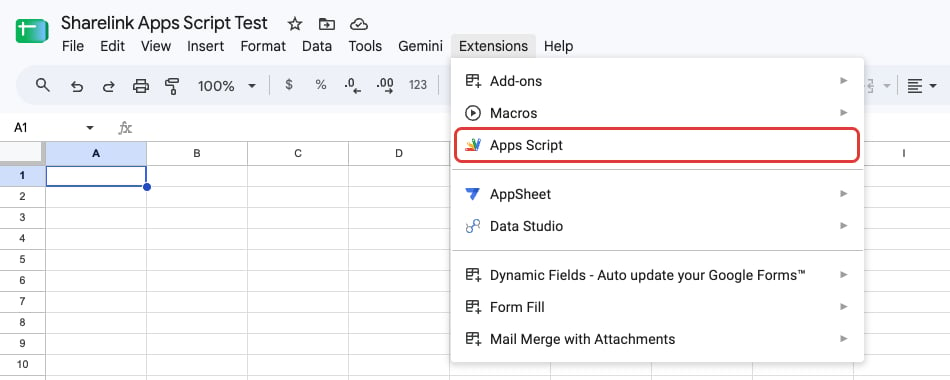
In Google Sheets, go to [Extensions]>[Apps Script], paste the sample script, and enter your Sharelink URL.- In Google Sheets, go to [Extensions]>[Apps Script]. The Apps Script editor opens in a new tab. The add-ons listed under [Apps Script] vary by account.
- Delete all the
function myFunction()code in the Apps Script editor, and then copy and paste the code from Sample script.
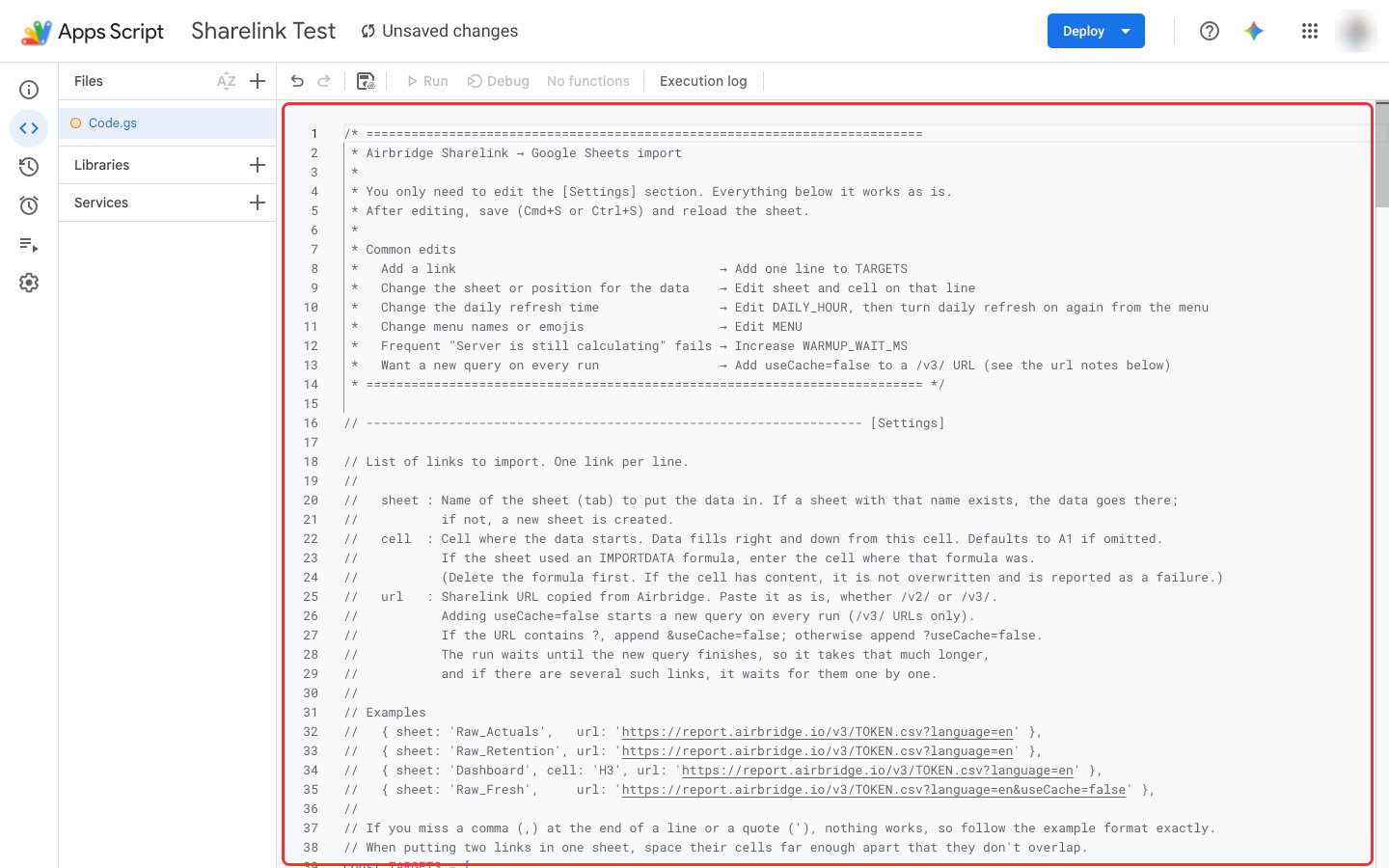
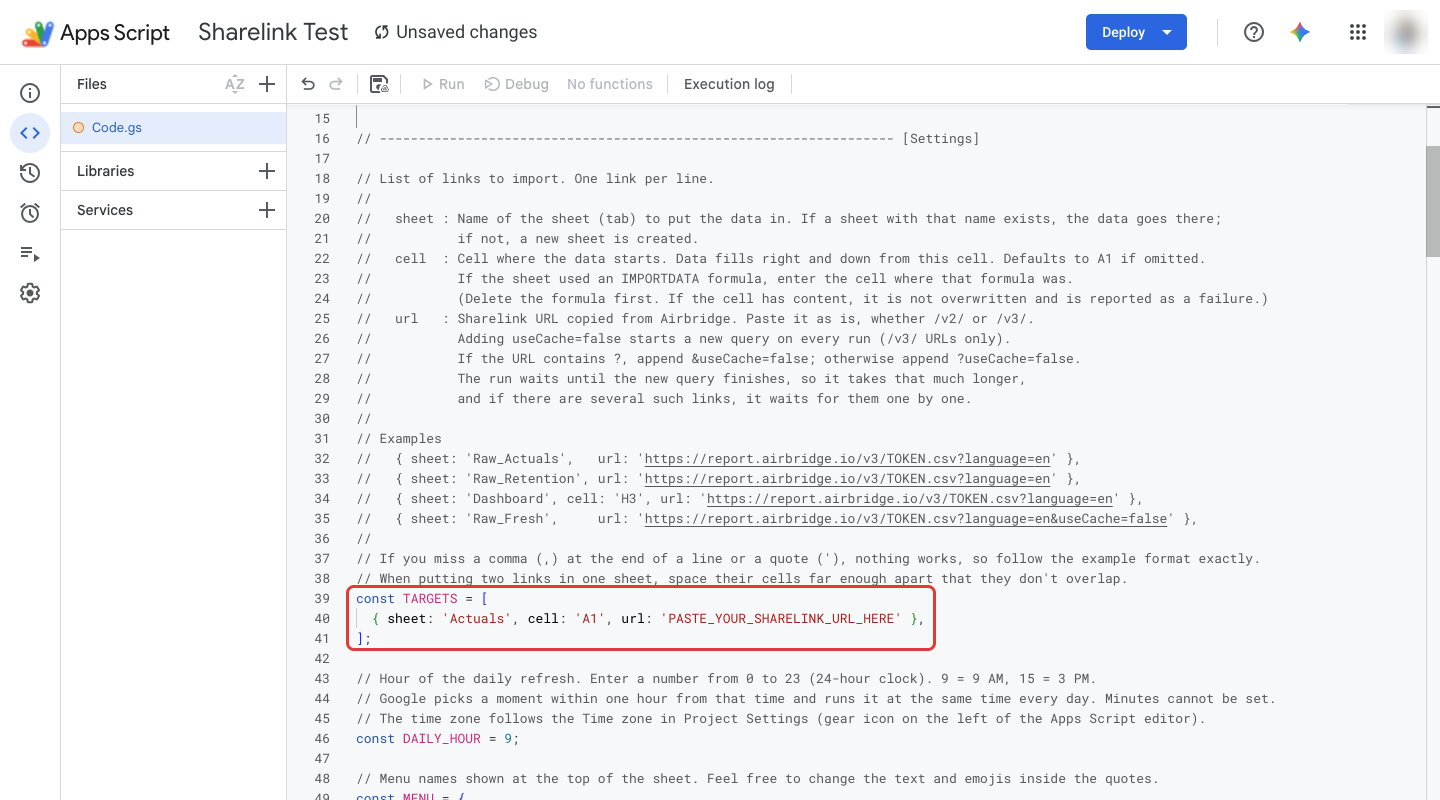
- Paste your Sharelink URL between the quotes of
urlinTARGETS, and enter the name of the sheet for the data insheet. Don’t delete the single quotes (' ') or the comma (,) at the end of the line.
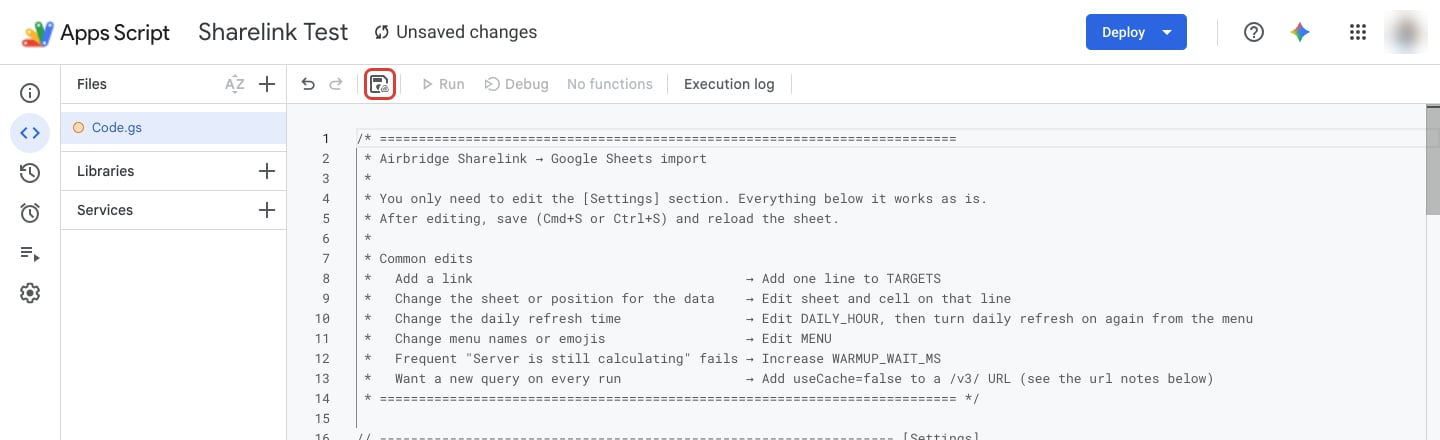
- To save, click the save icon or press Cmd + S on Mac or Ctrl + S on Windows. The script is saved when the status at the top of the editor changes from [Unsaved changes] to [Saved to Drive].
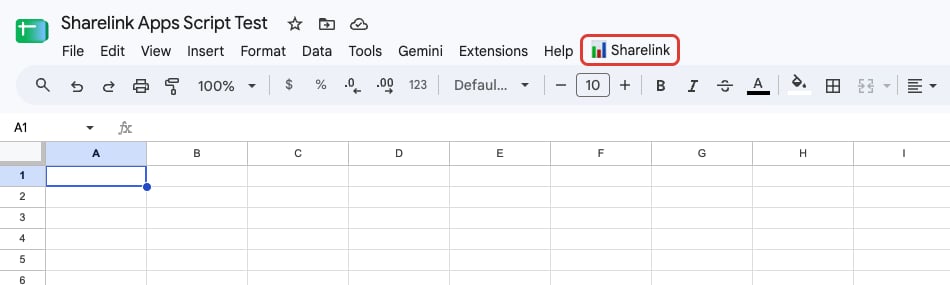
- Return to the spreadsheet tab and reload the page. A few seconds after you reload, [Sharelink] appears to the right of [Help]. You can close the Apps Script editor tab.
Authorize the script and run it for the first time
The first time you run Google Apps Script, you must authorize it with your Google account. You only need to authorize it once.NoteIf you authorize Google Apps Script with a personal Google account, a [Google hasn’t verified this app] warning may appear before the Google permission screen. The warning means that the script you pasted has not gone through Google’s verification process. To continue to the Google permission screen, click Advanced, and then click the link that appears below it.
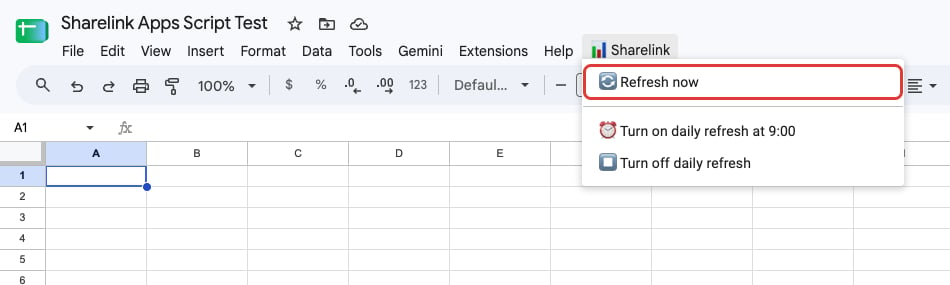
- In Google Sheets, select [Sharelink]>[Refresh now].
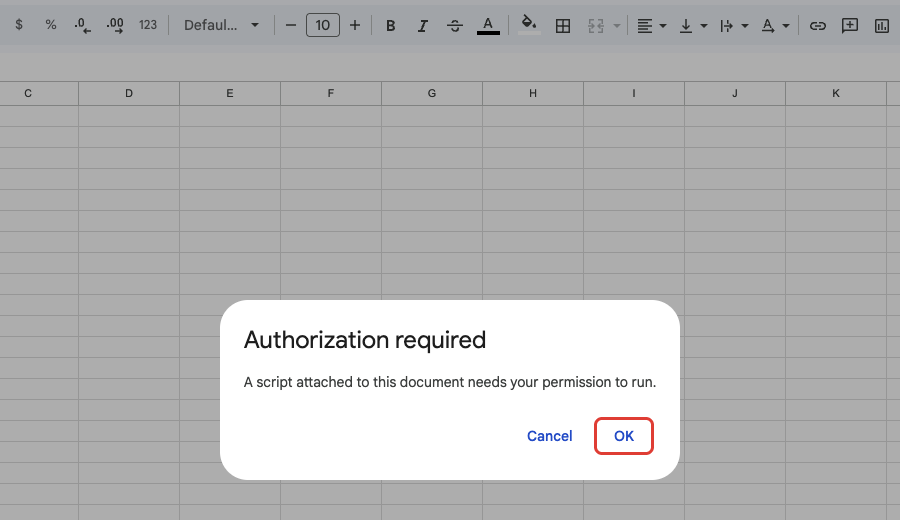
- In the [Authorization required] window, click OK.
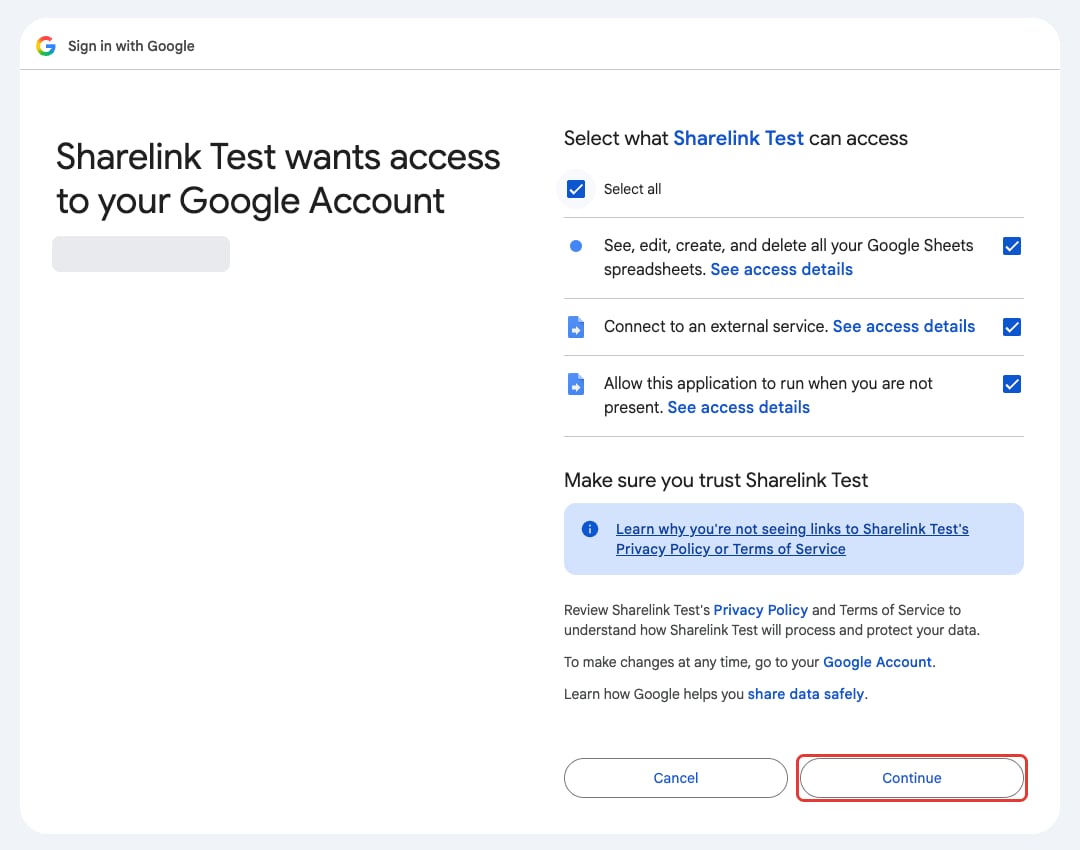
- On the Google permission screen that opens in a new window, select the Select all checkbox, and then click Continue.
- Wait for the Google permission screen to close. The refresh then continues automatically, so you don’t need to select [Refresh now] again.
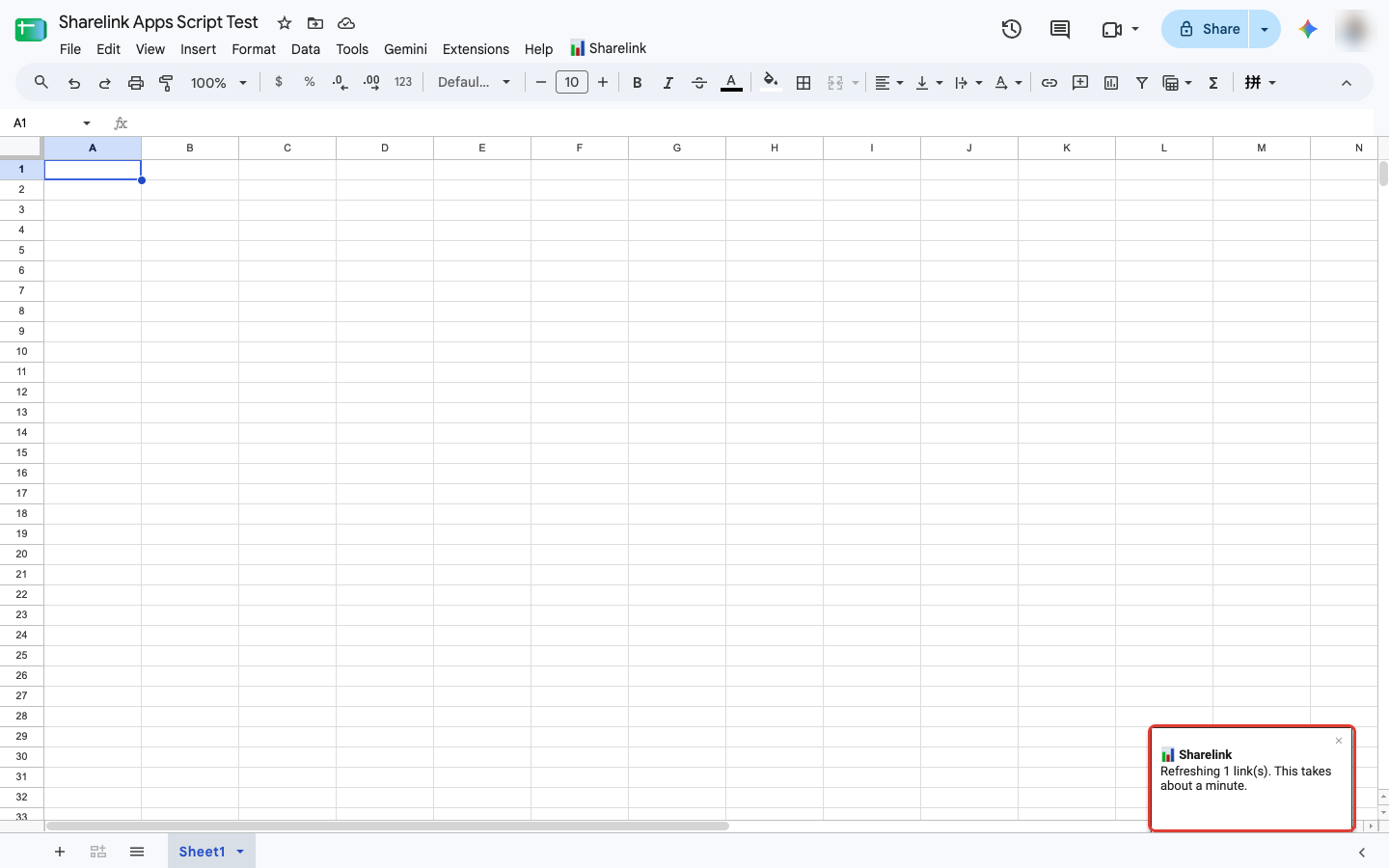
- When
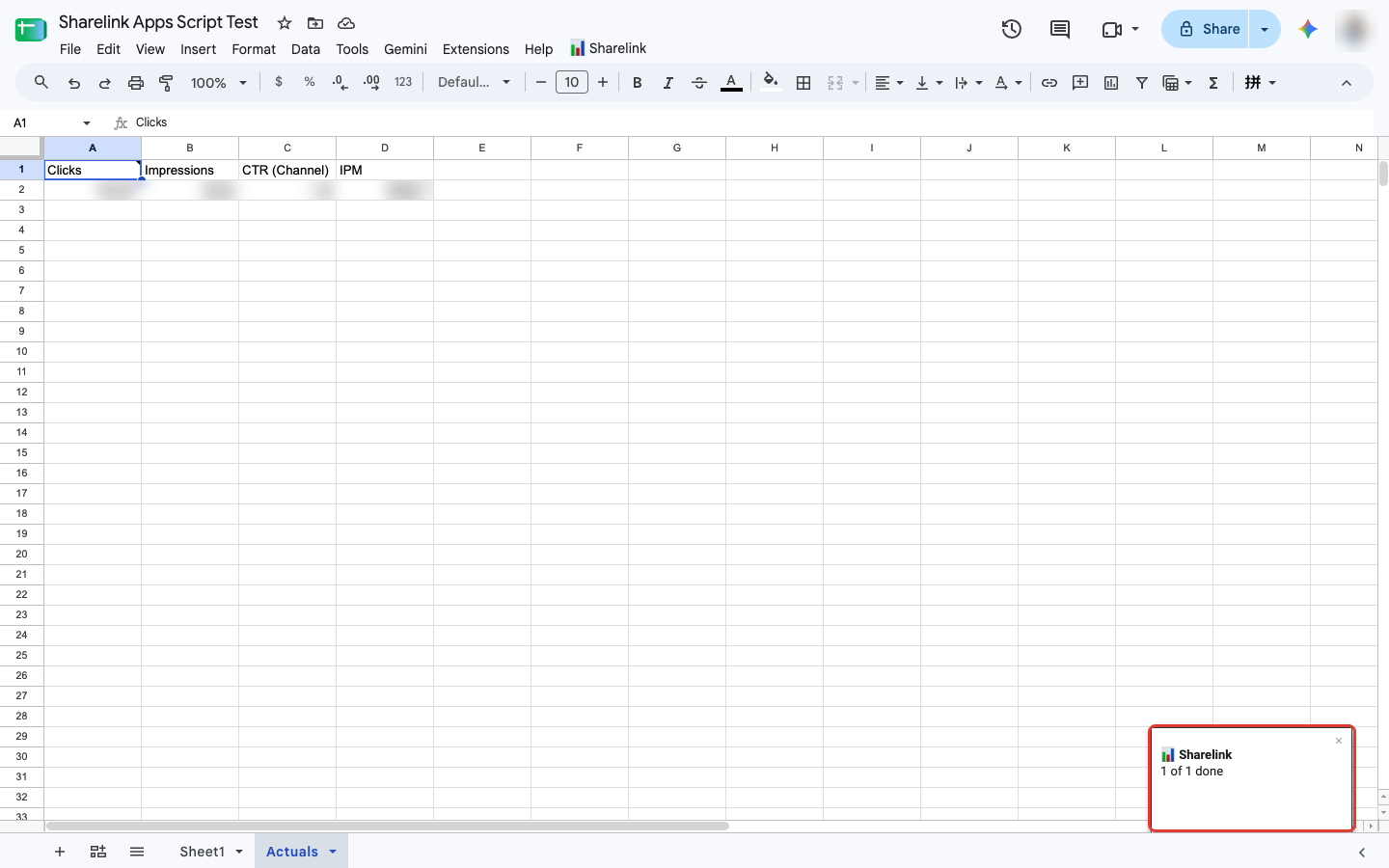
1 of 1 doneappears in the lower-right corner of the screen, check that the data is in the sheet you specified.
Set up a daily automatic refresh
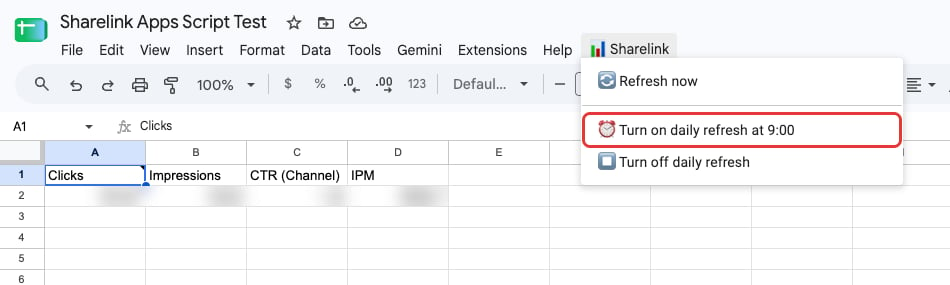
To refresh Sharelink data automatically every day during the hour you set, turn on the daily refresh in [Sharelink]. The default time in the sample script is 9 AM. To change the time, see Change the sample script settings.- In Google Sheets, select [Sharelink]>[Turn on daily refresh at 9:00]. The daily refresh is on when
Refreshes automatically every day around 9:00.appears in the lower-right corner of the screen.
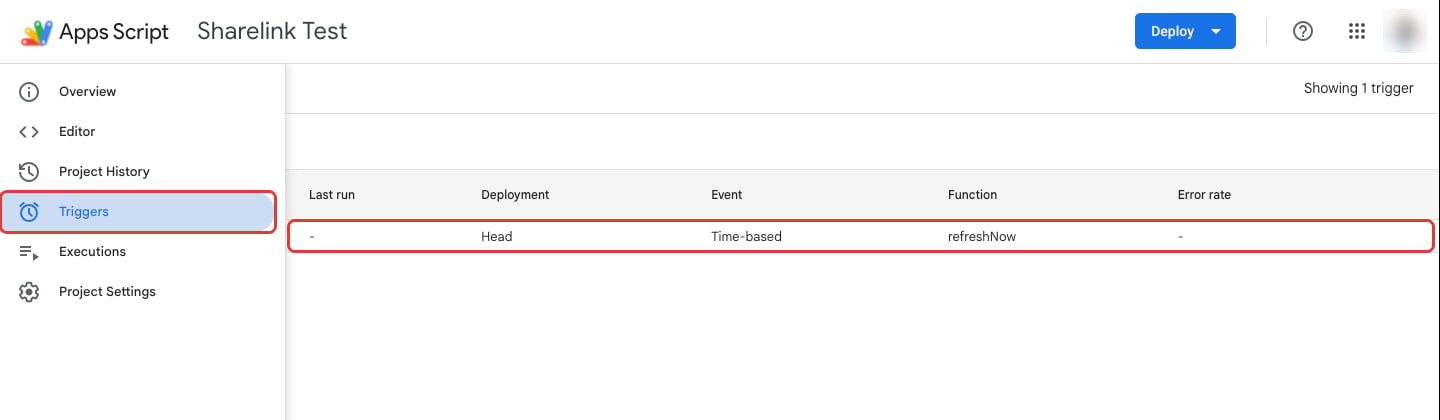
- To check that the daily refresh is registered, click [Triggers] on the left of the Apps Script editor. The daily refresh is registered when one
refreshNowrow appears in the list.
- Hover over the cell where the data starts and check the
Last fetched:note. The time in the note changes each time the daily refresh runs.
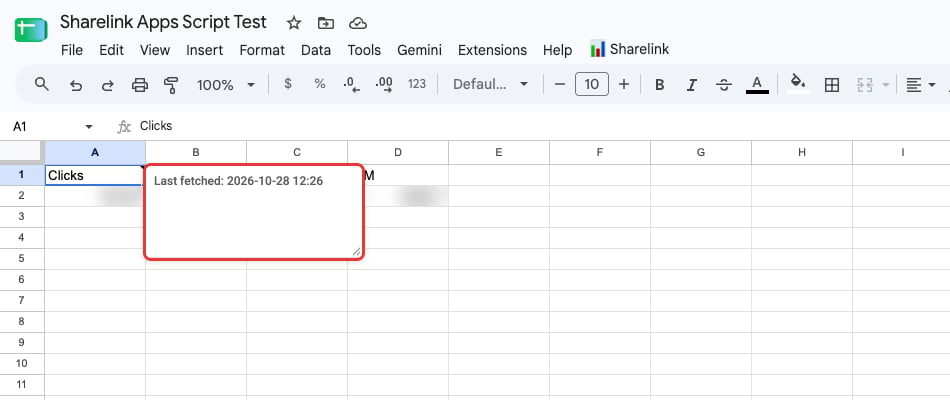
Daily refresh turned off. appears in the lower-right corner of the screen.
Change the sample script settings
Change Google Apps Script settings in the[Settings] section at the top of the sample script. After you edit the values, save the script and reload the spreadsheet.
The following table shows what to edit for each setting.
The daily refresh time follows [Time zone] in [Project Settings] on the left of the Apps Script editor.
Import multiple Sharelinks
To import multiple Sharelinks with Google Apps Script, enter one Sharelink per line inTARGETS. The following example imports three Sharelinks.
- If
sheetmatches an existing sheet name, the data goes into that sheet. Otherwise, the script creates a new sheet. cellis the cell where the data starts. If you omitcell, the data starts at A1.- If the sheet used the
IMPORTDATAfunction, delete the function first. Then, incell, enter the cell where the function was. - To put two Sharelinks in one sheet, set
cellfor the second Sharelink below the last row or to the right of the last column of the first Sharelink’s data.
Start a new query on every run
If the same report was queried in the Airbridge dashboard or through a Sharelink within the last 3 hours, the Sharelink returns the report data from that query instead of starting a new one. Otherwise, the Sharelink starts a new query, and the sample script waits for the query to finish before it imports the new report data. To start a new query every time Google Apps Script runs, adduseCache=false to the end of the Sharelink URL in url of TARGETS. If the URL already contains a question mark (?), add &useCache=false. Otherwise, add ?useCache=false. useCache=false works only with /v3/ URLs.
useCache=false can make each run take longer. If the query doesn’t finish within about 1 minute, the sample script requests the URL again without useCache=false. If the query has finished by then, the script imports the newly queried report data. If not, it imports report data queried within the last 3 hours. For details, see Limitations.
Change the URL in an existing script to /v3/
When you change /v2/, /funnel/, /retention/, or /revenue/ to /v3/ in the URL of a Google Apps Script you already use, add useCache=false to the end of the URL. If no report data was queried within the last 3 hours, a /v3/ URL starts a new query and immediately returns a notice instead of data. With useCache=false, the Sharelink waits until the query finishes and then returns the report data. The Airbridge sample script handles /v3/ URLs without useCache=false, so you can use it as is.
Sample script
The following is the full sample script to paste into the Apps Script editor. Edit only the[Settings] section. The code below it works as is.
Sample script
Sample script
Limitations
Review the following limits before you rely on Google Apps Script to import Sharelink data.AttentionThe sample script doesn’t overwrite content it didn’t write. If the target cells contain other content, such as an
IMPORTDATA function or values you entered, the script fails and shows the address of that cell, for example B5 has other content; not overwritten. Clear those cells or change cell to an empty cell, and then run the script again.- The daily refresh runs under the Google account of the person who selected [Sharelink]>[Turn on daily refresh at N:00]. If that person loses edit access to the spreadsheet, the daily refresh stops.
- Copying the spreadsheet doesn’t copy the daily refresh setting. Turn on the daily refresh again in the copy.
- If a daily refresh fails, no failure message appears. Check that the date in the
Last fetched:note on the cell where the data starts is today. - A Sharelink with
useCache=falsewaits until the new query finishes, so a run can take a long time. If several Sharelinks haveuseCache=false, the script waits for them one by one. - If the query for a Sharelink with
useCache=falsedoesn’t finish within about 1 minute and no report data was queried within the last 3 hours, the failure message showsServer is still calculating.