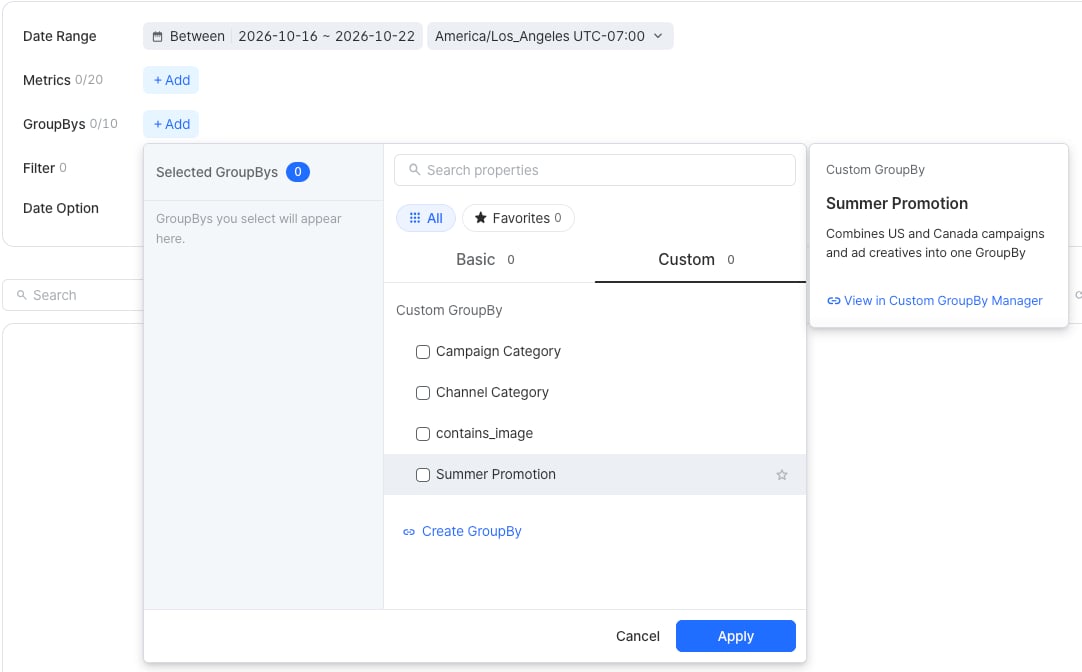
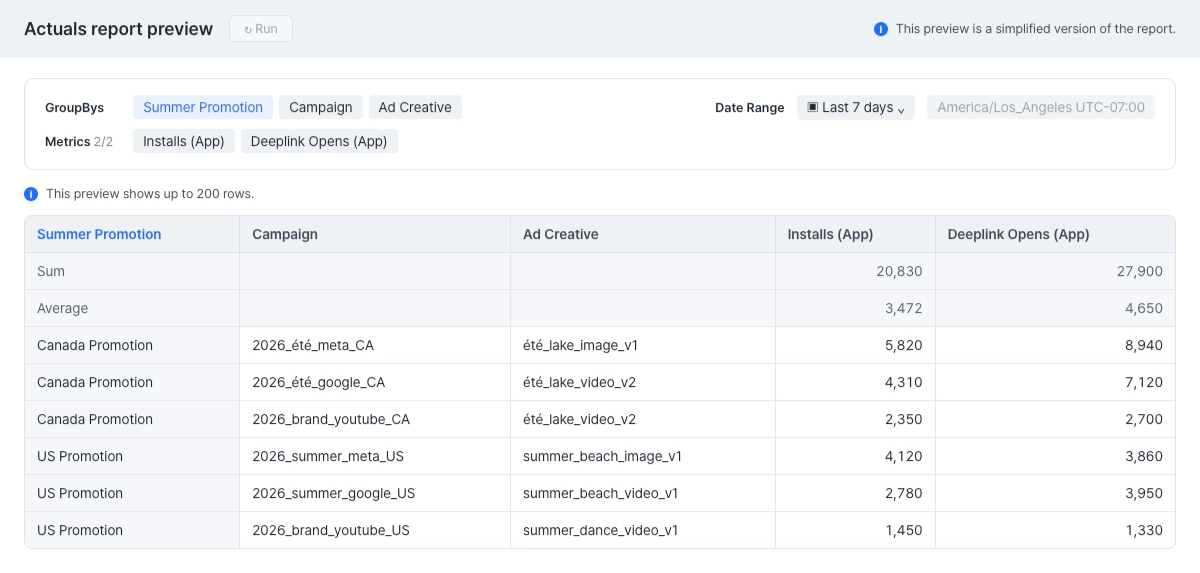
summer or été. With basic GroupBys alone, you need to view Campaign and Ad Creative separately with a summer filter and an été filter, download the results, and combine them. Instead, create a Summer Promotion custom GroupBy that groups every campaign and ad creative whose name contains summer or été, and view the whole promotion with that one GroupBy.
Note
- Custom GroupBys are shared across your organization and available in all of its apps. However, Owners and In-house Marketers cannot see custom GroupBys created by agencies, and each agency sees only its own.
- Custom GroupBys are available in the Actuals report, the Trend report, and the Overview dashboard.
Create custom GroupBys
To create a custom GroupBy, set rules that classify basic GroupBy values into custom GroupBy values. As you go through each step, you can check the results in the preview.Check the results in the Actuals report preview
- To run the preview, complete the custom GroupBy value you’re editing.
- The preview shows only basic GroupBy values that match a custom GroupBy value. Unmatched values aren’t displayed.
Enter details
- In the Airbridge dashboard, go to [Management]>[Custom GroupBy Manager] and click Create GroupBy.
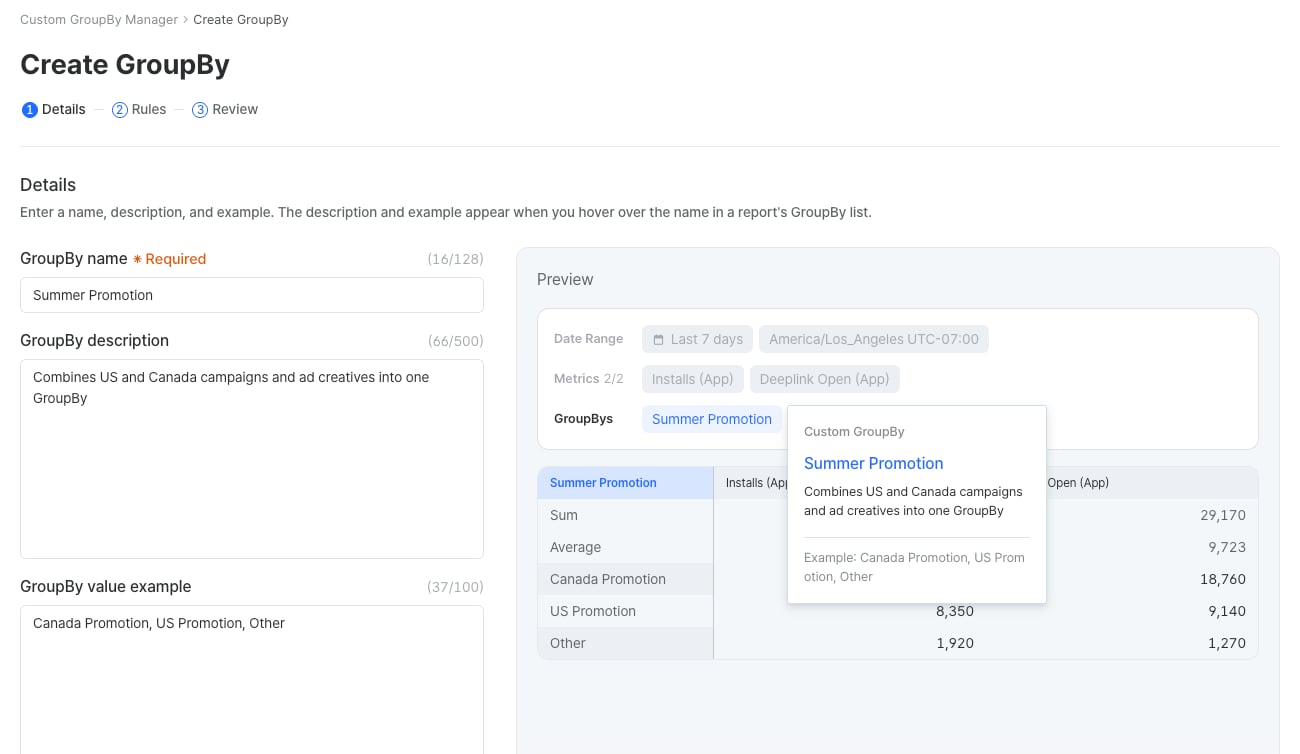
- Enter a name for the GroupBy. The name must be unique and can be up to 128 characters.
- Optionally, enter a description of up to 500 characters and an example of up to 100 characters.
- Click Next.
Set rules
- Name the custom GroupBy value as you want it to appear in reports, using up to 50 characters. Values are the items within a GroupBy, such as
facebook.business,tiktok, andironsourcein the Channel GroupBy.
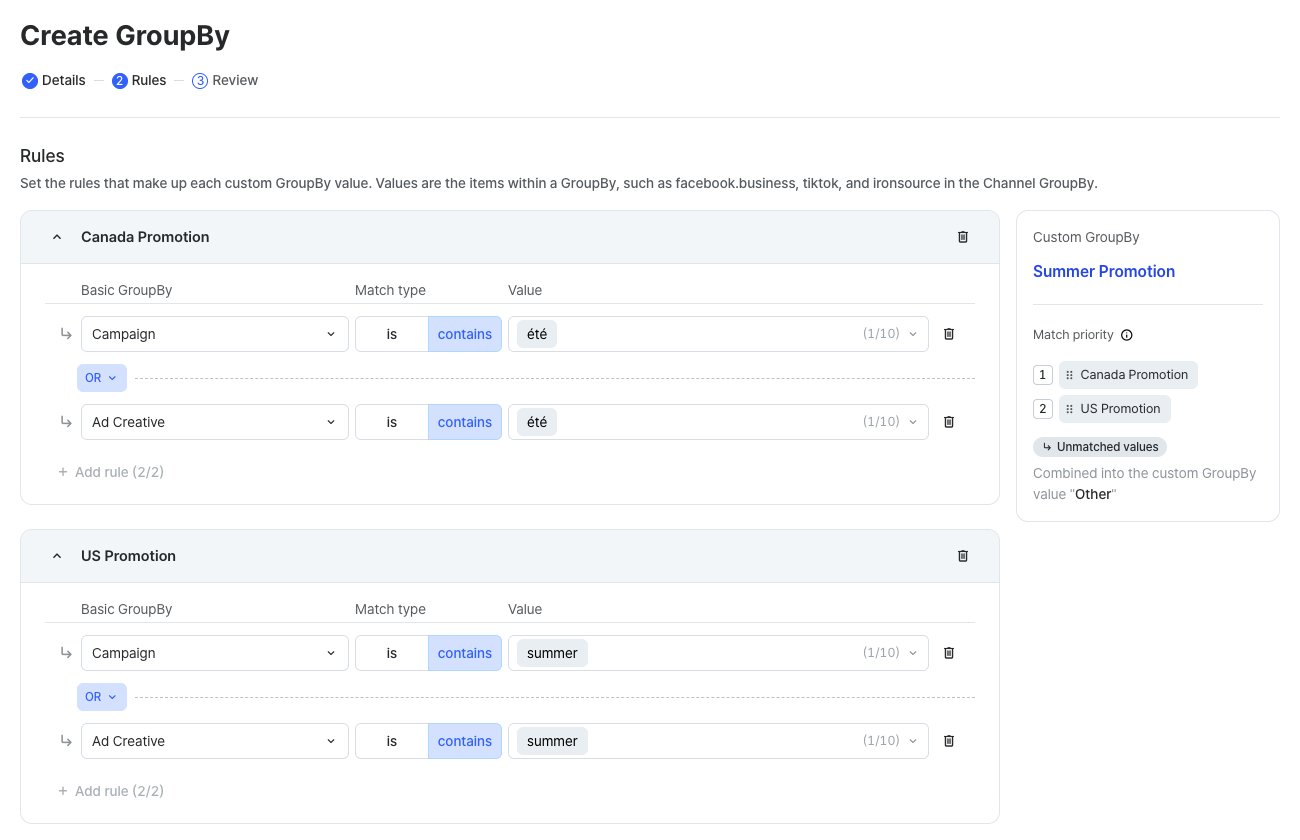
- Set a rule for the custom GroupBy value by selecting a basic GroupBy, a match type, and values.
Basic GroupBys
Basic GroupBys
Basic GroupBys are the GroupBys available in the Actuals report. You cannot select an existing custom GroupBy as a basic GroupBy. A custom GroupBy can use up to two basic GroupBys. Once you select two, the other custom GroupBy values can use only those two.
Match types
Match types
There are two match types, is and contains.
- Both match types are case-sensitive and treat spaces and commas as part of the value.
- If a rule has multiple values or keywords, matching any one of them satisfies the rule.
Match priority
Match priority
The same value can appear in the rules of multiple custom GroupBy values. When a basic GroupBy value matches more than one, it’s classified only as the one with the highest priority. For example, if the custom GroupBy value
Canada Promotion is above US Promotion, the campaign summer_été_sale, whose name contains both été and summer, is classified as Canada Promotion. To change the priority of custom GroupBy values, drag them in [Match priority] on the right.A custom GroupBy value doesn’t appear in reports if all of its matching values are already classified as higher-priority custom GroupBy values.- Select how to show basic GroupBy values that don’t match any custom GroupBy value.
When Keep original values isn’t available
- Any custom GroupBy value has two rules
- The custom GroupBy uses two basic GroupBys, even if each custom GroupBy value uses a different one
- To add a rule, click Add rule and select AND or OR. Each custom GroupBy value can have up to two rules.
AND and OR
AND and OR
When a custom GroupBy value has two rules, AND or OR combines them. Neither rule takes priority over the other.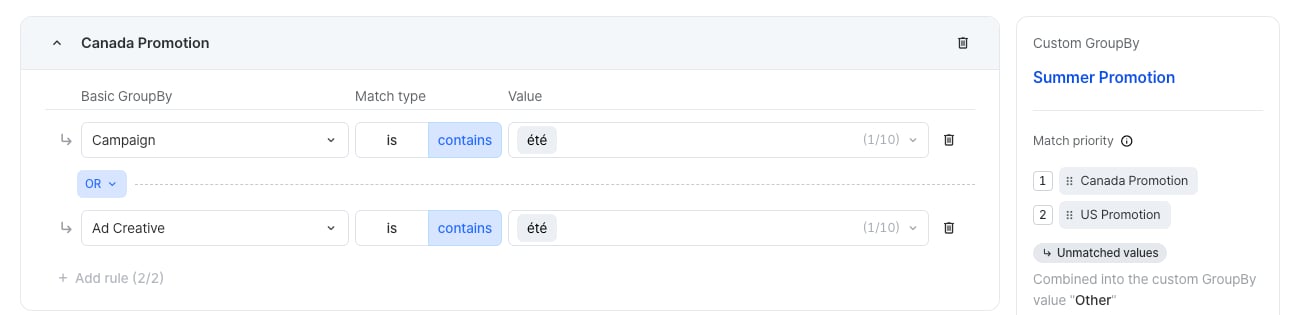
- To add more custom GroupBy values, click Add custom GroupBy value and repeat from step 1. A custom GroupBy can have up to 12 custom GroupBy values.
Review the custom GroupBy
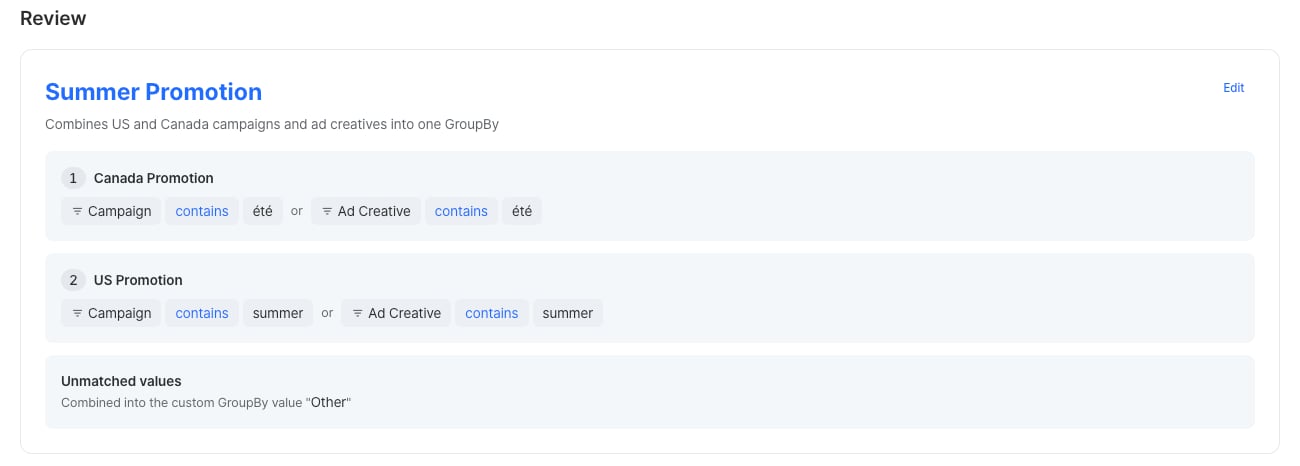
- In [Review], check the GroupBy name, description, custom GroupBy values and rules, and unmatched values. To make changes, click Edit on the item to return to its step.
- To view the results with the custom GroupBy applied, click Run.
- Click Save.
Manage custom GroupBys
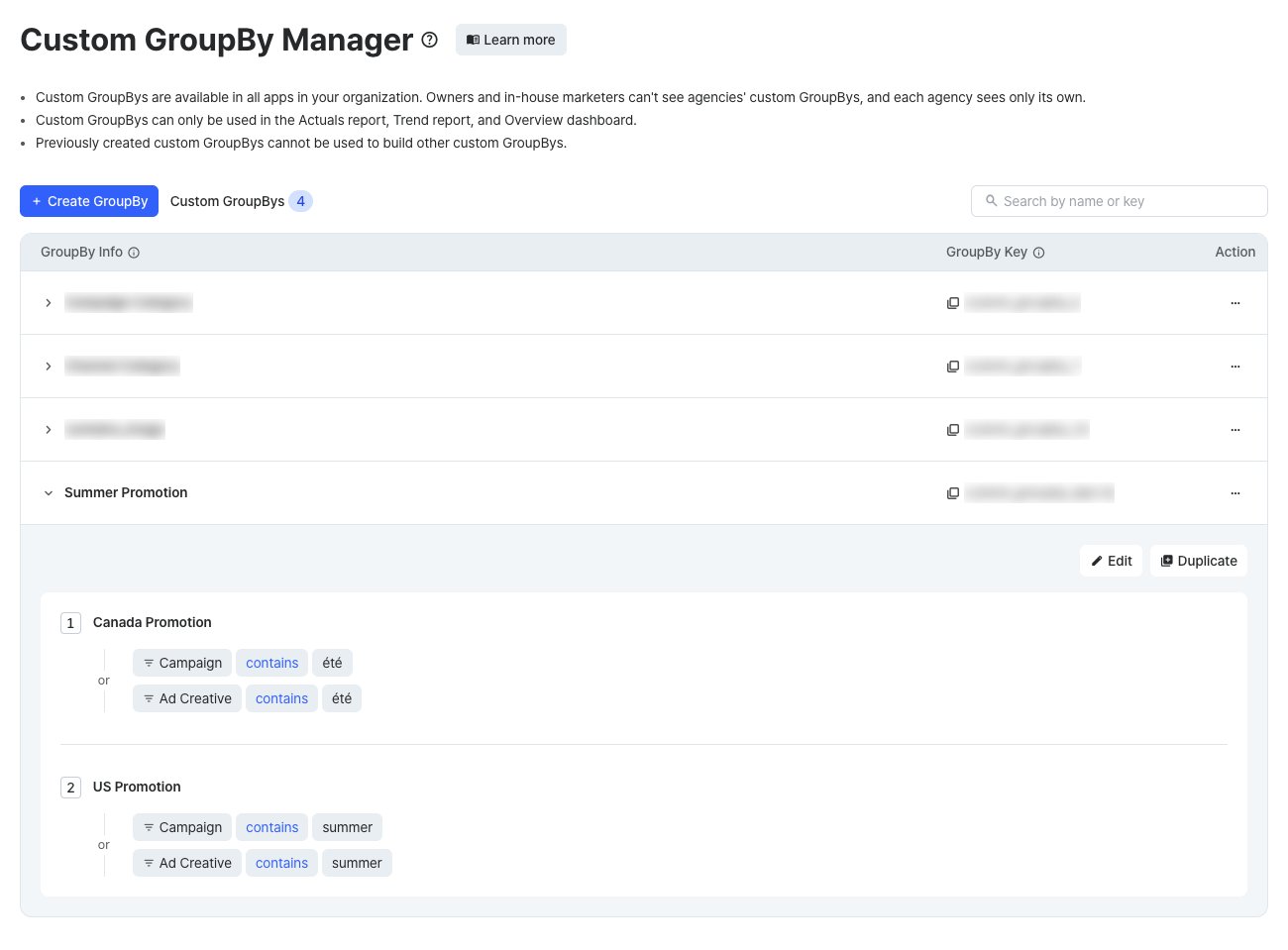
In the Airbridge dashboard, go to [Management]>[Custom GroupBy Manager] to view and manage custom GroupBys. Search the list by custom GroupBy name or key. The custom GroupBy list has the following columns:AttentionDeleted custom GroupBys cannot be restored. Saved reports that used a deleted custom GroupBy can no longer use it.
Use custom GroupBys in reports
Use your saved custom GroupBys in the Actuals report, the Trend report, and the Overview dashboard. In the Airbridge dashboard, find them in the following locations: