
Abnormal Installs Analysis
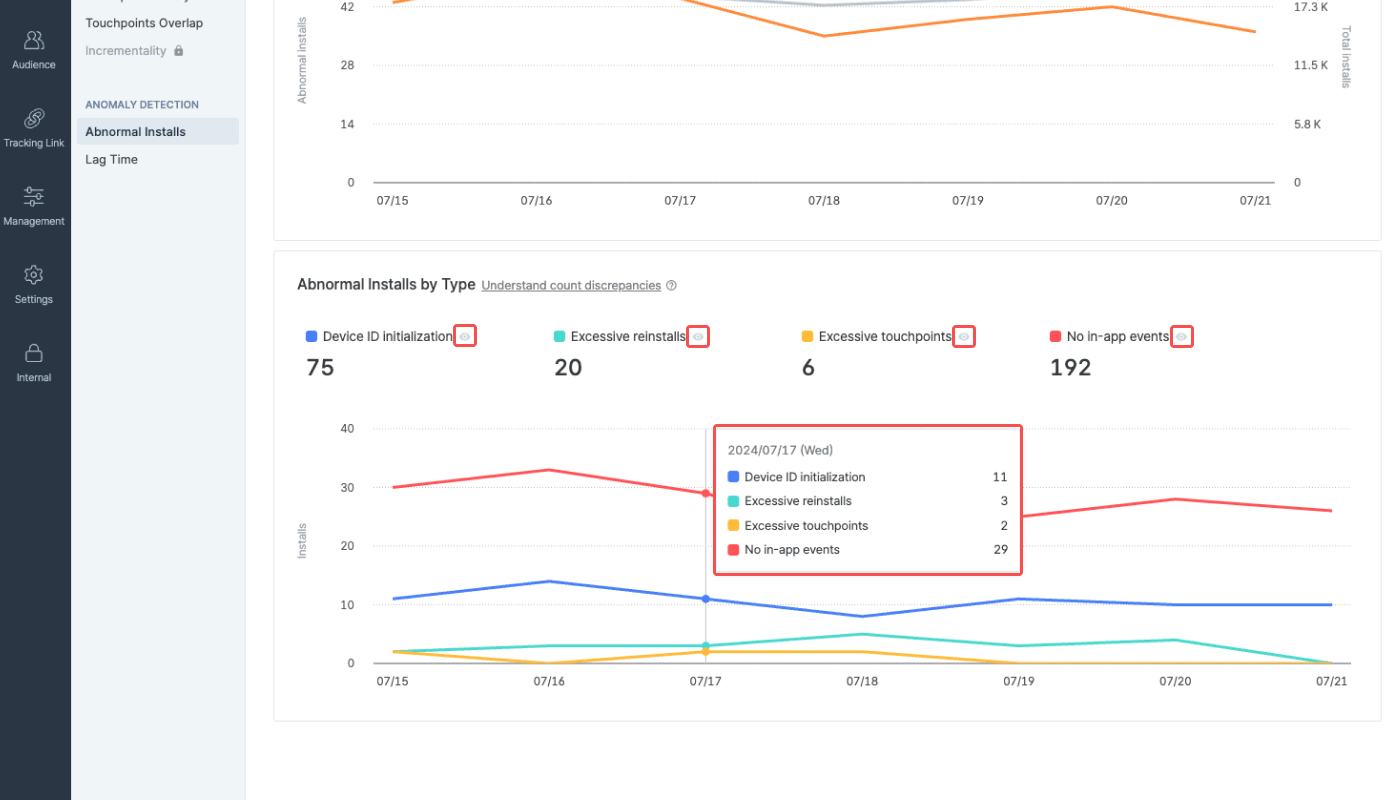
The Abnormal Installs Report shows the daily number and percentage of abnormal installs in relation to the total number of installs. You can also view abnormal installs by type. You can download the raw data of abnormal install events as a CSV file for further analysis. The Abnormal Installs Report can help you make informed decisions about handling abnormal installs in the ad performance measurement process and configuring the fraud validation rules.How it works
AttentionOnly Owners and In-house Marketers can access the Abnormal Installs Report. Refer to this article to learn about app roles.
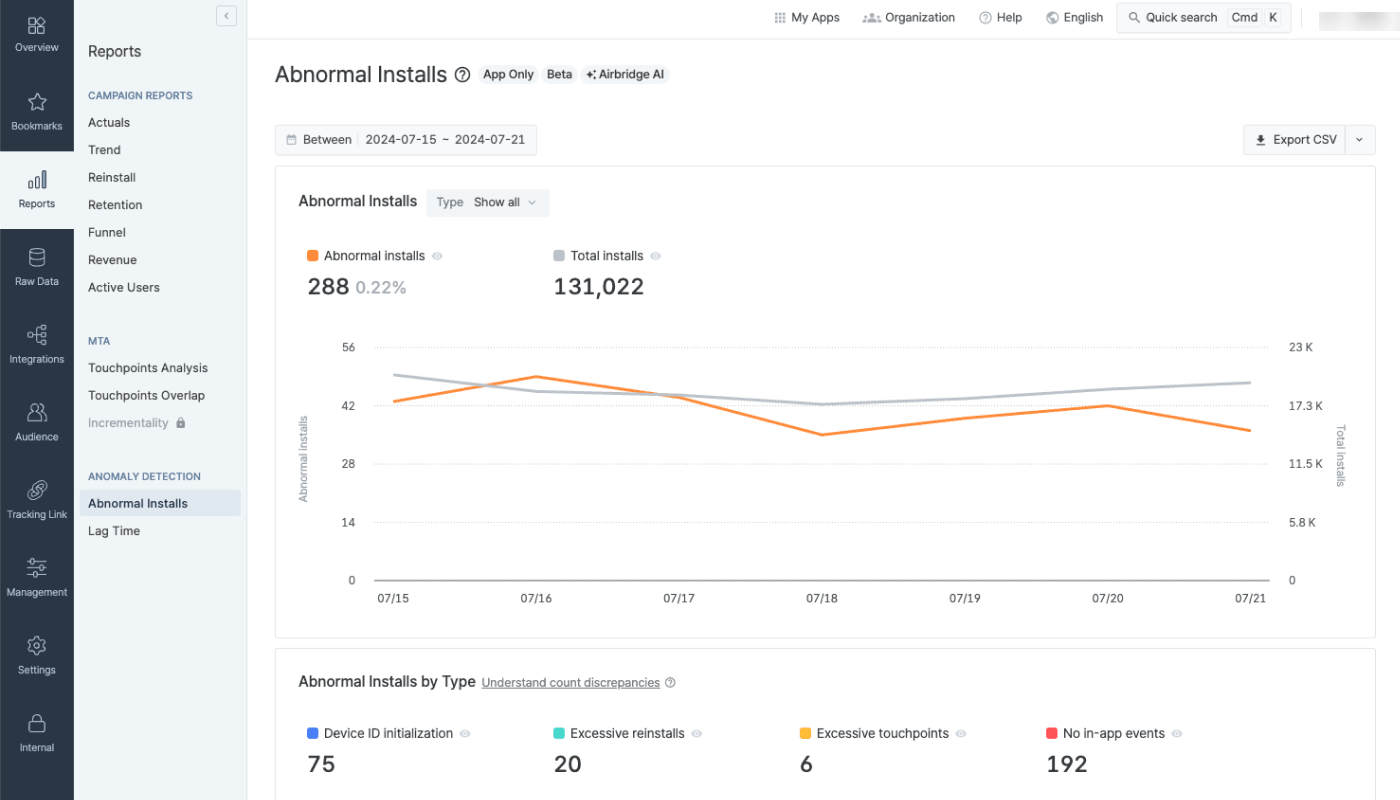
- The date range can be selected from 2 days (D-2) to 94 days (D-94) prior to today. Data is available from May 1, 2024 onwards.
- The chart shows daily data.
Requirements
For the AI Assistant to function, the following requirements must be met. The AI Assistant can readily perform the analysis for newly registered Airbridge Apps as well if only the data requirements are met. Only data from Integrated Channels are used.- At least 30 days’ worth of Install (App) event data is required, and the Install (App) event must have been collected at least once daily.
- The data does not need to be continuous. For example, if the campaign ran from 2024-09-01 to 2024-09-17 and from 2024-10-15 to 2024-10-30, the data is still viable for analysis.
Understanding the Abnormal Installs Report
AttentionThe Abnormal Installs Report is intended solely for reporting the install events that the AI Assistant has identified as abnormal. How to handle the abnormal installs reported by the AI Assistant is up to the Airbridge users to decide. Refer to this section of the article to learn more.
Types of abnormal installs
Types of abnormal installs
The types of abnormal installs have been defined based on the results of the abnormal install analysis.
Chart
The Abnormal Installs Report provides data in line charts. Understand the context of abnormal installs by comparing their number to the total installs and exploring the breakdown of abnormal installs by type.Abnormal installs trend chart
The first chart visualizes the number of total installs and abnormal installs that occurred during the set date range. Click the [Types] selector, check the abnormal install types you want to visualize in the chart and click Apply.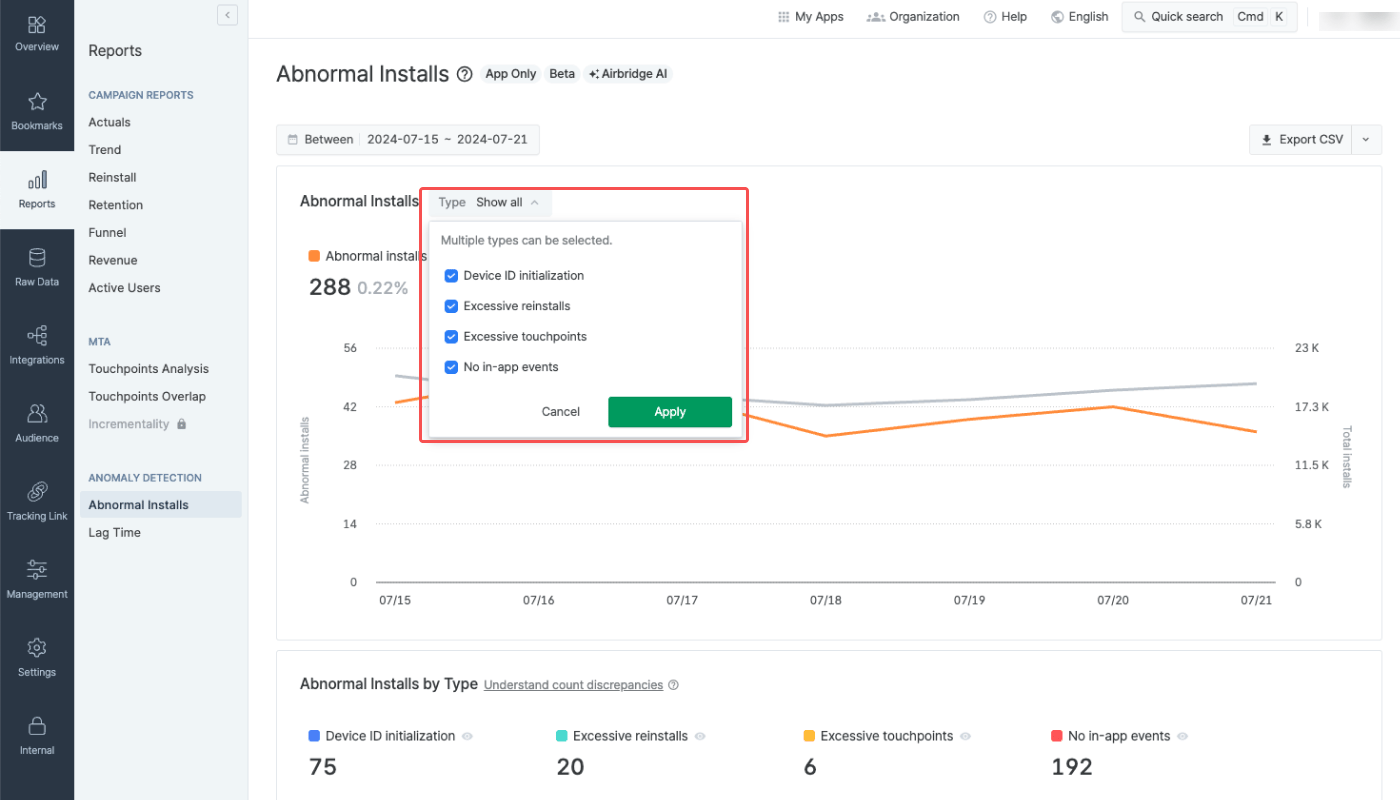
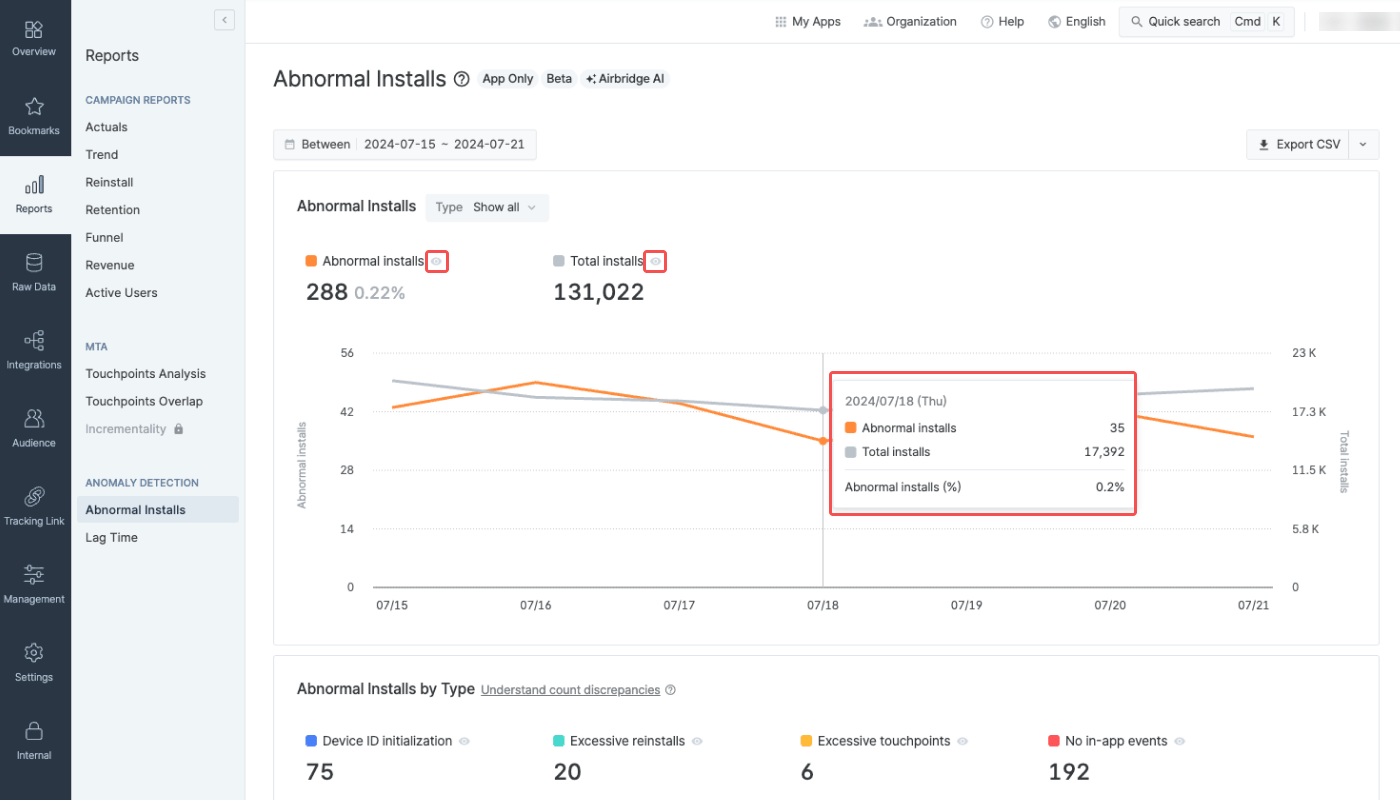
Abnormal installs by type chart
AttentionAbnormal installs can overlap across multiple types. This means that the sum of abnormal install counts by type may exceed the total number of abnormal installs.
Raw data
Click Export CSV to download the raw data as a CSV file and view the result in detail.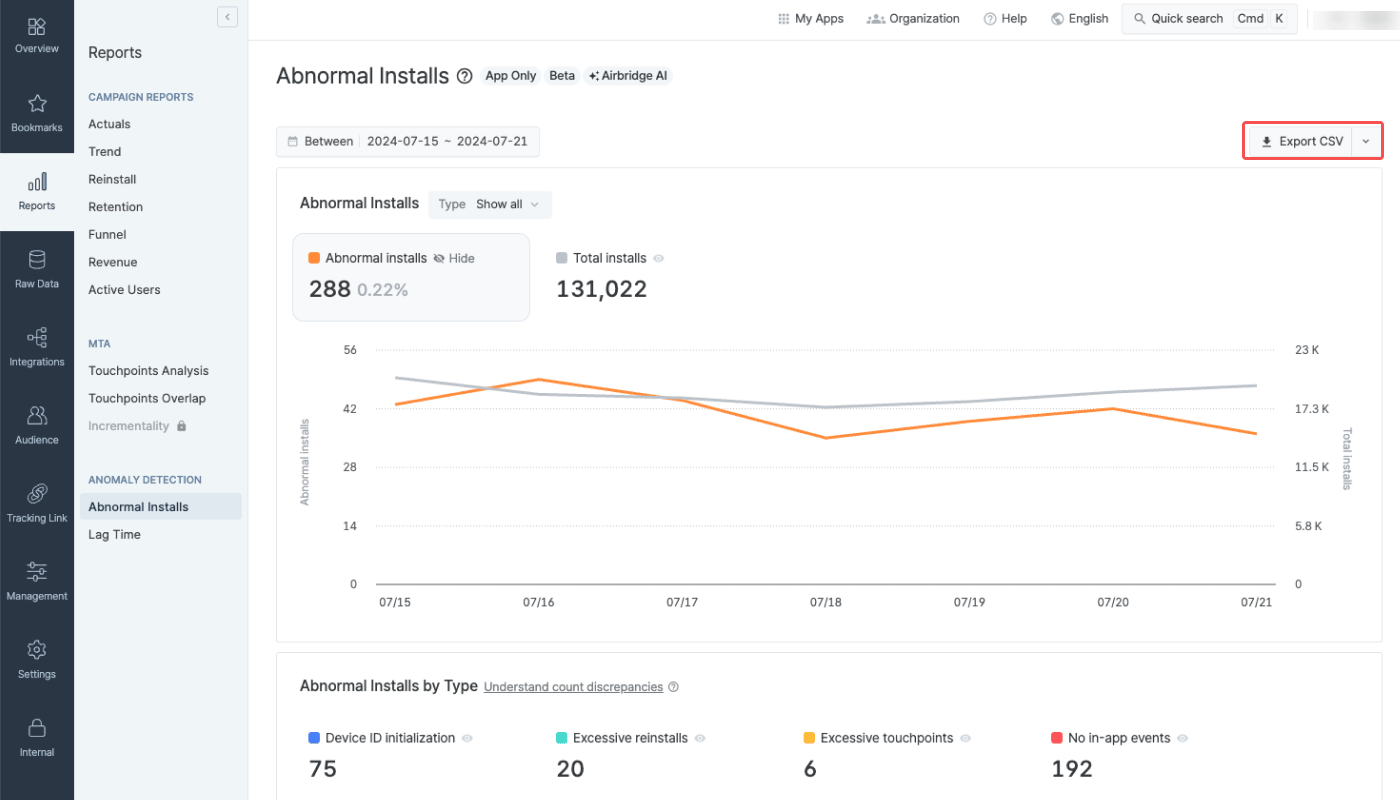
TRUE indicates the type of the abnormal install. FALSE indicates the type is non-relevant to the install.
You can also check the ad channel from which the abnormal install occurred. The CSV file contains details such as the device ID, OS name and version, country, and IP address. Using such data can help you identify the common factors of abnormal installs and create fraud validation rules to flag ad fraud within Airbridge.
Attention
Insights and actions that can be driven by the Abnormal Installs Report
Insights and actions that can be driven by the Abnormal Installs Report
The Abnormal Installs Report is intended solely for reporting the install events that the AI Assistant has identified as abnormal. It is designed to provide data to help you determine whether to exclude the reported abnormal installs from the overall measurement process.To ensure more accurate ad performance measurement, you can configure the fraud validation rules based on the abnormal install analysis results.
Timezone
Timezone
The Abnormal Installs Report aggregates the installs based on the Airbridge App timezone set when registering the app with Airbridge. Therefore, there may be discrepancies between the number of installs in some Airbridge reports where the timezone is configurable and is set to a different timezone that the Airbridge App timezone and the number of installs in the Abnormal Installs Report. The Airbridge App timezone can be found on the [Settings]>[App Settings] page in the Airbridge dashboard.