

Deprecated SDKThis SDK has been deprecated. Migrate to the latest version, Flutter SDK v4.Starting October 1, 2026, we will fix only critical issues that could cause your app to be rejected in app store review, and on October 1, 2028, all support will end.
Install SDK
Install package
pubspec setup
Add the following dependency under thedependencies block in your pubspec.yaml file.
Terminal at the top level of the project and run the following command.
The Airbridge Flutter SDK is only supported by Flutter v.1.20.0+ and Dart v.2.12.0+.
Shell
Set up project
Add an SDK configuration file
- Add the following code under the
flutter/assetsblock in yourpubspec.yamlfile.
- Create an
assets/airbridge.jsonfile at the top of the project.
For iOS
Add the following code to theios/[Project Name]/AppDelegate.m file.
For Android
If the Android module Application Class is not defined in the project, create an Application class. Add theAirbridgeFlutter.init code in the Application class, like in the example below.
AndroidManifest.xml file in the Andoird module of the project like in the example below.
Settings for both iOS and Android
airbridge.json
- Add the
airbridge.jsonfile to the project folder. - Add the configuration values in JSON format.
AttentionThe default value of the
trackingAuthorizeTimeoutSeconds in the above code is 30s. Adjust accordingly depending on your ATT prompt settings to optimize the user experience. Refer to the Tracking Authorize Timeout section for more details.SDK testing
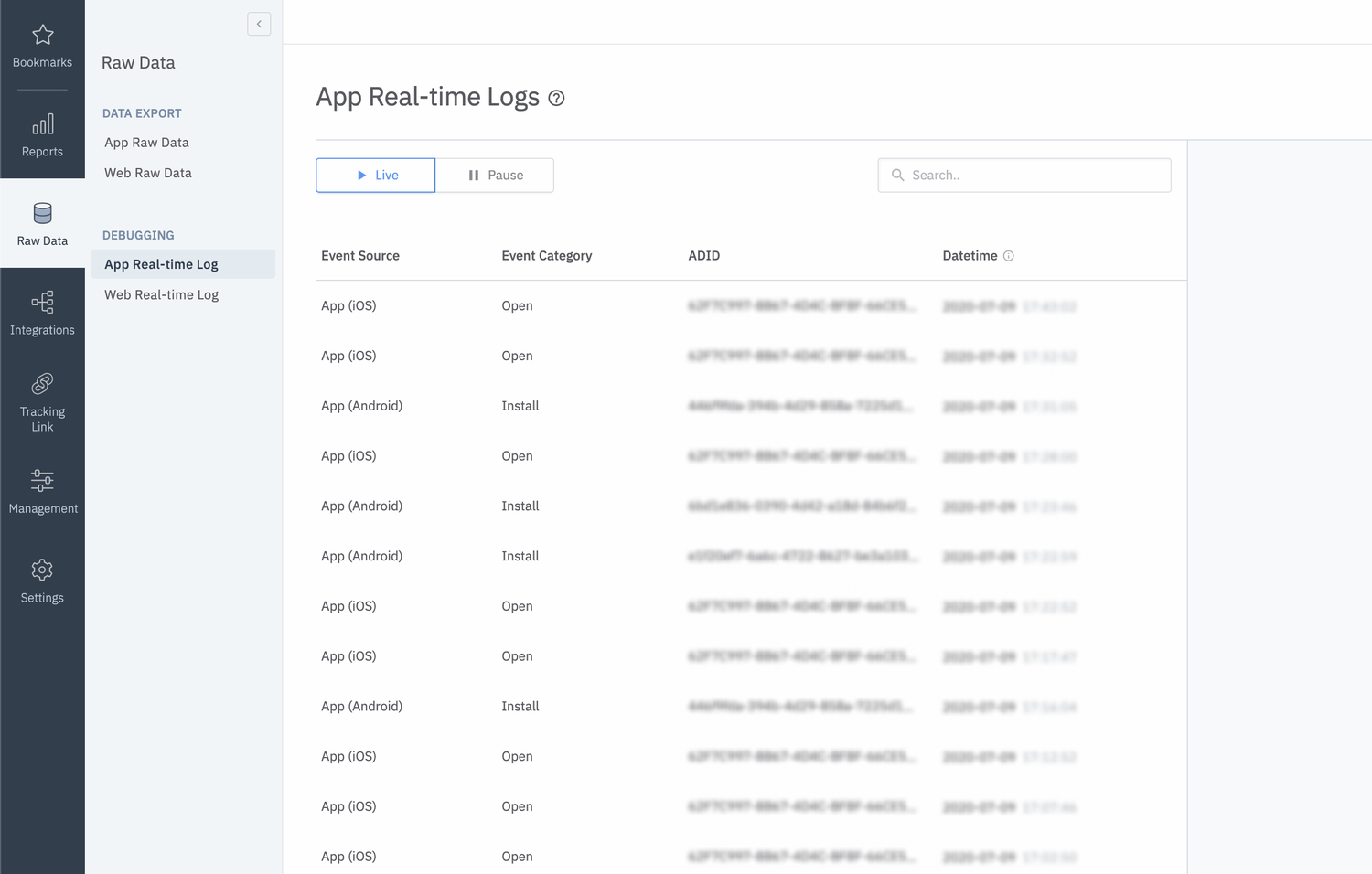
Check if install events are sent when the application is installed and opened.Using the Airbridge dashboard
- Install and open the app on a test device.
- Navigate to [Raw Data]>[App Real-time Logs] in the Airbridge dashboard.
- Enter the ADID (IDFA, IDFA, or GAID) of the test device into the search bar to find it in the logs.
AttentionLogs may be delayed for up to 5 minutes.
Deep Linking
Set up dashboard
Refer to the guides below for the deep link settings in the Airbridge dashboard.Set up project
iOS deep link setup
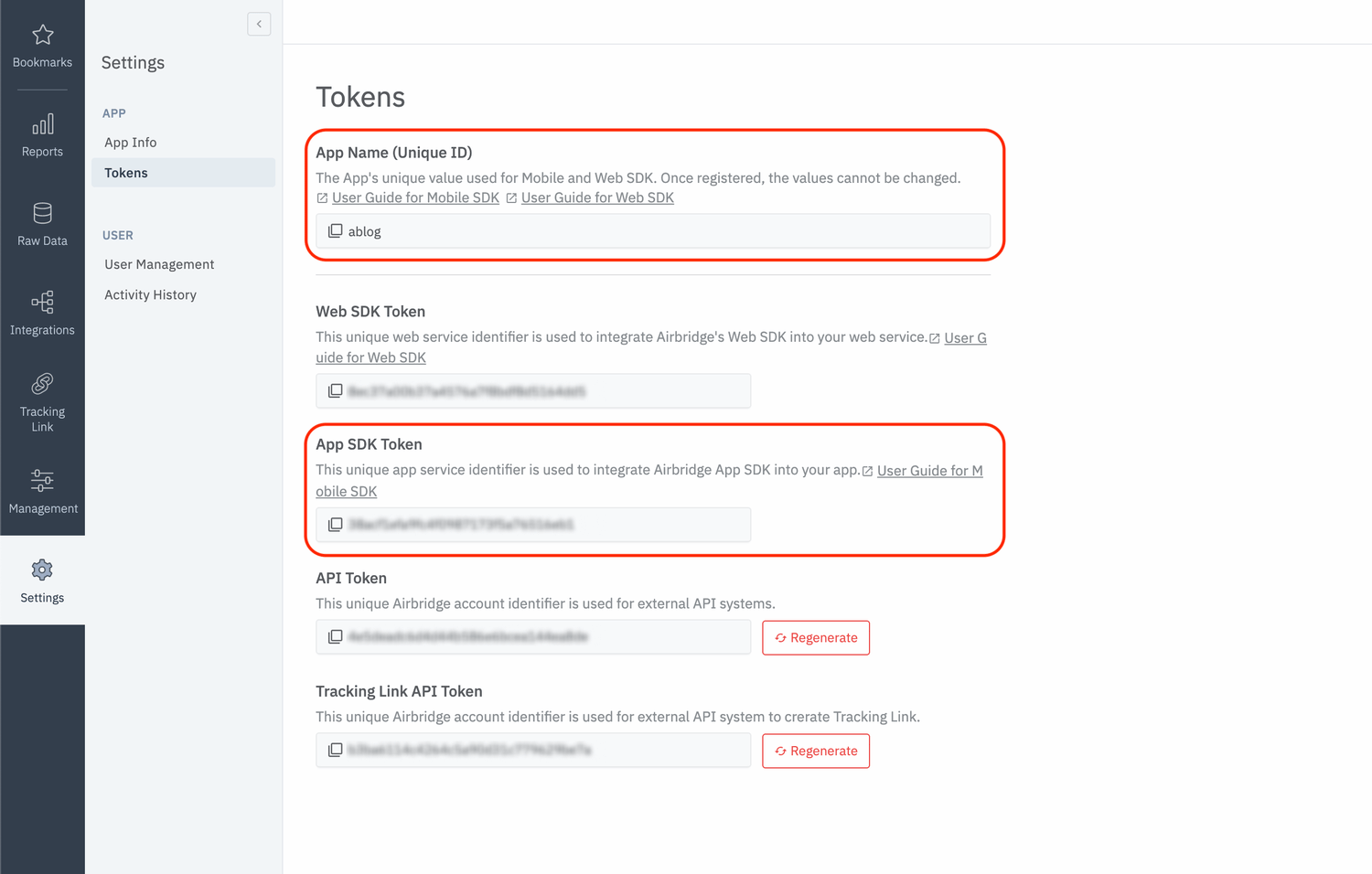
Adding URL Scheme
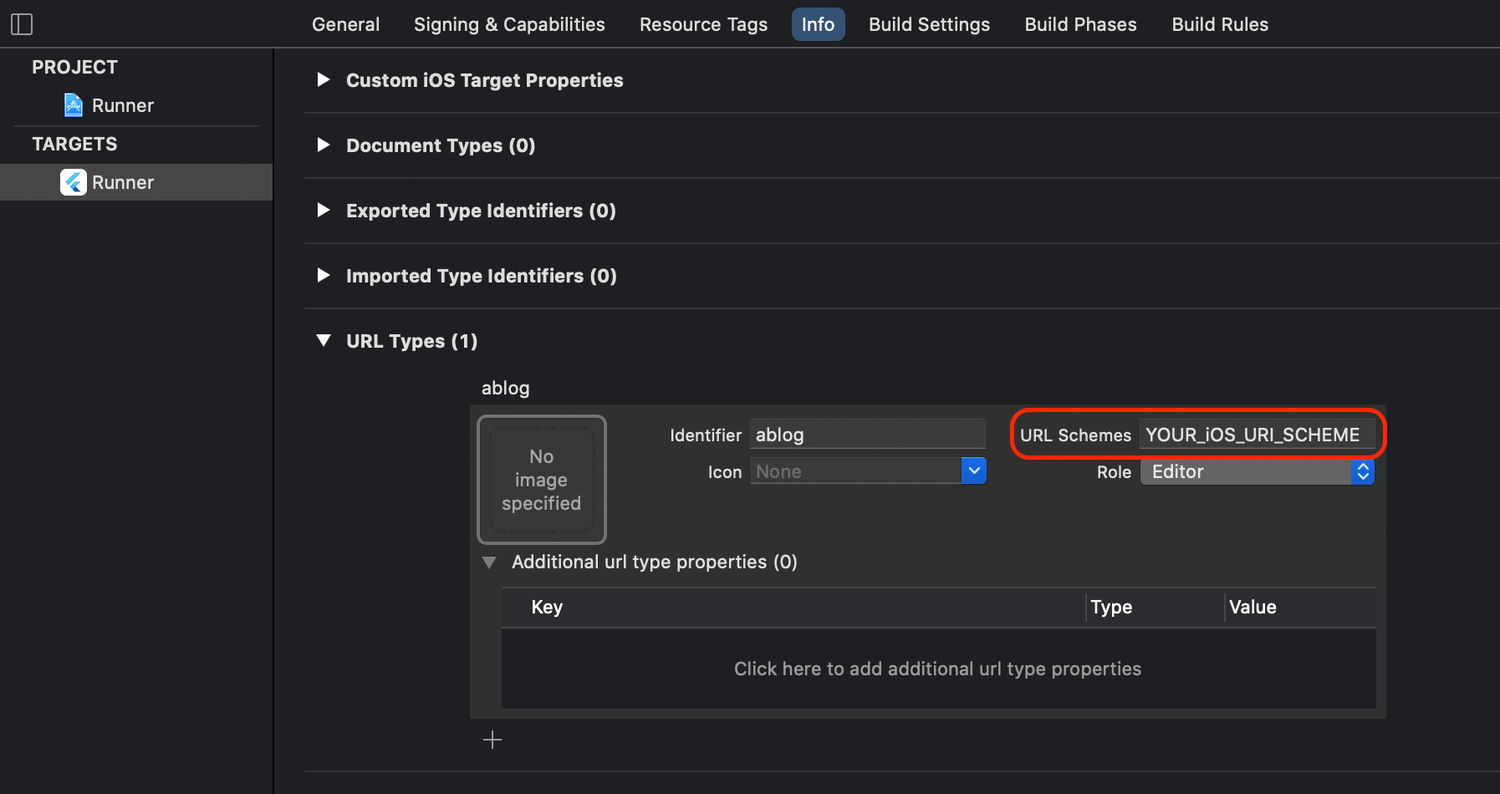
- Open the iOS module’s
*.xcodeprojor*.xcworkspaceof the project in Xcode. - Go to [Xcode]>[Project file]>[Info]>[URL Types].
- From the Airbridge dashboard, copy “iOS URI Scheme” and paste it into Xcode’s “URL Schemes field. (Do not include
://)
Adding Universal Link
- Open the iOS module’s
*.xcodeprojor*.xcworkspaceof the project in Xcode. - Go to [Xcode]>[Project file]>[Signing & Capabilities].
- In the [Associated Domains] tab, add the following information.
applinks:YOUR_APP_NAME.airbridge.ioto “Associated Domains”applinks:YOUR_APP_NAME.deeplink.pageto “Associated Domains”
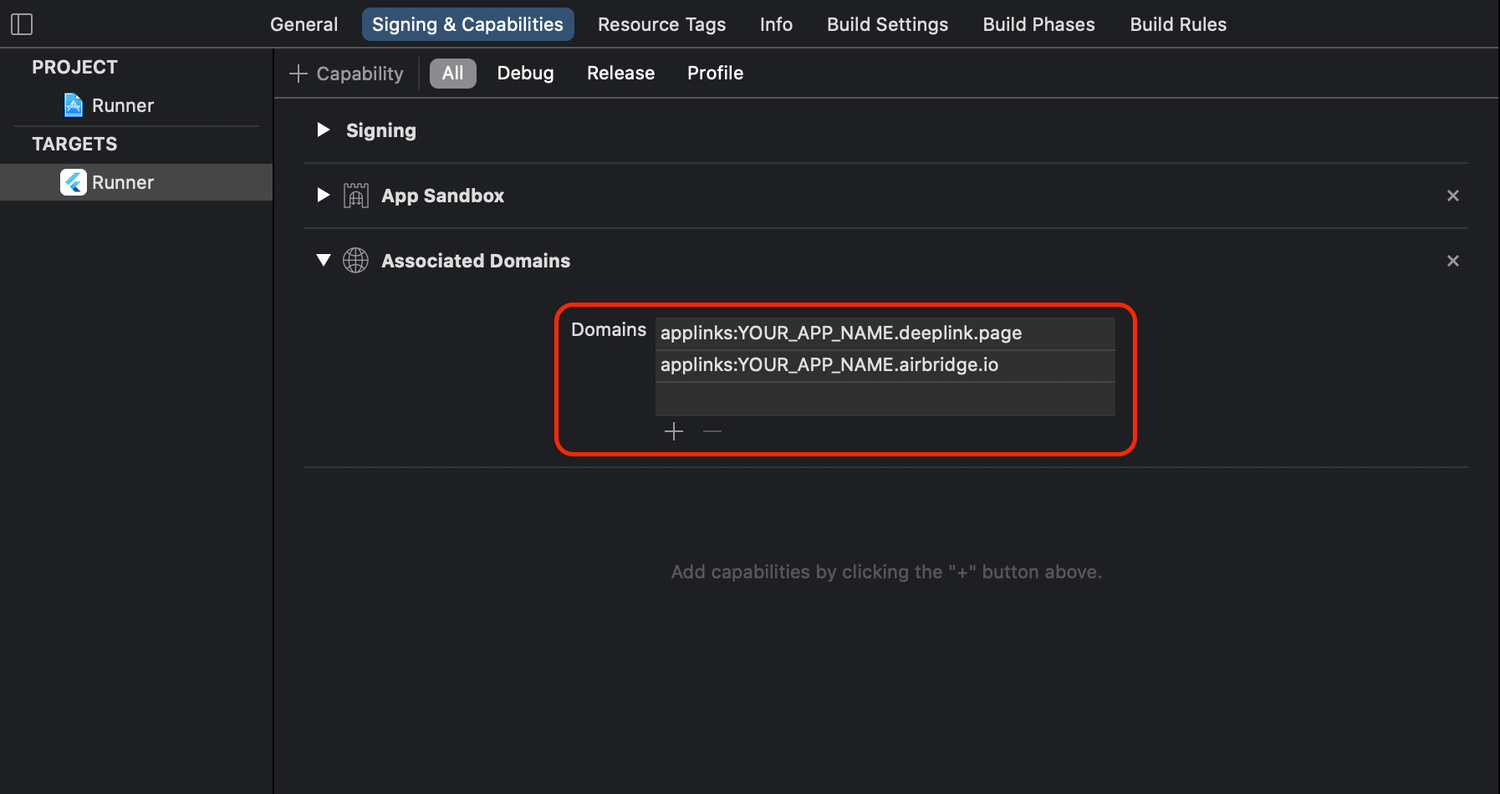
YOUR_APP_NAME can be found at [Settings]>[Tokens] in the Airbridge dashboard.
AppDelegate Setup
- Open the AppDelegate in the project’s iOS module.
- Add the following functions.
Android deep link setup
AndroidManifest.xml Setup
Follow the steps below and configure the Intent Filter.- Open the AndroidManifest.xml file in the project’s Android module.
- Add the following functions.
YOUR_APP_NAME and YOUR_APP_URI_SCHEME can be found at [Settings]>[Tokens] in the Airbridge dashboard.
MainActivity Setup
Insert the following code to theandroid/app/src/main/java/.../MainActivity.java file.
- Open the
MainActivityfile in the project’s Android module. - Add the following functions.
Deep link callback setup
Use the following method to set up the callback that should be called when the app is opened through a deep link.setDeeplinkListener is called from the main function, make sure that WidgetsFlutterBinding.ensureInitialized(); is called first.
Deep link testing
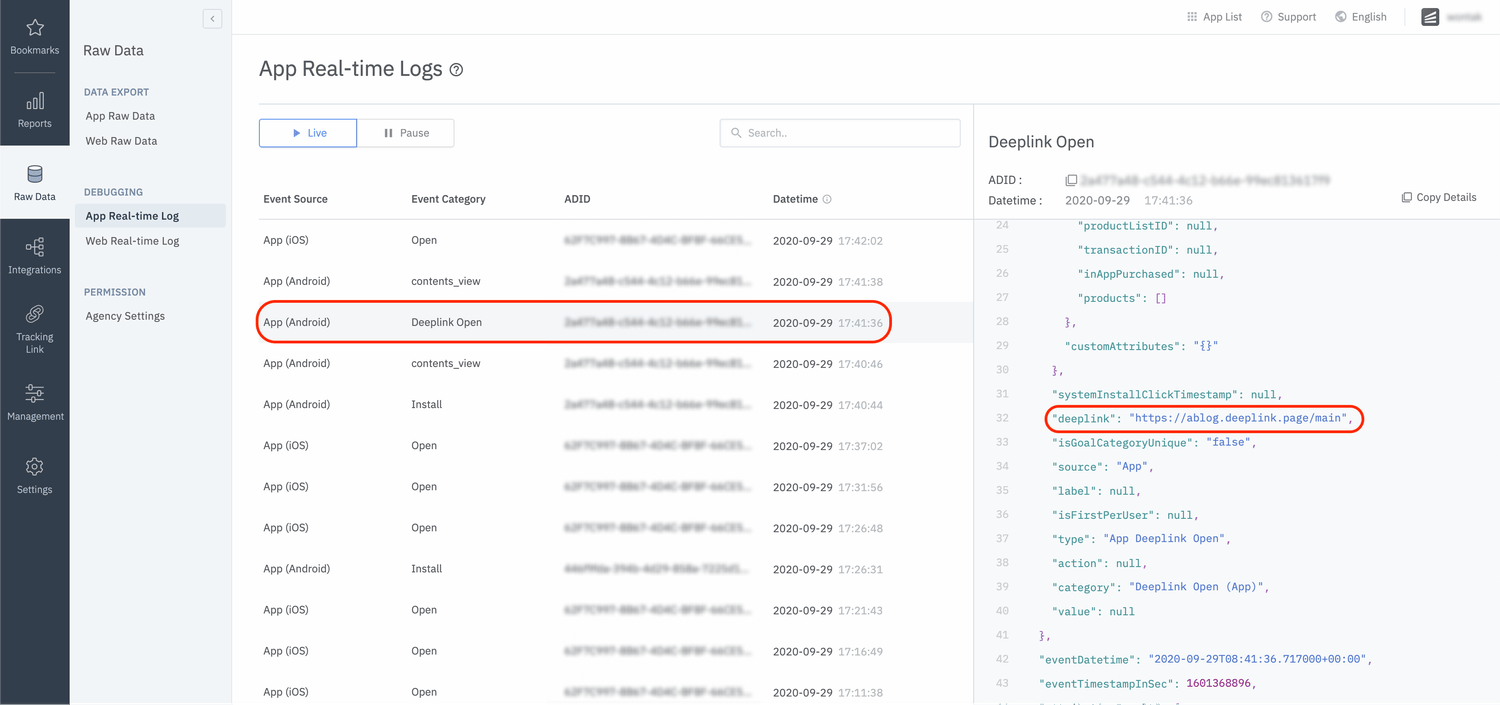
Check whether the app opens and the deep link event is sent when the Airbridge deep link is clicked on. The Airbridge deep link should follow theYOUR_SCHEME://... format. Your_Scheme is the iOS URI Scheme entered in your Airbridge dashboard.
- Click the deep link.
- Check whether the deep link event appears on the [Raw Data]>[App Real-time Logs] page in the Airbridge dashboard.
User Data
Set up user identifier
You can set up the SDK so that once a user identifier is sent to the SDK, all events collected thereafter contain the same user identifier. The following identifiers are collected.- User Email: Email address
- User Phone: Phone number
- User ID: Unique User ID (ID that identifies users on both web and mobile)
- User Alias: Alternative identifier representing users (e.g., loyalty program ID, affiliate integrated ID, etc.)
The user email and phone number are hashed (SHA256) by default before being sent to servers.
AttentionThe user identifier can be reset or overwritten depending on the events performed by the user.
Set up user attributes
Additional user attributes can be collected for a more accurate multi-touch attribution and in-depth data analysis.AttentionThe user attribute information can be reset or overwritten depending on the events performed by the user.
User data setup testing
Check whether the user data setup has been successfully completed by following the steps below.- Complete the user setup.
- Send an event through the SDK.
- Navigate to [Raw Data]>[App Real-time Logs] in the Airbridge dashboard and find the event sent.
Device Data
Set up device alias
Set up the Airbridge SDK to collect device aliases when collecting events. The alias won’t be deleted even after the user closes the app unless the user deletes the app.In-app Events
When important user actions occur, those actions can be collected as in-app events. Although all event parameters are optional, collecting as much information about the event as possible will help provide a more accurate analysis. Action, label, value, customAttributes, and semanticAttributes can be used as event options.Send in-app events
You can send in-app events through the SDK to Airbridge for ad performance measurement.Sign-Up
When sending the Sign-up event, the user identifier is sent throughsetUser and AirbridgeCategory.SIGN_UP is sent.
Sign-In
When sending the Sign-in event, the user identifier is sent throughsetUser if it is not entered already and AirbridgeCategory.SIGN_IN is sent.
Sign-Out
When sending the Sign-in event,AirbridgeCategory.SIGN_OUT is sent, and the user identifier is reset.
View Home Screen
View Product Detail
View Product List
View Search Result
Add To Cart
Purchase
To configure and send
Semantic Attributes manually, refer to this article.Event transmission testing
Send an event through the SDK and check whether the event is available in the Airbridge dashboard.- Send an event through the SDK.
- Navigate to [Raw Data]>[App Real-time Logs] in the Airbridge dashboard and search for the event.
Advanced Settings
Set up Meta Install Referrer collection
Meta Install Referrer (MIR) collection is supported by Airbridge Flutter SDK v3.5.4 or later. Add the method below to theairbridge.json to collect the Meta Install Referrer.
After the setup, you need to enter the decryption key into the Airbridge dashboard to view the decrypted Meta Install Referrer. Refer to this user guide to learn how to enter the decryption key.
Set up attribution result callback
This feature is supported by Flutter SDK v3.5.0 and later. Follow the method below to get the attribution result data through the Airbridge SDK.Install Restricted SDK
Depending on policies and environments, restrictions on collecting device IDs like GAID and IDFA may be required. When installing the Restricted SDK version, the device IDs are not collected. The Restricted SDK is supported in v.3.4.3 and later.pubspec settings
Add the following line to thedependencies block in the pubspec.yaml file.
Terminal at the top-level file of the project and run the command below.
Shell
Set up SDK Signature
With the SDK Signature, you can ensure SDK spoofing prevention and use verified events for ad performance measurement. The SDK Signature is supported for the Airbridge Flutter SDK v3.2.0 and later. Add the following lines in the airbridge.json file.The SDK Signature Credentials are required for the SDK Signature setup. Refer to this article to learn how to create them.
Set up session timeout
You can set the Airbridge SDK to not send an App Open event again if a user relaunches the app within a set session time by configuring thesessionTimeoutSeconds field in the airbridge.json file added in the previous step.
- The session timeout value is in milliseconds. The value should be between 0 and 604800000 (7 days).
- The default value is
1000 * 60 * 5(5 minutes).
Disable user identifier hashing
If you want to send user identifiers, such as the user email and user phone, without hashing, configure theuserInfoHashEnabled field in the airbridge.json file added in the previous step.
AttentionPrivacy measures must be in place as this option allows sensitive personal information, such as
User Email and User Phone, to be accessed by third parties.Set up Facebook deferred app links
Configure thefacebookDeferredAppLinkEnabled field in the airbridge.json file added in the previous step to receive the Facebook deferred app links through the Airbridge SDK.
When the
facebookDeferredAppLinkEnabled is set to YES, and the Facebook SDK is installed, the SDK collects the Facebook Deferred App Link.AttentionTo use this feature, the Facebook SDK must be set up accordingly. Refer to this Facebook document for the setup.
Track Airbridge deep links only
It may be difficult to measure re-engagement if the Airbridge SDK collects all types of deep link events. Configure thetrackAirbridgeLinkOnly field in the airbridge.json file added in the previous step to track only Airbridge deep links.
When activating this feature, the SDK will collect Airbridge deep link events only in the following cases:
- When the app is opened through an
airbridge.iodeep link - When the app is opened through a
deeplink.pagedeep link - When the app is opened through a deep link with the Custom Domain that is set in the Airbridge dashboard
- When the app is opened through a deep link that contains the
airbridge_referrerin the query
Opt-in setup
The opt-in policy requires user consent before using user data. The opt-in setup is required to collect and transmit data after obtaining consent for personal data tracking from users, especially when GDPR or CCPA applies. Configure theautoStartTrackingEnabled field in the airbridge.json file added in the previous step and call the following function to make sure data collection starts after users provide their explicit consent.
Tracking authorize timeout (iOS only)
When using the AppTrackingTransparency.framework to display the ATT prompt to the user, the IDFA is not collected when the install event occurs because the ATT prompt only appears after the user installs the app. By setting thetimeout of the trackingAuthorizeTimeoutSeconds in the airbridge.json file added in the previous step, the sending of the install event will be delayed for the set timeout period to wait for the user to finish responding to the ATT prompt.
Collect user location information (Android only)
Configure thelocationCollectionEnabled field in the airbridge.json file added in the previous step to collect the user location information.
AttentionThe collection of location information should be for legitimate purposes, requiring caution in its use.
AndroidManifest.xml.
Use tracking links within the app
When clicking tracking links, users are sent to a browser. However, you can redirect users to specific in-app locations without sending them to an external browser by using the method below.Click
When a user clicks on the tracking link within the app, theAirbridge.click function is called. A click event is collected, and the user is redirected to the configured app or web fallback path.
The deep link and fallback path are backup links used when there is no network connection. Only custom URL scheme deep links can be used as deep link parameters. Note that they are all optional parameters.
Impression
When a user engages with a tracking link within the app, theAirbridge.click function is called. An impression event is collected.
When using the custom domain, tracking links with a custom short ID are not viable for use.
- example:
https://deeplink.ab180.co/custom-> Not viable for use - example:
https://deeplink.ab180.co/a3b1c2-> Viable for use - example:
https://abr.ge/a3b1c2-> Viable for use
Collect device UUID
Set up uninstall tracking
This feature is supported for Airbridge Flutter SDK v3.0.2 and later.
- Airbridge Android SDK v2.6.0
- Airbridge iOS SDK v1.28.2
Send Push Token
registerPushToken method.
Silence push notifications
The silent push notifications Airbridge sends for uninstall tracking should not be displayed in the user’s app. Make sure the silent push is silenced when theairbridge-uninstall-tracking is true in the forwarded remote data.
Hybrid App Setup
While basic events, such as Install, Open, and Deeplink Open events, can be automatically tracked by only installing the Android SDK in your hybrid app, in-app events, such as Sign-up, Purchase, etc., cannot be tracked as they are in-browser events that occur within a website of the WebView environment. Airbridge provides a simpler way to track in-app events by enabling the Flutter SDK to automatically pull all events from the Web SDK that is installed on the website of the WebView environment. This replaces the hassle of having to create bridge functions between native and WebView environments. Refer to the following method.Airbridge.createWebInterface. Refer to the Flutter Hybrid App Integration Guide for details.
SDK Migration
When updating the SDK, consider the content regarding versions between the previous version and the later version or your updated version.v3.5.0
For apps registered with Airbridge after November 4, 2023, an issue where the deep link URL provided in the deep link callback was decoded twice from the content entered in the Airbridge dashboard has been resolved. This issue was found in versions 3.4.2 to 3.4.7.v3.4.2
For apps registered with Airbridge after September 4, 2023, the “airbridge_referrer” will no longer be added to the deep link URL provided in the deep link callback. When updating the app from iOS SDK v1.33.0 or earlier to v1.33.0 or later, the last calculated SKAN conversion value will be finalized, and no additional calculation will be processed.- For iOS SDK versions earlier than 1.33.0, the SKAN conversion value is calculated for up to 24 hours.
- There is no issue for users who newly install the SDK.
deeplink.page has been deprecated. From v3.4.2 onwards, we recommend writing code using the abr.ge deep link domain.
deeplink.pageis still supported and operates for backward compatibility.
v3.4.1
The Kotlin plugin has been updated to version 1.5.21.v3.4.0
The default setting for trackingAuthorizeTimeout changed from 0 seconds to 30 seconds.Update from v2.X.X to v3.X.X
The existing event API was deleted and replaced with the API below.Update from v1.X.X to v2.X.X
iOS
Change the AppDelegate’sAirbridgeFL class to the AirbridgeFlutter class.
Android
- Change the
AirbridgeFLclass of the MainApplication and MainActivity to theAirbridgeFlutterclass. - Change the
processDeeplinkDatafunction in the MainActivity toprocessDeeplinkfunction.