NoteUninstall tracking is supported for Airbridge Android SDK v2.6.0 and later.
Submit Credentials
Submit the Firebase credentials to Airbridge to enable uninstall tracking.Get the credentials from Google Cloud console
Create a Custom Role
Create a custom role following the steps below.- Sign in to the Google Cloud console. From the project selector, select a project to create a custom role.
- Navigate to [IAM & Admin]>[Roles]. Click + Create Role.
-
Enter the following details:
- Title: Airbridge Uninstalls
- ID: abr_uninstalls
- Role launch stage: General Availability
- Click +Add Permissions.
- In the Enter property name or value field, enter “cloudmessaging.messages.create” and select it from the search results. Check the checkbox and click Add.
- Click Create to finish creating the custom role.
Create a service account
Create a service account by following the steps below.- Navigate to [IAM & Admin]>[Service Accounts]. Click + Create Service Account.
- Enter “ABR Uninstall Service Account” as the service account name. Click Create and Continue.
- From the Select a role drop-down list, search and select “Airbridge Uninstalls.” Click Continue.
- Click Done to finish creating the service account.
Create a private key
Create a private key file for the service account.- Navigate to [IAM & Admin]>[Service Accounts]. From the service account list, click the email of the service account whose name is “ABR Uninstall Service Account.”
- Select the Keys tab. Click Add Key and select Create new key.
- Select JSON as the key type and click Create. The JSON file containing the key file will be downloaded. Make sure to store the JSON file securely.
Submit the credentials to Airbridge
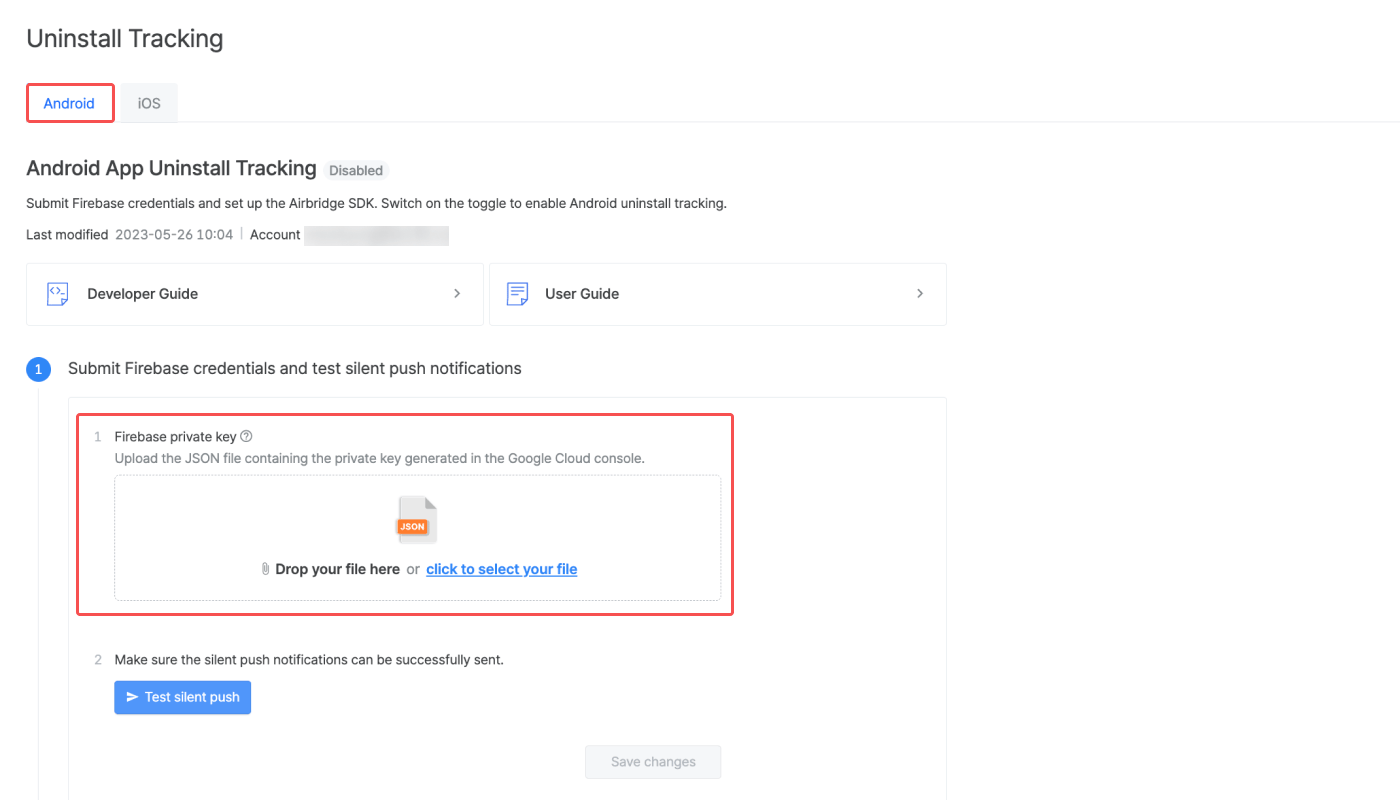
Follow the steps below to submit the credentials to Airbridge.- Navigate to [Settings]>[Uninstall Tracking] in the Airbridge dashboard.
- Select the [Android] tab.
- Upload the JSON key file by dropping the file or clicking to select the file.
Test silent push notifications
Test silent push notifications to make sure the notifications are successfully sent to devices. To proceed with the test, click Test silent push and enter the FCM registration token of your test device. For detailed instructions on how to access your FCM registration token, refer to the Firebase documentation.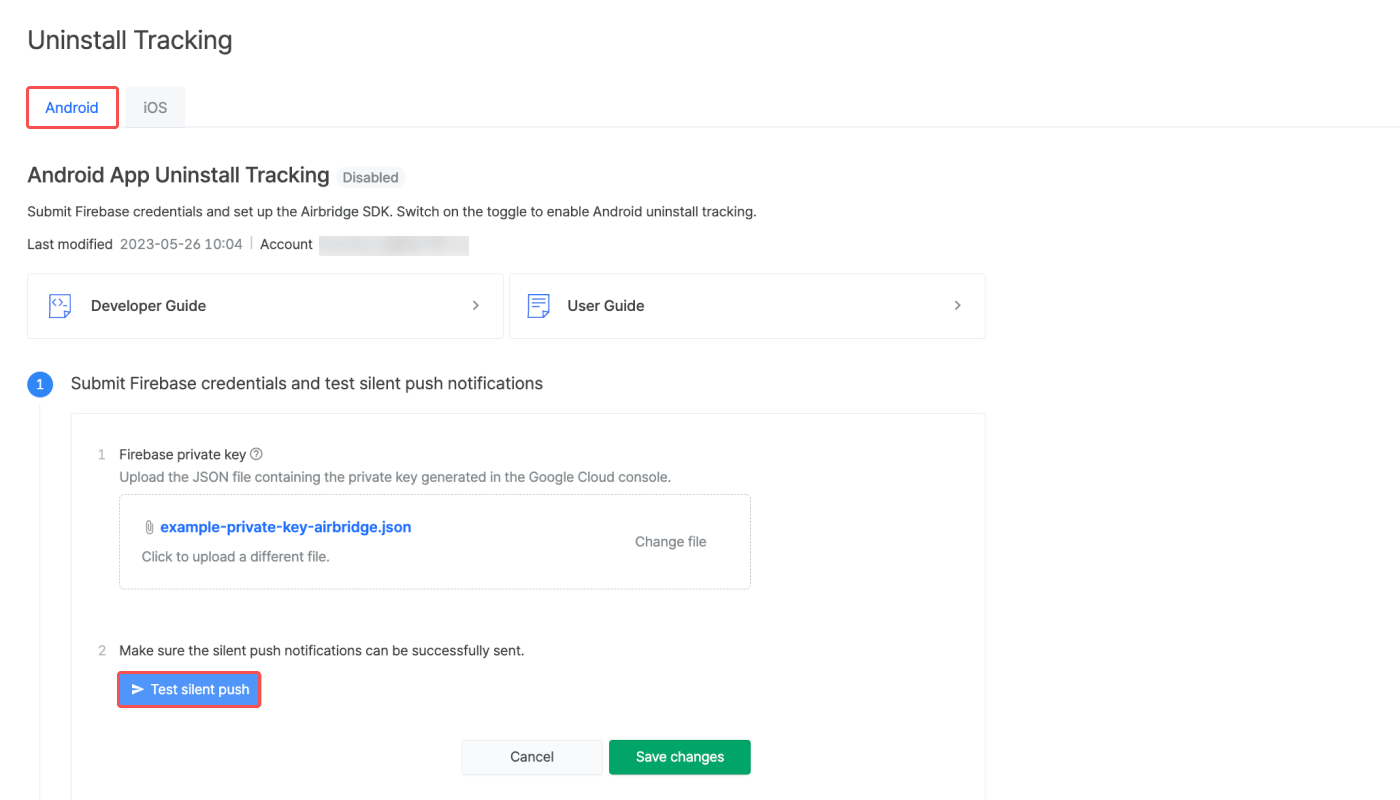
Error codes - Silent Push Test
Error codes - Silent Push Test
Set Up the Airbridge SDK
For uninstall tracking, you must complete the Airbridge SDK setup by following the instructions below. Add the following code snippet to AndroidManifest.xml.AttentionMake sure the above functions are called after the SDK initialization.
onMessageReceived function in the Firebase Cloud Messaging, the silent push notification may be shown to the user. By adding the exception handling code as below, the silent push will not be exposed to the user.
Enable Uninstall Tracking
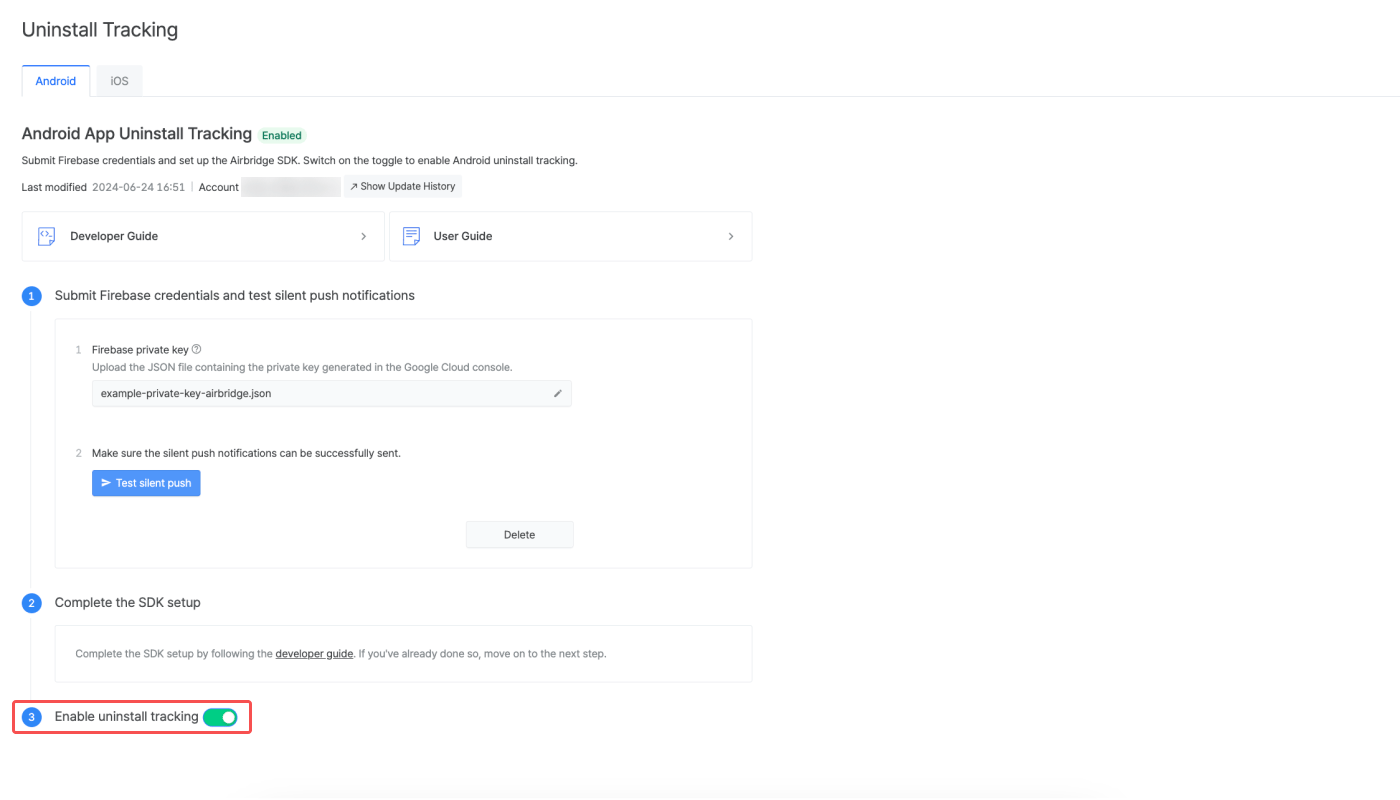
After submitting the credentials to Airbridge and completing the SDK setup, the [Enable uninstall tracking] toggle will be activated. Switch on the toggle to start tracking uninstall events. For more details about uninstall tracking, refer to this article.