

Deprecated SDKThis SDK has been deprecated. Migrate to the latest version, Android SDK v4.Starting October 1, 2026, we will fix only critical issues that could cause your app to be rejected in app store review, and on October 1, 2028, all support will end.
Install SDK
Install Package
Install with Gradle
Add the following repository under theallproject/repositores block in your project/build.gradle file.
project/settings.gradle file under the dependencyResolutionManagement/repositories block.
dependencies block in your app/build.gradle file.
Install manually
The Airbridge SDK uses JetBrains’ Kotlin and Coroutines libraries for enhanced stability and productivity. If you install the SDK manually using an.aar file, add the following dependency libraries in your project.
NoteAirbridge Android SDK requires Kotlin stdlib and Kotlinx coroutines library version 1.6 or later.
Starting from Airbridge Android SDK version 2.24.2, the Play Services Appset library dependency for appSetId collection must be added.
AttentionStarting from Airbridge Android SDK version 2.26.1, the BillingClient library dependency for collecting In-App purchase details collection must be added.Please refer to the BillingClient dependency for troubleshooting
Set up project
Min SDK 16
Add permissions
Add the following permissions to yourAndroidManifest.xml file.
Initialization
Add the following code under theonCreate method of the Application class file registered in the AndroidManifest.xml file.
AttentionTo ensure initializeSDK works correctly, follow the conditions below.
- Must be called in the
Applicationclass’sonCreate. - Must be called on the
Main thread.
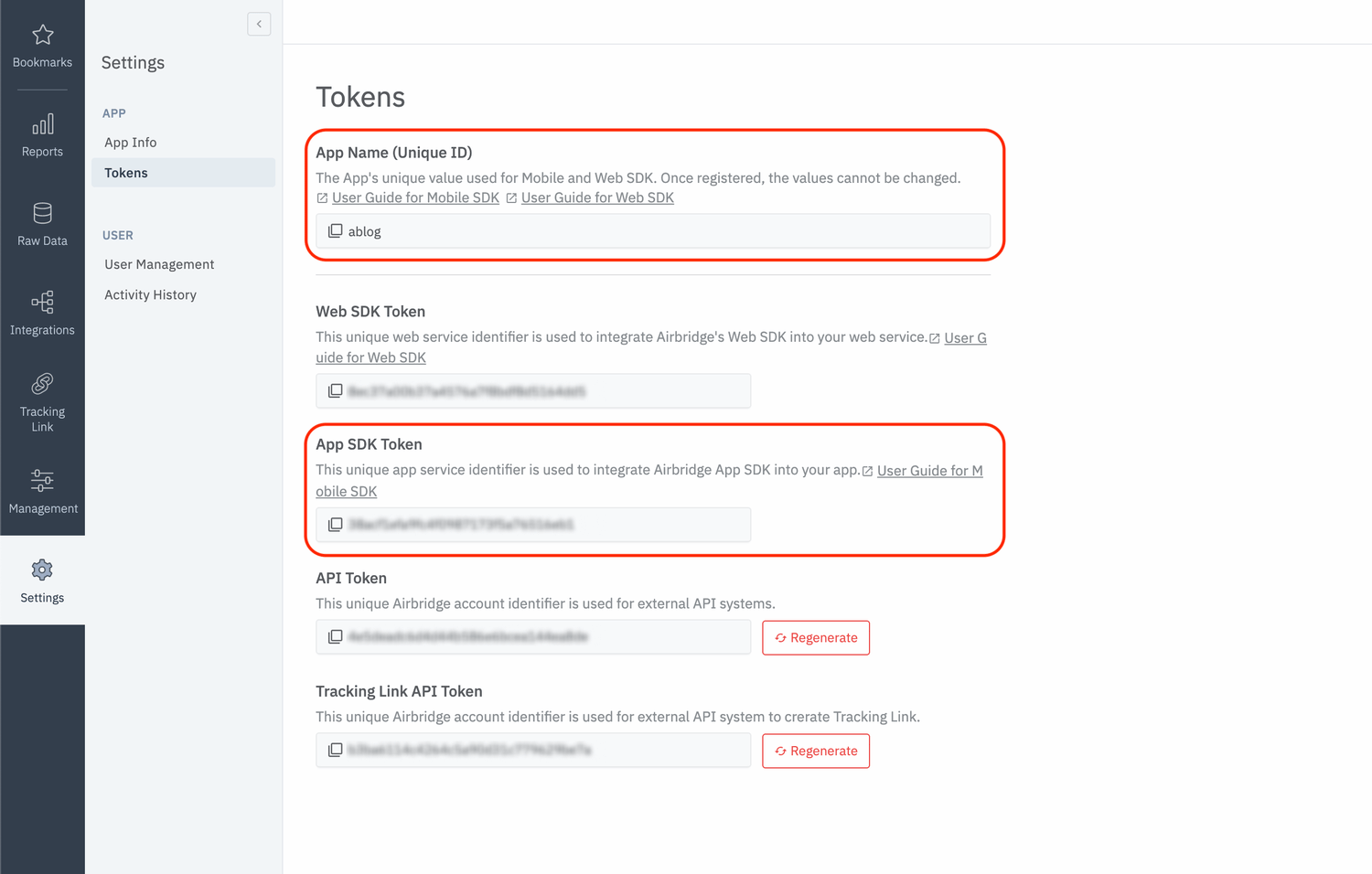
YOUR_APP_NAME and YOUR_APP_SDK_TOKEN can be found at [Settings]>[Tokens] in the Airbridge dashboard.
SDK testing
After completing the Airbridge Android SDK setup, you can test whether it works properly by following the methods below.Using the Airbridge Dashboard
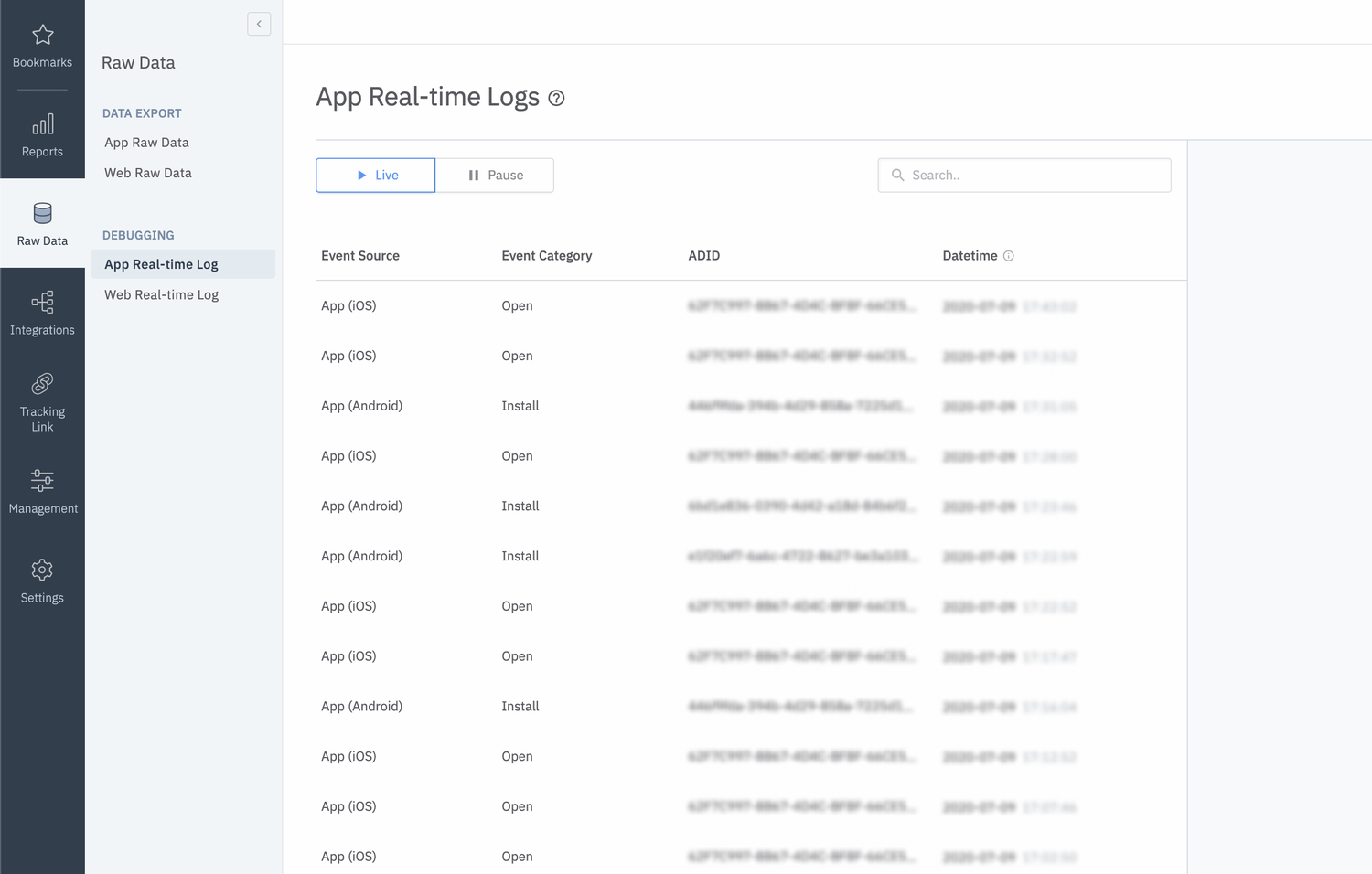
- Install and open the app on a test device.
- Navigate to [Raw Data]>[App Real-time Logs] in the Airbridge dashboard.
- Enter the Google Advertising ID (GAID) of the test device into the search bar to find it in the logs.
If you can’t find the Install event in the Event Category column with the Google Advertising ID of the test device, check again whether the SDK is installed properly as instructed.
The Google Advertising ID (GAID) of an Android device can be found at [Settings]>[Google]>[Ads].
Using the LogCat
Use the following method if you want to use LogCat to see a more detailed log of the app.AttentionAs this method may expose user information, ensure it is only executed for cases of
Build.DEBUG.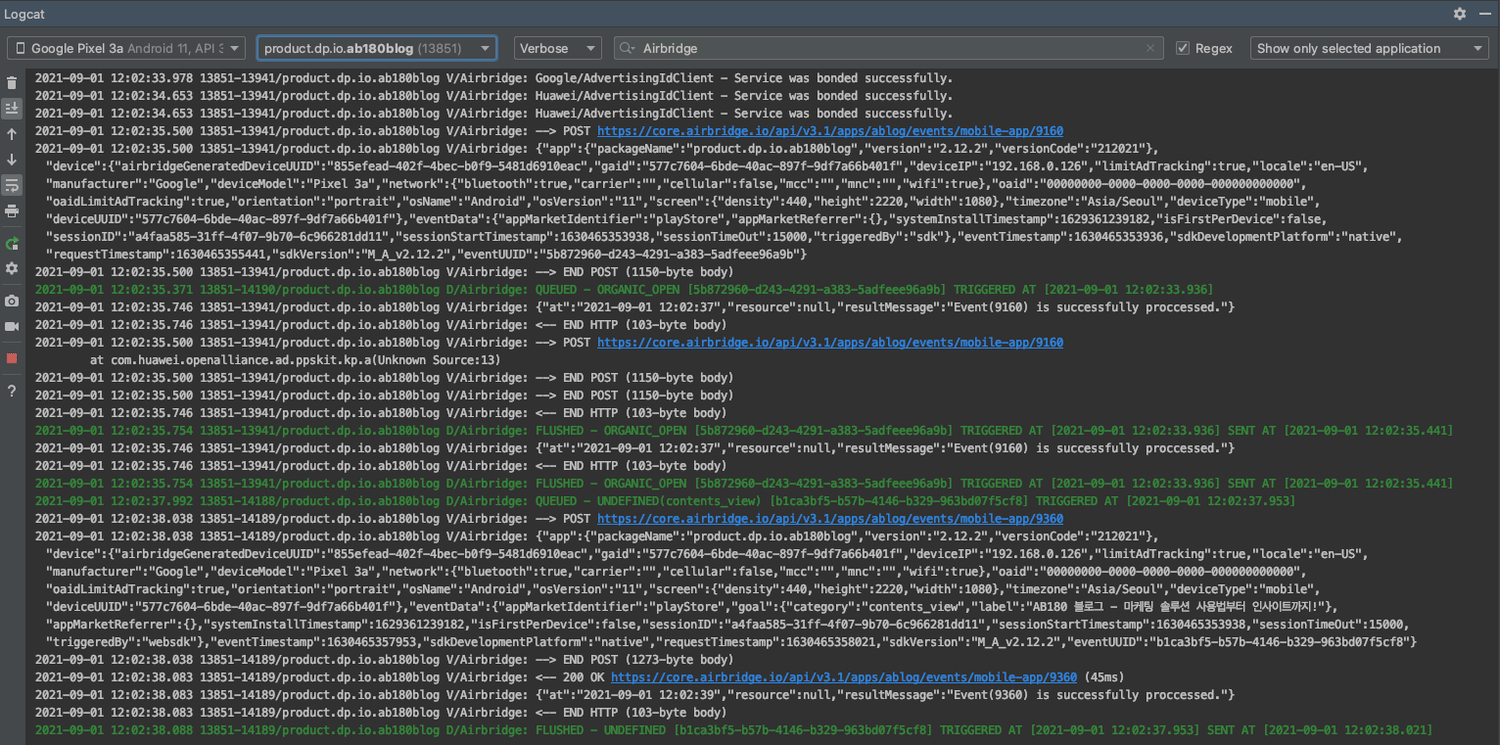
Deep Linking
Set up dashboard
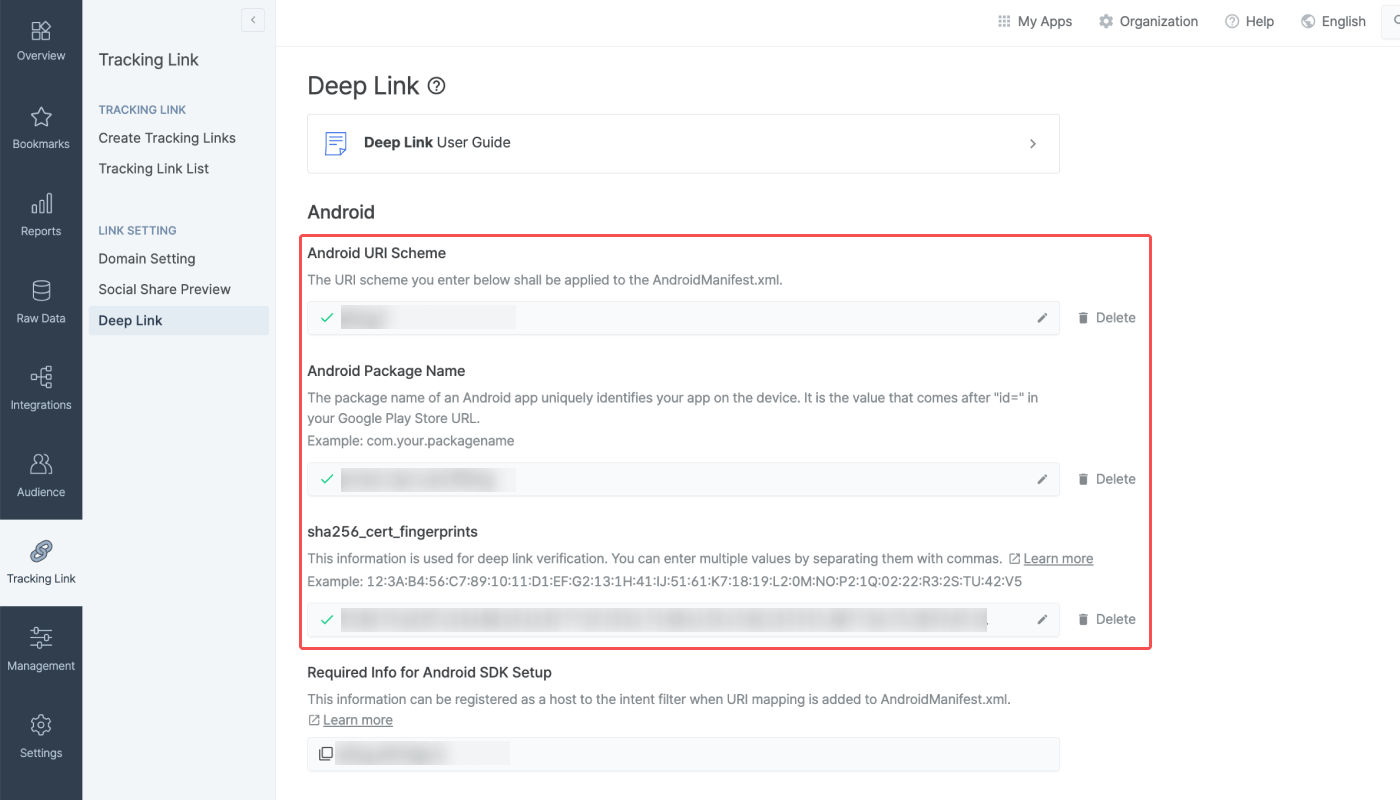
- URI Scheme
- Package Name
- sha256_cert_fingerprints
Enter URI Scheme
Enter the Android URI scheme, including://, into the URI Scheme field. Only lowercase letters, numbers, -, and + are supported.
AttentionTo redirect users as intended, submit the URI scheme differently for the production app and the development app.
Enter Package Name
The package name field of the production app that is already released on app stores will be automatically filled. The package names field of the development app and production app that has not been released on app stores yet must be filled manually.Enter Fingerprints
Follow the steps below to obtain thesha256_cert_fingerprints.
- Prepare the
keystorefile that you used to register your app with the Google Play Store. - Execute the following command in the Terminal.
Shell
- Copy the
SHA256value under theCertificate Fingerprintssection and paste it into the Android sha256_cert_fingerprints field in the Airbridge dashboard.
Shell
Multiple
sha256_cert_fingerprints can be entered by separating them with commas.Set up project
Set up intent filter
If you are using the Airbridge Android SDK v2.21.1 or later, follow the steps below to set up the intent filter. If you are using the Airbridge Android SDK v2.21.0 or earlier, refer to this section of this document.- Open the
AndroidManifest.xmlfile. - Add the following
intent-filterto theactivitythat will process deep links.
YOUR_APP_NAME.deeplink.page: Airbridge App Links Version 2YOUR_APP_NAME.airbridge.io: Airbridge App Links Version 1YOUR_APP_URI_SCHEME: deep link using URI Scheme
Set up deep link callback
To process the deep link of the intent filter added to theactivity, the following setup is required.
Set up deferred deep link callback
To process a deferred deep link in the Airbridge SDK, the intent filter setup in theAndroidManiest.xml file automatically calls the corresponding activity. The process is the same as the deep link callback.
If you don’t want the deferred deep link to automatically call the corresponding activity or want to handle a specific task with the information obtained through the deferred deep link, you can use the following method.
Deep link testing
Click on your URI scheme to test if your deep link has been properly set up in the Airbridge SDK.YOUR_APP_URI_SCHEME://
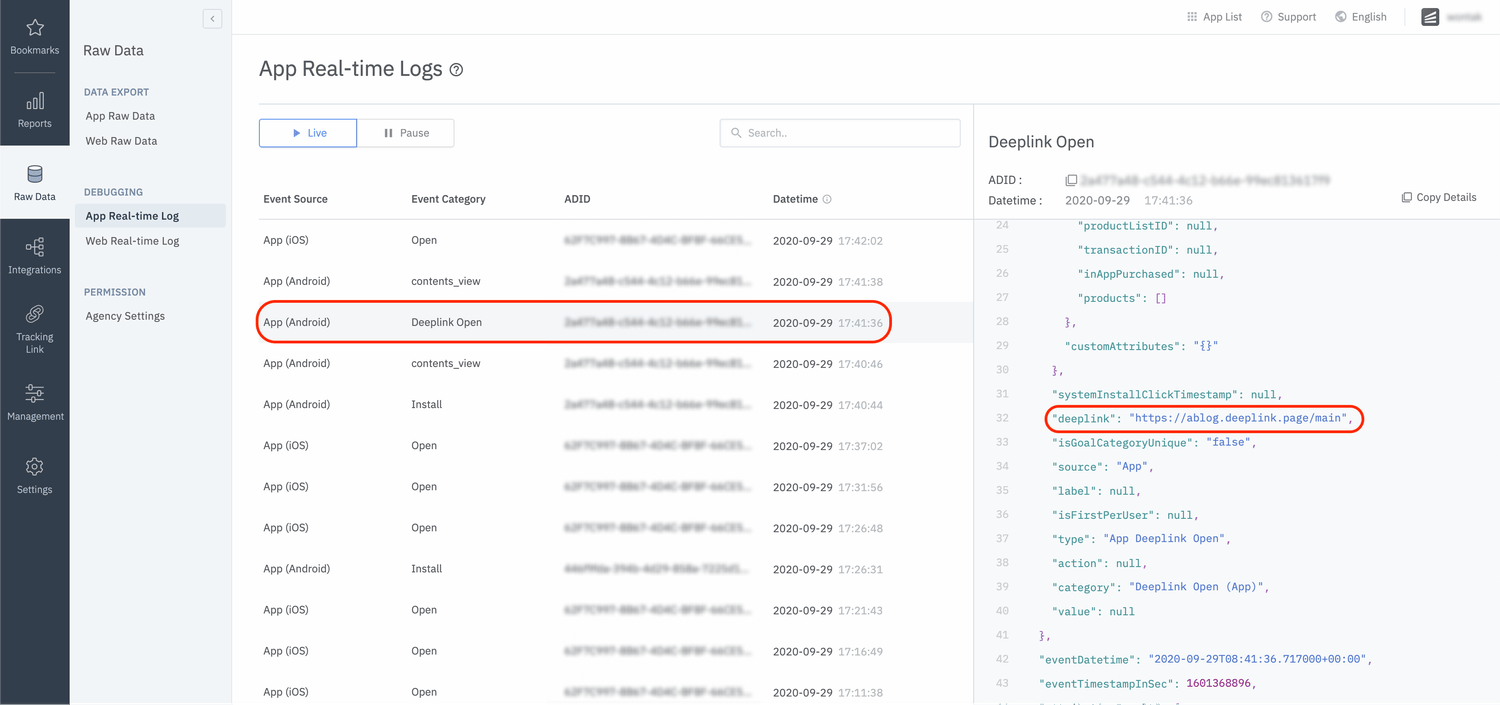
Set up Custom Domain
- Please refer to the user guide and enter the custom domain in the dashboard.
- Create the
res/values/airbridge.xmlfile and add the custom domain as follows.
- Add the custom domain you configured earlier to the
Intent Filterof theAcitivtythat handles deep links, as shown below.
WarningThe added domain should match the information listed on the Airbridge dashboard.
- Complete your project setup by referring to the Set up deep link callback.
User Data
Set up user identifier
To measure ad performance across the web and app, Airbridge collects the following user identifiers.- User Email: Email address
- User Phone: Phone number
- User ID: Unique User ID (The ID to identify a unique user must be the same in both web and mobile)
- User Alias: Identifiers that can represent users (e.g., loyalty program ID, integrated ID used across affiliate organizations, etc.)
The user email and phone number are automatically hashed (SHA256) when sent to servers.
Once the user identifier setup is complete, all events will be passed with the set identifier.
Set up user attributes
Additional user attributes can be collected for a more accurate multi-touch attribution and in-depth data analysis.User data setup testing
The user information collected through the SDK can be found on the [Raw Data]>[App Real-time Log] page in the Airbridge dashboard.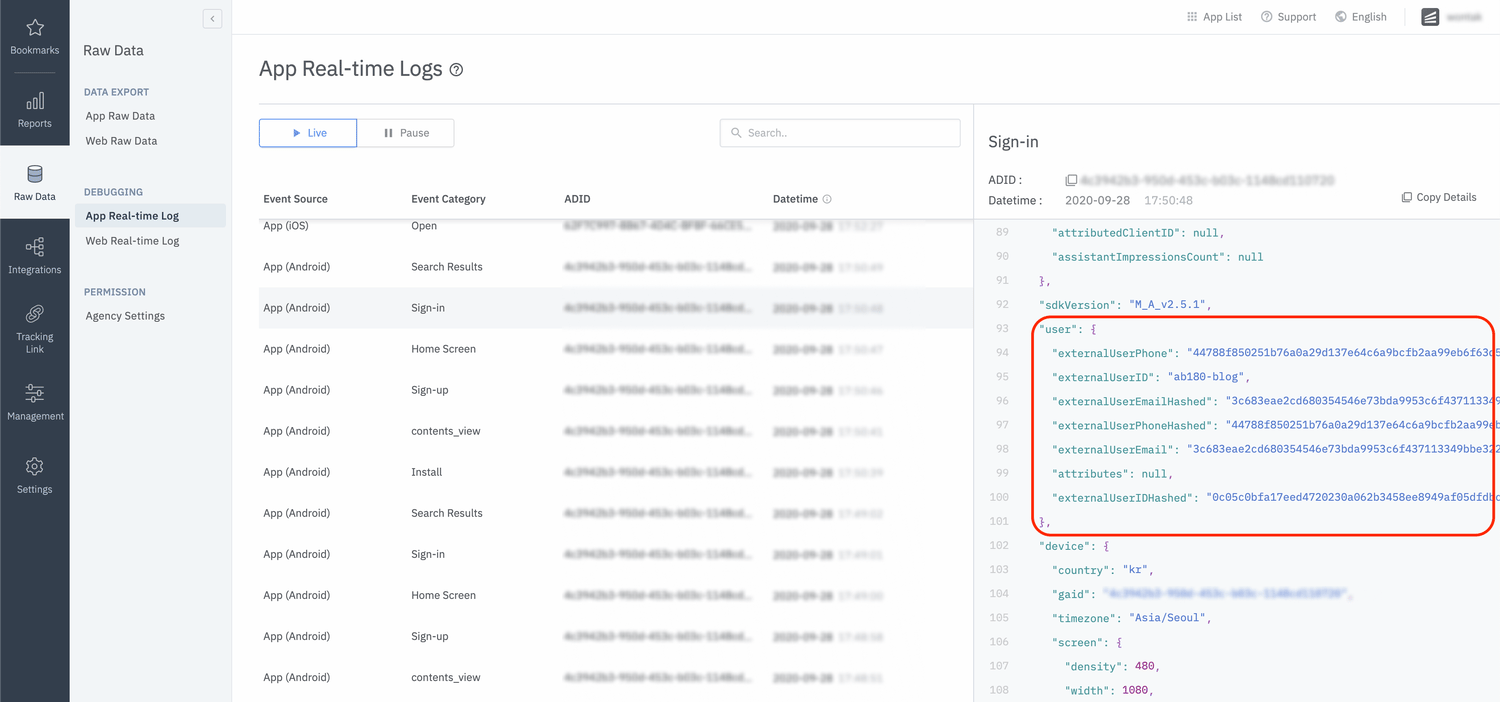
Device Data
Set up device alias
Setup the Airbridge SDK to collect device alias when collecting events. The alias won’t be deleted even after the user closes the app unless the user deletes the app.In-app Events
All events called by the Airbridge SDK can be sent with the following field values.Send in-app events
You can use the following method to send events through the Airbridge SDK.For more details about semantic attributes supported by the Airbridge SDK, refer to this article.
Send Standard Events
Sign-up
Sign-in
Sign-out
View Home Screen
View Search Results
View Product List
View Product Details
Add to Cart
Order Complete
Event transmission testing
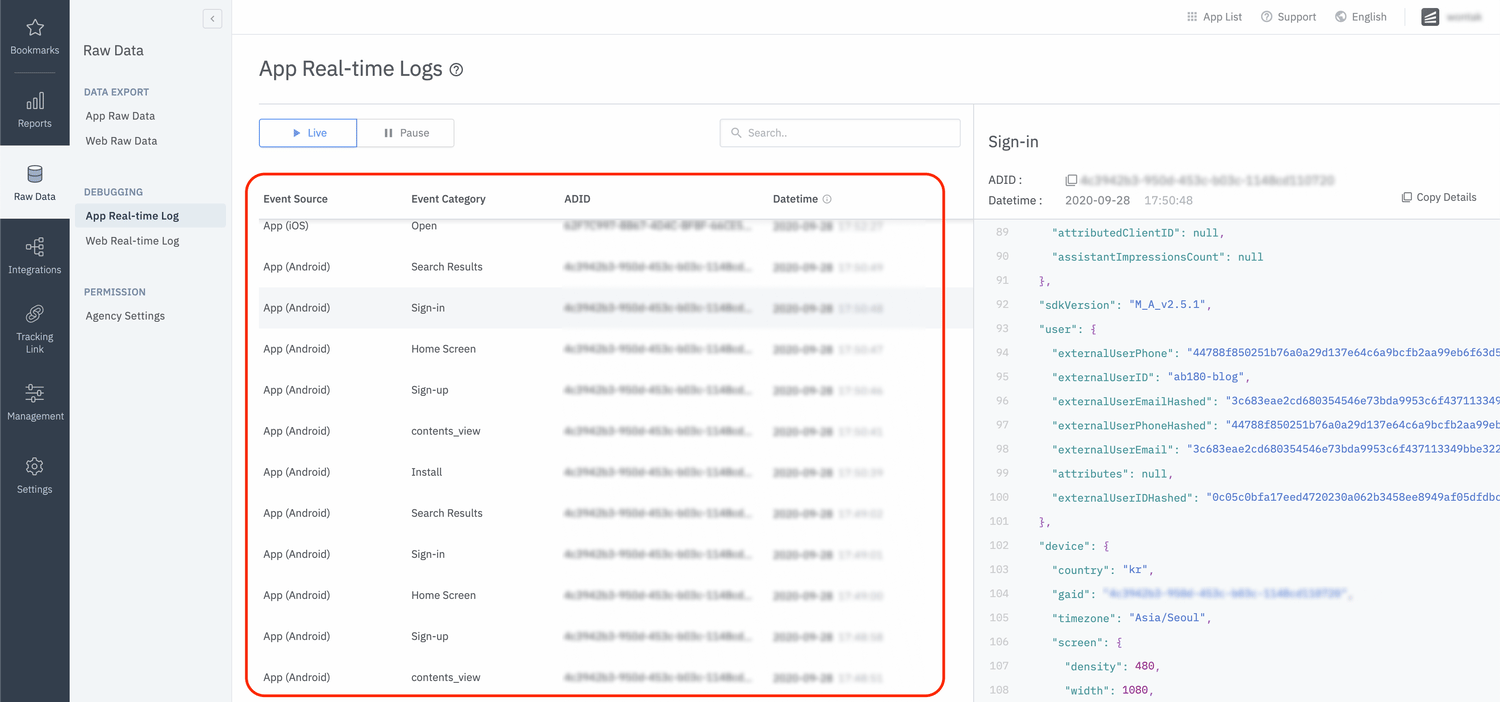
Send an event through the SDK and check whether the event is available in the Airbridge dashboard.- Send an event through the SDK.
- Navigate to [Raw Data]>[App Real-time Logs] and search for the event.
Advanced Settings
Install Restricted SDK
Depending on policies and environments, restrictions on collecting device IDs like GAID and IDFA may be required. When installing the Restricted SDK version, the device IDs are not collected. The Restricted SDK is supported in v2.22.2 and later.Install using Gradle
Add the following code within thedependencies block in the app/build.gradle file instead of the existing library.
Install manually
Set up SDK Signature
With the SDK Signature, you can ensure SDK spoofing prevention and use verified events for ad performance measurement. Call thesetSDKSignatureSecret function above the initialization code.
The SDK Signature Credentials are required for the SDK Signature setup. Refer to this article to learn how to create them.
Disable user identifier hashing
If you want to send user identifiers without hashing, use the following method to disable hashing.AttentionPrivacy measures must be in place as this option allows sensitive personal information, such as
User Email and User Phone, to be accessed by third parties.Set up session timeout
You can use the following method to set the Airbridge SDK to not send an App Open event again if a user relaunches the app within a set session time.Opt-in setup
The opt-in policy requires user consent before using user data. Use the method below for collecting and transmitting data after obtaining consent for personal data tracking from users, especially when GDPR or CCPA applies.Opt-out setup
AttentionThe instructions below are optional. Proceed only if necessary.
setAutoStartTrackingEnabled function to true, call the stopTracking function at a point where event data cannot be collected. From the moment the stopTracking function is called, the SDK will stop collecting events.
Track Airbridge deep links only
It may be difficult to measure re-engagement if the Airbridge SDK collects all types of deep link events. The method below can be used to collect Airbridge deep link events only in the following cases:- When the app is opened through an
airbridge.iodeep link - When the app is opened through a
deeplink.pagedeep link - When the app is opened through an
abr.gedeep link - When the app is opened through a deep link with the Custom Domain that is set in the Airbridge dashboard
- When the app is opened through a deep link that contains the
airbridge_referrerin the query
Set up Meta deferred app links
Follow the steps below to use deferred deep linking in Meta ads. The Airbridge SDK collects the Meta deferred app links first above others. If there are no Meta deferred app links, Airbridge deferred deep links are collected. Note that Meta ads’ SKAN campaigns don’t support Meta deferred app links. For more details, refer to the Meta ads document.- Add the following repository to the
project/build.gradlefile.
- Add the following code under the
dependenciesblock of theapp/build.gradlefile.
- Add the following string in the
app/res/values/string.xmlfile.
- Add the following
<meta-data>under the<application>element in theAndroidManifest.xmlfile.
- Set the following option to
true.
Set up Uninstall tracking
Uninstall tracking using Firebase Messaging is supported by the Airbridge Android SDK
v2.6.0 and later.Collect user location information
You can use the following method to collect the user location information through the Airbridge SDK.AttentionThe collection of location information should be for legitimate purposes, requiring caution in its use.
AttentionThe Airbridge SDK collects the
LastKnownLocation data. If the GPS information is not obtained, the value may not exist even if the corresponding permissions and settings are complete.Track installs by app stores
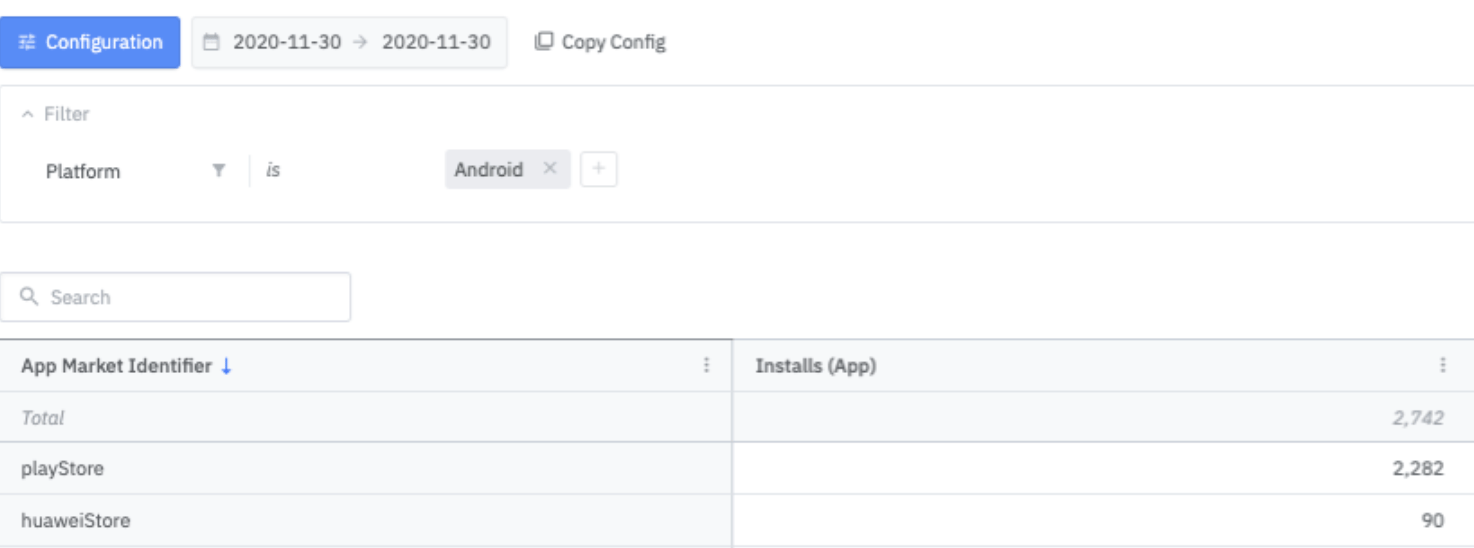
You can follow the methods below to track installs by different Android app stores, such as Google Play Store, One Store, Huawei Store, and Galaxy Store.Using AndroidManifest.xml
Input the app store name (e.g., playStore, oneStore, huaweiStore, galaxyStore) for andriod:value.
Using AirbridgeConfig
Input the app store name (e.g., playStore, oneStore, huaweiStore) for setAppMarketIdentifier.
Collect error logs
When unintended errors occur in the internal operations of the SDK, the error log is sent to the Airbridge server to use the data for future improvements. If you want to disable this feature, you can use the method below to prevent sending the error logs to the Airbridge server.Set up event buffer limit
When an event transmission failure occurs, the Airbridge SDK will store the event and retry at a later time. The following settings will allow you to limit the storage used for such events.The storage size is slightly smaller than the actual data size due to metadata management and other factors.
Set up event transmission interval
Use the following method to set up event transmission intervals.AttentionThe
IllegalArgumentException runtime error will occur if the setEventTransmitInterval is set to a negative number.Delete unprocessed events
Clear the device’s internal database of unprocessed events that have not been sent to Airbridge.Use tracking links within the app
AttentionWhen you set up the Airbridge Android SDK v2.18.0 or later to use tracking links within apps, every time a tracking link is used within the app, Deeplink Pageviews are aggregated, which are Target Events. The deep link performance may be affected when Deeplink Pageviews occur frequently right after Deeplink Opens.The attribution window for Deeplink Pageviews is set to 3 days by default. If you want to change the attribution window for Deeplink Pageviews, contact your Airbridge CSM. If you don’t have a dedicated CSM, contact the Airbridge Help Center.
Click
When a user clicks on the tracking link within the app, theAirbridge.click function is called. A click event is collected, and the user is redirected to the configured app or web fallback path.
Impression
When a user engages with a tracking link within the app, theAirbridge.click function is called. An impression event is collected.
Set up Meta Install Referrer collection
Meta Install Referrer (MIR) collection is supported by Airbridge Android SDK versions 2.22.3 or later. Follow the method below for the setup. After the setup, you need to enter the decryption key into the Airbridge dashboard to view the decrypted Meta Install Referrer. Refer to this user guide to learn how to enter the decryption key.Compliance with Google DMA
To comply with the Digital Markets Act (DMA), you must pass user consent data to Airbridge. For more information about the DMA and whether it applies to your service, see the Airbridge user guide. If you are in the European Economic Area (EEA), you must always pass User Response information to Airbridge.- Confirm whether the end user launched the app in the EEA. If the end user did launch the app in the EEA (
eea=1), confirm whether the consent values have already been stored for the session. If there are consent values stored, continue to Step 3.
NoteAirbridge cannot provide guidance on storing the user consent data and implementing the prompts. For assistance, consult legal professionals.
- If there are no consent values stored, proceed to obtain user consent, such as with a privacy prompt. You must collect the
adPersonalizationandadUserDatavalues in this step.
User consent data that must be passed to Airbridge SDK
User consent data that must be passed to Airbridge SDK
- Initialize the Airbridge SDK and share the consent values with Airbridge before collecting the end user’s personal data.
AttentionEnsure to follow the instructions below.
- Use the field names specified by Airbridge:
eea,adPersonalization,adUserData - Input
0or1following the consent data collected.
Set up attribution result callback
Follow the method below to get the attribution result data through the Airbridge SDK.
If an event is unattributed, meaning that there is no attribution result, you will get the following response.
Guidelines for using attribution result data
When the attribution data exists
- Attribution data is forwarded within 40 seconds of SDK initialization.
- If the app is closed and the attribution data cannot be received, the attribution data is forwarded within 40 seconds when the app is opened again.
- On very rare occasions, it could take up to 5 minutes for the attribution data to be received.
- The attribution data will be sent when the app is opened again after at least three hours have passed since the SDK was initialized.
- Note that it is not recommended to use the attribution data for real-time processing.
Deactivate Airbridge
All Airbridge functions can be turned off using the following method.AttentionIf
setResetEventBufferEnabled is set to true and setSdkEnabled is set to false, the setSdkEnabled is prioritized and setResetEventBufferEnabled isn’t processed.Hybrid App Setup
While basic events, such as Install, Open, Deeplink Open events can be automatically tracked by only installing the Android SDK in your hybrid app, in-app events, such as Sign-up, Purchase, etc., cannot be tracked as they are in-browser events that occur within a website of the WebView environment. Airbridge provides a simpler way to track in-app events by enabling the Android SDK to automatically pull all events from the Web SDK that is installed on the website of the WebView environment. This replaces the hassle of having to create bridge functions between native and WebView environments.AttentionBefore proceeding with the hybrid app setup, install the Android SDK and Web SDK.
Sending events in WebView environments
- Reference - Building Web Apps in WebView
- Reference - Understanding Android WebView Javascript Interface
Airbridge::setJavascriptInterface method in the target WebView as below.
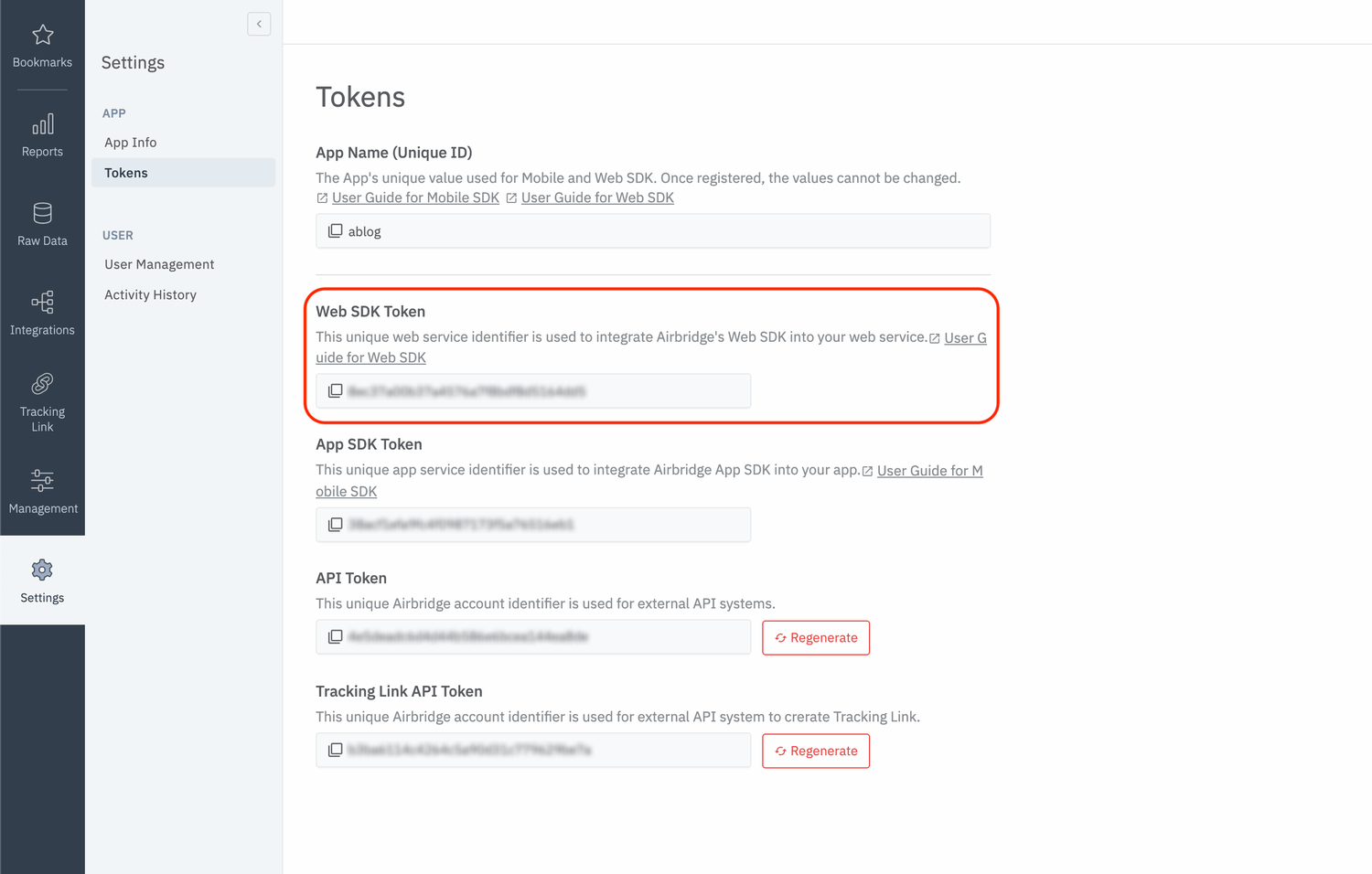
YOUR_WEB_TOKEN on the [Settings]>[Tokens] page in your Airbridge dashboard.
Handling Cases Where Tracking Links Open in WebView
SDK Migration
When updating the SDK, consider the content regarding versions between the previous version and the later version or your updated version.2.24.0
For Airbridge Apps created after September 4, 2023, the issue in versions from v2.22.0 to v2.23.0 where the deep link URL provided in the deeplink callback was double-decoded from the content entered in the Airbridge dashboard has been resolved.2.21.2
An initialization option has been added to stop event transmission when the app goes to the background.- You can stop event transmission when the app goes to the background using the
AirbridgeConfig#setTransmitEventOnBackgroundEnabledfunction. - The default value is
true, and the remaining events are still transmitted in the background.
2.21.1
deeplink.page has been deprecated. From v2.21.1 onwards, it is recommended to use abr.ge as the deep link domain when writing code.
deeplink.pageis still supported and functioning for backward compatibility.
2.19.1
- The structure has been changed to not collect ORGANIC_REOPEN and FOREGROUND events that occur within the session time by default.
- The BACKGROUND event has been removed.
2.18.0
When the user moves to a different in-app location, the DeeplinkMovement event is collected only when theAirbridge.click is called.