
NoteTo create tracking links for ad channels integrated with Airbridge, upgrade your Airbridge plan. Click Book a demo to contact our sales team.
Create Custom Channel Tracking Links
First, go to [Tracking Link]>[Link Generation]>[Custom Channels] in the Airbridge dashboard.Campaign Optimization Parameters
- Go to [Campaign Optimization Parameters]>[Advertiser] and select [Channel]. [Channel] is a required field. When you enter a new channel name, it’s added automatically. Channel names must be unique and can only include lowercase letters, numbers, and the special characters . - _
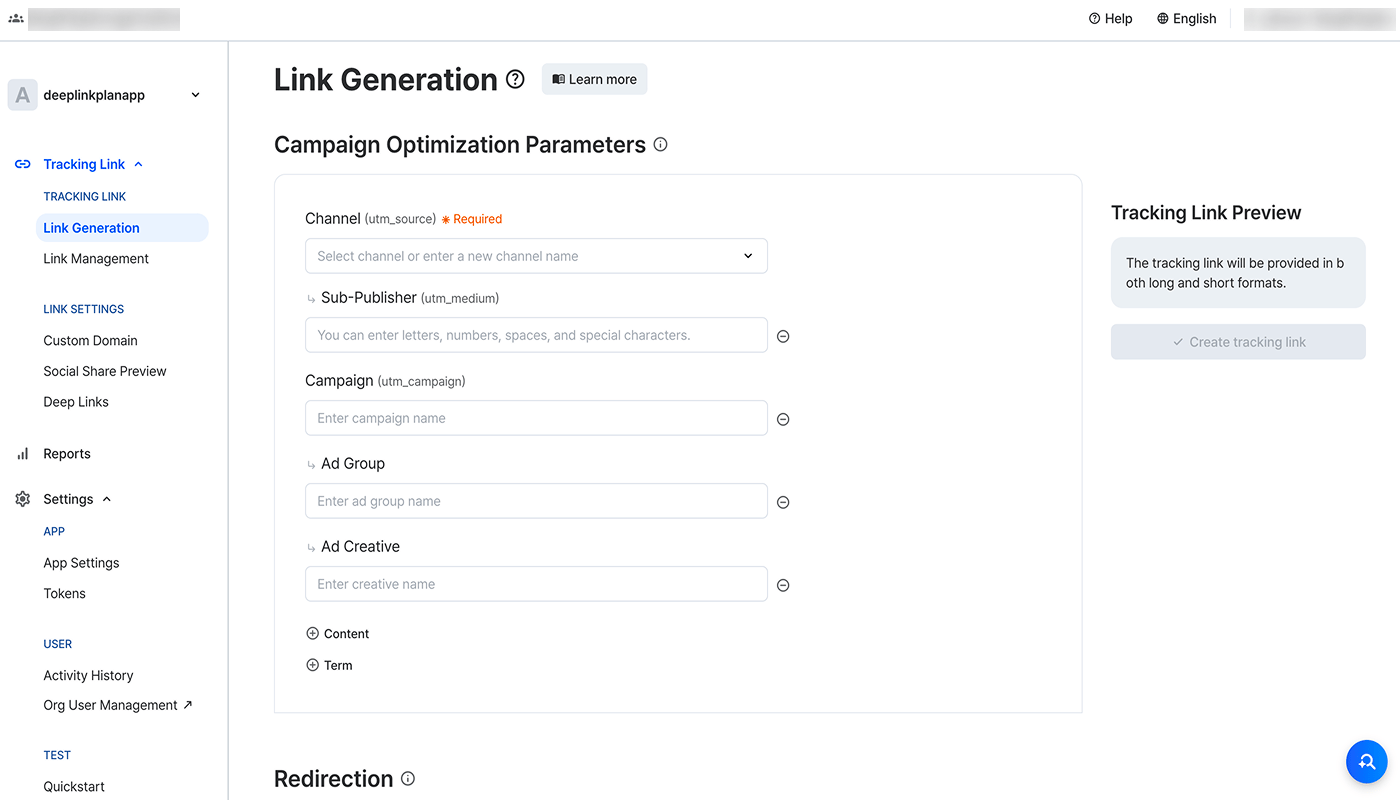
- Enter the information you want to collect when ads or content with the tracking link are viewed or clicked. Use fields such as [Campaign], [Ad Group], and [Ad Creative] under [Advertiser], or [Sub-Publisher] under [Publisher], as needed. The field names become parameter names, and the information you enter becomes parameter values in your tracking link.
Redirection
[Redirection] is where you set the destination for users who click the tracking link.App (Deep Link)
App (Deep Link)
NoteTo set [App (Deep Link)] as the [Destination], register deep link information in the Airbridge dashboard [Tracking Link]>[Deep Links]. For instructions, see this article.
Attention
- Enter only URL scheme deep links in [Deep Link]. Use an app page URL that starts with the URL scheme registered in Airbridge.
- Encode any characters other than letters, numbers, and
=,?,&,#. Without encoding, the tracking link doesn’t work correctly.
NoteIf you don’t add UTM parameters to a web URL, Airbridge adds them automatically during redirection. If you added UTM parameters, only those remain in the redirected URL. For details, see this article.
App Store
App Store
NoteTo set [App Store] as the [Destination], go to [Settings]>[App Settings]>[App Info]>[Platform] and either search and select your app name or directly enter the app store URL.
NoteIf you don’t add UTM parameters to a web URL, Airbridge adds them automatically during redirection. If you added UTM parameters, only those remain in the redirected URL. For details, see this article.
Website
Website
If you select [Website] as the [Destination], users are sent to the appropriate [Web URL] based on their platform.
NoteIf you don’t add UTM parameters to a web URL, Airbridge adds them automatically during redirection. If you added UTM parameters, only those remain in the redirected URL. For details, see this article.
Create tracking links
When you click Create tracking link, both the standard tracking link and short link, its shortened version, are created. A social share preview and a QR code are created as well. Check the details of the created tracking links.Customization Options
The following customization options are supported for custom channel tracking links:Custom domain
Replace the defaultabr.ge domain in short links with your own custom domain. Add your custom domain following this article.
Short link ID
Customize the text that appears after the domain in your short link. Include brand keywords to add a branding element. For example, if you enter “appname” as the short link ID, your short link will be “https://custom_domain/appname”.
NoteIf you haven’t added a custom domain, the Short link ID field doesn’t appear.