
Install SDK
The Airbridge iOS SDK can be installed using the method below. After installation, you can verify whether the SDK has been properly installed through the iOS SDK Test.- SwiftPackageManager
- CocoaPods
- Tuist
- Manual install
- Navigate to [File]>[Add Packages…] in Xcode.
- Enter the following address into the search bar and click Add Package.
- Click Add Package again.
- The Airbridge iOS SDK will be added to Package Dependencies.
Install Restricted SDK
NoteInstall only one version of the SDK, either the general SDK or the restricted SDK.
- SwiftPackageManager
- CocoaPods
- Tuist
- Manual install
- Navigate to [File]>[Add Packages…] in Xcode.
- Enter the following address into the search bar and click Add Package.
- Click Add Package again.
- The Airbridge iOS SDK will be added to Package Dependencies.
- Add the framework corresponding to the dependency of SDK to the project. Navigate to [Project File]>[General]>[Frameworks, Libraries, and Embedded Content] in Xcode and click +.
- Add all the frameworks below. Set the Embed of the added frameworks to “Do not Embed.” Then, navigate to [Project File]>[Build Phase]>[Link Binary With Libraries] in the Xcode and set the Status to “Optional.”
Initialize SDK
SDK initialization methods vary depending on the system architecture. For SceneDelegate Lifecycle or AppDelegate Lifecycle, refer to the method for AppDelegate. For SwiftUI Lifecycle, refer to the method for SwiftUI. The YOUR_APP_NAME and YOUR_APP_SDK_TOKEN can be found on the [Settings]>[Tokens] page in the Airbridge dashboard.- AppDelegate (Swift)
- AppDelegate (Objective-C)
- SwiftUI
Call the
Airbridge.initializeSDK function at the very top of AppDelegate’s application(_:didFinishLaunchingWithOptions:) function.AttentionMake sure that the
Airbridge.initializeSDK function is called within the application(_:didFinishLaunchingWithOptions:) of the AppDelegate for proper functionality.Configure ATT Prompt
NoteThe functions necessary to ensure compliance with privacy policies should be reviewed with legal counsel.
- Prepare the text you will use in the ATT prompt.
- Enter the prepared text in the
NSUserTrackingUsageDescriptionkey of theInfo.plistfile.
- Xcode
- Tuist
- Navigate to [YOUR_PROJECT]>[Info]>[Custom iOS Target Properties] in Xcode.
- Hover your mouse over the key items, click + that appears, and enter
Privacy - Tracking Usage Description. - Enter the text for the ATT prompt as value.
- Set the point of time for displaying the ATT prompt on the app.
Provide the ATT prompt at a desired time
Provide the ATT prompt at a desired time
The
ATTrackingManager.requestTrackingAuthorization function should be called at the desired time you want to display the ATT prompt.AttentionThe
ATTrackingManager.requestTrackingAuthorization function does not provide the ATT prompt if the app that called it is not in an active state.Provide the ATT prompt at app launch
Provide the ATT prompt at app launch
The ATT prompt can be displayed as soon as the app is launched.
- If the install event is not collected, the Airbridge iOS SDK delays collecting install events for 30 seconds until the user allows tracking each time the app is launched. If the user exits the app before deciding whether to allow tracking, the SDK will not collect the install event and will try again at the next app launch.
Recommended time setting for “setAutoDetermineTrackingAuthorizationTimeout” functionWhen using the DeepLink Plan, it is recommended that the
setAutoDetermineTrackingAuthorizationTimeout parameter be set to 0 seconds when configuring the ATT prompt.As the DeepLink Plan does not support attribution using identifiers, the setAutoDetermineTrackingAuthorizationTimeout parameter should be set to 0 seconds to seamlessly redirect users who have already installed the app to the intended in-app location as configured in the deferred deep link.autoDetermineTrackingAuthorizationTimeoutfunction can be used to set a sufficient delay before event collection. The default setting is 30 seconds and can be set to up to 3600 seconds (1 hour).
AttentionSet a sufficient delay time to collect the app install event. If the SDK collects install events before users can allow tracking on the ATT prompt, the IDFA won’t be collected along with the install events.
Deep Linking
Deep linking allows you to redirect users from ads to specific locations within your app. The data collected from the tracking link enables you to monitor the performance of the deep link in Airbridge.How Airbridge Deep Links work
Airbridge deep linking works in the following 3 steps.- A scheme deep link is embedded in the tracking link.
- When the user opens the tracking link, the app opens through an Airbridge Deep Link.
- The Airbridge SDK converts the Airbridge Deep Link back to the scheme deep link and passes it to the app.
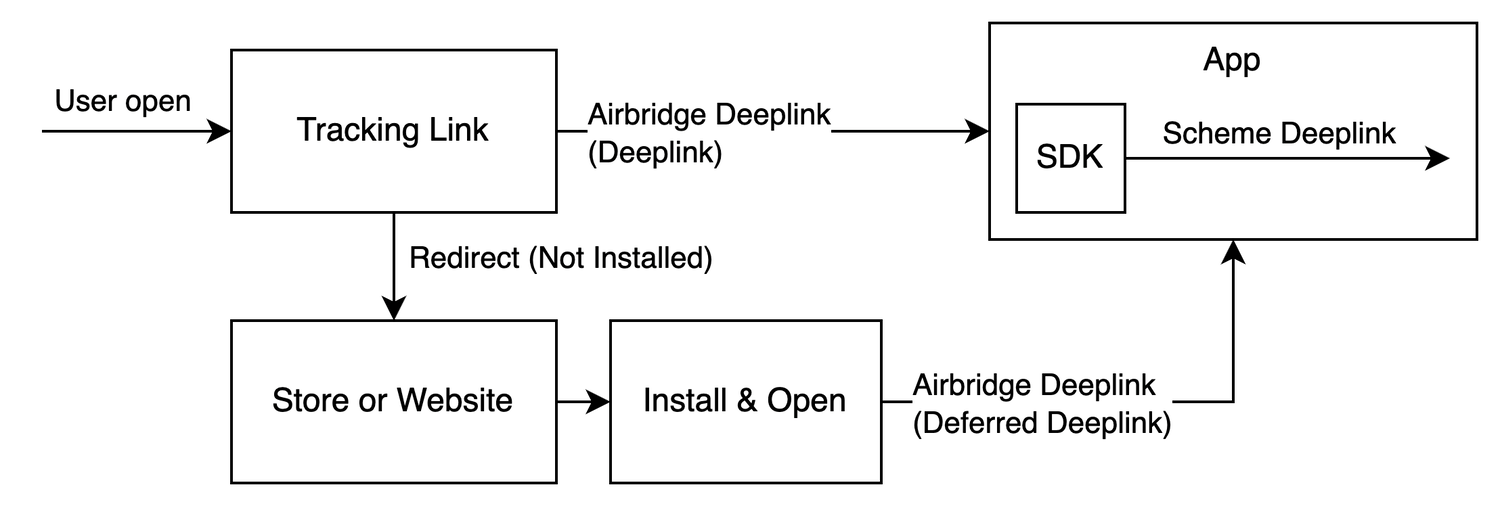
- Example scheme deep link embedded in the tracking link:
YOUR_SCHEME://product/12345
- HTTP deep link format 1:
https://YOUR_APP_NAME.airbridge.io/~~~ - HTTP deep link format 2:
https://YOUR_APP_NAME.abr.ge/~~~ - Scheme deep link format:
YOUR_SCHEME://product/12345?airbridge_referrer=~~~
- It determines whether the given deep link is an Airbridge Deep Link.
- It collects the information contained in the deep link and sends a deep link event.
- It converts the Airbridge Deep Link back to the scheme deep link embedded in the tracking link (
YOUR_SCHEME://product/12345) and passes it to the app.
Set up deep linking
For the deep linking setup, the following information is required.- Deep link information submitted in the Airbridge dashboard
- In-app location address for user redirection
Enter the deep link information into the Airbridge dashboard
Enter the deep link information into the Airbridge dashboard
Navigate to [Tracking Link]>[Deep Links] in the Airbridge dashboard and enter the following information.iOS URI SchemeEnter the scheme of your deep links. Airbridge will perform deep linking using the entered scheme only. (e.g.,
scheme://)iOS App ID- In the Apple Developer Dashboard, go to the [Identifier] of the app you want to set up the deep link and find the App ID Prefix and Bundle ID value.
- Enter the iOS App ID in the format of
App ID Prefix+ .+ Bundle ID. (e.g.9JA89QQLNQ.com.apple.wwdc)
AttentionTo ensure proper user redirection, the iOS URI scheme and iOS App ID must be entered differently for the production app and the development app.
- App launch with Airbridge Deep Links
- User redirection with Airbridge Deep Links
Enable app launch with Airbridge Deep Links
Enable app launch with Airbridge Deep Links
Perform the following setup to enable app launch with Airbridge Deep Links after the user clicks on a tracking link.Scheme Deep Link setupUniversal Link setup
- Navigate to [YOUR_PROJECT]>[Info]>[URL Types] in Xcode.
- Click + and enter the iOS URI scheme you submitted to the Airbridge dashboard into the URL Schemes field.
AttentionEnter the iOS URL scheme without
://.- Navigate to [YOUR_PROJECT]>[Signing & Capabilities] in Xcode.
- Click + Capability to add Associated Domains.
- Add
applinks:YOUR_APP_NAME.airbridge.ioandapplinks:YOUR_APP_NAME.abr.geto Associated Domains. YOUR_APP_NAME is the App Name, which can be found on the [Settings]>[App Settings] page in the Airbridge dashboard.
AttentionIf you are using or plan to use the Password AutoFill feature, you must add the Webcredentials domain. A situation may arise where the domain of the password saved through the Password AutoFill feature appears as
airbridge.io or abr.ge to users of the app.Enable user redirection with Airbridge Deep Links
Enable user redirection with Airbridge Deep Links
When the app is launched via a deep link, call the Whenever the app is opened via a deep link, make sure to call the
trackDeeplink function to collect the Deeplink Open events through the SDK. Then call the handleDeeplink function to convert the Airbridge Deep Link into the original scheme deep link that was used to create the tracking link. Lastly, redirect the user to the intended in-app location.When the app is launched via an Airbridge Deep Link isAirbridgeDeeplink is true and the scheme deep link is sent to the callback uri. When the app is launched via other links isAirbridgeDeeplink is false and no callbacks are triggered. You can handle the Airbridge Deep Links separately by using this logic.trackDeeplink and handleDeeplink functions to track the Deep Link Open event and navigate the user to the intended in-app location.If both SceneDelegate and AppDelegate are present, set up the following callbacks in the SceneDelegate class. If only AppDelegate is used, set them up in the AppDelegate class. If neither is present and you are using SwiftUI, configure them in the App class.- SceneDelegate (Swift)
- AppDelegate (Swift)
- SwiftUI (Swift)
- SceneDelegate (Objective-C)
- AppDelegate (Objective-C)
The callbacks invoked in the SceneDelegate class when the app is opened via a deep link are as follows.
- Implement a function to navigate the user when the app is opened via an Airbridge deep link.
- Set up the
scene:willConnectTo:options:callback. Call thetrackDeeplinkandhandleDeeplinkfunctions to collect Deeplink Open events, and call the function implemented above to navigate the user.
- Set up the
scene:openURLContexts:callback. Call thetrackDeeplinkandhandleDeeplinkfunctions to collect Deeplink Open events, and call the function implemented above to navigate the user.
- Set up the
scene:continue:callback. Call thetrackDeeplinkandhandleDeeplinkfunctions to collect Deeplink Open events, and call the function implemented above to navigate the user.
Set up deferred deep linking
When a user clicks on a tracking link with deferred deep linking capabilities and your app is not installed on the device, the Airbridge SDK collects the deep link as follows.How the Airbridge SDK collects deferred deep links
How the Airbridge SDK collects deferred deep links
The Airbridge SDK attempts to collect a deep link after initializing the SDK when all the following conditions are met. If the app is closed during collection, the Airbridge SDK treats it as if there is no stored Airbridge deep link.
- The
Airbridge.startTrackingfunction is called with the opt-in settings in place. Or, opt-in has not been set. - The ATT tracking response has been determined. Or, the event collection delay time set in the ATT prompt has expired.
Airbridge.handleDeferredDeeplink function retrieves the saved Airbridge deep link and converts it into a scheme deep link to pass it to the app. Users are redirected to the intended destination using the converted scheme deep link.
Airbridge.handleDeferredDeeplink function returns true if the app is installed and called for the first time, waits for the Airbridge deep link acquisition, and converts it to a scheme deep link to pass it to onSuccess. You can use this scheme deep link to send users to the set destination.
If there is no stored Airbridge deep link, it will deliver nil to onSuccess. If the SDK is not initialized or if the Airbridge.handleDeferredDeeplink function has not been called for the first time, it will return false.
The scheme deep link delivered is generally in the format of YOUR_SCHEME://... URL. If you use services like Meta Deferred App Links, it may be delivers in a different format.
AttentionWhen the app is opened via a deep link, Airbridge passes null to onSuccess regardless of whether a deferred deep link exists or not, ensuring that only the deep link is processed.
Testing
The SDK functionality test and deep link test allow you to check whether the SDK and deep linking work as intended.Test SDK functionality
Check whether the Airbridge iOS SDK is operating properly. The Install events are collected by the iOS SDK regardless of whether the additional configurations have been completed or not.Check Install event collection
Follow the steps below to check whether the Install events are being collected by the iOS SDK.- Prepare a test device where the app is not installed, or if the app is already installed, delete it before testing.
- Set the SDK log level to
debug.
- Install the app on the test device. After installing the app, launch it so that the Install event is collected.
- In the Xcode Console, check whether the event performed on the test device with a specific IDFA is logged properly. In the Console Filter, enter
Library:Airbridge. If the Install events are being collected properly, you should see logs such as the following.Send event packets to Airbridge: categories=9161Send event packets to Airbridge: categories=9163
Xcode Console messages and their meaning
Xcode Console messages and their meaning
Event packet is stored in storage: categories={event_category}: The event category is stored.Send event packets to Airbridge: categories={event_category}: Sending the event category.Client receive response: method=post url=https://event-track.airbridge.io/v1/apps/{app_name}: Sent the event category successfully through the network.
- If you can’t see the logs in the Xcode Console even after a sufficient amount of time has passed, check whether the SDK has been initialized, the SDK configurations are completed as instructed, and the network status is stable.
Test deep links
The deep linking test is available in the [Deep Linking] tab on the [Settings]>[Test Console] page in the Airbridge dashboard.Pre-setup
Before testing the deep link, make sure the following items have been set up.Test preparation
The deep link information and app information required to enable deep linking must be submitted to the Airbridge dashboard before starting the test. This stage won’t show in your dashboard if the deep link information and app information have already been submitted. You may move on to the actual testing.Submit Deep Link Info
To test deep linking, make sure the required deep link information is submitted to the Airbridge dashboard for at least 1 platform. If you want to add or edit the deep link info, click Go to Settings. You can check and update the information on the [Tracking Link]>[Deep Links] page. For more details, refer to this article.Refresh to see the latest versionIf you’ve completed the setup in a different browser tab, refresh the Airbridge dashboard tab to reflect the most recent changes.
Submit App Info
The deep link fallback path should be configured in advance so that users who haven’t installed the app on their devices are redirected to the app store. Click Go to Settings and fill in the “Platform” section on the [Settings]>[App Settings] page. For more details, refer to this article.Enter deep link for testing
Enter the deep link configured for the app you want to test. The deep link must be in the form of the URL scheme deep link. It should preferably be set to a specific in-app location instead of the home screen.AttentionEncode the deep link before entering it into the required field. If you don’t, the link will not conform to the standard URL format, and deep linking will not function properly.
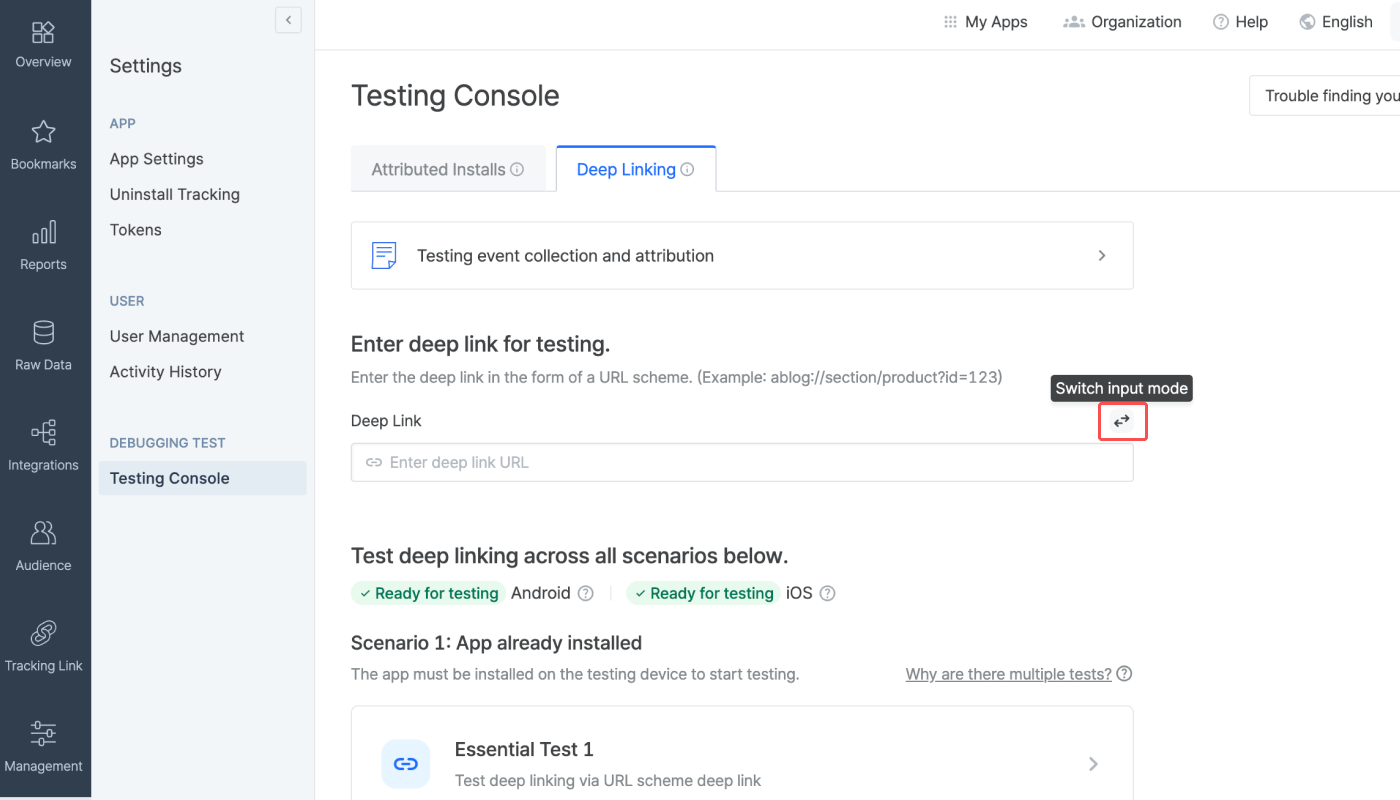
Check readiness for testing
Check if the info required for testing deep linking is submitted to the Airbridge dashboard. If all info is submitted for a platform, the “Ready for testing” tag will show. If not, the “Info incomplete” tag will show. Click the tooltip next to the platform name to see the required info for testing. If you see the “Info incomplete” tag for the platform you want to run the deep linking test, click Go to Settings to add or edit the required info to get ready for testing.Refresh to see the latest versionIf you’ve completed the setup in a different browser tab, refresh the Airbridge dashboard tab to reflect the most recent changes.
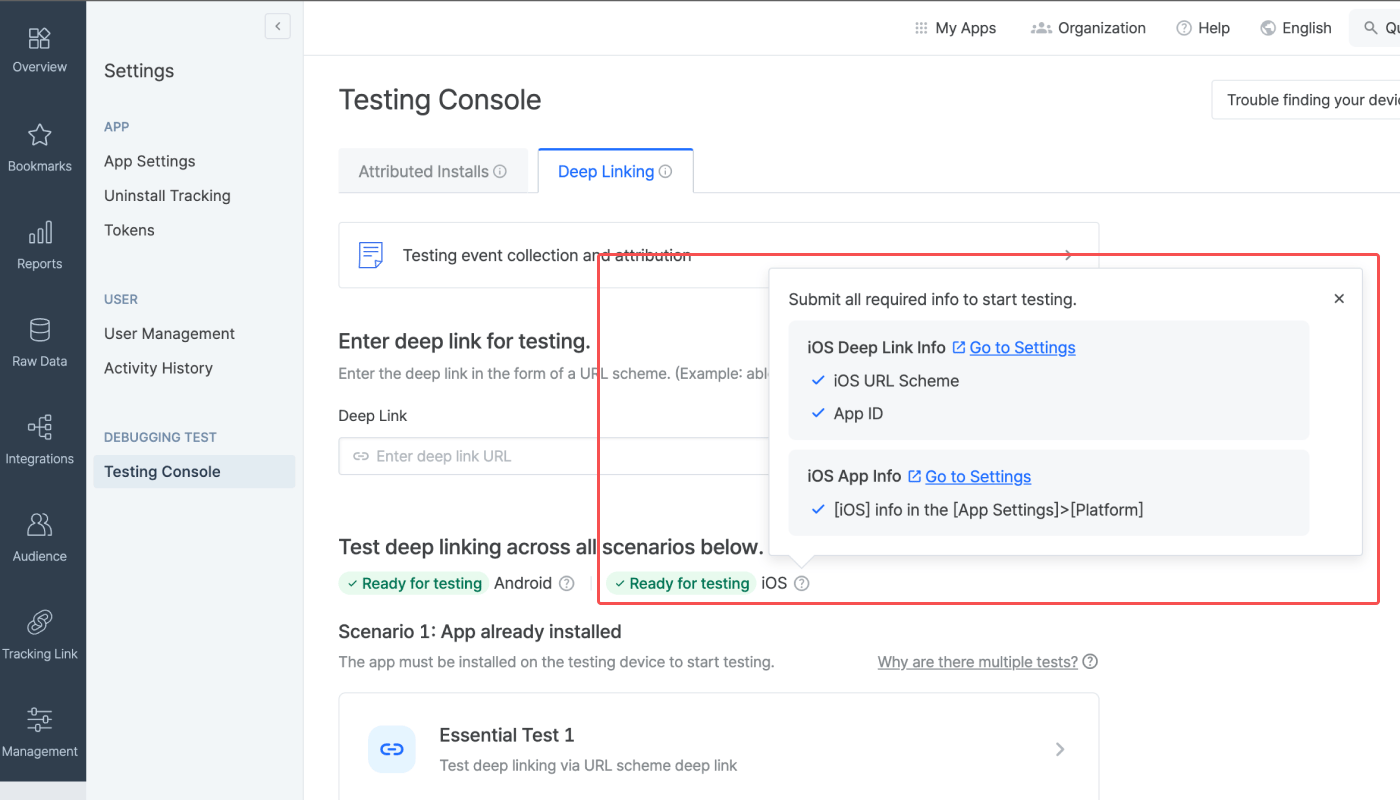
Testing
The testing console offers tests for 2 deep-linking scenarios. There are 3 tests for “Scenario 1: App already installed” and 1 test for “Scenario 2: App not installed.” Complete all 4 tests if you are using a custom domain to create tracking links. If not, complete all tests except for the Custom Domain Test.Why are there multiple tests?Airbridge supports various deep linking methods, including URL scheme deep links, Universal Links, and App Links. When an app is launched, the system automatically selects the most suitable method based on factors such as the operating system, browser, and whether the app is installed. Test across all possible cases to ensure reliable deep-linking performance.
Testing for Scenario 1: App already installed
Testing Scenario 1 allows you to make sure the deep linking functions as intended for users who have already installed the app on their devices. You can run 3 types of tests, including a test for cases when the app is opened via URL scheme deep links, when the app is opened via Universal Links or App Links, and when the tracking link is created using a custom domain.Preparation
Before you start the test, check the following items.- Prepare a mobile test device.
- Check whether the app is installed on the test device. If not, download the app.
- Open the app at least once after download.
- Make sure the default browser setting is Chrome or Safari. The deep linking test may not work in other browsers.
- Make sure you have a stable network connection.
NoteIf there are no issues with the deep link settings and the deep linking tests have been successfully completed, Airbridge deep linking works on most browsers. Note that deep linking tests are only supported on Chrome and Safari.
How to run each test
- Click the test you want to run.
- Scan the QR code with the test device and access the testing page. If you’re unable to scan the QR code, use the URL at the bottom of the QR code.
- Once you access the testing website, click Trigger deep linking. The test will run automatically on the 5 items displayed. If an issue is identified, follow the instructions and refer to the Airbridge user guide to resolve it. Then, start the test again.
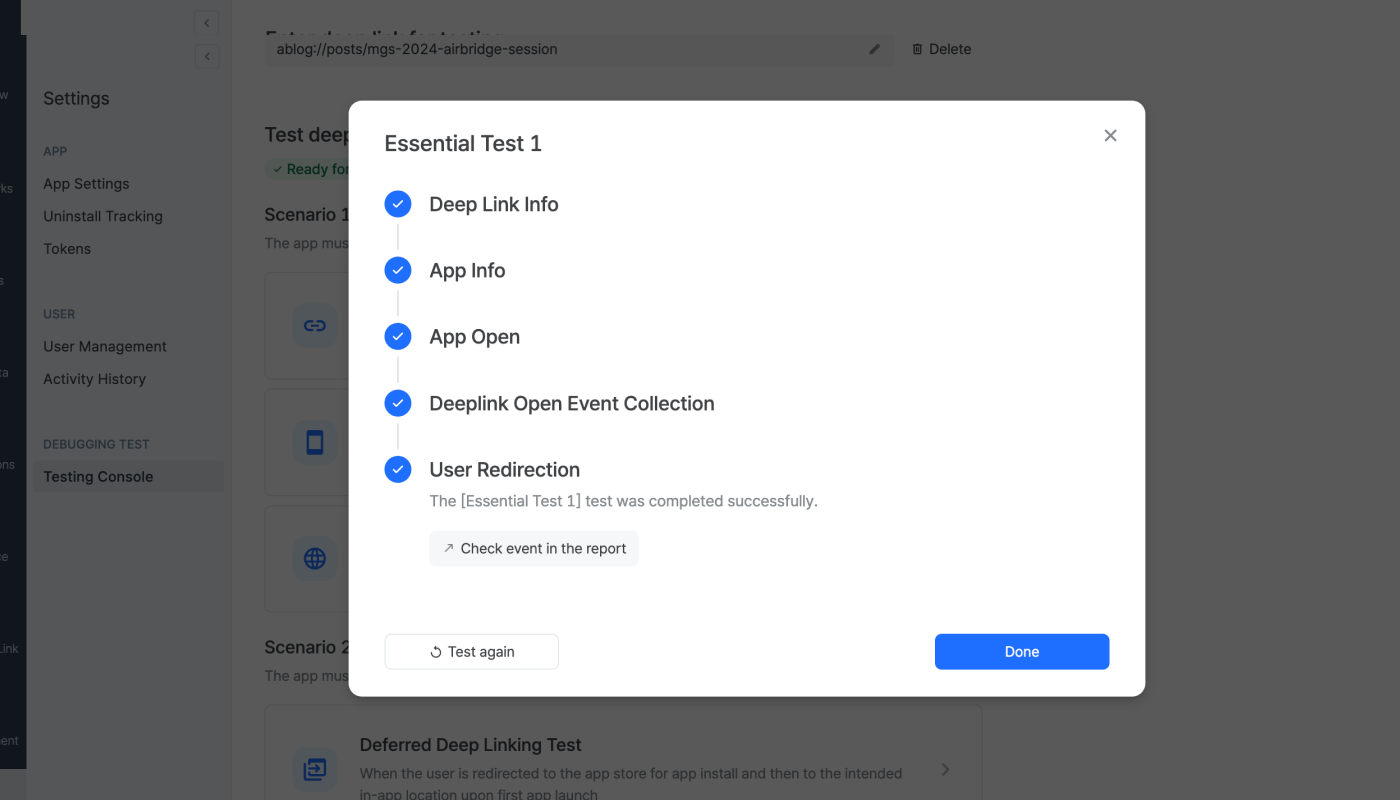
Essential Test 1
Essential Test 1
After completing the Essential Test 1, the following items can be found in the SDK log.
eventData.deeplinkis{YOUR_SCHEME}://....- The
{YOUR_SCHEME}://...is passed to the deep link callback.
Essential Test 2
Essential Test 2
After completing the Essential Test 2, the following items can be found in the SDK log.
eventData.deeplinkishttps://{YOUR_APP_NAME}.airbridge.io...- The
{YOUR_SCHEME}://...is passed to the deep link callback.
Custom Domain Test
Custom Domain Test
After completing the Custom Domain Test, the following items can be found in the SDK log.
eventData.deeplinkishttps://{YOUR_CUSTOM_DOMAIN}...- The
{YOUR_SCHEME}://...is passed to the deep link callback.
- After returning to the [Testing Console] tab, click Done and close the test window.
Testing for Scenario 2: App not installed
Testing Scenario 2 allows you to make sure the deep linking functions as intended for users who have not installed the app on their devices. You can run 1 test for deferred deep linking.Preparation
Before you start the test, check the following items.- Prepare a mobile test device.
- Check whether the app is not installed on the test device. If installed, delete the app from the device.
- Make sure the default browser setting is Chrome or Safari. The deep linking test may not work in other browsers.
- Make sure you have a stable network connection.
How to run the test
- Click the test you want to run.
- Scan the QR code with the test device and access the testing page. If you’re unable to scan the QR code, use the URL at the bottom of the QR code.
- Once you access the testing page, click Trigger deep linking. The test will run automatically on the 3 items displayed. If an issue is identified, follow the instructions and refer to the Airbridge user guide to resolve it.
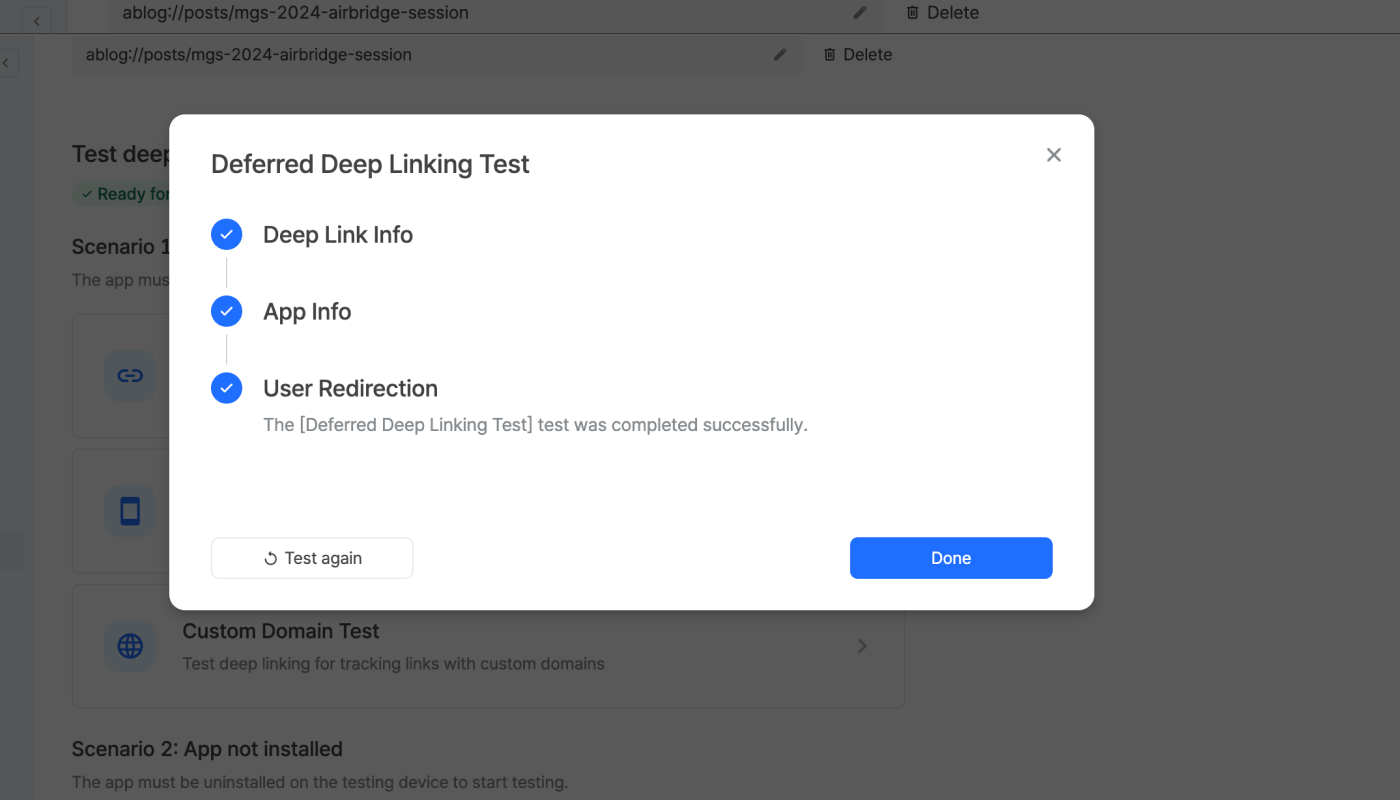
Deferred Deep Linking Test
Deferred Deep Linking Test
After completing the Deferred Deep Linking Test, the following items can be found in the SDK log.
eventData.deeplinkishttps://{YOUR_SCHEME}.airbridge.io...- The
{YOUR_SCHEME}://...is passed to the deep link callback.
- After returning to the [Testing Console] tab, click Done and close the test window.
Troubleshooting
Refer to the information below for troubleshooting regarding deep links.Additional SDK Settings
Follow the instructions below for additional setup.AttentionOptional settings. Configure only if necessary.
Create tracking links within the app
AttentionAirbridge iOS SDK v.4.0.0 or later is required.
createTrackingLink function to create tracking links. Refer to the code examples and the parameter details below.
Use the
option parameter in the createTrackingLink function to configure tracking link options.
Configure tracking link options
Configure tracking link options
onSuccess callback in the createTrackingLink function to pass the AirbridgeTrackingLink.
Refer to the example codes below.
Create tracking links that launch the app or redirect users to the app store
Create tracking links that launch the app or redirect users to the app store
Create tracking links that launch the app or redirect users to a webpage
Create tracking links that launch the app or redirect users to a webpage
Create tracking links that redirects users to the app store only
Create tracking links that redirects users to the app store only
Create tracking links that redirects users to a webpage only
Create tracking links that redirects users to a webpage only