
Install SDK
The Airbridge Android SDK can be installed using the method below. After installation, check whether the SDK has been properly installed through the Android SDK test.Gradle (build.gradle)
Gradle (build.gradle)
- Declare the Airbridge maven repository within the
repositoriesblock of your project’sbuild.gradlefile.
- Add the Airbridge Android SDK package to your app’s
build.gradlefile. Then, click the link below to find the latest version and replace$HERE_LATEST_VERSIONwith the latest version.- SDK version list: Link
Gradle (settings.gradle)
Gradle (settings.gradle)
- Declare the Airbridge maven repository within the
repositoriesblock of your project’ssettings.gradlefile.
- Add the Airbridge Android SDK package to your app’s
build.gradlefile.
Manual install
Manual install
.aar, you have to include the dependency library in your project. Refer to the following.build.gradle file contains repositories block, or refer to Gradle (settings.gradle) if your project’s settings.gradle file contains repositories block.Install Restricted SDK
Gradle (build.gradle)
Gradle (build.gradle)
- Declare the Airbridge maven repository within the
repositoriesblock of your project’sbuild.gradlefile.
- Add the Airbridge Android SDK package in your app’s
build.gradlefile.
Gradle (settings.gradle)
Gradle (settings.gradle)
- Declare the Airbridge maven repository within the
repositoriesblock of your project’ssettings.gradlefile.
- Add the Airbridge Android SDK package in your app’s
build.gradlefile.
Manual install
Manual install
.aar, you have to include the dependency libraries in your project. Refer to the following.build.gradle file contains repositories block, or refer to Gradle (settings.gradle) if your project’s settings.gradle file contains repositories block.Initialize SDK
Initializing the Airbridge Android SDK in the Android Application class is recommended.- Create an Application class.
- Set the generated Application in
AndroidManifest.xml.
- Get
Airbridgefrom the Application class.
- Add the following code snippet to the Application class file registered in
AndroidManifest.xml.
- Must be called in the
Applicationclass’sonCreate. - Must be called on the
Main thread.
- Set the following permissions.
Required permissions
Required permissions
AndroidManifest.xml.Advertising ID permissions
Advertising ID permissions
AndroidManifest.xml file to acquire the device’s ADID.From V2.13.0, the Airbridge Android SDK automatically adds the AD_ID permission that can acquire the ADID.If you have not set LAT(LimitAdTracking) and GAID appears as 00000000-0000-0000-0000-000000000000, you will need to add AD_ID permission with the following code snippet. The issue occurs because the AD_ID permission has been excluded, for example, by other third-party libraries.Deep Linking
Deep linking allows you to redirect users from ads to specific locations within your app. The data collected from the tracking link enables you to monitor the performance of the deep link in Airbridge.How Airbridge Deep Links work
Airbridge deep linking works in the following 3 steps.- A scheme deep link is embedded in the tracking link.
- When the user opens the tracking link, the app opens through an Airbridge Deep Link.
- The Airbridge SDK converts the Airbridge Deep Link back to the scheme deep link and passes it to the app.
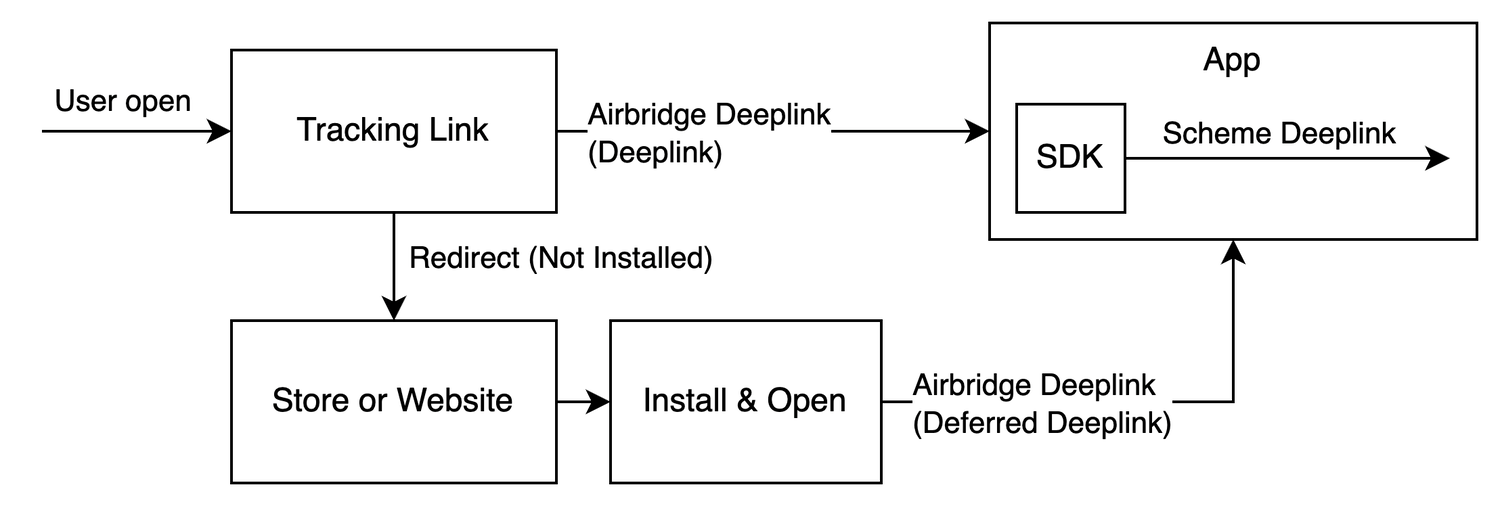
- Example scheme deep link embedded in the tracking link:
YOUR_SCHEME://product/12345
- HTTP deep link format 1:
https://YOUR_APP_NAME.airbridge.io/~~~ - HTTP deep link format 2:
https://YOUR_APP_NAME.abr.ge/~~~ - Scheme deep link format:
YOUR_SCHEME://product/12345?airbridge_referrer=~~~
- It determines whether the given deep link is an Airbridge Deep Link.
- It collects the information contained in the deep link and sends a deep link event.
- It converts the Airbridge Deep Link back to the scheme deep link embedded in the tracking link (
YOUR_SCHEME://product/12345) and passes it to the app.
Set up deep linking
For the deep linking setup, the deep link information entered to the Airbridge dashboard and the in-app location address for user redirection is required. First, enter the deep link information into the Airbridge dashboard.How to enter the deep link information into Airbridge dashboard
How to enter the deep link information into Airbridge dashboard
- Android URI scheme: The Airbridge Deep Link is converted to a scheme deep link using the Android URI scheme. This information is necessary for the App Link and URI scheme.
- Package name: This is the Android app identifier necessary for the App Link and URI scheme.
- Android sha256_cert_fingerprints: This is used for setting the App Link domain. This information is necessary for the App Link.
- To redirect users as intended, submit the Android URI scheme and the sha256_cert_fingerprints differently for the production app and the development app.
- You can register multiple sha256_cert_fingerprints on the dashboard by entering them separated by commas(,).
- Play App signing
- using original key
- Naviagate to [Tracking Link]>[Deep Links] in the Airbridge dashboard.
- Enter the Android URI scheme into the Android URI Scheme field. Include
://. For example, if the URI scheme isdemo, you must enterdemo://. - Enter the package name in the Package name field.
- Go to the Google Play Console and select your app.
- Navigate to [App integrity].
- Copy the SHA-256 certificate fingerprint from the App signing key certificate section.
- App signing key certificate ← Use this value
- Upload key certificate ← Do NOT use this value
- Enter the SHA256 value into the sha256_cert_fingerprints field.
- App launch with Airbridge deep links
- User redirection with Airbridge deep links
Enable app launch with Airbridge Deep Links
Enable app launch with Airbridge Deep Links
- Add an Activity that handles the deep link. Add an Activity class file to the src.
AndroidManifest.xml file.- For the scheme deep link setup, add an intent filter to the Activity that handles the deep link in the
AndroidManifest.xml.
://.<intent-filter> tags. If you add all <data> tags to a single <intent-filter> tag, deep links may not open your app properly.- For the App Links setup, add an intent filter under the Activity that handles the deep link in the
AndroidManifest.xml.YOUR_APP_NAMEis the App Name.
<intent-filter> tags. If you add all <data> tags to a single <intent-filter> tag, deep links may not open your app properly.Redirect users with Airbridge Deep Links
Redirect users with Airbridge Deep Links
Airbridge.handleDeeplink function to convert the Airbridge Deep Link into a scheme deep link.Use the converted scheme deep link to redirect users to the intended destination.Airbridge.handleDeeplink function passes true with the scheme deep link to onSuccess when an Airbridge Deep Link is input. For deep links other than Airbridge Deep Links, false is passed without a callback.The Airbridge.handleDeeplink function does not support user redirection. The redirection must be implemented using the URI passed to onSuccess of the Airbridge.handleDeeplink function.Set up deferred deep linking
When a user clicks on a tracking link with deferred deep linking capabilities and your app is not installed on the device, the Airbridge SDK collects the deep link as follows.How the Airbridge SDK collects deferred deep links
How the Airbridge SDK collects deferred deep links
- The
Airbridge.startTrackingfunction is called with the opt-in settings in place. Or, opt-in has not been set.
Airbridge.handleDeferredDeeplink function collects the saved Airbridge deep link and converts it into a scheme deep link to pass it to the app. Users are redirected to the intended destination using the converted scheme deep link.
Airbridge.handleDeferredDeeplink function returns true if it has been called for the first time after the install and waits for the Airbridge deep link to be retrieved, converts it to a scheme deep link to pass it to onSuccess. You can use this scheme deep link to send users to the intended destination.
If there is no stored Airbridge deep link, null is passed to onSuccess. If the SDK is not initialized or if the Airbridge.handleDeferredDeeplink function has not been called for the first time, false will be returned.
The scheme deep link is usually a URL in the form of YOUR_SCHEME://... If you use services like Meta Deferred App Links, a different form of URL may be passed.
Testing
The SDK functionality test and deep link test allow you to check whether the SDK and deep linking work as intended.Test SDK functionality
Check whether the Airbridge Android SDK is operating properly. The Install events are collected by the Android SDK regardless of whether the additional configurations have been completed or not.Check Install event collection
Follow the steps below to check whether the Install events are being collected by the Android SDK.- Prepare a test device where the app is not installed, or if the app is already installed, delete it before testing.
- Set the SDK log level to
DEBUG.
- Install the app on the test device. After installing the app, launch it so that the Install event is collected.
- Use LogCat in the Android Studio or the Android Debug Bridge (ADB) to check whether the event performed on the test device with a specific GAID is logged properly. If the Install events are being collected properly, you should see logs such as the following.
Send event packets to Airbridge: categories={9161}Send event packets to Airbridge: categories={9163}
LogCat messages and their meaning
LogCat messages and their meaning
Event packet is stored in storage: categories={...}: The event category is stored.Send event packets to Airbridge: categories={...}: Sending the event category.Succeed to send event packets to Airbridge: categories={...}: Sent the event category successfully through the network.
- If you can’t see the logs in LogCat even after a sufficient amount of time has passed, check whether the SDK has been initialized, the SDK configurations are completed as instructed, and the network status is stable.
Test deep links
The deep linking test is available in the [Deep Linking] tab on the [Settings]>[Test Console] page in the Airbridge dashboard.Pre-setup
Before testing the deep link, make sure the following items have been set up.Test preparation
The deep link information and app information required to enable deep linking must be submitted to the Airbridge dashboard before starting the test. This stage won’t show in your dashboard if the deep link information and app information have already been submitted. You may move on to the actual testing.Submit Deep Link Info
To test deep linking, make sure the required deep link information is submitted to the Airbridge dashboard for at least 1 platform. If you want to add or edit the deep link info, click Go to Settings. You can check and update the information on the [Tracking Link]>[Deep Links] page. For more details, refer to this article.Submit App Info
The deep link fallback path should be configured in advance so that users who haven’t installed the app on their devices are redirected to the app store. Click Go to Settings and fill in the “Platform” section on the [Settings]>[App Settings] page. For more details, refer to this article.Enter deep link for testing
Enter the deep link configured for the app you want to test. The deep link must be in the form of the URL scheme deep link. It should preferably be set to a specific in-app location instead of the home screen.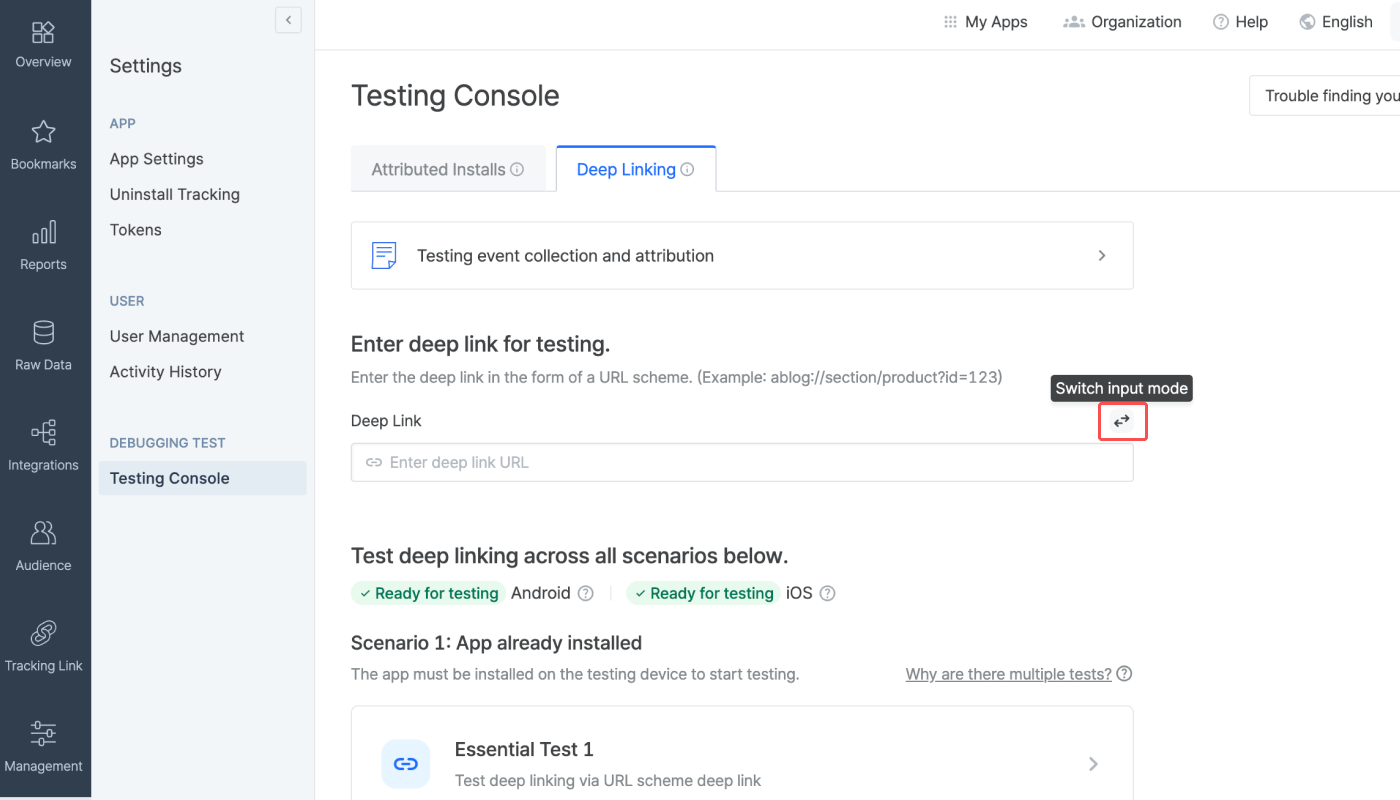
Check readiness for testing
Check if the info required for testing deep linking is submitted to the Airbridge dashboard. If all info is submitted for a platform, the “Ready for testing” tag will show. If not, the “Info incomplete” tag will show. Click the tooltip next to the platform name to see the required info for testing. If you see the “Info incomplete” tag for the platform you want to run the deep linking test, click Go to Settings to add or edit the required info to get ready for testing.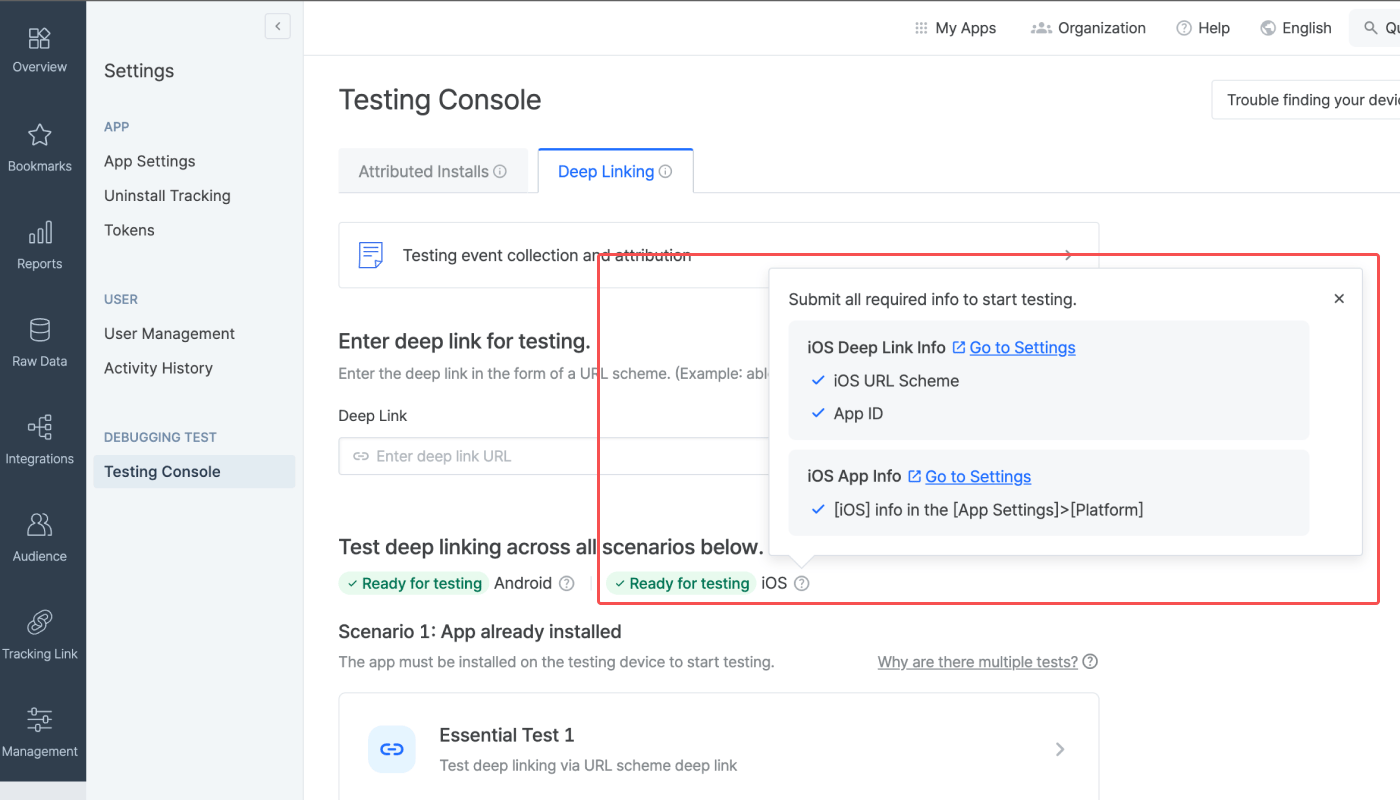
Testing
The testing console offers tests for 2 deep-linking scenarios. There are 3 tests for “Scenario 1: App already installed” and 1 test for “Scenario 2: App not installed.” Complete all 4 tests if you are using a custom domain to create tracking links. If not, complete all tests except for the Custom Domain Test.Testing for Scenario 1: App already installed
Testing Scenario 1 allows you to make sure the deep linking functions as intended for users who have already installed the app on their devices. You can run 3 types of tests, including a test for cases when the app is opened via URL scheme deep links, when the app is opened via Universal Links or App Links, and when the tracking link is created using a custom domain.Preparation
Before you start the test, check the following items.- Prepare a mobile test device.
- Check whether the app is installed on the test device. If not, download the app.
- Open the app at least once after download.
- Make sure the default browser setting is Chrome or Safari. The deep linking test may not work in other browsers.
- Make sure you have a stable network connection.
How to run each test
- Click the test you want to run.
- Scan the QR code with the test device and access the testing page. If you’re unable to scan the QR code, use the URL at the bottom of the QR code.
- Once you access the testing website, click Trigger deep linking. The test will run automatically on the 5 items displayed. If an issue is identified, follow the instructions and refer to the Airbridge user guide to resolve it. Then, start the test again.
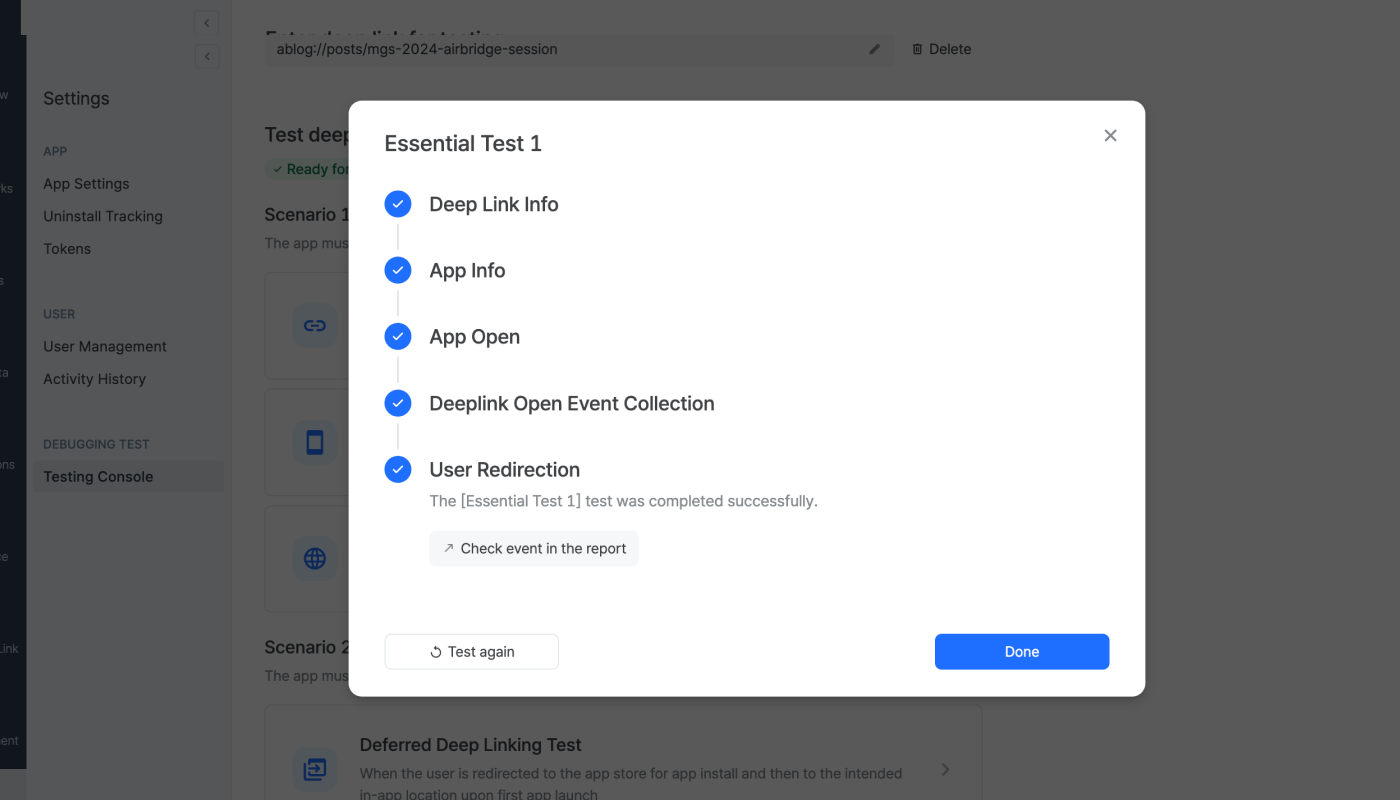
Essential Test 1
Essential Test 1
eventData.deeplinkis{YOUR_SCHEME}://....- The
{YOUR_SCHEME}://...is passed to the deep link callback.
Essential Test 2
Essential Test 2
eventData.deeplinkishttps://{YOUR_APP_NAME}.airbridge.io...- The
{YOUR_SCHEME}://...is passed to the deep link callback.
Custom Domain Test
Custom Domain Test
eventData.deeplinkishttps://{YOUR_CUSTOM_DOMAIN}...- The
{YOUR_SCHEME}://...is passed to the deep link callback.
- After returning to the [Testing Console] tab, click Done and close the test window.
Testing for Scenario 2: App not installed
Testing Scenario 2 allows you to make sure the deep linking functions as intended for users who have not installed the app on their devices. You can run 1 test for deferred deep linking.Preparation
Before you start the test, check the following items.- Prepare a mobile test device.
- Check whether the app is not installed on the test device. If installed, delete the app from the device.
- Make sure the default browser setting is Chrome or Safari. The deep linking test may not work in other browsers.
- Make sure you have a stable network connection.
How to run the test
- Click the test you want to run.
- Scan the QR code with the test device and access the testing page. If you’re unable to scan the QR code, use the URL at the bottom of the QR code.
- Once you access the testing page, click Trigger deep linking. The test will run automatically on the 3 items displayed. If an issue is identified, follow the instructions and refer to the Airbridge user guide to resolve it.
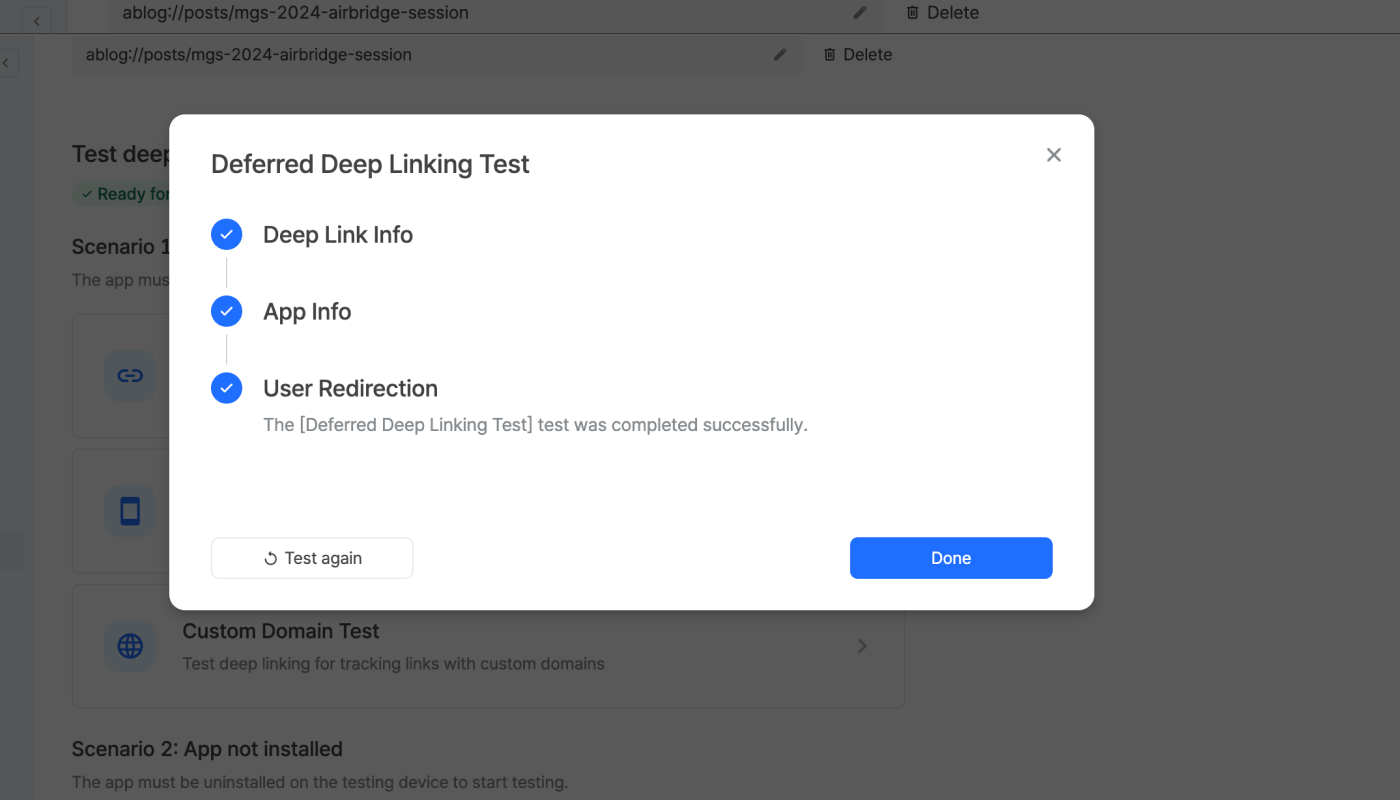
Deferred Deep Linking Test
Deferred Deep Linking Test
eventData.deeplinkishttps://{YOUR_SCHEME}.airbridge.io...- The
{YOUR_SCHEME}://...is passed to the deep link callback.
- After returning to the [Testing Console] tab, click Done and close the test window.
Troubleshooting
Refer to the information below for troubleshooting regarding deep links.Additional SDK Settings
Refer to the information below for additional setup.Create tracking links within the app
createTrackingLink function to create tracking links. Refer to the code examples and the parameter details below.
option parameter in the createTrackingLink function to configure tracking link options.
Create trackingLink option
Create trackingLink option
onSuccess callback in the createTrackingLink function to pass the AirbridgeTrackingLink.
Create tracking links that launch the app or redirect users to the app store
Create tracking links that launch the app or redirect users to the app store
Create tracking links that launch the app or redirect users to a webpage
Create tracking links that launch the app or redirect users to a webpage
Create tracking links that redirect users to the app store only
Create tracking links that redirect users to the app store only
Create tracking links that redirect users to a webpage only
Create tracking links that redirect users to a webpage only