

Deprecated SDKThis SDK has been deprecated. Migrate to the latest version, iOS SDK v4.Starting October 1, 2026, we will fix only critical issues that could cause your app to be rejected in app store review, and on October 1, 2028, all support will end.
Install SDK
AttentionDue to known issues in the Airbridge SDK versions earlier than v1.35.1, we advise installing the Airbridge SDK v.1.35.1 or later.
Install package
Install using CocoaPods
- Create a
Podfilefile with the below commands.
- Edit the
Podfileas below.
Podfile
To install the Airbridge iOS SDK version 1.18.0 or later, CocoaPods version 1.11.0 or later is required.
- Run the following commands in your terminal.
When no
pod command is found, install cocoapods with the below command.sudo gem install cocoapods
Install using Swift Package Manager (SPM)
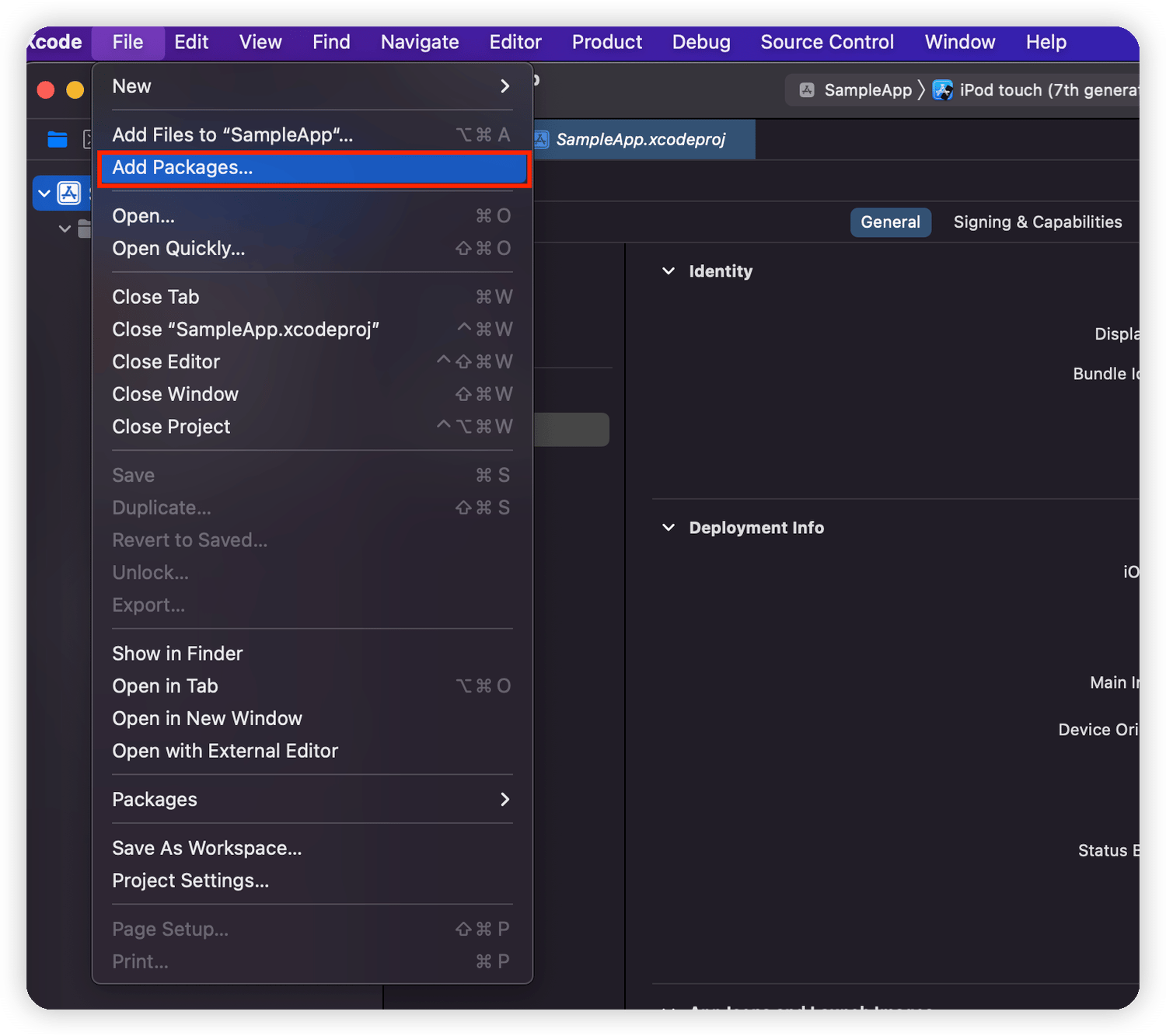
The Airbridge iOS SDK v1.23.0 and later versions can be installed using the SPM.- Navigate to [File]>[Add Packages] in Xcode.
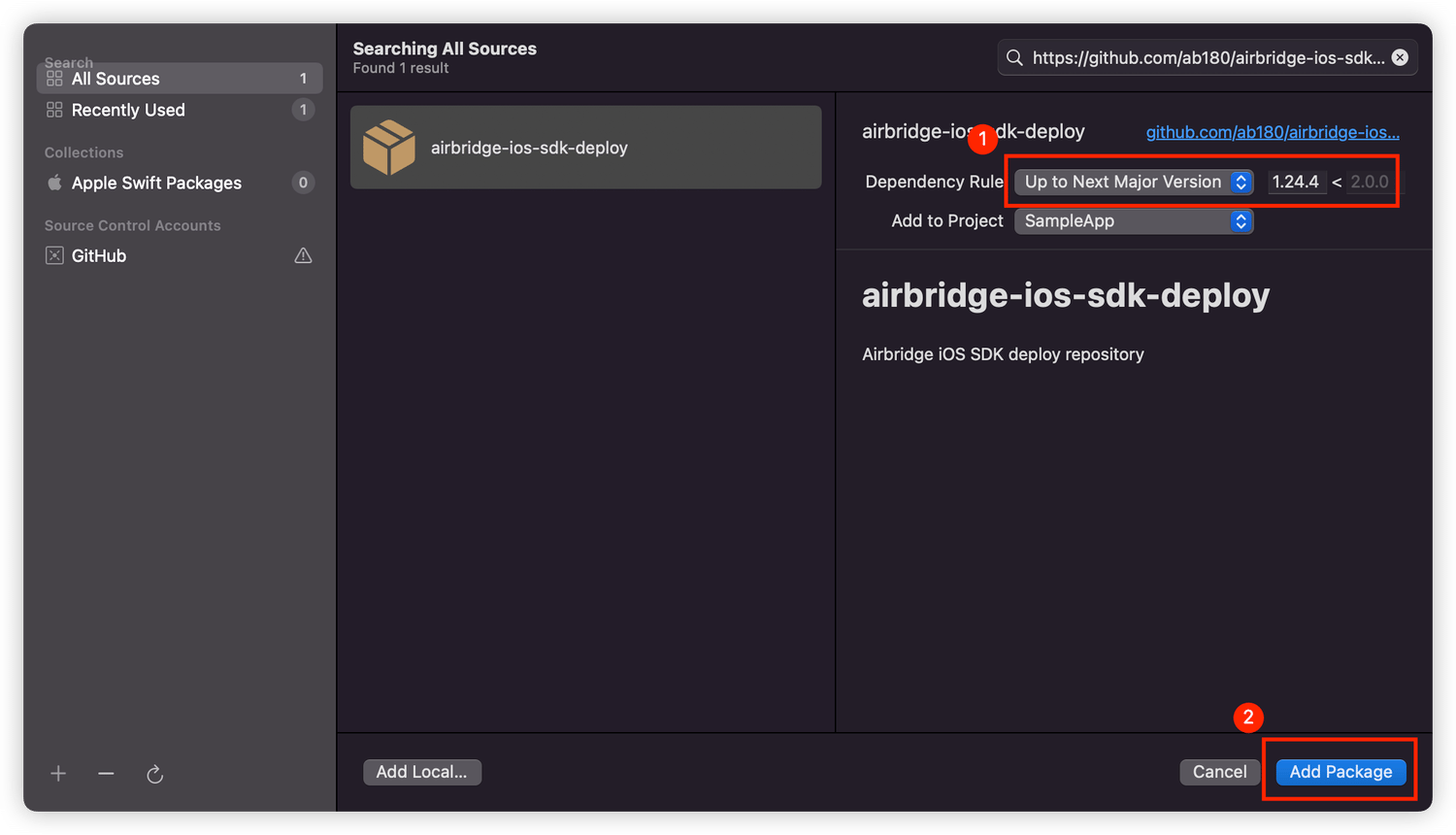
- Search for “https://github.com/ab180/airbridge-ios-sdk-deploy” in the “Add Packages” window. Select the version you want to install and click Add Package.
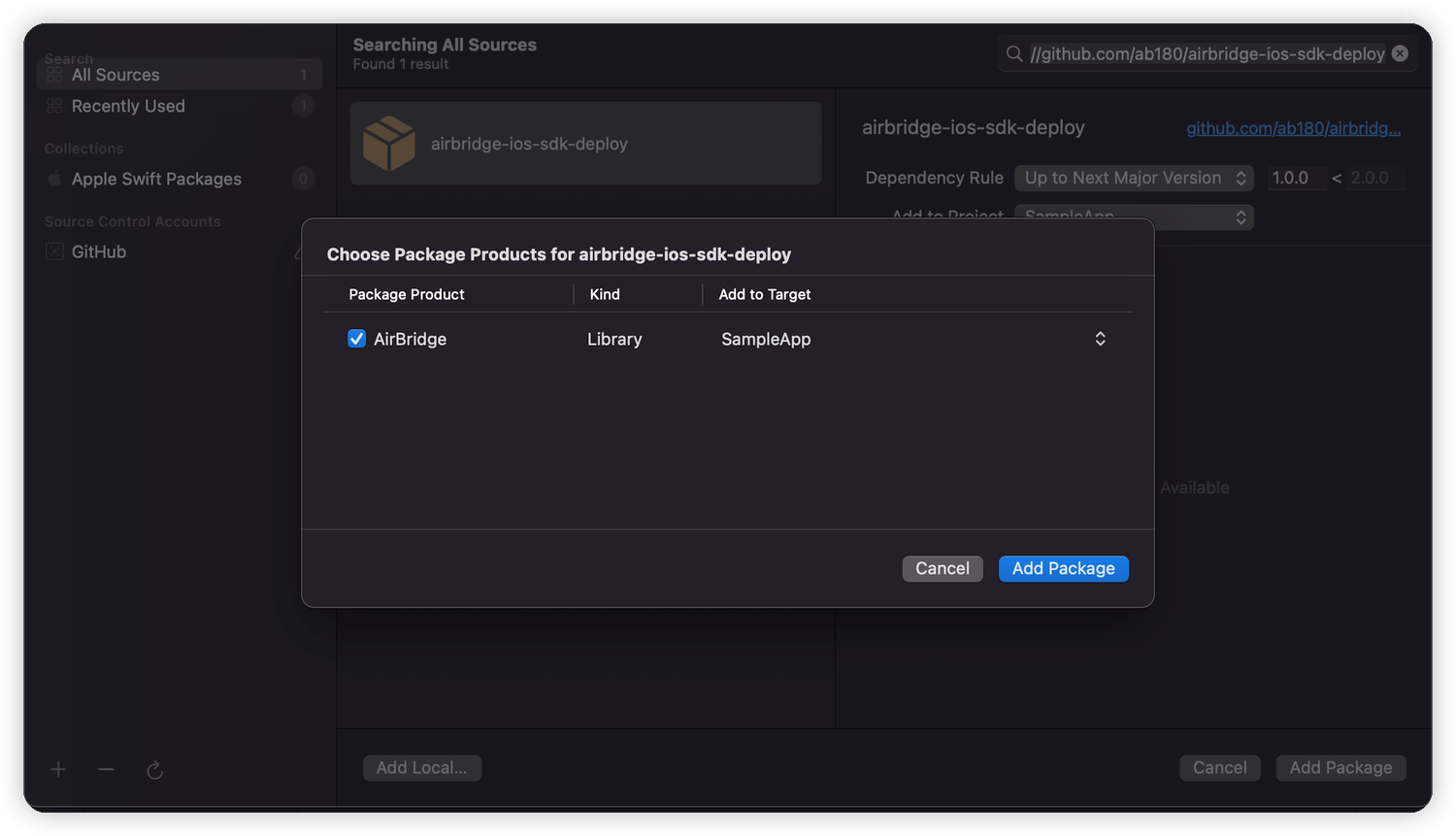
- Select Target and click Add Package.
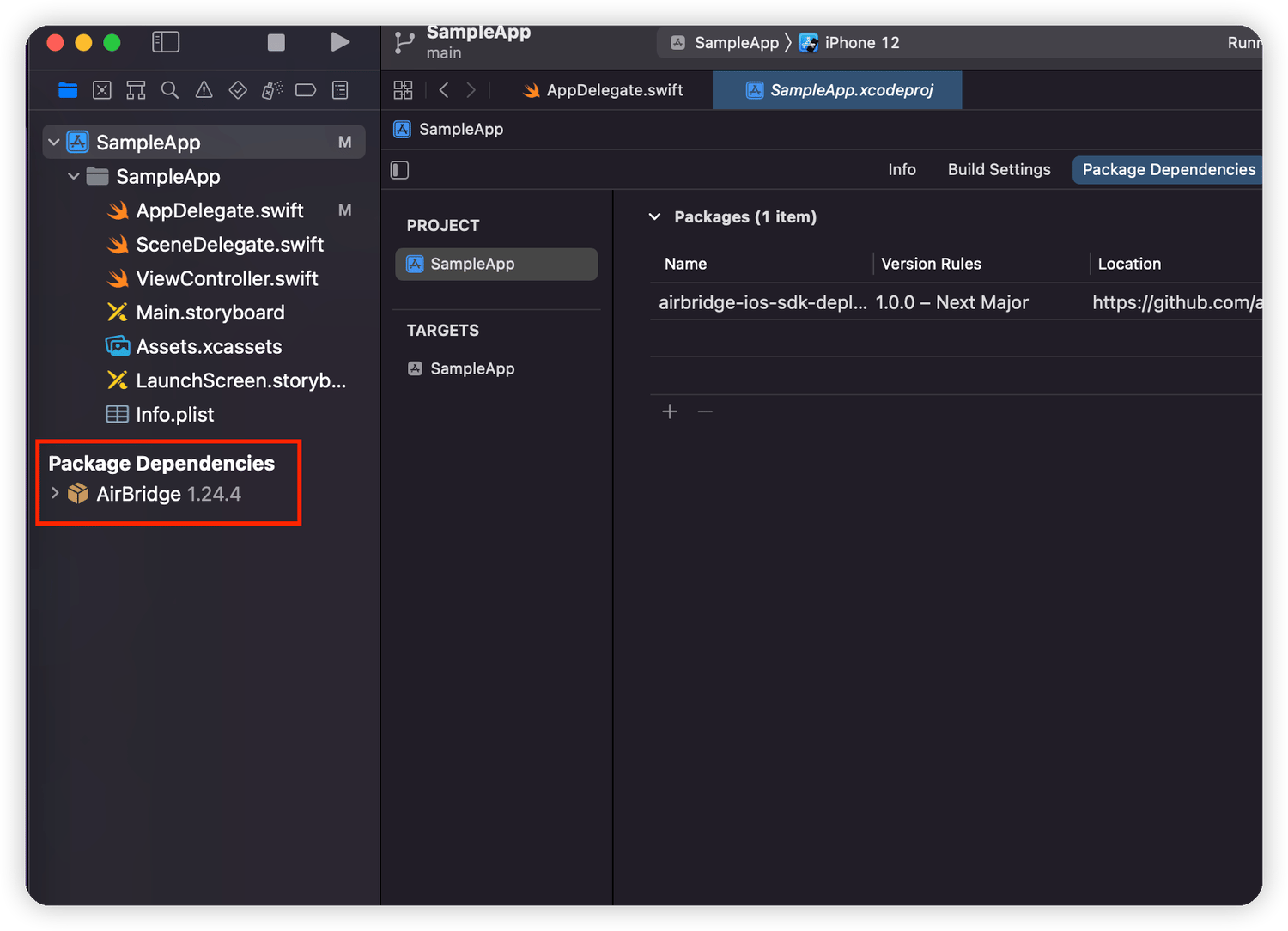
- AirBridge will show under “Package Dependencies” if the SDK is properly installed.
Install manually
Add the AirBridge.xcframework
- Download the
AirBridge.xcframework. - Navigate to [Xcode]>[Project file]>[General]>[Frameworks, Libraries, and Embedded Content] and click +.
- Click Add Other.. → Add Files.. at the bottom right.
- Add the
AirBridge.xcframeworkfolder in the file downloaded in Step 1. - Set
AirBridge.xcframeworkto “Embed & Sign.”
Add Dependency Frameworks
- Click [Xcode]>[Project file]>[General]>[Frameworks, Libraries, and Embedded Content] and click +.
- Add the frameworks in the table below.
- Set the frameworks as “Do not Embed.”
- Go to [Xcode]>[Project file]>[Build Phase]>[Link Binary with Libraries].
- Set the status of the framework below to
Optional.
Set up project
Initialize SDK
Initialize the SDK by adding the following code at the beginning of theapplication:didFinishLaunchingWithOptions: method in the AppDelegate file.
SwiftUI where AppDelegate doesn’t exist, initialize the SDK through the App class with @main.
Accept IDFA Terms and Conditions
To use the SDK, you must agree to the “IDFA terms and conditions” when publishing your app to the App Store. Refer to the table below to fill out the form.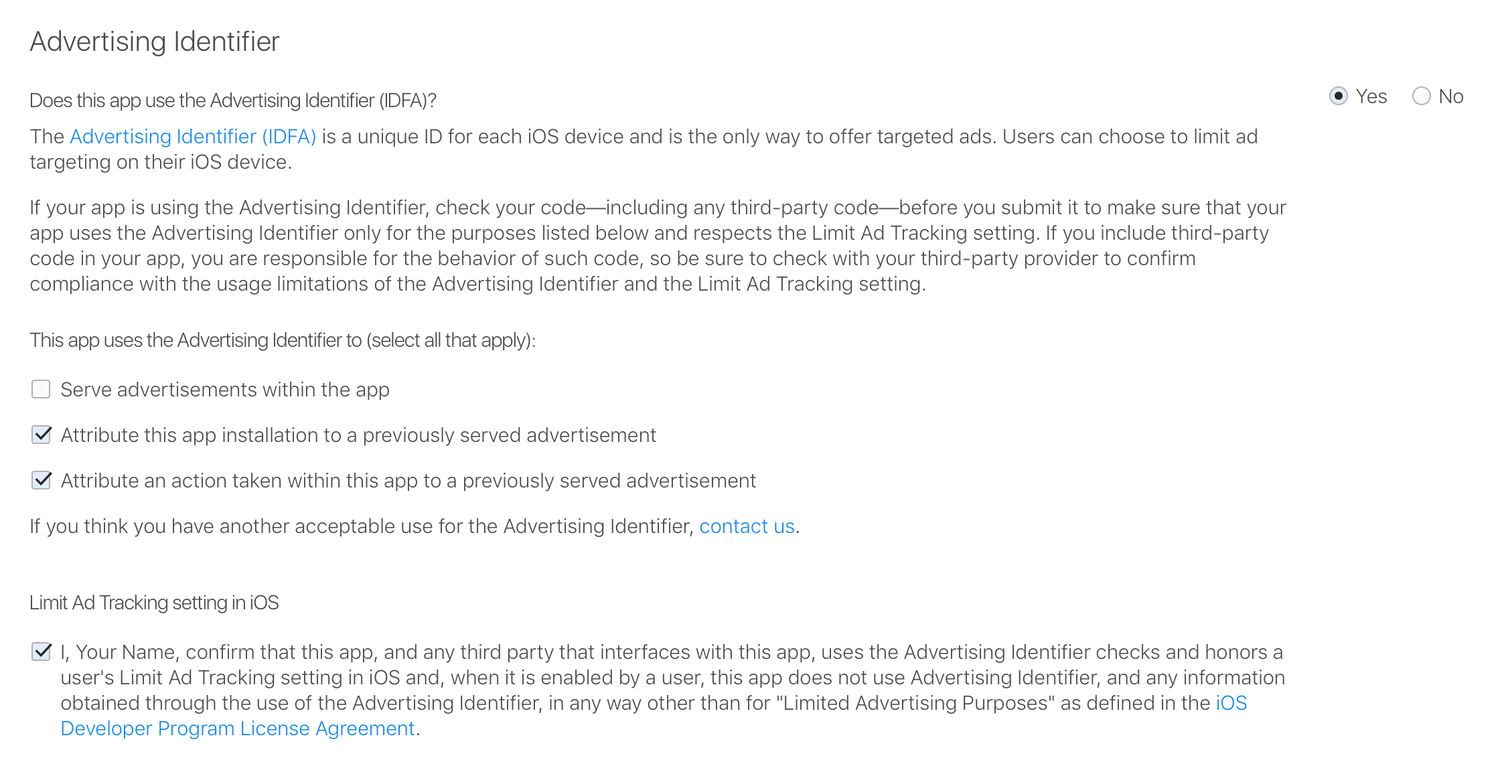
SDK testing
After completing the Airbridge iOS SDK setup, you can test whether it works properly by following the methods below.Using the Airbridge dashboard
- Install and open the app on a test device.
- Navigate to [Raw Data]>[App Real-time Logs] in the Airbridge dashboard.
- Enter the IDFA of the test device into the search bar to find it in the logs.
Using the logs
The logs will be printed to Xcode if you insert the following at the beginning of the SDK initialization code in yourAppDelegate file.
Deep Linking
Set up dashboard
The following information must be entered on the [Tracking Link]>[Deep Links] page in the Airbridge dashboard.- iOS URI Scheme
- iOS App ID
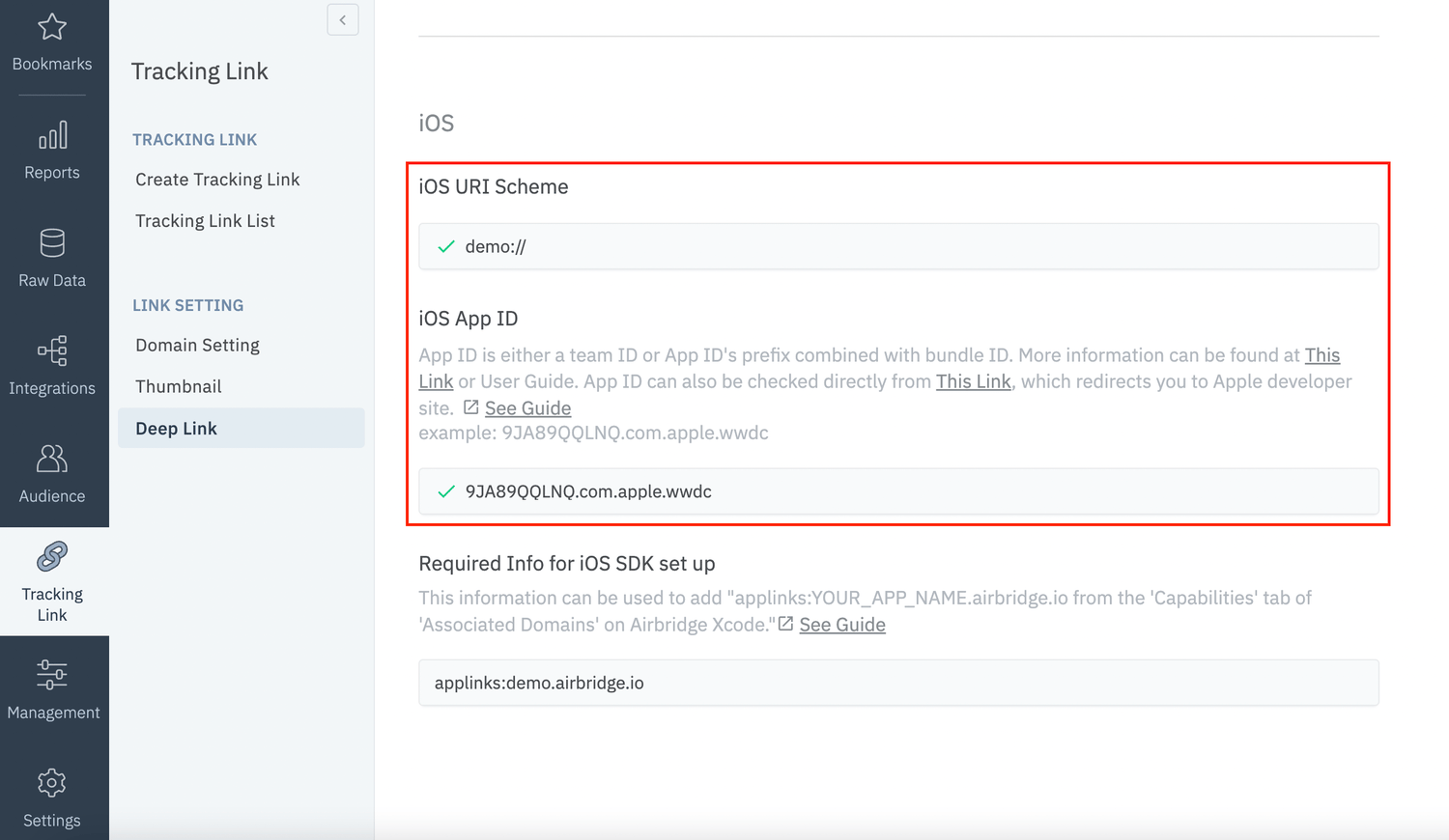
Enter the iOS URI Scheme
Enter the URI scheme into the iOS URI Scheme field, including://.
AttentionTo redirect users as intended, submit the URI scheme differently for the production app and the development app.
Enter the iOS App ID
- Go to
Identifiersat https://developer.apple.com/account/resources. - Click the identifier of the app that you want to track.
- Copy the identifier information and paste it to the iOS App ID field in the following format.
App ID Prefix+.+Bundle ID(Example:9JA89QQLNQ.com.apple.wwdc)
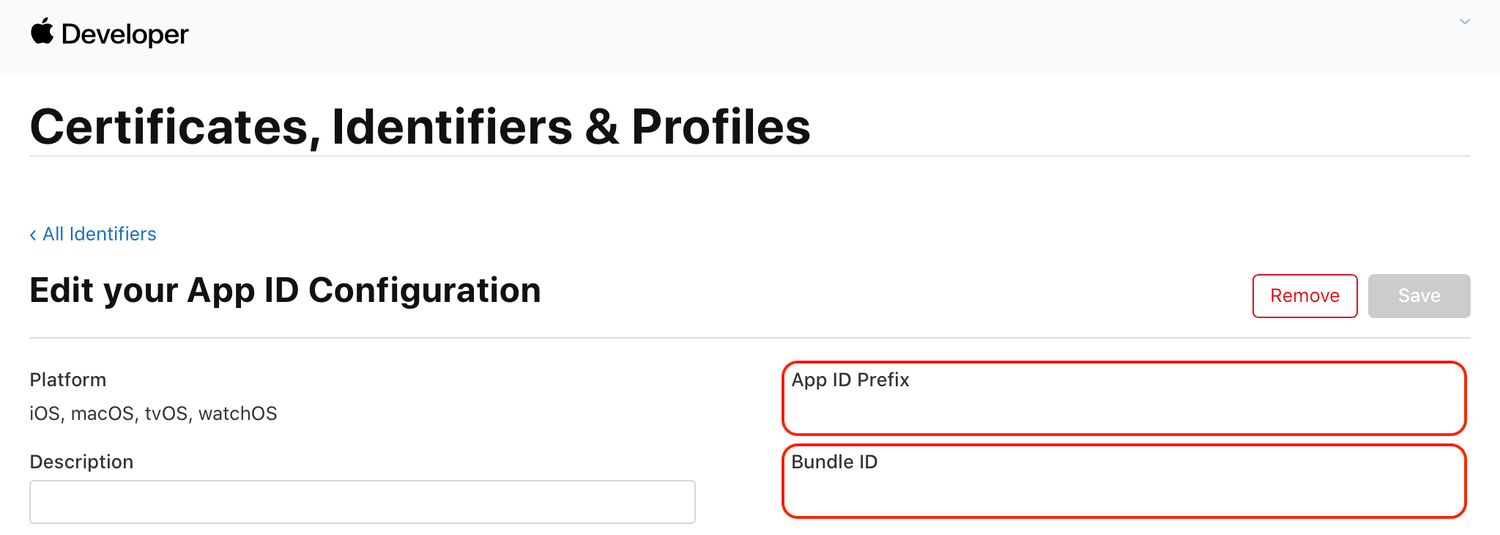
Set up project
Scheme
- Go to [Xcode]>[Project file]>[Info]>[URL Types].
://.
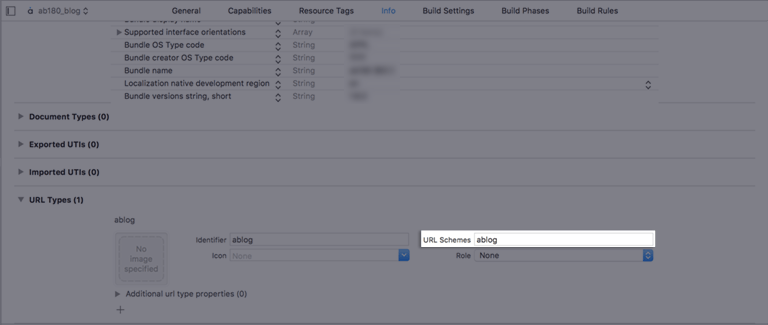
Universal Link
- Go to [Xcode]>[Project file>[Signing & Capabilities].
- Click + Capability and add Associated Domains.
- Add
applinks:YOUR_APP_NAME.airbridge.ioto Associated Domains. - Add
applinks:YOUR_APP_NAME.abr.geto Associated Domains.
YOUR_APP_NAME can be found on the [Settings]>[Token] page in the Airbridge dashboard.Refer to Troubleshooting → Webcredentials if you want to use the autofill feature.
Send deep link information to SDK
When using AppDelegate
For apps that support iOS 12 and earlier, events are usually sent through theapplication(_:open:options:) method in AppDelegate.
- Open
ios/[Project name]/AppDelegate. - Call the
handleURLSchemeDeeplinkfunction at the top of the below function to pass the deep link information to the SDK when the app is opened with a scheme.
- Call the
handleUserActivityfunction at the top of the below function to pass the deep link information to the SDK when the app is opened with a Universal Link.
AttentionWhen using
SceneDelegate, the deep link is passed to SceneDelegate instead of AppDelegate. Refer to the next section on how to receive the deep link in SceneDelegate.When using SceneDelegate
For apps that support iOS 13 and later, deep links are passed to the following methods.- When the app was loaded from a “Not running” status:
scene(_:willConnectTo:options:) - In all other situations (e.g., background)
- Universal link:
scene(_:continue:) - Scheme link:
scene(_:openURLContexts:)
- Universal link:
When using SwiftUI without SceneDelegate
If you are usingSwiftUI without SceneDelegate, deep links are passed to onOpenURL. Add this method to the App class with @main.
AttentionIf you are using
SwiftUI with SceneDelegate, onOpenUrl cannot be used. In such a case, refer to this section.Set up deep link callback
When using AppDelegate
- Open
ios/[Project file]/AppDelegate. - Use the
setDeeplinkCallbackfunction to set up the callback that should be called when the app is opened through a deep link.
When using SwiftUI
If you are not usingAppDelegate or SceneDelegate, add the following method to the App class with @main.
- For Airbridge iOS SDK v1.10.0 to 1.10.9: The Airbridge deep link is sent in the format of
https://YOUR_APP_NAME.airbridge.io/.... - For
AirbridgeiOS SDK v.1.20.0 to v1.9.10: The Airbridge deep link is sent in the format of eitherhttps://YOUR_APP_NAME.airbridge.io/...orYOUR_SCHEME://....
Set up deferred deep linking
When setting up a deep link callback, information about deferred deep links will also be sent through that deep link callback. Refer to “Set up deep link callback” to set up deferred deep link callbacks. The deferred deep link callback is sent only once when the app is installed.Deep link testing
Check whether the app opens and the deep link event is sent when the Airbridge deep link is clicked on. The Airbridge deep link should follow theYOUR_SCHEME://... format. Your_Scheme is the iOS URI Scheme entered in your Airbridge dashboard.
- Click the deep link.
- Check whether the deep link event appears on the [Raw Data]>[App Real-time Logs] page in the Airbridge dashboard.
User Data
Set up user identifier
You can set up the SDK so that once a user identifier is sent to the SDK, all events collected thereafter contain the same user identifier.Set up user attributes
Additional user attributes can be collected for a more accurate multi-touch attribution and in-depth data analysis.User data setup testing
Check whether the user data setup has been successfully completed by following the steps below.- Complete the user setup.
- Send an event through the SDK.
- Navigate to [Raw Data]>[App Real-time Logs] in the Airbridge dashboard, find the event sent, and check whether the user data is included under the
userblock in the JSON.
Device Data
Set up device alias
Set up the Airbridge SDK to collect device alias when collecting events. The alias won’t be deleted even after the user closes the app unless the user deletes the app.In-app Events
When important user actions occur, those actions can be collected as in-app events.AttentionThe
setCategory function must be called to send events.Send in-app events
You can send in-app events through the SDK to Airbridge for ad performance measurement.Send Standard Events
User Sign-Up
User Sign-In
User Sign-Out
View Home Screen
View Product Detail
View Product List
View Search Result
Add to Cart
Order Complete
Event transmission testing
Send an event through the SDK and check whether the event is available in the Airbridge dashboard.- Send an event through the SDK.
- Navigate to [Raw Data]>[App Real-time Logs] in the Airbridge dashboard and search for the event.
Advanced Settings
Install Restricted SDK
Depending on policies and environments, restrictions on collecting device IDs like GAID and IDFA may be required. When installing the Restricted SDK version, the device IDs are not collected. The Restricted SDK is supported in v1.34.9 and later.Install using CocoaPods
- Create a
Podfilewith the following command.
- Fill in the
Podfileas follows.
Podfile
To install the Airbridge iOS SDK version 1.18.0 or later, CocoaPods version 1.11.0 or later is required.
- Open the terminal and enter the following command.
When no
pod command is found, install cocoapods with the below command.sudo gem install cocoapods
Install manually
AirBridge.framework(restricted): DownloadSet up SDK Signature
With the SDK Signature, you can ensure SDK spoofing prevention and use verified events for ad performance measurement. Call thesetSDKSignatureSecret function above the initialization code.
The SDK Signature Credentials are required for the SDK Signature setup. Refer to this article to learn how to create them.
Set up user identifier hashing
By default, the user email and phone number information is hashed using SHA256 before being sent to Airbridge. To disable hashing, call thesetIsUserInfoHashed function at the beginning of the SDK initialization code.
Set up session timeout
You can set up the session timeout by calling thesetSessionTimeout function at the beginning of the SDK initialization code.
- Session timeout is in milliseconds, and the value must range between 0 and 604800000 (7 days).
- Default value is
1000 * 60 * 5(5 minutes).
Opt-in setup
The opt-in policy requires user consent before using user data. Use the method below for collecting and transmitting data after obtaining consent for personal data tracking from users, especially when GDPR or CCPA applies. If theautoStartTrackingEnabled function is set to false before the SDK initialization code, events are not sent before the startTracking function is called.
For example, if a lifecycle event such as Deeplink Open occur while the app is not opened, and this event is sent before the startTracking function is called, the event may not be collected.
Opt-out setup
AttentionThe instructions below are optional. Proceed only if necessary.
setAutoStartTrackingEnabled function to true, call the stopTracking function at the point where event data cannot be collected. From the moment the stopTracking function is called, the SDK will stop collecting events.
Track Airbridge deep links only
Set thesetIsTrackAirbridgeDeeplinkOnly function to true at the beginning of the SDK initialization code so that only Airbridge deep links are collected.
Set up Facebook deferred app links
Follow the steps below to collect Facebook deferred app links through the SDK.- Install the Facebook SDK by following this Facebook document.
- Open
ios/[Project name]/AppDelegate. - Call the
setIsFacebookDeferredAppLinkEnableat the beginning of the SDK initialization code. WhenisFacebookDeferredAppLinkEnabledis set toYES(true) and the Facebook SDK is installed, the SDK collects the Facebook deferred app link.
Set up Uninstall tracking
Airbridge sends a silent push daily between 3:00 PM and 4:00 PM (UTC) to users whose app event has been collected at least once in the last 6 months to check for uninstalls. Uninstall events can be monitored through Airbridge reports and raw data export files. Refer to the article below for the detailed setup instructions.Track Deeplink Opens from push notifications
When a user clicks a push notification, thehandleNotificationDeeplink function should be called to pass the deep link in the push notification payload to the SDK.
Tracking authorize prompt
In iOS 14.5+, the IDFA can only be collected if users consent to data tracking via the App Tracking Transparency (ATT) prompt using the AppTrackingTransparency.framework.Tracking authorize timeout
When using the AppTrackingTransparency.framework to display the ATT prompt to the user, the IDFA is not collected when the install event occurs because the ATT prompt only appears after the user installs the app. By calling thetrackingAuthorizeTimeout function before the SDK initialization code, the sending of the install event will be delayed for the set timeout period to wait for the user to finish responding to the ATT prompt.
trackingAuthorizeTimeoutis in milliseconds.- The sending of the Install event can be delayed for as long as the
trackingAuthorizeTimeoutperiod. - The
trackingAuthorizeTimeoutis initialized every time the app is relaunched.
trackingAuthorizeTimeout is initialized every time the app is relaunched. To prevent this, set isRestartTrackingAuthorizeTimeout to false.
AttentionFor iOS SDK v.1.32.1 and later, the
trackingAuthorizeTimeout is 30 seconds by default. To optimize user experience, make sure to configure the value to a sufficient time period.Event buffer limit
When an event transmission failure occurs, the Airbridge SDK will store the event and retry later. The following settings will allow you to limit the storage used for such events. The new settings will apply starting from the next SDK initialization.Event transmission cycle
You can configure the event transmission cycle so that when the event transmission succeeds once, the next event transmission will take place in the next cycle. The default value is set to 0 milliseconds.Delete unprocessed events
Clear the device’s internal database of unprocessed events that have not been sent to Airbridge.AttentionThe code above must be run before Airbridge starts tracking. If
autoStartTracking is set to true, the code must be run before getInstance, and if autoStartTracking is set to false, the code must be run before startTracking. If not, the function won’t work.Use tracking links within the app
AttentionWhen you set up the Airbridge iOS SDK v1.24.0 or later to use tracking links within apps, every time a tracking link is used within the app, Deeplink Pageviews are aggregated as Target Events. The deep link performance may be affected when Deeplink Pageviews occur frequently right after Deeplink Opens.The attribution window for Deeplink Pageviews is set to 3 days by default. If you want to change the attribution window for Deeplink Pageviews, contact your Airbridge CSM. If you don’t have a dedicated CSM, contact the Airbridge Help Center.
Click
When a user clicks on the tracking link within the app, theAirbridge.click function is called. A click event is collected, and the user is redirected to the configured app or web fallback path.
Impression
When a user engages with a tracking link within the app, theAirbridge.click function is called. An impression event is collected.
Set up attribution result callback
To get the attribution result from the Airbridge iOS SDK, the callback closer must be passed to theattributionCallback.
The attribution result callback is provided only once after the app install.
If an event is unattributed, meaning that there is no attribution result, you will get the following response.
Guidelines for using attribution result data
When the attribution data exists
- Attribution data is forwarded within 40 seconds of SDK initialization.
- If the app is closed and the attribution data cannot be received, the attribution data is forwarded within 40 seconds when the app is opened again.
- On very rare occasions, it could take up to 5 minutes for the attribution data to be received.
- The attribution data will be sent when the app is opened again after at least three hours have passed since the SDK was initialized.
- Note that it is not recommended to use the attribution data for real-time processing.
Collect in-session lifecycle events
The following code allows you to collect lifecycle events (ORGANIC_REOPEN, FOREGROUND) within the session timeframe.
Deactivate Airbridge
All Airbridge functions can be turned off using the following method.AttentionThe above function must be run before the initialization code (
getInstance). If not, the function won’t work.Event collection in iOS Extension
Initialize the SDK using theviewDidLoad function in the iOS Extension and collect events using the functions listed here.
AttentionThe following limitations exist when utilizing the Airbridge SDK in iOS Extensions.
- In iOS Extensions, lifecycle events such as Install, Open, Deeplink Open, and Foreground events are not collected.
- If event transmission from the iOS Extension is abruptly terminated, it will resume later when the Extension is launched again. The event transmission is not attempted when the app is launched.
- SKAN measurement is not recommended when using the Airbridge SDK in the iOS Extension, as the conversion value measurement may not work correctly.
Compliance with Google DMA
To comply with the Digital Markets Act (DMA), you must pass user consent data to Airbridge. For more information about the DMA and whether it applies to your service, see the Airbridge user guide. If you are in the European Economic Area (EEA), you must always pass User Response information to Airbridge.- Confirm whether the end user launched the app in the EEA. If the end user did launch the app in the EEA (
eea=1), confirm whether the consent values have already been stored for the session. If there are consent values stored, continue to Step 3.
NoteAirbridge cannot provide guidance on storing the user consent data and implementing the prompts. For assistance, consult legal professionals.
- If there are no consent values stored, proceed to obtain user consent, such as with a privacy prompt. You must collect the
adPersonalizationandadUserDatavalues in this step.
User consent data that must be passed to Airbridge SDK
User consent data that must be passed to Airbridge SDK
- Initialize the Airbridge SDK and share the consent values with Airbridge before collecting the end user’s personal data.
AttentionEnsure to follow the instructions below.
- Use the field names specified by Airbridge:
eea,adPersonalization,adUserData - Input
0or1following the consent data collected.
Hybrid App Setup
Sending events in WebView environments
AttentionNote that to utilize this feature, both SDKs must be installed: the Android SDK on the mobile native environment and the WebView SDK on the WebView environment’s website.
YOUR_WEB_TOKEN on the [Settings]>[Tokens] page in your Airbridge dashboard.
SDK Migration
When updating the SDK, consider the content regarding versions between the previous version and the later version or your updated version.1.36.0
For apps registered with Airbridge after November 4, 2023, an issue where the deep link URL provided in the deep link callback was decoded twice from the content entered in the Airbridge dashboard has been resolved. This issue was found in versions 1.34.0 to 1.35.1.1.34.0
For apps registered with Airbridge after September 4, 2023, the “airbridge_referrer” will no longer be added to the deep link URL provided in the deep link callback and will instead pass it to the information entered in the Airbridge Dashboard.1.33.0
When updating the app from iOS SDK v1.33.0 or earlier to v1.33.0 or later, the last calculated SKAN conversion value will be finalized, and no additional calculation will be processed.- For iOS SDK versions earlier than 1.33.0, the SKAN conversion value is calculated for up to 24 hours.
- There is no issue for users who newly install the SDK.