
Apply Deep Links
NoteYou need to prepare the specific app page URLs for deep links. Airbridge delivers these URLs as deep links to the app through tracking links and sends users who clicked ads or content to the URL destinations.
Register Deep Link Information in Airbridge
Go to [Tracking Link]>[Deep Links] in the Airbridge dashboard to register information needed to apply deep links. See the instruction below for your operating systems.Android
Android
NoteRegister all deep link information to ensure users are reliably sent to the intended app pages in various situations. Airbridge supports URL scheme deep links, App Links, and Universal Links, automatically selecting the most appropriate method based on the operating system, browser, app installation status, and more, when the app opens.
iOS
iOS
NoteRegister all deep link information to ensure users are reliably sent to the intended app pages in various situations. Airbridge supports URL scheme deep links, App Links, and Universal Links, automatically selecting the most appropriate method based on the operating system, browser, app installation status, and more, when the app opens.
Create Tracking Links with Deep Links as Destination
Set up deep links in Airbridge SDK firstFor deep linking to work, you must first set up deep links in the Airbridge SDK before creating tracking links. Ask your developer for help.
Attention
- You can enter only URL scheme deep links in [Deep Link]. Enter a specific app page URL that starts with the URL scheme you’ve registered in Airbridge.
- You must encode any characters other than letters, numbers, and the special characters = ? & #
Apply Deferred Deep Links
Set up deferred deep links in Airbridge SDK firstFor deferred deep linking to work, you must first set up deferred deep links in the Airbridge SDK before creating tracking links. Ask your developer for help.
Deferred deep linking time limit
Deferred deep linking time limit
Deferred deep linking works for 1 hour after users click ads or content with tracking links. This means users without the app must install and open it within 1 hour for deferred deep linking to work. See the scenario below.
- 9 AM: A user without the app clicks an ad with a tracking link.
- Before 10 AM: When the user installs and opens the app for the first time, they are sent to the specific app page set as the deep link destination.
- After 10 AM: The deferred deep linking time limit has expired. When the user installs and opens the app for the first time, they are sent to the app’s default page, such as the home page.
NoteDeferred deep linking works on iOS 14.5 and later despite Apple’s App Tracking Transparency (ATT) policy, as the underlying tracking links do not collect user information or send it to Airbridge.
Add Airbridge Macros to Deep Links
Airbridge macrosAirbridge macros are macros supported in Airbridge tracking links, enclosed in curly braces (
{ }).Add Airbridge macros to deep links in Airbridge dashboard
Add Airbridge macros to deep links in Airbridge dashboard
- Go to [Tracking Link]>[Link Generation]>[Redirection], and select App (Deep Link) as [Destination].
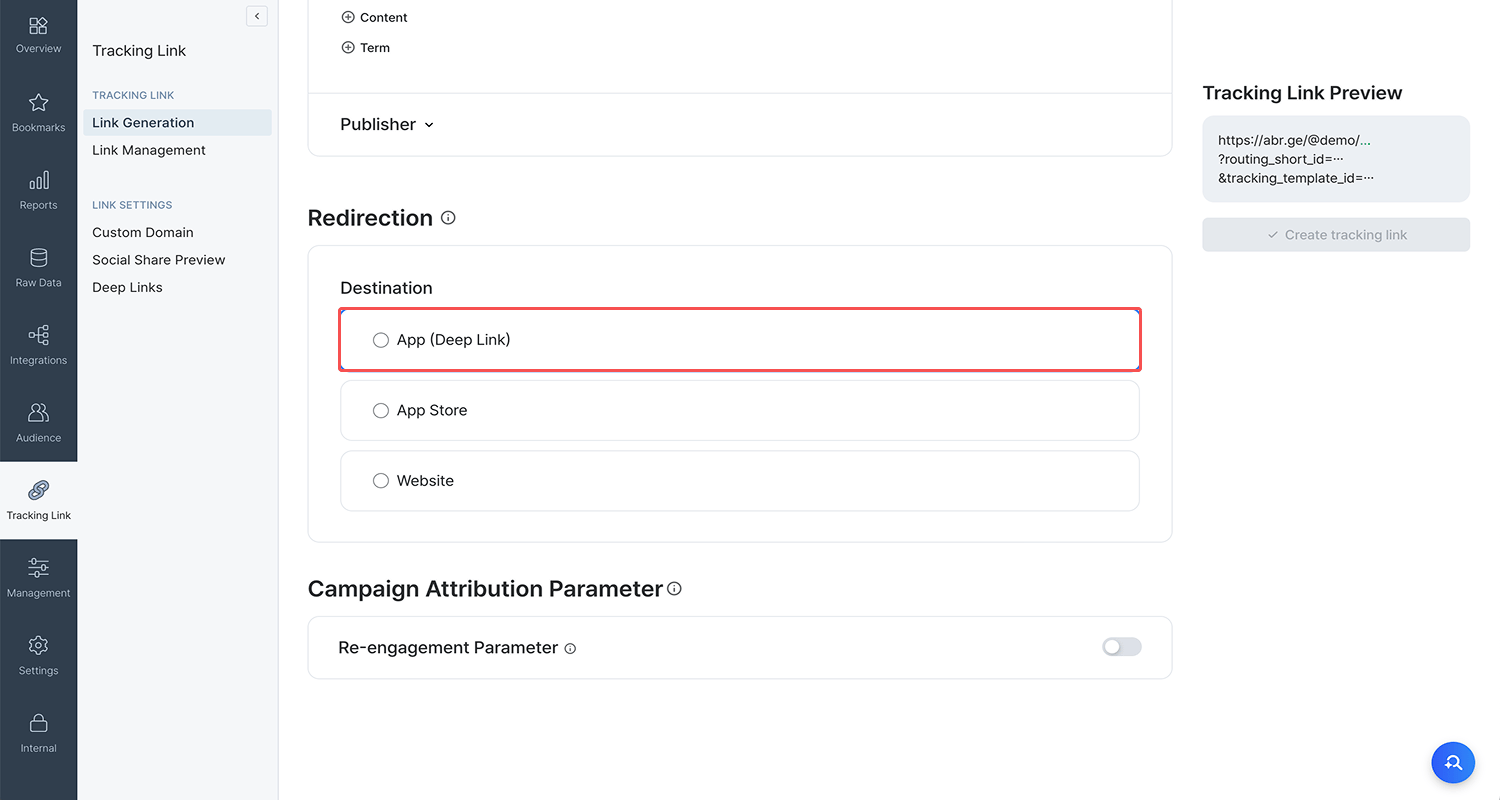
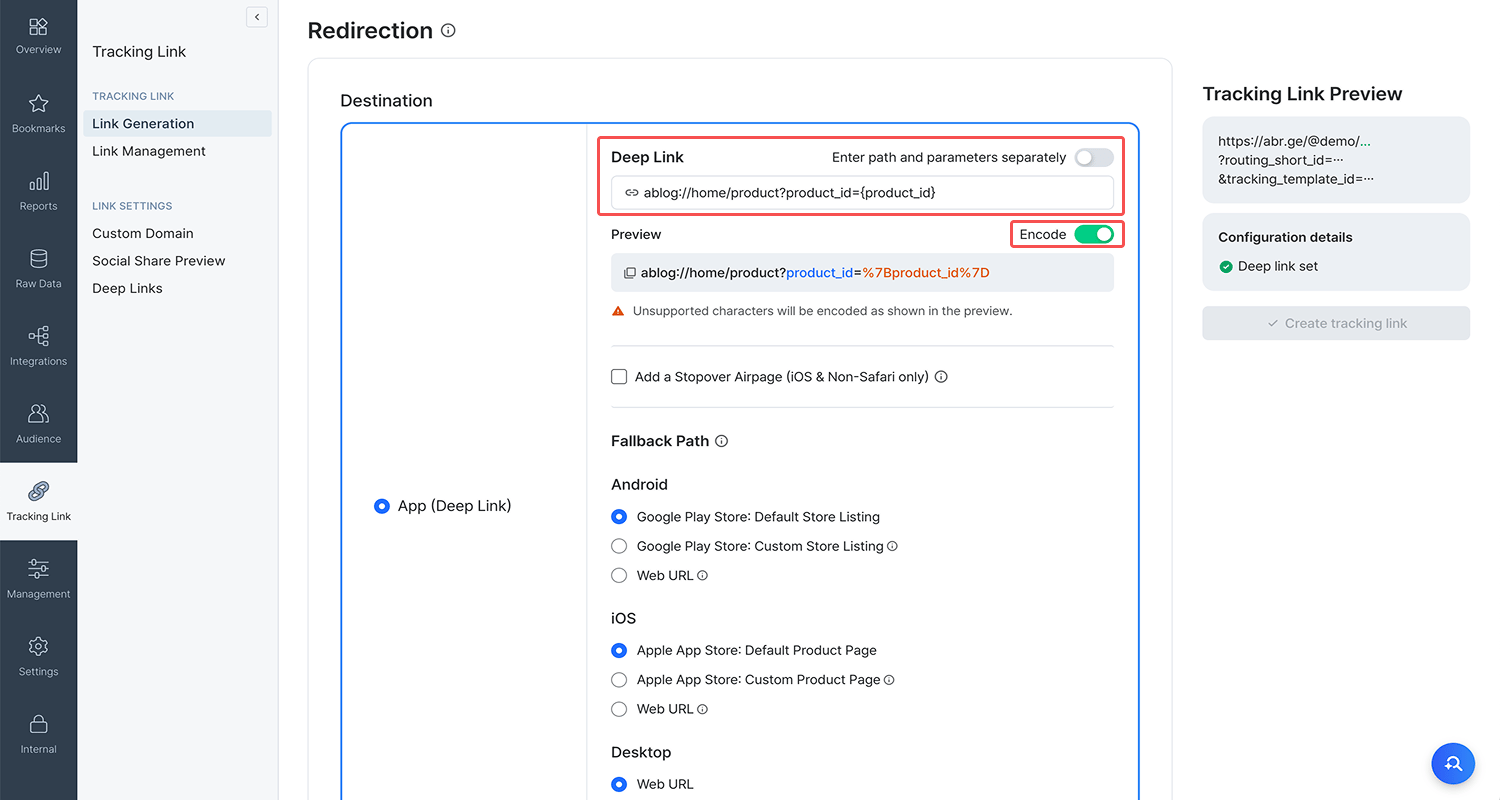
- In [Deep Link], enter a deep link that contains Airbridge macros (
{ }) at the desired positions. For example, if the deep link is differentiated by product ID, you can enter the deep link as shown in the image below. You can add Airbridge macros to deep links in several ways:appscheme://path?product={product_id}appscheme://path/{product_id}
- Click Create tracking link on the right to create a tracking link applied with the deep link you just entered. If you created a custom channel tracking link, you need to manually add parameters containing Airbridge macros to the short link. For example, if you added
product={product_id}in the deep link, copy and paste the short link into a text editor, then manually add?product={product_id}at the end of the short link. - If the link is an integrated channel tracking link, send it to the ad channel contact and ask them to enable dynamic filling of Airbridge macro values. You may also need to share information on the values to be filled into the macros with your contact, or enter that information directly in the ad channel’s dashboard during campaign setup.
How Airbridge macros work
How Airbridge macros work
Values filled into Airbridge macros (
{ }) in tracking links are delivered to the deep link through the following process.- Add Airbridge macros to the deep link entered as the tracking link’s destination when creating the tracking link.
- Deep link example
appscheme://path?{airbridge_macro}- Below is an example tracking link with the above deep link applied. You can see the tracking link contains the Airbridge macro from the deep link.
- Tracking link example
https://abr.ge/@app_name/channel_name?[...]&airbridge_macro={airbridge_macro}- When users click ads or content, Airbridge macros in the tracking link are filled with values. These values are then delivered to the corresponding Airbridge macros in the deep link, completing the deep link address that gets delivered to the app.
- Tracking link when ad for Product 1234 is clicked
https://abr.ge/@app_name/channel_name?[...]&airbridge_macro=1234&[...]- Deep link address delivered to the app when ad for Product 1234 is clicked
appscheme://path?airbridge_macro=1234- Tracking link when ad for Product 5678 is clicked
https://abr.ge/@app_name/channel_name?[...]&airbridge_macro=5678&[...]- Deep link address delivered to the app when ad for Product 5678 is clicked
appscheme://path?airbridge_macro=5678- The app sends users to the specific app page that corresponds to the above deep link.
📍Learn more