
IMPORTDATA function.
Creating Sharelinks
You need to have a saved Actuals Report to create a Sharelink. If you don’t have a saved Actuals Report, save a report view first.- Click Saved Reports at the top right to open the report you want to share from the drop-down list. Or, if you want to create a Sharelink of the report you have just created, click Save at the top right.
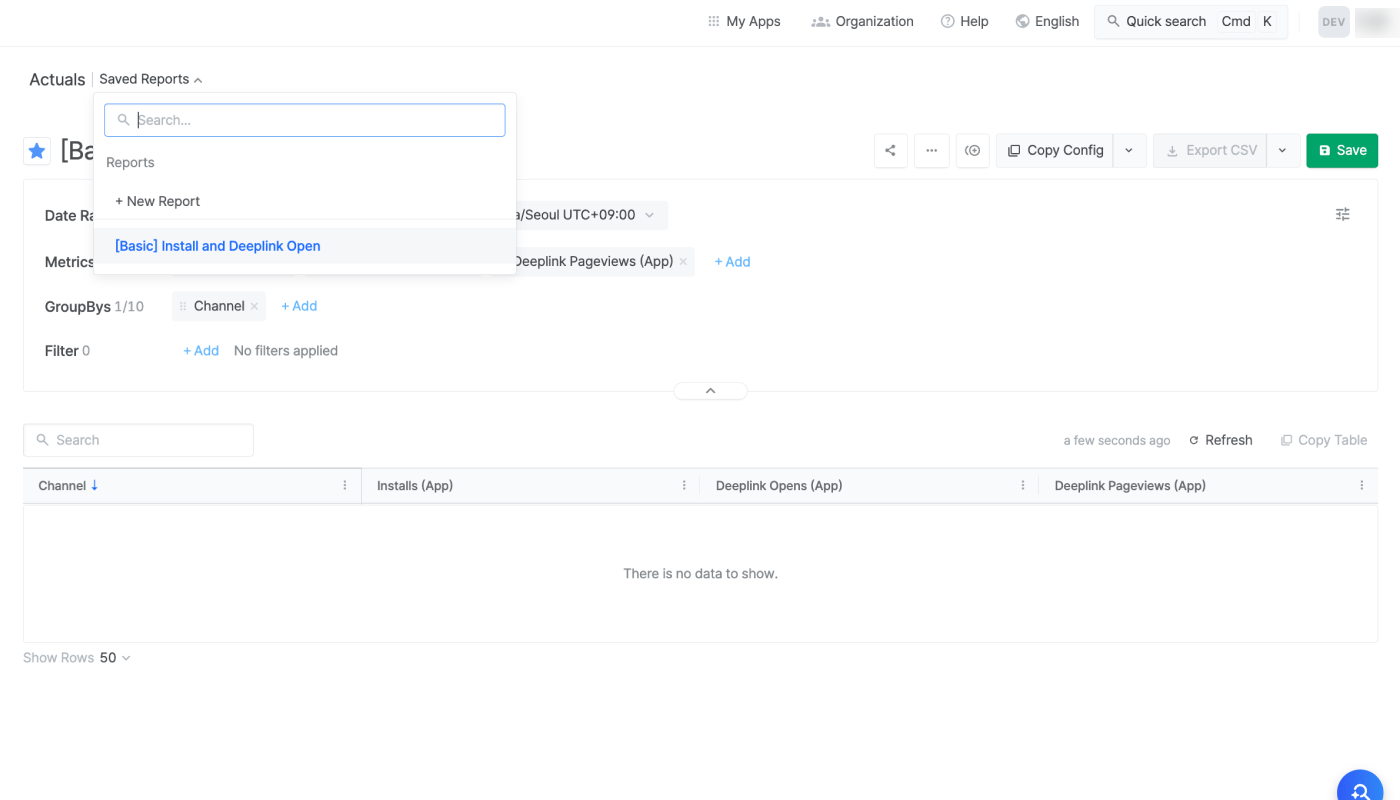
- Click the [share] icon on the top right.
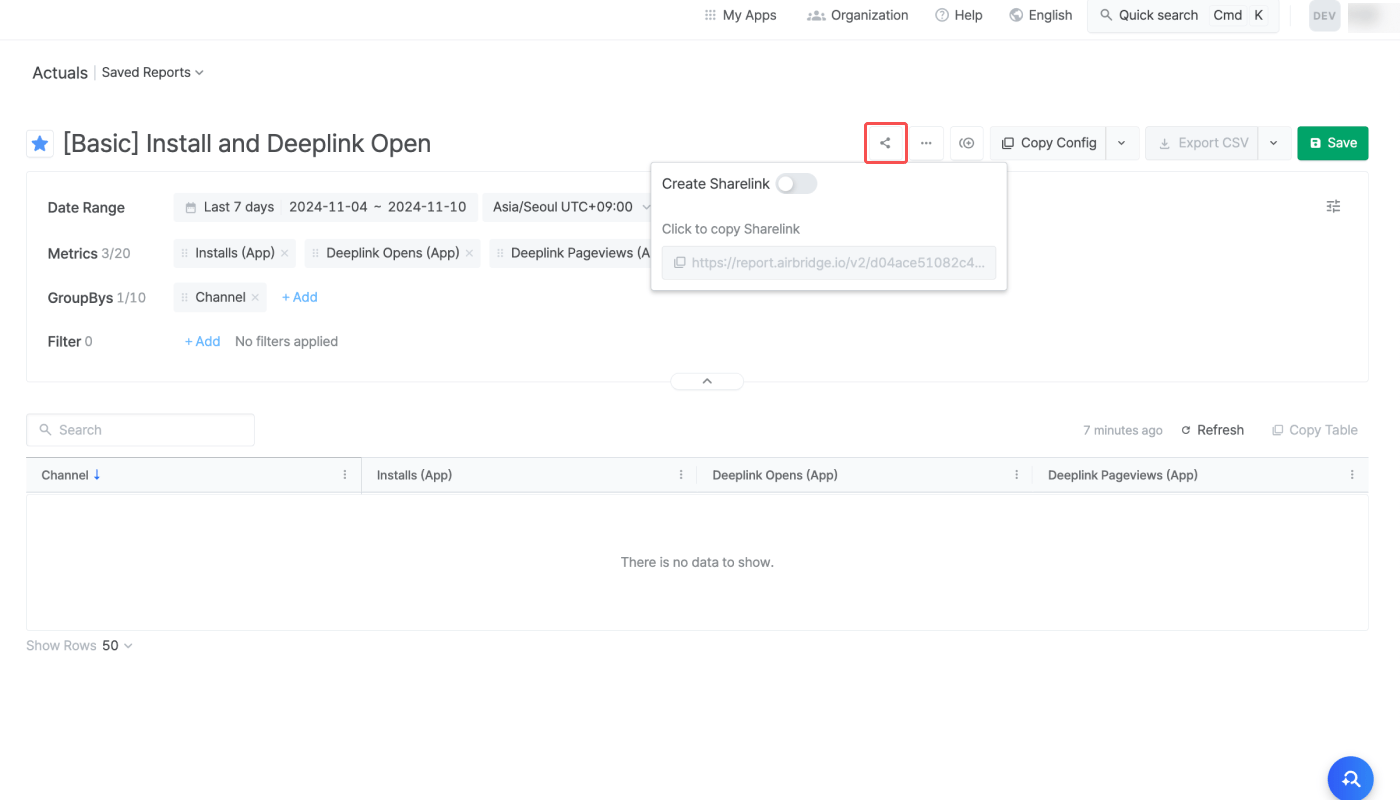
- Switch on the [Create Sharelink] toggle. A Sharelink will appear below the toggle.
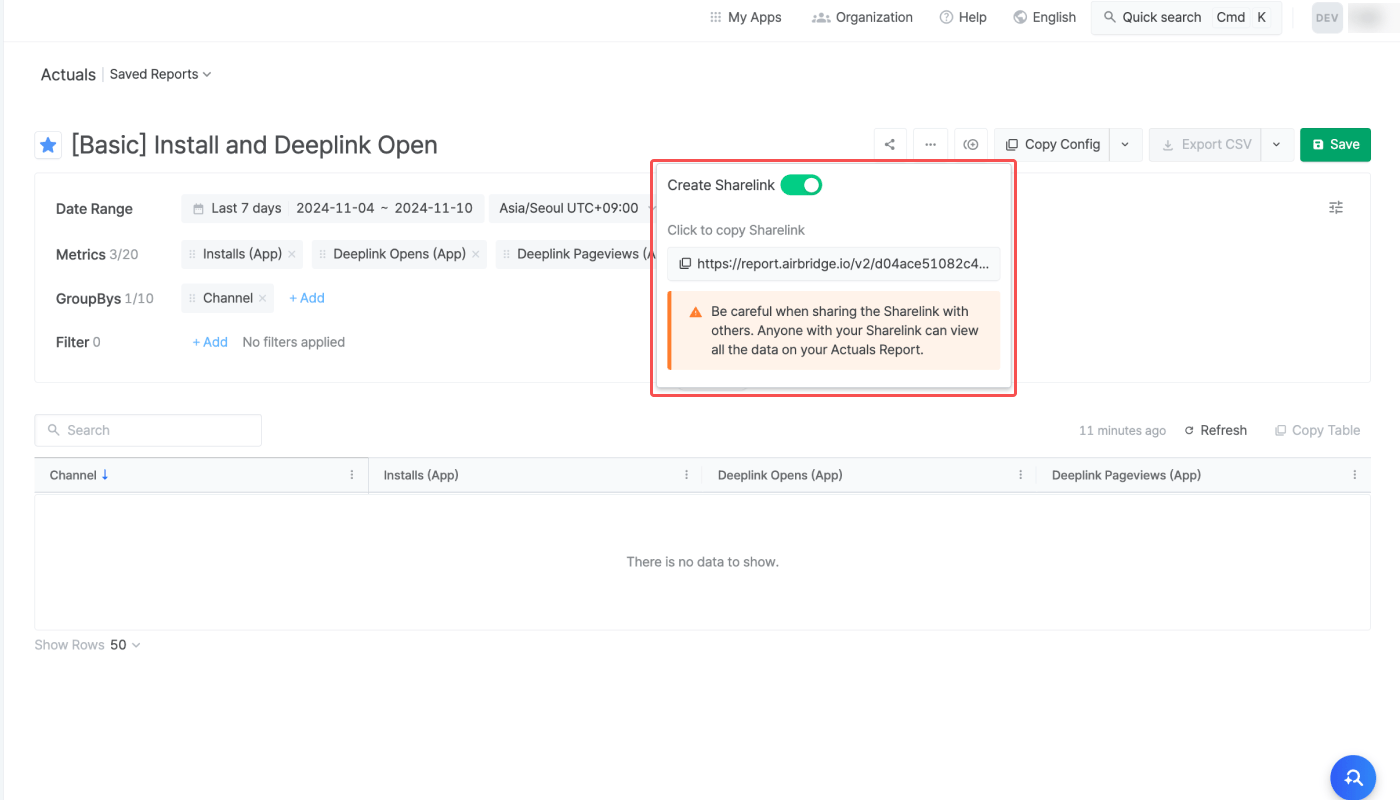
- Click the Sharelink below the toggle to copy it. Share the Sharelink with anyone you want to share your report data. Note that if the toggle is turned off, the Sharelink won’t work anymore. Every time you switch on the toggle, a new Sharelink is created, and the new link must be shared.
NoteIf your Sharelink was created before August 19, 2026, change
/v2/ to /v3/ in the URL or create a new Sharelink. When you change /v2/ to /v3/ in a Google Apps Script you already use, add useCache=false to the end of the URL.- Previous URL:
report.airbridge.io/v2/(URL).csv?language=en - Updated URL:
report.airbridge.io/v3/(URL).csv?language=en
Customizing Sharelinks
The Sharelink can be customized by adding new parameters or editing the existing parameters to modify the settings in the data. The structure of a Sharelink looks like the following.- Sharelink structure:
Basic URL?parameter1¶meter2¶meter3 - Basic URL:
report.airbridge.io/v3/(URL).csv
rowNo parameter to the Sharelink, up to 50,000 rows can be downloaded.
The following table lists the parameters that are available.
AttentionThe language parameter is present in all Sharelinks by default. To add more parameters, use ampersands (”&”) between parameters.
Sharelink parameter examples
A Sharelink starts withreport.airbridge.io/v3/(URL).csv followed by a question mark and addtional parameters. See the following examples to understand how to customize Sharelinks.
?language=en
?language=en
report.airbridge.io/v3/(URL).csv?language=en
language=en indicates that the language settings of the CSV file are set to English.If the language parameter does not exist, the language settings of the CSV file will be the same as the Airbridge dashboard settings.?language=ko&last=4&offset=3&isNowEnabled=true
?language=ko&last=4&offset=3&isNowEnabled=true
report.airbridge.io/v3/(URL).csv?last=4&offset=3&isNowEnabled=true&language=en
last=4 and isNowEnabled=true indicate that the data is from the last 4 days, including today. offset=3 indicates that the last date of the data date range is 3 days prior to today. language=en indicates that the language settings are set to English.?language=en&last=4&granularity=month
?language=en&last=4&granularity=month
report.airbridge.io/v3/(URL).csv?language=en&last=4&granularity=month
granularity=month and last=4 indicate that the data is from the last 4 months. However, the maximum date range supported is 184 days.?language=ko&rowNo=3000
?language=ko&rowNo=3000
report.airbridge.io/v3/(URL).csv?rowNo=3000&language=ko
rowNo=3000 indicates that the CSV file will contain 3,000 rows of data. The language is set to Korean.By default, only up to 1,000 rows can be downloaded as a CSV file. To download more rows, the rowNo parameter must be added. Up to 50,000 rows can be downloaded by using the rowNo parameter.NoteYou cannot change the following settings with Sharelink parameters. These settings are inherited from the report the Sharelink was created from. To change them, update the report and save it.
- Metrics, GroupBys, filters, date option, time zone
Using Sharelinks in Google Sheets
There are two ways to import Sharelink data into Google Sheets, as shown in the following table. To refresh the data every day during the hour you set, use Google Apps Script. If a refresh interval set by Google works for you, use theIMPORTDATA function.
You can use Sharelinks and Google Sheets for the following:
- Importing Airbridge data into Google Sheets automatically
- Sharing Airbridge data externally, regardless of access permissions
- Creating a custom report by integrating Airbridge data with internal company data
useCache=false to the end of the Sharelink URL. If the URL already contains a question mark (?), add &useCache=false. Otherwise, add ?useCache=false. useCache=false works only with /v3/ URLs.
Import data with Google Apps Script
Google Apps Script imports data during the hour you set, whether or not the spreadsheet is open. Add and run the sample script as follows:- In Google Sheets, go to [Extensions]>[Apps Script]. Paste the sample script, enter your Sharelink URL, and save the script.
- Return to the spreadsheet and reload the page. When [Sharelink] appears to the right of [Help], select [Sharelink]>[Refresh now].
- In the [Authorization required] window, click OK. On the Google permission screen that follows, select the Select all checkbox, and then click Continue. You only need to authorize the script once.
- To refresh the data automatically every day during the hour you set, select [Sharelink]>[Turn on daily refresh at 9:00]. To change the time, set
DAILY_HOURin the sample script to a number from 0 to 23 (24-hour clock), save the script, reload the spreadsheet, and then select [Sharelink]>[Turn on daily refresh at N:00] again.
Import data with the IMPORTDATA function
To view Sharelink data in Google Sheets, enter the Sharelink in the IMPORTDATA function as shown below.
=IMPORTDATA("Full Sharelink")
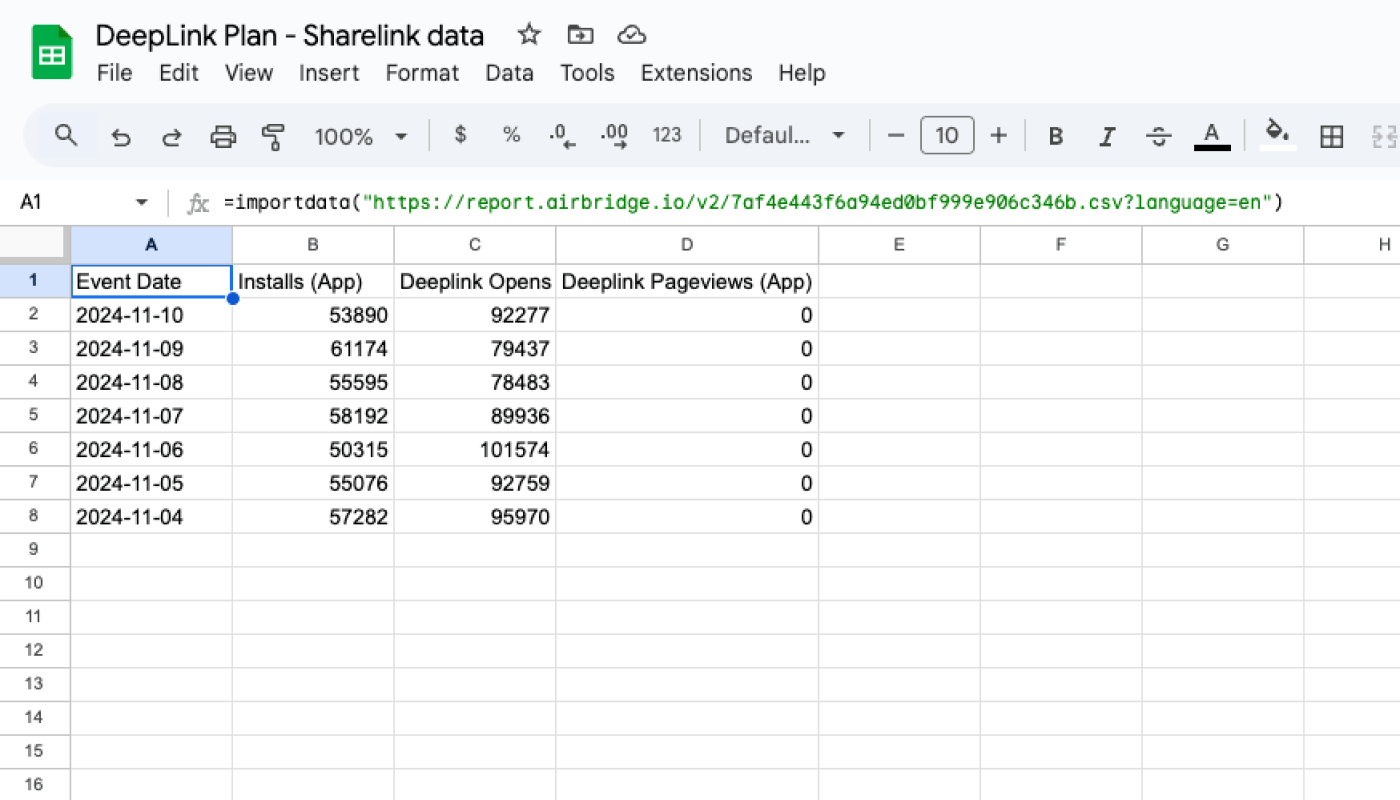
IMPORTDATA function calls the Sharelink again at an interval set by Google’s policy. The interval cannot be changed in Airbridge. To import data during the hour you set, use Google Apps Script.
If the same report wasn’t queried in the Airbridge dashboard or through a Sharelink within the last 3 hours, the Sharelink starts a new query, and a notice that starts with “We couldn’t load Sharelink data yet” appears instead of data. The notice means the query is in progress, not that it failed. After the query finishes, reload the spreadsheet to see the new report data.