
Configuring a Report View
The configuration box offers options for configuring the date range, metrics, GroupBys, and filters. The chosen metrics will be displayed by the selected GroupBys in the table. When setting up filters, only the data that meets the filter conditions will be displayed.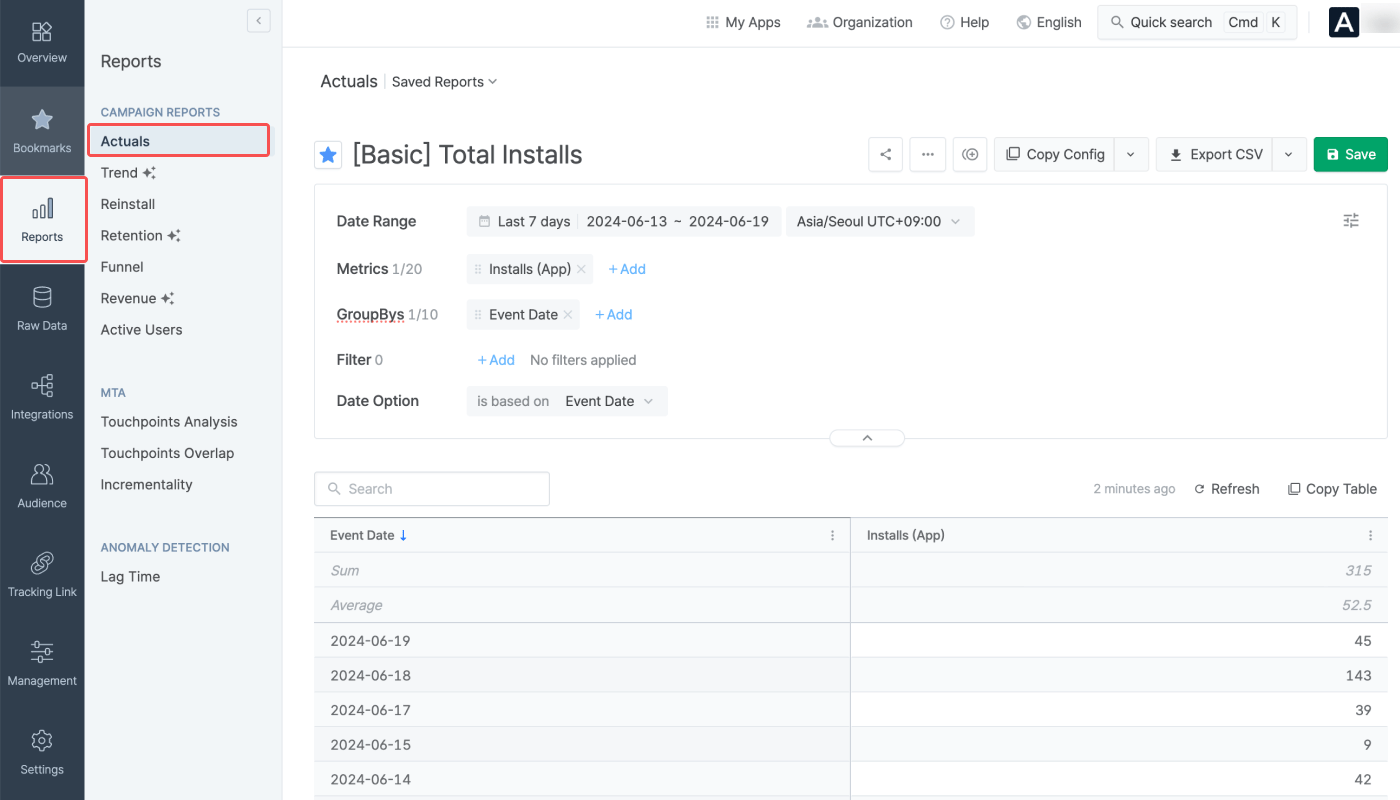
Date range
The Actuals Report shows the metric data measured during the set date range. Use the calendar filter to configure the date range.- Data provision period: 5 years (applied from February 1, 2023)
- Maximum period that can be configured for a report view: 400 days
Date range settings
Date range settings
The date range can be set using the following conditions.
When using “Last,” options such as “Include today,” “Include this month,” and “Offset” can be added.For example, if you select Last 30 days and add Offset + 3 days, the date range will start 33 days before today and end 4 days before today.
Time zone
You can select the time zone of your choice for creating the report view. The default time zone is the same as the Airbridge App time zone.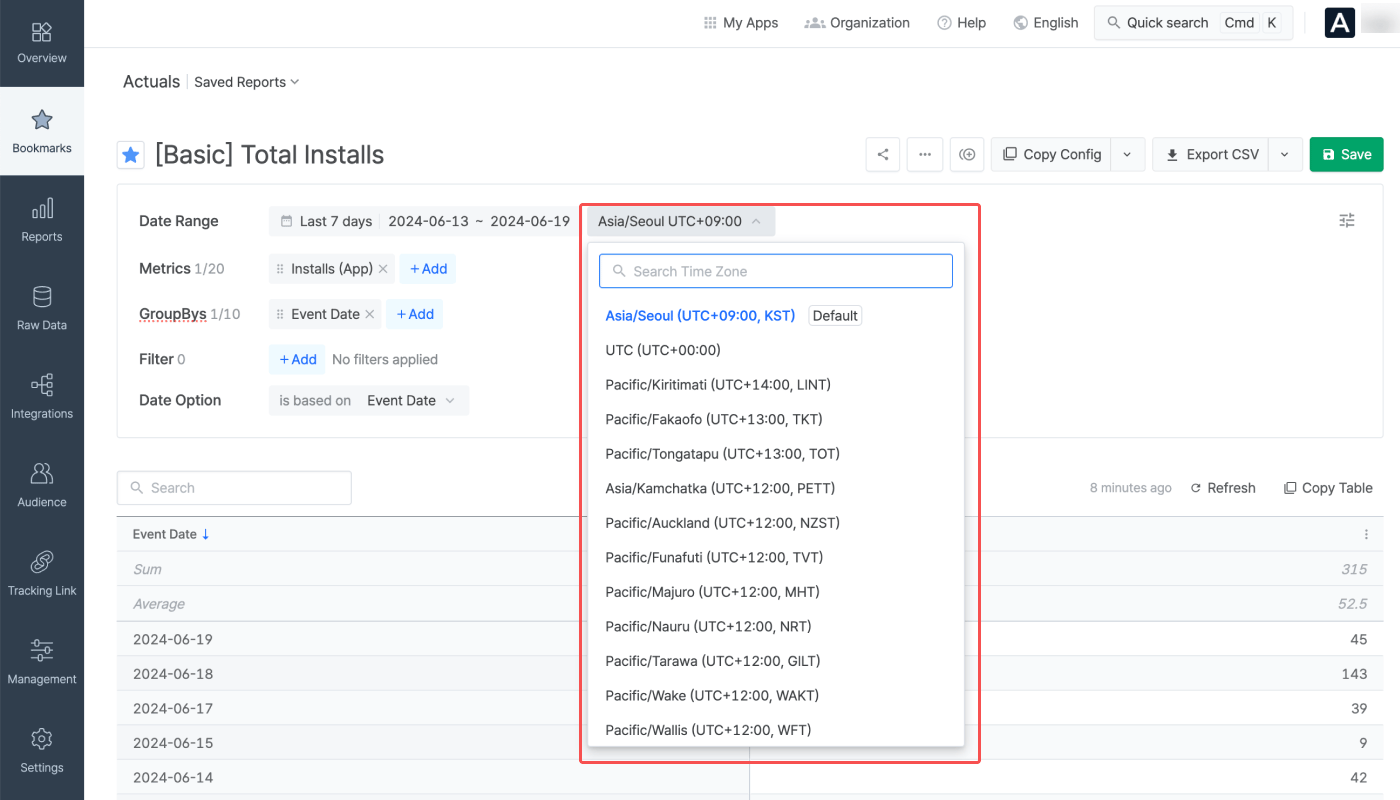
Metrics
The data collected through tracking links, Airbridge SDK, and ad channels can be viewed in the Actuals Report based on the selected metrics. Up to 20 metrics can be configured to create a report view.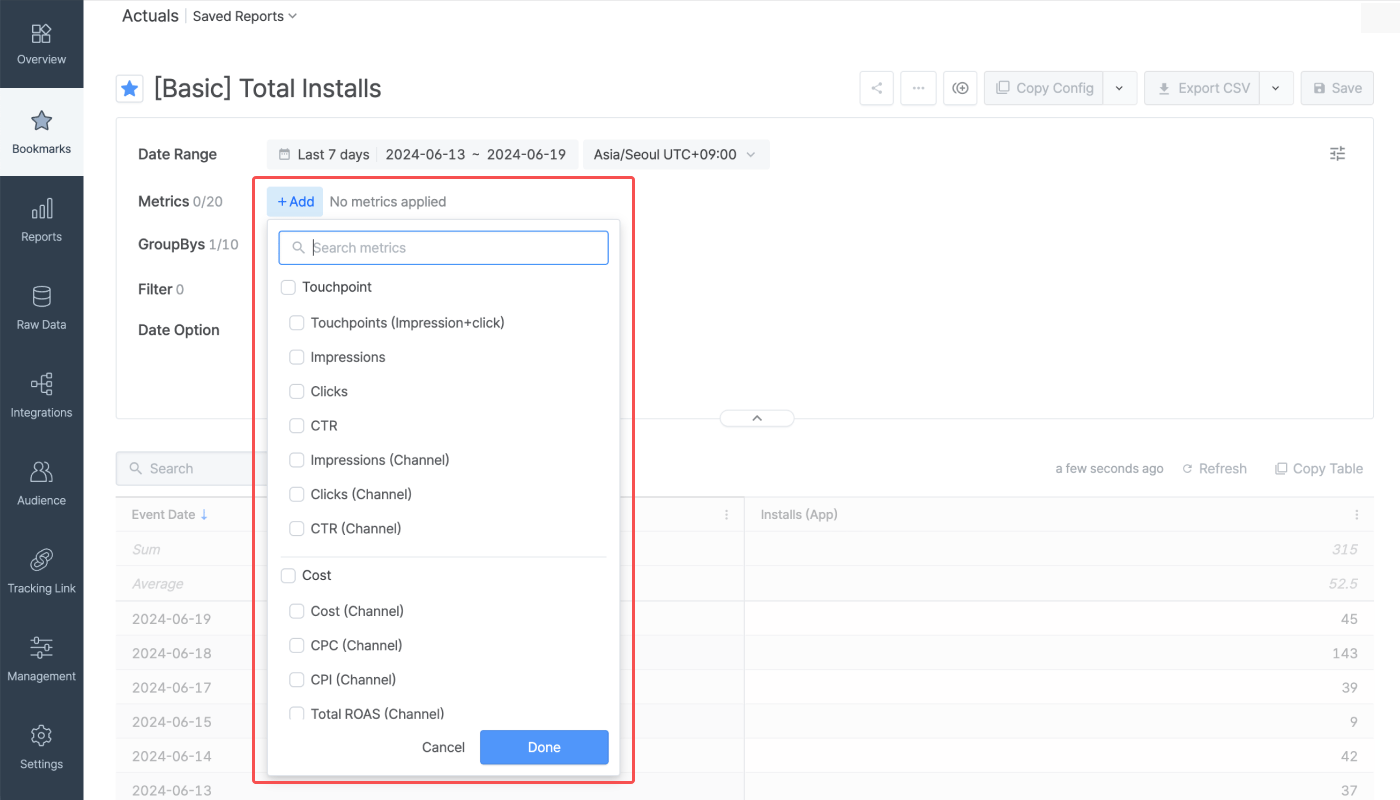
Event Count
Event Count
When selecting events as metrics, the event count data is displayed. For example, when selecting Installs (App) as a metric, the report will show the number of the Installs (App) events that occurred during the set date range.
User Count
User Count
When selecting a metric with “user” in the metric name, you can visualize the unique user count of users who have performed Standard Events or Custom Events that have been collected more than once through the SDK.The unique user count data is refreshed every 1 hour. For example, the number of unique users who triggered the Subscribe event between 12:00 PM and 1:00 PM can be visualized on the dashboard by selecting the Subscribe Users (App) metric after 1:00 PM.
GroupBys
The metric data is grouped by the selected GroupBys. Configuring the GroupBy is optional and up to 10 GroupBys can be configured. You can rearrange the order of the GroupBys by dragging the GroupBy chips.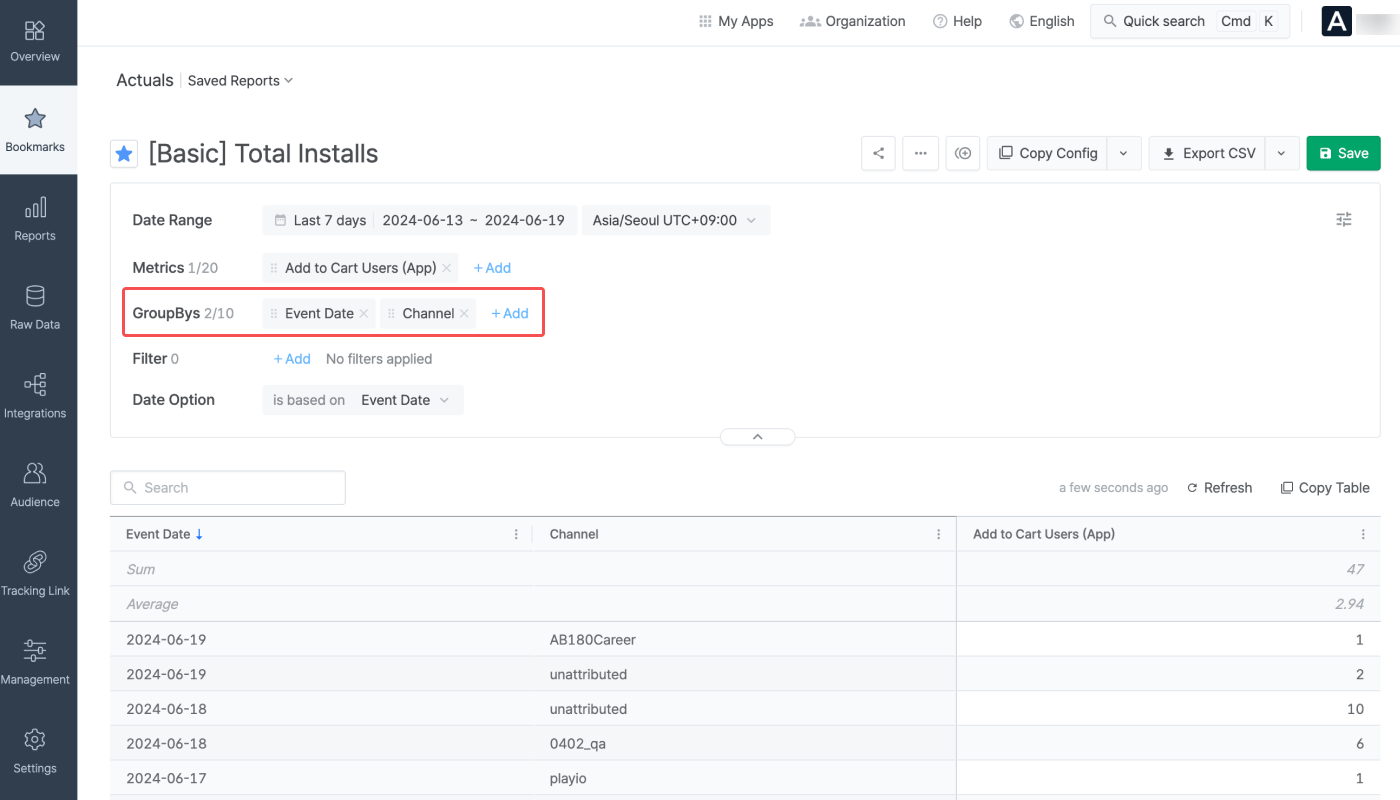
Filter
Filters can be configured to display specific data in the chart and table. Select the filter option, operator, and value to configure a filter. Properties collected at least once are available as the filter option.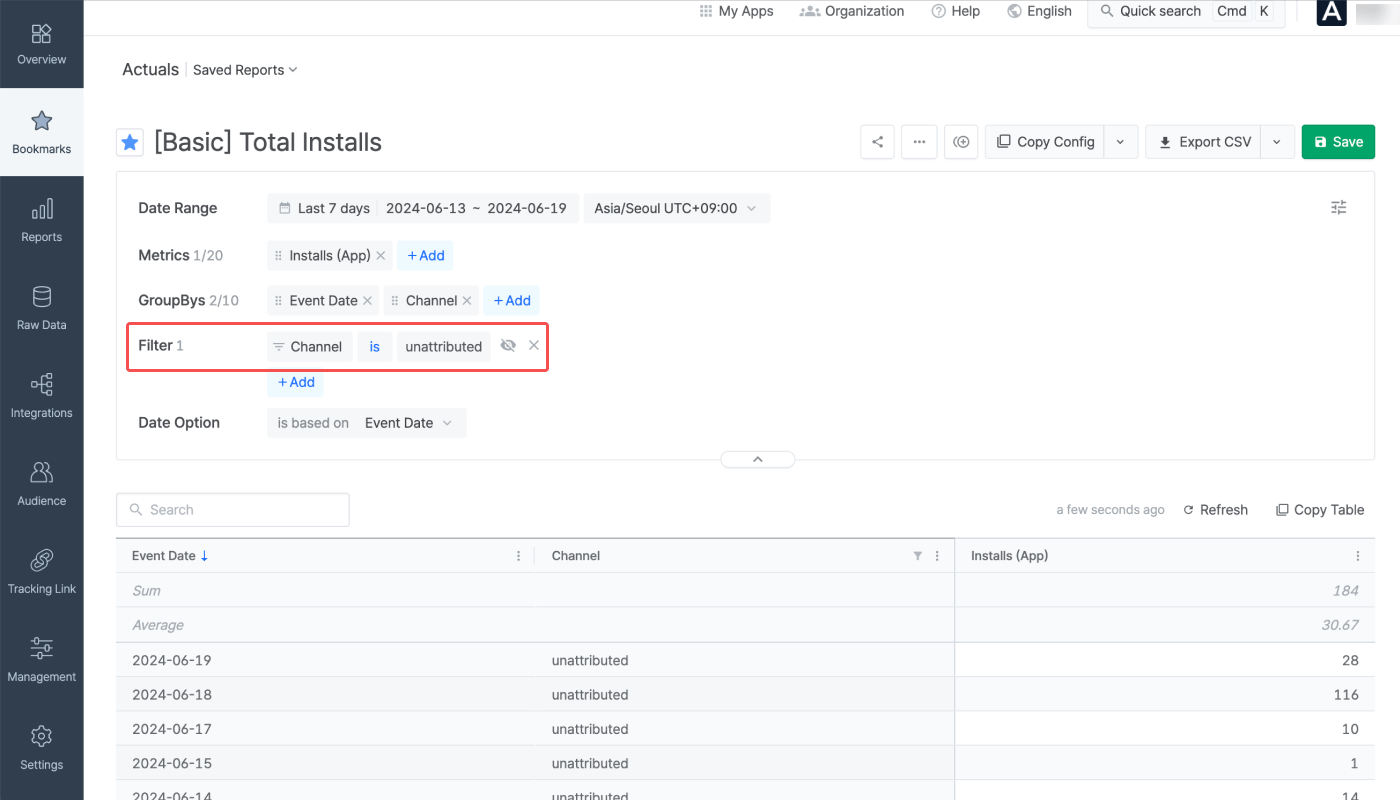
= or ≠ that appears when hovering over the GroupBy rows.
Understanding the Actuals Report
The Actuals Report provides the data in table format. The report can be exported as a CSV file. You can also save your report settings to revisit the same report whenever needed.Metrics and GroupBys
You can customize your report view by selecting the right metrics and GroupBys. Refer to the following examples.Example) View app installs per ad channel
Example) View app installs per ad channel
In the Airbridge dashboard, go to [Reports]>[Actuals Report] and configure the following.
- Date range: Set the period you want to view.
- Metric: Select ‘Installs (App)’.
- GroupBy: Select ‘Channel’.
Monitoring the installs by tracking links
Monitoring the installs by tracking links
- Select Installs (App) as metric.
- Select Short Link ID as GroupBy. The Short Link ID is the unique identifier of tracking links.
- Click Apply to apply all configurations.
Table
The data in the Actuals Report is presented in a table where the sum and average value of each field are visible.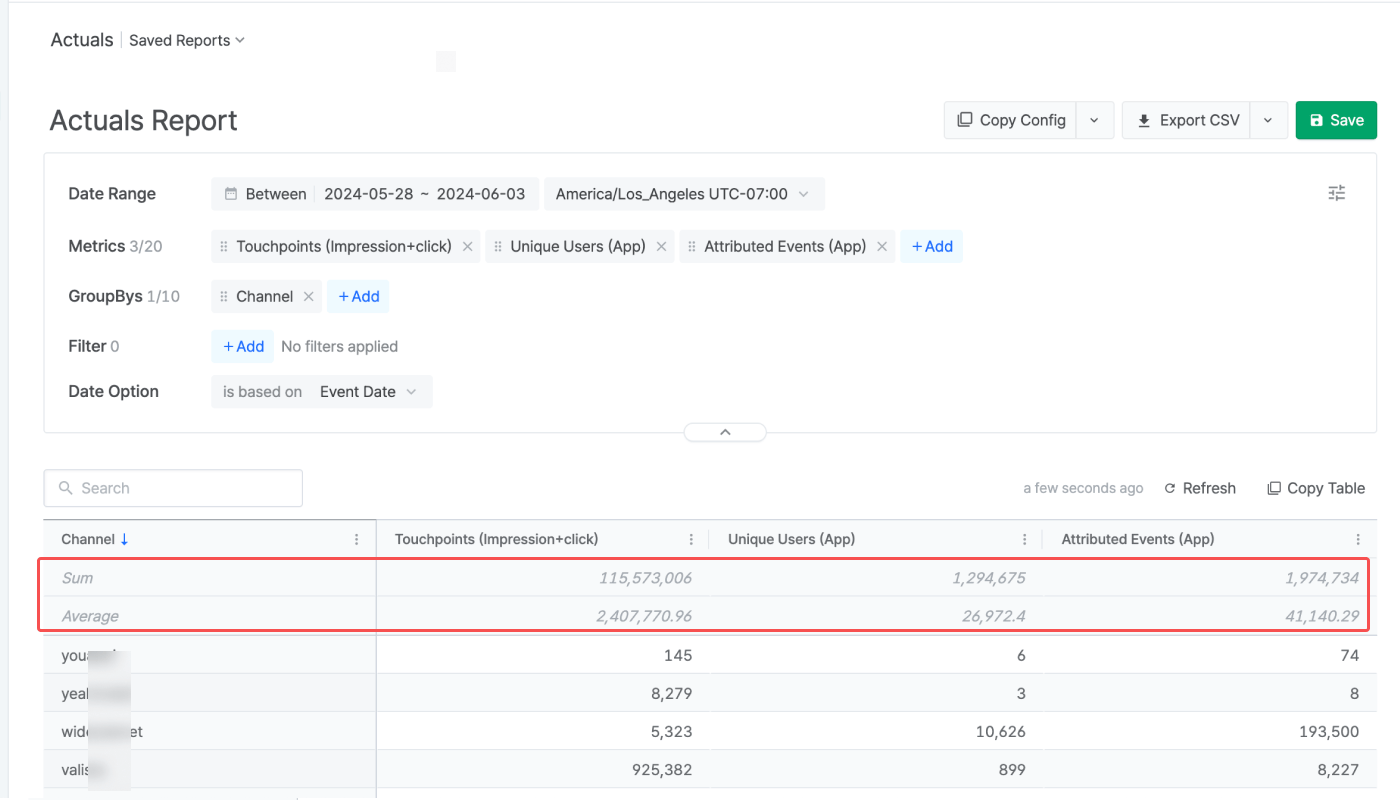
Supported features
Airbridge supports various features across its reports, from saving reports to sharing them with others.General features
General features
The table shows the general features supported by Airbridge reports. Some features are not available in certain reports.
Attention
Supported features and limitations of the Actuals Report
Supported features and limitations of the Actuals Report
The table below outlines the features and limitations of the Actuals Report.