
Note
- Cohorts are saved per app and shared within that app. However, Owners and In-house Marketers cannot use cohorts saved by agencies, and each agency can use only its own.
- Saved cohorts are available in the Funnel, Retention, and Revenue reports, Audience Manager, and App Raw Data Export.
Create cohorts
Create a cohort in Cohort Manager, or define the conditions on a screen that uses cohorts and save them to Cohort Manager.Create a cohort in Cohort Manager
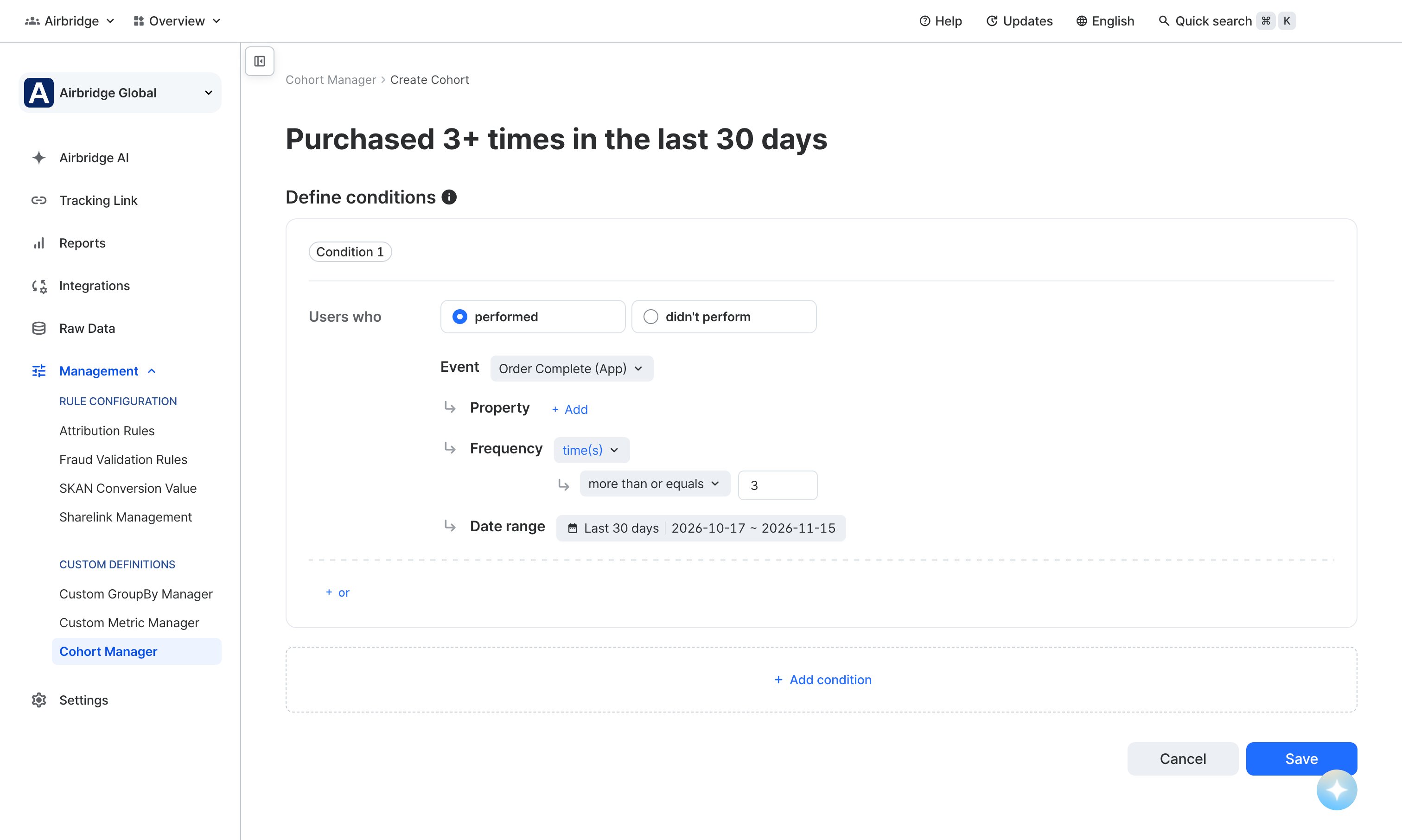
- In the Airbridge dashboard, go to [Management]>[Cohort Manager] and click Create cohort.
- Enter a name for the cohort. The name must be unique and can be up to 40 characters.
- Define the cohort conditions.
Event
Event
Select one event for the cohort, then select performed or didn’t perform. Both app events and web events are available.
Property
Property
Narrow the cohort conditions with event properties. Touchpoint properties such as channel and campaign are also available.
Frequency and aggregation criteria
Frequency and aggregation criteria
Use an operator and a value to define how many times a user performed the event during the date range. The operators are equals, more than or equals, more than, less than or equals, and less than. Select an aggregation criterion to decide what is counted.
Date range
Date range
Use during last, between, or since to select when the events in the cohort conditions occurred. A date range can cover up to 365 days. The Funnel report and App Raw Data Export limit how early the start date can be. If you plan to use the cohort in either, check the earliest start date in Cohort features and limits before you select the date range.
- To add more conditions, use or to combine events within one condition, or And also and And not to link separate conditions.
- Click Save.
Save a cohort from a screen that uses cohorts
In the Funnel, Retention, and Revenue reports, Audience Manager, and App Raw Data Export, define the conditions and click Save to Cohort Manager. You don’t have to leave the screen you’re working on. The saved cohort is added to the [Cohort Manager] list and is linked to the report, audience, or export template where you defined the conditions.Manage cohorts
In the Airbridge dashboard, go to [Management]>[Cohort Manager] to view and manage your saved cohorts. Search the list by cohort name or key, and select a cohort row to see its condition summary and where the cohort is used. The cohort list has the following columns: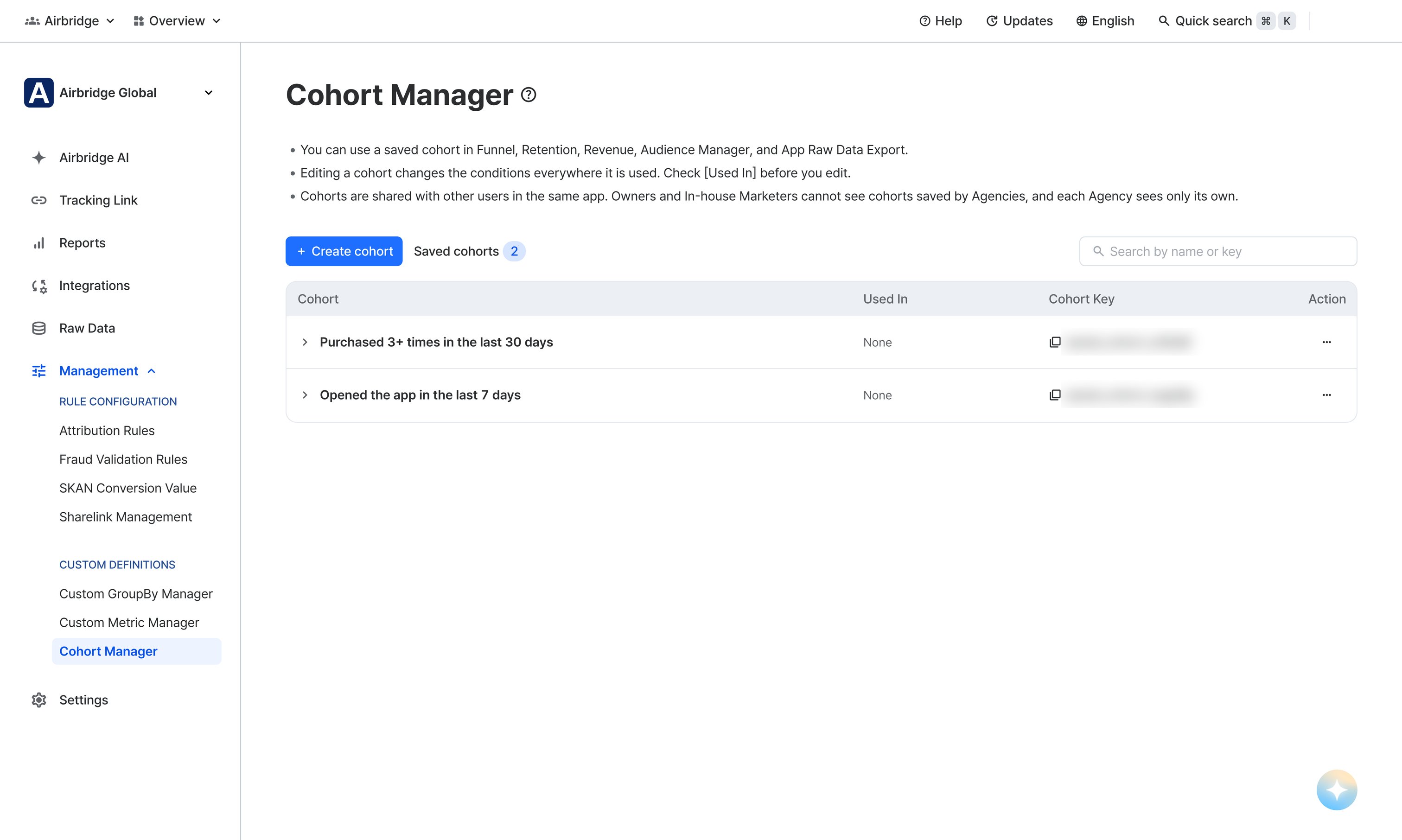
Attention
- Editing a cohort changes the conditions everywhere the cohort is used. Check [Used In] before you edit.
- A cohort in use cannot be deleted. First unlink it everywhere it is used.
- Cohorts linked to App Raw Data Export don’t appear in [Used In]. A cohort that shows None in [Used In] can still be linked to an export template, so check your export templates before you delete it.
- Deleted cohorts cannot be restored.
Use cohorts
Use your saved cohorts in the Funnel, Retention, and Revenue reports, Audience Manager, and App Raw Data Export. In [Cohort] in the Airbridge dashboard, click Select cohort and select the cohort you want. If you are defining conditions yourself, click Select from Cohort Manager to open the same list.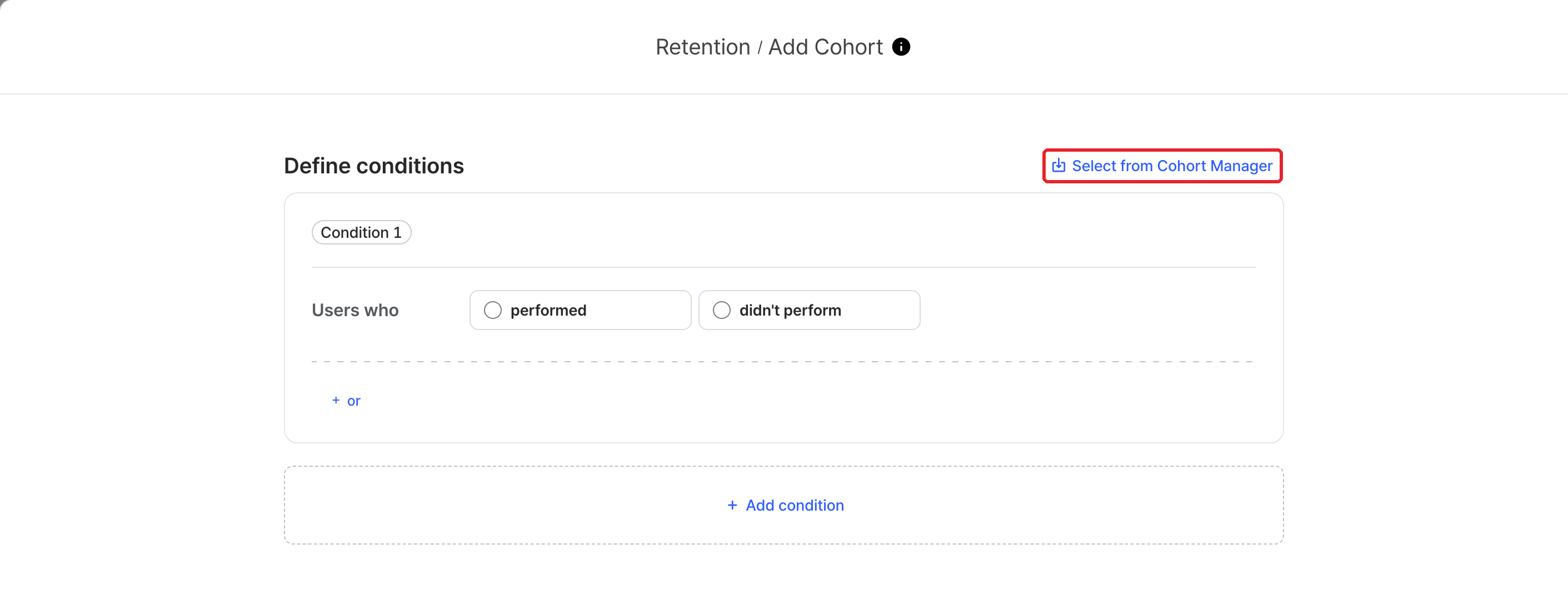
Check what a saved cohort replaces before you select one
- If you already defined conditions yourself, selecting a saved cohort replaces them with the cohort’s conditions. Your own conditions are discarded, and this action cannot be undone.
- Selecting a saved cohort links the report, audience, or export template to it. If you then edit the conditions, the link is removed and your edits apply only where you made them.