
NoteThis feature is currently available in beta. Some specifications may change as we stabilize the service.
Airbridge MCP
MCP (Model Context Protocol) lets AI services connect to external data sources. With Airbridge MCP, you can access your Airbridge data directly from Claude, Claude Code, ChatGPT, Codex, and more. Ask questions, get reports, and explore your data just by typing requests.Set up Airbridge MCP
To access Airbridge data through MCP, you need to activate the MCP token. On the access permission page, review the MCP Token Activation Notice. You can activate the MCP token by checking the I understand checkbox and clicking Allow.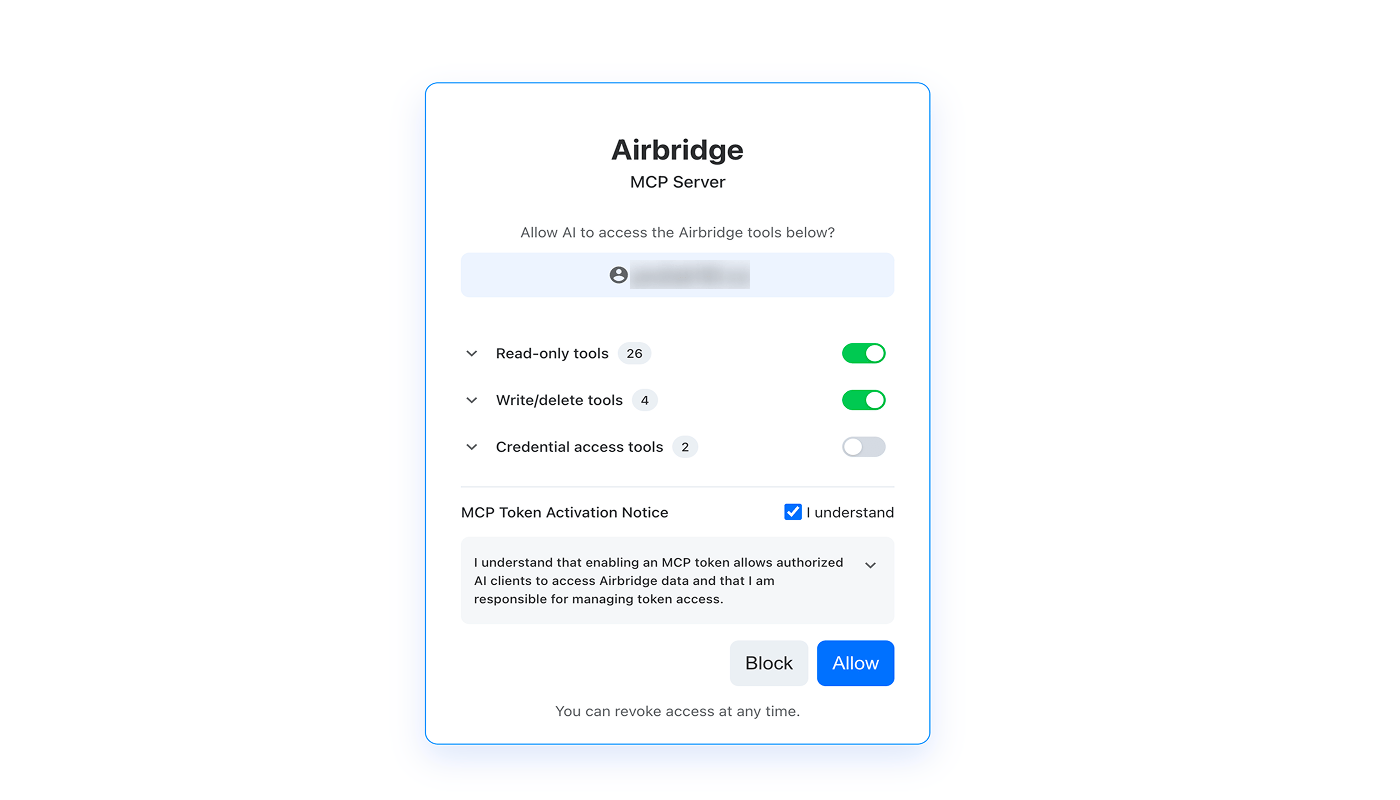
MCP token activation notice
MCP token activation notice
Enabling this token allows compatible AI clients to access certain Airbridge data and functionalities through the Model Context Protocol (MCP).Airbridge MCP operates according to the following principles:
- No Storage – Data is processed in real time and is not stored by MCP servers.
- No Training – Customer data is not used to train AI models.
- No Sharing – Data is not shared with third parties other than the authorized MCP client.
- Encryption – Data is encrypted during transmission.
Claude web or desktop app
Claude web or desktop app
MCP is available on Pro, Max, Team, and Enterprise plans. For Team and Enterprise plans, the Owner must first add the connector to the organization.
- Go to claude.ai or open the Claude desktop app.
- Click your profile icon in the bottom-left corner.
- Go to [Settings]>[Connectors] and click Add custom connector.
- Enter the following Airbridge MCP details:
- Name: Airbridge
- Remote MCP server URL: https://mcp.airbridge.io/mcp
- Click Add.
- Back on the [Connectors] page, find Airbridge, and click Connect.
- Sign in to Airbridge on the sign-in page that appears.
- Review the tools you’re granting access to and the MCP Token Activation Notice.
- Check the I understand checkbox, and click Allow.
- You can now access Airbridge data directly in Claude.
Claude Code
Claude Code
MCP is available on Pro, Max, Team, and Enterprise plans. For Team and Enterprise plans, the Owner must first add the connector to the organization.
- Open your terminal.
- Run the following command to add the Airbridge MCP server globally:
- When asked for approval, select Yes.
- Once the server is added, exit the conversation and return to the terminal.
- Open Claude Code and run:
- Select Airbridge from the list of MCP servers.
- Select Authenticate.
- Sign in to Airbridge on the sign-in page that appears.
- Review the tools you’re granting access to and the MCP Token Activation Notice.
- Check the I understand checkbox, and click Allow.
- You can now access Airbridge data directly in Claude Code.
ChatGPT
ChatGPT
MCP is available on Plus, Pro, Business, Enterprise, and Edu plans. For Business, Enterprise, and Edu plans, the Owner must first enable Developer Mode and grant Developer Mode access to individual accounts.
- Go to chatgpt.com or open the ChatGPT app.
- Click your profile icon in the bottom-left corner.
- Go to [Settings]>[Apps] and click Advanced Settings.
- Enable Developer Mode.
- Click Create App and enter the following Airbridge MCP details:
- Name: Airbridge
- MCP server URL: https://mcp.airbridge.io/mcp
- Authentication: OAuth
- Click Create.
- Back on the [Apps] page, find and click Airbridge.
- Sign in to Airbridge on the sign-in page that appears.
- Review the tools you’re granting access to and the MCP Token Activation Notice.
- Check the I understand checkbox, and click Allow.
- You can now access Airbridge data directly in ChatGPT.
Codex CLI or IDE extension
Codex CLI or IDE extension
- Open your terminal.
- Run the following command to add the Airbridge MCP server:
- Sign in to Airbridge on the sign-in page that appears.
- Review the tools you’re granting access to and the MCP Token Activation Notice.
- Check the I understand checkbox, and click Allow.
- You can now access Airbridge data directly in Codex.
NoteThe CLI and IDE extension share the same configuration. Once set up, you can switch between the two without repeating the setup process.
Available Airbridge tools
- AI services support the same options and capabilities available on the Airbridge dashboard.
- Access to specific organizations, apps, and features follows your account’s dashboard permissions.
Tools always allowed
Tools that need access
Read-only tools
Read-only tools
Write/delete tools
Write/delete tools
AttentionThese tools make direct changes to your Airbridge dashboard. Write/delete tools also include read access.
Credential access tools
Credential access tools
AttentionAllowing access to these tools sends your credentials to the AI service provider’s server. Depending on your AI service settings, this data may be used for model training.