
Android
Airbridge Unity SDK does not seem to initialize correctly
Airbridge Unity SDK does not seem to initialize correctly
The Airbridge Unity SDK for Android initializes automatically through Content Provider. For proper initialization, the following XML tag must be correctly placed in “Project → Plugins → Android → AndroidManifest.xml”.
Using your own custom activity class
Using your own custom activity class
The Airbridge Unity SDK uses a custom activity to handle deep links correctly. If you are using your own custom activity class, please override the following codes inside your custom activity class.
The AndroidManifest file does not seem to merge properly
The AndroidManifest file does not seem to merge properly
The “AndroidManifest Merger” that the Airbridge Unity SDK provides is a simple component that merges “Project → Plugins → Android → AndroidManifest.xml” and “Project → Plugins → Airbridge → Android → AndroidManifest.xml”. The merge may not satisfy all cases, and you will have to separately merge your “AndroidManifest.xml” file with reference to “Project → Plugins → Airbridge → Android → AndroidManifest.xml”.
Missing 'package' key attribute on element package at ...
Missing 'package' key attribute on element package at ...
Due to the addition of Android 11’s

Package Visibility policy, applications should be properly informed by <queries> inside the manifest file about which packages are used in order to properly interact with another applications.The Airbridge SDK is compliant with the policy and requires Gradle v5.6.4+ and Android Gradle Plugin v3.6.0+ to support the <queries> tag.Please refer to this page for information on which version of Gradle is used by Unity.If your Unity project uses a Gradle version earlier than 5.6.4 or an Android Gradle Plugin version earlier than 3.6.0, use the following Unity settings to specify the versions.Unity 2020.1 or later
Unity 2020.1 or later
No further action is required because these Unity versions already include Gradle 5.6.4 or later and Android Gradle Plugin 3.6.0 or later.
Unity 2019.3 to 2019.4
Unity 2019.3 to 2019.4
The following customization is supported only on Unity 2019.3 patch 7 and later.
- Go to the Gradle Build Tool page and download Gradle v5.6.4 or higher
- Go to “Preferences → External Tools” to uncheck “Gradle Installed with Unity (recommended)” and set the path to the downloaded Gradle file as below.
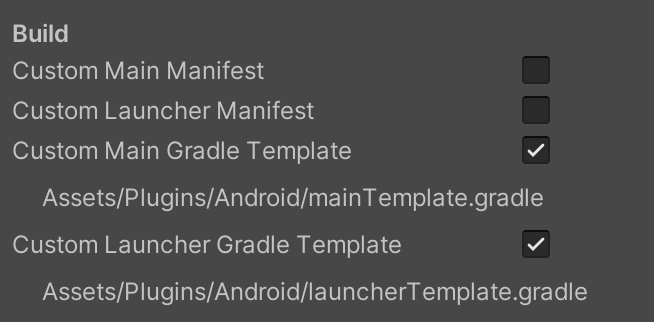
- Go to “Project Settings → Player → Android Tab → Publishing Settings → Build” and select the following options:
- Custom Main Gradle Template
- Custom Launcher Gradle Template
- Please change both of the following auto-generated files as follows
Assets/Plugins/Android/mainTemplate.gradleAssets/Plugins/Android/launcherTemplate.gradle
Unity 2019.1 to 2019.2
Unity 2019.1 to 2019.2
- Go to the Gradle Build Tool page and download Gradle v5.6.4 or higher.
- Go to “Preferences → External Tools” to uncheck “Gradle Installed with Unity (recommended)” and set the path to the downloaded Gradle file as below.
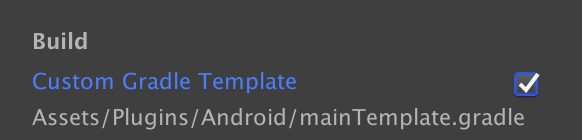
- Go to “Project Settings → Player → Android Tab → Publishing Settings → Build” and select “Custom Gradle Template”.
- Go to the auto generated
Assets/Plugins/Android/mainTemplate.gradlefile and make the following changes.
Unity 2018.4
Unity 2018.4
The following customization is supported only on Unity
2018.4 patch 24 and later- Go to the Gradle Build Tool page and download Gradle v5.6.4 or higher.
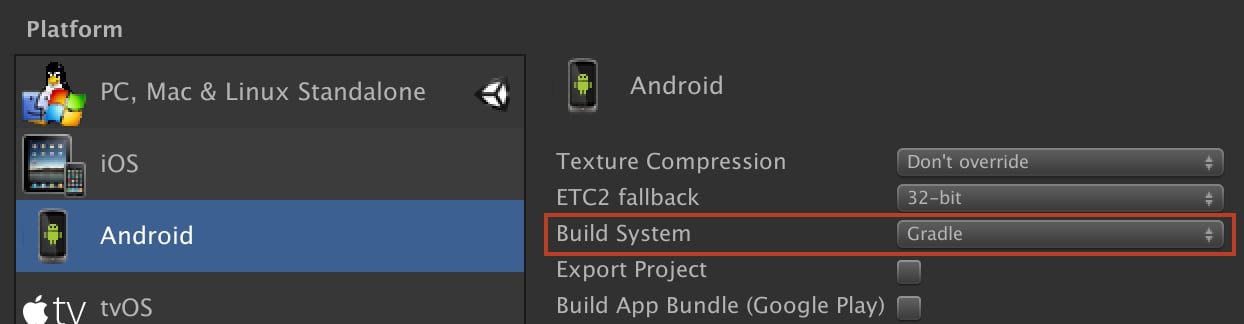
- Go to “Build Settings → Android” and set “Build System” to “Gradle” to use a custom version of Gradle.
- Go to “Preferences → External Tools”, uncheck “Gradle Installed with Unity (recommended)” and set the path to the downloaded “Gradle” file.
- Go to “Project Settings → Player → Android Tab → Publishing Settings → Build” and select the “Custom Gradle Template” option.
- Go to the auto generated
Assets/Plugins/Android/mainTemplate.gradlefile and make the following changes.
Unity 2018.3 or earlier
Unity 2018.3 or earlier
Gradle customization options are not supported on Unity 2018.3 or earlier.
Resolve Airbridge SDK backup rules merge conflict issue
Resolve Airbridge SDK backup rules merge conflict issue
- Reference : Android SDK Auto Backup
backup_rules.xml setup
backup_rules.xml setup
- Create an Android Library project (
Assets/Plugins/Android/res.androidlib) to store your resource files. - Add an
AndroidManifest.xmlfile in the created Android Library Project as follows.
- Create a
res/xmlfolder inside the created Android Library Project. - Create a file (e.g.
custom_backup_rules.xml) within the created xml folder. - Add the data backup rules defined by the Airbridge SDK as follows.
AndroidManifest.xml setup
AndroidManifest.xml setup
Apply the data backup rules to the Android App Manifest file (
Assets/Plugins/Android/AndroidManifest.xml) as follows.iOS
[Xcode 27] SceneDelegate Migration Required — Additional Setup Needed for Airbridge Deep Links
[Xcode 27] SceneDelegate Migration Required — Additional Setup Needed for Airbridge Deep Links
AttentionThis troubleshooting guide is for customers who need to migrate an existing AppDelegate-based app to the
SceneDelegate (UIScene lifecycle).Problem
- When an app built with Xcode 27 is launched, the app may not run properly.
- Airbridge deep link events are not collected even when the app is opened through a scheme deep link or Universal Link.
- The app does not work properly even after reviewing and completing the setup described in the Initialization and iOS deep linking sections of the developer guide.
Cause
Apple is moving the app lifecycle from theUIApplicationDelegate-only AppDelegate model to the UIScene-based SceneDelegate model, and adopting the Scene lifecycle has effectively become required in the latest Xcode and iOS environments.When an app adopts the Scene lifecycle through UIApplicationSceneManifest, the following AppDelegate deep link callbacks are no longer called.Solution
The required steps depend on the Unity Engine and Airbridge SDK versions. Starting with the Unity Engine versions listed below, Unity generatesUnityScene when creating an Xcode project.Unity versions that support UnityScene
Use one of the listed versions or later. If you are using a version that does not support
UnityScene, you need to add a separate UIScene.Versions that do not support UnityScene
In the SceneDelegate file where a UIScene has been added in Unity, call the public deep link interface inAirbridgeUnity.h.Versions that support UnityScene
In theUnityScene file of the Xcode project generated by Unity, call the public deep link interface in AirbridgeUnity.h.Using your own custom AppController
Using your own custom AppController
Airbridge Unity SDK uses
IMPL_APP_CONTROLLER_SUBCLASS to create a custom AppController. If you are using your own custom AppController, add the following code to your custom AppController.- Please remove the “Assets → Plugins → Airbridge → iOS → Delegate → AUAppController.mm” file once the above change has been made.
The issue with the app closing instantly upon launch on iOS
The issue with the app closing instantly upon launch on iOS
Text
The issue with no compatible version found for AirBridge on iOS
The issue with no compatible version found for AirBridge on iOS
Text
pod search AirBrdige command to verify that the correct AirBridge version exists in your repository, and then proceed with the iOS build.