
알립니다이 기능은 현재 베타 버전으로 제공되고 있습니다. 서비스 안정화 과정에서 일부 사양이 변경될 수 있습니다.
에어브릿지 MCP
MCP(Model Context Protocol)는 AI 서비스가 외부 데이터에 접근할 수 있도록 지원하는 프로토콜입니다. 에어브릿지 MCP를 사용하면 Claude, Claude Code, ChatGPT, Codex 등 AI 서비스에서 에어브릿지 데이터에 접근할 수 있습니다. 에어브릿지 MCP 설정을 완료하고 질문을 통해 리포트를 조회하거나 데이터를 탐색해 보세요.에어브릿지 MCP 설정하기
에어브릿지 MCP를 사용하려면 MCP 토큰을 활성화해야 합니다. 설정 과정 중 나타나는 접근 권한 허용 페이지에서 ‘MCP Token Activation Notice(MCP 토큰 활성화 안내)’를 주의 깊게 읽어주세요. ‘I understand(이해했습니다)’ 체크박스를 선택한 후 ‘Allow(허용)’를 선택하면 MCP 토큰이 활성화됩니다.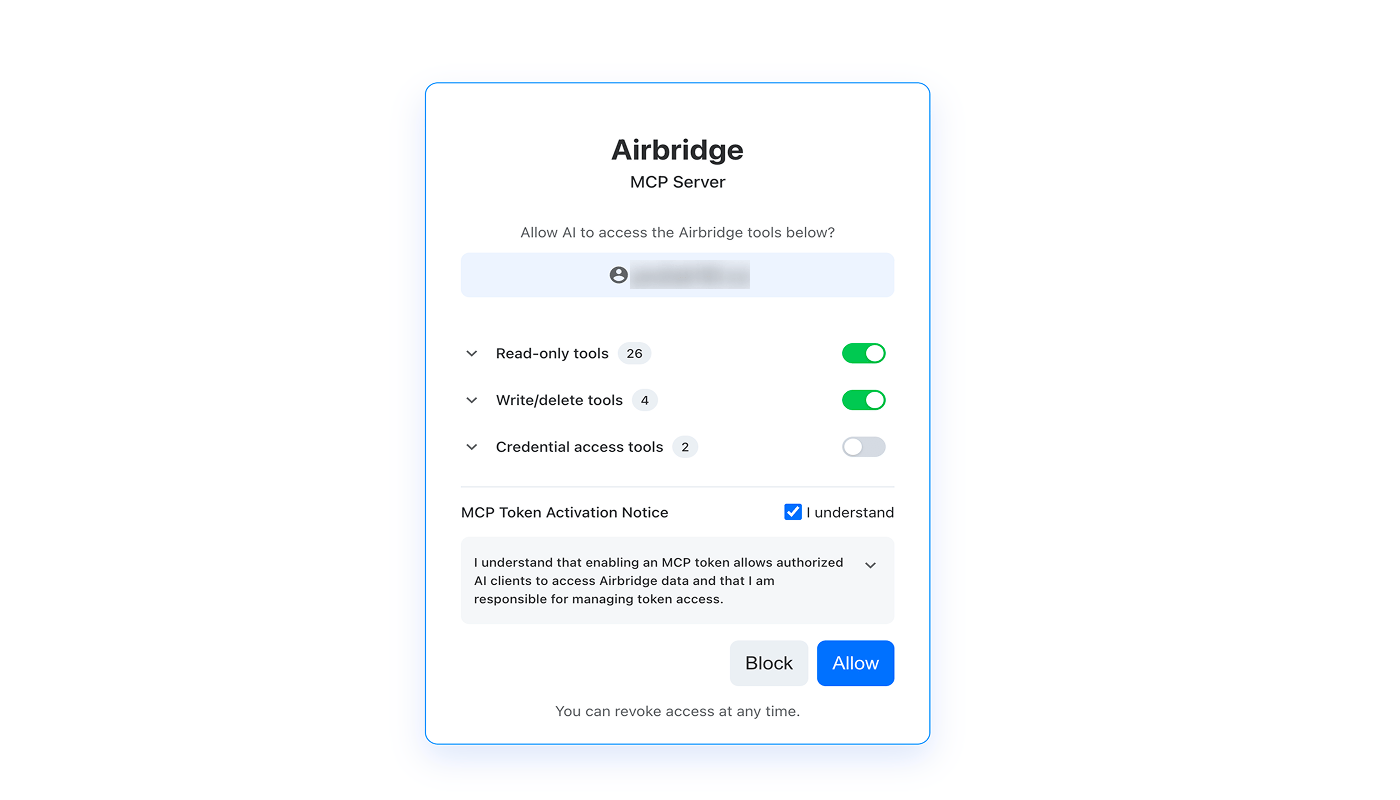
MCP 토큰 활성화 안내
MCP 토큰 활성화 안내
이 토큰을 활성화하면 Model Context Protocol(MCP)을 통해 호환되는 AI 클라이언트가 Airbridge의 일부 데이터와 기능에 접근할 수 있습니다.Airbridge MCP는 다음 원칙에 따라 운영됩니다.
- No Storage – 데이터는 실시간 처리 후 저장되지 않습니다.
- No Training – 고객 데이터는 AI 모델 학습에 사용되지 않습니다.
- No Sharing – 승인된 MCP 클라이언트를 제외한 제3자와 데이터가 공유되지 않습니다.
- Encryption – 데이터는 전송 과정에서 암호화됩니다.
Claude 웹 또는 데스크톱 앱
Claude 웹 또는 데스크톱 앱
MCP는 Pro, Max, Team, Enterprise 플랜에서 사용할 수 있습니다. 단, Team 또는 Enterprise 플랜에서는 먼저 Owner가 조직에 커넥터를 추가해야 합니다.
- claude.ai에 접속하거나 Claude 데스크톱 앱을 실행하세요.
- 왼쪽 하단에 있는 프로필 아이콘을 클릭하세요.
- [설정]>[커넥터]로 이동해 ‘커스텀 커넥터 추가’를 클릭하세요.
- 아래 에어브릿지 MCP 정보를 입력하세요.
- 이름: Airbridge
- 원격 MCP 서버 URL: https://mcp.airbridge.io/mcp
- ‘추가’를 클릭하세요.
- [커넥터] 페이지로 돌아와 ‘Airbridge’를 찾은 후, ‘연결’을 클릭하세요.
- 에어브릿지 로그인 페이지가 나타납니다. 로그인해 주세요.
- 접근 권한을 허용할 도구 목록과 ‘MCP Token Activation Notice(MCP 토큰 활성화 안내)’를 확인하세요.
- ‘I understand(이해했습니다)’ 체크박스를 선택한 후 ‘Allow(허용)’를 클릭하세요.
- 이제 Claude에서 에어브릿지 데이터를 바로 확인할 수 있습니다.
Claude Code
Claude Code
MCP는 Pro, Max, Team, Enterprise 플랜에서 사용할 수 있습니다. 단, Team 또는 Enterprise 플랜에서는 먼저 Owner가 조직에 커넥터를 추가해야 합니다.
- 터미널을 실행하세요.
- 아래 명령어를 입력해 에어브릿지 MCP 서버를 추가하세요.
- 승인 요청이 나타나면 ‘Yes(예)’를 선택하세요.
- 서버 추가가 완료되면 대화를 종료하고 터미널로 돌아가세요.
- Claude Code를 실행하고 아래 명령어를 입력하세요.
- MCP 서버 목록에서 ‘Airbridge’를 선택하세요.
- ‘Authenticate(인증)’을 선택하세요.
- 에어브릿지 로그인 페이지가 나타납니다. 로그인해 주세요.
- 접근 권한을 허용할 도구 목록과 ‘MCP Token Activation Notice(MCP 토큰 활성화 안내)’를 확인하세요.
- ‘I understand(이해했습니다)’ 체크박스를 선택한 후 ‘Allow(허용)’를 클릭하세요.
- 이제 Claude Code에서 에어브릿지 데이터를 바로 확인할 수 있습니다.
ChatGPT
ChatGPT
MCP는 Plus, Pro, Business, Enterprise, Edu 플랜에서 사용할 수 있습니다. 단, Business, Enterprise, Edu 플랜에서는 먼저 Owner가 ‘개발자 모드’를 활성화하고 개별 계정에 개발자 모드 사용 권한을 부여해야 합니다.
- chatgpt.com에 접속하거나 ChatGPT 앱을 실행하세요.
- 왼쪽 하단에 있는 프로필 아이콘을 클릭하세요.
- [설정]>[앱]으로 이동해 ‘고급 설정’을 클릭하세요.
- ‘개발자 모드’를 활성화하세요.
- ‘앱 만들기’를 클릭하고 아래 에어브릿지 MCP 정보를 입력하세요.
- 이름: Airbridge
- MCP 서버 URL: https://mcp.airbridge.io/mcp
- 인증: OAuth
- ‘만들기’를 클릭하세요.
- [앱] 페이지로 이동해 ‘Airbridge’를 클릭하세요.
- 에어브릿지 로그인 페이지가 나타납니다. 로그인해 주세요.
- 접근 권한을 허용할 도구 목록과 ‘MCP Token Activation Notice(MCP 토큰 활성화 안내)’를 확인하세요.
- ‘I understand(이해했습니다)’ 체크박스를 선택한 후 ‘Allow(허용)’를 클릭하세요.
- 이제 ChatGPT에서 에어브릿지 데이터를 바로 확인할 수 있습니다.
Codex CLI 또는 IDE Extension
Codex CLI 또는 IDE Extension
- 터미널을 실행하세요.
- 아래 명령어를 입력해 에어브릿지 MCP 서버를 추가하세요.
- 에어브릿지 로그인 페이지가 나타납니다. 로그인해 주세요.
- 접근 권한을 허용할 도구 목록과 ‘MCP Token Activation Notice(MCP 토큰 활성화 안내)’를 확인하세요.
- ‘I understand(이해했습니다)’ 체크박스를 선택한 후 ‘Allow(허용)’를 클릭하세요.
- 이제 Codex에서 에어브릿지 데이터를 바로 확인할 수 있습니다.
알립니다Codex CLI와 IDE Extention은 설정을 공유하므로 한 번만 설정하면 두 환경 모두에서 에어브릿지 MCP를 사용할 수 있습니다.
제공되는 에어브릿지 도구
- 에어브릿지 대시보드와 동일한 범위의 기능을 AI 서비스에서 활용할 수 있습니다.
- 특정 조직, 앱, 기능에 대한 접근 권한은 에어브릿지 계정 권한을 따릅니다.
기본 허용 도구
별도 허용이 필요한 도구
Read-only tools(읽기 전용)
Read-only tools(읽기 전용)
Write/delete tools(쓰기/삭제)
Write/delete tools(쓰기/삭제)
주의하세요아래 도구들은 에어브릿지 대시보드 설정을 직접 수정합니다. 쓰기/삭제는 읽기 권한을 포함합니다.
Credential access tools(인증 정보 접근)
Credential access tools(인증 정보 접근)
주의하세요아래 도구에 접근 권한을 허용하면 인증 정보가 AI 서비스 제공자의 서버로 전송됩니다. 전송된 인증 정보는 사용자의 AI 서비스 설정에 따라 모델 학습에 사용될 수 있으니 유의해 주세요.