> ## Documentation Index
> Fetch the complete documentation index at: https://help.airbridge.io/llms.txt
> Use this file to discover all available pages before exploring further.
# 언리얼 SDK 블루프린트 가이드 (Deprecated)
비공개 가이드: 필요한 고객사에게만 제공됩니다. 외부에 공개되지 않도록 주의해 주세요.
## 딥링크 설정
#### 딥링크 콜백 설정
유저가 클릭한 딥링크 데이터를 전송받기 위해 다음과 같은 작업을 진행해주세요.
1. `Content Browser > Add/Import > Blueprint Class` 를 클릭한 후 Parent Class 를 `Game Mode Base` 로 지정하여 Game Mode Base 클래스를 생성하여 주세요.
2. 생성된 Game Mode Base 블루프린트 클래스를 클릭하여 `Blueprint Editor > Event Graph` 창으로 이동해 주세요.
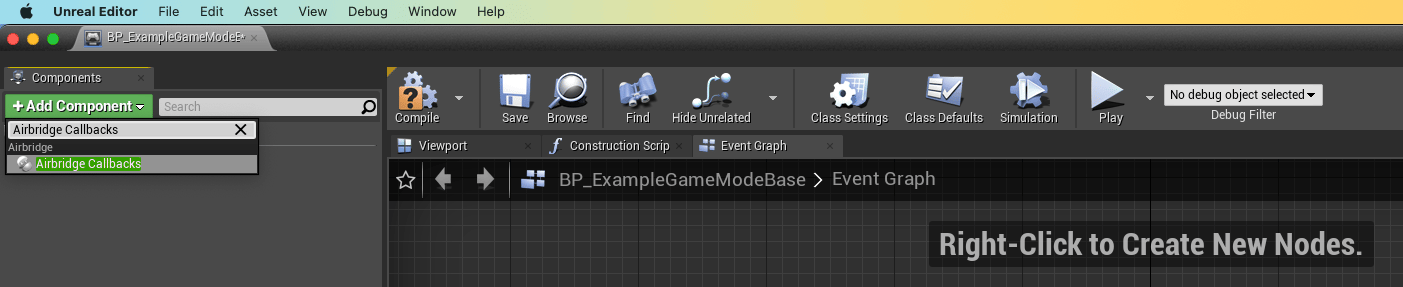
3. 좌측 상단의 Components 창의 Add Component 버튼을 클릭한 후 `Airbridge Callbacks` 컴포넌트를 다음과 같이 추가해 주세요.
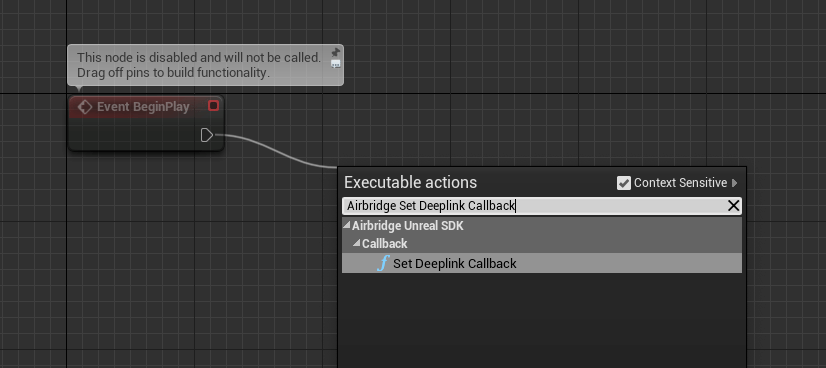
4. Event BeginPlay 노드에서 출력 핀을 통해 `Airbridge Unreal SDK > Callback > Set Deeplink Callback`노드를 다음과 같이 연결해 주세요.
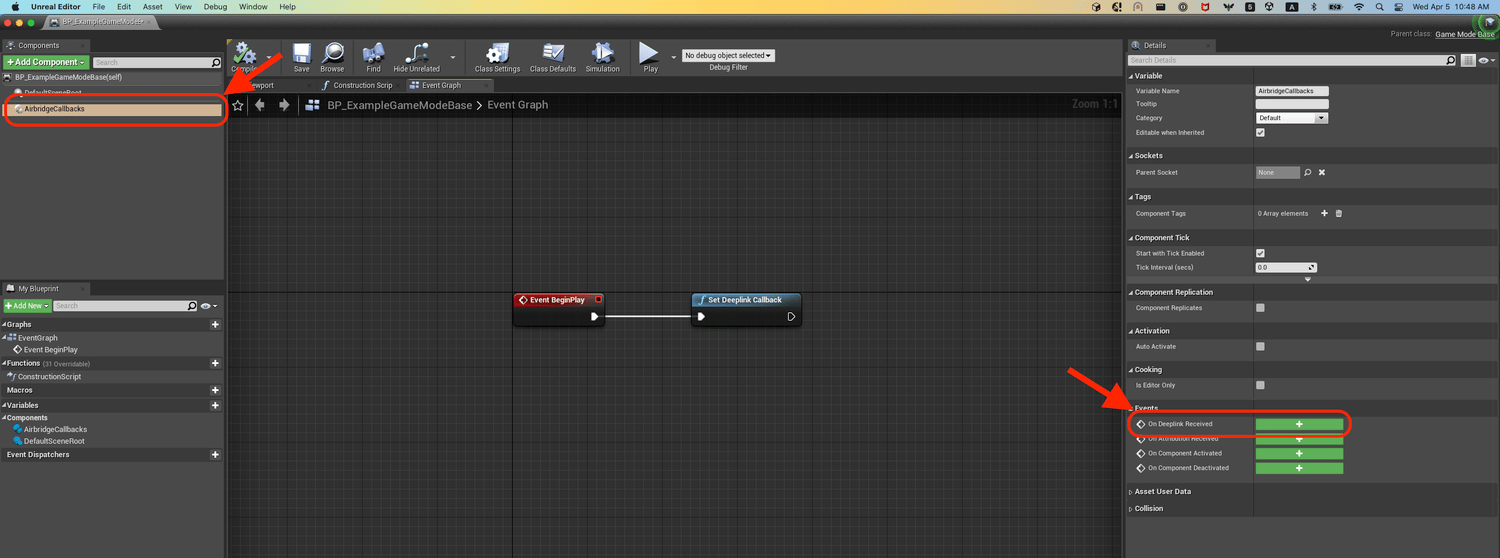
5. 추가된 `Airbridge Callbacks`컴포넌트를 클릭하여 Details 패널에서 `On Deeplink Received`이벤트 노드를 다음과 같이 추가해 주세요.
6. 언리얼 에디터 Project Settings 창의 `Project > Maps & Modes > Default Modes의 Default GameMode`필드 값으로 딥링크 콜백 설정이 완료된 게임 모드 (e.g. BP\_ExampleGameModeBase)를 지정해 주세요.
## 사용자 설정
### 사용자 식별자 및 설정
### 사용자 속성 설정
## 디바이스 설정
### 디바이스 식별자 설정
## 이벤트 설정
#### 사용자 이벤트 전송
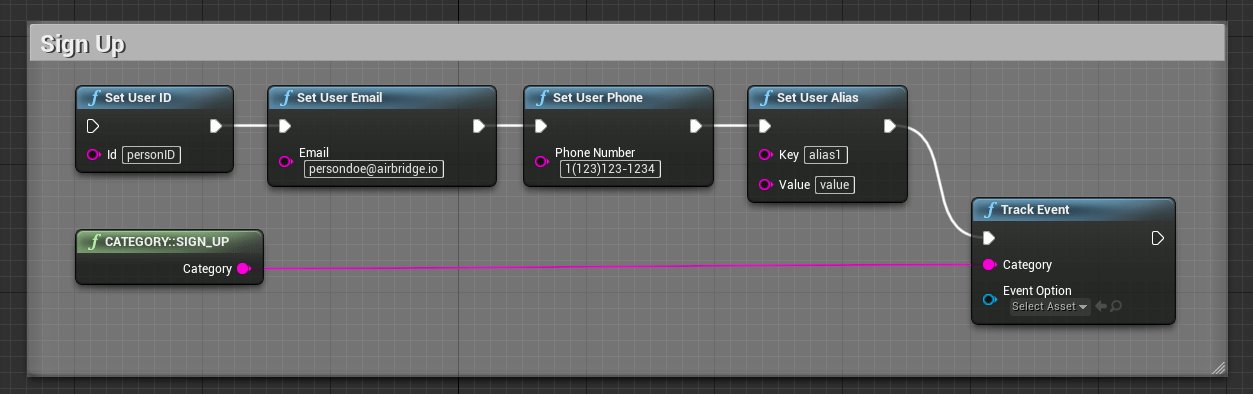
* 회원가입 (Sign up)
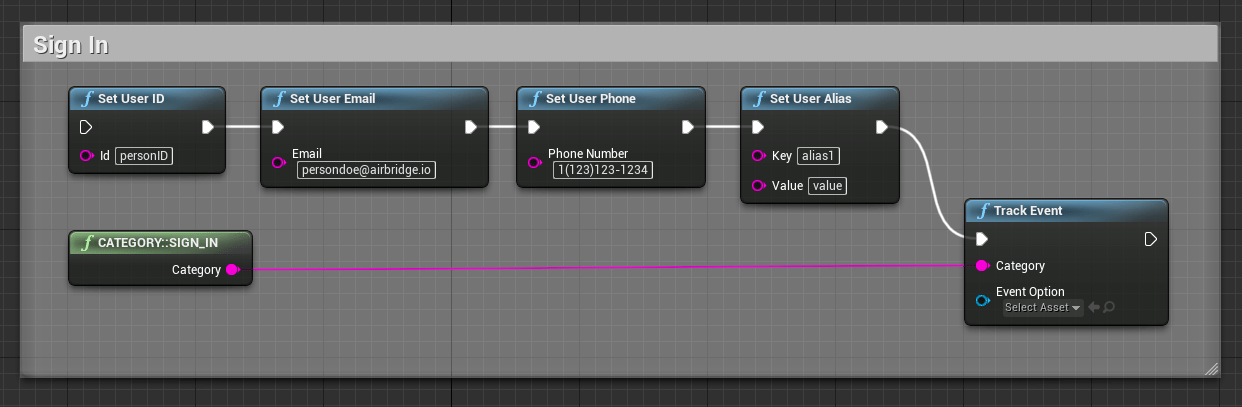
* 로그인 (Sign in)
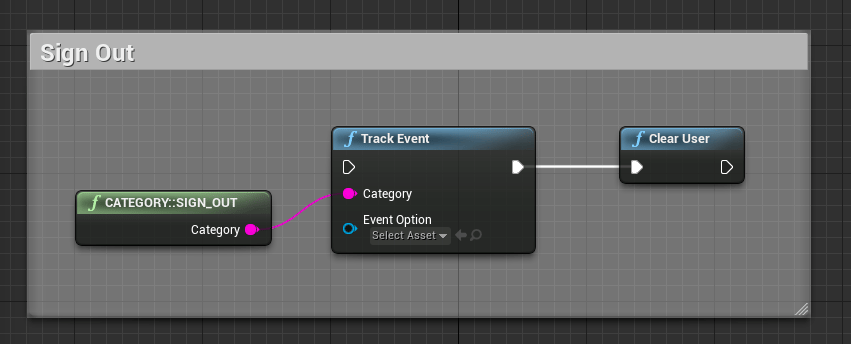
* 로그아웃 (Sign out)
### 이커머스 이벤트 전송
샘플 앱의 Content > Blueprints > EventMenuWidget\_BP 블루프린트를 참조해주세요.
### 커스텀 이벤트 전송
샘플 앱의 Content > Blueprints > EventMenuWidget\_BP 블루프린트를 참조해주세요.
## 고급 설정
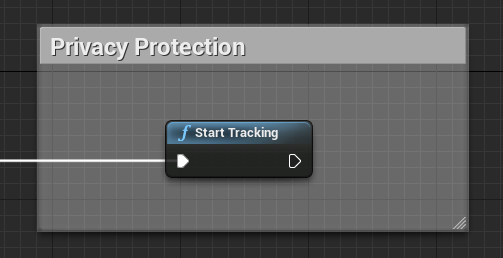
### 개인정보보호 설정
### 앱 삭제 추적 설정
 4. Event BeginPlay 노드에서 출력 핀을 통해 `Airbridge Unreal SDK > Callback > Set Deeplink Callback`노드를 다음과 같이 연결해 주세요.
 5. 추가된 `Airbridge Callbacks`컴포넌트를 클릭하여 Details 패널에서 `On Deeplink Received`이벤트 노드를 다음과 같이 추가해 주세요.
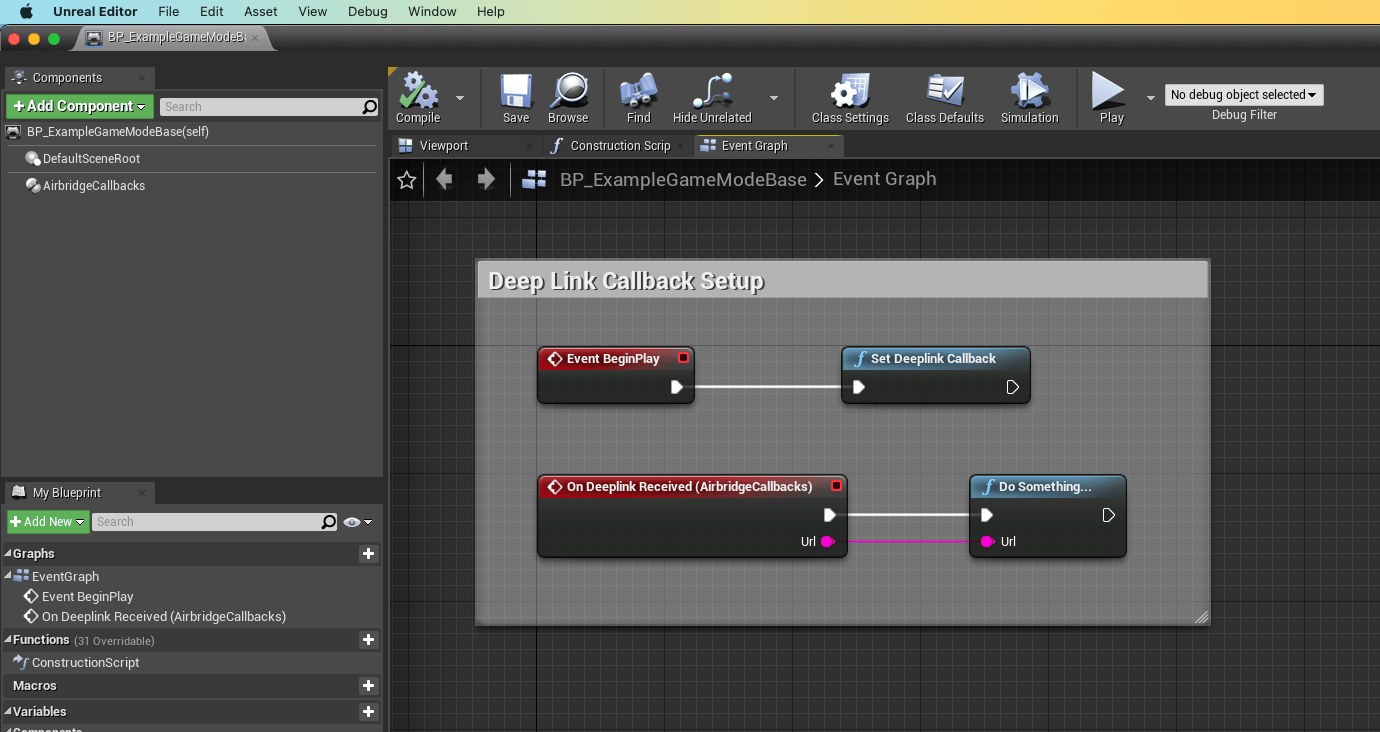 6. 언리얼 에디터 Project Settings 창의 `Project > Maps & Modes > Default Modes의 Default GameMode`필드 값으로 딥링크 콜백 설정이 완료된 게임 모드 (e.g. BP\_ExampleGameModeBase)를 지정해 주세요.
## 사용자 설정
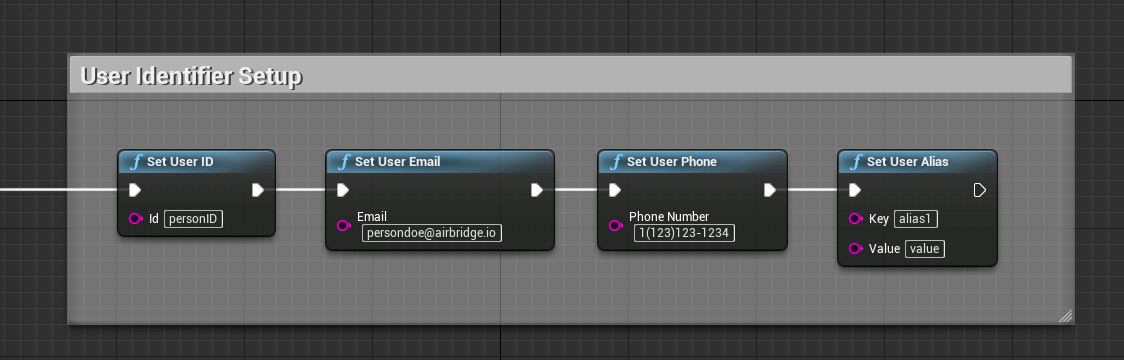
### 사용자 식별자 및 설정
6. 언리얼 에디터 Project Settings 창의 `Project > Maps & Modes > Default Modes의 Default GameMode`필드 값으로 딥링크 콜백 설정이 완료된 게임 모드 (e.g. BP\_ExampleGameModeBase)를 지정해 주세요.
## 사용자 설정
### 사용자 식별자 및 설정
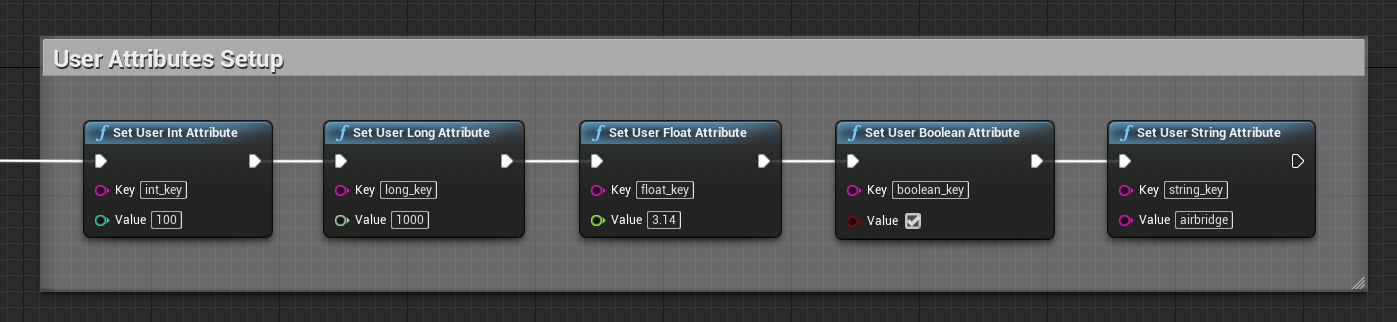
 ### 사용자 속성 설정
 ## 디바이스 설정
### 디바이스 식별자 설정
## 디바이스 설정
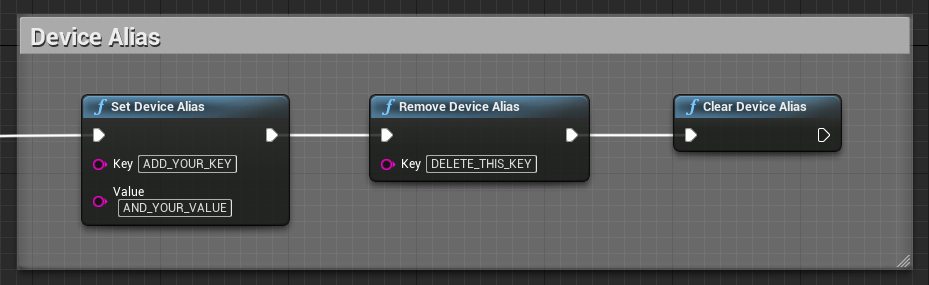
### 디바이스 식별자 설정
 ## 이벤트 설정
#### 사용자 이벤트 전송
* 회원가입 (Sign up)
## 이벤트 설정
#### 사용자 이벤트 전송
* 회원가입 (Sign up)
 * 로그인 (Sign in)
 * 로그아웃 (Sign out)
 ### 이커머스 이벤트 전송
샘플 앱의 Content > Blueprints > EventMenuWidget\_BP 블루프린트를 참조해주세요.
### 커스텀 이벤트 전송
샘플 앱의 Content > Blueprints > EventMenuWidget\_BP 블루프린트를 참조해주세요.
## 고급 설정
### 개인정보보호 설정
### 이커머스 이벤트 전송
샘플 앱의 Content > Blueprints > EventMenuWidget\_BP 블루프린트를 참조해주세요.
### 커스텀 이벤트 전송
샘플 앱의 Content > Blueprints > EventMenuWidget\_BP 블루프린트를 참조해주세요.
## 고급 설정
### 개인정보보호 설정
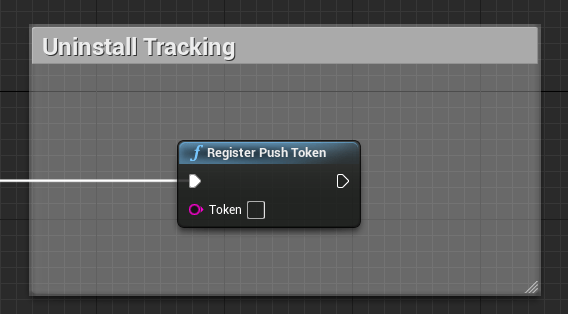
 ### 앱 삭제 추적 설정