> ## Documentation Index
> Fetch the complete documentation index at: https://help.airbridge.io/llms.txt
> Use this file to discover all available pages before exploring further.
# Measure web-to-app campaigns
Learn how Airbridge measures web-to-app campaigns, what setup is required, and how to view campaign performance.
**Note**
For campaigns on PC or CTV, see [Measure cross-platform campaigns](/en/guides/cross-platform-measurement).
## Web-to-app campaigns
**What is a web-to-app campaign?**
Web-to-app campaigns send users who click an ad to a web landing page before sending them to the app or app store. Presenting a curated web landing page along the way can increase conversion rates.
Consider web-to-app campaigns when:
* You want users to learn about your service before installing the app, lowering the barrier to conversion.
* You want to send users to different destinations based on their app installation status, sending those with the app directly into the app and those without to the app store.
* You want users acquired through web campaigns to continue their journey in the app.
## Web-to-app campaigns Scenario
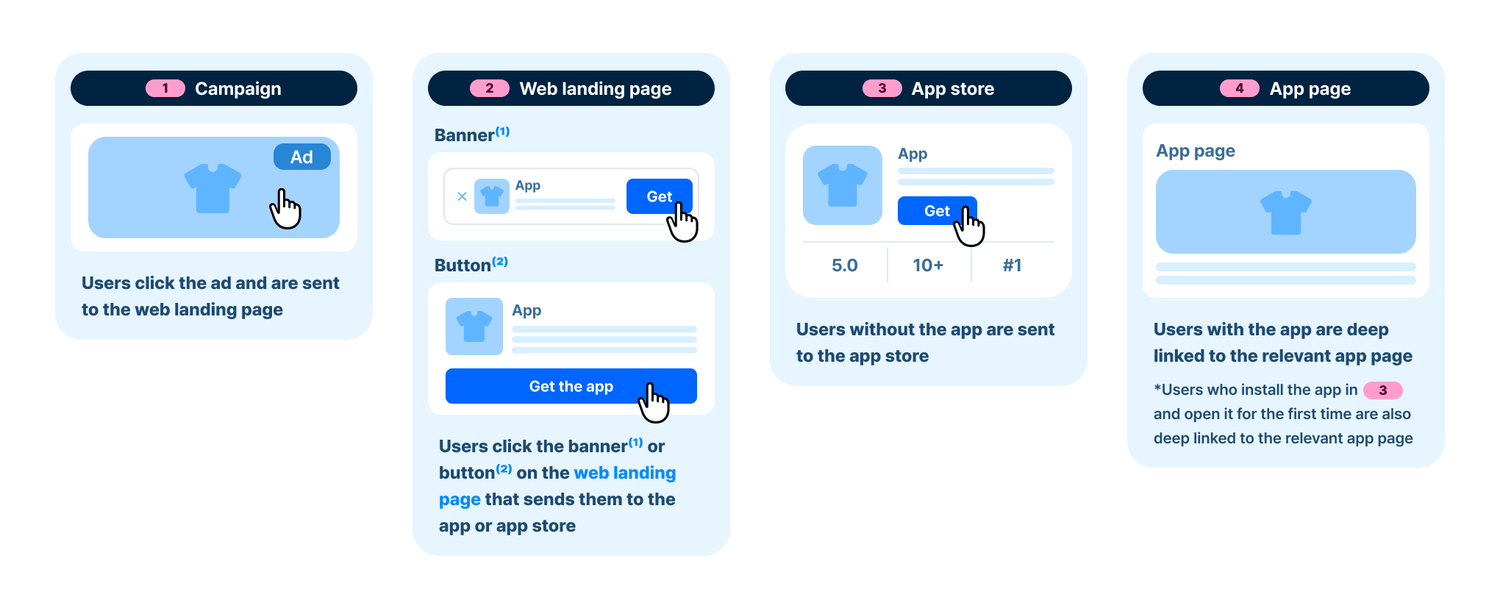
1. Users who click the ad are sent to the web landing page.
2. Users click a banner or button on the landing page that sends them to the app or app store.
3. The destination varies based on the user’s app installation status. Users with the app are deep linked into the app, while users without are sent to the app store.
4. Both users directly deep linked into the app and those who open the app for the first time after installation land on the app page relevant to the original ad.
## Set up web-to-app campaigns
Complete the following to run a web-to-app campaign.
| Category | Key tasks | Location | Task owner |
| ------------------------ | ---------------------------------------------------------------------------------- | ------------------- | ---------- |
| Develop web landing page | - Install Airbridge Web SDK - Set up user redirection for banners and buttons | Airbridge Web SDK | Developer |
| Create tracking links | Create tracking links to use in ads | Airbridge dashboard | Marketer |
### Develop web landing page (Developer)
**Developer involvement required**
Share [this section](#develop-web-landing-page-developer) with your developer and ask to complete the following setup.
##### 1. Install Airbridge Web SDK
To collect data from your web landing page, install the Airbridge Web SDK on the landing page. Ask your developer to follow the article below to complete the installation.
* [Install Airbridge Web SDK](/en/developers/web-sdk#install-web-sdk)
##### 2. Setup user redirection for banners and buttons
To send users who click banners or buttons to your app or the app store, implement the code provided by Airbridge. Determine the destinations and data to track, then ask your developer to follow the articles below to implement the code.
###### Banners
* [Create smart app banners](/en/developers/web-sdk#create-smart-app-banners)
###### Buttons
* [Creating a button to open the app via deep link](/en/developers/web-sdk#creating-a-button-to-open-the-app-via-deep-link)
* [Create a button to open the store through a deep link](/en/developers/web-sdk#create-a-button-to-open-the-store-through-a-deep-link)
### Create tracking links (Marketer)
Create tracking links to use them in your ads. See [Create tracking links in the Airbridge dashboard](/en/guides/creating-tracking-links-on-the-dashboard).
When creating the link, select **\[Website]** as the **\[Destination]** and enter the URL of the web landing page where [Airbridge Web SDK is installed](#develop-web-landing-page-developer).
### Ad channels requiring specific integration (Marketer)
The following channels have their own integration requirements separate from creating a tracking link:
##### Meta Ads
To run web campaigns on Meta Ads, complete integration by following [Web campaign tracking - Meta Ads](/en/guides/meta-business-website-conversion).
##### Google Ads
To run web campaigns on Google Ads, complete integration by following [Web campaign tracking - Google Ads](/en/guides/google-ads-website-conversion).
##### TikTok For Business
To run web campaigns on TikTok For Business, complete the following setup.
**This setup requires code changes. Ask your developer for help.**
###### Required
| Task | Description | Location | Task owner | Resources |
| ------------------ | ---------------------------------------------------------------------------------- | ----------------------------- | ---------- | ----------------------------------------------------------------------------------------- |
| Add UTM parameters | Add UTM parameters to your web landing page URL to track data | TikTok For Business dashboard | Marketer | - |
| Enable UTM parsing | Set the `utmParsing` to `true` in the Airbridge Web SDK to read UTM parameter data | Airbridge Web SDK | Developer | [Automatic UTM parameter setting](/en/developers/web-sdk#automatic-utm-parameter-setting) |
###### Recommended
Set up the TikTok pixel by referring to [About TikTok Pixel](https://ads.tiktok.com/help/article/tiktok-pixel).
## View campaign performance
See [Web-to-app conversion reporting](/en/guides/web-to-app-tracking-with-cta-buttons#web-to-app-conversion-reporting) to learn how to view campaign performance data.
### FAQ
You can add up to 3 buttons to a web landing page. See [Add CTA parameters](/en/guides/web-to-app-tracking-with-cta-buttons#add-cta-parameters).
To ensure ad channels receive credit, keep the Protected Attribution Window (PAW) set to `true`. PAW is `true` by default. See [Set the attribution window for web-to-app attribution](/en/developers/web-sdk#set-the-attribution-window-for-web-to-app-attribution).
**What is Protected Attribution Window (PAW)?**
PAW is a time window that starts when a user lands on the web landing page. Touchpoints collected within this window are excluded from attribution. For example, if PAW is set to `true` and 30 minutes, touchpoints collected for 30 minutes after the user arrives on the landing page are excluded from the attribution process.
This ensures the original ad channel receives attribution credit for conversions, rather than the landing page banner or button clicks reported as `airbridge.websdk`.
 1. Users who click the ad are sent to the web landing page.
2. Users click a banner or button on the landing page that sends them to the app or app store.
3. The destination varies based on the user’s app installation status. Users with the app are deep linked into the app, while users without are sent to the app store.
4. Both users directly deep linked into the app and those who open the app for the first time after installation land on the app page relevant to the original ad.
## Set up web-to-app campaigns
Complete the following to run a web-to-app campaign.
| Category | Key tasks | Location | Task owner |
| ------------------------ | ---------------------------------------------------------------------------------- | ------------------- | ---------- |
| Develop web landing page | - Install Airbridge Web SDK
1. Users who click the ad are sent to the web landing page.
2. Users click a banner or button on the landing page that sends them to the app or app store.
3. The destination varies based on the user’s app installation status. Users with the app are deep linked into the app, while users without are sent to the app store.
4. Both users directly deep linked into the app and those who open the app for the first time after installation land on the app page relevant to the original ad.
## Set up web-to-app campaigns
Complete the following to run a web-to-app campaign.
| Category | Key tasks | Location | Task owner |
| ------------------------ | ---------------------------------------------------------------------------------- | ------------------- | ---------- |
| Develop web landing page | - Install Airbridge Web SDK