> ## Documentation Index
> Fetch the complete documentation index at: https://help.airbridge.io/llms.txt
> Use this file to discover all available pages before exploring further.
# Signal Hold
An ad channel's algorithm optimizes campaigns by learning from the conversions it receives as postbacks and finding users similar to those who converted. Postbacks serve as the signals in this process, telling the algorithm which users to look for. But users cancel orders right after buying, and unsubscribe right after starting a free trial. Real-time postbacks send every conversion to the ad channel the moment it occurs, including the ones users cancel later. So the algorithm learns from users who canceled their orders or unsubscribed, and targets more users like them.
Signal Hold holds conversion postbacks for a window you set instead of sending them immediately. Pair a conversion event with the event that cancels it, and Airbridge sends only the conversions that aren't canceled within the hold window. The algorithm then learns only from users who actually bought or stayed subscribed. Use Signal Hold to improve campaign performance on the same ad budget.
**Note**
Signal Hold is a beta feature and is currently available for Meta Ads only.
**Already using RevenueCat or Adapty?**
Events you collect with RevenueCat or Adapty already include the transaction ID Signal Hold needs. Set up Signal Hold in the dashboard, no development work required.
## How Signal Hold works
Signal Hold applies per ad channel and works on event pairs, each consisting of a conversion event and its cancellation event. Once you enable Signal Hold, Airbridge processes conversion events as follows.
1. A conversion event occurs. Airbridge holds its postback instead of sending it immediately.
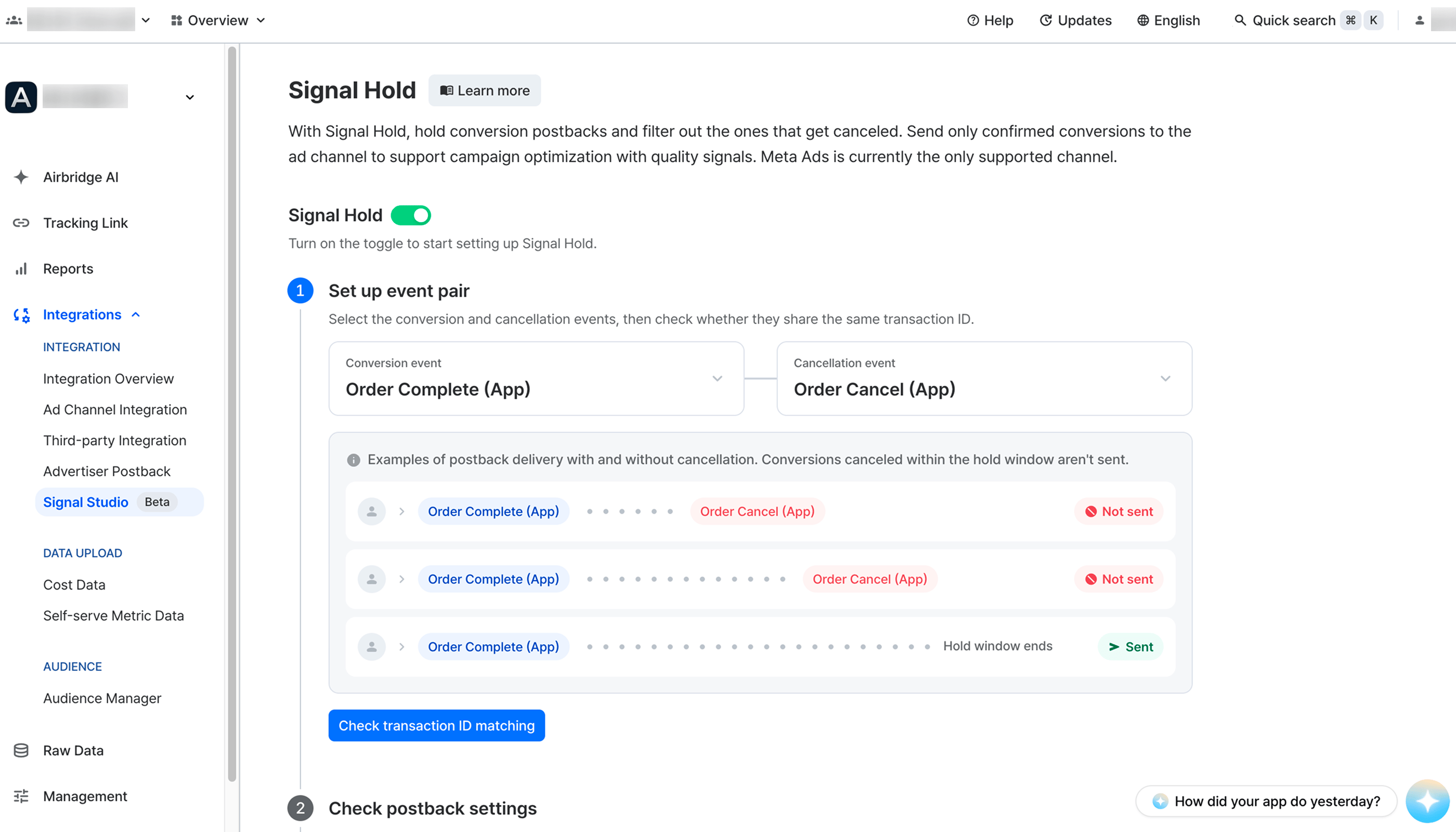
2. If a cancellation event with a matching transaction ID occurs within the hold window, Airbridge sends neither the conversion event nor the cancellation event as a postback.
3. If no cancellation event occurs before the hold window ends, Airbridge sends the conversion event as a postback.
**Note**
Signal Hold doesn't guarantee improved campaign performance. Campaign optimization is ultimately run by the ad channel's algorithm, and results vary by service and campaign environment.
## Use Signal Hold
Only accounts with the Owner or In-house Marketer app role can view and set up Signal Hold. Review the requirements below, then set up Signal Hold in the Airbridge dashboard.
### Before you begin
Meet all the requirements below to set up Signal Hold, and Airbridge will verify them during setup. One requirement to check in advance is the transaction ID, a Semantic Attribute that has to be collected with the event. If you aren’t collecting it yet, ask your developer to set it up. See [this article](/en/guides/analyzing-real-purchase-performance#semantic-attributes-of-the-order-cancel-event) for details.
| **Requirement** | **Description** |
| -------------------- | --------------------------------------------------------------------------------------------------------------------------------------------------------------------------------------------------------------------------------------------------------- |
| Meta Ads integration | - Complete **\[Channel integration]** setup for Meta Ads. - Enable **\[In-app Event Postback]**. |
| Conversion event | - Must be an event you're already sending to Meta Ads as a postback. - Can be a Standard Event or a Custom Event. - Must have been collected 20 or more times with a transaction ID in the past 24 hours. - Can't be a cancellation event. |
| Cancellation event | - Can be a Standard Event or a Custom Event. - Must have been collected at least once with a transaction ID in the past 24 hours. |
| Transaction ID match | The transaction IDs of the conversion event and the cancellation event must match. Airbridge pairs the two events by transaction ID, not by event name. |
| Campaign filter | If you use the campaign filter, only campaigns with 20 or more attributed conversion events per day are selectable. |
**Note**
The maximum hold window is 24 hours. Signal Hold is not a good fit for services where cancellations occur days after the conversion event.
### Set up Signal Hold
To set up Signal Hold, go to **\[Integrations]>\[Signal Studio]>\[Signal Hold]** in the Airbridge dashboard.
1. Turn on the **\[Signal Hold]** toggle. The setup steps appear.
2. In **\[Set up event pair]**, select the **\[Conversion event]** and **\[Cancellation event]**, then click **Check transaction ID match**. You can move on to the next step once the transaction IDs match. See [Before you begin](#before-you-begin) for eligible events.
3. In **\[Check postback settings]**, check whether the conversion event is sent to Meta Ads as a postback. If it isn't, click **Go to postback settings** and configure it.
4. In **\[Set hold window]**, select the hold window. Options are 10 to 60 minutes in 10-minute increments and 1 to 24 hours in 1-hour increments.
**Set the hold window based on your service's cancellation pattern**
For example, if 70% of change-of-mind cancellations occur within 30 minutes of purchase, try setting the hold window to 30 minutes.
5. To limit Signal Hold to specific campaigns, turn on the **\[Campaign filter]** toggle and select them. Only campaigns with 20 or more attributed conversion events per day are selectable. For campaigns with few conversion events, increasing conversions is more effective than filtering out the canceled ones.
6. Click **Save**. Signal Hold is enabled, and from then on Airbridge sends only the conversion events that aren’t canceled within the hold window.
**Don't change your settings for at least one week after saving**
If you change your settings, the ad channel's algorithm has to adapt to the changed signals again.
### Recommended settings by service
The following are examples. Build your event pair from the events your service actually collects, and set the hold window based on when change-of-mind cancellations cluster.
| Service | Conversion event | Cancellation event | Hold window |
| --------------------------------- | -------------------- | ------------------ | ----------- |
| E-commerce - Fashion | Order Complete (App) | Order Cancel (App) | 30 minutes |
| E-commerce - Delivery | Order Complete (App) | Order Cancel (App) | 10 minutes |
| Subscription - With free trial | Start Trial (App) | Unsubscribe (App) | 1 hour |
| Subscription - Without free trial | Subscribe (App) | Unsubscribe (App) | 1 hour |
### Disable Signal Hold
On the **\[Signal Hold]** tab, turn off the **\[Signal Hold]** toggle. Signal Hold is disabled, and Airbridge sends all postbacks to the ad channel in real time, without a hold window.
## View performance analysis report
The performance analysis report summarizes your metrics for the 8 weeks before and after the date you enabled Signal Hold. Find it in the Airbridge dashboard under **\[Integrations]>\[Signal Studio]>\[Signal Hold]**.
1. In **\[Conversions excluded from postbacks]**, check the number and share of excluded conversions.
2. In **\[Performance analysis report]**, compare your before-and-after performance using the charts and tables, which show the change and percentage change for each metric. If you applied a campaign filter, only the filtered campaigns are included. Use the legend below the chart to select which metrics to display. The axes may change depending on your selection. Cost and CPI appear only when your cost data is integrated.
**Read the chart alongside your service's characteristics**
* Apps with weekend dips in conversions show weekend dips in the chart.
* Apps with conversion cycles of several days to a week show the same rhythm.
* Apps with evenly spread conversions may show a flat chart.
* Apps where users rarely cancel right after converting may show little difference before and after.
3. For more detailed data, click **View in Actuals**. The Actuals report opens with your metric, channel, and campaign conditions applied.
### Evaluate performance
The time elapsed since you enabled Signal Hold determines what you can see and how to evaluate performance.
| **Period** | **Description** |
| -------------------------------------- | ------------------------------------------------------------------------------------------------------------------------------------------------------------------------------------------------------ |
| From 2 days after enabling | The **\[Performance analysis report]** appears. Until then, a countdown shows the days remaining. |
| From 7 days after enabling | **\[Conversions excluded from postbacks]** appears, starting with data for the past 7 days. Data for the past 30 days is added 30 days after enabling. |
| Up to 2 weeks after enabling | The ad channel’s algorithm is still adapting to the new signals. Your metrics may dip temporarily. |
| From 2 weeks to 8 weeks after enabling | The best period for evaluating performance. Compare before and after to decide whether to keep Signal Hold. |
| After 8 weeks | Factors other than Signal Hold increasingly affect performance. The performance analysis report stays fixed with data up to 8 weeks after enabling, so review later performance in the Actuals report. |
The right moment to evaluate depends on your service. The algorithm optimizes quickly for frequent events like purchases, and takes longer for rare events like subscriptions. If your service has a conversion cycle, review trends by cycle.
## Things to note
Keep the following in mind when you enable Signal Hold.
* Signal Hold applies only to postbacks sent to ad channels. Airbridge reports and raw data show conversion and cancellation events exactly as collected, so the numbers you see in an ad channel and the numbers you see in Airbridge may differ.
* Airbridge matches only one cancellation event per conversion event. If several cancellation events with the same transaction ID occur within the hold window, Airbridge sends the remaining cancellation events as postbacks.
* If you edit the hold window, the new window may not apply to conversion events already being held.