> ## Documentation Index
> Fetch the complete documentation index at: https://help.airbridge.io/llms.txt
> Use this file to discover all available pages before exploring further.
# Sharing Airbridge Reports
Share your Airbridge reports with others using the appropriate method based on your access rights and your purpose of sharing the reports.
## **Sharing Airbridge Reports within Airbridge**
There are several ways to share the Airbridge reports with other Airbridge users to view the same data within Airbridge. Depending on the app access level of the Airbridge user, the same data may not be visible to the Airbridge user.
### **Using Report Library**
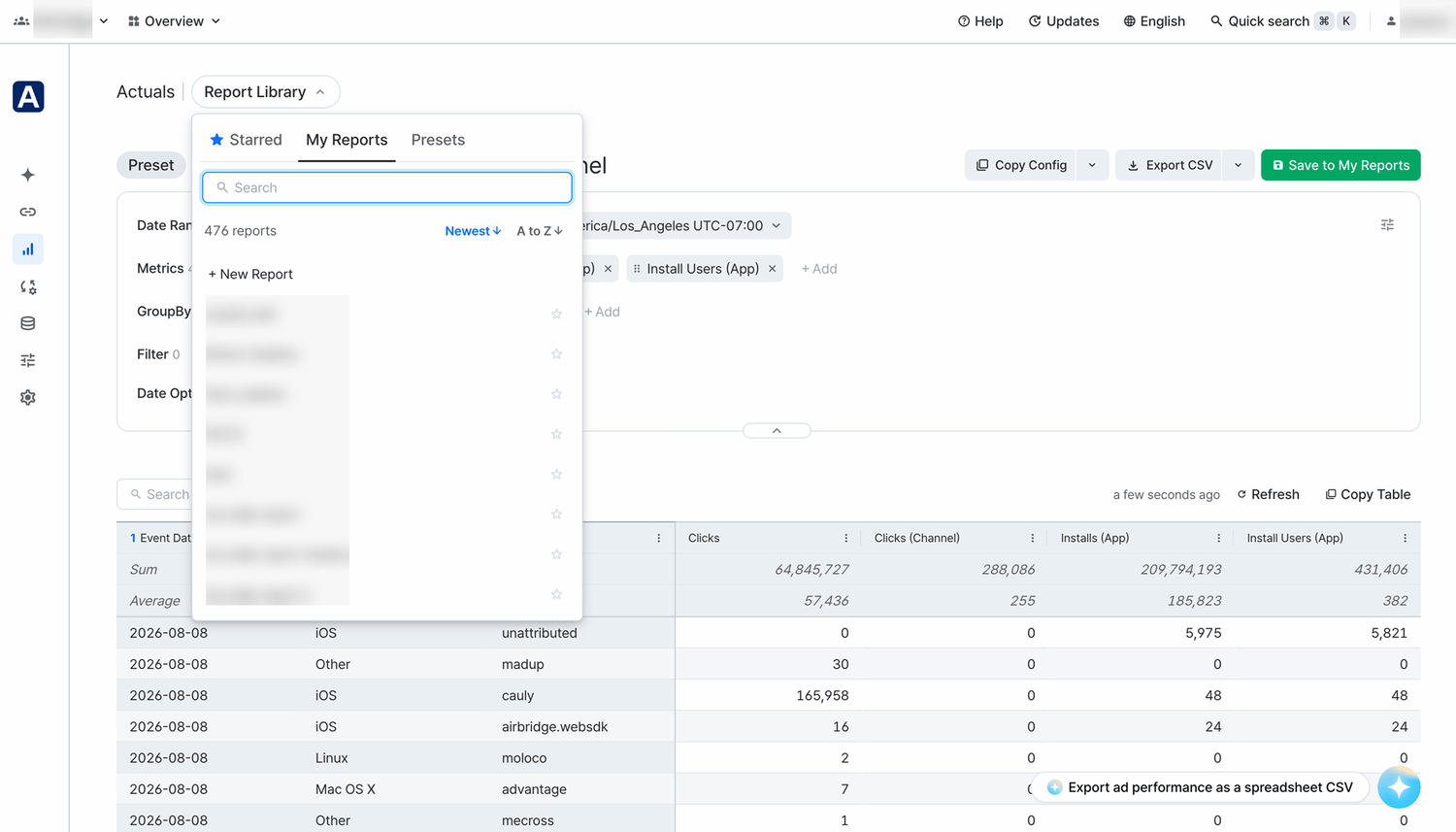
Click **Save** in a report to save it with your date range, metrics, groupbys, and other settings. Saved reports appear under **\[Report Library]**. Only accounts with the same app role as the account who saved the report can view it. Report saving is not supported in some reports.
In the Actuals report, you can star a saved report by clicking the star icon to the right of the report's name in **\[My Reports]**. Starred reports appear in the **\[Starred]** tab.
| Action | Description |
| -------------------------------------------------------------------------- | ------------------------------------------------------------------------------------------- |
| Save | Saves the current report settings. You can reopen saved reports from **\[Report Library]**. |
| New report | Opens a new report. |
| Revert | Reverts the current report settings to the saved settings. |
| Delete report | Deletes the saved report. |
| Save as a new report | Saves the current report settings under a different name. |
### **Using Copy Config**
**Airbridge reports that support copy config**
The following reports support the Copy Config.
* Overview dashboard, Actuals Report, Trend Report, Retention Report, Retention Report, Revenue Report, Active Users Report, Funnel Report, Touchpoint Overlap Report, Touchpoint Analysis Report, Lag Time Report
When using the copy config, the report configuration settings can be shared with other Airbridge users. Note that the report view will differ depending on the app access level of the individual Airbridge user.
Refer to the table below for the details of the Copy Config feature.
| Feature | Description |
| --------------------------------------------------------------------------- | ------------------------------------------------------------------------------------------------------------------------------------------------------------------------------------------------------------------------------------------------------------ |
| Copy Config | Click **Copy Config** to copy the report configuration settings. Share it with other Airbridge users. The button is activated after a report view is created. |
| Paste Config | Open a new report page and paste the copied config into a new report page by selecting **Paste Config** in the drop-down menu, or use the keyboard shortcut, `Command`+`V`. The copied report configuration settings will only work on the same report type. |
| Open Editor | Paste the copied report configuration settings into the **Config Editor** to make modifications to the config. |
Although the report configuration settings of the Actuals Report and the Trend Report are interoperable, the number of metrics and GroupBy options available in the Actuals Report is larger than in the Trend Report. Therefore, depending on the report configuration settings, the Actuals Report's configuration settings cannot be pasted into the Trend Report.
### **Using report URLs**
**Airbridge reports that support report sharing using the report URL**
The following reports support the report sharing using the report URL.
* Actuals Report, Trend Report, Retention Report, Revenue Report, Funnel Report
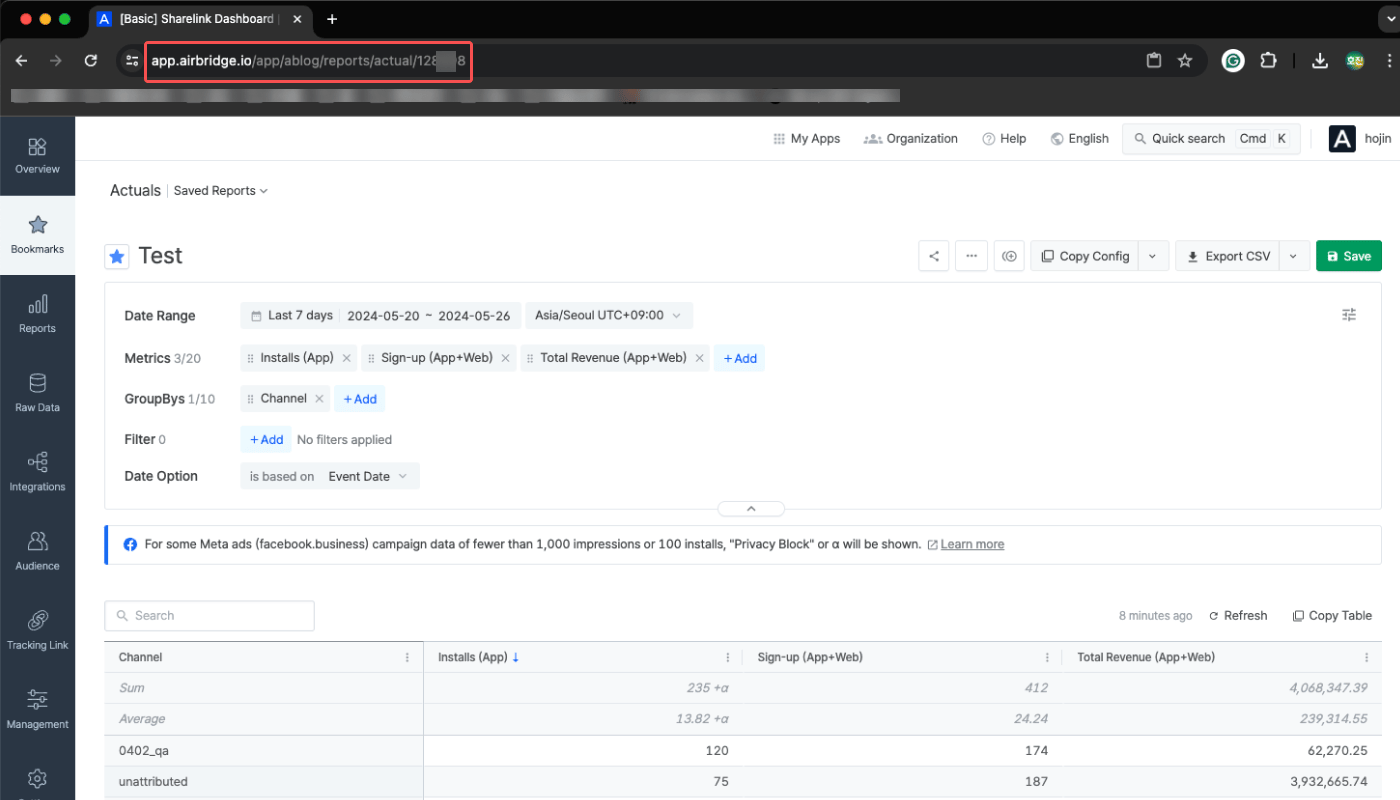
Share the URL of the Airbridge report page to share your report view with an Airbridge user who has access to the Airbridge App.
### **Granting App access to Airbridge users**
You can invite users to the Airbridge App. The accessible data varies by the app roles.
Users invited to the Airbridge App can have access to menus other than the Airbridge reports. Invite users after careful consideration.
Refer to the following article to learn how to grant app access to Airbridge users.
* [App-level User Management](/en/guides/app-access-management)
## **Sharing Airbridge Reports Externally**
When sharing the Airbridge reports externally, anyone can see the data regardless of their access level within Airbridge. Be careful when sharing reports externally to avoid exposing sensitive data.
### **Using Copy Table and Copy Chart**
**Using Copy Table and Copy Chart**
The following reports support Copy Chart and Copy Table.
* Copy Chart: Trend Report, Revenue Report, Active Users Report, Revenue Report, Funnel Report, Touchpoint Overlap Report, Touchpoint Analysis Report
* Copy Table: Overview dashboard, Actuals Report, Trend Report, Retention Report, Revenue Report, Active Users Report, Funnel Report, Touchpoint Overlap Report, Touchpoint Analysis Report, Lag Time Report
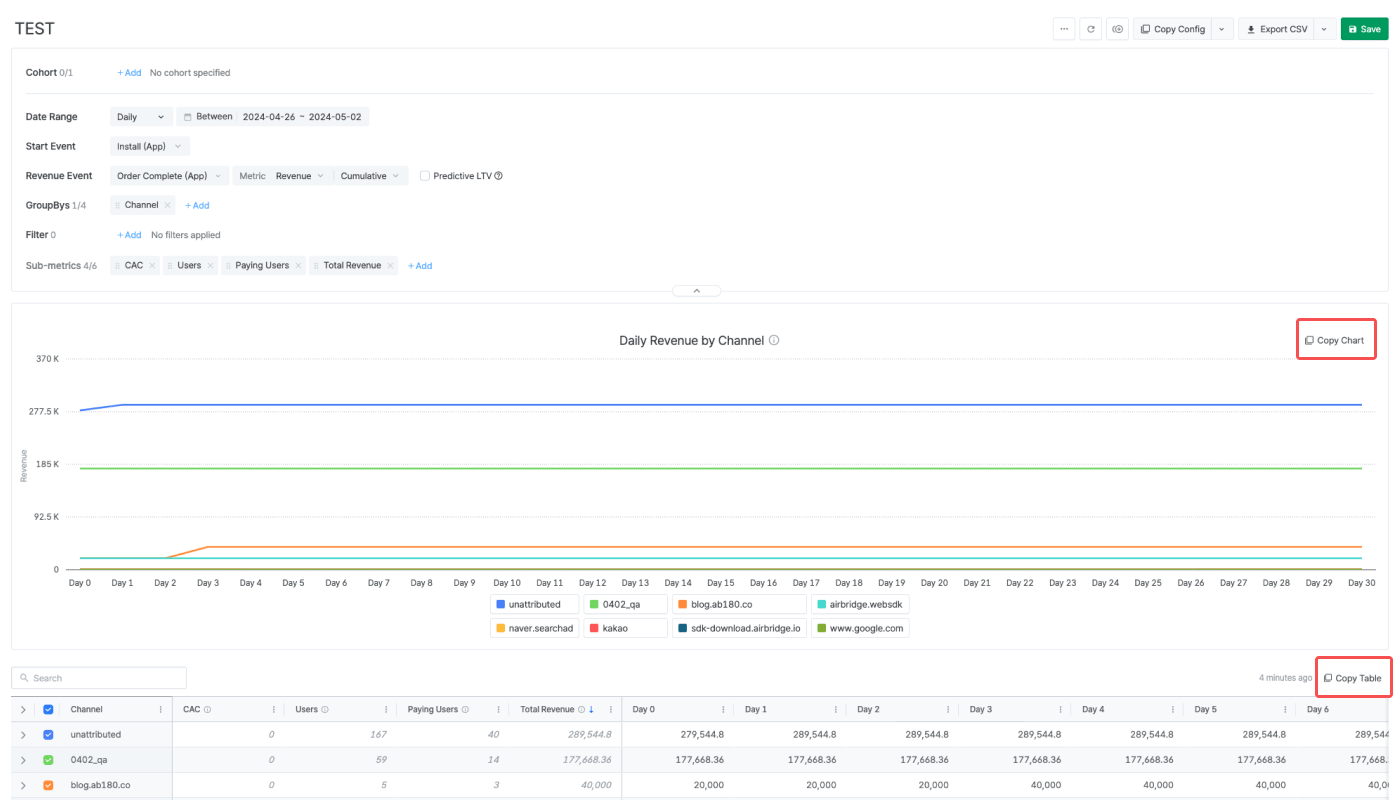
Click **Copy Table** or **Copy Chart** and paste the copied table or chart into an Excel sheet or Google Sheet file to share externally. You can also paste the copied chart into a messenger or a collaboration tool to share it as a PNG file.
### **Sharing report data as CSV files**
**Airbridge reports that support downloading report data as a CSV file**
The following Airbridge reports support downloading the report as a CSV file.
* Overview dashboard, Actuals Report, Trend Report, Retention Report, Revenue Report, Active Users Report, Funnel Report
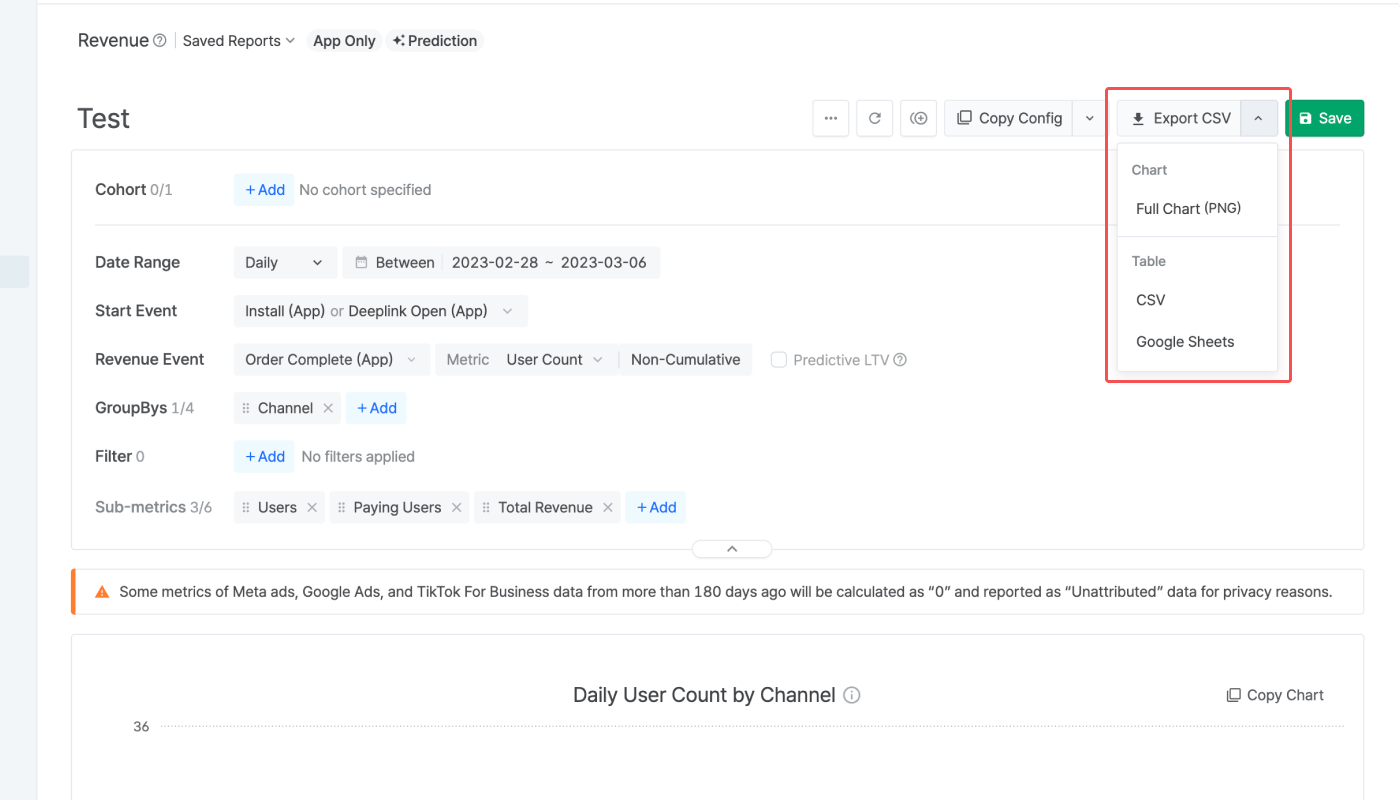
You can share your report with anyone by downloading it as a CSV file and sharing the file. The CSV file includes the chart and the table. The CSV Download button is activated after creating a report view. The chart is downloaded as a PNG file, whereas the table can be downloaded as a CSV file or saved as a Google Spreadsheets file in your Google Drive.
### **Using Sharelinks**
**Airbridge reports that support Sharelinks**
The following reports support Sharelinks.
* Actuals Report, Retention Report, Revenue Report, Funnel Report
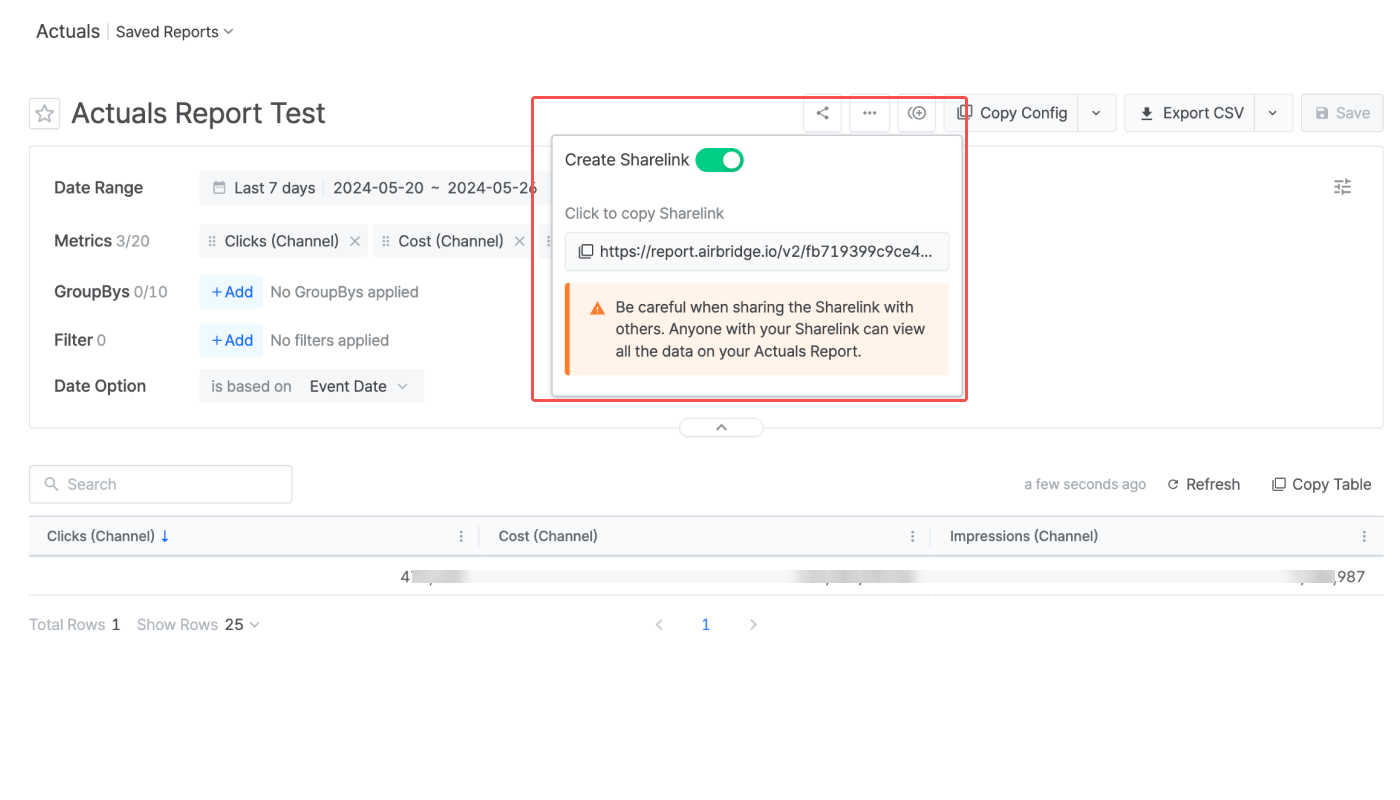
Using the Sharelink feature, the data of the saved report can be shared without the need to access the Airbridge dashboard. The data a Sharelink returns is updated every hour.
After you save a report, the **\[share]** icon will appear. Click the **\[share]** icon, and switch on the **\[Create Sharelink]** toggle. Then, copy and share the link that appears below.
Refer to the following articles to learn how to use the Sharelinks for sharing various Airbridge reports.
* [Actuals Report](/en/guides/actuals-report-sharelink)
* [Retention Report](/en/guides/retention-report-sharelink)
* [Revenue Report](/en/guides/revenue-report-sharelink)
* [Funnel Report](/en/guides/funnel-report-sharelink)
**Attention**
The data shared via Sharelinks is the data from the report view you have created and have access to in the Airbridge dashboard.
Keep in mind that when you share Sharelinks, there are potential risks of exposing sensitive data unintentionally. Anyone with the Sharelink can import the report data, even if they don't have access permission or aren't Airbridge users.
## Attention
When you share data using Sharelinks, you're providing access to the report view you've created in the Airbridge dashboard. It's important to note that anyone with the Sharelink can import the report data, regardless of their access permissions or whether they are Airbridge users.
This feature allows you to easily share data with others without the need for them to be Airbridge users or log in to the dashboard, making it a convenient option for collaboration.
Except for the Actuals Reports and Trend Reports, the copied report configs are not interoperable across different report types.
Also note that although the report configuration settings of the Actuals Report and the Trend Report are interoperable, the number of metrics and GroupBy options available in the Actuals Report is larger than in the Trend Report. Therefore, depending on the report configuration settings, the Actuals Report's configuration settings cannot be pasted into the Trend Report.
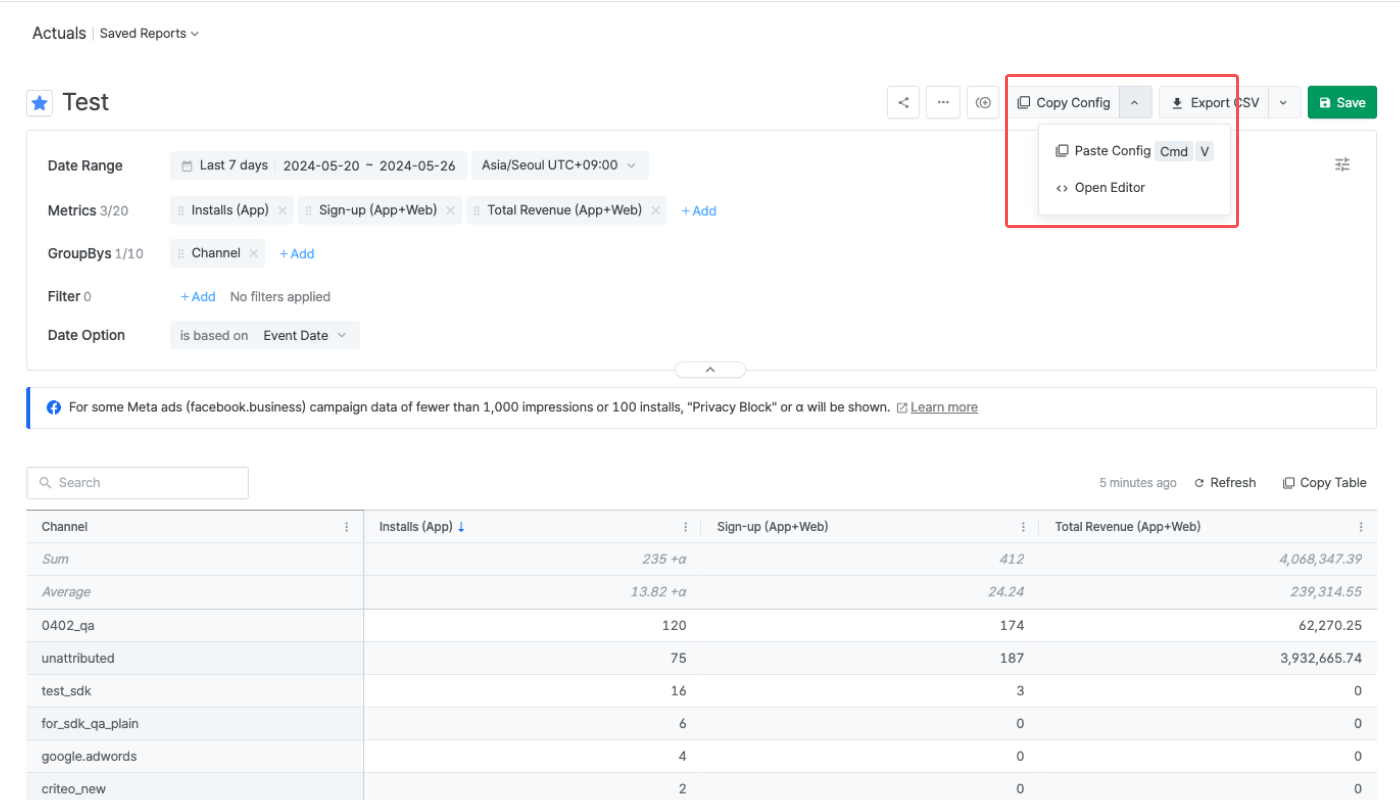 Refer to the table below for the details of the Copy Config feature.
| Feature | Description |
| --------------------------------------------------------------------------- | ------------------------------------------------------------------------------------------------------------------------------------------------------------------------------------------------------------------------------------------------------------ |
| Copy Config | Click **Copy Config** to copy the report configuration settings. Share it with other Airbridge users. The button is activated after a report view is created. |
| Paste Config | Open a new report page and paste the copied config into a new report page by selecting **Paste Config** in the drop-down menu, or use the keyboard shortcut, `Command`+`V`. The copied report configuration settings will only work on the same report type. |
| Open Editor | Paste the copied report configuration settings into the **Config Editor** to make modifications to the config. |
Although the report configuration settings of the Actuals Report and the Trend Report are interoperable, the number of metrics and GroupBy options available in the Actuals Report is larger than in the Trend Report. Therefore, depending on the report configuration settings, the Actuals Report's configuration settings cannot be pasted into the Trend Report.
### **Using report URLs**
Refer to the table below for the details of the Copy Config feature.
| Feature | Description |
| --------------------------------------------------------------------------- | ------------------------------------------------------------------------------------------------------------------------------------------------------------------------------------------------------------------------------------------------------------ |
| Copy Config | Click **Copy Config** to copy the report configuration settings. Share it with other Airbridge users. The button is activated after a report view is created. |
| Paste Config | Open a new report page and paste the copied config into a new report page by selecting **Paste Config** in the drop-down menu, or use the keyboard shortcut, `Command`+`V`. The copied report configuration settings will only work on the same report type. |
| Open Editor | Paste the copied report configuration settings into the **Config Editor** to make modifications to the config. |
Although the report configuration settings of the Actuals Report and the Trend Report are interoperable, the number of metrics and GroupBy options available in the Actuals Report is larger than in the Trend Report. Therefore, depending on the report configuration settings, the Actuals Report's configuration settings cannot be pasted into the Trend Report.
### **Using report URLs**
 ### **Granting App access to Airbridge users**
You can invite users to the Airbridge App. The accessible data varies by the app roles.
Users invited to the Airbridge App can have access to menus other than the Airbridge reports. Invite users after careful consideration.
Refer to the following article to learn how to grant app access to Airbridge users.
* [App-level User Management](/en/guides/app-access-management)
## **Sharing Airbridge Reports Externally**
When sharing the Airbridge reports externally, anyone can see the data regardless of their access level within Airbridge. Be careful when sharing reports externally to avoid exposing sensitive data.
### **Using Copy Table and Copy Chart**
### **Granting App access to Airbridge users**
You can invite users to the Airbridge App. The accessible data varies by the app roles.
Users invited to the Airbridge App can have access to menus other than the Airbridge reports. Invite users after careful consideration.
Refer to the following article to learn how to grant app access to Airbridge users.
* [App-level User Management](/en/guides/app-access-management)
## **Sharing Airbridge Reports Externally**
When sharing the Airbridge reports externally, anyone can see the data regardless of their access level within Airbridge. Be careful when sharing reports externally to avoid exposing sensitive data.
### **Using Copy Table and Copy Chart**
 ### **Sharing report data as CSV files**
 ### **Using Sharelinks**
 Refer to the following articles to learn how to use the Sharelinks for sharing various Airbridge reports.
* [Actuals Report](/en/guides/actuals-report-sharelink)
* [Retention Report](/en/guides/retention-report-sharelink)
* [Revenue Report](/en/guides/revenue-report-sharelink)
* [Funnel Report](/en/guides/funnel-report-sharelink)
Refer to the following articles to learn how to use the Sharelinks for sharing various Airbridge reports.
* [Actuals Report](/en/guides/actuals-report-sharelink)
* [Retention Report](/en/guides/retention-report-sharelink)
* [Revenue Report](/en/guides/revenue-report-sharelink)
* [Funnel Report](/en/guides/funnel-report-sharelink)