> ## Documentation Index
> Fetch the complete documentation index at: https://help.airbridge.io/llms.txt
> Use this file to discover all available pages before exploring further.
# Add Your App to Airbridge
Add your app to Airbridge to get started. You can manage multiple apps within Airbridge using a single Airbridge account, while access permissions may vary by app. For more details, refer to this [article](/en/guides/user-management).
## Sign in to Airbridge
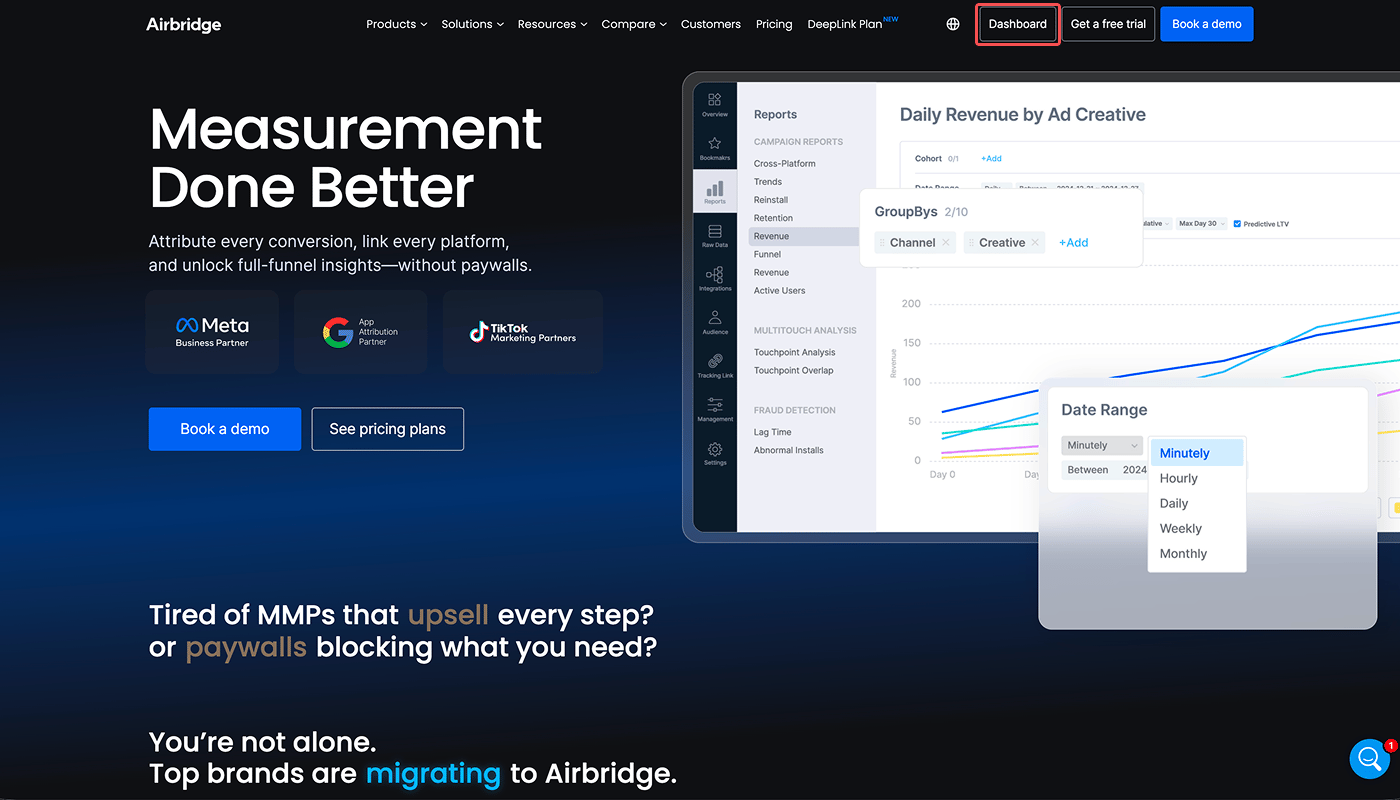
1. Click **Dashboard** in the upper right corner of the [Airbridge homepage](https://www.airbridge.io/).
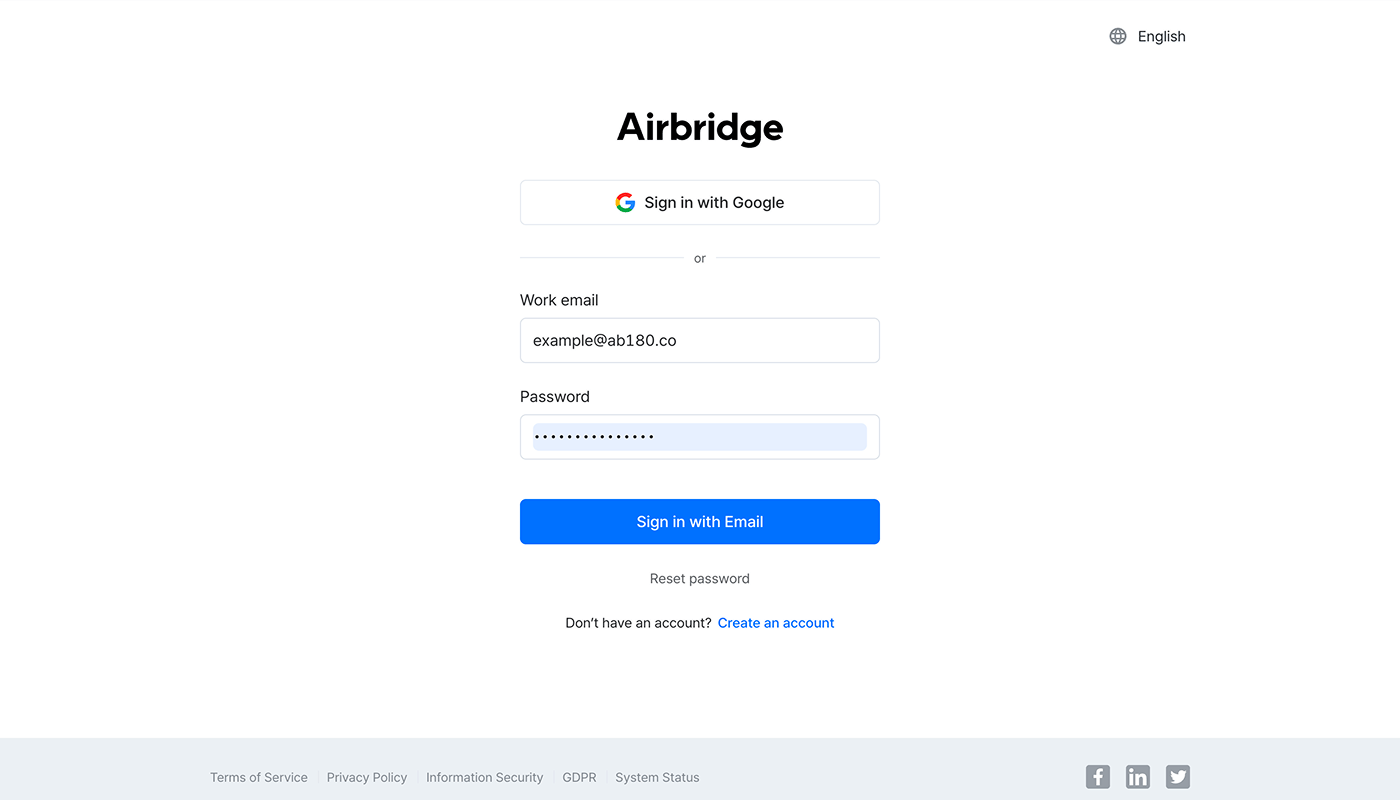
2. Enter your work email and password. If you signed up with Google SSO, click **Sign in with Google**. If you don't have an account yet, click **Create an account** to sign up.
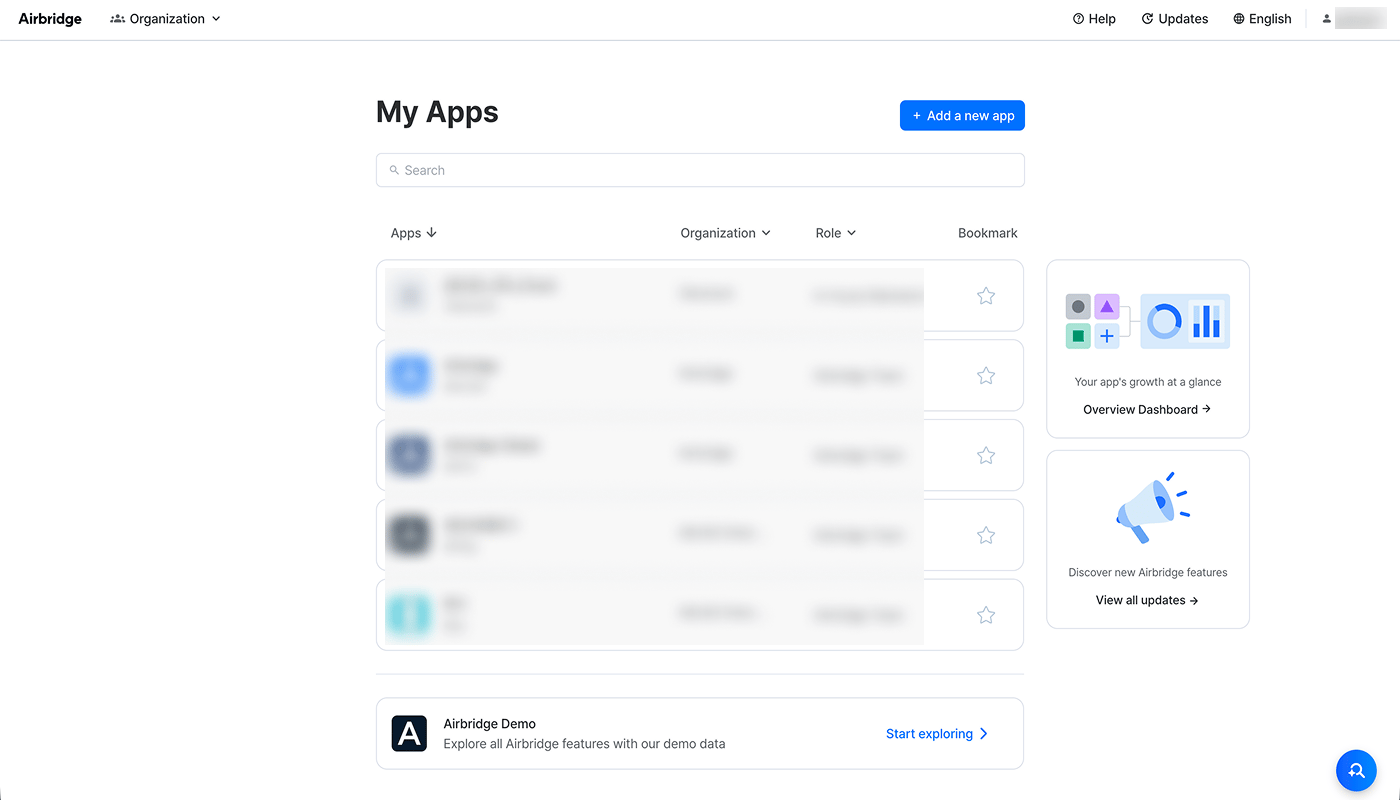
3. After signing in, a list of all your registered apps appears.
## Add Your App to Airbridge
Learn how to add an app to Airbridge and configure its settings.
**Warning**
Once an app is added to Airbridge, its settings cannot be changed.
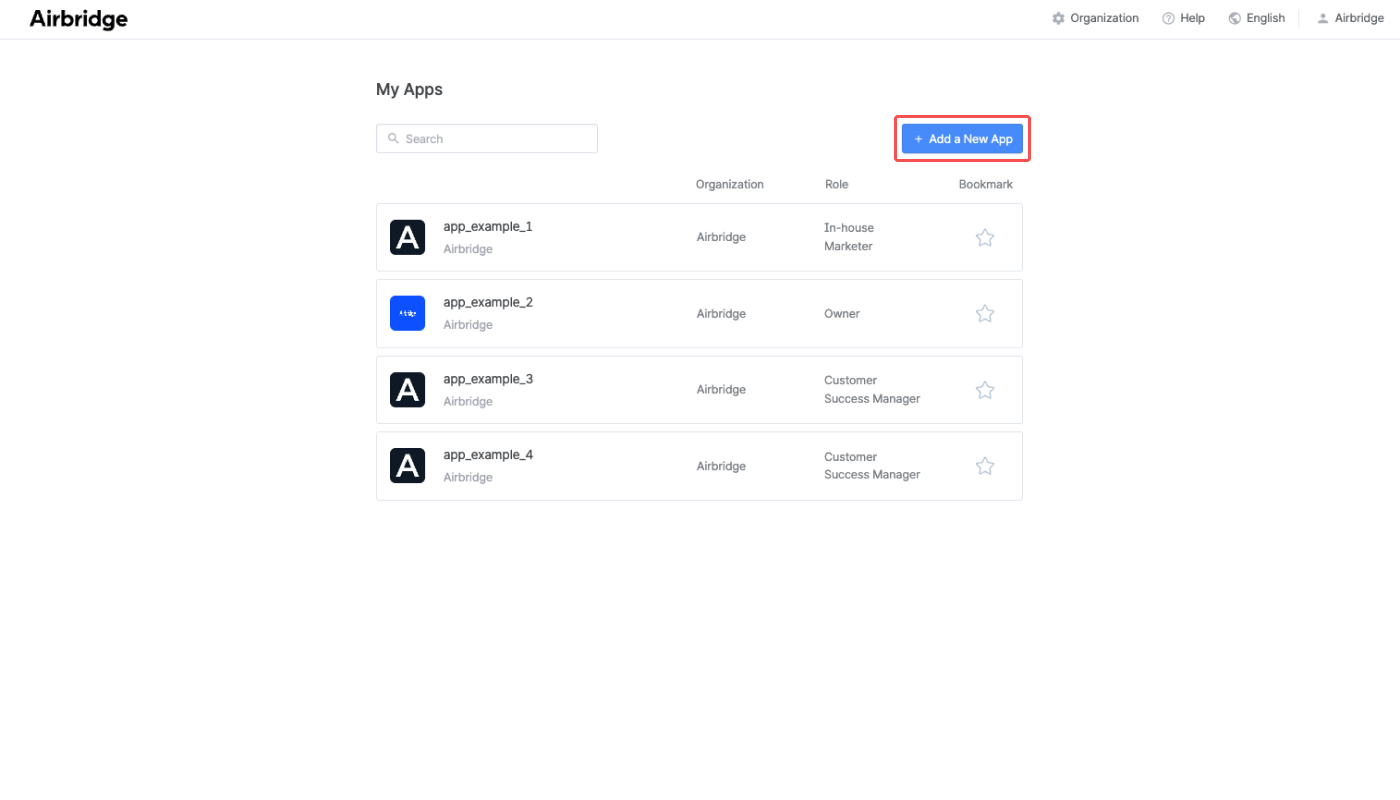
1. Select **My Apps** in the top menu bar and click **Add a new app**. The Airbridge user who adds the app to Airbridge is automatically assigned the Owner role of the app. For more details on app roles, refer to this [article](/en/guides/user-management#app-roles).
2. Enter the organization name to create a new organization. If you have an existing organization where you want to connect the app to, select it from the drop-down menu. To do so, you must be granted the Admin or Manager role of the existing organization.
**Note**
* Each plan includes one organization. To join an existing organization, ask the organization Admin to send you an invite.
* Organizations on a free trial are limited to one app.
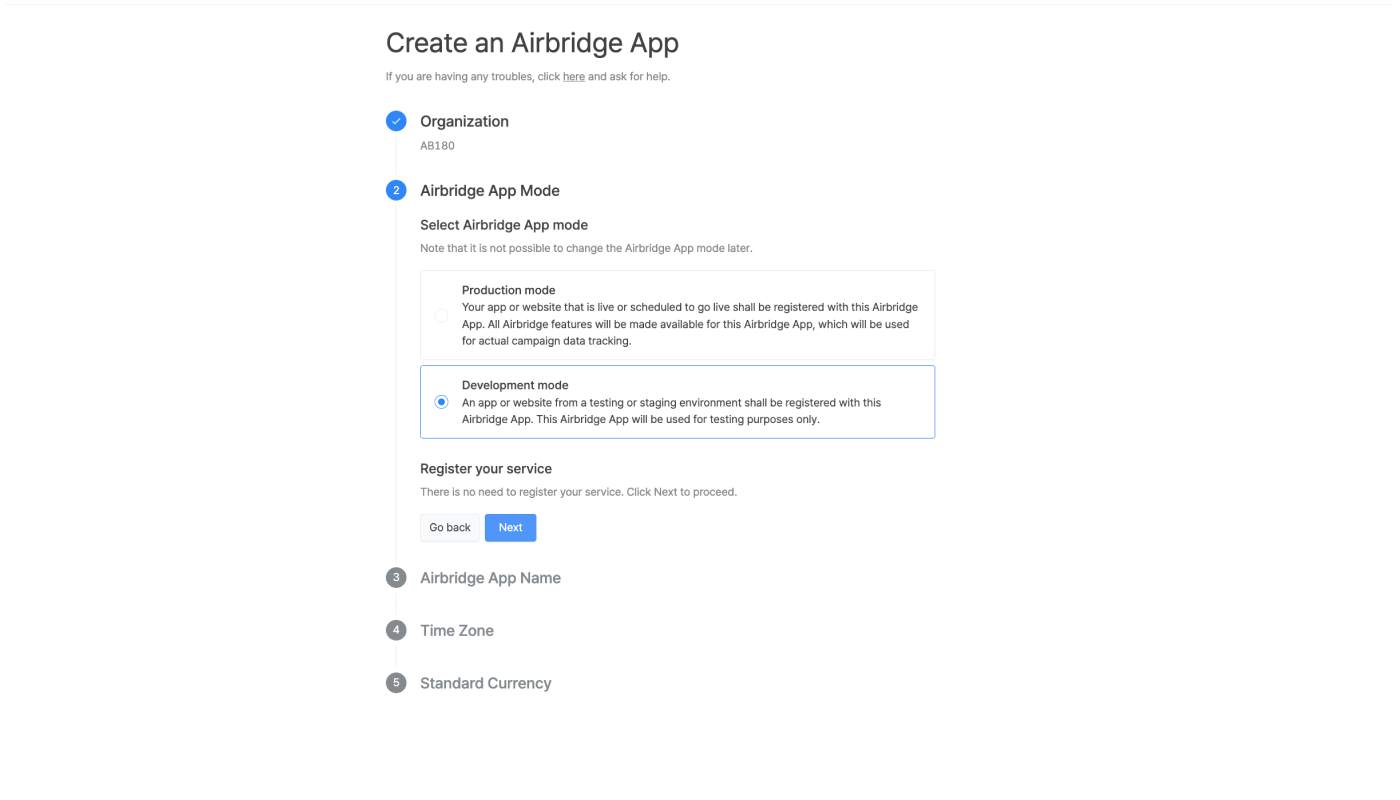
3. Select the Airbridge App mode.
**Attention**
Once an app is added to Airbridge, its app mode cannot be changed. Add apps in production mode if they are live or scheduled to go live, and add apps in development mode if they are for internal testing only.
Your app or website that is live or scheduled to go live, select **Production mode**.
Then, search the app store or enter the app store URL to specify your app. You can also enter the live website address. If your app or website is not released yet, you can skip this section and move to the next step.
Once your app goes live or released the website, navigate to **\[Settings]>\[App Settings]** to add your app or website. For more information about app settings, refer to this [article](/en/guides/default-app-settings#registered-service).
**Attention**
If the app is not found by searching the app stores with its name, you can add the app by entering the app store address. When you enter the Apple App Store address, make sure to include the country code.
* App Store address example with country code: `http://apps.apple.com/us/app/bestapp/appid`
* App Store address example without country code: `http://apps.apple.com/app/bestapp/appid`
An app or website from a testing or staging environment must be registered with this Airbridge App. Such apps and websites are not meant to go live. You can build a dev app using the Google Play Console or TestFlight. Ask your developer for help. This Airbridge App can be used to test tracking links and deep links before tracking actual campaign data.
In development mode, you don't need to register your service. You can move on to the next step.
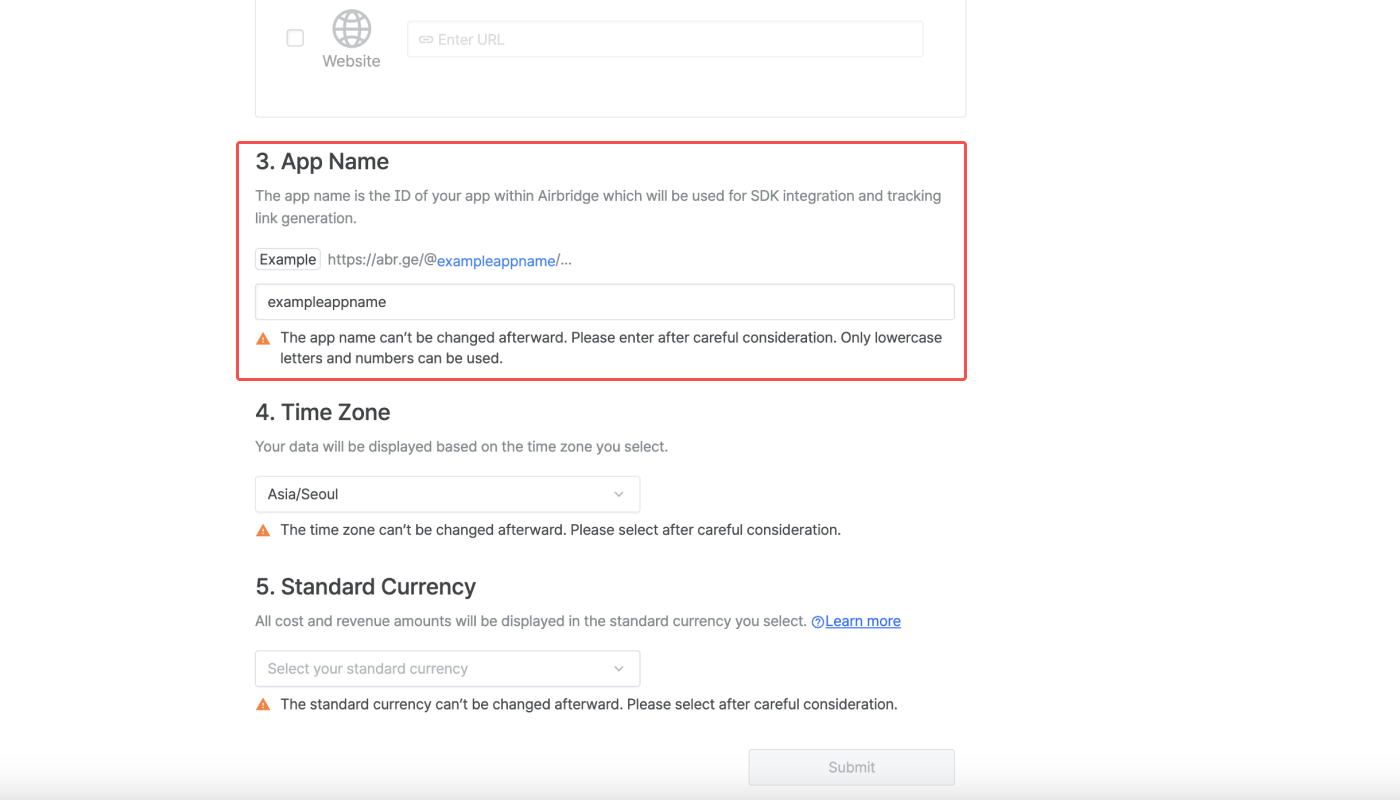
4. Enter the Airbridge App Name, which is a unique identifier within Airbridge that is used for SDK and tracking link configuration. Only lowercase letters and numbers can be used.
**Warning**
If you add a testing app in development mode for testing purposes and later the live app in production mode, the Airbridge App Names for each case must be unique.
We recommend including "test" or "dev" in the App Name to add apps in development mode.
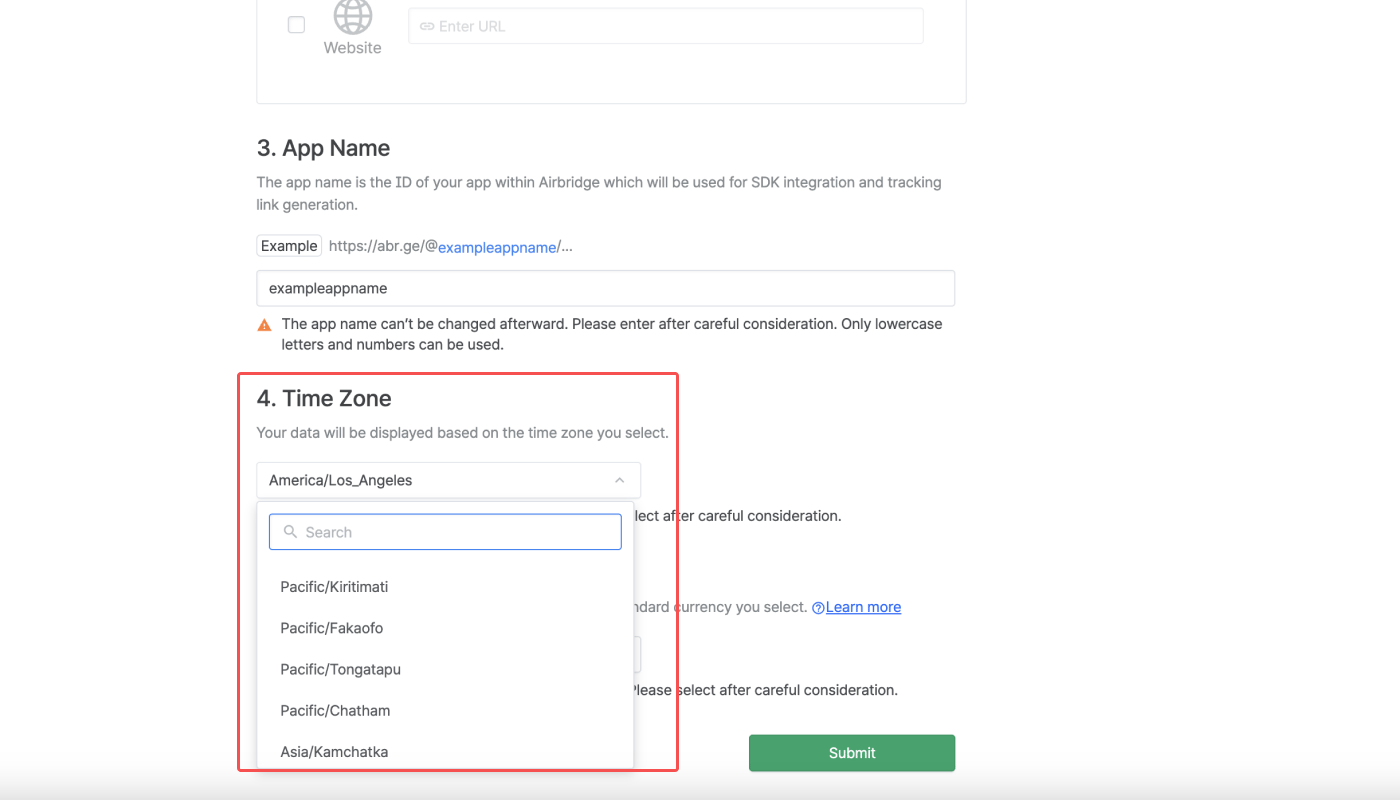
5. Select the app time zone. All data will be displayed based on the selected app time zone. Some reports are based on UTC +09:00. For detailed instructions on setting the app time zone, refer to this [article](/en/guides/set-app-timezone).
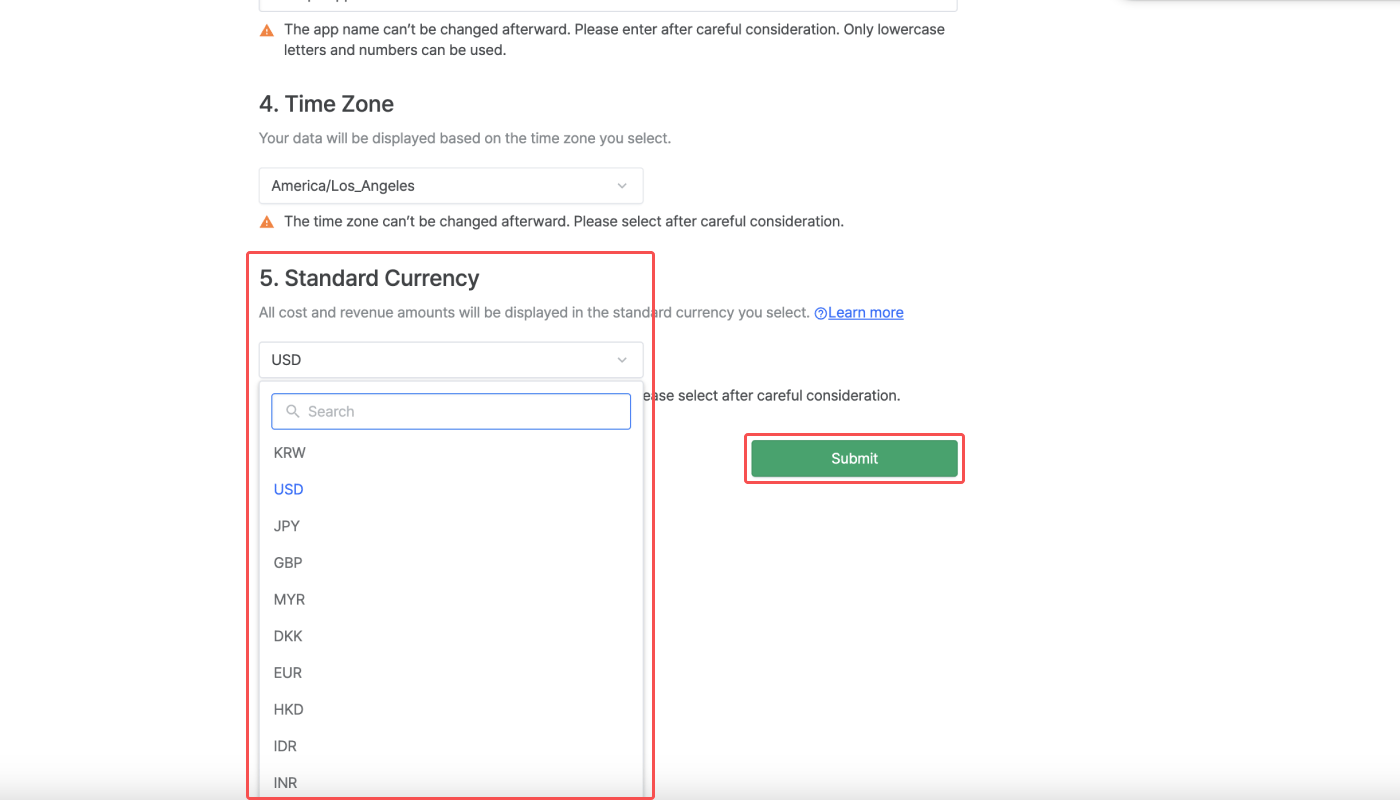
6. Select the app standard currency. For more details about the app standard currency, refer to this [article](/en/guides/set-app-standard-currency).
7. Click **Submit** to finish.
 2. Enter your work email and password. If you signed up with Google SSO, click **Sign in with Google**. If you don't have an account yet, click **Create an account** to sign up.
 3. After signing in, a list of all your registered apps appears.
 ## Add Your App to Airbridge
Learn how to add an app to Airbridge and configure its settings.
## Add Your App to Airbridge
Learn how to add an app to Airbridge and configure its settings.
 2. Enter the organization name to create a new organization. If you have an existing organization where you want to connect the app to, select it from the drop-down menu. To do so, you must be granted the Admin or Manager role of the existing organization.


 Then, search the app store or enter the app store URL to specify your app. You can also enter the live website address. If your app or website is not released yet, you can skip this section and move to the next step.
Once your app goes live or released the website, navigate to **\[Settings]>\[App Settings]** to add your app or website. For more information about app settings, refer to this [article](/en/guides/default-app-settings#registered-service).
Then, search the app store or enter the app store URL to specify your app. You can also enter the live website address. If your app or website is not released yet, you can skip this section and move to the next step.
Once your app goes live or released the website, navigate to **\[Settings]>\[App Settings]** to add your app or website. For more information about app settings, refer to this [article](/en/guides/default-app-settings#registered-service).
 6. Select the app standard currency. For more details about the app standard currency, refer to this [article](/en/guides/set-app-standard-currency).
 7. Click **Submit** to finish.