> ## Documentation Index
> Fetch the complete documentation index at: https://help.airbridge.io/llms.txt
> Use this file to discover all available pages before exploring further.
# Postback Settings
**Attention**
To learn about the postback setup for ad channels below, refer to this [article](/en/guides/postback-settings).
* Affle, Kwai For Business, Ultra, Whiz Adsbay, MOBICONNECT, ADCOLONY, yeahmobi, WIDER PLANET
You can send event postbacks to the ad channels integrated with Airbridge. Airbridge offers a settings page where you can select the events to send and configure the delivery rules for postback sending.
## Postback Settings Overview
A postback is a transmission of event data to integrated ad channels. The event data includes event name, event datetime, and other attributes. The event data sent to ad channels via postbacks is used to optimize retargeting campaigns and run CPA or CPI campaigns.
The postback settings are available in the **\[Configuration]** tab in every ad channel’s **\[Postback]** tab page. The table below shows the key features available in the **\[Configuration]** tab.
| Key Feature | Description |
| --------------------------------------- | --------------------------------------------------------------------------------------------------------------------------------------------------------------------------------------------- |
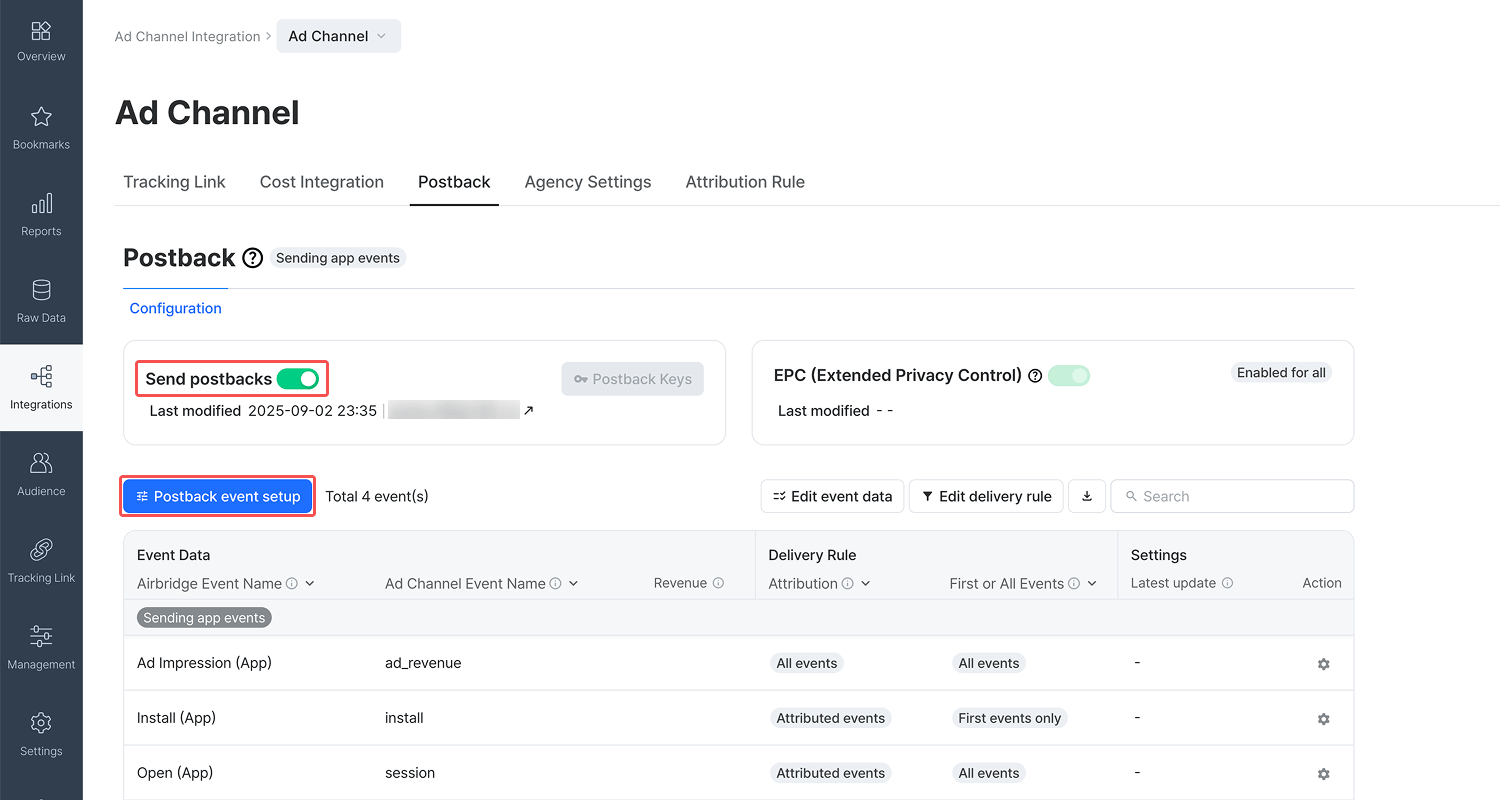
| Enabling postback sending | Enable postback sending by switching on the **\[Send postback]** toggle. |
| Setting up the event list for postbacks | Select the events you want to send via postbacks and configure the data to include. You can also set up the delivery rule. For some channels, you can decide whether to include revenue data. |
| Editing postback URL | Edit the postback URL for a specific event and add or delete postback parameters. |
| Managing credentials | Submit or delete the postback keys if required to enable postback sending. |
### Read before setting up postbacks
Check the information below before setting up postbacks.
Postback sending is supported for all ad channels integrated with Airbridge, except for keyword ad channels and [custom channels](/en/guides/what-is-a-channels#custom-channels).
| **Ad channels that support postbacks** | **Ad channels that don’t support postbacks** |
| ---------------------------------------------------------------------------------- | -------------------------------------------------------------------------------- |
| - All ad channels listed on the **\[Integrations]>\[Ad Channel Integration]** page | - Search ad channels, such as Apple Ads (apple.searchads) - Custom Channels |
Airbridge users can access the postback settings depending on their app roles. For more details on the user permission, refer to this [article](/en/guides/user-management#app-roles).
* Owner and In-house Marketer users can configure the postback settings for all ad channels by default.
* Agency users can only configure the postback settings for ad channels for which they have been granted the [channel data access permission](/en/guides/agency-app-access-management#channel-data-access-settings) by the Owner or In-house Marketer users.
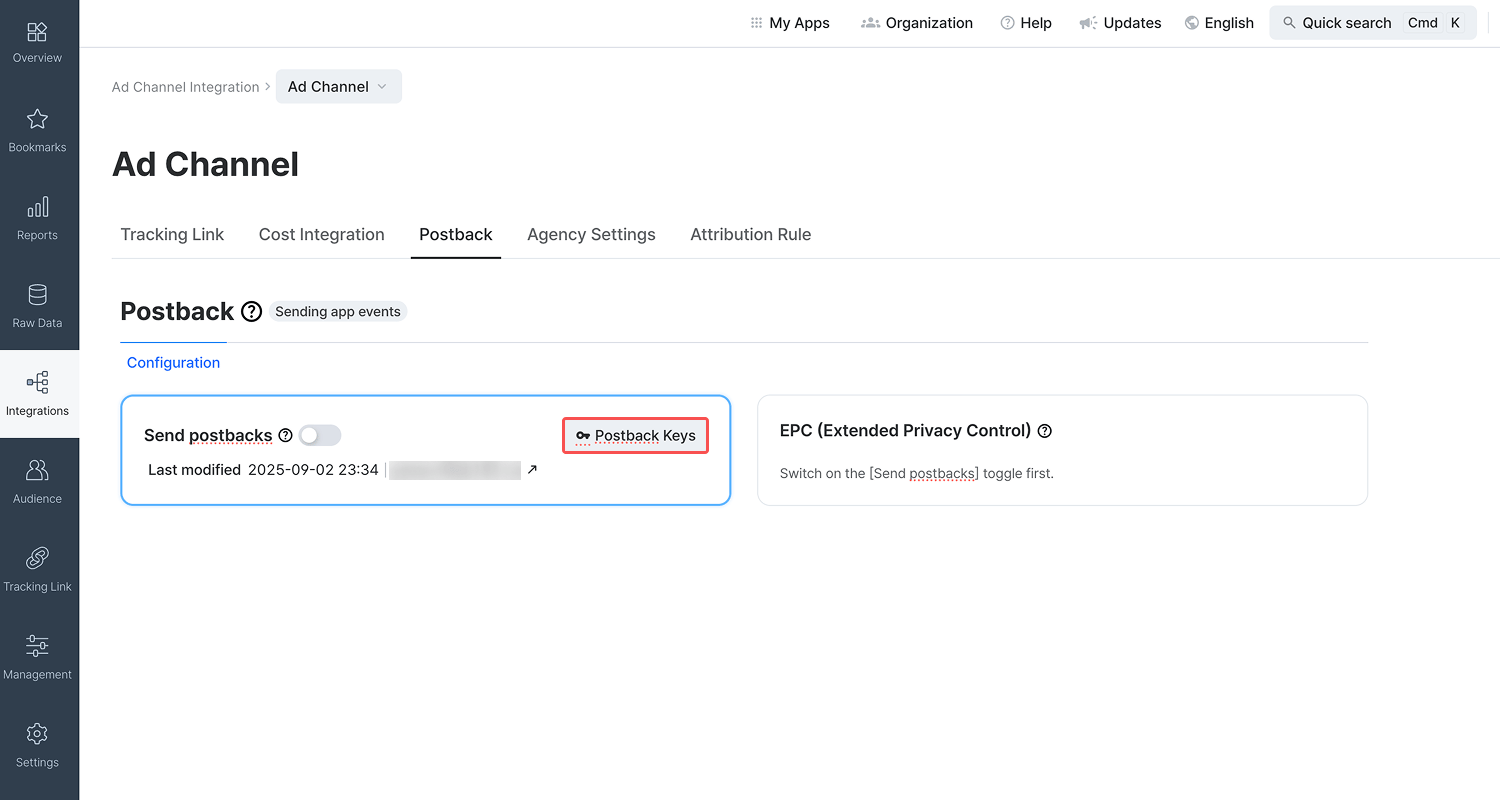
Some ad channels require postback keys to enable postback sending. Click **Postback Keys** next to the **\[Send postbacks]** toggle to submit or edit the postback keys. For guidance on the postback keys, refer to the integration guides for individual ad channels.
**Note**
The postback keys required for enabling postback sending may differ by platform. Depending on the ad channel, you may not need to submit the postback keys for all platforms to enable postback sending.
## Event Setup for Postbacks
You can choose the events for postback sending and configure the event data and the delivery rule. For certain ad channels, you can decide whether to include the revenue data.
1. Navigate to **\[Integration]** and select an ad channel. In the **\[Postback]** tab, switch on the **\[Send postbacks]** toggle. For event setup, click **Postback event setup**. If the event setup is already complete, you can edit the settings. If the event setup is already complete, you can edit the settings by clicking **Edit event data** or **Edit delivery rules**. For detailed guidance on editing, refer to step 3.
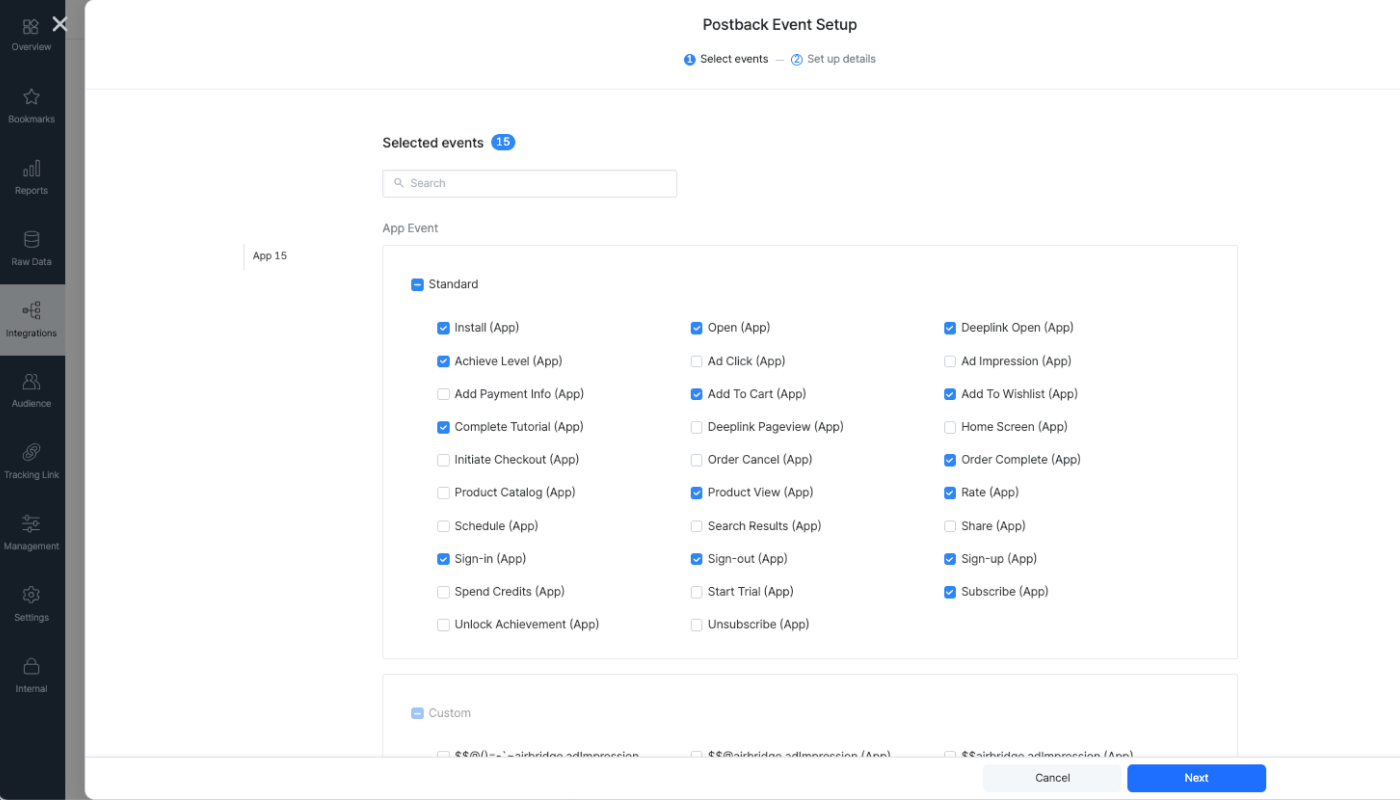
2. Select the events you want to send via postbacks. If the ad channel requires postback keys, make sure to submit them before selecting the events. Note that only events that have been collected by Airbridge will appear for selection. Once you are done, click **Next**.
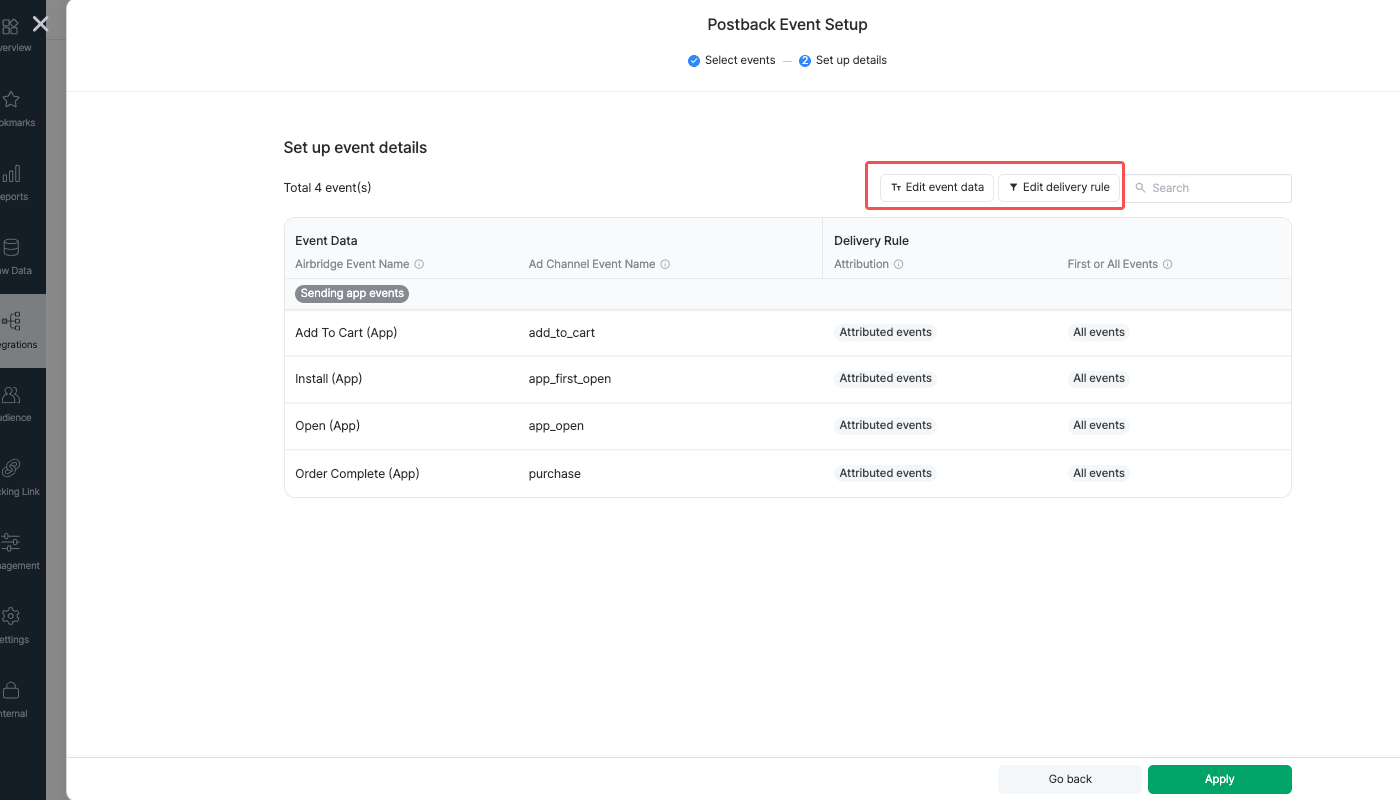
3. Click **Edit event details** to configure the ad channel event names in the postbacks. You can also decide whether to include revenue data in the postbacks. Once you are done, click **Save**.
You can configure the following event data for postbacks.
* Airbridge event name: The event name displayed in Airbridge.
* Ad channel event name: The event name displayed in the ad channel. If no event name is set in the ad channel, the Airbridge event name will show.
* Revenue: When selecting the checkbox, the revenue data will be included in the event postbacks. This is supported for channels that use a separate postback URL for revenue data.
Click **Edit delivery rule** to edit the delivery rule per event. Once you are done, click **Save**.
You can configure the following options for the delivery rules.
* Attribution: When set to **Attributed events**, only events that are attributed to the ad channel will be sent via postback. When set to **All events**, all events, including events not attributed to the ad channel, will be sent.
* First or All Events: When set to **First events only**, only the first occurring event per device ID will be sent via postback. When set to **All events**, all occurring events will be sent. Note that this option is not available for Ad Impression events. When selecting Ad Impression events for postback sending, all events will be sent.
For example, if **\[Attribution]** is set to **Attributed events** and **\[First or All Events]** is set to **First events only**, Airbridge sends only events that meet both “events attributed to the ad channel” and “events that occurred for the first time per device ID”.
* Event Value: Filter events sent to ad channels by Event Value, the numeric event property like revenue. By setting a threshold for the Event Value, only events that meet that criteria will be sent to the ad channel. All Event Values are measured in the app's standard currency, regardless of the currency used in the raw data.
When the Prevention Level is set to 2 or higher, [suspected fraud events](/en/guides/fraud-validation-rules) are excluded from postbacks. However, you can send them with limitations by completing the [Postback settings](#postback-settings) below.
###### Data included in postbacks
* Sends [Target events](/en/guides/airbridge-attribution-model#target-events) only: Installs (App), Deeplink Opens (App), and Deeplink Pageviews (App).
* Sends events as unattributed.
* Sends the identified fraud type.
###### Eligible channels
* Postbacks are sent to channels that would have received attribution if not suspected as fraud. These are channels that met all other [Airbridge attribution model](/en/guides/airbridge-attribution-model) rules, including touchpoint priority and last-touch attribution (LTA).
* Postbacks are sent only to channels with the [Postback settings](#postback-settings) below configured.
###### Postback settings
* In the postback delivery rule, set **\[Attribution]** to **All Events**
* Edit the postback URL as follows. If using the POST method, contact your CSM or reach out through the [Airbridge Help Center](https://app.airbridge.io/supports).
* Add a postback parameter. Enter the parameter name specified by the channel and select `{unattributedTouchpointFraudReason}` as the parameter value.
* Some channels require `{unattributedTouchpointClickID}` as the Click ID parameter value. Confirm with the channel.
For effective retargeting campaigns, it is recommended that you send all collected events via postback, regardless of their attribution results or recurrence. Limiting postback sending to attributed events may affect the optimization of retargeting campaigns targeted at potential users.
To send all events, configure the options for the delivery rule as below.
* Attribution: `All events`
* First or All Events: `All events`
4. Click **Apply** to finish the setup.
5. Airbridge will start sending postbacks upon finishing the setup. Changes made to an already streaming event list are applied immediately.
**Note**
Only events selected in the event setup will be sent via postbacks. When no events are selected in the event setup, no event will be sent via postback even if the **\[Send postbacks]** toggle is switched on.
## Editing the Postback URL
**Attention**
Event postbacks have a direct impact on your campaign optimization and budget allocation. Consult with the ad channel before editing the postback URL.
You can add or remove the postback URL for each event used to send postbacks.
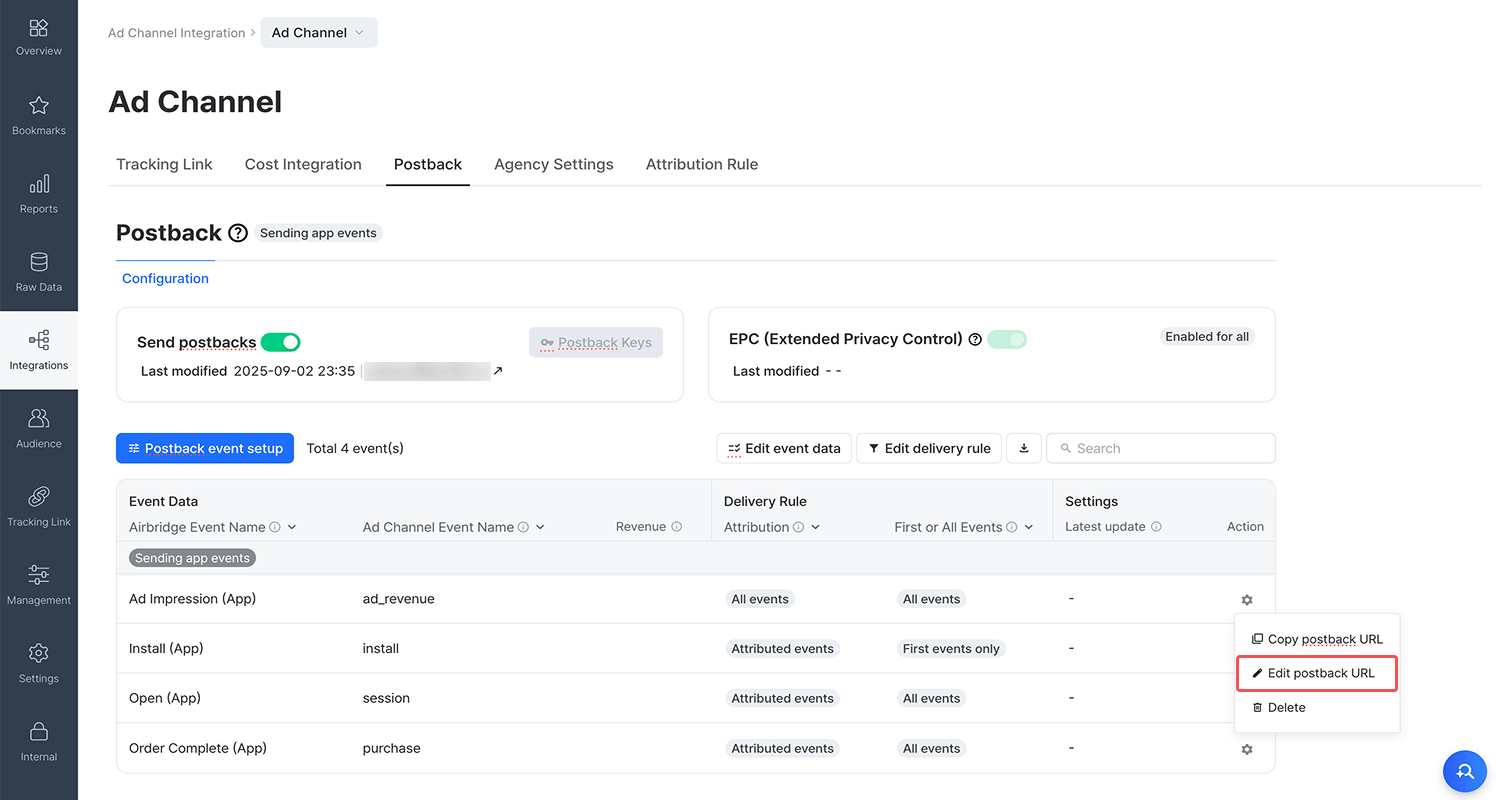
1. Navigate to **\[Integration]** and select an ad channel. In the **\[Postback]** tab, click the **\[gear]** icon of the event you want to edit the postback URL. Select **Edit postback URL** from the drop-down menu.
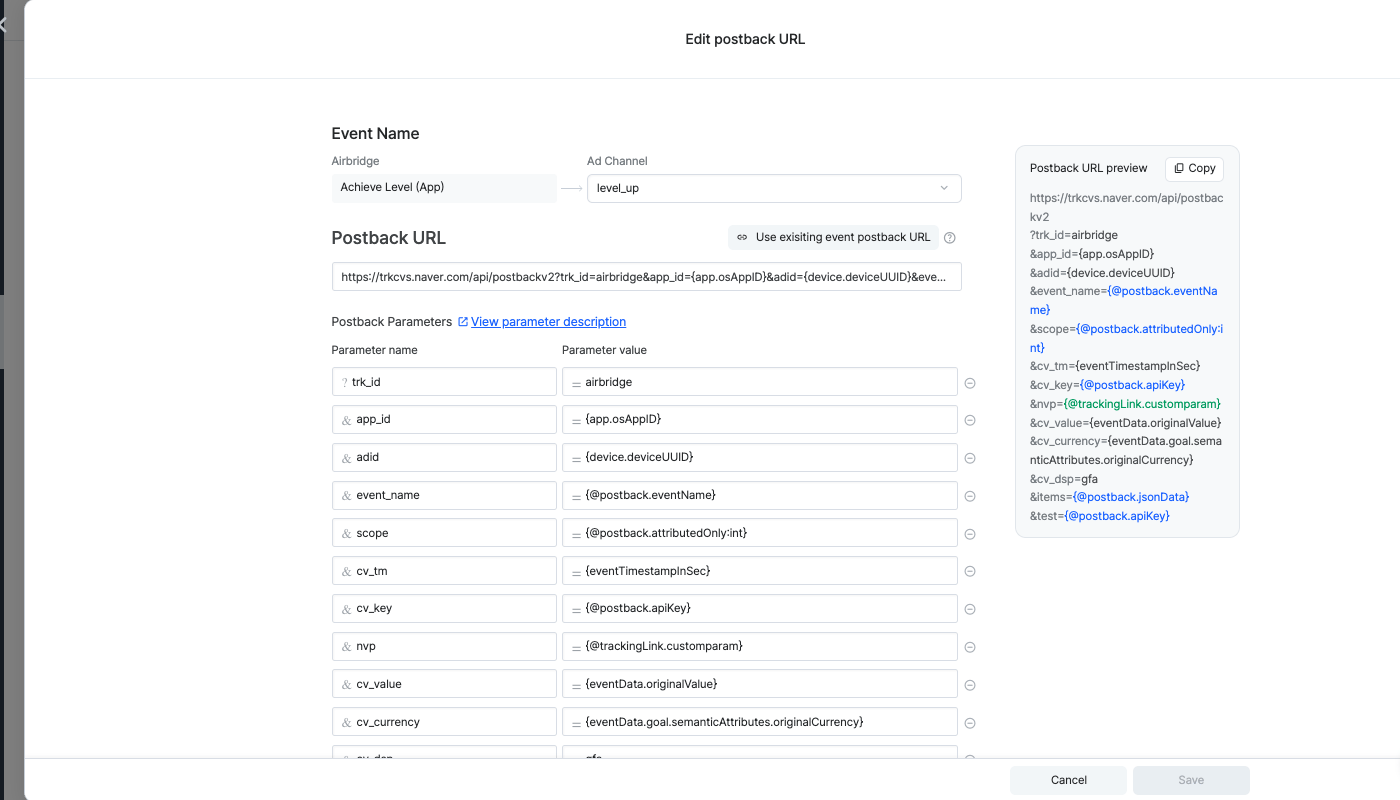
2. You can simply edit the postback URL in the input field or click **Use existing event postback URL** to use existing event postback URLs as a template to minimize the chances of errors.
You can edit the parameters in the parameter input fields as well. The postback URL preview on the right shows the full URL with all parameters added to the URL.
The postback parameters are automatically mapped following the postback URL entered into the input field. The parameter name fields are editable. You can also change the parameter value by selecting a different value from the drop-down menu.
To add a parameter, click **Add** at the bottom of the parameter list. To delete a parameter, click the **\[delete]** icon next to it. The changes are immediately applied to the postback URL preview. Note that the postback URL must include parameters for device identifier and event timestamp data.
You can check the method type and header of the postback URL in the Advanced section. When the method type is POST, the body is also provided. If you want to make changes, contact your Airbridge CSM. If you don’t have a dedicated CSM, contact the [Airbridge Help Center](https://app.airbridge.io/supports).
3. Once you are done editing, click **Save**. Check if the changes have been saved and click **Apply**. The changes will be applied immediately.
## Basic Features
Click the **\[download]** icon to download the postback event list in CSV file or Google Sheets format. The list includes event details such as event data, delivery rules, and event postback URLs.
Click the **\[gear]** icon next to the event you want to copy the event postback URL, and select **Copy postback URL** from the drop-down menu.
Click the **\[gear]** icon next to the event you want to delete, and select **Delete** from the drop-down menu. Once deleted, the postback sending for the event is immediately suspended.
## Attention
Airbridge supports postback sending for all custom events. However, note that some ad channels have limitations on the number of custom events they receive and the event name in the ad channel. Check for such limitations before event setup.
 2. Select the events you want to send via postbacks. If the ad channel requires postback keys, make sure to submit them before selecting the events. Note that only events that have been collected by Airbridge will appear for selection. Once you are done, click **Next**.
 3. Click **Edit event details** to configure the ad channel event names in the postbacks. You can also decide whether to include revenue data in the postbacks. Once you are done, click **Save**.
 2. You can simply edit the postback URL in the input field or click **Use existing event postback URL** to use existing event postback URLs as a template to minimize the chances of errors.
 You can edit the parameters in the parameter input fields as well. The postback URL preview on the right shows the full URL with all parameters added to the URL.