> ## Documentation Index
> Fetch the complete documentation index at: https://help.airbridge.io/llms.txt
> Use this file to discover all available pages before exploring further.
# Petal Ads
**Note**
Huawei Ads changed its name to Petal Ads. For more details, visit [Huawei Developers](https://developer.huawei.com/consumer/en/doc/distribution/promotion/petal-ads-0000001421268204).
Petal Ads supports diverse ad formats, including splash, banner, rewarded, native, and roll ads across Huawei apps. With the integration, you can view the ad performance of your Petal Ads campaigns in Airbridge.
## Integration Setup
You can set up the integration with Petal Ads in the **\[Integrations]>\[Ad Channel Integration]** menu. Make sure to enable smart tracking in Petal Ads before submitting your Link ID to Airbridge. If this step isn’t successfully completed, Airbridge events may not be visible in your Petal Ads dashboard, leading to inaccuracy in analysis.
### Enable smart tracking in Petal Ads
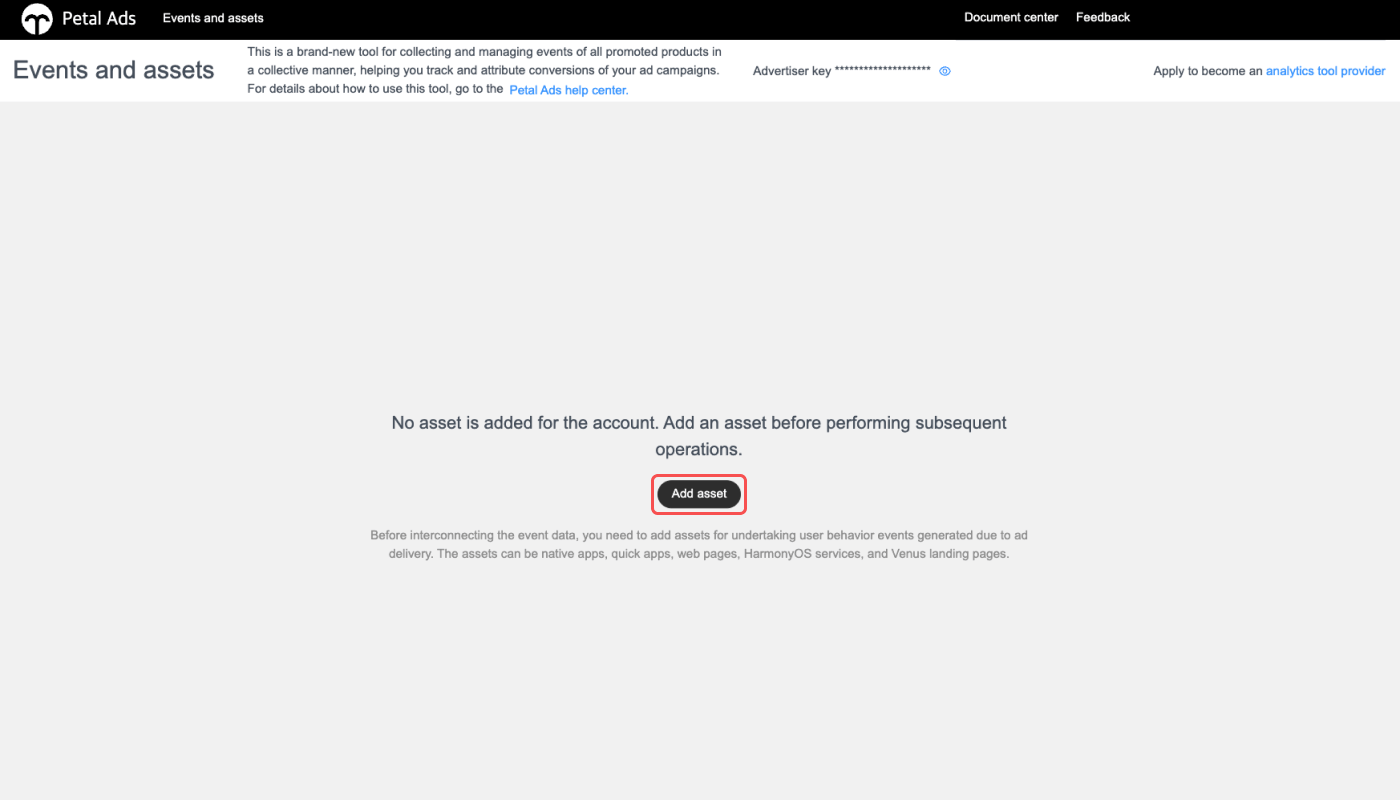
1. In your Petal Ads dashboard, select **\[Tools]** from the top menu bar and navigate to **\[Delivery assistance]>\[Events and assets]**.
2. Click **Add asset**.
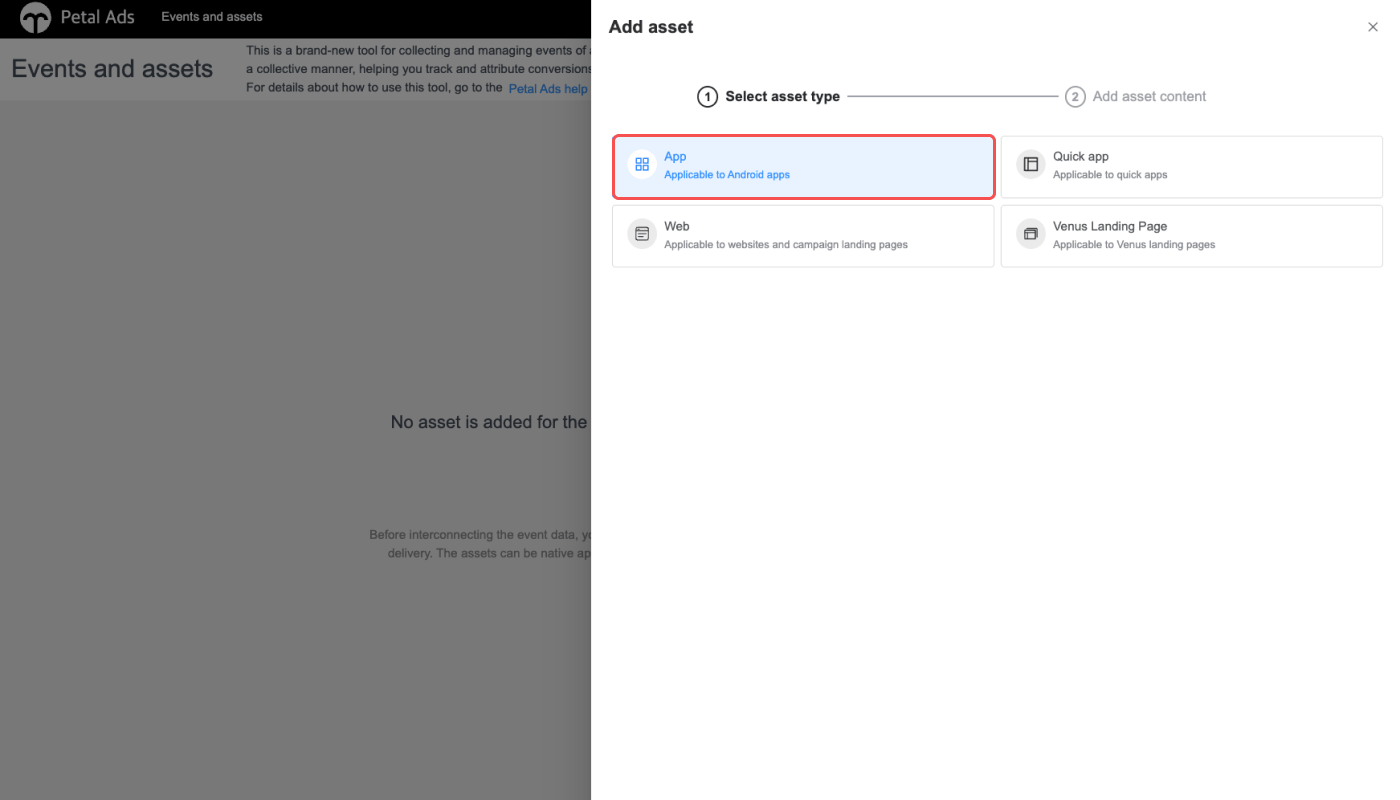
3. Click **App**.
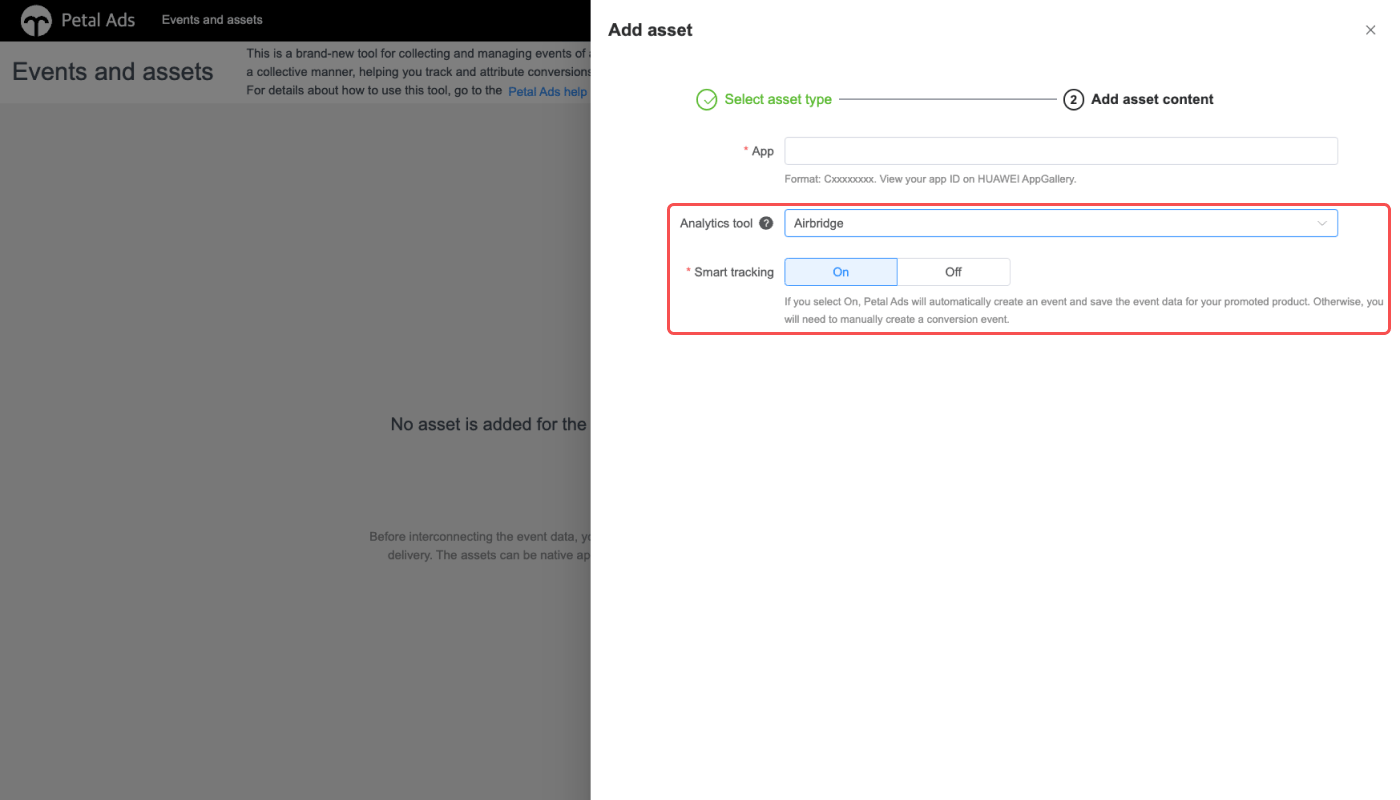
4. Select “Airbridge” from the **\[Analytics Tool]** dropdown menu and switch on the **Smart Tracking** toggle. Click **Submit**.
### Submit Petal Ads credentials to Airbridge
**Note**
The integration setup can only be completed by submitting the Petal Ads Link ID to Airbridge. Contact Petal Ads to get your Link ID.
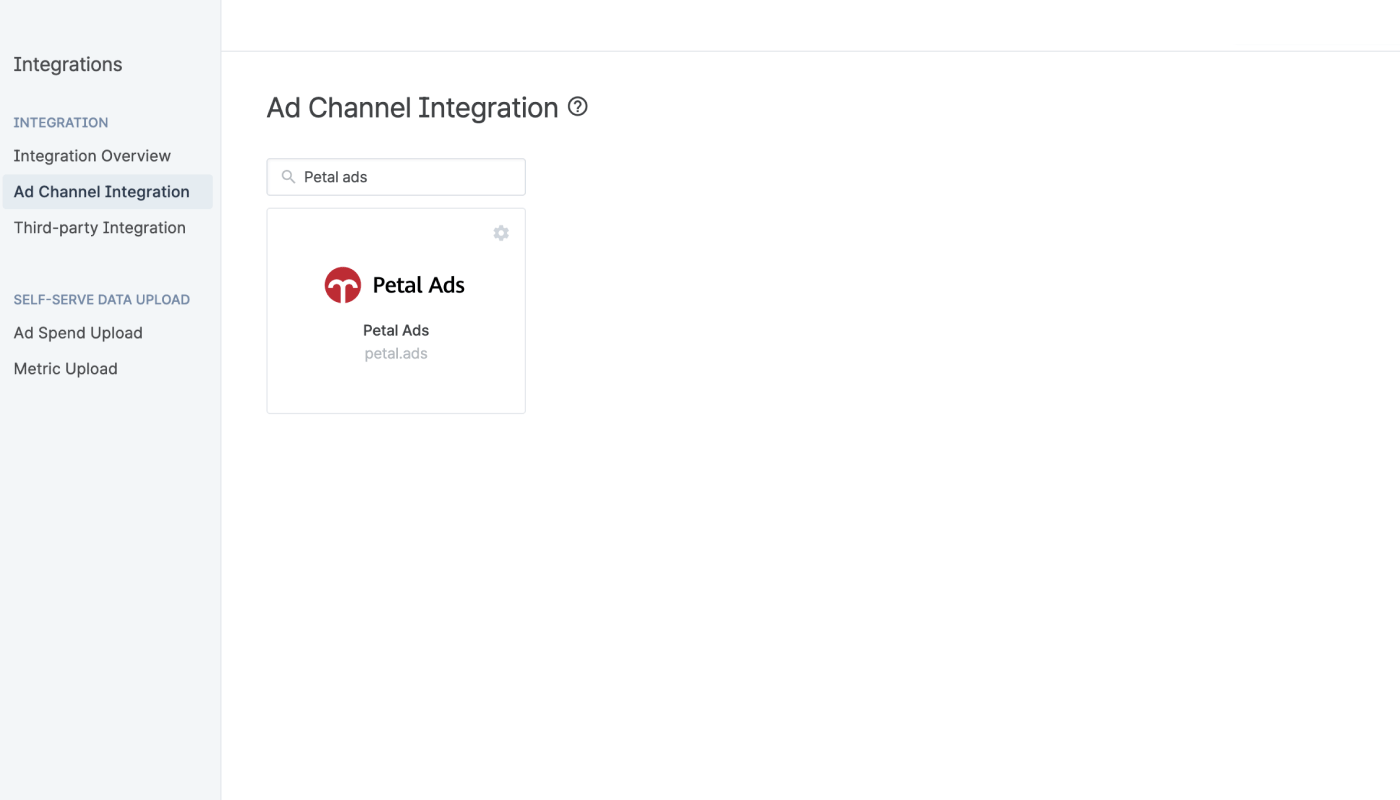
1. Navigate to **\[Integrations]>\[Ad Channel Integration]** in your Airbridge dashboard. Select “Petal Ads."
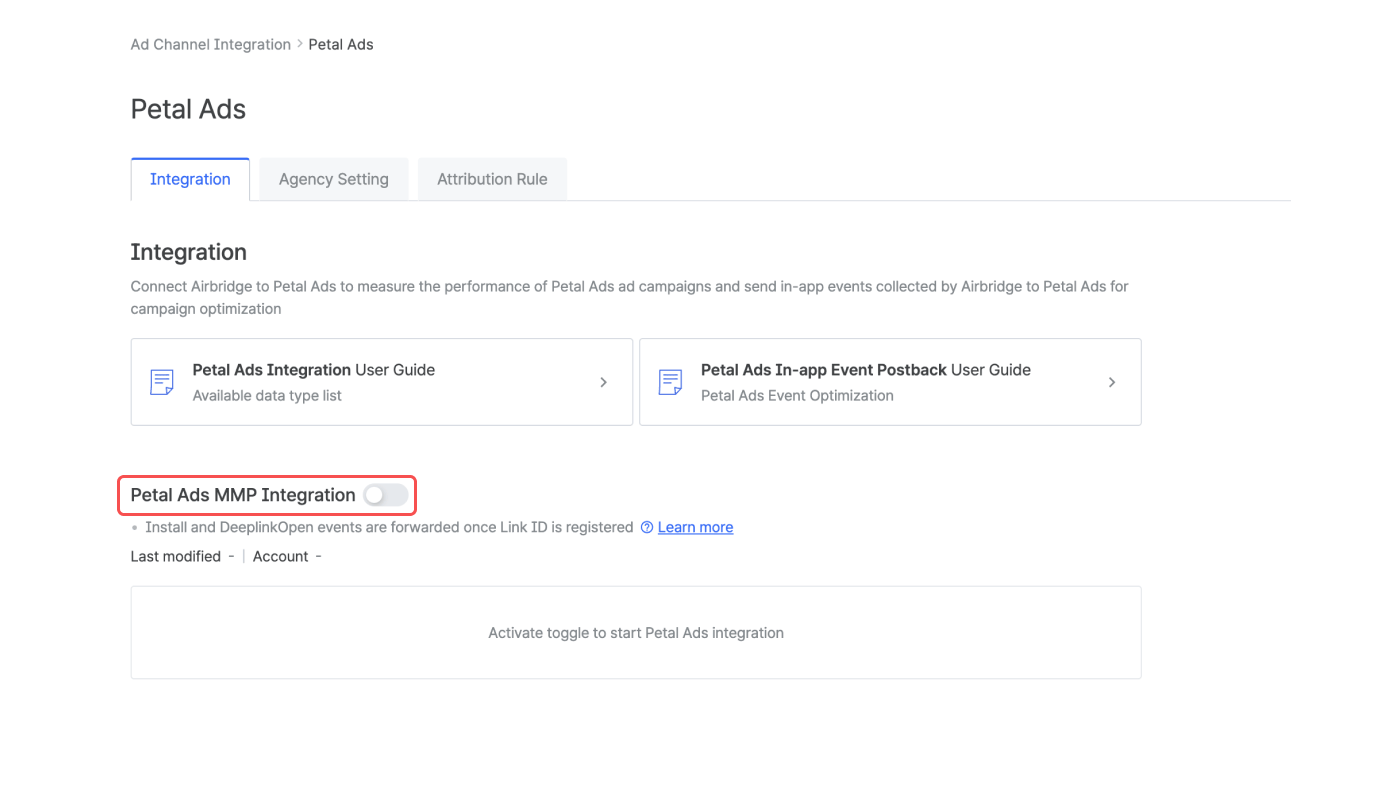
2. Select the **\[Integration]** tab. Switch on the **Petal Ads MMP Integration** toggle.
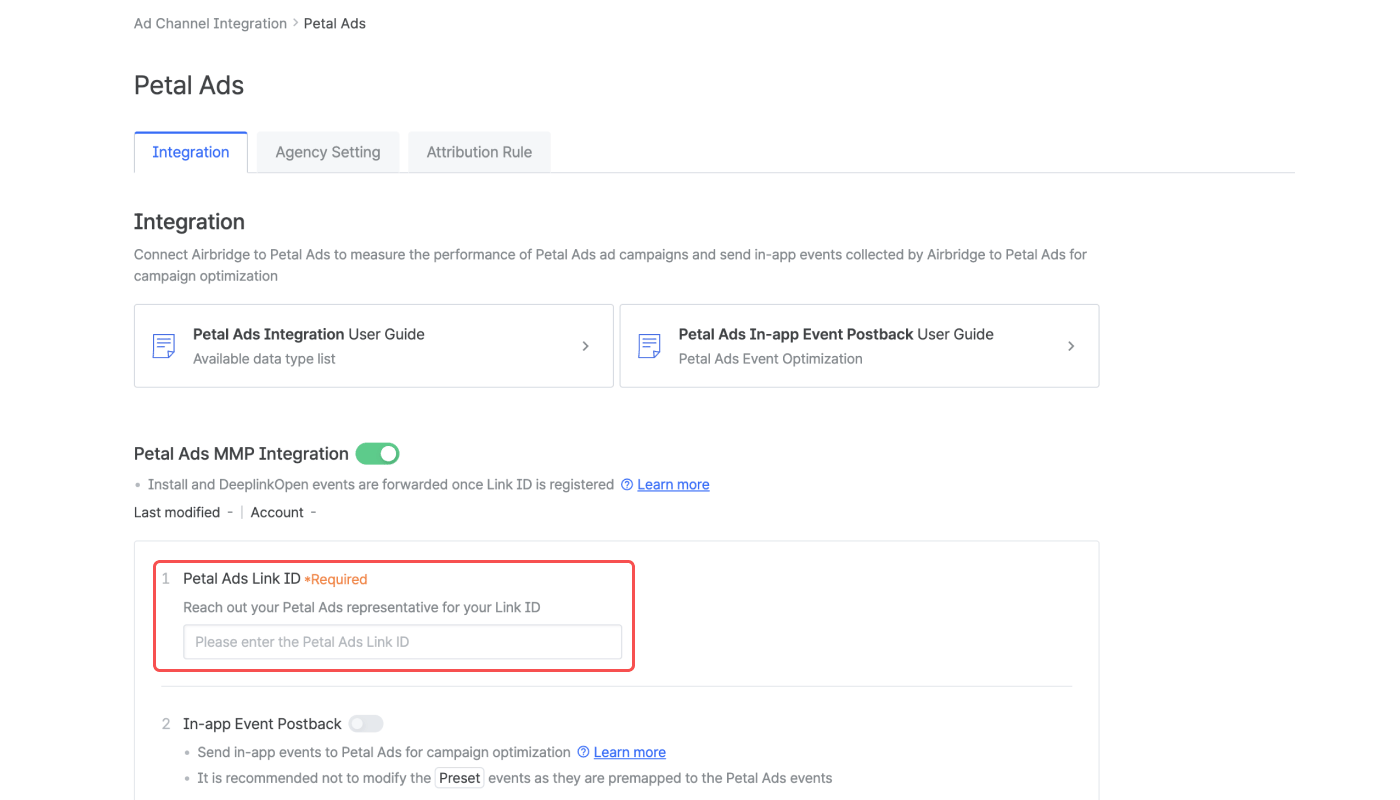
3. Enter your Petal Ads Link ID and click **Submit**.
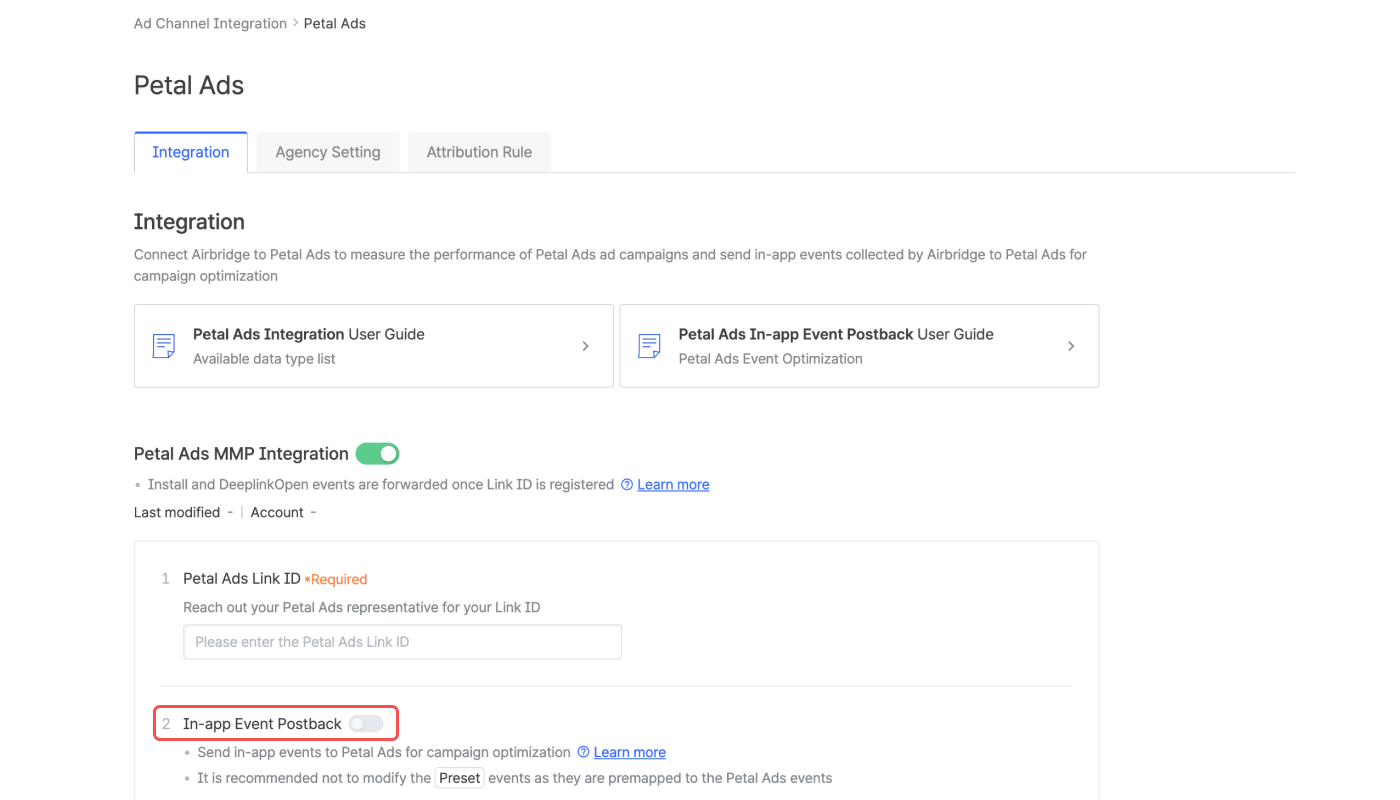
4. Switch on the **In-app Event Postback** toggle to send events to Petal Ads. For more details, refer to the section below.
### In-app event postback setting
By enabling postbacks, you can send Airbridge events to enrich your data in Petal Ads and drive insights to optimize your campaigns.
Navigate to **\[Integrations]>\[Ad Channel Integration]**, and select “Petal Ads.” In the **\[Integration]** tab, switch on the **In-app Event Postback** toggle. You must have switched on the **Petal Ads MMP Integration** toggle and submitted your Petal Ads Link ID in advance.
The following table shows the pre-set Airbridge events and Petal Ads events. Although it can be edited, it is advised to use the pre-set event pairs.
| Airbridge Events | Petal Ads Events |
| ------------------ | ------------------- |
| Subscribe | subscribe |
| Unlock Achievement | achievementUnlocked |
| Add to Wishlist | addToWishlist |
| Share | share |
| Complete Tutorial | tutorialCompletion |
| Achieve Level | levelAchieved |
| Add Payment Info | addPaymentInfo |
| Initiate Checkout | initiatedCheckout |
| Spend Credits | spentCredits |
| Start Trial | startTrial |
| Rate | rate |
| Home Screen | abrHomeScreen |
| Product Catalog | abrProductCatalog |
| Sign-out | abrSignOut |
| Ad Impression | abrAdImpression |
| Unsubscribe | abrUnsubscribe |
| Schedule | abrSchedule |
| Ad Click | abrAdClick |
| Deeplink Pageview | abrDeeplinkPageview |
## Attribution Rules
In the **\[Attribution Rules]** tab, you can configure the lookback window and attribution window for Petal Ads. Click **Go to edit page** to move to the **\[Management]>\[Attribution Rules]** page, where you can edit attribution rules.
For detailed instructions on configuring the lookback window and attribution window, refer to this [article](/en/guides/setting-attribution-window).
## Agency Settings
Manage the access permission of the agencies and have control over which agency has access to your Unity Ads campaign data.
* [Agency Settings](/en/guides/meta-business-agency-settings)
## Attention
Data discrepancies may occur between Petal Ads and Airbridge due to varying reasons.
Certain metrics are defined differently between Petal Ads and Airbridge. Petal Ads counts an app install when the app is downloaded. Airbridge counts an app install when the app is downloaded and launched for the first time.
Also, the default attribution window and the ad channels that are measured differ. Petal Ads measures ad performance only for ads run on the Petal Ads platform. Airbridge uses the [Airbridge attribution model](/en/guides/airbridge-attribution-model) to measure the winning touchpoint across all ad channels where the campaigns are run.
 3. Click **App**.
 4. Select “Airbridge” from the **\[Analytics Tool]** dropdown menu and switch on the **Smart Tracking** toggle. Click **Submit**.
 ### Submit Petal Ads credentials to Airbridge
 2. Select the **\[Integration]** tab. Switch on the **Petal Ads MMP Integration** toggle.
 3. Enter your Petal Ads Link ID and click **Submit**.
 4. Switch on the **In-app Event Postback** toggle to send events to Petal Ads. For more details, refer to the section below.
 ### In-app event postback setting
By enabling postbacks, you can send Airbridge events to enrich your data in Petal Ads and drive insights to optimize your campaigns.
Navigate to **\[Integrations]>\[Ad Channel Integration]**, and select “Petal Ads.” In the **\[Integration]** tab, switch on the **In-app Event Postback** toggle. You must have switched on the **Petal Ads MMP Integration** toggle and submitted your Petal Ads Link ID in advance.
### In-app event postback setting
By enabling postbacks, you can send Airbridge events to enrich your data in Petal Ads and drive insights to optimize your campaigns.
Navigate to **\[Integrations]>\[Ad Channel Integration]**, and select “Petal Ads.” In the **\[Integration]** tab, switch on the **In-app Event Postback** toggle. You must have switched on the **Petal Ads MMP Integration** toggle and submitted your Petal Ads Link ID in advance.