> ## Documentation Index
> Fetch the complete documentation index at: https://help.airbridge.io/llms.txt
> Use this file to discover all available pages before exploring further.
# MoEngage
Airbridge supports integration with MoEngage. With the integration, attributed app install events are passed to MoEngage, allowing you to leverage the data to build fine-targeted marketing campaigns.
## Integration Setup
To implement the integration, you need to find the following credentials in the MoEngage dashboard and enter them into the Airbridge dashboard.
* Workspace ID
* Attribution Key
* Data Center ID
### Finding the required information in MoEngage
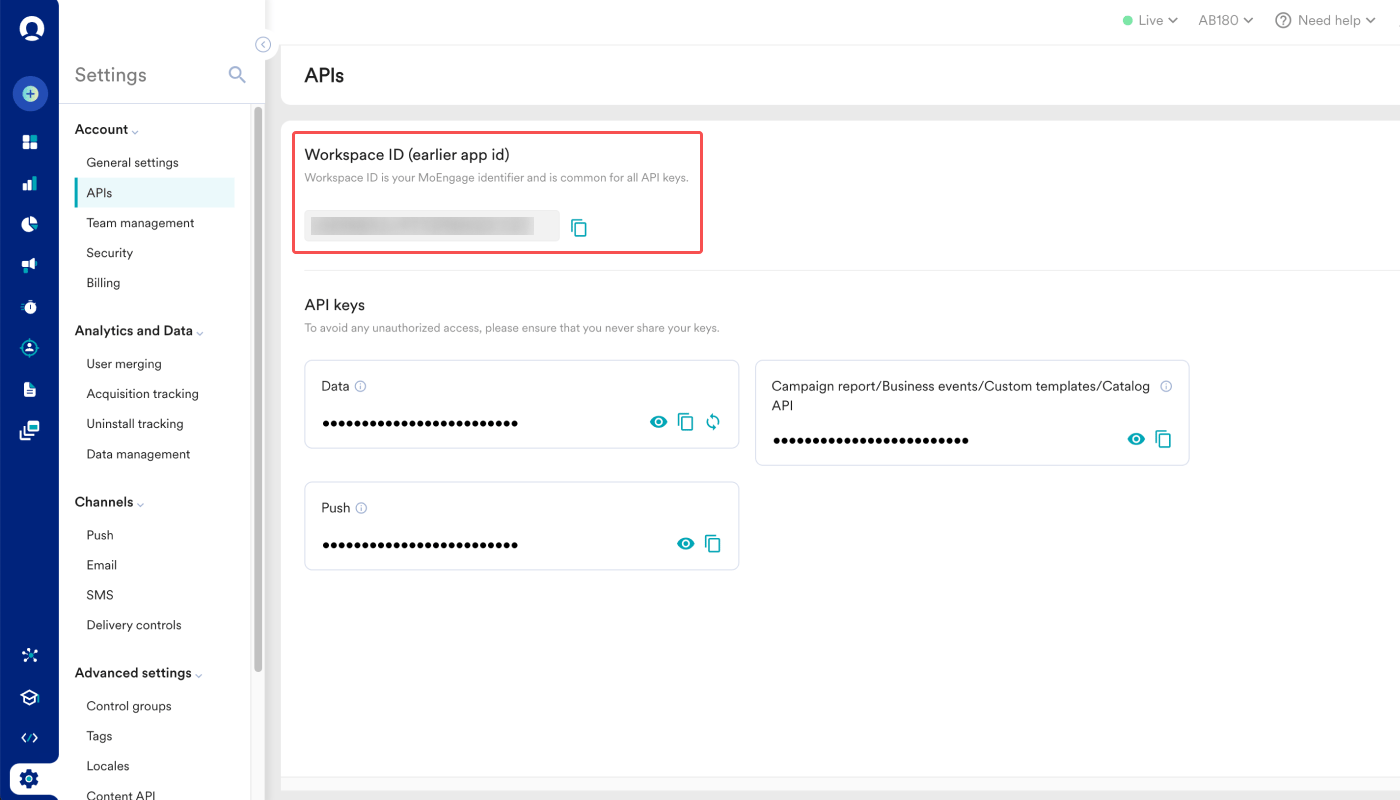
1. To find the Workspace ID, navigate to **\[Settings]>\[Account]>\[APIs]** in the MoEngage dashboard.
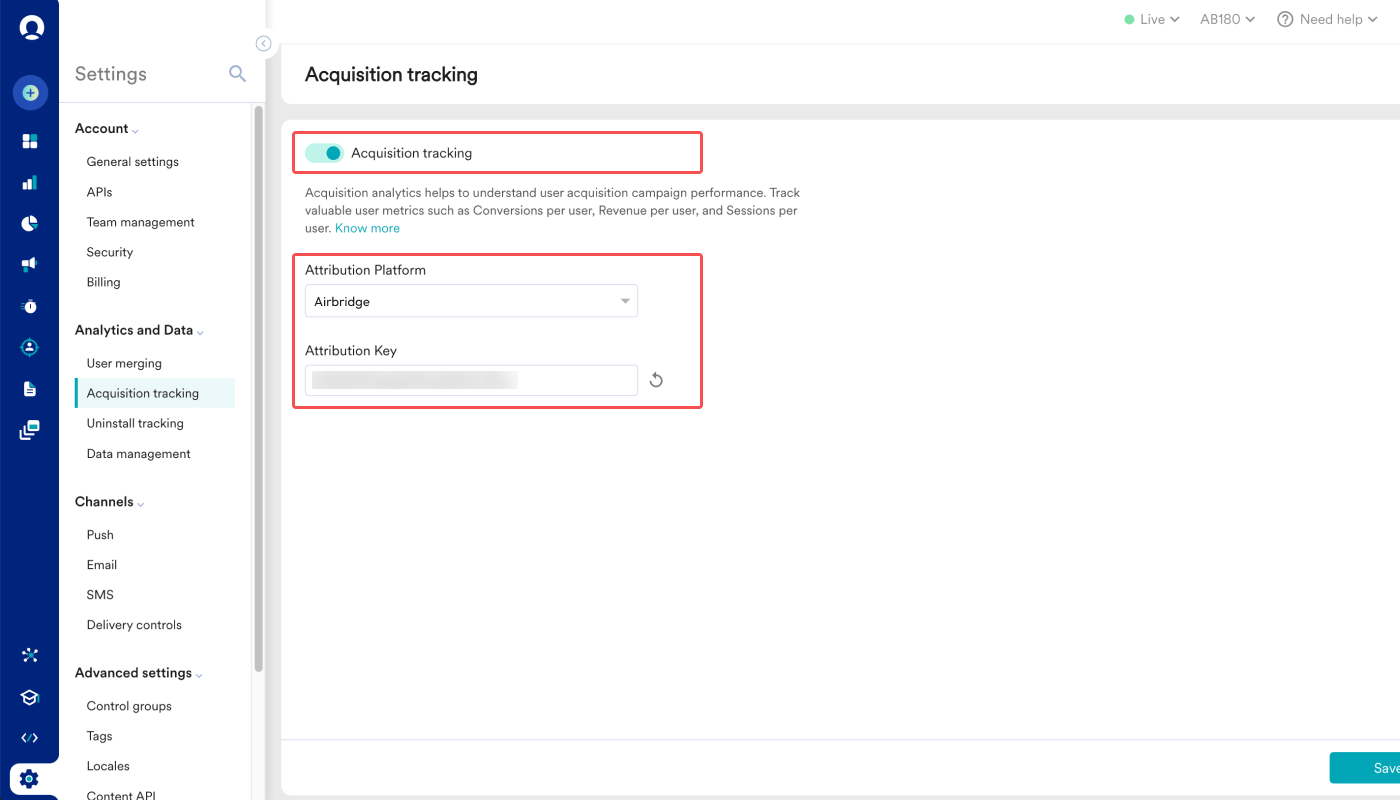
2. To find the Attribution Key, navigate to **\[Settings]>\[Analytics and Data]>\[Acquisition tracking]** and check whether the "Acquisition tracking" toggle is switched on. Then, select Airbridge as Attribution Platform, and the Attribution Key will appear. Then, click **Save** at the bottom right.
3. Data Center IDs are assigned when signing up with MoEngage. Your Data Center ID can be identified from the dashboard URL. For example, if your dashboard URL is `https://dashboard-04.moengage.com`, your Data Center is Data Center 04, and the Data Center ID is "DC-04." For more details about the Data Center ID, refer to the [MoEngage User Guide](https://help.moengage.com/hc/en-us/articles/360057030512-Data-Centers-in-MoEngage#01G5DQVXGT2KZMXTJPF77QPJ25).
### Providing the required information to Airbridge
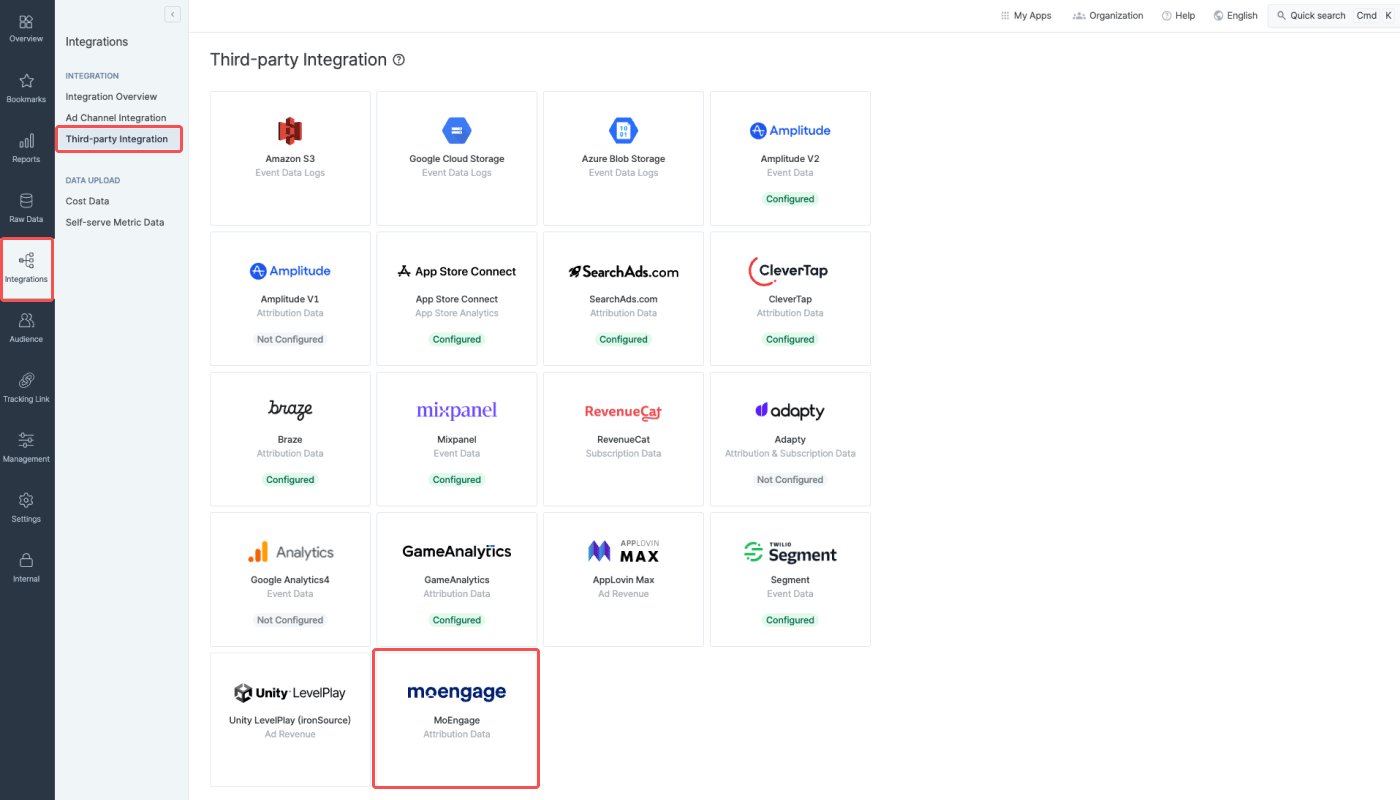
1. Navigate to **\[Integration]>\[Third-party Integration]** and select "MoEngage."
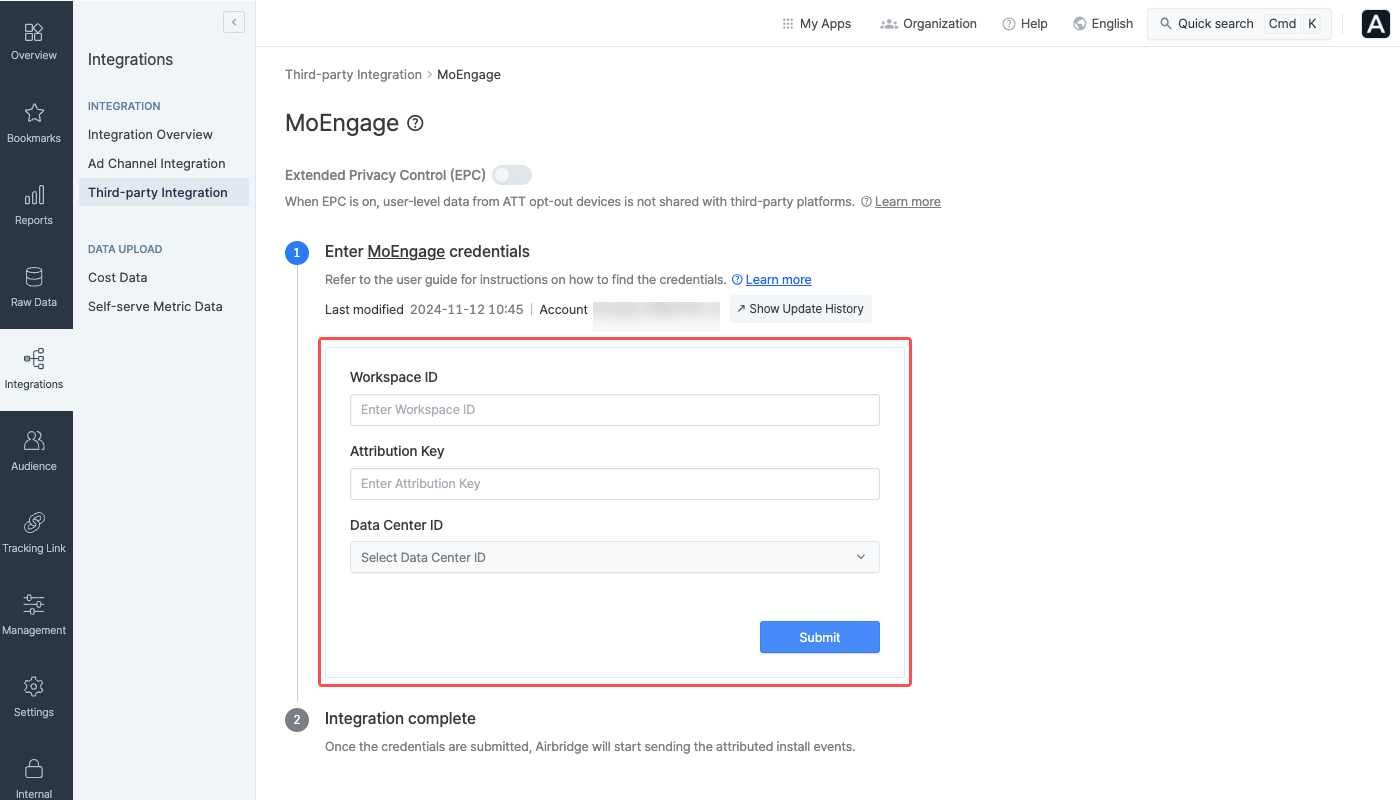
2. Enter the Workspace ID located in the **\[Settings]>\[Account]>\[APIs]** menu of the MoEngage dashboard.
3. Enter the Attribution Key located in the **\[Settings]>\[Analytics and Data]>\[Acquisition tracking]** menu of the MoEngage dashboard.
4. Select the Data Center ID you identified from your MoEngage dashboard URL.
Once you click **Submit** after entering all items, the integration will be completed. If there are any items left unentered or if the entered information is not correct, integration will fail. Double-check that you have entered all items accurately.
## Using Airbridge data in MoEngage
The following Airbridge data can be used in MoEngage once the integration is complete.
| Airbridge Data | MoEngage Data | Description |
| -------------- | -------------------------------------- | ----------------------------------------------- |
| Channel | Publisher Name | The ad channel the app install is attributed to |
| Campaign | Campaign Name | The campaign the app install is attributed to |
| GAID | Google Advertising ID (Android) | Google Advertising ID (GAID) |
| IDFV | Advertising Identifier (iOS & Windows) | Identifier For Vendors (IDFV) used by Apple |
The attribution data from Airbridge is available as user properties in the **\[Analyze]>\[Users]** menu of the MoEngage dashboard, where you can select a Campaign Name or a Publisher Name to visualize user data for further actions such as audience segmentation, campaign planning, and performance analysis.
The attribution data is also available under **Acquisition Analysis.** In the **\[Analyze]>\[Acquisition]** menu, you can select a Campaign Name or a Publisher Name to visualize data such as user count, conversion count, or revenue data.
## Attention
Only users whose data matches between the Install user data sent by Airbridge and the user data collected by MoEngage SDK are displayed on the MoEngage dashboard. For accurate aggregation, refer to this [article](https://www.notion.so/1860-User-Guide-127a69a825078059b620ef4d6bbe3a8a?pvs=21) and install MoEngage SDK.
 2. To find the Attribution Key, navigate to **\[Settings]>\[Analytics and Data]>\[Acquisition tracking]** and check whether the "Acquisition tracking" toggle is switched on. Then, select Airbridge as Attribution Platform, and the Attribution Key will appear. Then, click **Save** at the bottom right.
 3. Data Center IDs are assigned when signing up with MoEngage. Your Data Center ID can be identified from the dashboard URL. For example, if your dashboard URL is `https://dashboard-04.moengage.com`, your Data Center is Data Center 04, and the Data Center ID is "DC-04." For more details about the Data Center ID, refer to the [MoEngage User Guide](https://help.moengage.com/hc/en-us/articles/360057030512-Data-Centers-in-MoEngage#01G5DQVXGT2KZMXTJPF77QPJ25).
### Providing the required information to Airbridge
1. Navigate to **\[Integration]>\[Third-party Integration]** and select "MoEngage."
3. Data Center IDs are assigned when signing up with MoEngage. Your Data Center ID can be identified from the dashboard URL. For example, if your dashboard URL is `https://dashboard-04.moengage.com`, your Data Center is Data Center 04, and the Data Center ID is "DC-04." For more details about the Data Center ID, refer to the [MoEngage User Guide](https://help.moengage.com/hc/en-us/articles/360057030512-Data-Centers-in-MoEngage#01G5DQVXGT2KZMXTJPF77QPJ25).
### Providing the required information to Airbridge
1. Navigate to **\[Integration]>\[Third-party Integration]** and select "MoEngage."
 2. Enter the Workspace ID located in the **\[Settings]>\[Account]>\[APIs]** menu of the MoEngage dashboard.
3. Enter the Attribution Key located in the **\[Settings]>\[Analytics and Data]>\[Acquisition tracking]** menu of the MoEngage dashboard.
4. Select the Data Center ID you identified from your MoEngage dashboard URL.
2. Enter the Workspace ID located in the **\[Settings]>\[Account]>\[APIs]** menu of the MoEngage dashboard.
3. Enter the Attribution Key located in the **\[Settings]>\[Analytics and Data]>\[Acquisition tracking]** menu of the MoEngage dashboard.
4. Select the Data Center ID you identified from your MoEngage dashboard URL.
 Once you click **Submit** after entering all items, the integration will be completed. If there are any items left unentered or if the entered information is not correct, integration will fail. Double-check that you have entered all items accurately.
## Using Airbridge data in MoEngage
The following Airbridge data can be used in MoEngage once the integration is complete.
Once you click **Submit** after entering all items, the integration will be completed. If there are any items left unentered or if the entered information is not correct, integration will fail. Double-check that you have entered all items accurately.
## Using Airbridge data in MoEngage
The following Airbridge data can be used in MoEngage once the integration is complete.