> ## Documentation Index
> Fetch the complete documentation index at: https://help.airbridge.io/llms.txt
> Use this file to discover all available pages before exploring further.
# Web Campaign Tracking - Meta Ads
Airbridge supports Meta ads web campaign tracking via tracking links. Follow the steps below to measure your Meta ads web campaigns in Airbridge. Tracking links enable web-to-app tracking, allowing you to measure app conversions that occur after website visits.
**Note**
You can view the Meta ads campaign data by configuring the filter in the report configuration as follows.
* `Channel` is `facebook.business`
## Web Campaign Data Integration
To integrate Meta ads web campaign data with Airbridge, you need to create a tracking link for web campaign tracking and add it to Meta Ads Manager. After integration, the web campaign data can be viewed in the Airbridge reports alongside app campaign data and cost data if [cost integration](/en/guides/meta-business-cost-integration) is completed.
Follow the steps below to use tracking links for Meta ads web campaign tracking.
**Touchpoints collected by tracking links for web campaigns**
The tracking links for Meta ads web campaigns collect only click data. Impression data is not collected. To learn more about touchpoints, refer to this [article](/en/guides/airbridge-attribution-model#touchpoints).
### Create tracking links for web campaign tracking
1. Navigate to **\[Tracking Link]>\[Link Generation]>\[Integrated Channels]** and click **Create tracking links**. Alternatively, navigate to **\[Integration]>\[Ad Channel Integration]**, select **Meta ads**, select the **\[Tracking Link]** tab, and click **Create tracking links**.
2. Select **Meta ads** from the channel parameter drop-down list. Campaign, ad group, and ad creative parameters will be automatically filled with preset values. Don't modify the preset values. You can set additional parameter values if needed.
3. Configure the destination to redirect users who click on the tracking link per platform (e.g., app market, deep link, website) under the "Redirection" section.
**Note**
Although you can use deep links to redirect users to an in-app location from your web campaign and track app conversions, implement the channel integration for accurate app conversion tracking. For details about channel integration, refer to this [article](/en/guides/meta-business-channel-integration).
4. Click **Create tracking link** on the right below the "Tracking Link Preview" section.
5. Click on the generated tracking link to copy it.
Generated tracking links can be found in the **\[Link Management]** menu. The channel type of the tracking link for Meta ads web campaigns is “Integrated,” and the channel name is “facebook.business.”
For more details on tracking link management, refer to this [article](/en/guides/tracking-link-management).
### Add the tracking link to Meta Ads Manager
To integrate web campaign data with Airbridge, you need to add the tracking link to the Meta Ads Manager. Before proceeding with the steps below, create a tracking link for Meta ads web campaign and click on the generated tracking link to copy it.
1. Log in to your Meta Ads Manager account and click **Create** **campaign** on the top left.
2. Select your campaign objective. Don’t select **App promotion** or **Awareness,** as you want to track conversions attributed to web campaigns. Click **Continue** to configure the campaign settings. Once you are done, click **Next** to move to ad set settings.
**Note**
The Meta ads “App Promotion” and “Awareness” campaigns aim to maximize reach, and therefore, the conversion setting option is not provided. The app conversion data can be integrated with Airbridge through [channel integration](/en/guides/meta-business-channel-integration).
3. On the ad set settings page, find the “Conversion” section and select **Website** as the conversion location. Click **Next** to move to ad settings.
4. On the ad settings page, find the “Destination” section and paste the tracking link for the Meta ads web campaign tracking you copied from the Airbridge dashboard into the “Website URL” field.
5. Scroll down and find the "Tracking" section. Here you can input URL parameters to append them to the tracking link you input in to the website URL field. To find the detailed instructions on how to add URL parameters, refer to the [Meta ads guide](https://www.facebook.com/business/help/1016122818401732).
Meta ads supports dynamic parameters. Before implementing dynamic parameters, refer to the information below.
The following considerations must be taken into account when adding dynamic URL parameters for the Meta ads campaign setup.
* Parameters that involve names, such as \{\{ad.name}}, \{\{adset.name}}, \{\{campaign.name}}, are set when the ad is first rolled out and can’t be changed. You need to create a new ad campaign to change the parameter value.
* Meta does not support dynamic parameters for [collection ads](https://www.facebook.com/business/help/1725329737561734?id=1997185213680277), such as Instagram ads or "App promotion" campaigns.
* The dynamic parameters cannot be used together with deep links.
6. Once the ad setting is done, click **Publish** on the bottom right.
**How to view app conversions from web campaigns**
To view app conversions from web campaigns in the Meta Ads dashboard, check the **App events** checkbox under **\[Tracking]** at the bottom of the ad settings page.
To view the collected app conversion data in Airbridge reports, [channel integration](/en/guides/meta-business-channel-integration) must be completed.
## Set app store as the destination for Meta Ads web campaigns
Learn how to set up app store destinations for Meta Ads web campaigns to track app installs from web campaign traffic.
### Create a tracking link for Meta Ads web campaigns
1. Go to **\[Tracking Link]>\[Link Generation]>\[Integrated Channels]** in the Airbridge dashboard.
2. Select **Meta Ads** for **\[Channel]**.
3. Set the **\[**[**Campaign Optimization Parameters**](/en/guides/creating-tracking-links-on-the-dashboard#campaign-optimization-parameters)**]** as needed.
4. In **\[Redirection]**, select **App Store**.
5. For Android and iOS, select the store listing type. For desktop, enter a web URL.
6. Click **Create tracking link** to generate the tracking link for Meta Ads web campaigns, and copy it.
### Enter the tracking link in Meta Ads settings
1. Create a new campaign in the Meta Ads Manager dashboard.
2. Choose a campaign objective. Don’t select **App promotion** or **Awareness** as you want to track conversions attributed to web campaigns.
3. Select **Website** under **\[Destination]** during setup.
4. In the **\[Website URL]** field, enter the Meta Ads web campaign tracking link copied from the Airbridge dashboard.
5. Complete the remaining settings and save.
## Reporting
Once you have completed the integration setup, you can view the Meta ads app and web campaign data in the Actuals Report. Refer to the following table for the report configuration and get a comprehensive view of the conversions from different platforms.
| Campaign | Filter: Channel is | GroupBy: Touchpoint Generation Type |
| ----------------------------------------------------------------------------------------------------- | ----------------------- | ---------------------------------------- |
| App campaign - "App promotion" campaign on Meta | facebook.business | Self-attributing Network |
| Web campaign - Campaigns other than "App promotion" on Meta - When using tracking links | facebook.business | Tracking Link |
| Web campaign - Campaigns other than "App promotion" on Meta - When not using tracking links | facebook.business | Self-attributing Network |
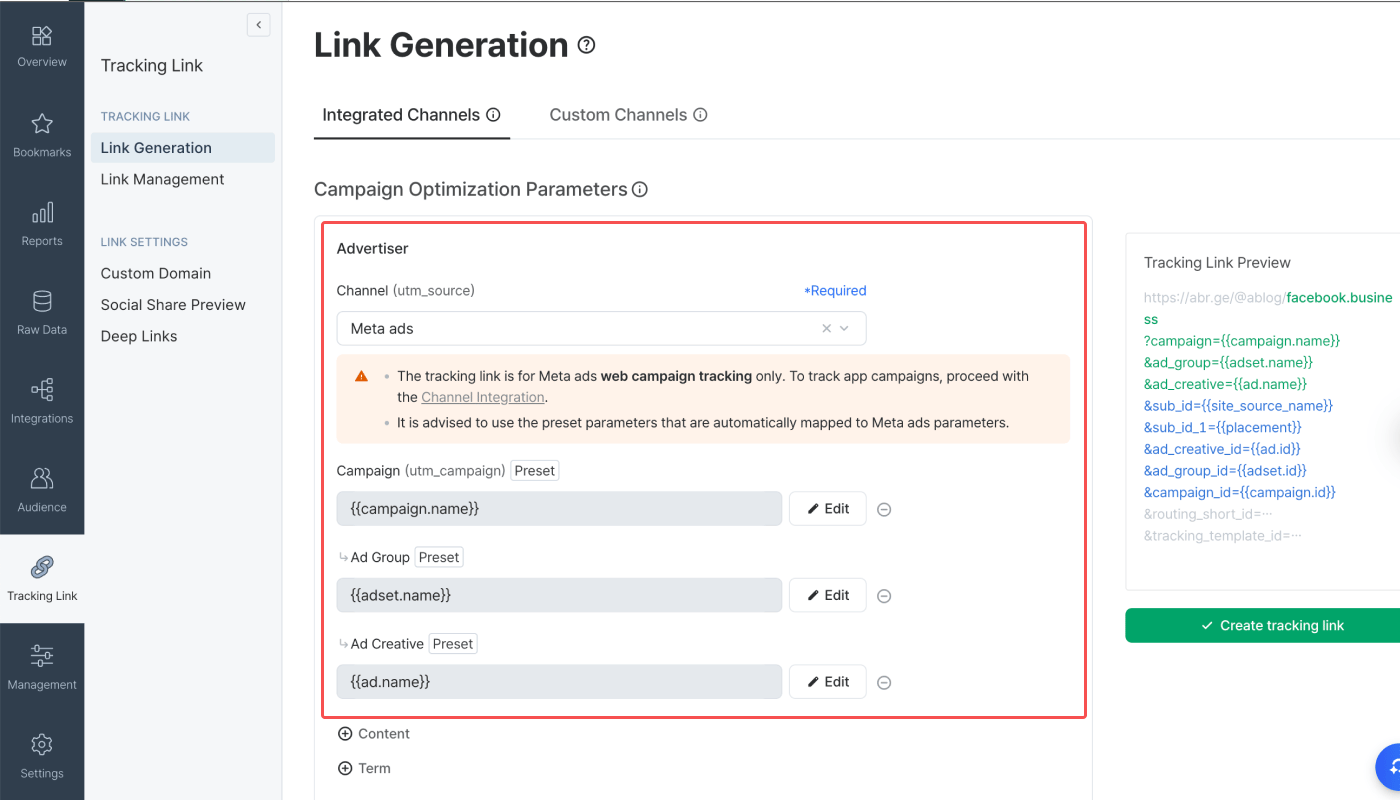 3. Configure the destination to redirect users who click on the tracking link per platform (e.g., app market, deep link, website) under the "Redirection" section.
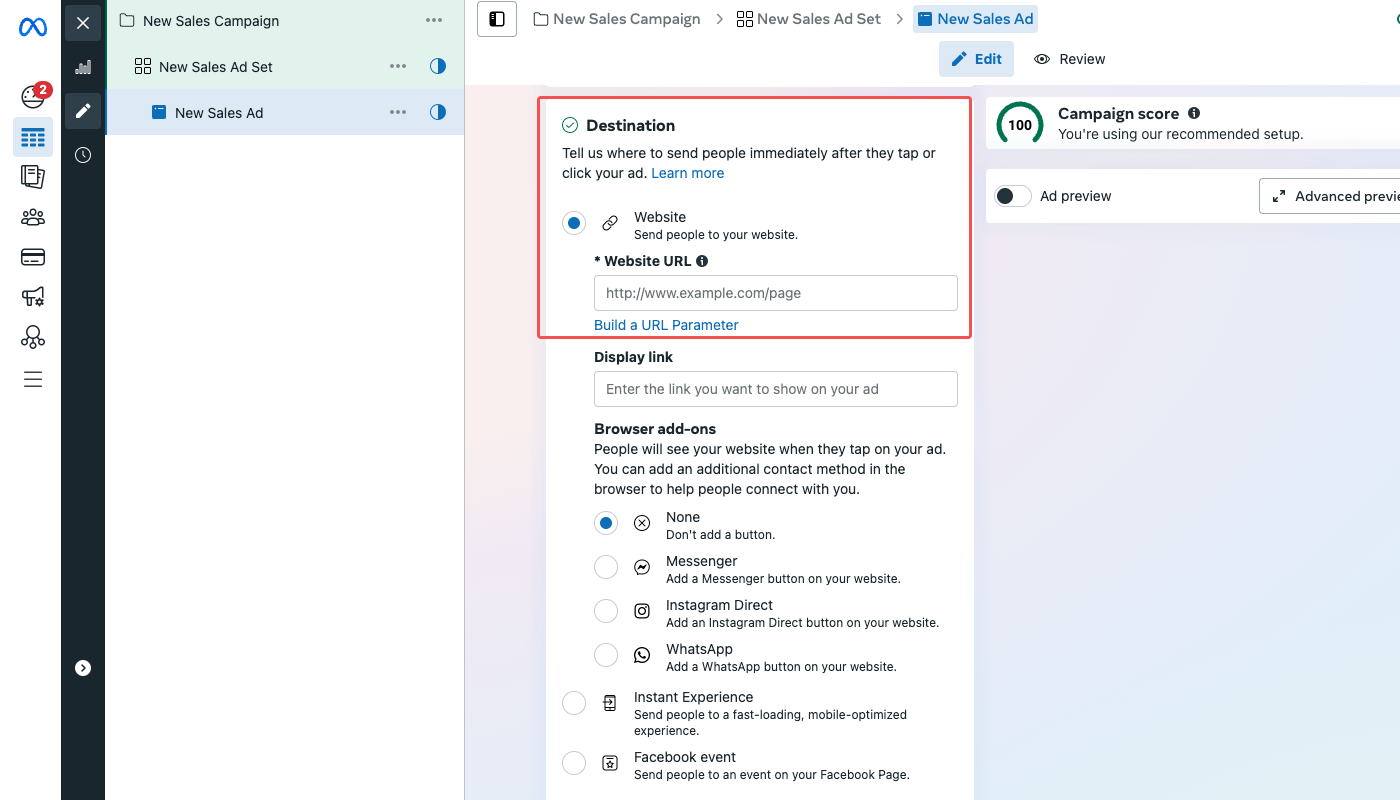 5. Scroll down and find the "Tracking" section. Here you can input URL parameters to append them to the tracking link you input in to the website URL field. To find the detailed instructions on how to add URL parameters, refer to the [Meta ads guide](https://www.facebook.com/business/help/1016122818401732).
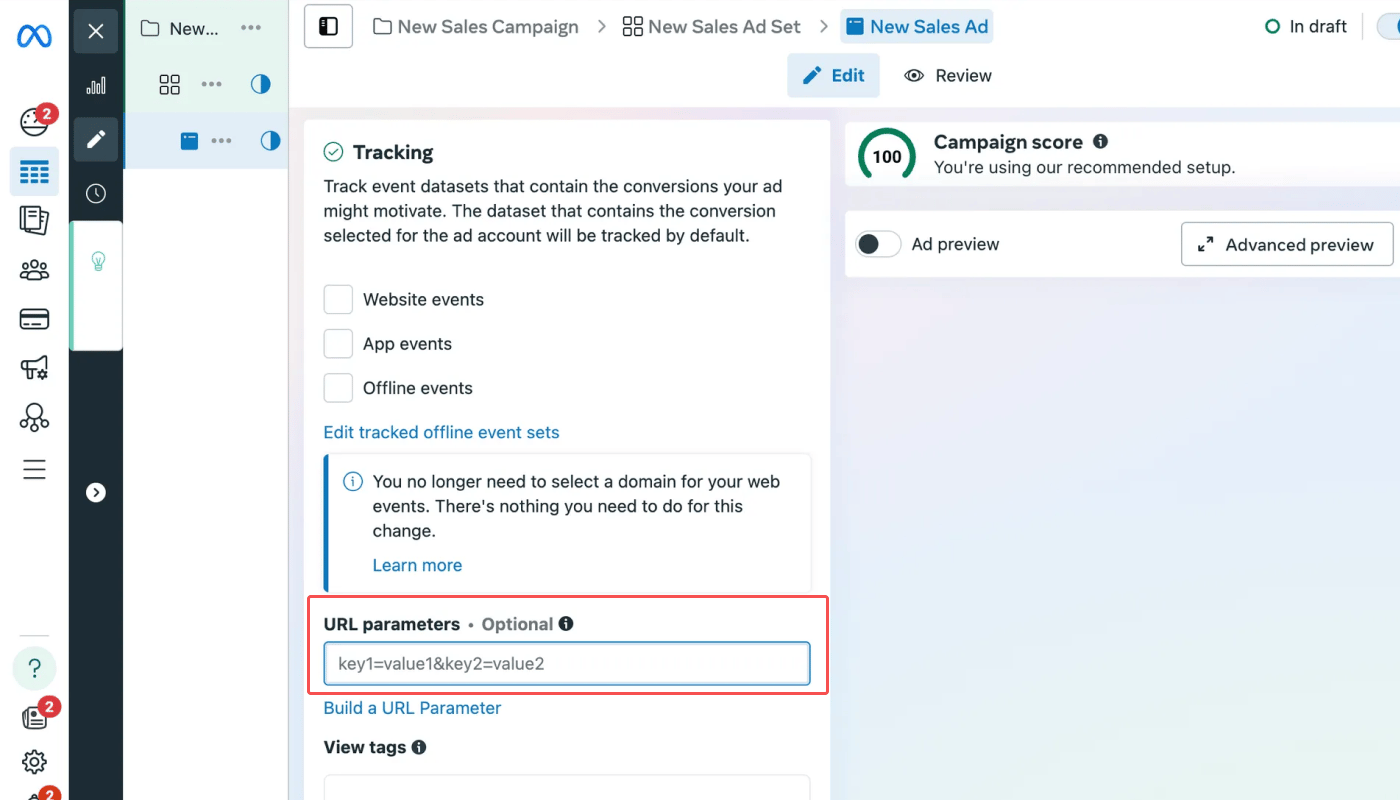 Meta ads supports dynamic parameters. Before implementing dynamic parameters, refer to the information below.
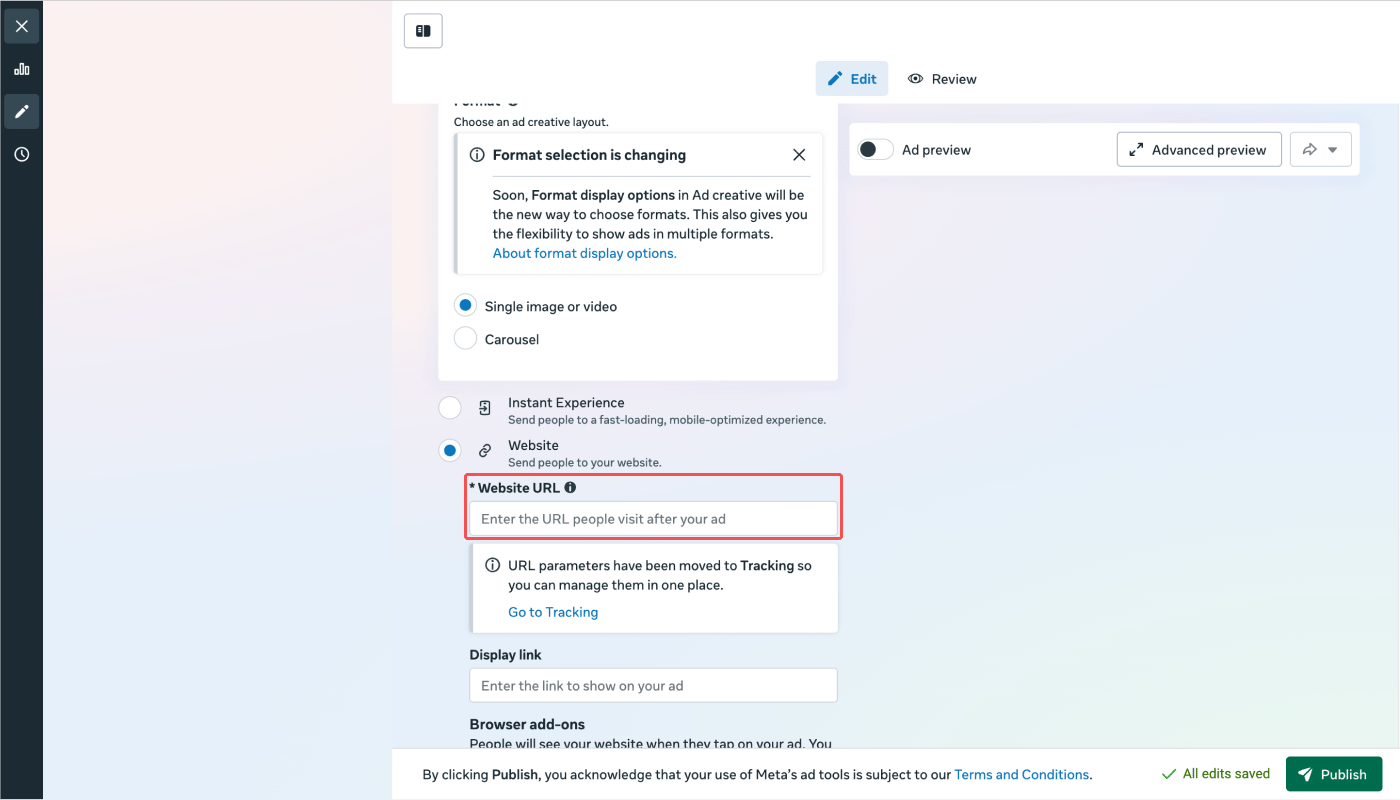 5. Complete the remaining settings and save.
## Reporting
Once you have completed the integration setup, you can view the Meta ads app and web campaign data in the Actuals Report. Refer to the following table for the report configuration and get a comprehensive view of the conversions from different platforms.
| Campaign | Filter:
5. Complete the remaining settings and save.
## Reporting
Once you have completed the integration setup, you can view the Meta ads app and web campaign data in the Actuals Report. Refer to the following table for the report configuration and get a comprehensive view of the conversions from different platforms.
| Campaign | Filter: