> ## Documentation Index
> Fetch the complete documentation index at: https://help.airbridge.io/llms.txt
> Use this file to discover all available pages before exploring further.
# Google Analytics (GA4)
Airbridge supports integration with Google Analytics 4 (GA4). With the integration, you can easily pass data from Airbridge to GA4, allowing you to leverage the attribution data to uncover in-depth insights into how users interact with your product in GA4.
**Note**
Only apps registered with GA4 can be integrated with Airbridge.
## Integration
Once the integration with Airbridge is complete, the Target Events and their properties collected by Airbridge can be sent to GA4.
### Pre-setup
Before enabling the integration with GA4 in the Airbridge dashboard, the SDK setup must be completed. Refer to the developer guide below.
* [Developer guide for Google Analytics 4 (GA4) integration](/en/developers/google-analytics-4)
If the SDK setup is not completed, Airbridge cannot be successfully connected to Google Analytics even if the integration is enabled in the Airbridge dashboard.
### Finding the credentials in GA4
**Attention**
Make sure the required code snippets are added to the Airbridge SDK before taking the steps described below. If this pre-setup is not completed, Airbridge cannot be successfully connected to GA4 even if you enable the integration in the Airbridge dashboard. Refer to the [developer’s guide](/en/developers/google-analytics-4) to complete the pre-setup.
To implement the integration with GA4, the following credentials must be provided to Airbridge.
* Firebase App ID
* Measurement Protocol API Secret
The credentials differ for Android and iOS apps. Follow the steps below to find the credentials in GA4.
1. Log in to your [GA4 account](https://analytics.google.com/analytics/web/#/), click the **\[gear]** icon, and select **Data stream**.
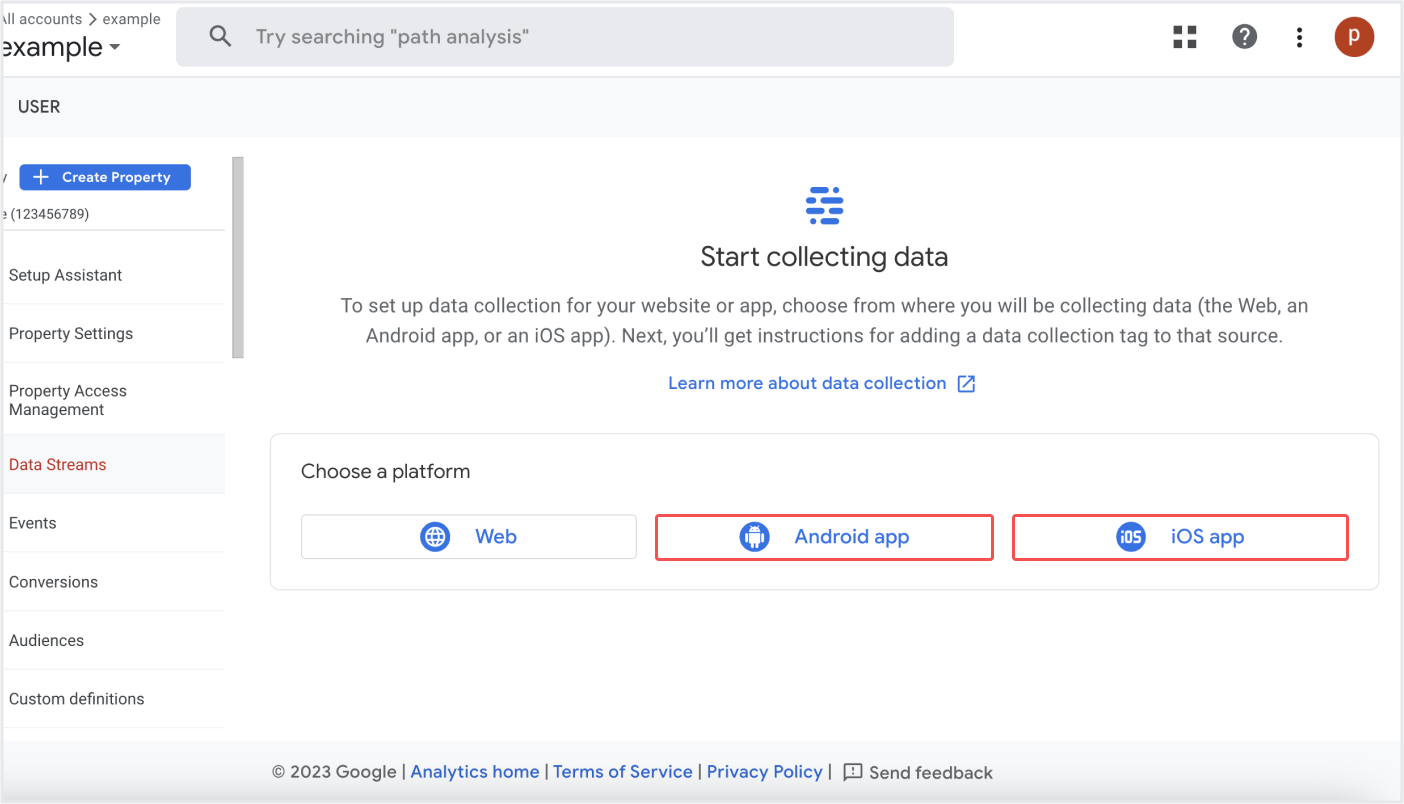
2. If you don’t have registered your app, select **Android App** or **iOS App** to register your app. If you have both Android and iOS apps, register them separately. For detailed instructions, refer to this [article](https://support.google.com/analytics/answer/9304153?hl=en\&ref_topic=9303319\&sjid=14188327478143327056-AP#zippy=%2Cios-%EC%95%B1-%EB%98%90%EB%8A%94-android-%EC%95%B1) from GA4.
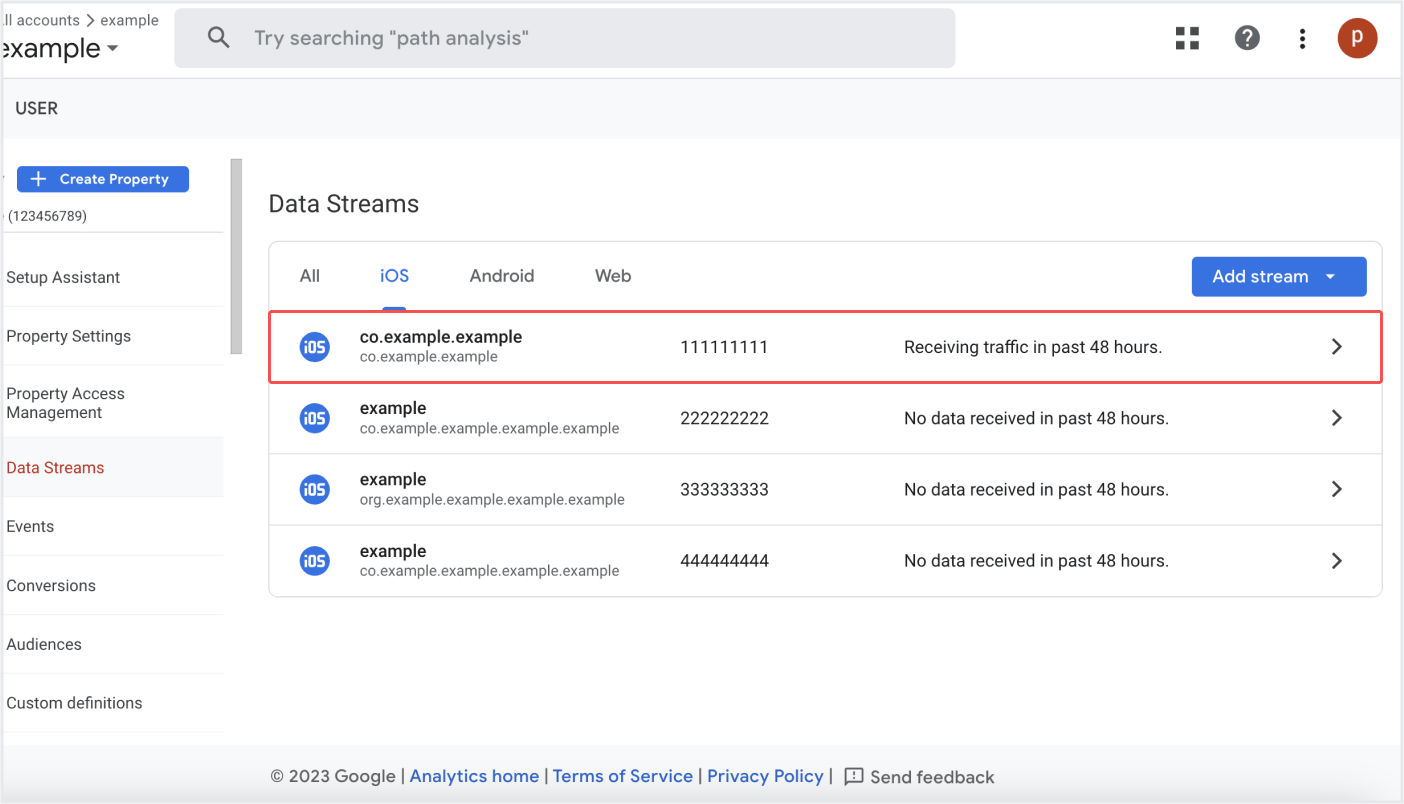
3. Once your app is registered in your GA4 account, select the app you want to integrate with Airbridge from the list.
4. Copy and save the **FIREBASE APP ID** somewhere safe. Then, select **Measurement Protocol API secrets**.
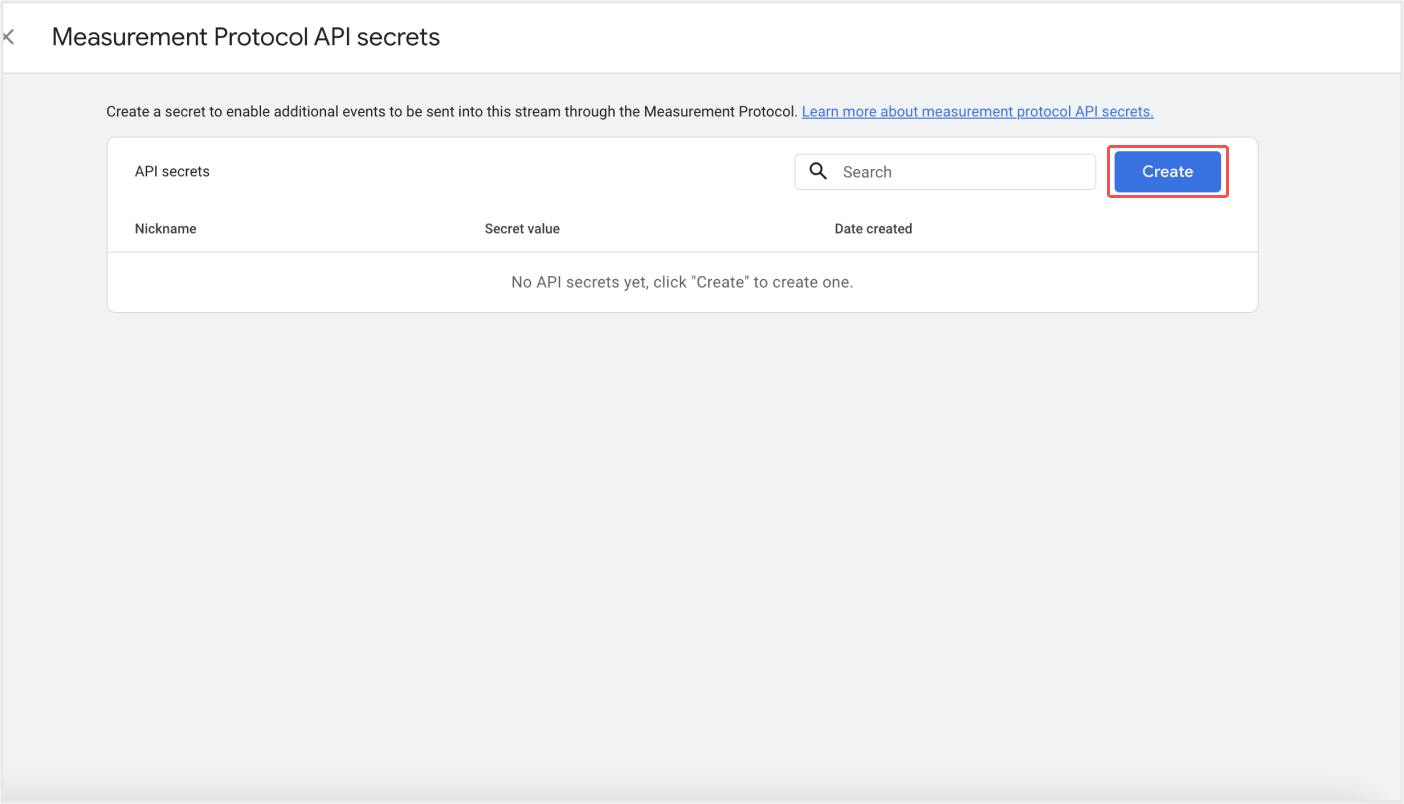
5. If there is no existing API Secret, click **Create** to create a new secret.
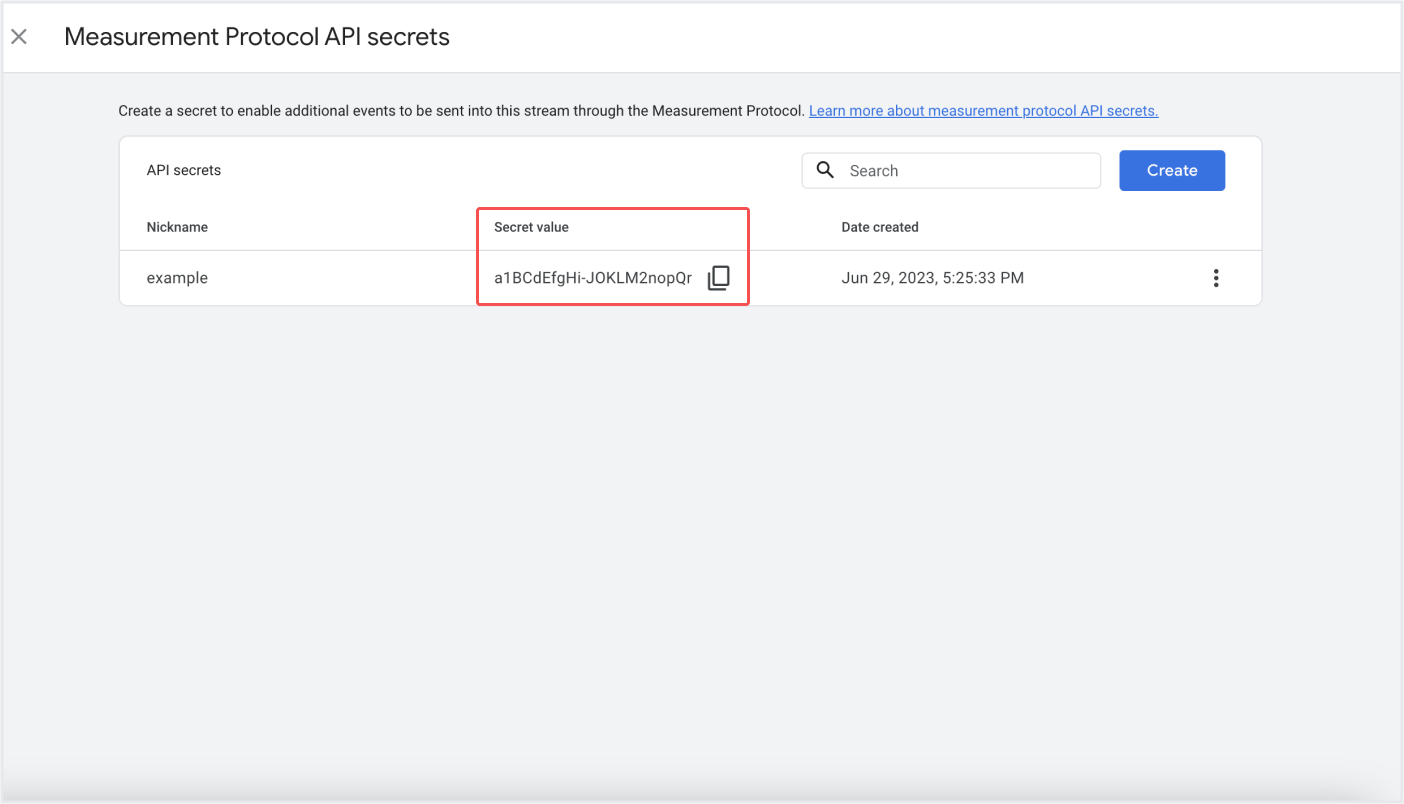
6. Copy the new secret and save it somewhere safe. If you have both Android and iOS apps, you need to find and save the credentials for each OS separately.
### Configuring the integration details in Airbridge
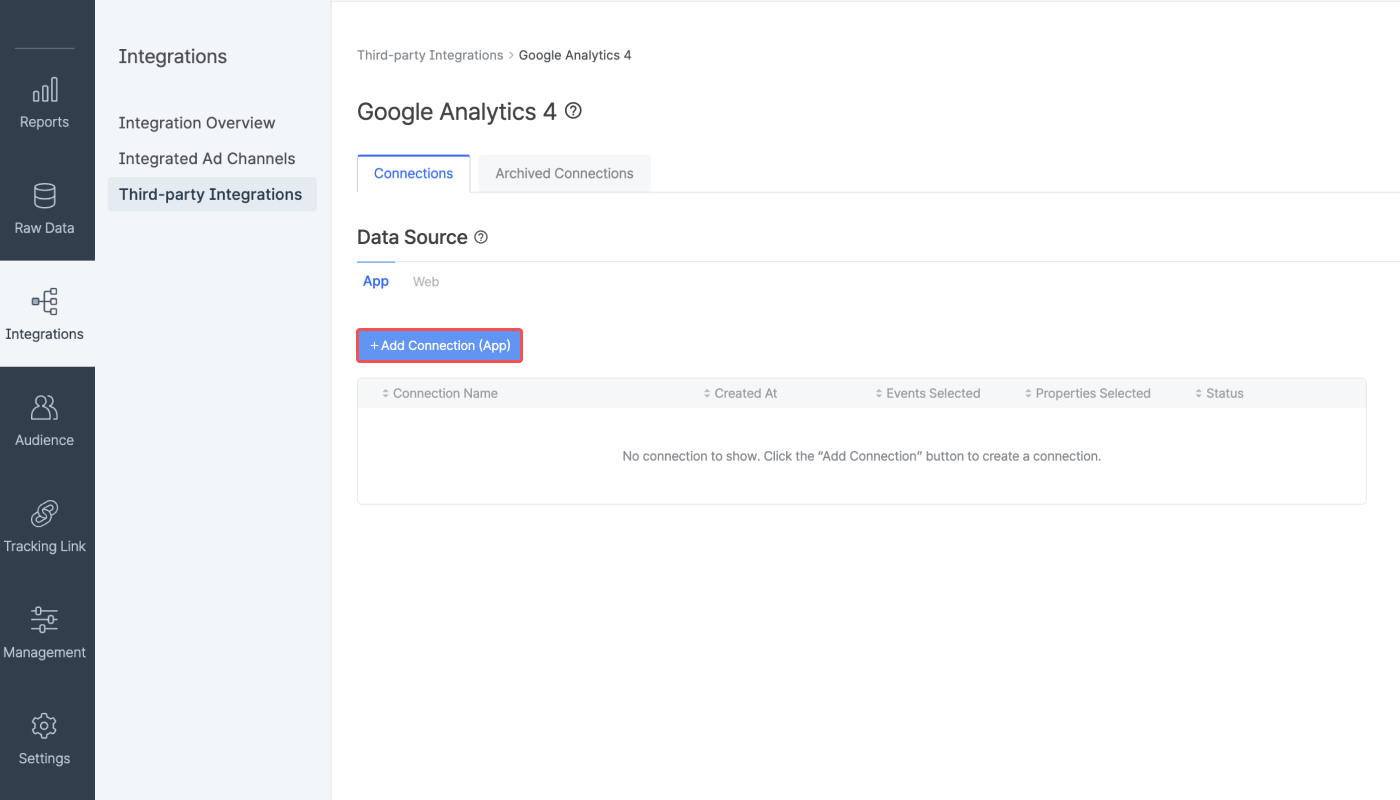
1. Log in to your Airbridge account, navigate to **\[Integrations]>\[Third-party Integrations]**, and select **Google Analytics**.
2. Click the **+ Add Connection (App)**.
**Attention**
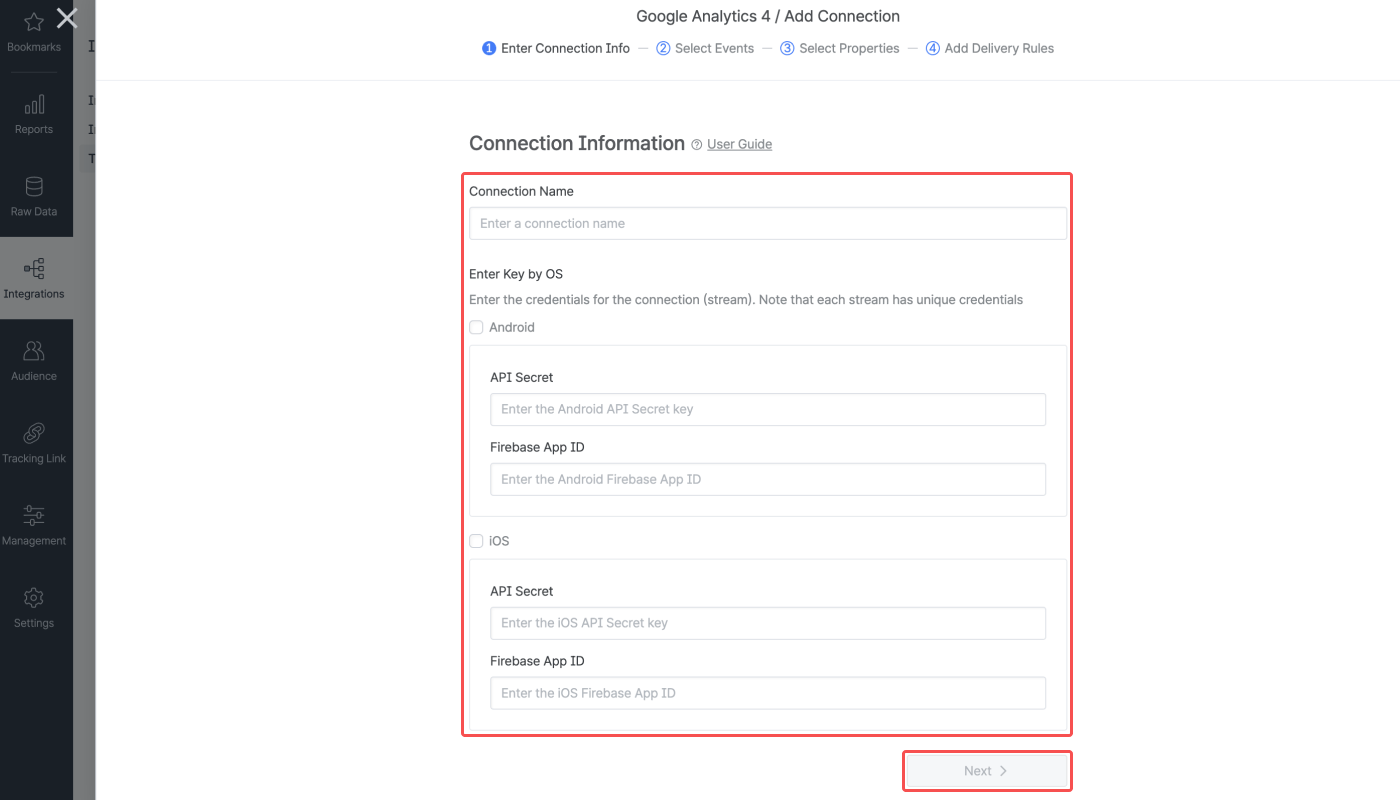
Multiple connections can be added, but only 1 connection can be activated for your app. Therefore, the credentials for both Android and iOS apps must be entered on the same connection information page.
For example, if you have entered only the iOS app credentials to a connection and want to integrate the Android app later, the Android app credentials must be added to the same connection information page. Refer to this **section** of this article for more details.
3. Enter the connection name and enter the GA4 credentials per app OS. If you have both Android and iOS apps, enter both credentials. The connection names must be unique.
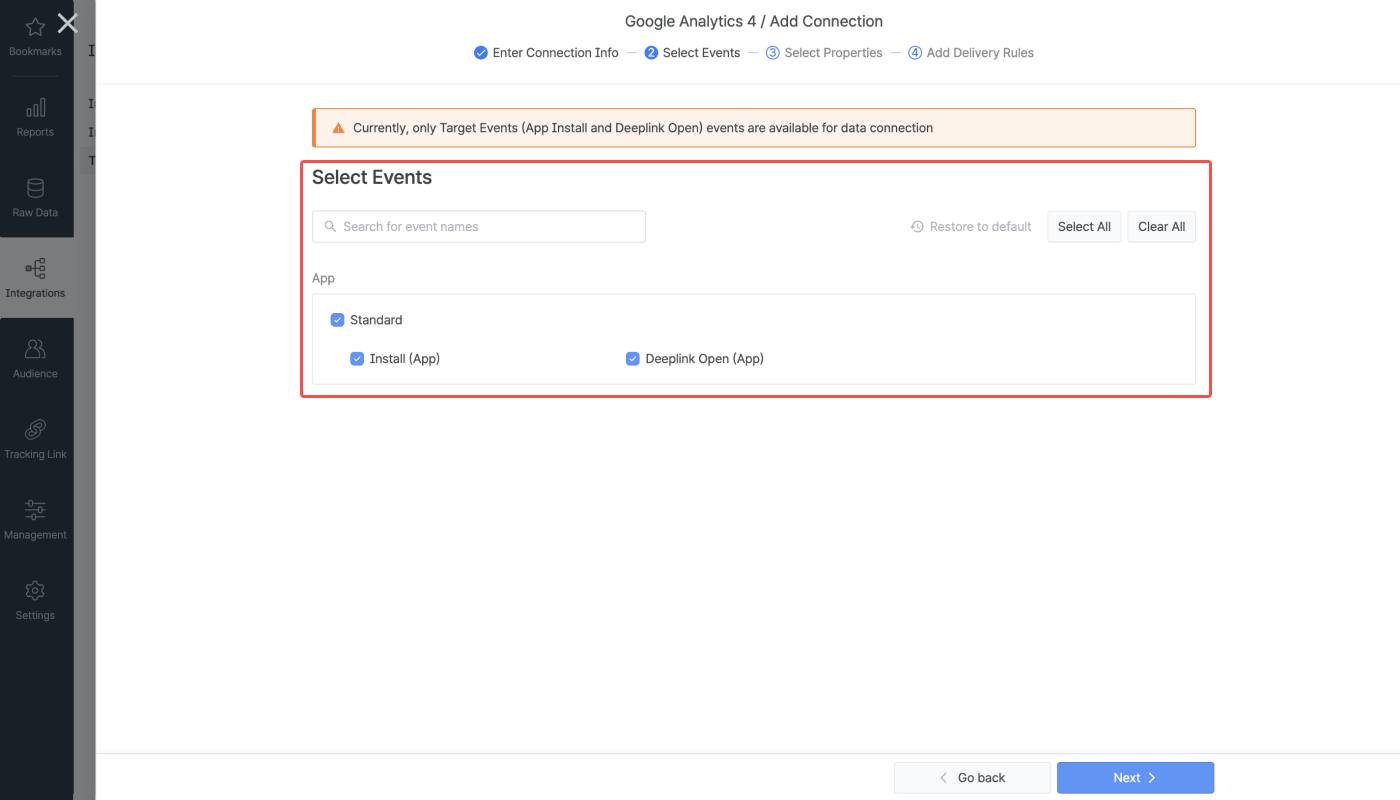
4. Select the Airbridge events you want to send to GA4. The **Install (App)** event is selected as default, and the **Deeplink Open (App)** and **Deeplink Pageview (App)** event is optional. The two events are reported as custom events in GA.
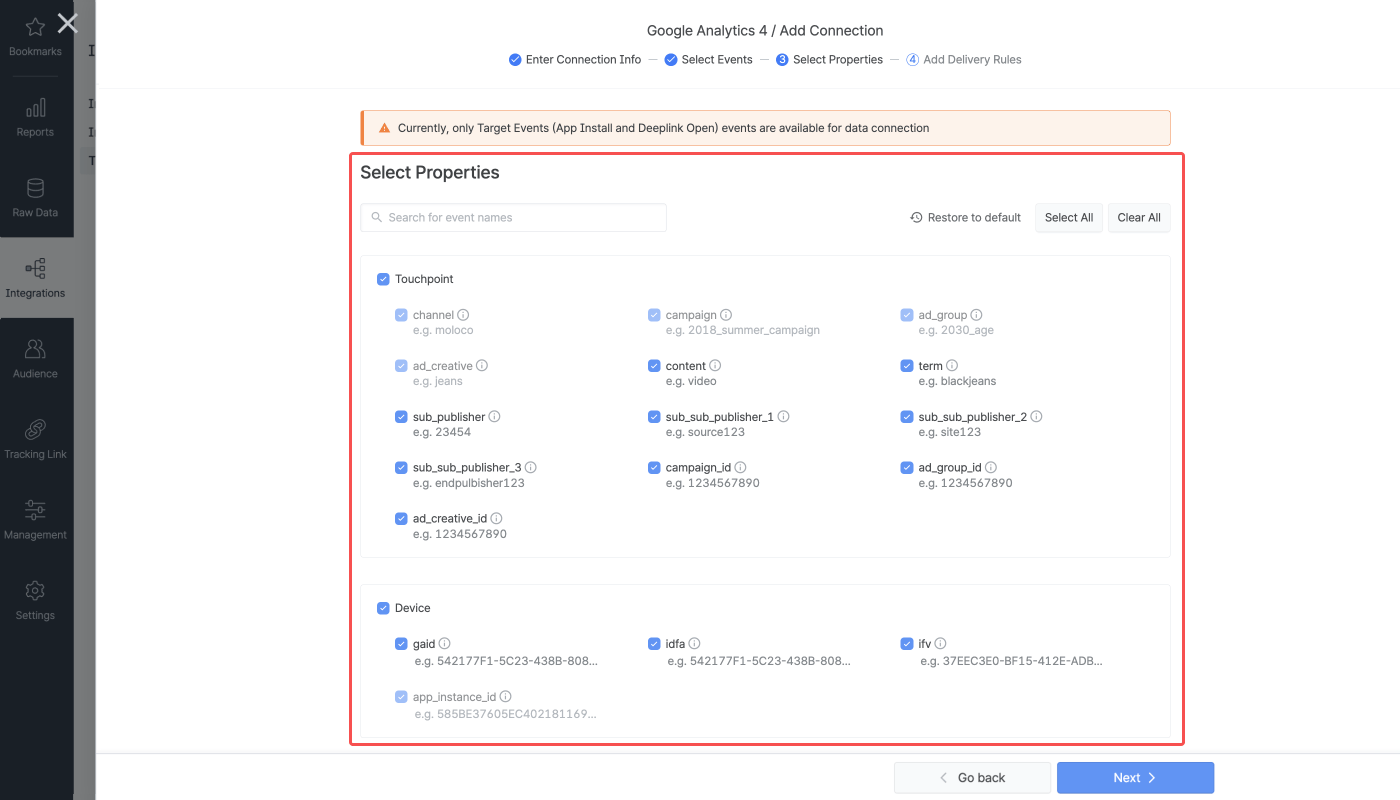
5. Select the Airbridge event properties you want to send to GA4. Click **Select all** or **Clear all** button to select or clear all properties at once.
6. If there are events and properties you don’t want to send, click the **+ Add Rule** button to set the data delivery rule. Setting the delivery rule is not mandatory and can be skipped.
7. To add a delivery rule, click **+ Add Rule**, enter a unique name for the rule, and select the events or properties you don't want to send to GA4.
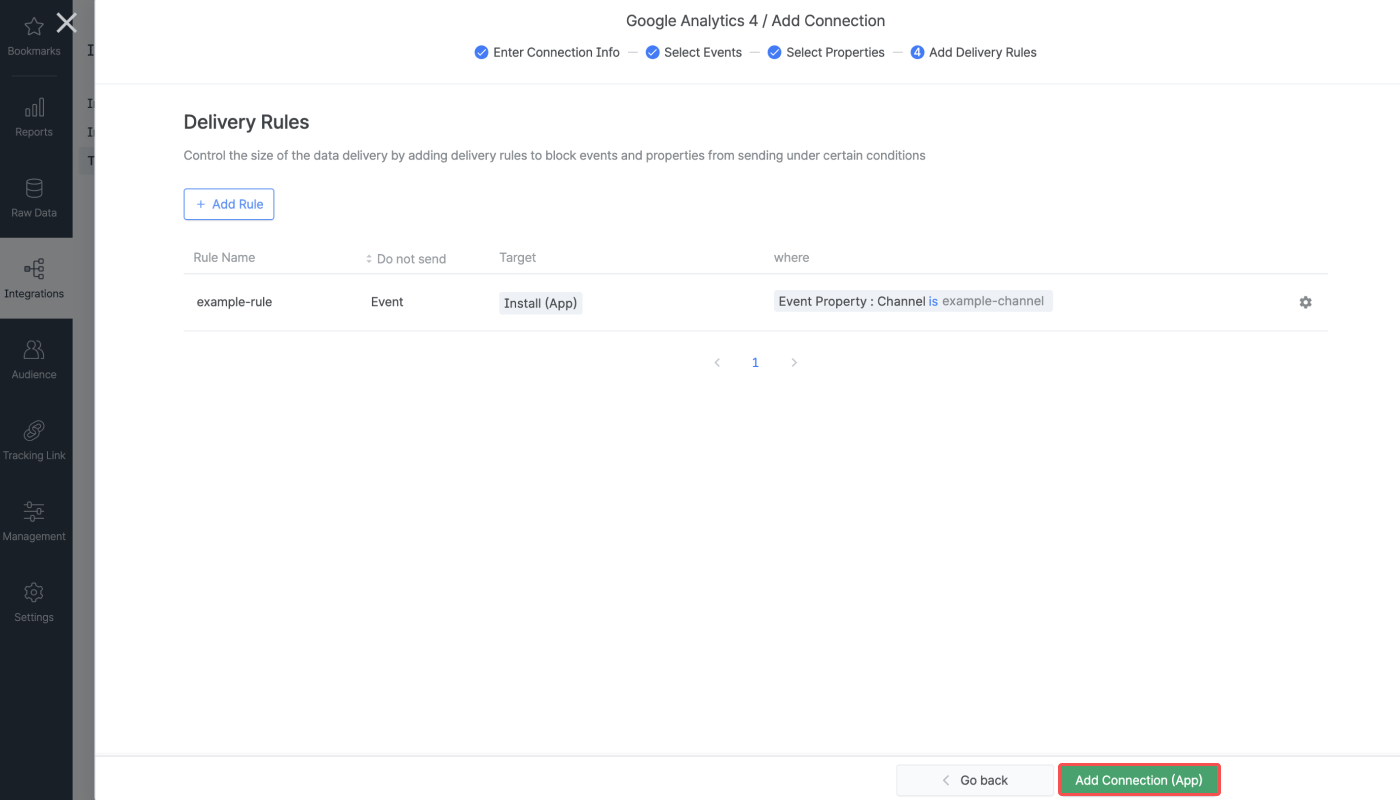
Select the conditions for the selected events and properties again on a per-event or per-property basis. You can add multiple conditions for a rule. For example, if you set the delivery rules as shown in the image below, Airbridge will not send the **Install (App)** events to GA4 where the `Channel` is `example_channel`, and the `Campaign` is not `example_campaign`.
However, if you want to set different conditions for events or properties that you don't want to send, you must add two or more rules separately.
8. Once you have added all delivery rules, click **Add Connection**. Note that the events that are used for configuring the delivery rules cannot be unchecked from the events selector in the **\[Select Events]** step. You must first delete the relevant delivery rule if you don’t want to send certain events.
9. Once the connection is added to the list, the status toggle is switched off by default. To activate the connection, switch on the toggle.
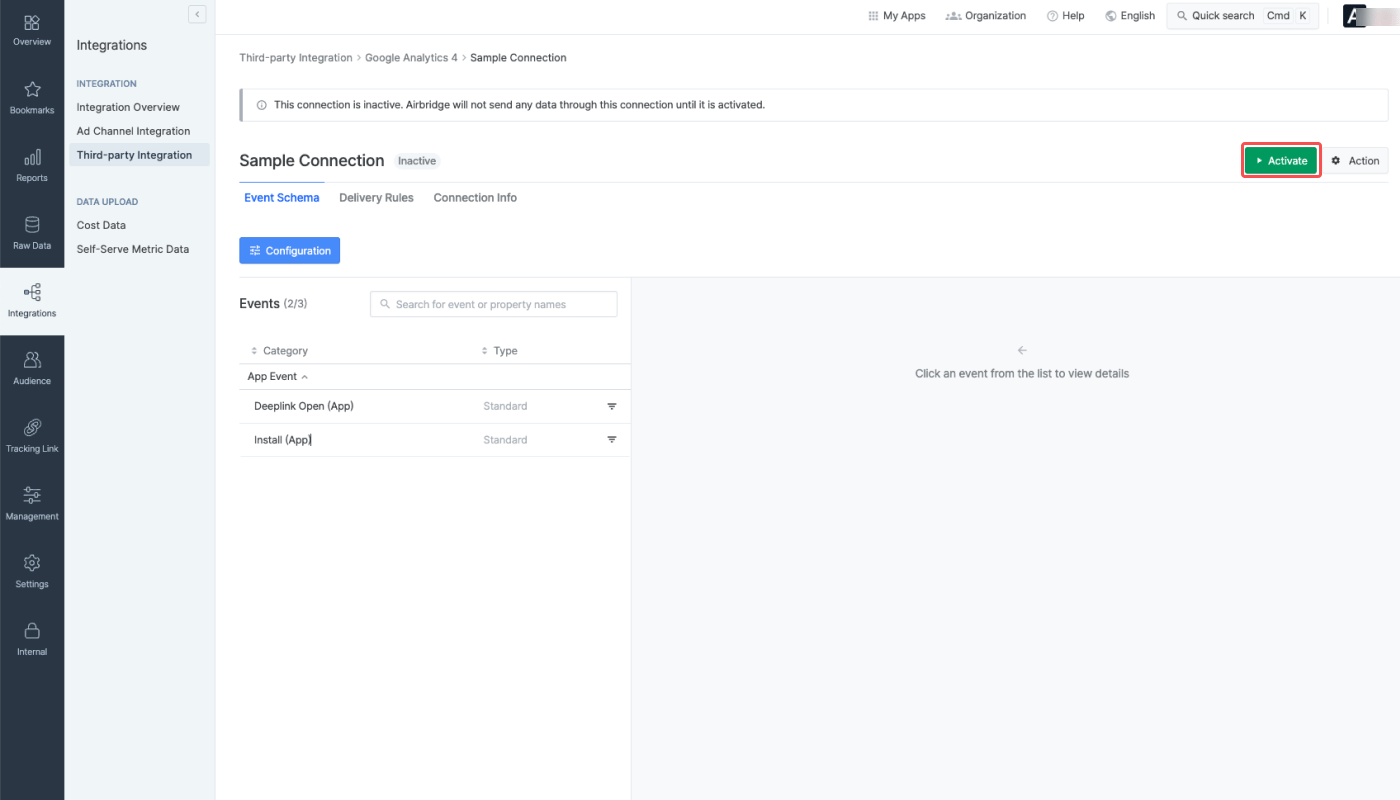
Or, when the status toggle of all connections are switched off, you can click the connection name of which you want to activate and click **Activate** to initiate the data delivery from Airbridge to GA4. Once the connection is activated, the connection status tag that appears next to the connection name will change to `Active`.
### Supported features
#### Edit connection settings
Click the connection name to edit its settings, regardless of whether it is active or not. You can edit the event schema, delivery rules, and connection info. Be cautious when editing the connection settings of an active connection, as unintended events and event properties may be sent to GA4.
Click **Activate** to activate a connection. Airbridge starts sending data upon activating a connection. When clicking **Deactivate**, data is no longer sent.
The third-party integration status is displayed under the third-party solution name on the **\[Integrations]>\[Third-party Integration]** page. Refer to the table below for the integration status types.
| Status | Description |
| -------------- | ------------------------------------------------------------------------- |
| (No message) | No connection has been configured or cannot verify the integration status |
| Not Configured | At least 1 connection has been configured but data is not being sent |
| Configured | Data is being sent to the third-party |
**Event Schema**
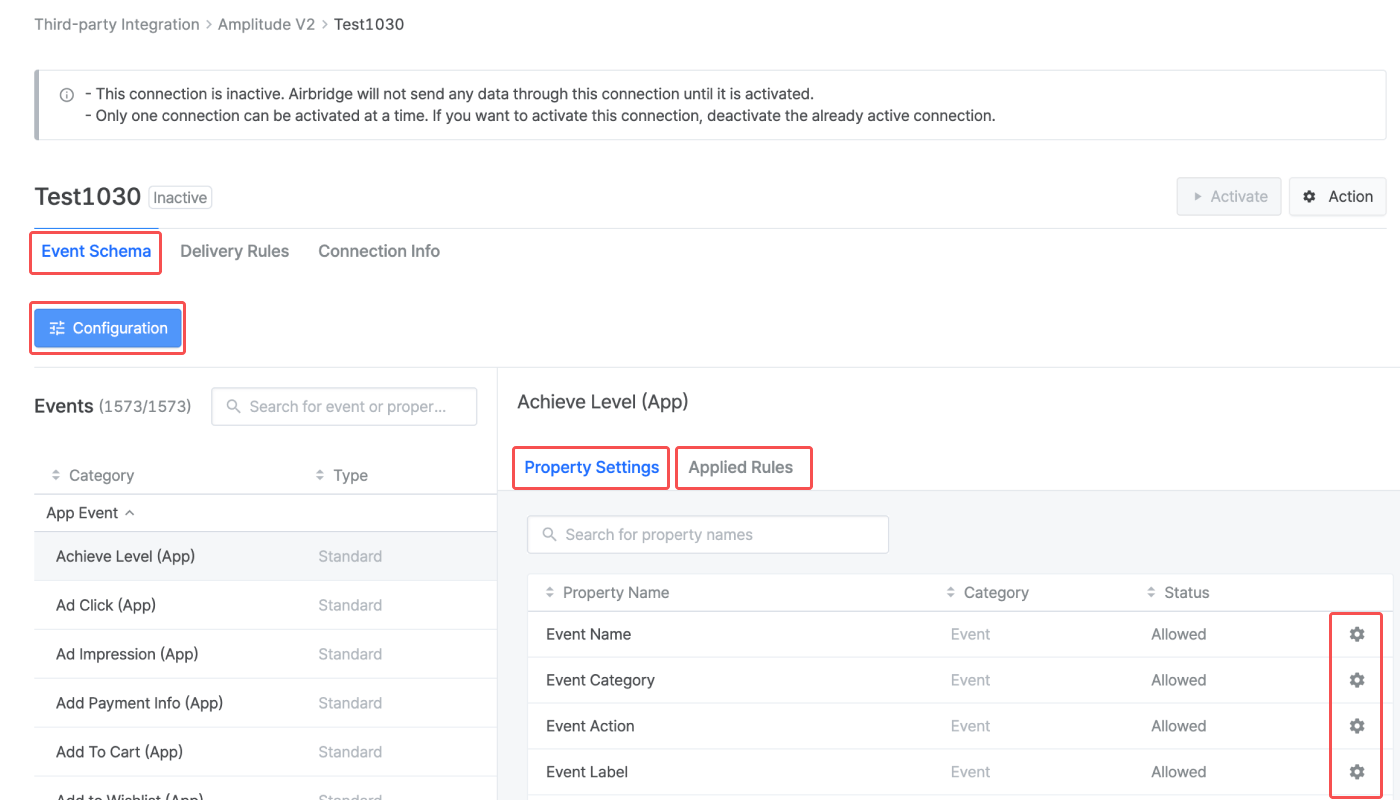
Click **Configuration** on the **\[Event Schema]** tab page to edit the event and event property selection.
Click an event from the Events list and click the **\[gear]** icon from the **\[Property Settings]** tab. In the **\[Applied Rules]** tab, the delivery rules can be configured at the event level.
**Delivery Rules**
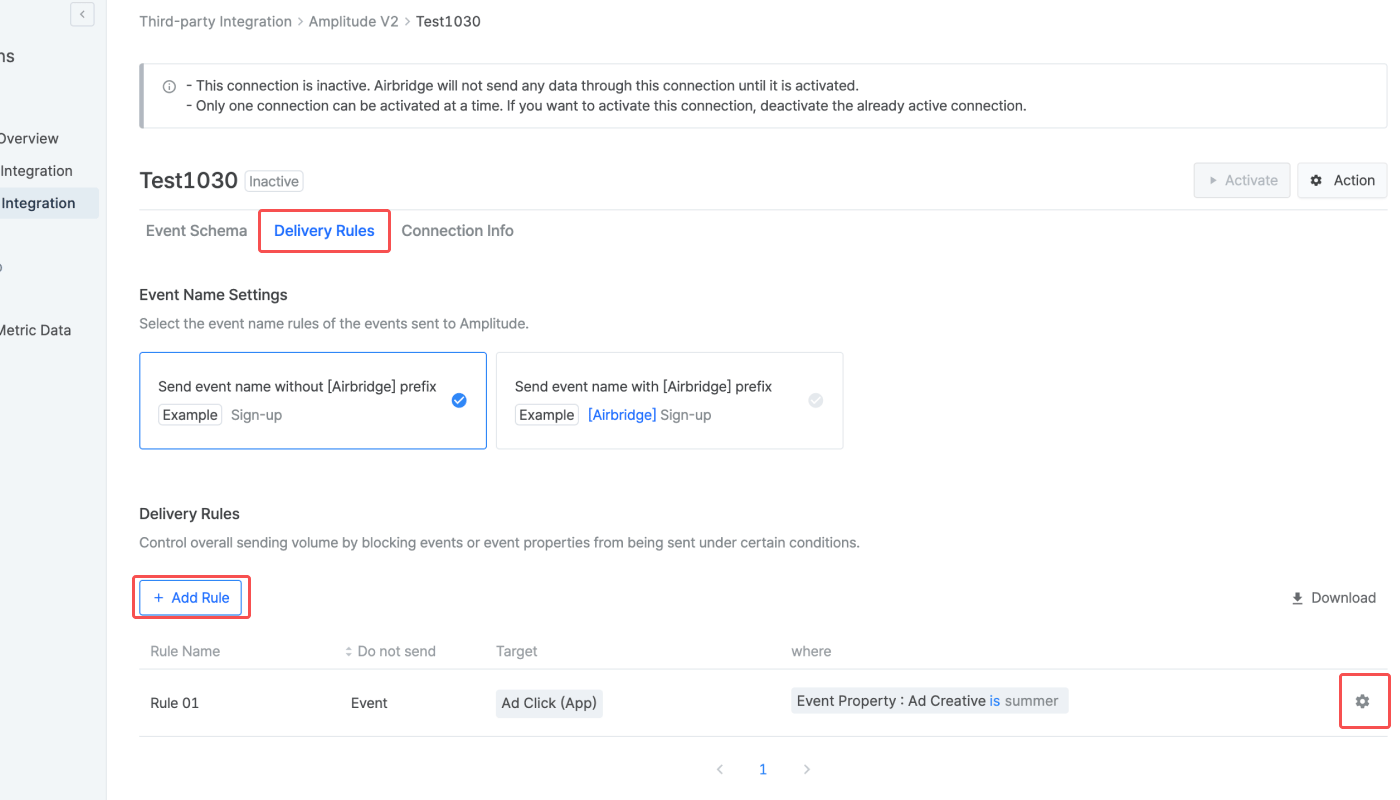
In the **\[Delivery Rules]** tab, view all delivery rules applied to the connection. Click **Add Rule** to add new delivery rules. Click the **\[gear]** icon to edit the rules. Click **Download** to export the delivery rules as a CSV file or Google Spreadsheet file.
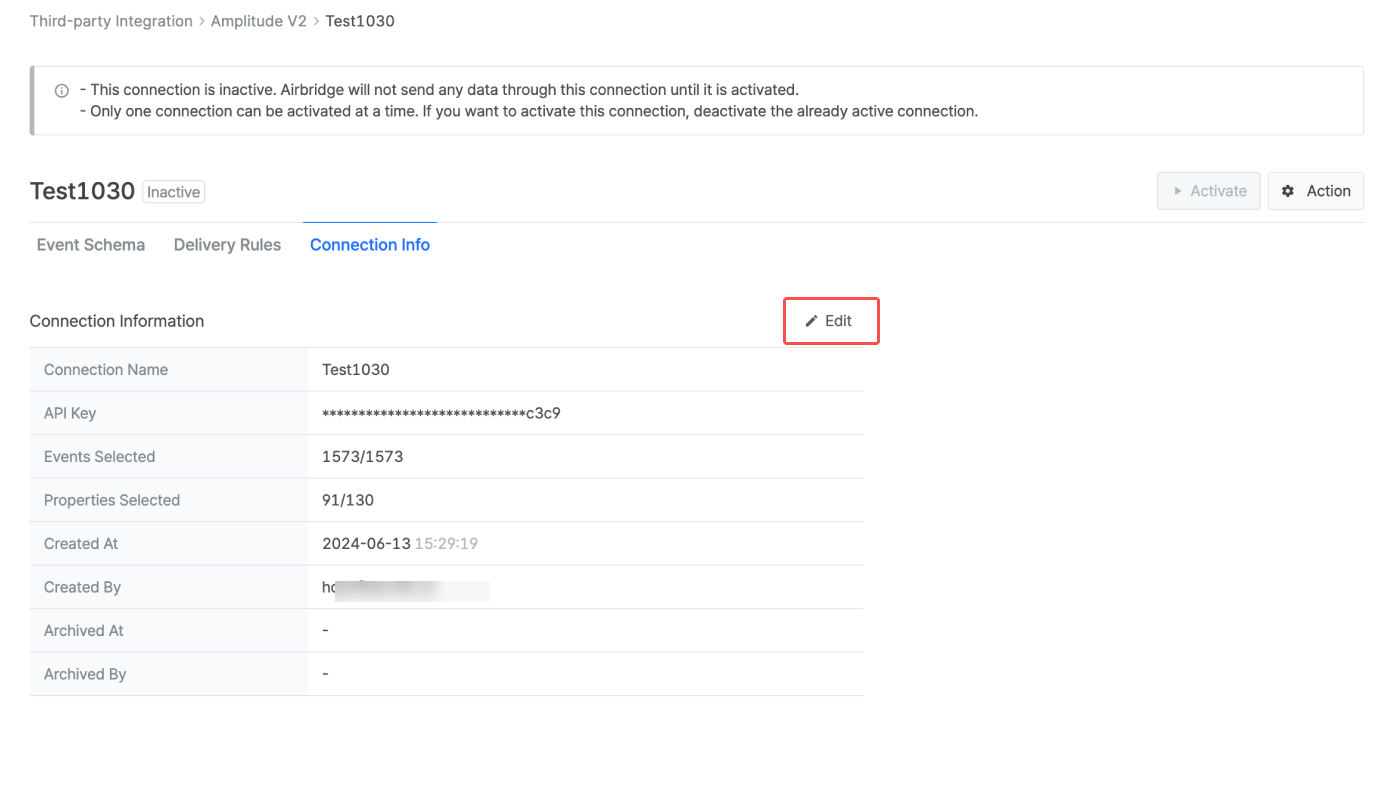
In the **\[Connection Info]** tab, you can see the connection details. Click **Edit** to edit the connection name and the credentials used for the integration. The credentials are not fully disclosed.
#### Managing connections
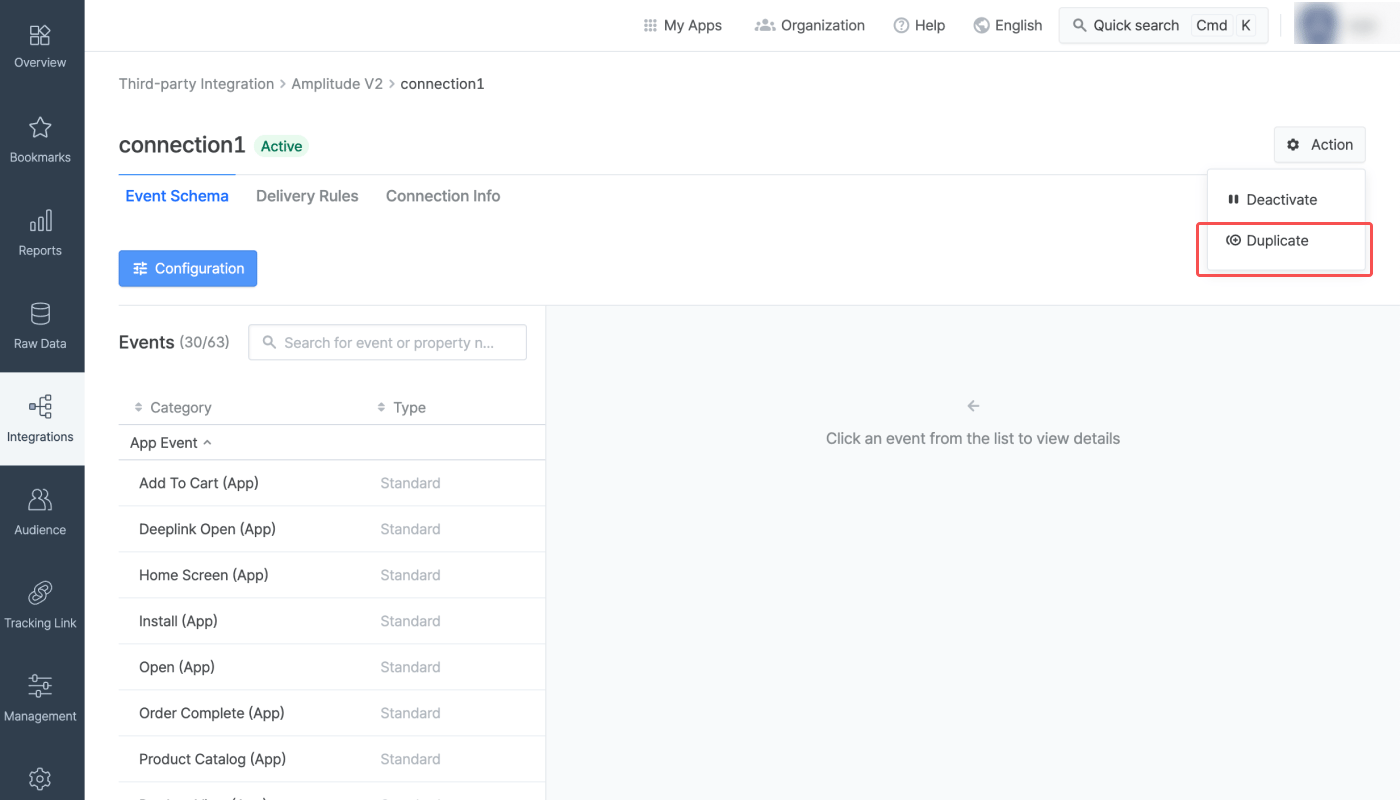
Click **Action** and select **Duplicate** to duplicate connection settings to create a new connection with a new connection name.
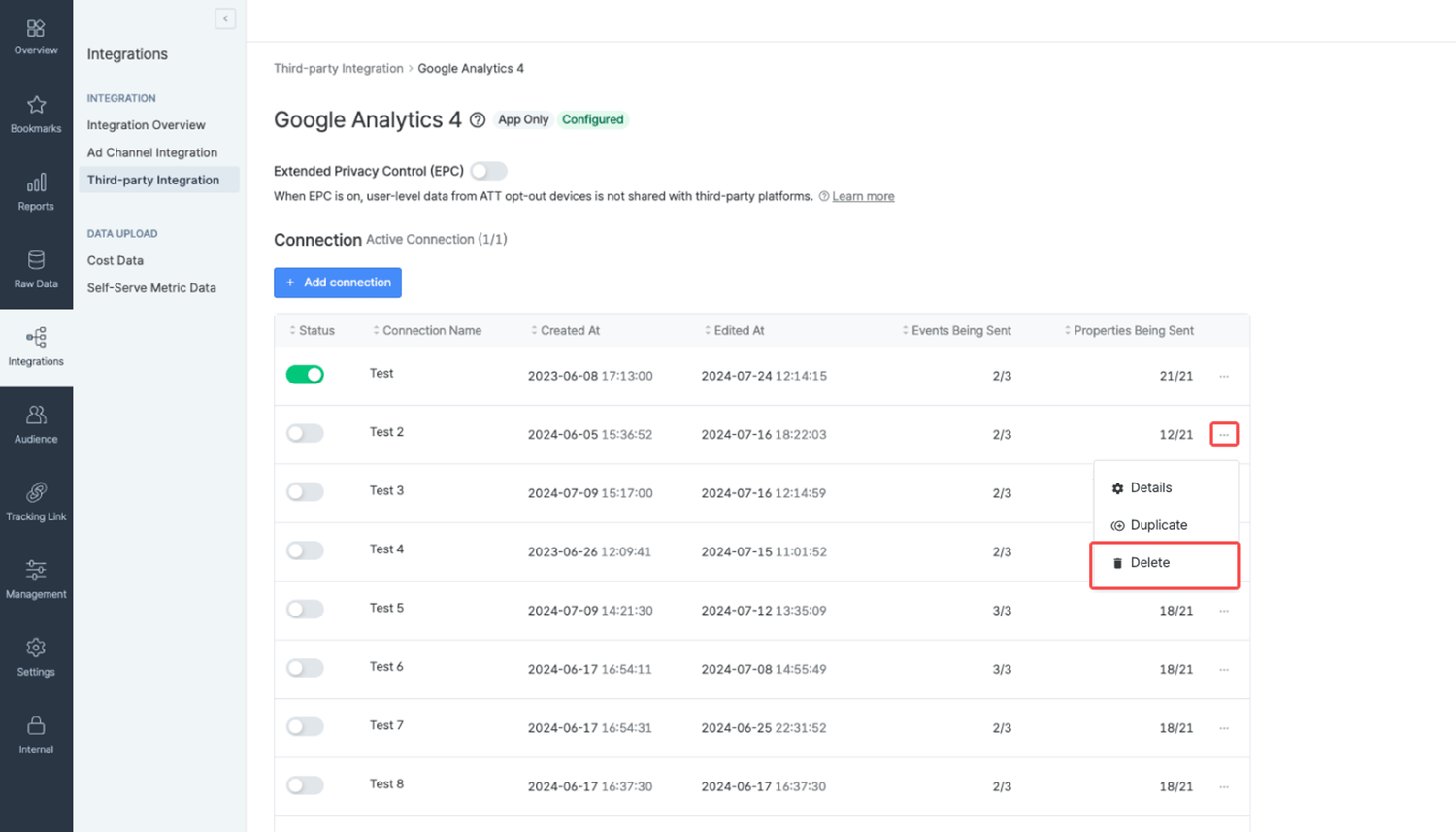
Click the **\[...]** icon and select **Delete** to delete a connection. Active connections cannot be deleted. Deactivate the connection first to delete it.
## Using Airbridge Data in GA4
Once the integration is successfully implemented, Airbridge data is made available in GA4. Refer to the information below to learn how to use Airbridge data in GA4.
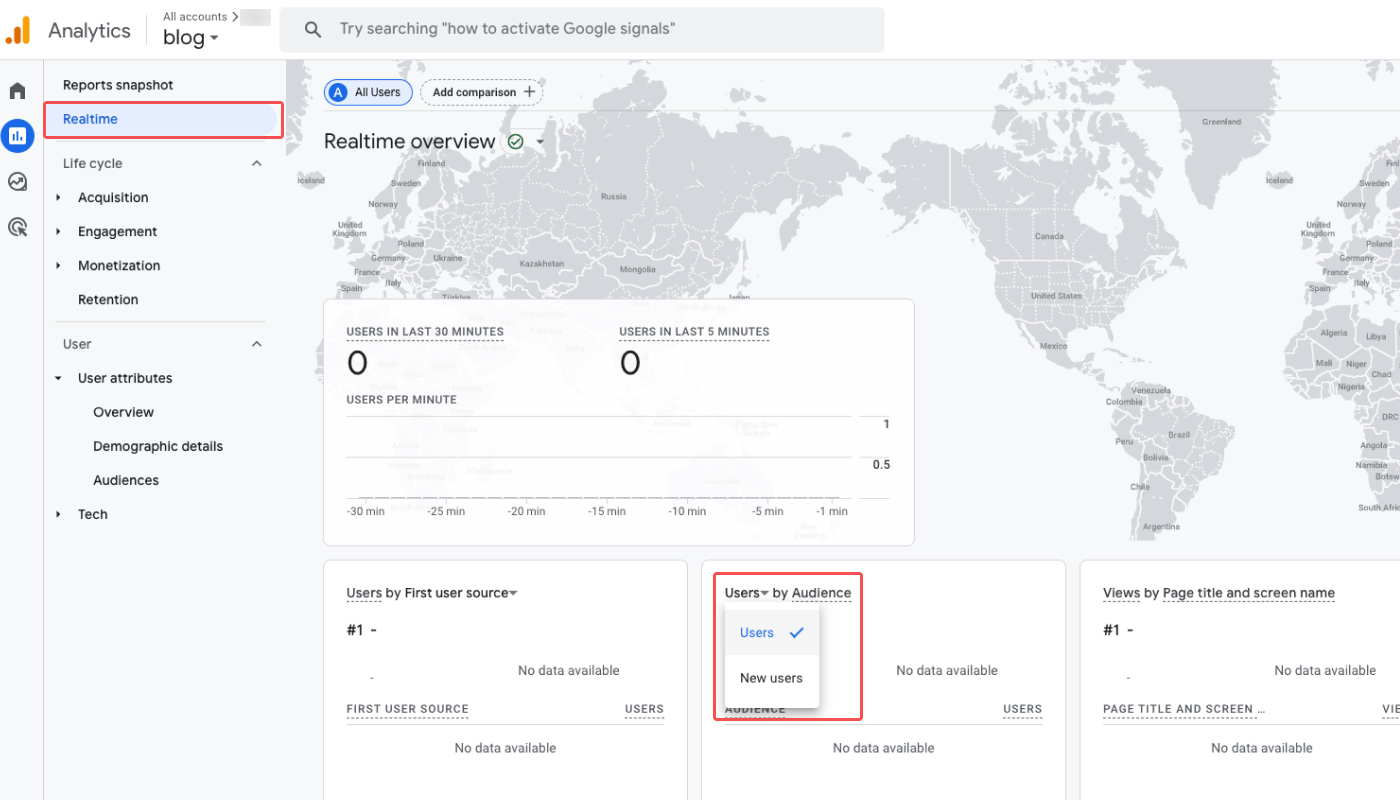
On the **\[Reports]>\[Realtime]** page, select **New Users** to view the number of new users of different audiences which is refreshed every 30 minutes with the data sent from Airbridge.
On the **\[Admin]>\[Events]** page, you can see the Airbridge events imported to GA4. Refer to the event mapping between Airbridge and GA4 below.
| Airbridge Events | GA4 Events |
| ----------------------- | ---------------------------- |
| Install (App) | abr\_app\_install |
| Deeplink Open (App) | abr\_app\_deeplink\_open |
| Deeplink Pageview (App) | abr\_app\_deeplink\_pageview |
The campaign, channel, sub-publisher of the events sent from Airbridge can be viewed in GA4. Navigate to **\[Reports]>\[Engagement>\[Key Events]** and click **+** next to **Event Name**.
Select an item from the **\[Traffic Source]**. Refer to the table below.
| Traffic Source | Description |
| ------------------- | ------------------------------------------------------------- |
| First User Campaign | The campaign by which the user was first acquired |
| First User Source | The source by which the user was first acquired |
| First User Medium | The medium by which the user was first acquired |
| Session Campaign | The campaign that was associated with with the deep link open |
| Session Source | The source by that was associated with the deep link open |
| Session Medium | The medium that was associated with the deep link open |
You can create a custom dimension for your GA4 reports using Airbridge event properties that have been sent to GA4 at least once. Refer to the steps below on how to create and use custom dimensions.
1. Navigate to **\[Admin]>\[Custom Definitions].**
2. Click **Create custom dimension**.
3. Select "User" as **Scope** and enter the **Dimension name**. Select the property sent from Airbridge as **User property** and click **Save**.
4. On the report overview pages, click the **\[comparisons]** icon and and set the properties sent from Airbridge as a dimension.
5. Add **Match type** and click **Apply**. The data will be visualized in graphs. If the Airbridge property is not visible in the **Dimension** drop-down, make sure a custom dimension has been created following the steps 1 to 3 described above.
## Attention
The **Install (App)**, **Deeplink Open (App)**, and **Deeplink Pageview (App)** events are imported to GA4 as custom events. The following table shows how the events are mapped.
| Airbridge Events | GA4 Events |
| ----------------------- | ---------------------------- |
| Install (App) | abr\_app\_install |
| Deeplink Open (App) | abr\_app\_deeplink\_open |
| Deeplink Pageview (App) | abr\_app\_deeplink\_pageview |
Note that, for example, the **Install (App)** event from Airbridge will be displayed as **abr\_app\_install** in GA4 instead of **first\_open,** which is the event name in GA4 that refers to the app install.
Data discrepancies may occur between GA4 and Airbridge due to varying reasons. Below are some of the primary causes of the discrepancy.
* The Airbridge events may be available in GA4 after up to 48 hours upon event collection.
* When you are new to GA4, no data may be available in your GA4 dashboard for up to 24 hours. Refer to this [article](https://support.google.com/analytics/answer/9311124?hl=en\&sjid=2971690427555244904-AP#not-processed) from Google to learn more.
* Data thresholds could be applied by Google and events may not be aggregated properly when the user count is too small. Refer to this [article](https://support.google.com/analytics/answer/9383630?sjid=12980315492831744503-AP) from Google.
* Airbridge uses the Airbridge Device ID to determine unique users, whereas GA4 uses the app-instance ID. This difference in how to determine unique users results in the differences in data.
**Airbridge Device ID**
Airbridge Device ID is a Universally Unique ID used to identify devices. As a default, GAID for Android and IDFA for iOS are used. If GAID or IDFA is unavailable due to LAT (Limited Ad Tracking) or ATT (App Tracking Transparency), IDFV or a randomly generated value is used instead.
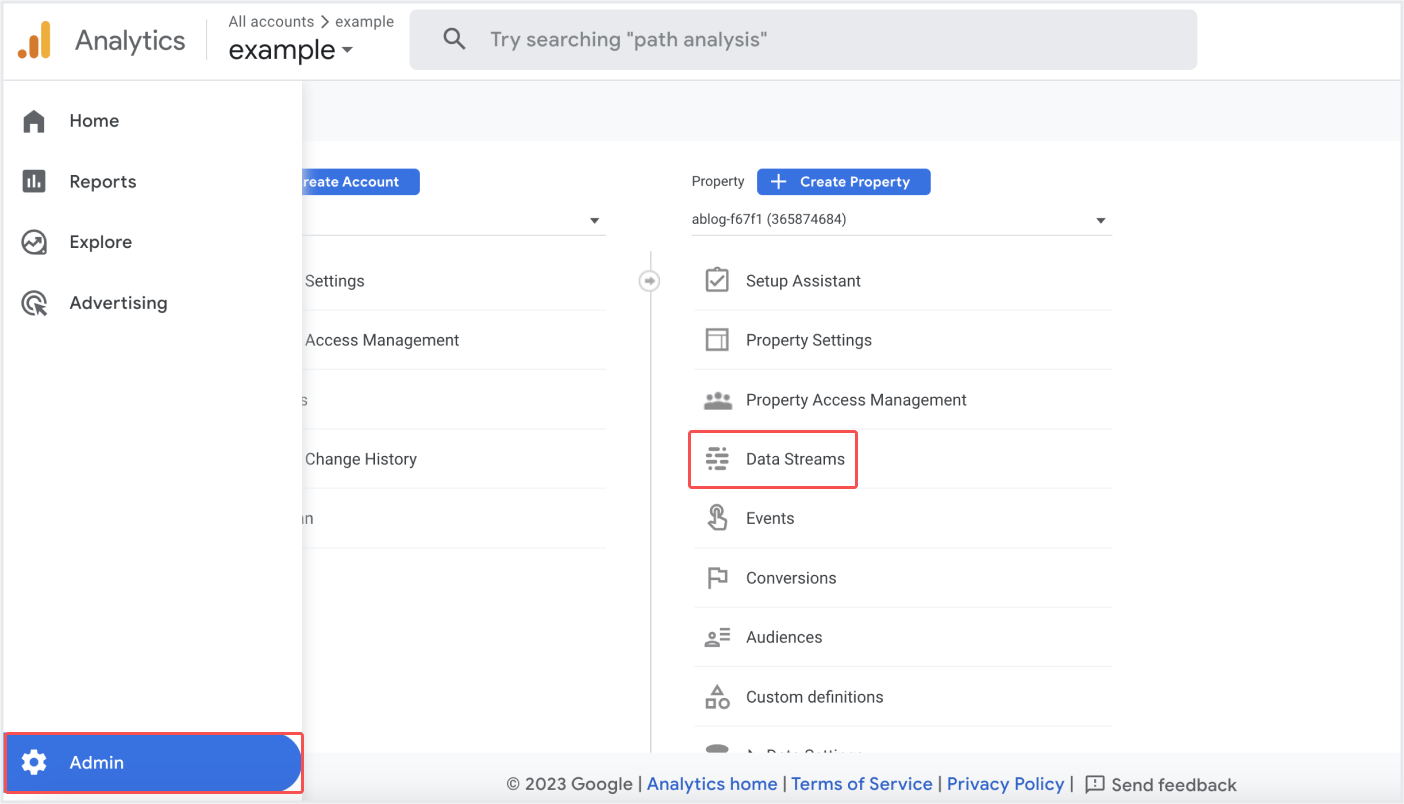 2. If you don’t have registered your app, select **Android App** or **iOS App** to register your app. If you have both Android and iOS apps, register them separately. For detailed instructions, refer to this [article](https://support.google.com/analytics/answer/9304153?hl=en\&ref_topic=9303319\&sjid=14188327478143327056-AP#zippy=%2Cios-%EC%95%B1-%EB%98%90%EB%8A%94-android-%EC%95%B1) from GA4.
 3. Once your app is registered in your GA4 account, select the app you want to integrate with Airbridge from the list.
 4. Copy and save the **FIREBASE APP ID** somewhere safe. Then, select **Measurement Protocol API secrets**.
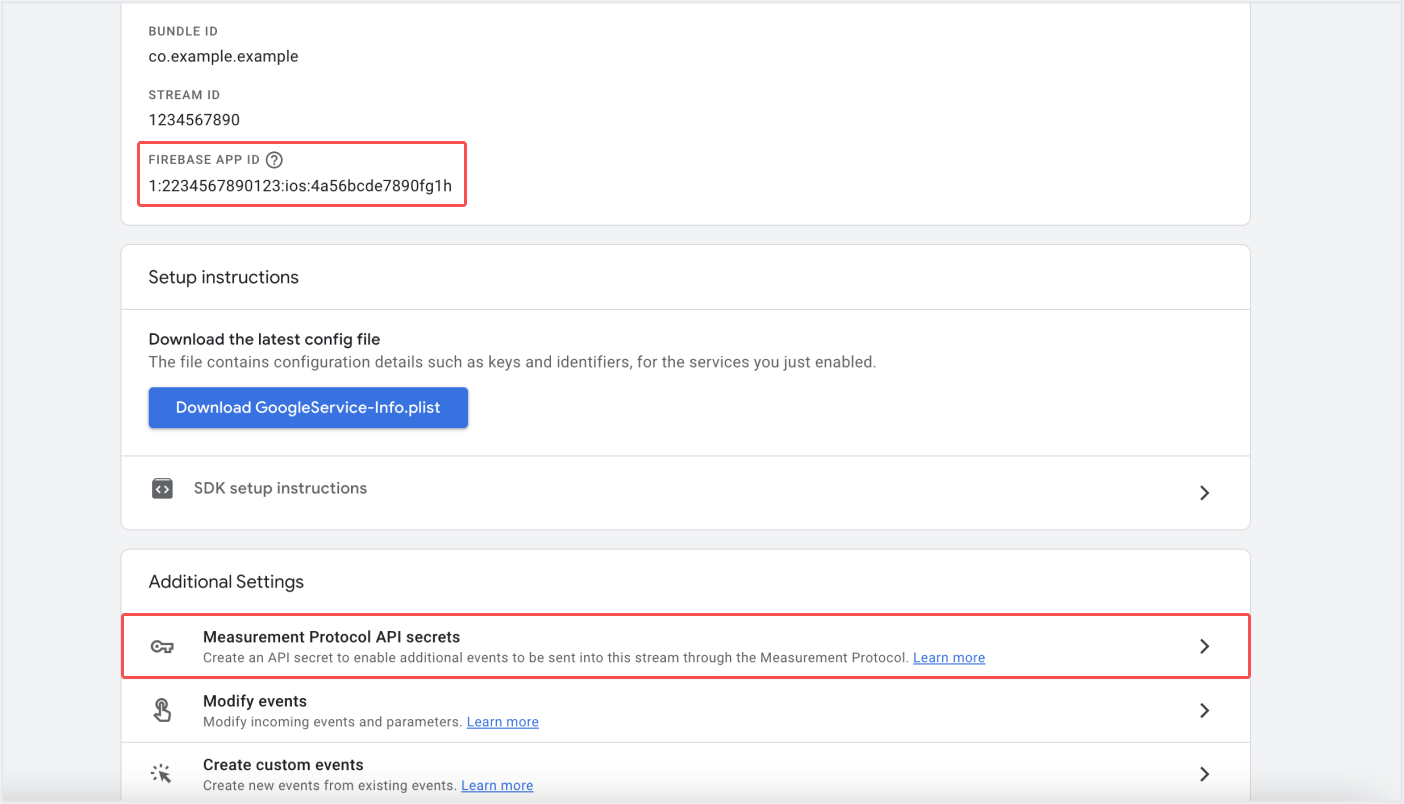 5. If there is no existing API Secret, click **Create** to create a new secret.
 6. Copy the new secret and save it somewhere safe. If you have both Android and iOS apps, you need to find and save the credentials for each OS separately.
 ### Configuring the integration details in Airbridge
1. Log in to your Airbridge account, navigate to **\[Integrations]>\[Third-party Integrations]**, and select **Google Analytics**.
### Configuring the integration details in Airbridge
1. Log in to your Airbridge account, navigate to **\[Integrations]>\[Third-party Integrations]**, and select **Google Analytics**.
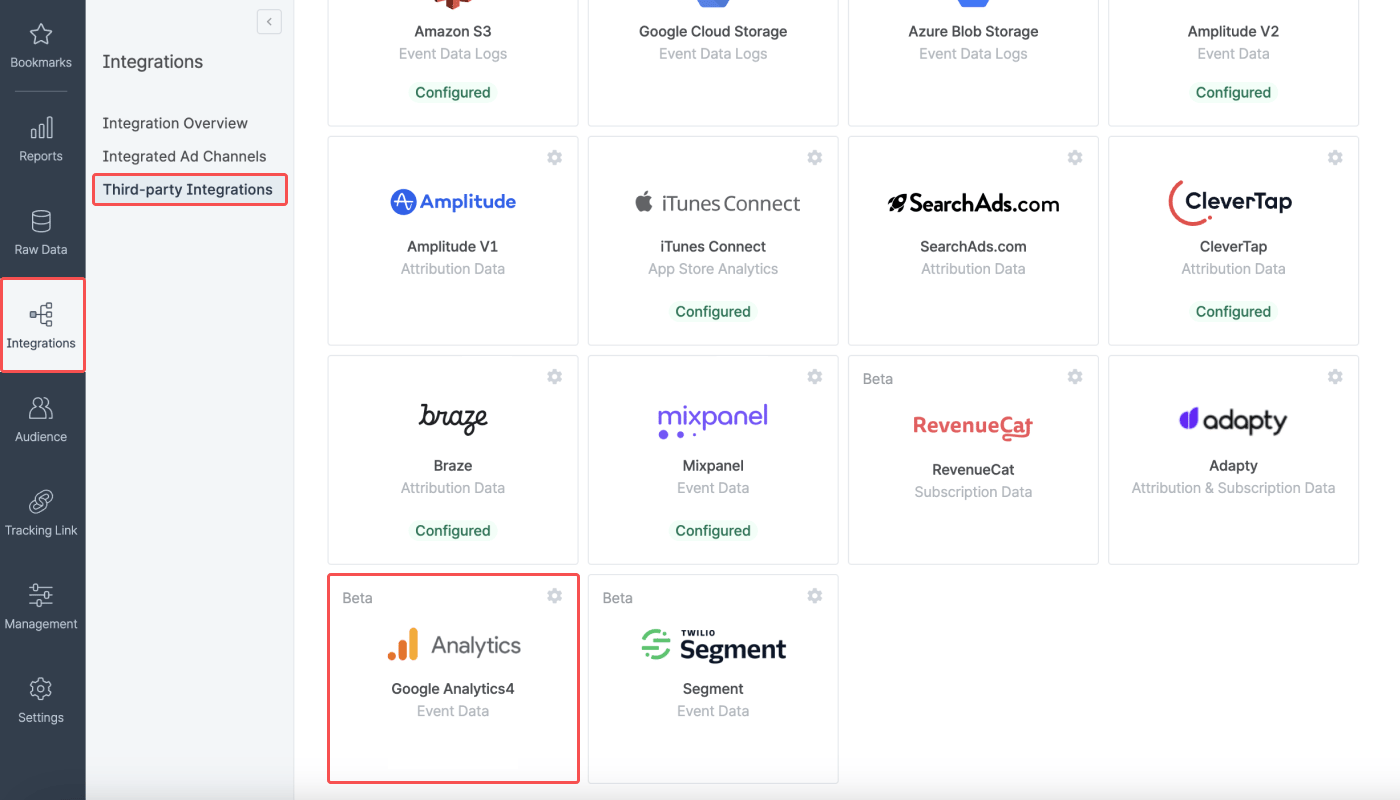 2. Click the **+ Add Connection (App)**.
 4. Select the Airbridge events you want to send to GA4. The **Install (App)** event is selected as default, and the **Deeplink Open (App)** and **Deeplink Pageview (App)** event is optional. The two events are reported as custom events in GA.
 5. Select the Airbridge event properties you want to send to GA4. Click **Select all** or **Clear all** button to select or clear all properties at once.
 6. If there are events and properties you don’t want to send, click the **+ Add Rule** button to set the data delivery rule. Setting the delivery rule is not mandatory and can be skipped.
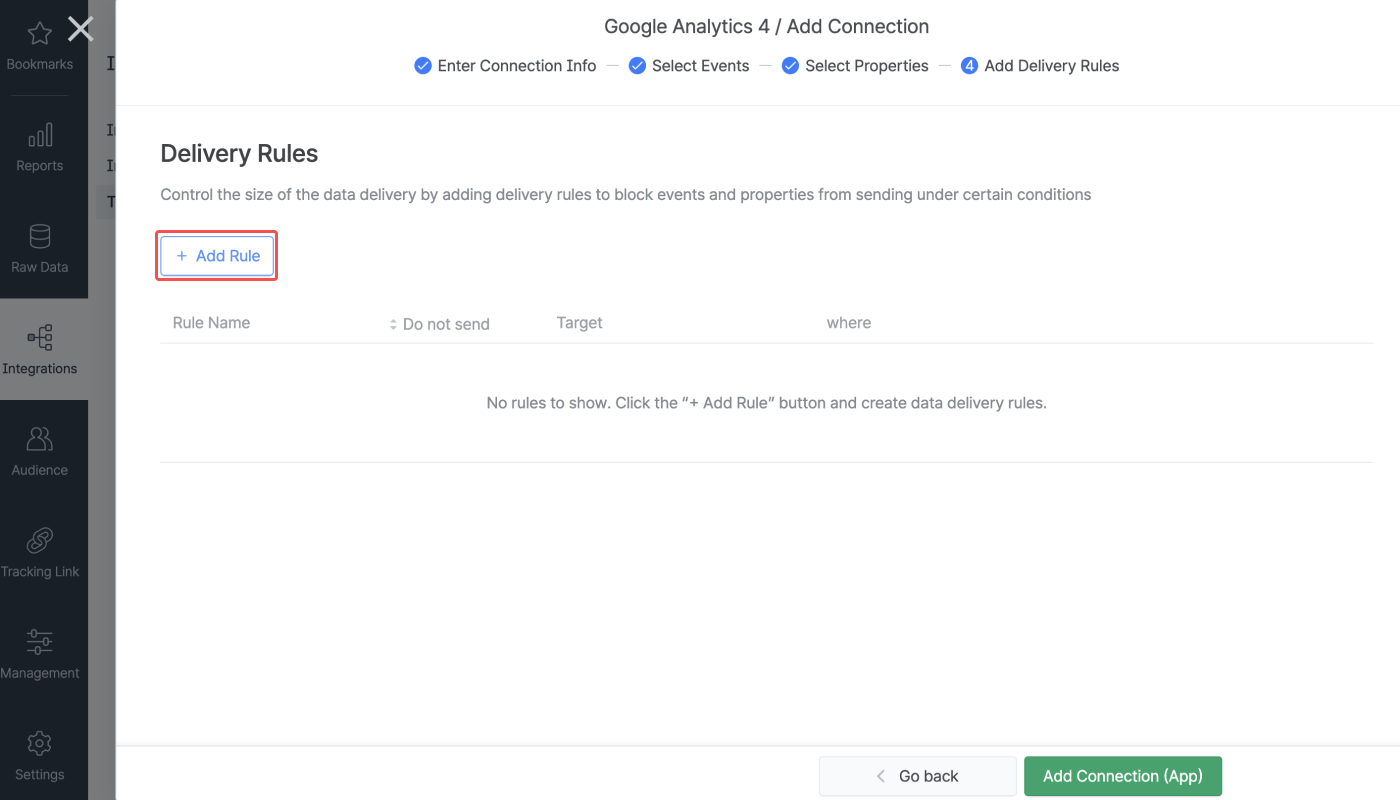 7. To add a delivery rule, click **+ Add Rule**, enter a unique name for the rule, and select the events or properties you don't want to send to GA4.
Select the conditions for the selected events and properties again on a per-event or per-property basis. You can add multiple conditions for a rule. For example, if you set the delivery rules as shown in the image below, Airbridge will not send the **Install (App)** events to GA4 where the `Channel` is `example_channel`, and the `Campaign` is not `example_campaign`.
However, if you want to set different conditions for events or properties that you don't want to send, you must add two or more rules separately.
7. To add a delivery rule, click **+ Add Rule**, enter a unique name for the rule, and select the events or properties you don't want to send to GA4.
Select the conditions for the selected events and properties again on a per-event or per-property basis. You can add multiple conditions for a rule. For example, if you set the delivery rules as shown in the image below, Airbridge will not send the **Install (App)** events to GA4 where the `Channel` is `example_channel`, and the `Campaign` is not `example_campaign`.
However, if you want to set different conditions for events or properties that you don't want to send, you must add two or more rules separately.
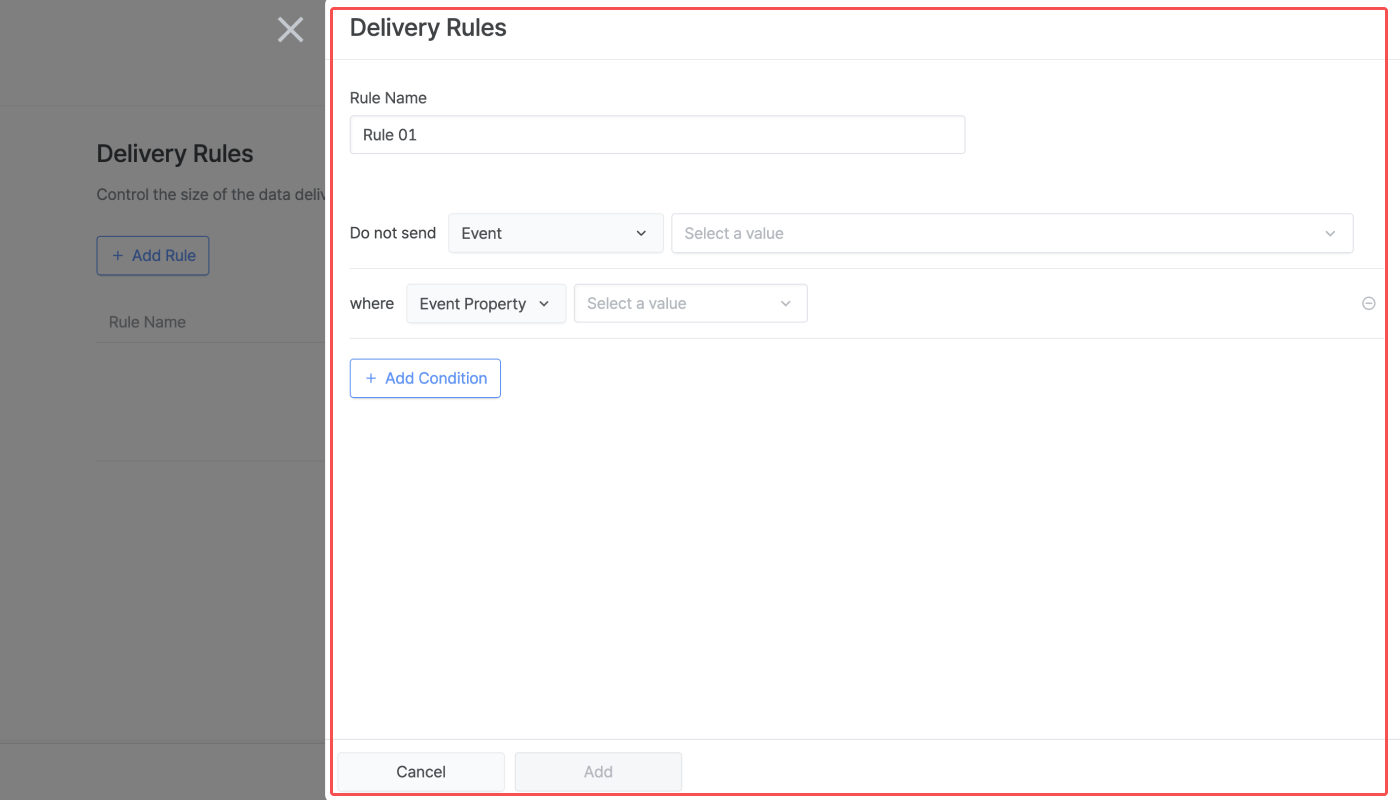 8. Once you have added all delivery rules, click **Add Connection**. Note that the events that are used for configuring the delivery rules cannot be unchecked from the events selector in the **\[Select Events]** step. You must first delete the relevant delivery rule if you don’t want to send certain events.
 9. Once the connection is added to the list, the status toggle is switched off by default. To activate the connection, switch on the toggle.
Or, when the status toggle of all connections are switched off, you can click the connection name of which you want to activate and click **Activate** to initiate the data delivery from Airbridge to GA4. Once the connection is activated, the connection status tag that appears next to the connection name will change to `Active`.
9. Once the connection is added to the list, the status toggle is switched off by default. To activate the connection, switch on the toggle.
Or, when the status toggle of all connections are switched off, you can click the connection name of which you want to activate and click **Activate** to initiate the data delivery from Airbridge to GA4. Once the connection is activated, the connection status tag that appears next to the connection name will change to `Active`.
 ### Supported features
#### Edit connection settings
Click the connection name to edit its settings, regardless of whether it is active or not. You can edit the event schema, delivery rules, and connection info. Be cautious when editing the connection settings of an active connection, as unintended events and event properties may be sent to GA4.
### Supported features
#### Edit connection settings
Click the connection name to edit its settings, regardless of whether it is active or not. You can edit the event schema, delivery rules, and connection info. Be cautious when editing the connection settings of an active connection, as unintended events and event properties may be sent to GA4.
 **Delivery Rules**
In the **\[Delivery Rules]** tab, view all delivery rules applied to the connection. Click **Add Rule** to add new delivery rules. Click the **\[gear]** icon to edit the rules. Click **Download** to export the delivery rules as a CSV file or Google Spreadsheet file.
**Delivery Rules**
In the **\[Delivery Rules]** tab, view all delivery rules applied to the connection. Click **Add Rule** to add new delivery rules. Click the **\[gear]** icon to edit the rules. Click **Download** to export the delivery rules as a CSV file or Google Spreadsheet file.