> ## Documentation Index
> Fetch the complete documentation index at: https://help.airbridge.io/llms.txt
> Use this file to discover all available pages before exploring further.
# Channel Integration - Google Ads
Airbridge supports integration with Google Ads. With the integration, you can track and measure the performance of your Google Ads campaigns in Airbridge.
**Note**
To use Target ROAS (tROAS) bidding in Google Ads App campaigns, the Firebase SDK is required. For more details, refer to [About Target ROAS bidding](https://support.google.com/google-ads/answer/6268637?hl=en#:~:text=For%20App%20campaigns%2C%20you%27ll%20also%20have%20to%20install%20the%20Google%20Analytics%20for%20Firebase%20SDK%20in%20your%20app.%20The%20conversion%20events%20that%20you%27re%20bidding%20on%20\(and%20sending%20values%20with\)%20should%20come%20from%20the%20Firebase%20SDK.).
## Integration Setup
To implement channel integration, you need to create a Google Ads Link ID and submit it to Airbridge. Then, the Airbridge events must be imported to Google Ads and set as conversion actions. Follow the instructions below for the integration setup.
### Create Google Ads Link ID
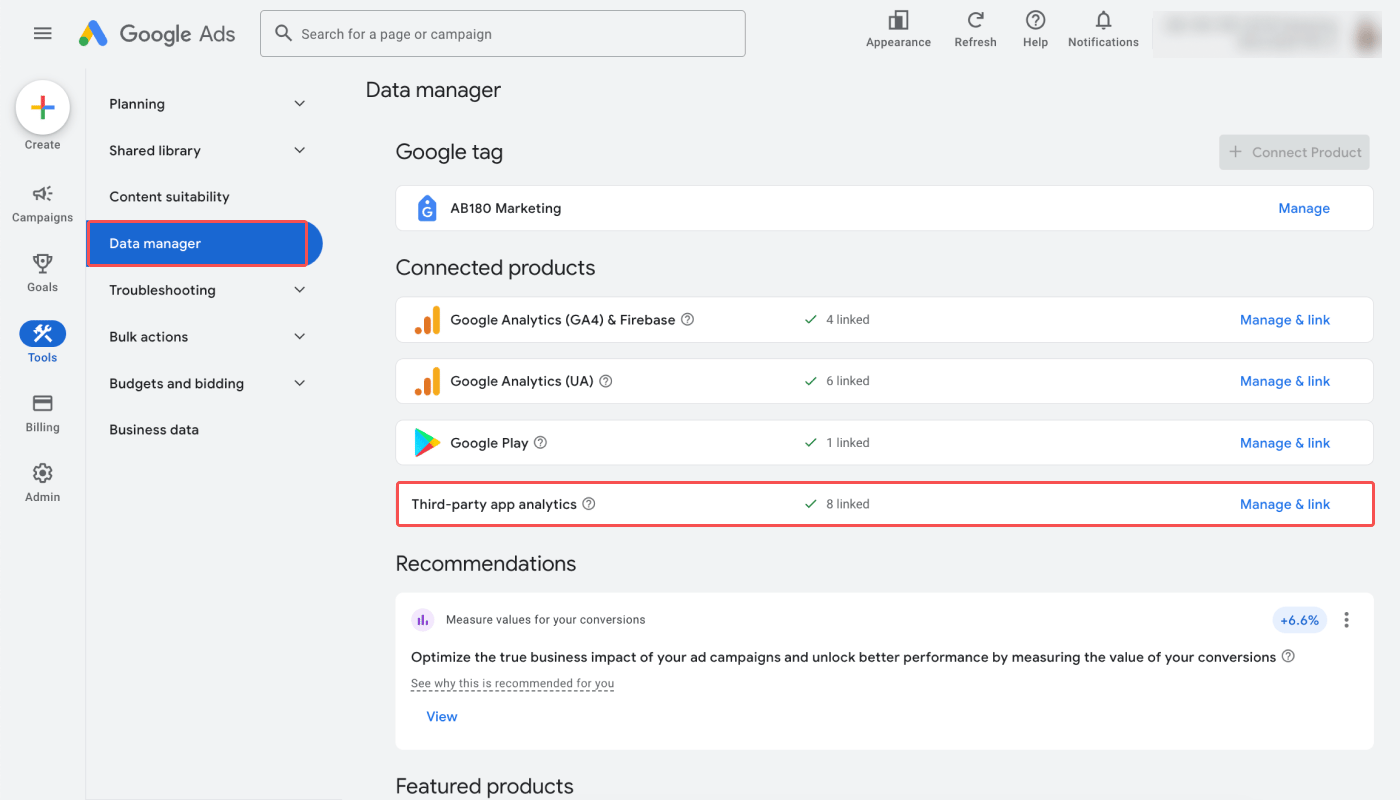
1. Log in to your Google Ads account and navigate to **\[Tools]>\[Data manager].**
2. Find **Third-party app analytics** and click **Manage & link**.
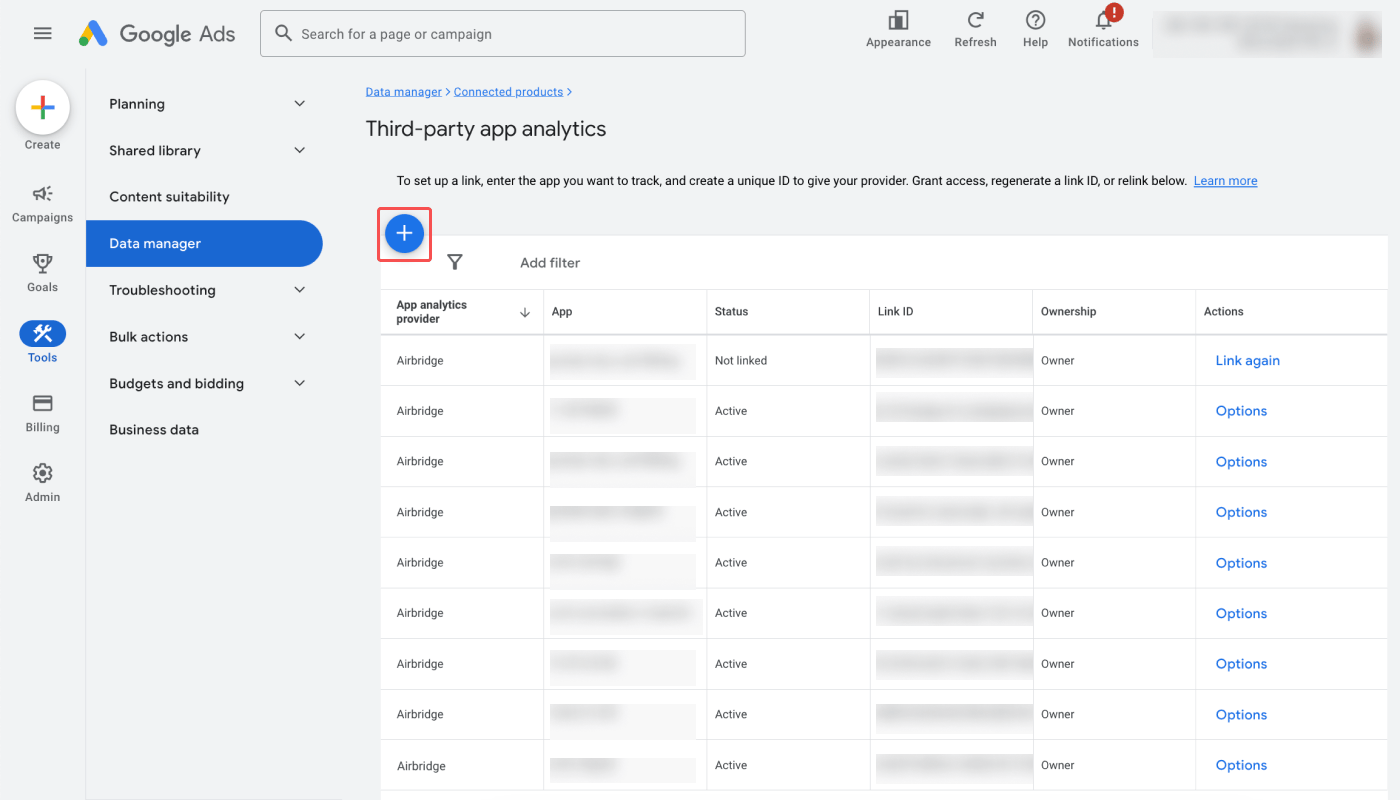
3. Click the **\[plus]** icon to create a new link ID.
4. In the modal window, select **Airbridge** as the app analytics provider.
5. Select your mobile app's platform.
6. Select your app under **\[Look up your app]**, and click **Create link ID** to get your link ID. You need to create a link ID for each platform if you have apps on different platforms.
7. Apps connected to Airbridge can be found in the **\[Tools]>\[Data manager]** under "Third-party app analytics." Click **Manage & link,** and click the **\[plus]** icon to create a new link ID for an app.
### Submit the Google Ads Link ID to Airbridge
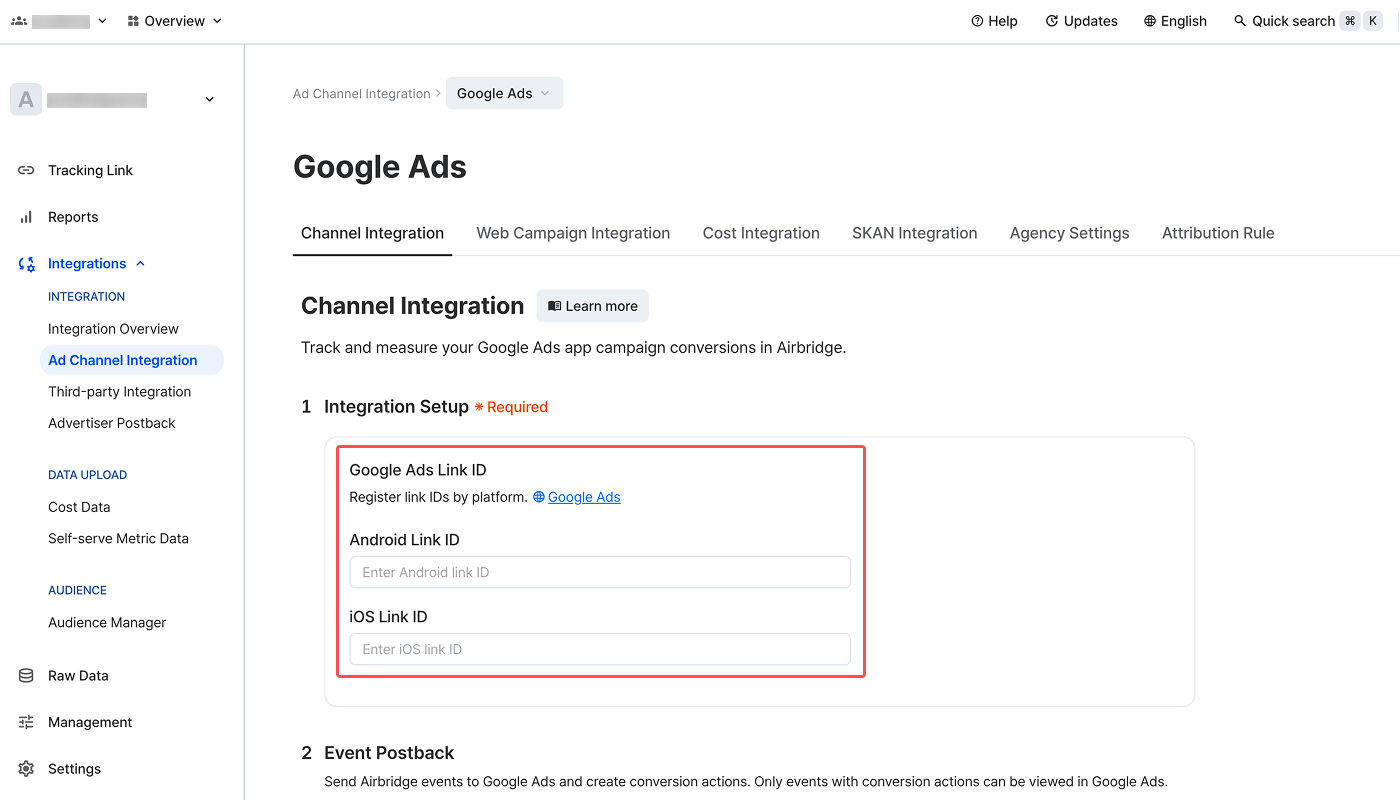
Once you have copied the Google Ads link ID, log in to your Airbridge account, navigate to **\[Integrations]>\[Ad Channel Integration]**, select **Google Ads**, and paste it into the corresponding link ID field. Make sure you paste the link ID into the correct field, as the link IDs for Android and iOS apps are different.
### Set up event postback
Send events collected by Airbridge to Google Ads to optimize your campaigns.
#### Default postbacks
Once you register the required credentials, Airbridge automatically maps and sends the following events to Google Ads.
| Airbridge Event | Google Ads Event |
| ----------------------- | --------------------------- |
| Install (App) | first\_open |
| Re-install (App) | reinstall\_open |
| Deeplink Open | session\_start |
| Deeplink Pageview (App) | airbridge.deeplink.pageview |
#### In-app event postbacks
You can send additional in-app events to optimize Google Ads campaigns. Map Airbridge events to the names that will appear in Google Ads.
Click **Add** to add a new event mapping. Select an Airbridge event first, then select a Google Ads event. You can map different Airbridge events to the same Google Ads event. At least one event mapping is required to save.
Presets offer pre-mapped event pairs between Airbridge and Google Ads. When you select an Airbridge event with a **\[Preset]** tag, the corresponding Google Ads event is automatically mapped. You can change the preset mapping by selecting a different Google Ads event. The tag will change to **\[Preset Off]**, and you can restore the preset mapping by clicking **Reset to preset** on the right.
| Airbridge Event | Google Ads Events |
| --------------------- | --------------------- |
| Install (App) | first\_open |
| Re-install (App) | reinstall\_open |
| Open (App) | session\_start |
| Deeplink Open (App) | session\_start |
| Product Catalog (App) | view\_item\_list |
| Search Results (App) | view\_search\_results |
| Product View (App) | view\_item |
| Add To Cart (App) | add\_to\_cart |
| Order Complete (App) | ecommerce\_purchase |
**Note**
You can’t create a conversion action with an **Uninstall (App)** event because Airbridge doesn’t send it to Google Ads.
Non-preset Airbridge events appear in Google Ads as Event Categories. Events mapped to Google Ads standard events appear as the mapped standard events. Refer to the articles below for more details.
* [Standard Event Categories](/en/guides/airbridge-event-types#list-of-standard-events)
* [Custom Event Category naming rules](/en/guides/airbridge-event-elements#rules-and-limitations-for-event-category)
**Note**
Non-preset Airbridge events mapped from March 5, 2026 will have the `abr_` prefix added to their Category.
After mapping events, click **Save** to start sending in-app events. You can add or modify event mappings anytime by clicking **Edit**. Click on any mapped Airbridge event or Google Ads event to change it to a different event. You can also delete a mapping by clicking **Delete** on the right.
### Create Conversion Actions in Google Ads
To measure conversions in Google Ads and view the data in Airbridge, you need to create [conversion actions](https://support.google.com/google-ads/answer/6032150?sjid=4187257647244563154-NC) with Airbridge events in Google Ads. Make sure to complete all steps below.
**Attention**
Due to a Google Ads policy change, conversion actions are auto-created for events first sent after December 2025. For events sent before then, create conversion actions manually.
* Go to your Google Ads dashboard to check that conversion actions for all necessary events are created.
* To view events sent before December 2025 in Google Ads, manually create conversion actions for them.
1. Log in to your Google Ads account and navigate to **\[Goals]>\[Conversions]>\[Summary]**.
2. Click **+ Create conversion action**.
3. Select **App**.
4. Click **Edit** in the "Conversions on an app."
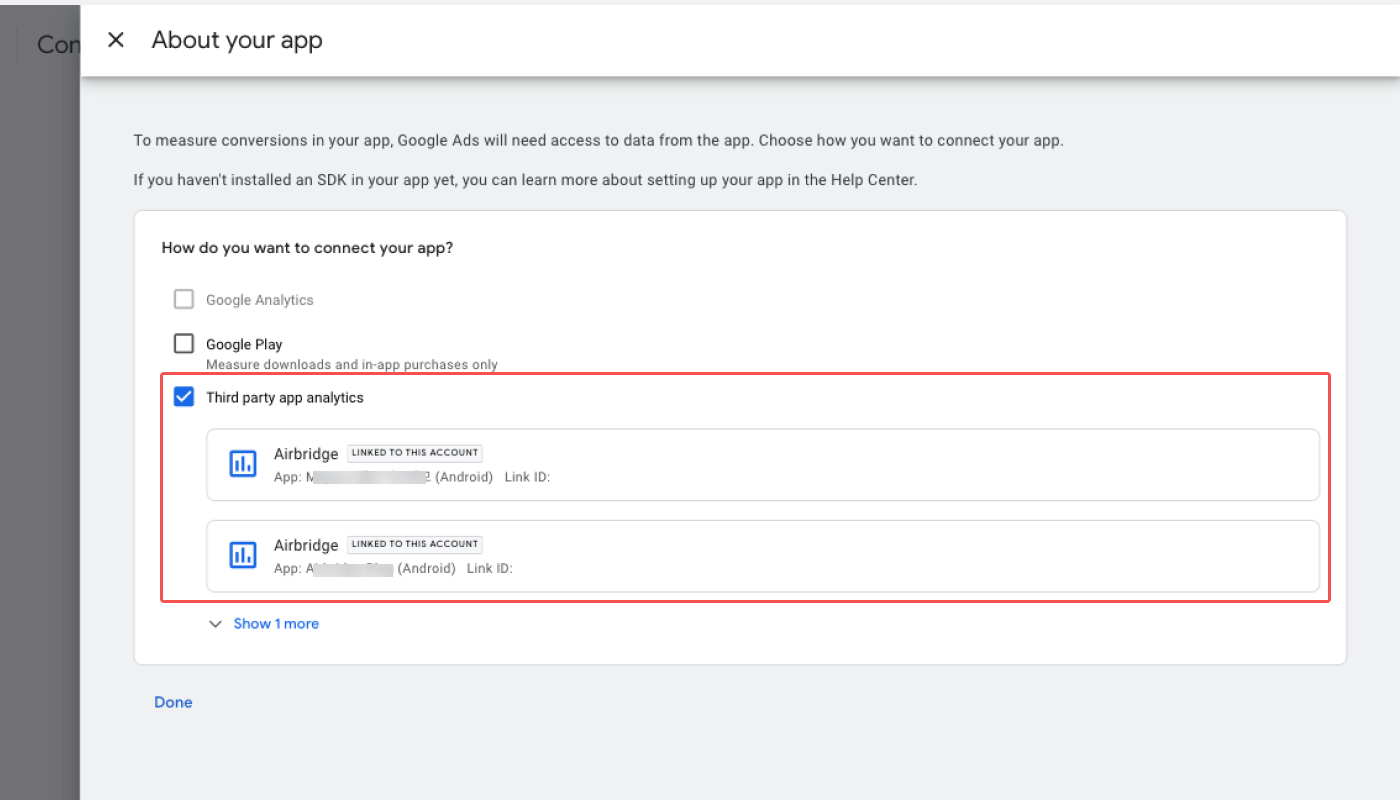
5. Select **Third party app analytics** and click **Done**. When the drawer closes, click **Continue**.
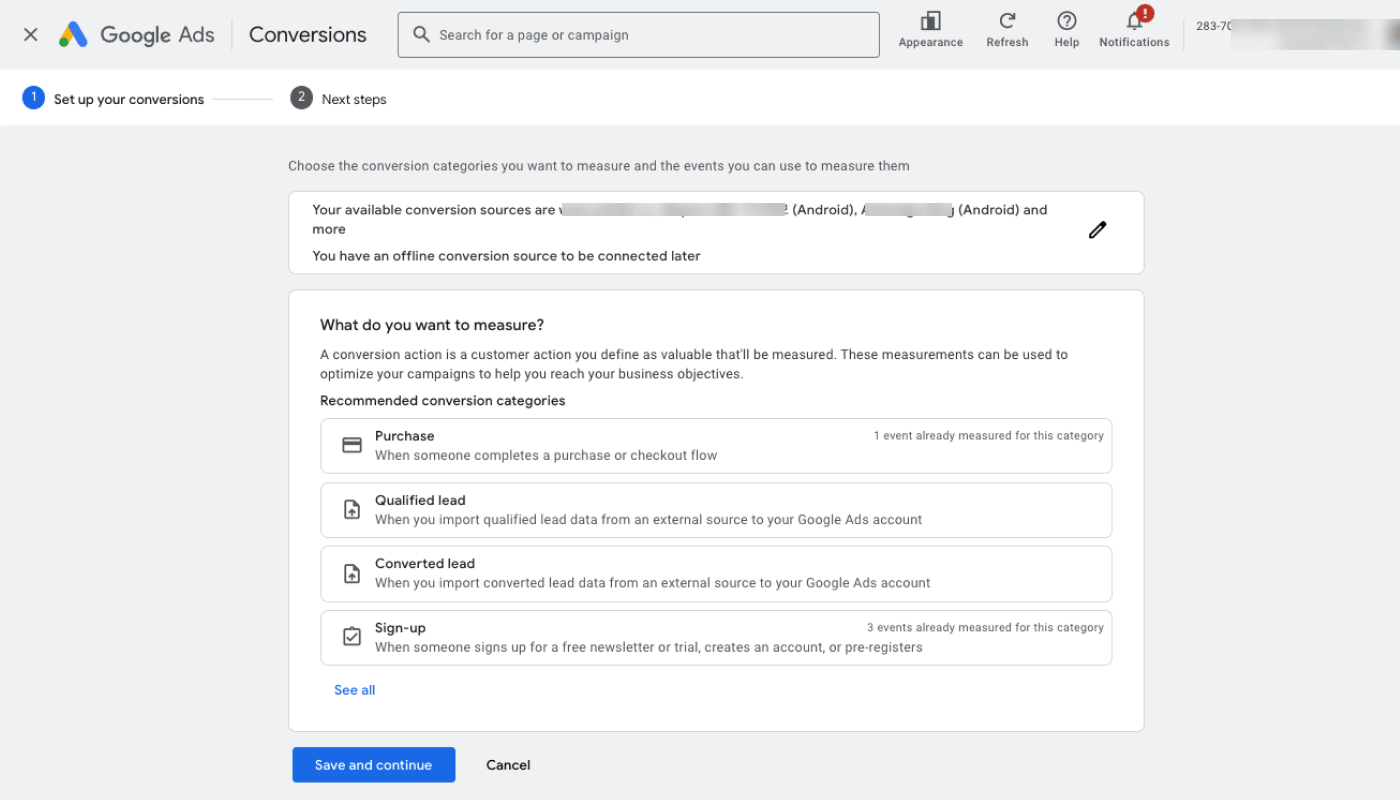
6. Select the conversion category you want to add conversion actions.
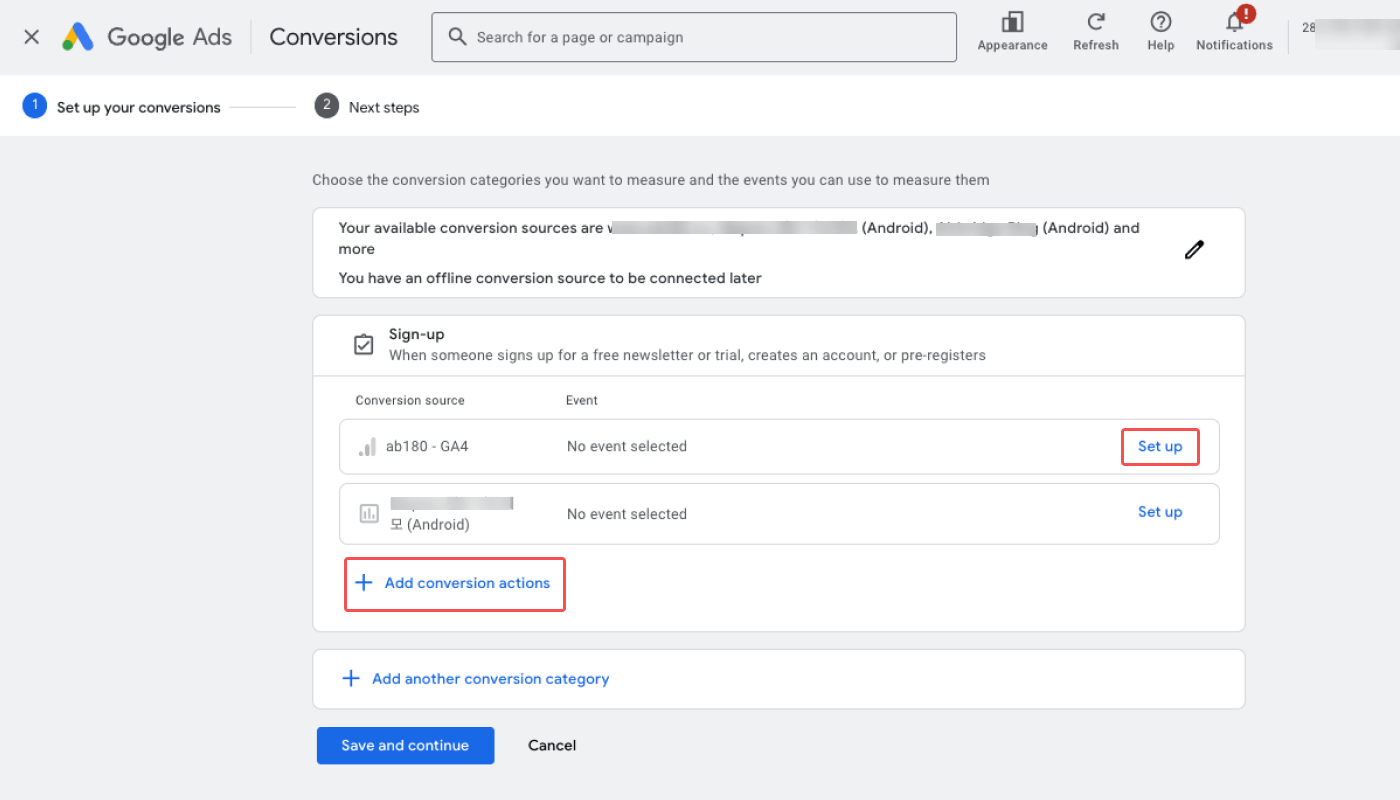
You can create a conversion action for a specific category of edit the set up.
**Note**
You must create a conversion action for the **first\_open** event. Click **Add conversion actions** and select **first\_open**.
#### Troubleshooting
If you can’t see the conversion actions in the conversion actions table or if the Google Ads campaign data is not visible in Airbridge, follow the instructions below for troubleshooting.
Make sure you provided the correct Google Ads link ID to Airbridge. The link IDs are different for Android and iOS apps.
If you want to add a conversion action to a conversion category but can't find it in the list, check whether you have removed the particular conversion action. If the "Tracking status" of the conversion action shows `Removed`, you need to change the status to `Enabled`.
1. Navigate to **\[Goals]>\[Conversions]>\[Summary]** and click **View all conversion actions**.
2. Click the **\[Status]** filter at the top of the table and select **All**.
3. Select the conversion action with the "Tracking status" showing `Removed`, click **Edit** on top of the table, and select **Enable.**
Once the conversion action is enabled again, it can also be found again under **\[Goals]>\[Conversions]>\[Summary]**.
Make sure you imported the right Airbridge events as conversion actions, as Google Ads will only track the conversions in the conversion actions table.
If you have defined a new Airbridge custom event and want to track it as a conversion action in Google Ads, you need to import it to Google Ads.
Navigate to \[Goals]>\[Conversions]>\[Summary] and check whether the conversions are being recorded correctly by monitoring the conversion tracking status. Read this [Google article](https://support.google.com/google-ads/troubleshooter/10028419?hl=en\&visit_id=638279436131407831-643685682\&rd=1\&sjid=673431294191329889-AP#ts=10031148%2C10029061) to learn more.
The Airbridge events must be collected by Airbridge after the Google Ads link ID has been registered to Airbridge in order to be made available in the list for import. It may take up to 6 hours for the Airbridge events to be made available in Google Ads from the time the corresponding Airbridge events are collected in Airbridge.
**Note**
The integration status is updated on an hourly basis in Airbridge. Therefore, the Google Ads integration status of “App Integration (Android)” and “App Integration (iOS)” in the \[Integrations]>\[Integration Overview] page may display “Waiting” up to 1 hour after you complete the integration setup process.
### Enable auto-tagging
Google has introduced GCLID and gBraid to measure ad performance while protecting user privacy. gBraid is used for devices that have opted out of tracking.
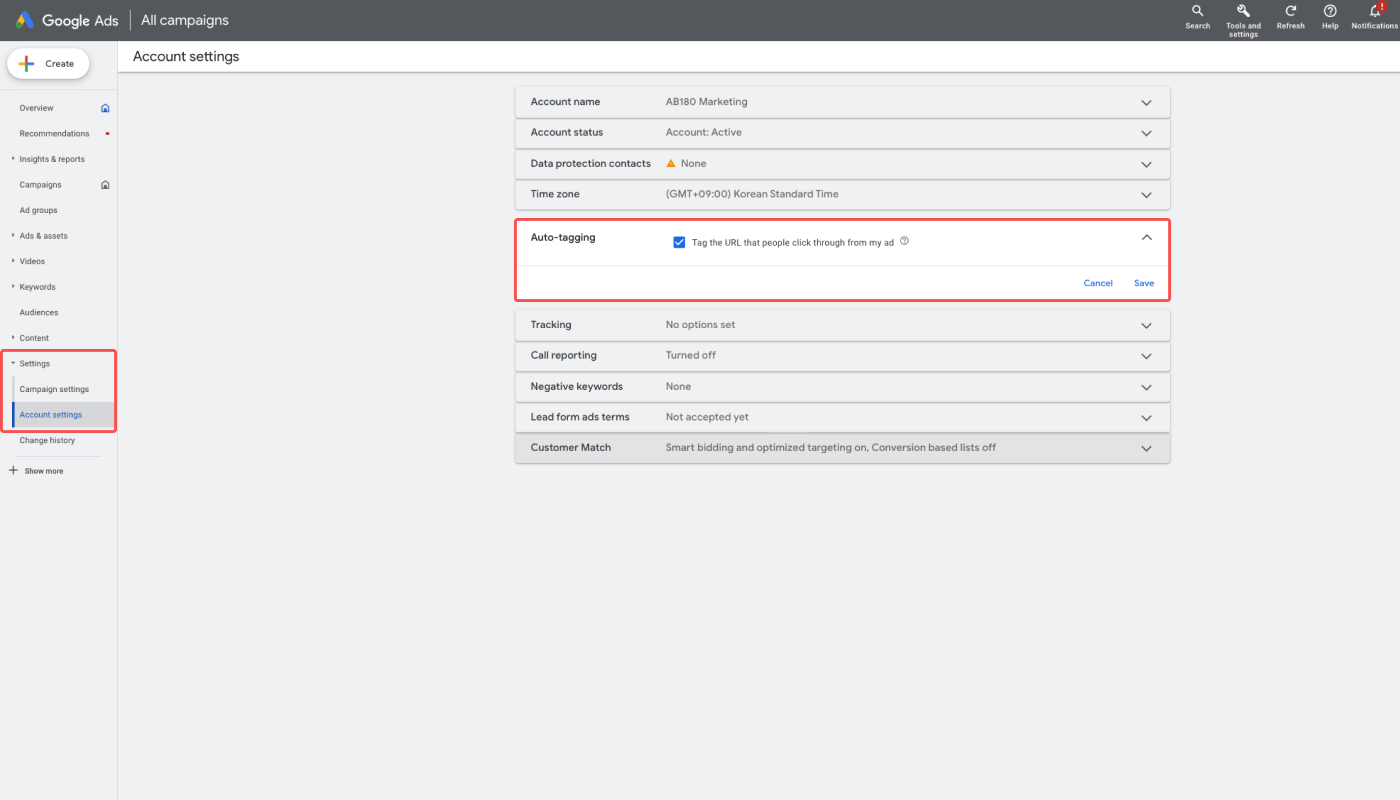
To use GCLID and gBraid for attribution, you must enable the auto-tagging feature in your Google Ads dashboard. Navigate to **\[Settings]>\[Account Settings]** and check the checkbox to enable auto-tagging.
**Note**
For Android 12 and later devices that have opted out of personalized ads, identifiers such as GCLID or the [Google Play Install Referrer](https://developer.android.com/google/play/installreferrer) are used due to the absence of GAID.
In line with the enhanced privacy protection policy, [gBraid is used to measure campaign performance](https://support.google.com/google-ads/answer/10417364?hl=en#gbraid) for devices that have opted out of app tracking. The gBraid parameter provides anonymized and aggregated conversion data to advertisers, allowing for privacy-preserving attribution.
GCLID is also used to optimize Google Ads web campaigns. For more information, refer to the information below.
A user may click a Google Ads web ad and be redirected to a webpage where they click a CTA button to install or launch an app. In this case, Airbridge collects GCLID, which can be sent to Google Ads via postbacks for campaign optimization.
To include GCLID in postbacks, the events being sent should:
* Have occurred within 180 days of the GCLID being generated
* Not be an app open event
The App Open events don't include Deeplink Open events.
### Attribution rule settings
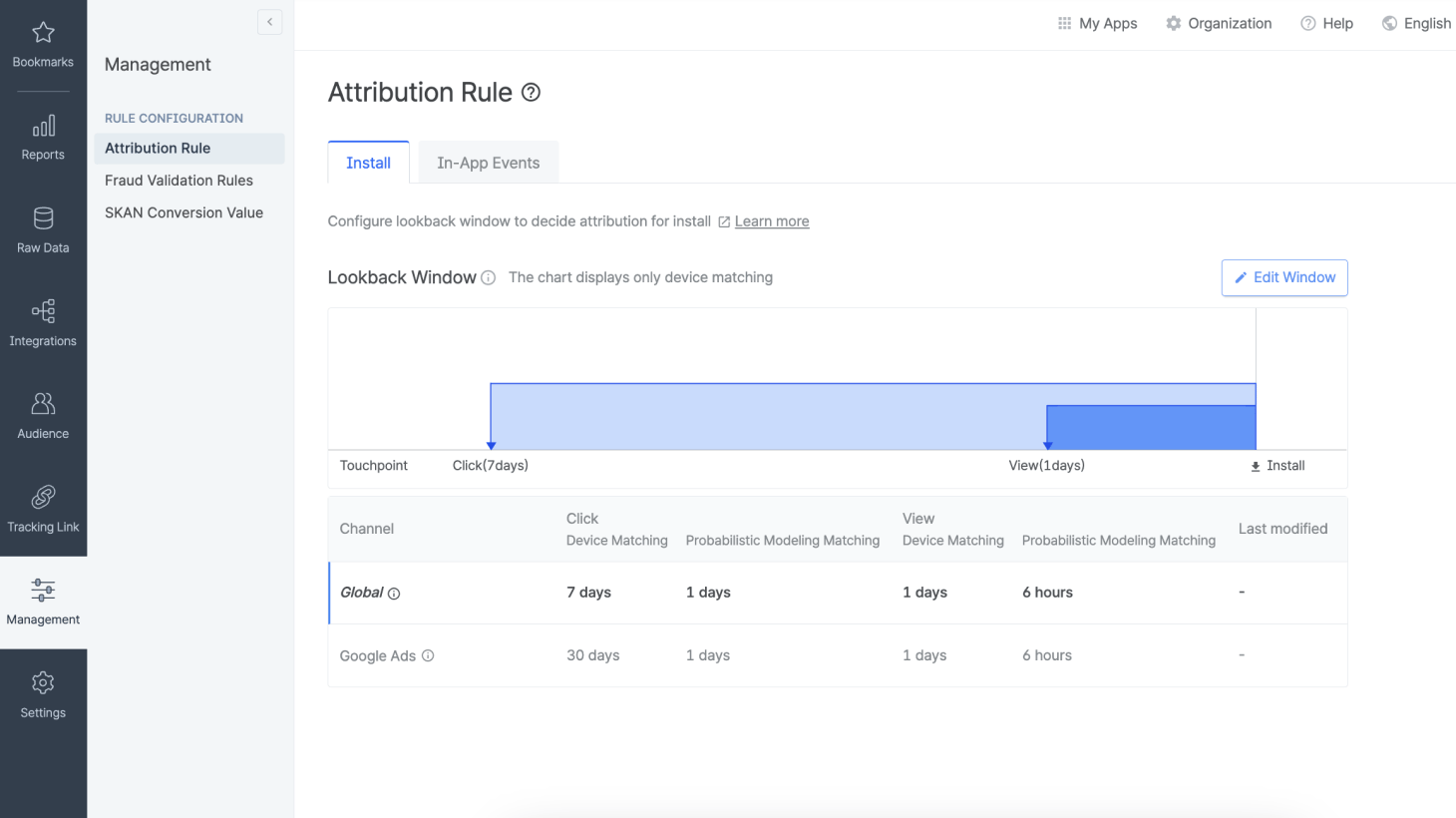
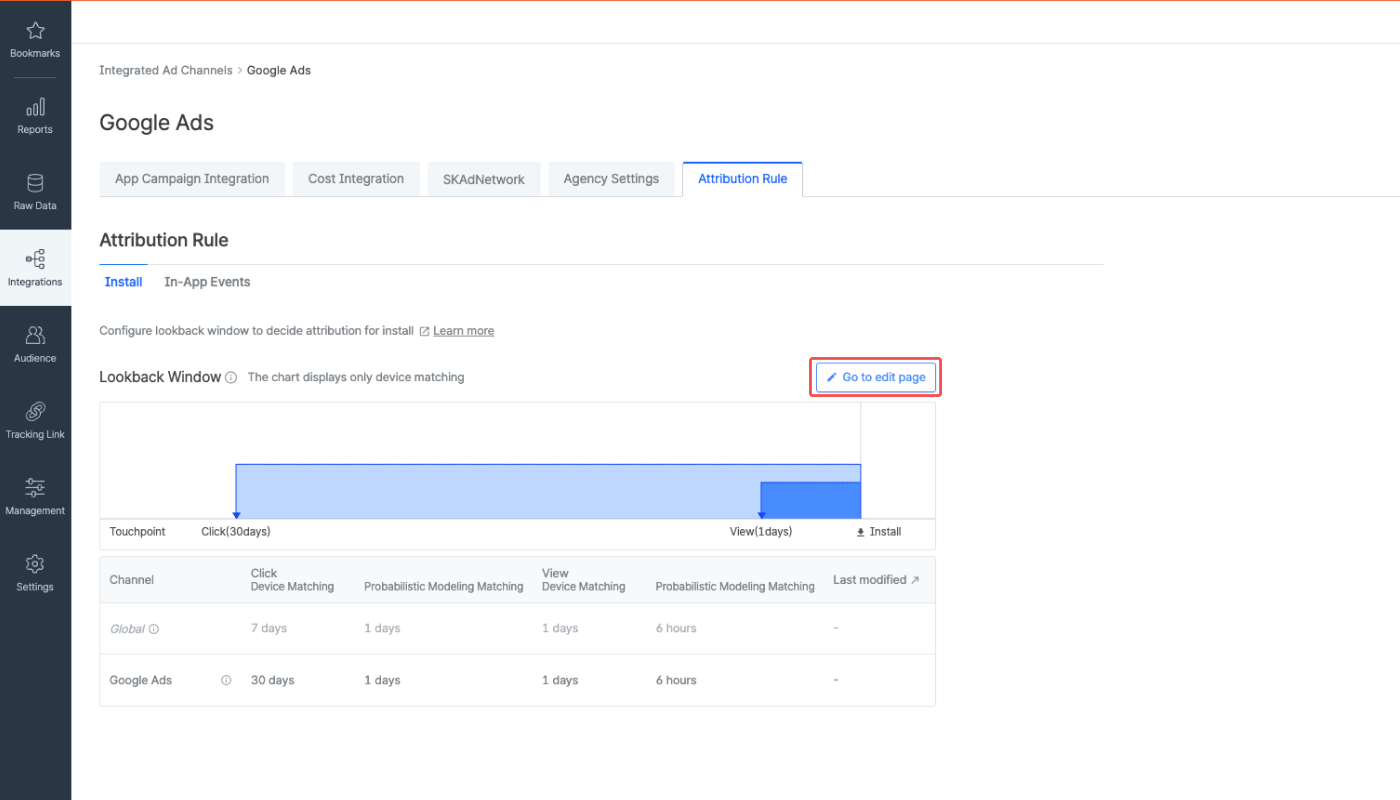
In the **\[Attribution Rules]** tab, you can view the attribution rules for Google Ads. Click **Go to edit page** to move to the **\[Management]>\[Attribution Rules]** page, where you can edit the attribution rules.
To learn about the detailed instructions on how to set the attribution rules, follow this [article](/en/guides/setting-attribution-window).
The default click lookback window when using device matching is 7 days for all ad channels except Google Ads, whose default is 30 days. The 30-day lookback window allows you to minimize attribution discrepancy by having Airbridge and Google Ads share the same lookback window.
If you want to add a conversion action to a conversion category but can't find it in the list, check whether you have removed the particular conversion action. If the "Tracking status" of the conversion action shows `Removed`, you need to change the status to `Enabled`.
1. Navigate to **\[Goals]>\[Conversions]>\[Summary]** and click **View all conversion actions**.
2. Click the **\[Status]** filter at the top of the table and select **All**.
3. Select the conversion action with the "Tracking status" showing `Removed`, click **Edit** on top of the table, and select **Enable.**
Once the conversion action is enabled again, it can also be found again under **\[Goals]>\[Conversions]>\[Summary]**.
The lookback window for the [app campaigns for pre-registration](https://support.google.com/google-ads/answer/9441180?hl=en) (ACpre) on Google Ads is fixed to 90 days, regardless of your attribution settings on Airbridge.
The lookback window for ACpre can't be viewed or modified in the Airbridge dashboard. If you want to modify the lookback window for ACpre, contact your Airbridge CSM.
For Google Ads campaigns, engaged views follow the same attribution rules as clicks. Thus, the engaged view lookback window is the same as the “click device matching lookback window” in the Airbridge dashboard. Airbridge does not provide an option to configure a separate lookback window for engaged views.
For more information about engaged views, refer to this [article](/en/guides/ad-channel-touchpoint-types#google-ads).
## How to View Google Ads Campaign Data in Airbridge
Google Ads provides different data sets for different campaigns. The scope of data available is subject to change depending on Google Ads’ data policy. If you can’t view some of the data sets, check your campaign type and the scope of data available. For more details, read this [Google Ads article](https://developers.google.com/app-conversion-tracking/api/request-response-specs#conversion_tracking_response).
###### Campaign
| **Properties** | **When it is provided** | **Example** |
| ---------------------------------------------------------------------------------- | ------------------------------------------------------------------------------------------- | ------------------------------- |
| Campaign name (created by marketers) | Always | airbridge campaign, AB test ads |
| Campaign ID (created by Google Ads) | Always | 12345678 |
###### Ad group
| **Properties** | **When it is provided** | **Example** |
| ---------------------------------------------------------------------------------- | ------------------------------------------------------------------------------------------- | ------------------------------ |
| Ad group name (created by marketers) | Provided for ACi, ACe, and ACpre campaign types only | AB180 ads, airbridge target ad |
| Ad group ID (created by Google Ads) | Always | 34567812 |
However, for the following ad groups, only the ad group ID is provided:
* Ad groups that were created or had settings changed before September 15, 2021
* Ad groups containing ads that triggered events that occurred before September 15, 2021
###### Ad creative
| **Properties** | **When it is provided** | **Example** |
| ---------------------------------------------------------------------------------- | ------------------------------------------------------------------------------------------- | ----------- |
| Ad creative name | Non-existent | - |
| Ad creative ID (created by Google Ads) | Campaigns other than ACi, ACe campaigns | 34567812 |
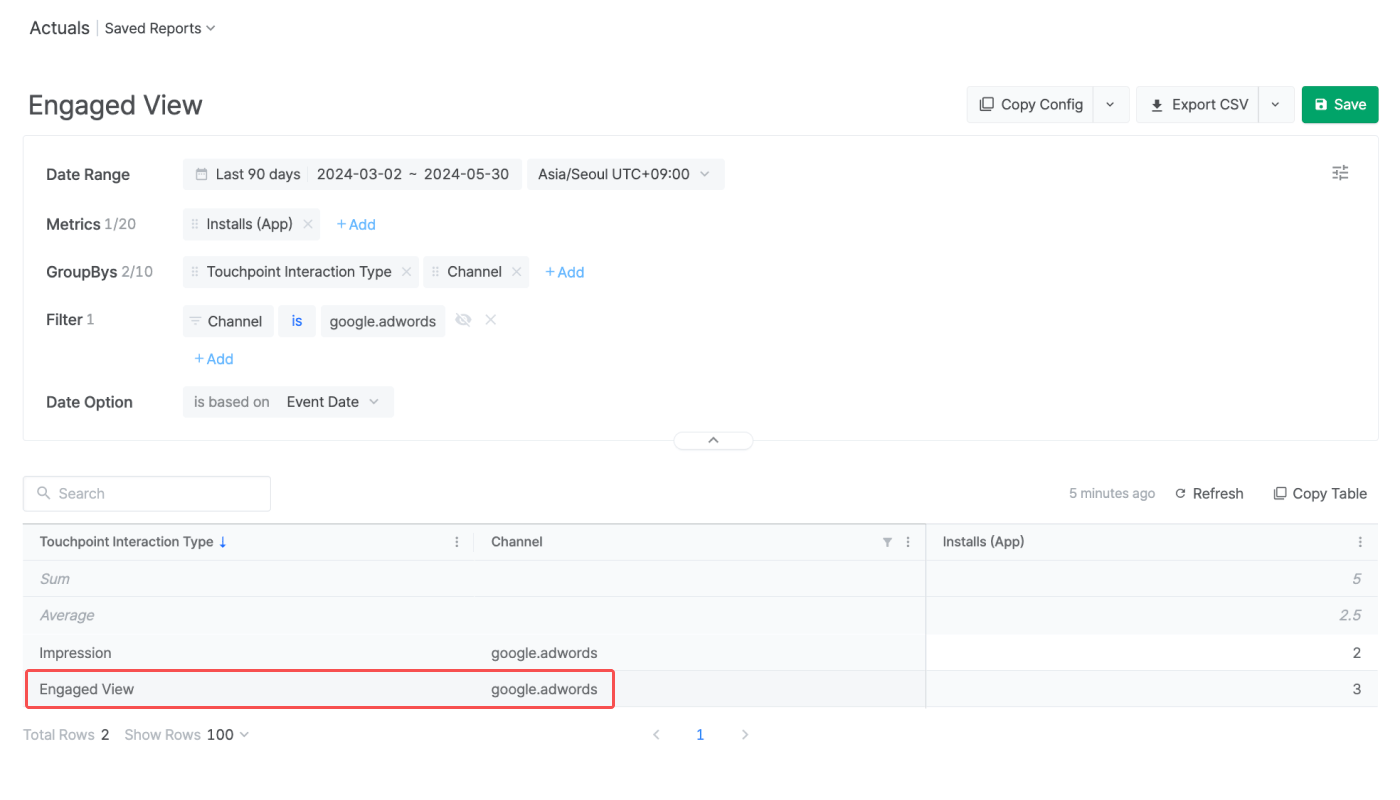
You can track engaged views from Google Ads campaigns in Airbridge. Select “google.adwords” as the channel to access any Google Ads campaign data.
Engaged views are available for Video campaigns, App campaigns, Display campaigns, Demand Gen campaigns, and Performance Max campaigns. For more information about engaged views, refer to this [article](/en/guides/ad-channel-touchpoint-types#google-ads).
**Airbridge reports**
In the Actuals Report or the Trend Report, select “Touchpoint Interaction Type” as the GroupBy or filter and use “Engaged View” to view the data.
**Raw data**
Navigate to **\[Raw Data]>\[App Raw Data]** and select “Touchpoint Interaction Type” as an event property.
Refer to this [article](/en/guides/checking-raw-data) for detailed instructions on raw data export.
Or navigate to **\[Raw Data]>\[App Real-time Log]** and search for `attributedInteractionType`.
Google provides the ICM attribution data, which is the non-deterministic attribution data provided by Google's privacy-preserving conversion modeling. The data allows you to get a better picture of the ad performance in cases where the device identifier is unavailable.
You can view the ICM attribution data in the Airbridge reports or in raw data format. Airbridge uses all touchpoints forwarded from Google Ads—including those processed using deterministic and probabilistic approaches—for attribution, ensuring accurate results.
###### Airbridge report
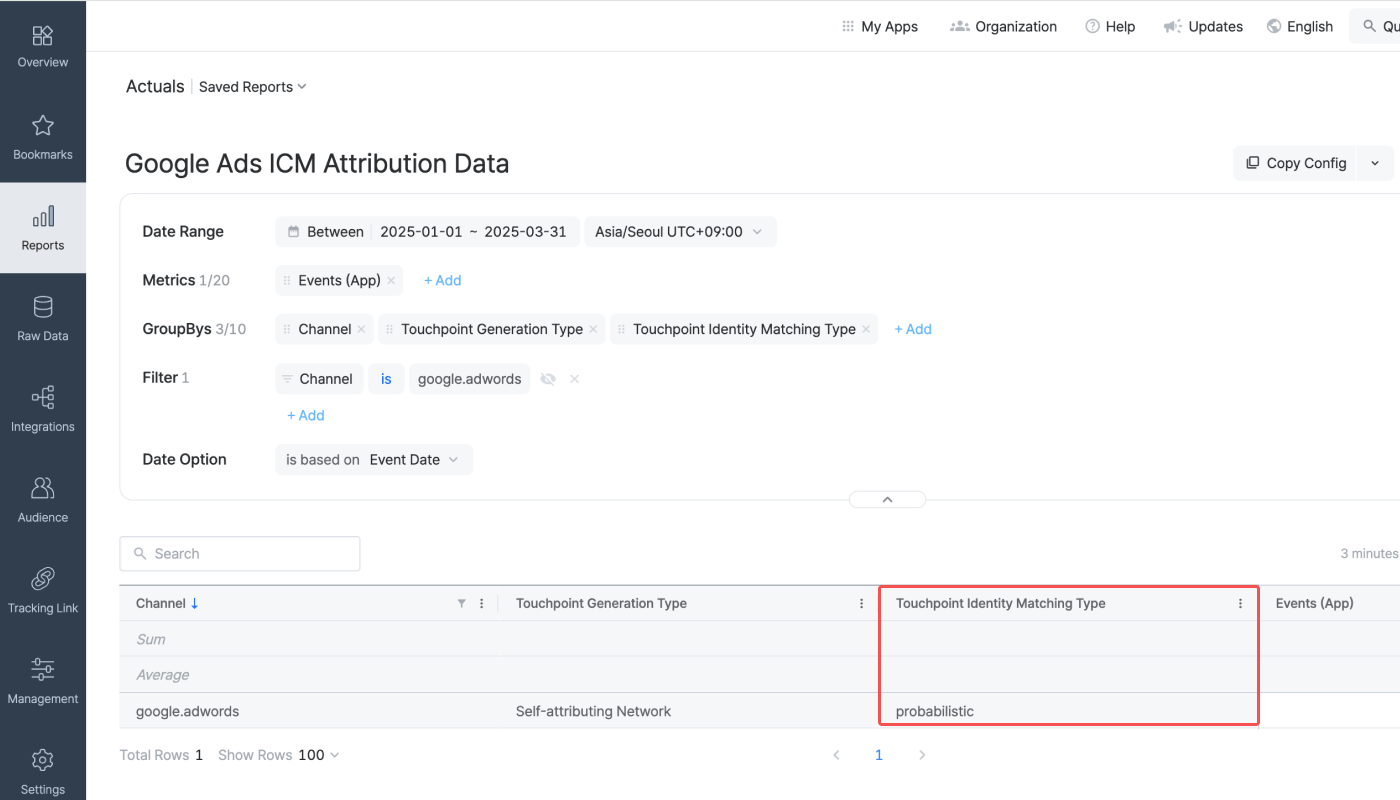
Navigate to the Actuals or Trend Report and configure the report metric, GroupBy, and filter as below. The “Touchpoint Identity Matching Type” value of the ICM attribution data is `probabilistic` , meaning that the user-level data is unavailable.
* Metric: The app event you want to view
* GroupBy: "Touchpoint Identity Matching Type"
* Filter: “Channel” `is`"google.adwords"
**Attention**
Airbridge uses all touchpoints forwarded from Google Ads—including those processed using deterministic and probabilistic approaches—for attribution, ensuring accurate results.
###### Raw data
Navigate to **\[Raw Data]>\[Raw App Data]** in the Airbridge dashboard, click **Raw data export,** and select “Touchpoint Identity Matching Type” in the \[Select Event Properties] step. The “Touchpoint Identity Matching Type” value of the ICM attribution data is `probabilistic`. For more guidance, refer to this [article](/en/guides/checking-raw-data).
 3. Click the **\[plus]** icon to create a new link ID.
 4. In the modal window, select **Airbridge** as the app analytics provider.
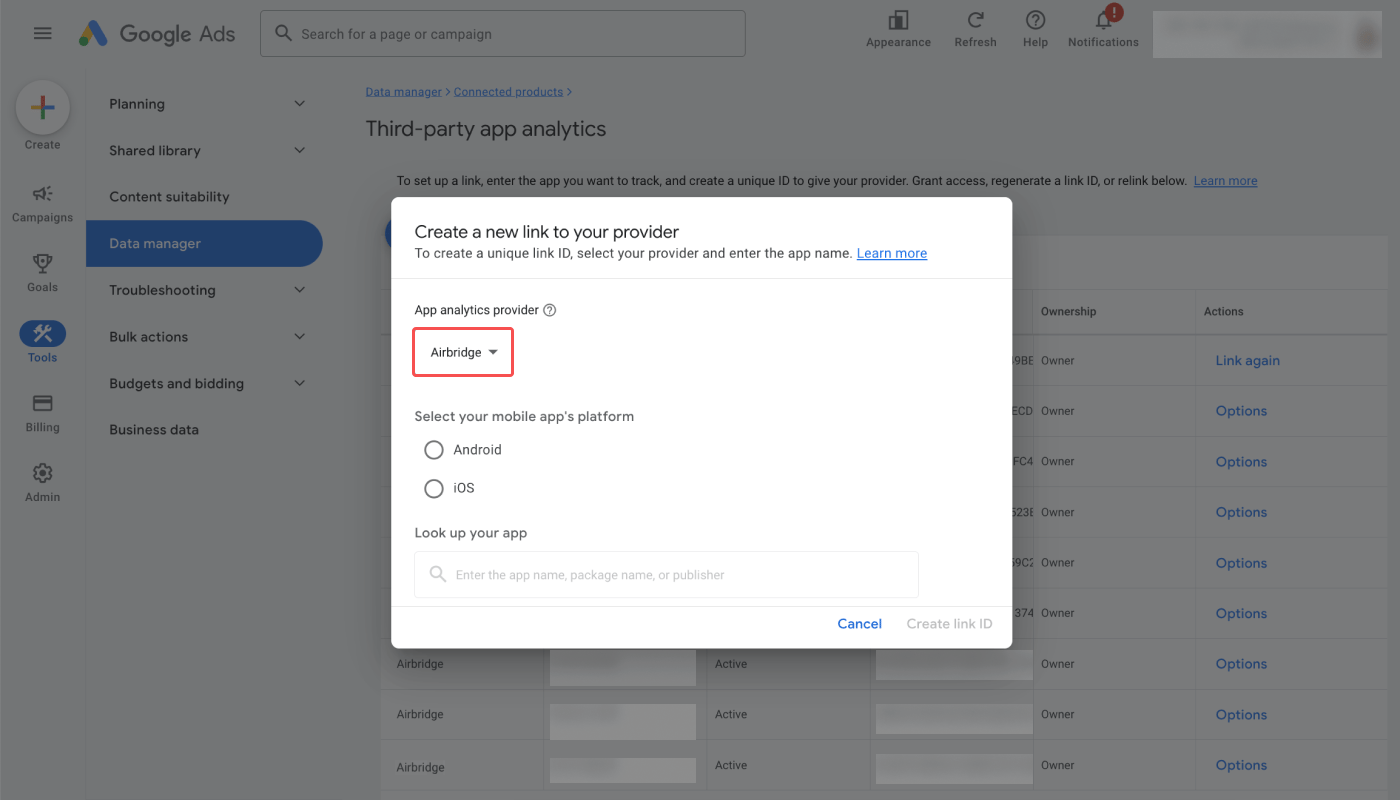 5. Select your mobile app's platform.
6. Select your app under **\[Look up your app]**, and click **Create link ID** to get your link ID. You need to create a link ID for each platform if you have apps on different platforms.
7. Apps connected to Airbridge can be found in the **\[Tools]>\[Data manager]** under "Third-party app analytics." Click **Manage & link,** and click the **\[plus]** icon to create a new link ID for an app.
### Submit the Google Ads Link ID to Airbridge
Once you have copied the Google Ads link ID, log in to your Airbridge account, navigate to **\[Integrations]>\[Ad Channel Integration]**, select **Google Ads**, and paste it into the corresponding link ID field. Make sure you paste the link ID into the correct field, as the link IDs for Android and iOS apps are different.
5. Select your mobile app's platform.
6. Select your app under **\[Look up your app]**, and click **Create link ID** to get your link ID. You need to create a link ID for each platform if you have apps on different platforms.
7. Apps connected to Airbridge can be found in the **\[Tools]>\[Data manager]** under "Third-party app analytics." Click **Manage & link,** and click the **\[plus]** icon to create a new link ID for an app.
### Submit the Google Ads Link ID to Airbridge
Once you have copied the Google Ads link ID, log in to your Airbridge account, navigate to **\[Integrations]>\[Ad Channel Integration]**, select **Google Ads**, and paste it into the corresponding link ID field. Make sure you paste the link ID into the correct field, as the link IDs for Android and iOS apps are different.
 ### Set up event postback
Send events collected by Airbridge to Google Ads to optimize your campaigns.
#### Default postbacks
Once you register the required credentials, Airbridge automatically maps and sends the following events to Google Ads.
| Airbridge Event | Google Ads Event |
| ----------------------- | --------------------------- |
| Install (App) | first\_open |
| Re-install (App) | reinstall\_open |
| Deeplink Open | session\_start |
| Deeplink Pageview (App) | airbridge.deeplink.pageview |
#### In-app event postbacks
You can send additional in-app events to optimize Google Ads campaigns. Map Airbridge events to the names that will appear in Google Ads.
Click **Add** to add a new event mapping. Select an Airbridge event first, then select a Google Ads event. You can map different Airbridge events to the same Google Ads event. At least one event mapping is required to save.
Presets offer pre-mapped event pairs between Airbridge and Google Ads. When you select an Airbridge event with a **\[Preset]** tag, the corresponding Google Ads event is automatically mapped. You can change the preset mapping by selecting a different Google Ads event. The tag will change to **\[Preset Off]**, and you can restore the preset mapping by clicking **Reset to preset** on the right.
### Set up event postback
Send events collected by Airbridge to Google Ads to optimize your campaigns.
#### Default postbacks
Once you register the required credentials, Airbridge automatically maps and sends the following events to Google Ads.
| Airbridge Event | Google Ads Event |
| ----------------------- | --------------------------- |
| Install (App) | first\_open |
| Re-install (App) | reinstall\_open |
| Deeplink Open | session\_start |
| Deeplink Pageview (App) | airbridge.deeplink.pageview |
#### In-app event postbacks
You can send additional in-app events to optimize Google Ads campaigns. Map Airbridge events to the names that will appear in Google Ads.
Click **Add** to add a new event mapping. Select an Airbridge event first, then select a Google Ads event. You can map different Airbridge events to the same Google Ads event. At least one event mapping is required to save.
Presets offer pre-mapped event pairs between Airbridge and Google Ads. When you select an Airbridge event with a **\[Preset]** tag, the corresponding Google Ads event is automatically mapped. You can change the preset mapping by selecting a different Google Ads event. The tag will change to **\[Preset Off]**, and you can restore the preset mapping by clicking **Reset to preset** on the right.
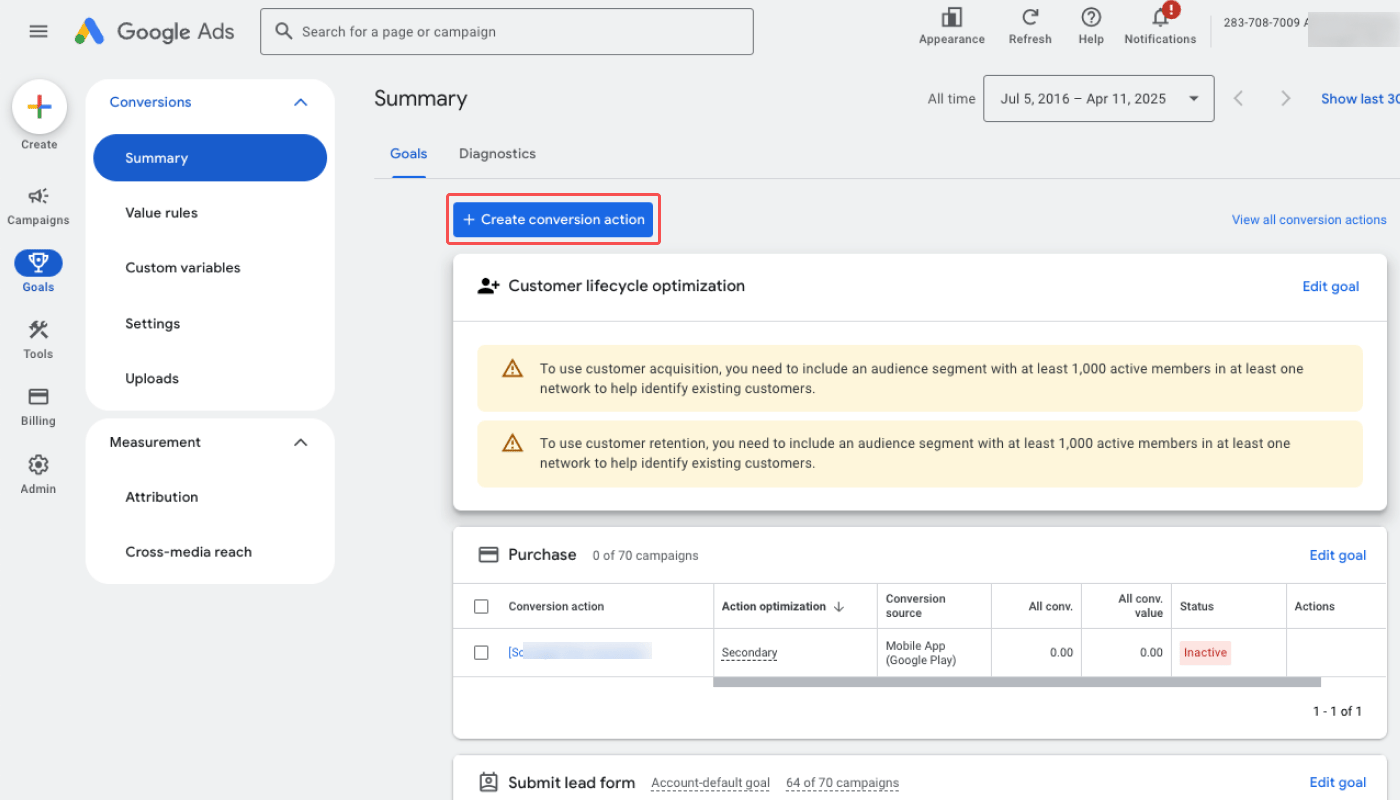 3. Select **App**.
4. Click **Edit** in the "Conversions on an app."
3. Select **App**.
4. Click **Edit** in the "Conversions on an app."
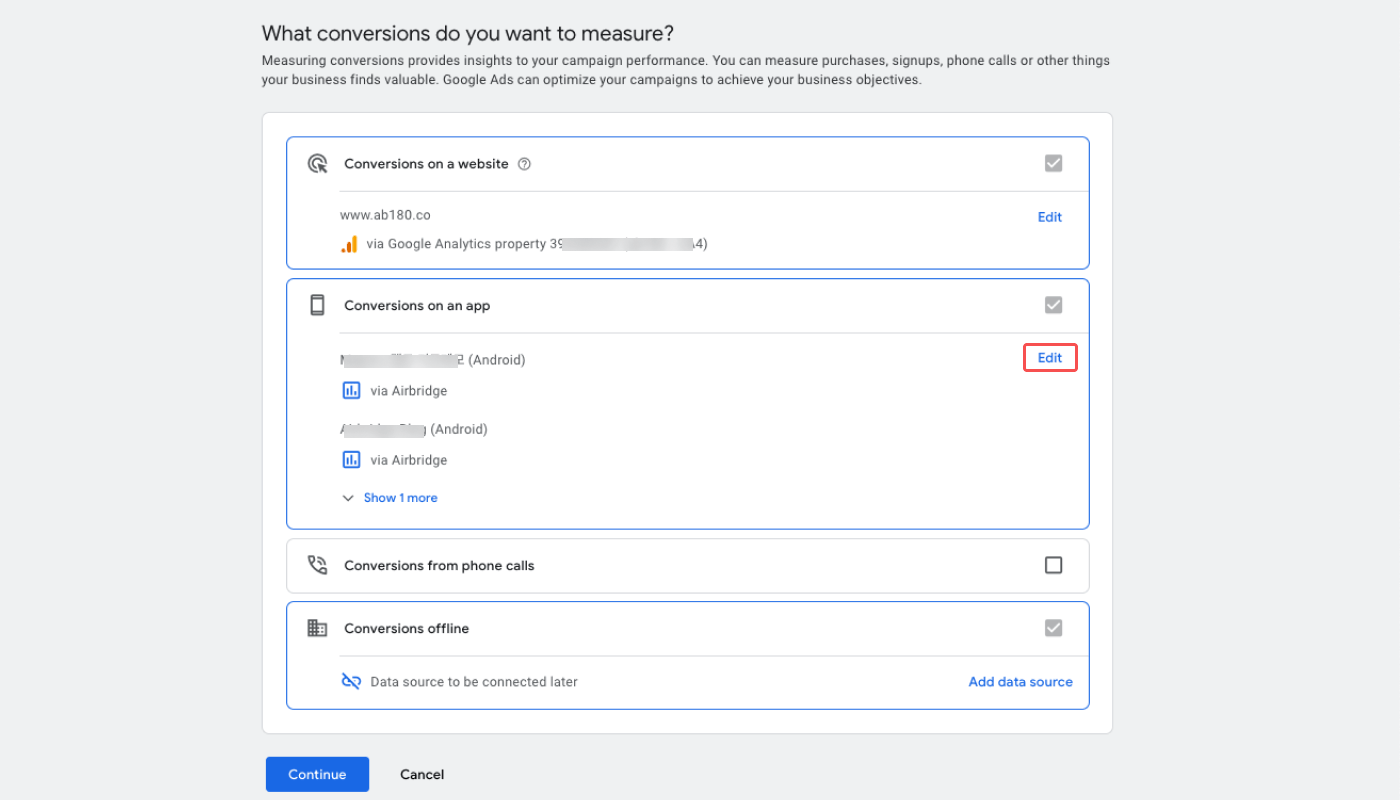 5. Select **Third party app analytics** and click **Done**. When the drawer closes, click **Continue**.
 6. Select the conversion category you want to add conversion actions.
 You can create a conversion action for a specific category of edit the set up.
 **Raw data**
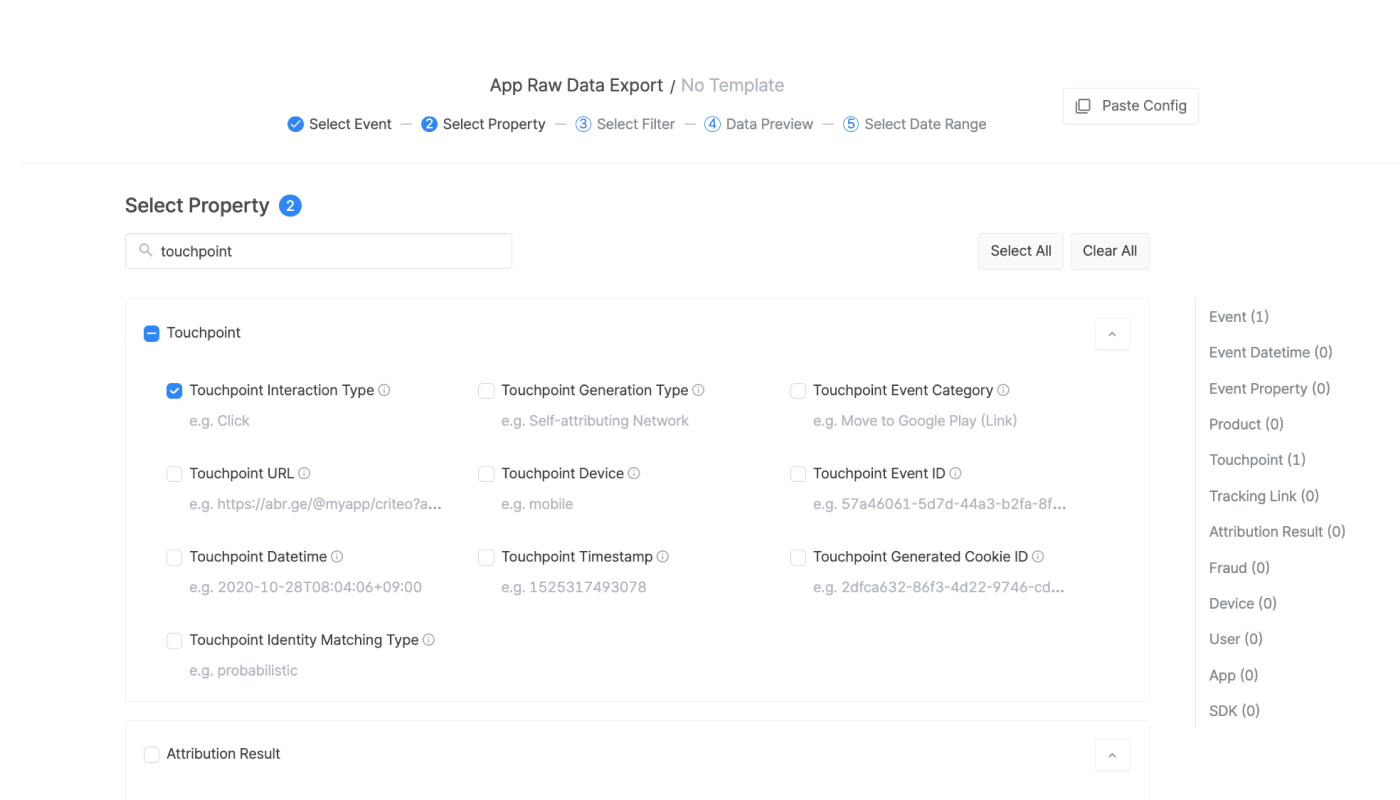
Navigate to **\[Raw Data]>\[App Raw Data]** and select “Touchpoint Interaction Type” as an event property.
Refer to this [article](/en/guides/checking-raw-data) for detailed instructions on raw data export.
**Raw data**
Navigate to **\[Raw Data]>\[App Raw Data]** and select “Touchpoint Interaction Type” as an event property.
Refer to this [article](/en/guides/checking-raw-data) for detailed instructions on raw data export.
 Or navigate to **\[Raw Data]>\[App Real-time Log]** and search for `attributedInteractionType`.