> ## Documentation Index
> Fetch the complete documentation index at: https://help.airbridge.io/llms.txt
> Use this file to discover all available pages before exploring further.
# Criteo
Airbridge supports integration with Criteo. With the integration, you can track and measure the performance of Criteo campaigns in Airbridge.
## Collecting Data with Tracking Links
Navigate to **\[Integrations]>\[Ad Channel Integration]** in your Airbridge dashboard and select **Criteo**. In the **\[Tracking Link]** tab, you can create and manage tracking links to measure the performance of your Criteo campaigns.
For detailed instructions on creating and managing tracking links in Airbridge, refer to the articles below.
* [Creating Tracking Links](/en/guides/creating-a-new-tracking-link)
* [Tracking Link Management](/en/guides/tracking-link-management)
**Attention**
Set up postback before using tracking links. Postback must be set up before data collection to ensure all collected data is sent to the ad channel. If not, data collected through tracking links will not be sent to the ad channel.
### Choose the tracking link type
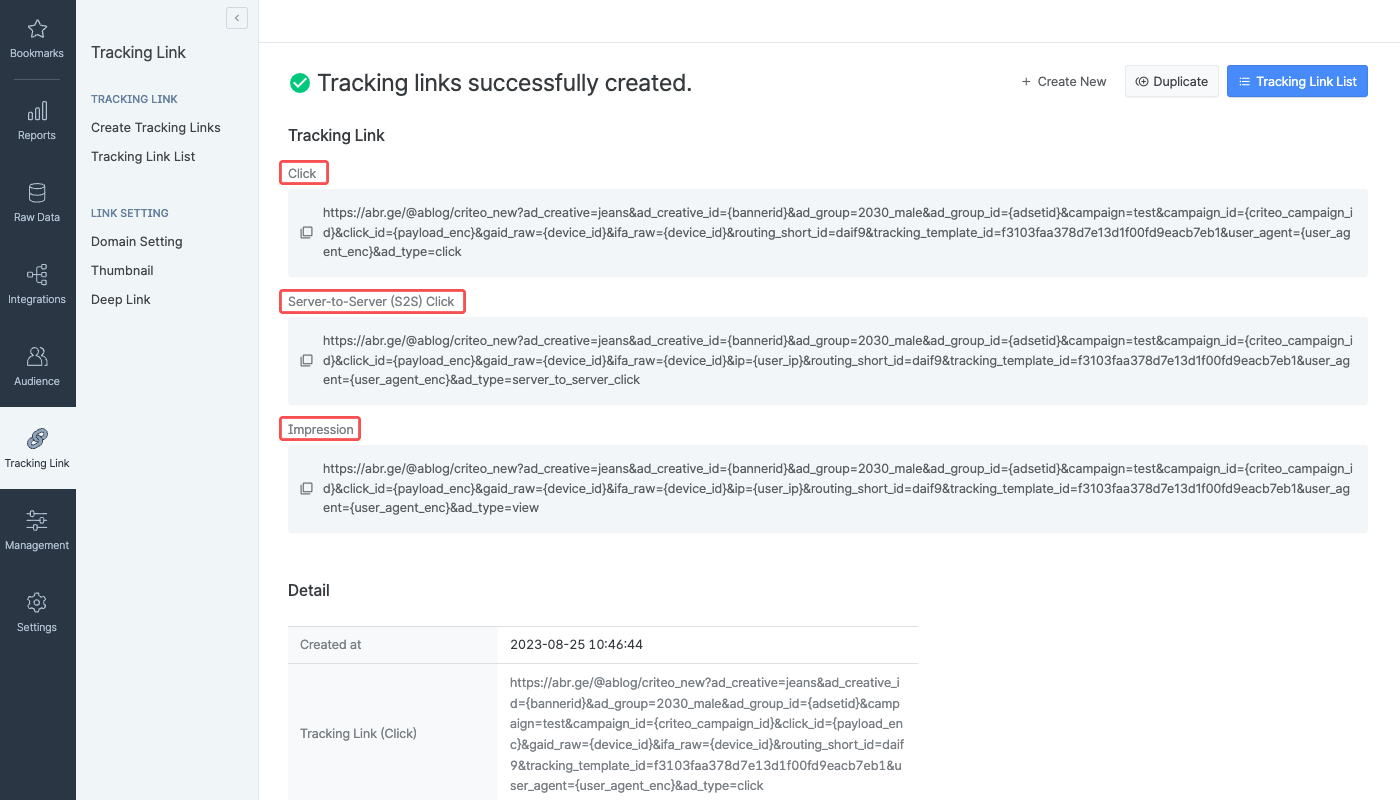
When you complete the tracking link generation, you will get 3 tracking links: click-type, server-to-server click-type, and impression-type.
The correct tracking link type must be used for tracking performance, depending on your campaign type. Refer to the information below.
Share the click-type tracking link with your Criteo account manager. Users will be redirected to the destination configured in Airbridge.
Share the server-to-server click type tracking link and the scheme deep link with your Criteo account manager. Users will be redirected to the scheme deep link’s destination.
**Not sure which tracking link type to use?**
Consult with your Airbridge CSM or your Criteo account manager.
## Attribution rules
In the **\[Attribution Rules]** tab, you can configure the lookback window and attribution window for Criteo. Click **Go to edit page** to move to the **\[Management]>\[Attribution Rules]** page, where you can edit attribution rules.
Refer to this [article](/en/guides/setting-attribution-window) for detailed instructions on configuring the lookback window and attribution window.
## Cost Integration Setup
1. Navigate to **\[Integrations]>\[Ad Channel Integration]** in your Airbridge dashboard. Select **Criteo\_New**.
2. Select the **\[Cost Integration]** tab. Switch on the **Criteo Cost Integration** toggle and click **Log in to Criteo**.
3. Sign in to the Criteo account you want to connect with Airbridge. The Criteo account must have been assigned the administrator role in the [Commerce Growth dashboard](https://marketing.criteo.com/Home).
4. Scroll down in the popup window and click **Approve** to grant access to Airbridge.
5. Select the Criteo account to connect and click **Confirm**.
6. When the popup window closes, the Criteo account connected to Airbridge will appear in the integrated account list. The status will show “Waiting” for up to 4 hours from the time the account is added and will change to “Success” when data is pulled for the first time.
## Managing Cost Integration
Turn off the toggle to pause the integration. Airbridge stops collecting cost data once the integration is paused.
Any data collected before the pause remains available in Airbridge reports.
Airbridge retains the credentials of the integrated account, so you can resume the integration at any time by turning the toggle on. However, deleting the integrated account removes these credentials.
Select the account from the integrated account list and click **Delete** to remove the account. To re-integrate the account after deletion, set up the integration from the beginning.
### Integration status
Upon submitting your ad account information to Airbridge, you can check if the integration is running. The status may show “Waiting” even when the account is successfully added if no data has been pulled yet.
For more details on the integration status and data import schedule, refer to the below information.
| Status | Description |
| ----------- | ----------------------------------------------------------------------------------------------------------------------------------------------------------------------------------------- |
| Waiting | Integration set up successfully. Pending data import. This may take up to 4 hours. |
| Success | Import complete. New data received from the ad channel. The **\[Last Updated]** timestamp reflects the latest import. |
| No new data | Import complete, but no new data was available from the ad channel. Check again at the next import. |
| Failed | Import failed. Possible causes: - The ad channel API is not responding. - The ad account details are incorrect. - The ad channel permissions are not configured correctly. |
* Frequency: Every 4 hours, 6 times a day, starting at 3:00 PM UTC
* Import times: 3:00 PM, 7:00 PM, 11:00 PM, 3:00 AM, 7:00 AM, 11:00 AM UTC
* Data range: Current day (D-0) to 6 days ago (D-6)
**\[Last Updated]** shows the last time Airbridge actually received the data.
### Reporting
The data pulled from Criteo can be viewed in the Actuals Report using the metrics and GroupBys below.
| Metrics | Description |
| --------------------- | ---------------------------------------------------- |
| Clicks (Channel) | The number of clicks provided by the ad channel |
| Impressions (Channel) | The number of impressions provided by the ad channel |
| Cost (Channel) | The ad spend provided by the ad channel |
**Difference between Clicks and Clicks (Channel)**
Both **Clicks** and **Clicks (Channel)** show click count, but the data source differs:
* **Clicks**: Collected through Airbridge tracking links
* **Clicks (Channel)**: Provided by the ad channel
Any metric with **(Channel)** in its name represents data provided by the integrated ad channel. The same applies to **Impressions** and **Impressions (Channel)**.
**Note**
Use the groupBys below to break down cost data in Airbridge reports. Available groupBys vary by ad channel.
###### Touchpoint
| GroupBy | Description |
| ------------- | --------------------------------------------------------------------------------------------------------- |
| Channel | The media source of the winning touchpoint |
| Campaign | The name of the campaign of the winning touchpoint |
| Ad Group | The name of the ad group of the winning touchpoint |
| Ad Creative | The name of the ad creative of the winning touchpoint |
| Term | The term, or the search keyword, of the winning touchpoint (Only available for search ads or keyword ads) |
| Campaign ID | The unique ID assigned to the campaign of the winning touchpoint |
| Ad Group ID | The unique ID assigned to the ad group of the winning touchpoint |
| Term ID | The unique ID assigned to the term, or the search keyword, of the winning touchpoint |
| Ad Account ID | The unique ID assigned to the ad account of the winning touchpoint |
| Sub Publisher | The second-tier media source of the winning touchpoint |
###### Device
| GroupBy | Description |
| ------- | --------------------------------------------------- |
| Country | The country code for the mobile device |
| OS Name | The operating system installed on the mobile device |
###### Event Datetime
| GroupBy | Description |
| ---------------------- | -------------------------------------------------------------------- |
| Event Hour | The hour the event occurred in a 24-hour format |
| Event Date | The day the event occurred (YYYY-MM-DD) |
| Event Year | The year the event occurred (YYYY) |
| Event Month | The month the event occurred (MM) |
| Event Week | The week the event occurred (WW) |
| Event Day of the month | The day of the month the event occurred (DD) |
| Event Day of the week | The day of the week the event occurred in three-letter abbreviations |
**Unspecified ad account name**
If a user has not specified the ad account name in the Criteo dashboard, Airbridge receives a null value for the Ad Account ID. If you select “Ad Account ID” as GroupBy in the Actuals Report, it may show an empty column.
## Postback Settings
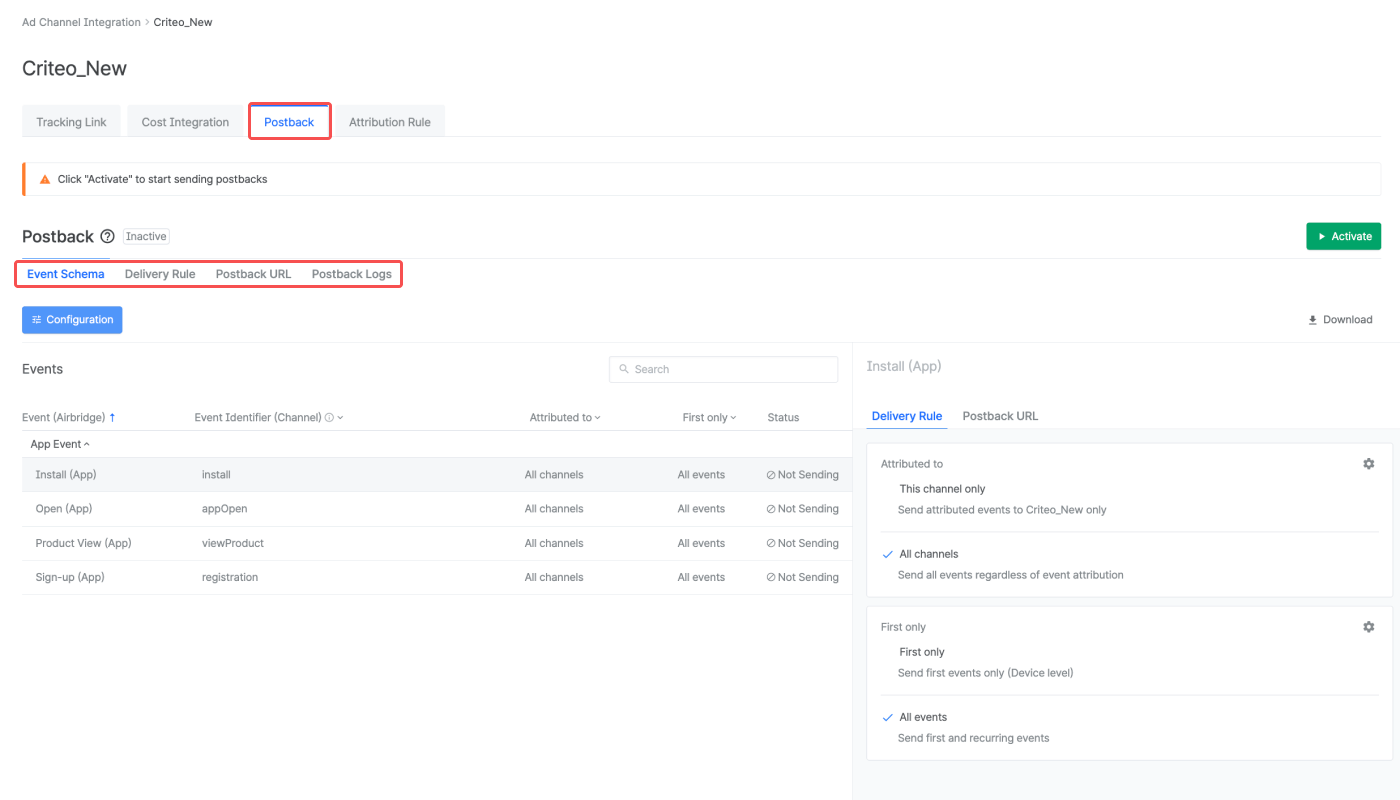
In the **\[Postback]** tab, you can configure postbacks and determine which in-app events and attribution results to send as postbacks. The data collected with the Airbridge SDK and tracking links enables you to optimize campaigns and make strategic decisions about budget allocation.
For more details on postback settings, read this [article](/en/guides/postback-settings).
## Agency Settings
Manage the access permissions of the agencies and have control over which agency has access to your campaign data.
* [Agency Settings](/en/guides/agency-setting)
## Attention
Airbridge pulls the cost data from the past 7 days, every 4 hours, 6 times a day starting at 3:00 PM (UTC). As the updates are not real-time, there may be data discrepancies between Airbridge and the ad channel, depending on the time of reporting.
The **Cost (Channel)** metric, which shows your ad spend reported by the ad channel, displays value only when used with specific GroupBys.
Below are the GroupBys that can be used in the Actuals Report to view data with the metric:
* Channel
* Campaign
* Ad Group
* Ad Creative
Depending on the data reported, the metric may not display any value even if you use the GroupBys above.
The data pulled via cost integration is provided by the app time zone and app standard currency set within Airbridge.
To minimize data discrepancy, align your app’s currency and time zone settings in your Airbridge dashboard and your ad channel’s dashboard.
* [App Time Zone Setup](/en/guides/set-app-timezone)
* [App Standard Currency Setup](/en/guides/set-app-standard-currency)
Once the cost integration is enabled, the following campaign details are advised not to be edited to avoid any error in pulling data into Airbridge.
* Campaign name
* Ad group name
* Ad creative name
 The correct tracking link type must be used for tracking performance, depending on your campaign type. Refer to the information below.
 ## Agency Settings
Manage the access permissions of the agencies and have control over which agency has access to your campaign data.
* [Agency Settings](/en/guides/agency-setting)
## Attention
## Agency Settings
Manage the access permissions of the agencies and have control over which agency has access to your campaign data.
* [Agency Settings](/en/guides/agency-setting)
## Attention