> ## Documentation Index
> Fetch the complete documentation index at: https://help.airbridge.io/llms.txt
> Use this file to discover all available pages before exploring further.
# Create Tracking Links in the Airbridge Dashboard
This guide shows you how to create tracking links in the Airbridge dashboard. It's written for marketers running ad campaigns. By the end, you'll have Click, Impression, and S2S Click tracking links for your integrated or custom channels.
**Note**
Before you start, set up what each feature needs.
* To redirect users with deep links, register your deep link information in **\[Tracking Link]>\[Deep Links]** first.
* To redirect users to an app store, register your app in **\[Settings]>\[App Settings]>\[App Info]>\[Platform]** first.
* To use a custom domain for a custom channel, add the custom domain first.
* To use Airpage for a custom channel, enter its URL in **\[Settings]>\[App Settings]>\[App Info]>\[Airpage]** first.
## Which tracking link do you need?
The tracking link you create depends on the channel type. Choose your channel type first. For more details, see [this article](/en/guides/what-is-a-channels).
| Channel type | Description | When to use |
| ------------------ | ------------------------------------------------------------------------------------------------------------------------------------------------------------------------- | ----------------------------------------------------------------------------------------------------------- |
| Integrated channel | Ad channels integrated with Airbridge. Find the list in **\[Integrations]>\[Ad Channel Integration]** in the Airbridge dashboard. | You run ads on integrated ad channels like Meta Ads or Google Ads. |
| Custom channel | Channels you define, such as owned and earned media for content publishing or customer engagement like push notifications, and ad channels not integrated with Airbridge. | You publish on channels not integrated with Airbridge, like your own social, influencer, or email channels. |
## Set up redirection
Redirection sets the destination for users who click the tracking link. In the Airbridge dashboard, choose **App (Deep Link)**, **App Store**, or **Website** as the **\[Destination]**. Integrated and custom channels work the same way. For custom channels, you can also select **Airpage** as a desktop destination.
When you select **App (Deep Link)** as the **\[Destination]**, users who have the app go to a specific app page. In **\[Deep Link]**, enter the URL of the app page where you want to send users. For instructions, see [this article](/en/guides/retargeting-with-deep-links).
**Attention**
* Enter only URL scheme deep links in **\[Deep Link]**. Use an app page URL that starts with the URL scheme registered in Airbridge.
* Encode any characters other than letters, numbers, and `=`, `?`, `&`, `#`. Without encoding, the tracking link doesn't work correctly.
Use **\[Fallback Path]** to set where users without the app go when they click the deep link tracking link.
| Platform | Available options |
| -------- | ------------------------------------------------------------------------------------------------------------------- |
| Android | - Google Play Store: Default store listing - Google Play Store: Custom store listing (up to 50) - Web URL |
| iOS | - Apple App Store: Default product page - Apple App Store: Custom product page (up to 35) - Web URL |
| Desktop | - Web URL - Google Play Store - Airpage (custom channels only) |
When you select **App Store** as the **\[Destination]**, users go to the right app store or web URL for their platform. To use **App Store**, go to **\[Settings]>\[App Settings]>\[App Info]>\[Platform]** and search for and select your app, or enter the app store URL directly.
| Platform | Available options |
| -------- | ------------------------------------------------------------------------------------------------------------------- |
| Android | - Google Play Store: Default store listing - Google Play Store: Custom store listing (up to 50) - Web URL |
| iOS | - Apple App Store: Default product page - Apple App Store: Custom product page (up to 35) - Web URL |
| Desktop | - Web URL - Google Play Store |
When you select **Website** as the **\[Destination]**, users go to the web URL you enter for their platform.
**Note**
If you don't add UTM parameters to a web URL, Airbridge adds them automatically during redirection. If you added UTM parameters, only those remain in the redirected URL. For details, see [this article](/en/guides/creating-tracking-links-faq).
## Create integrated channel tracking links
Create tracking links for your integrated ad channels. In the Airbridge dashboard, go to **\[Tracking Link]>\[Link Generation]>\[Integrated Channels]**.
### Campaign Optimization Parameters
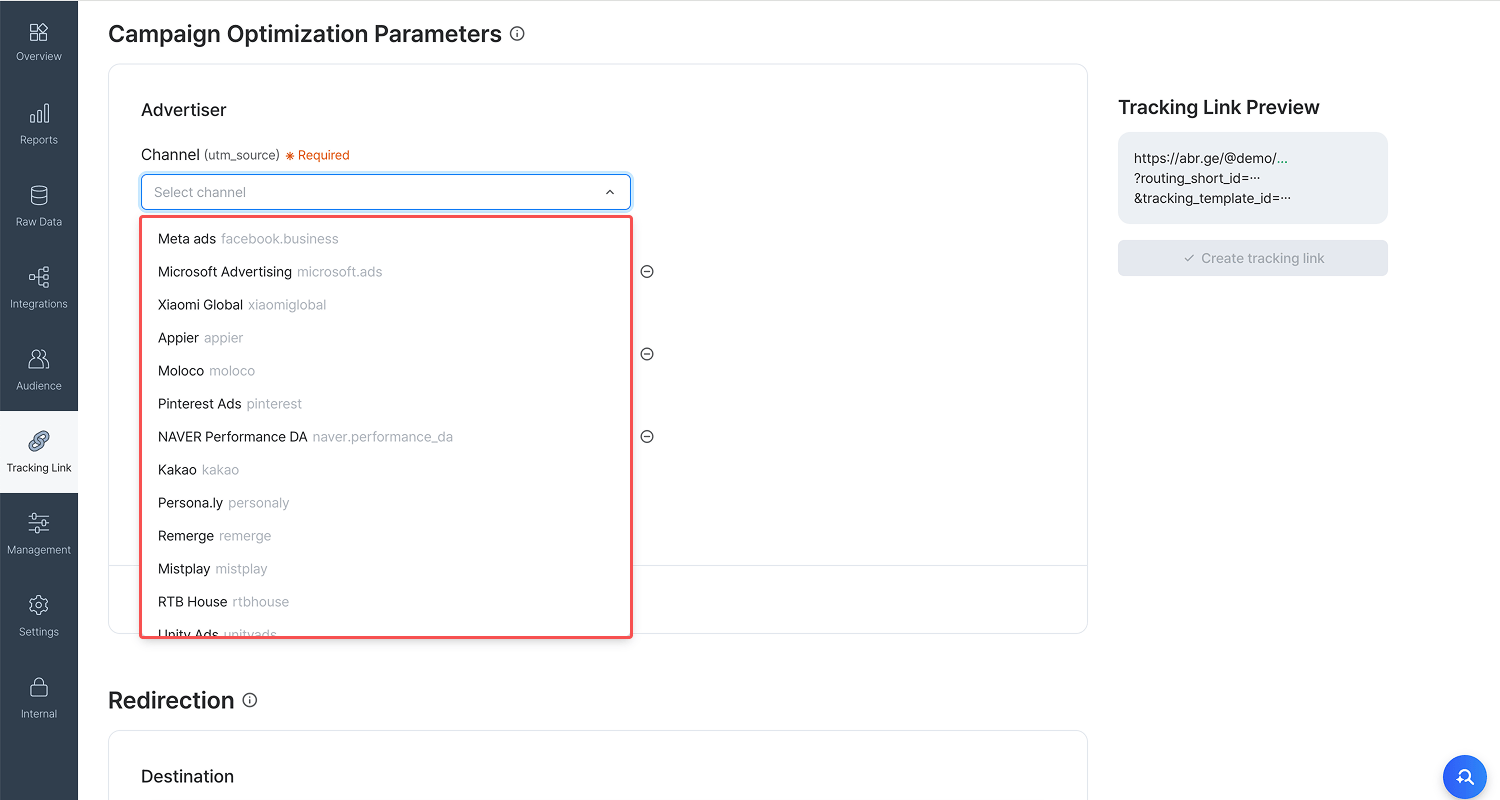
1. Go to **\[Campaign Optimization Parameters]>\[Advertiser]** and select **\[Channel]**. **\[Channel]** is required. Once you select a channel, **\[Tracking Link Preview]** shows the supported tracking link format.
2. Enter the information you want to collect when ads with the tracking link are viewed or clicked. Use fields like **\[Campaign]**, **\[Ad Group]**, and **\[Ad Creative]** under **\[Advertiser]**, or **\[Sub-Publisher]** under **\[Publisher]**. Field names become parameter names, and the values you enter become parameter values. For example, entering `spring_campaign` in **\[Campaign]** adds `campaign=spring_campaign` to the tracking link. You can then find `spring_campaign` in Airbridge reports by selecting Campaign as a GroupBy. If a field is pre-filled, keep it. These are preset values agreed between the channel and Airbridge.
**Note**
If your ad channel isn't listed, ask the channel to submit an [Integration Request](https://partner.airbridge.io/en/supports/integrations) to Airbridge. You need to integrate with Airbridge before you can use its tracking links.
### Redirection
Set up redirection the same way as in the [Set up redirection section](#set-up-redirection) above. Select **App (Deep Link)**, **App Store**, or **Website** as the destination.
### Create tracking links
When you click **Create tracking link**, Airbridge creates up to 3 tracking link types for different touchpoints. These are Click, Impression, and S2S Click. The types created depend on the ad channel. Check the details of the created tracking links.
## Create custom channel tracking links
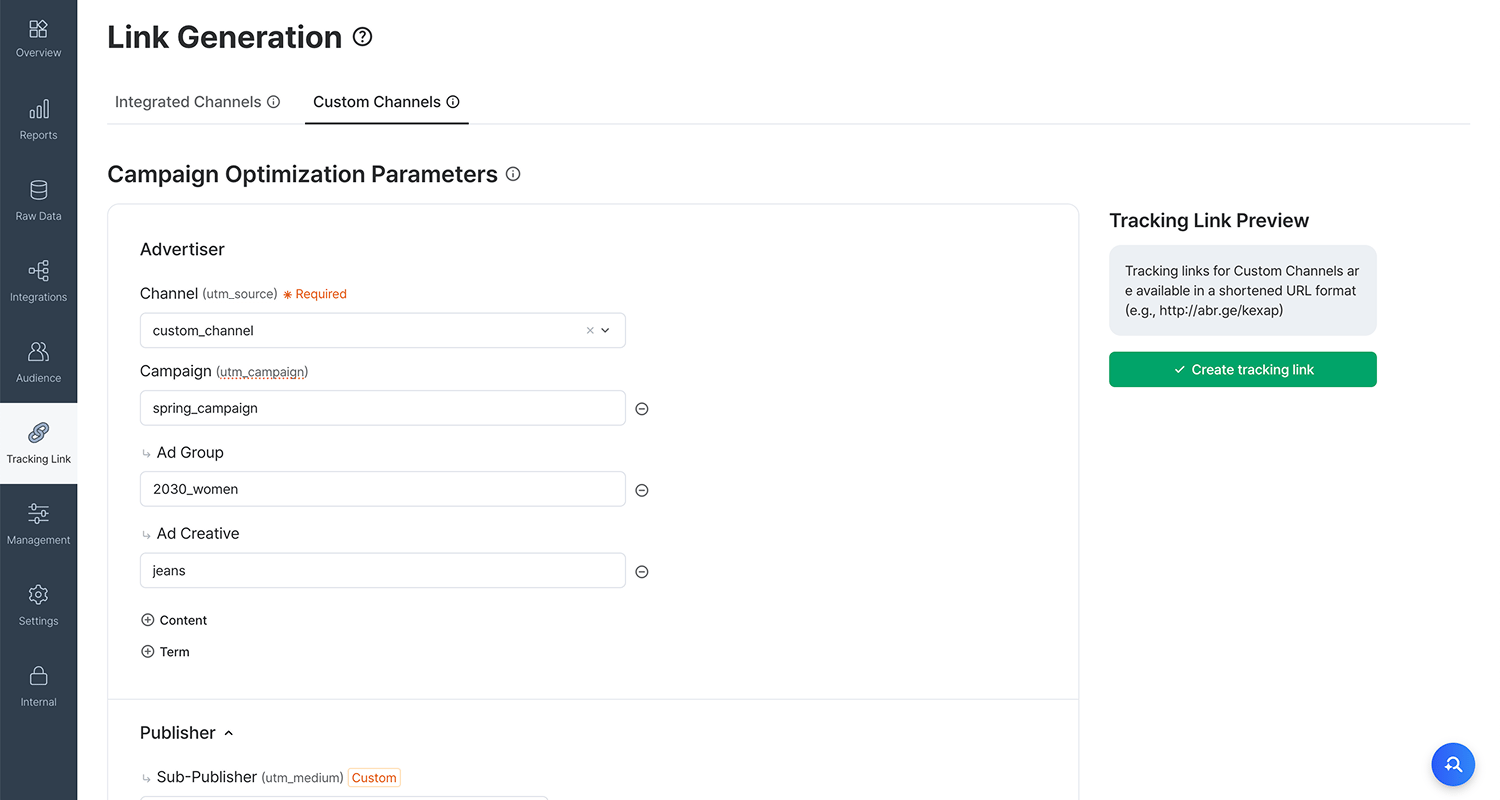
Create tracking links for owned and earned media used for content publishing or customer engagement like push notifications, and for ad channels not integrated with Airbridge. In the Airbridge dashboard, go to **\[Tracking Link]>\[Link Generation]>\[Custom Channels]**.
### Campaign Optimization Parameters
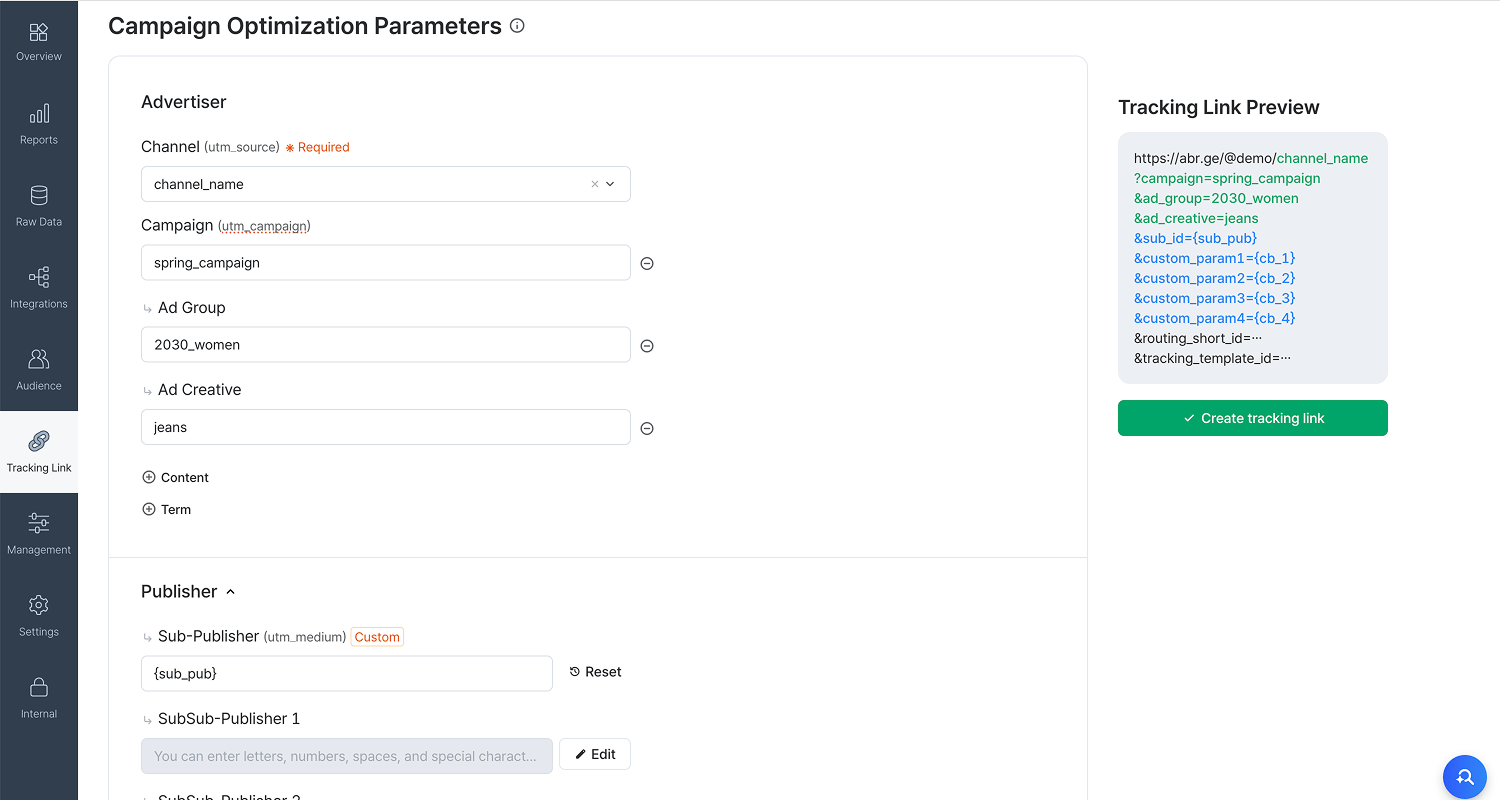
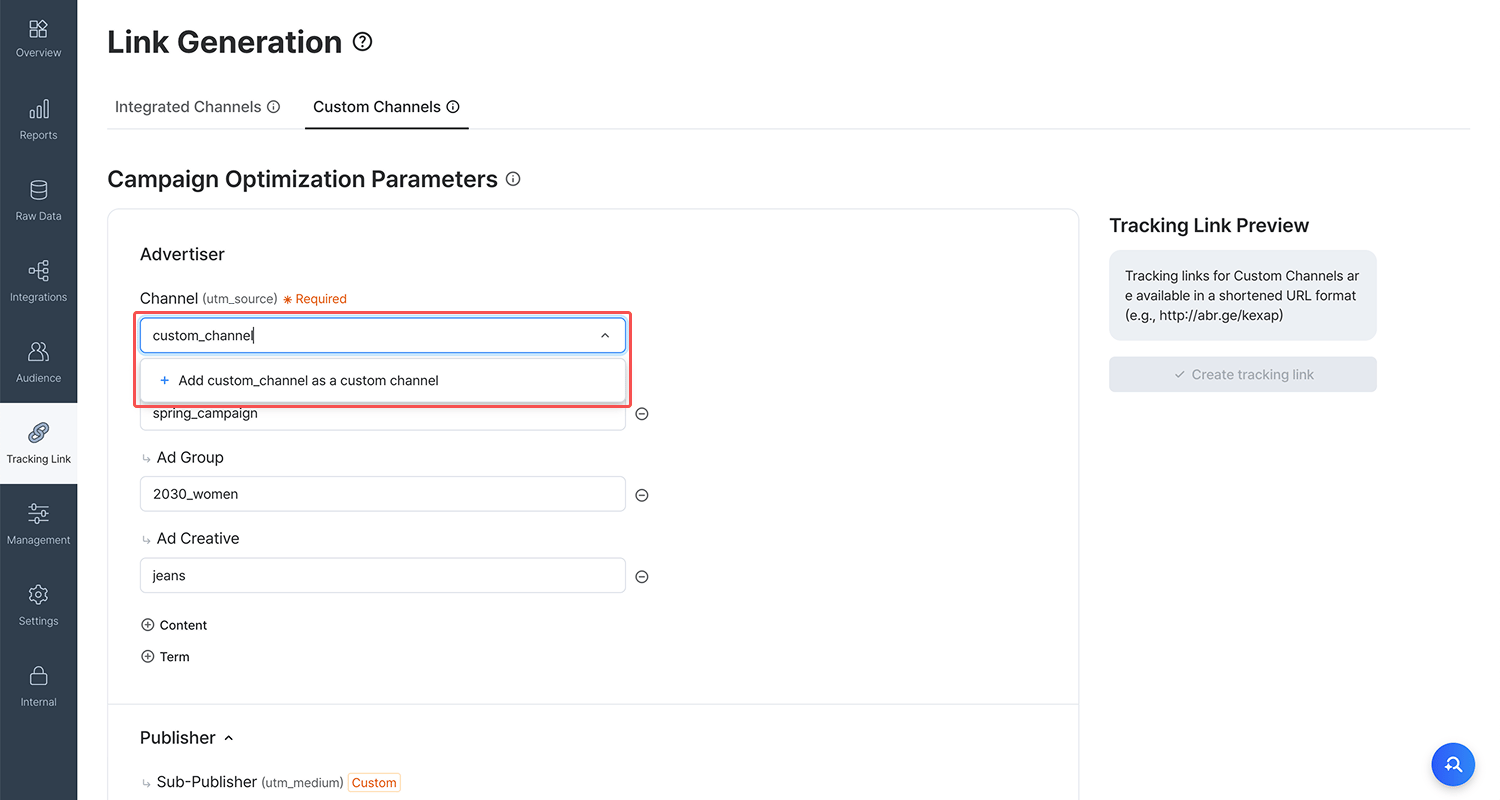
1. Go to **\[Campaign Optimization Parameters]>\[Advertiser]** and select **\[Channel]**. **\[Channel]** is required. When you enter a new channel name, Airbridge adds it automatically.
**Attention**
Channel names can include only lowercase letters, numbers, and `.`, `-`, `_`. They must be unique. Airbridge doesn't add names that break these rules.
2. Enter the information you want to collect, the same way as for integrated channels. Field names become parameter names, and the values you enter become parameter values.
**Create redirection-only tracking links**
Enter `ab_redirection_only` in **\[Channel]** to create a tracking link that only redirects users to their destination. Airbridge excludes data from this link from attribution and performance measurement. Use it for customer engagement campaigns or any content meant only to send users to a destination.
### Redirection
Set up redirection the same way as in the [Set up redirection section](#set-up-redirection) above. For custom channels, you can also select **Airpage** as a desktop destination.
### Create tracking links
When you click **Create tracking link**, Airbridge creates both the standard tracking link and its shorter version, the short link. It also creates a social share preview and a QR code. Check the details of the created tracking links.
### Customization options
Custom channel tracking links support these customization options.
* Custom domain: Replace the default `abr.ge` domain in short links with your own. Add your custom domain first. For details, see [this article](/en/guides/custom-domain).
* Short link ID: Available only after you add a custom domain. Customize the text after the domain in your short link. For example, entering `appname` creates the short link `https://custom_domain/appname`.
* Social share preview: Customize the image, title, and description shown when the tracking link is shared on social media.
* Airpage: Use Airpage when you select Desktop as the destination.
**Note**
If you haven't added a custom domain, the Short link ID field doesn't appear.
## Events for Attribution
For both integrated and custom channels, set the events for attribution when you create a tracking link. Under **\[Events for Attribution]**, select which events Airbridge can attribute to the ad channel where the tracking link is used.
**Note**
Select **All Events** unless you want to exclude app installs or deep link events, along with their subsequent events, from attribution.
| Option | Events attributed |
| ------------------------------------------------------------ | --------------------------------------------------------------------------------------- |
| All Events | All events |
| Specific Events - Installs only | - Installs (App) - Subsequent events of Installs (App) |
| Specific Events - Deeplink Opens and Deeplink Pageviews only | - Deeplink Opens (App) - Deeplink Pageviews (App) - Subsequent events of both |
 2. Enter the information you want to collect when ads with the tracking link are viewed or clicked. Use fields like **\[Campaign]**, **\[Ad Group]**, and **\[Ad Creative]** under **\[Advertiser]**, or **\[Sub-Publisher]** under **\[Publisher]**. Field names become parameter names, and the values you enter become parameter values. For example, entering `spring_campaign` in **\[Campaign]** adds `campaign=spring_campaign` to the tracking link. You can then find `spring_campaign` in Airbridge reports by selecting Campaign as a GroupBy. If a field is pre-filled, keep it. These are preset values agreed between the channel and Airbridge.
 2. Enter the information you want to collect, the same way as for integrated channels. Field names become parameter names, and the values you enter become parameter values.