> ## Documentation Index
> Fetch the complete documentation index at: https://help.airbridge.io/llms.txt
> Use this file to discover all available pages before exploring further.
# Agency App Access Settings
**Note**
This feature is currently in beta. If you have any questions or suggestions for improvements, reach out to your Airbridge CSM. If you don't have a dedicated CSM, contact us through the [Airbridge Help Center](https://app.airbridge.io/supports).
Airbridge users with the Admin and Manager roles of an Airbridge organization can edit an agency's app access settings. The app access settings of an agency apply to all Agency users who belong to the agency.
## App Access Settings for Agencies
Upon [granting the app access to Agency users](/en/guides/organization-level-user-management#granting-app-access-to-agency-users), the Agency users can access the Airbridge Apps to which they have been given access. The app access settings are divided into the following categories:
* Airbridge menu access: Access to specific Airbridge menus can be configured.
* Channel data access: Access to specific channel data, including attribution and cost data, can be configured.
* Revenue data access: Access to the revenue data can be configured.
### Default app access settings of Agency users
When granting the app access to an agency for the first time, the default app access settings are applied. The default app access settings are as follows.
The table below shows the default **Airbridge menu access settings** for agencies when granted app access to an Airbridge App.
| Airbridge Menu | Features | Access Level |
| ----------------------- | ------------------------------------------------------------------ | ------------ |
| Ad Performance Reports | Actuals Report, Trend Report, Reinstall Report, Overview Dashboard | View·Edit |
| Cohort Analysis Reports | Retention Report, Revenue Report, Funnel Report | Restricted |
| Anomaly Detection | Lag Time Report | View·Edit |
| Data Export | Raw App·Web Data | Restricted |
| Real-time Log | App·Web Events | Restricted |
| Tracking Link | Custom Domain, Social Share Preview | Restricted |
| Rule Settings | Attribution Rules | View |
| Rule Settings | Fraud Validation Rules | Restricted |
| Rule Settings | SKAN Conversion Value | View·Edit |
By default, Agency users can access the attribution data collected through the tracking links created within their agency but cannot access unattributed events or specific channel data. Agency users do have access to the revenue data aggregated from revenue events.
The access settings status shows `Default` when no edits were made and `Custom` when edits were made.
The access settings status of agencies can be found in different locations:
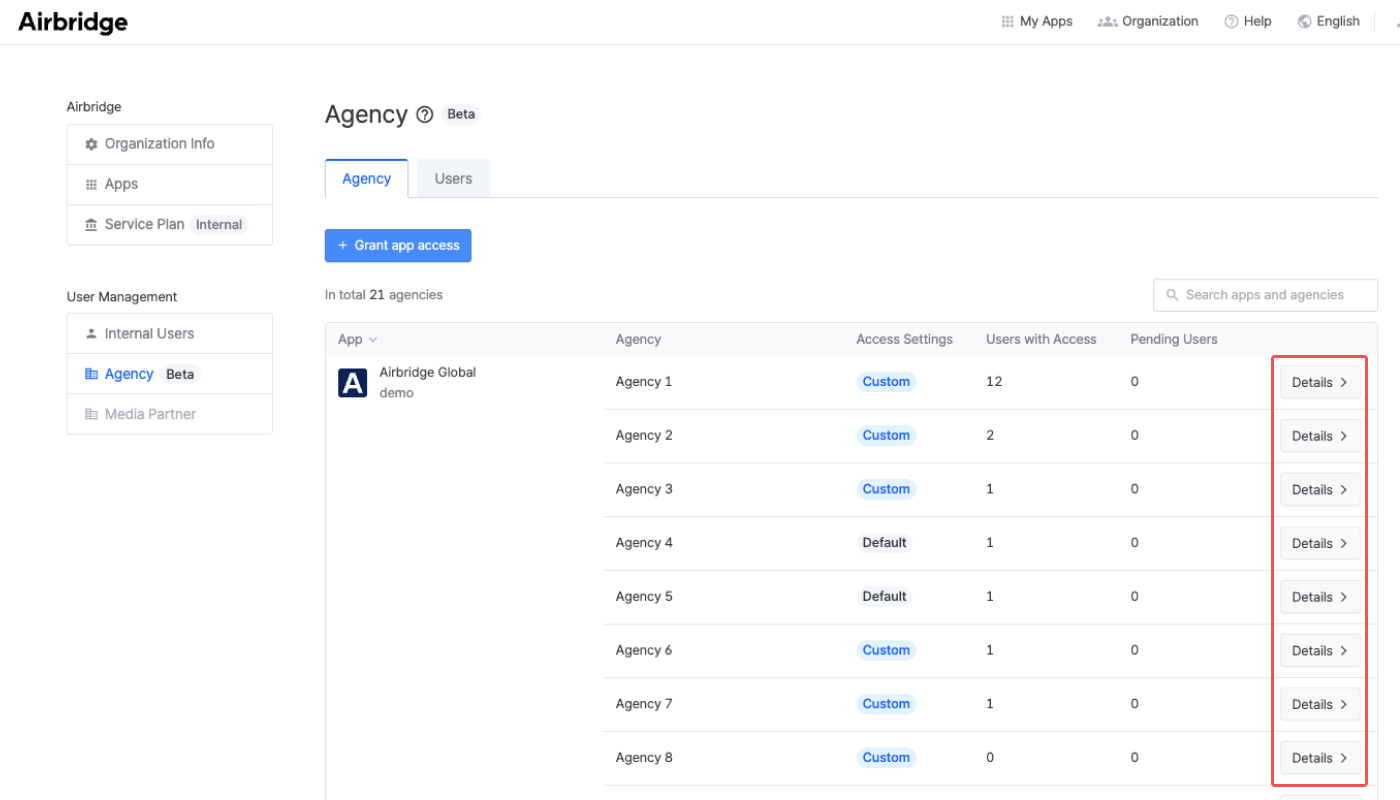
* Navigate to **\[Organization]>\[Agency]**. You can see the access settings status of agencies on the list.
* Navigate to **\[Organization]>\[Agency]** and click **Details** of an agency on the list. The access settings status tag is next to the **App Access Settings** section title below the App and agency name.
When changes to the default settings are saved, the `Default` tag changes to `Custom`. For more details, refer to this **section** of the article.
## Agency Overview
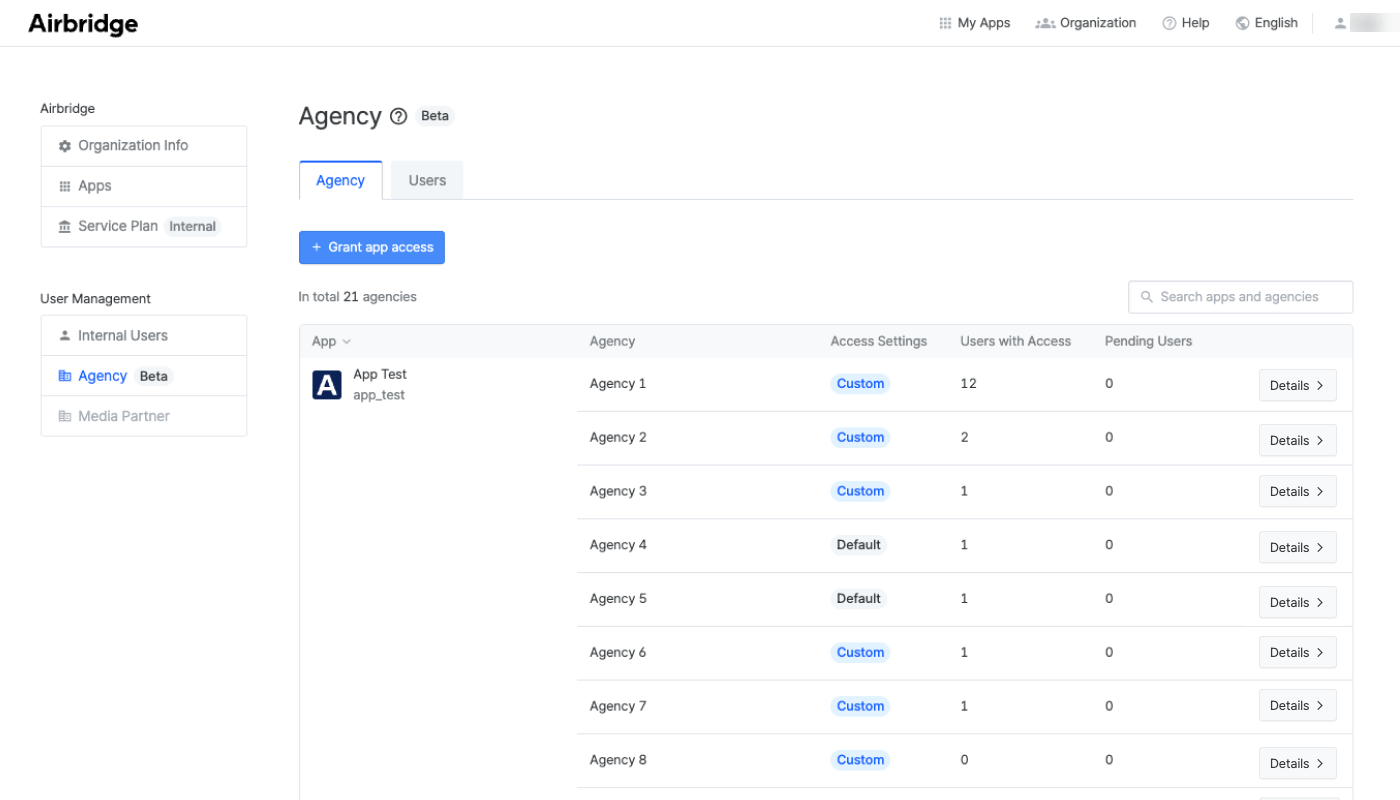
Click [**\[Organization\]**](/en/guides/organization-level-user-management#how-to-navigate-to-the-organization-settings-page) in the top menu bar and select an organization name from the drop-down list. Then, click **\[Agency]** from the left sidebar to view the list of Airbridge Apps registered with your organization and the agencies granted access to the individual Apps. Click **Details** to view the detailed app access settings of an agency.
### **App access settings overview**
The following information is displayed in the app access settings overview dashboard:
* [Access level status](/en/guides/agency-app-access-management#access-settings-status)
* Number of Airbridge menus the Agency users can view, view and edit, or cannot access
* Number of accessible app and web event properties by the Agency users
* The channels to which the Agency users have access to attribution and cost data
* The revenue events the Agency users have access to in the Airbridge reports and can export as raw data
## Editing the Access Settings of an Agency
**Who can edit the access settings of an agency?**
Only Admins and Managers can edit the app access settings of agencies.
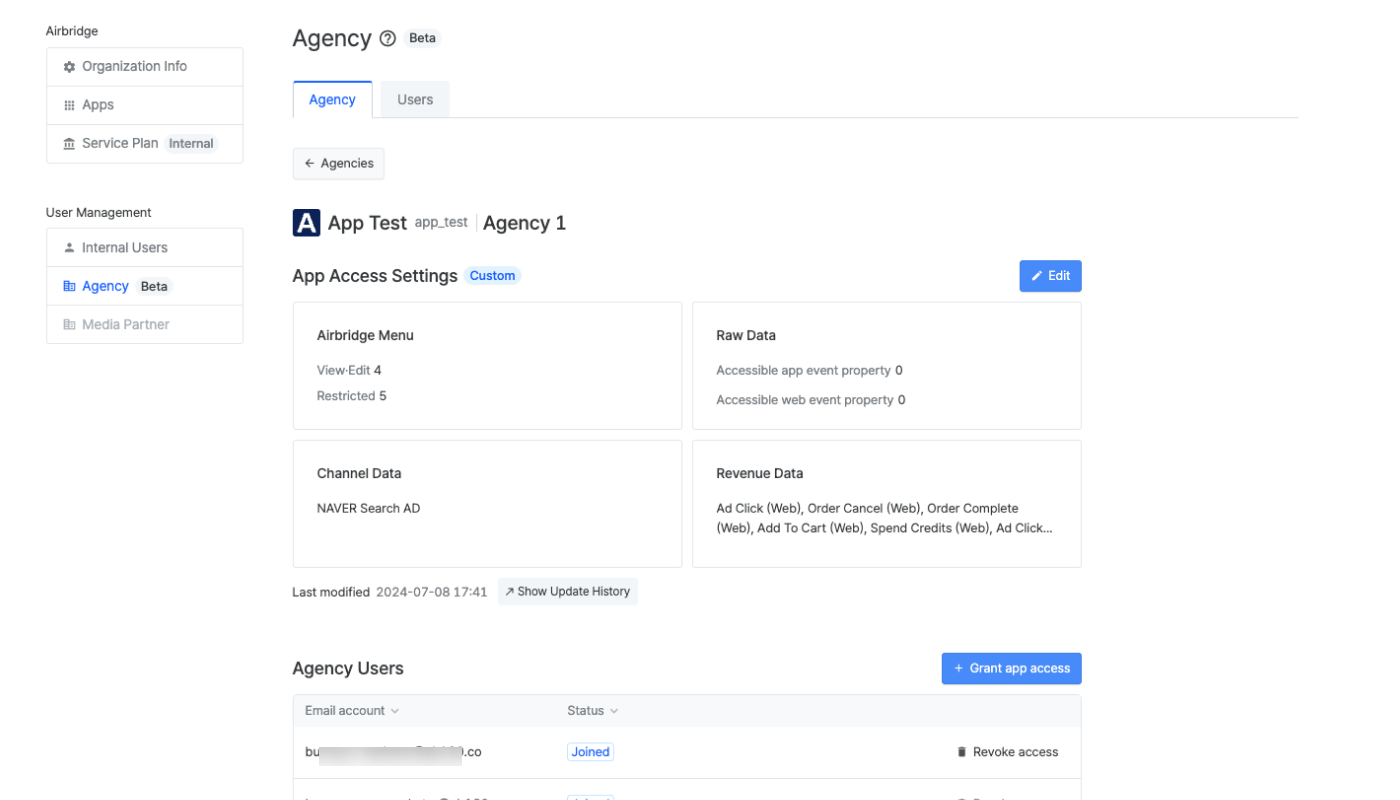
Click [**\[Organization\]**](/en/guides/organization-level-user-management#how-to-navigate-to-the-organization-settings-page) in the top menu bar and select an organization name from the drop-down list. Then, click **\[Agency]** from the left sidebar to view the list of Airbridge Apps registered with your organization and the Agencies that are granted access to the individual Apps.
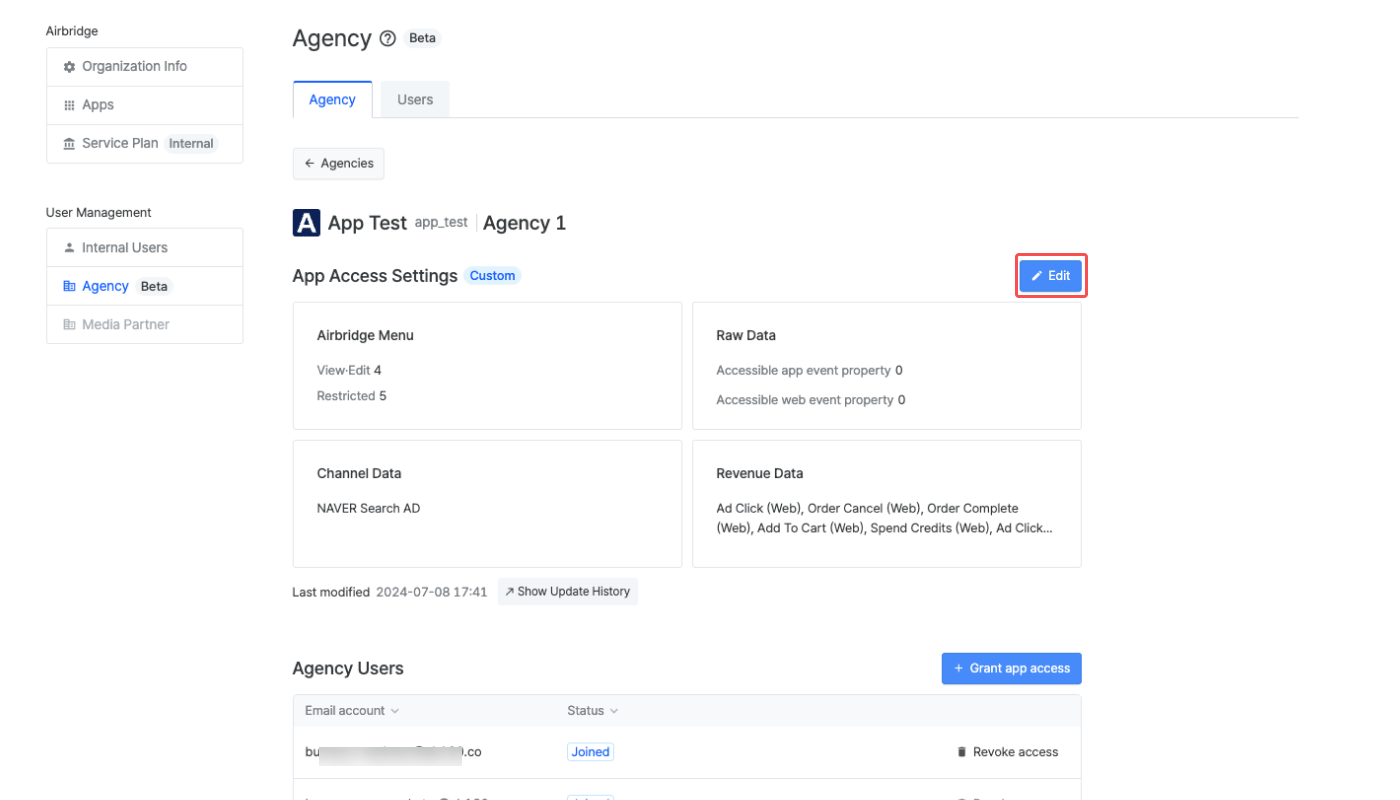
Click **Details** to view the App access settings overview of an agency. Click **Edit** or the overview cards to edit the access settings of a specific section.
Click **Save** to apply changes.
### Airbridge menu access settings
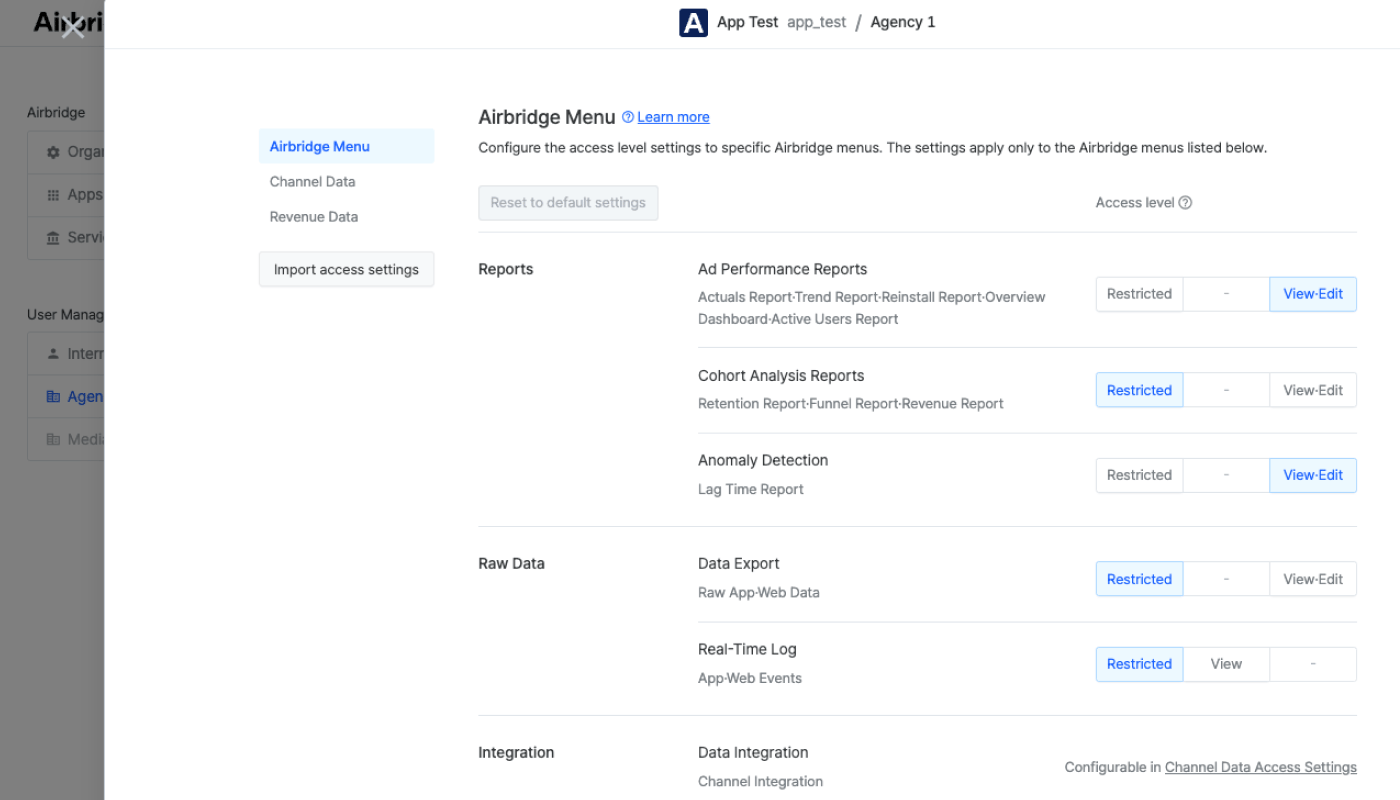
In the **Airbridge Menu** section, you can configure the agency's access levels by each Airbridge menu.
Read on to learn about the different access levels that can be configured for agencies.
| Access Level | Description |
| ------------ | ----------------------------------------------------------------- |
| Restricted | The agency has no access to the Airbridge menu. |
| View | The agency can view the data and configuration settings. |
| View·Edit | The agency can view and edit the data and configuration settings. |
The Airbridge menu access settings offer options to configure the access levels of the following menus and features.
Grant the agency access to view data or modify report settings in the Airbridge Report.
| Airbridge Menu | Features |
| ----------------------- | -------------------------------------------------------------------- |
| Ad Performance Reports | Actuals Report, Trend Report, Reinstall Report, Overview Dashboard |
| Cohort Analysis Reports | Retention Report, Funnel Report, Revenue Report, Active Users Report |
| Anomaly Detection | Lag Time Report |
Grant the agency access to data export or view real-time logs in the Airbridge dashboard.
| Airbridge Menu | Features | Description |
| -------------- | ---------------- | ------------------------------------------------------------------------------------------------------------------------------------------------------------------------------------------------------------------------------------------------------------------------------------------------------------------------ |
| Data Export | Raw App·Web Data | - Select the event properties the agency can export as raw data. - The data access restricted from different access settings won’t show in the exported file. For more details, refer to this [section](/en/guides/agency-app-access-management#influence-across-categories-of-the-access-settings) of the article. |
| Real-time Log | App·Web Events | - The agency can access all app and web events when granted access. |
**Attention**
Upon granting the agency access to the **Real-time Log** menu, the agency can access all data in the real-time log, including restricted app and web event data. Be careful, as sensitive data, such as unattributed conversion data and data managed by Admins, Managers, and other agencies, may be exposed unintentionally.
Grant the agency access to data export or view real-time logs in the Airbridge dashboard.
| Airbridge Menu | Features | Description |
| ---------------- | ------------------- | ------------------------------------------------------------------------------------------------------------- |
| Data Integration | Channel Integration | - Configurable in [Channel Data Access](/en/guides/agency-app-access-management#channel-data-access-settings) |
Grant the agency access to tracking link settings.
| Airbridge Menu | Features |
| -------------- | ----------------------------------- |
| Tracking Link | Custom Domain, Social Share Preview |
**Note**
Agency users can create tracking links regardless of the app access level and manage the tracking links created within their agency.
Grant the agency access to rule settings. Upon granting access to **Attribution Rules** and **SKAN Conversion Value** features, the agency can view and edit the settings in the **\[Attribution Rules]** and **\[SKAN Integration]** tabs on the individual channel settings pages from **\[Integration]>\[Channel Integration]**.
| Airbridge Menu | Features |
| -------------- | ---------------------------------------------------------------- |
| Rule Settings | Attribution Rules, Fraud Validation Rules, SKAN Conversion Value |
The following table shows the default Airbridge menu access levels for agencies and whether the individual menus are editable by Admins and Managers.
| Airbridge Menu | Default Access Level | Can Admins and Managers edit? | Description |
| ----------------------- | -------------------- | ----------------------------- | ------------------------------------------------------------------------------------------------------------------------------------------------------------------------------------------- |
| Ad Performance Reports | View·Edit | O | |
| Cohort Analysis Reports | Restricted | O | |
| Multi-touch Analysis | Restricted | X | Agencies cannot be granted access to this menu. |
| Anomaly Detection | View·Edit | O | Agencies granted access to Anomaly Detection can access only Lag Time. |
| Data Export | Restricted | O | |
| Real-time Log | Restricted | O | |
| Permission | Restricted | X | Agencies cannot be granted access to this menu. |
| Integration Overview | Restricted | X | Agencies cannot be granted access to this menu. |
| Channel Integration | Restricted | O | The access to specific channel data and integration settings can be configured in the [Channel Data Access Settings.](/en/guides/agency-app-access-management#channel-data-access-settings) |
| Third-party Integration | Restricted | X | Agencies cannot be granted access to this menu. |
| Data Upload | Restricted | X | Agencies cannot be granted access to this menu. |
| Audience Manager | Restricted | X | Agencies cannot be granted access to this menu. |
| Tracking Link | View·Edit | X | Agency users can create tracking links regardless of the app access level and manage the tracking links created within their agency. |
| Link Settings | Restricted | O | Agencies granted access to Link Settings can access only Custom Domain and Social Share Preview. |
| Attribution Rules | View | O | |
| Fraud Validation Rules | Restricted | O | |
| SKAN Conversion Value | View·Edit | O | |
| App | View·Edit | X | Agencies can access App Settings and Tokens only. |
| User | View | X | Agencies can access User Management only. Agency users can invite a new user from their agency to the Airbridge App they can access. |
| Debugging Test | View·Edit | X | Agencies have access to the Testing Console by default. |
### Channel data access settings
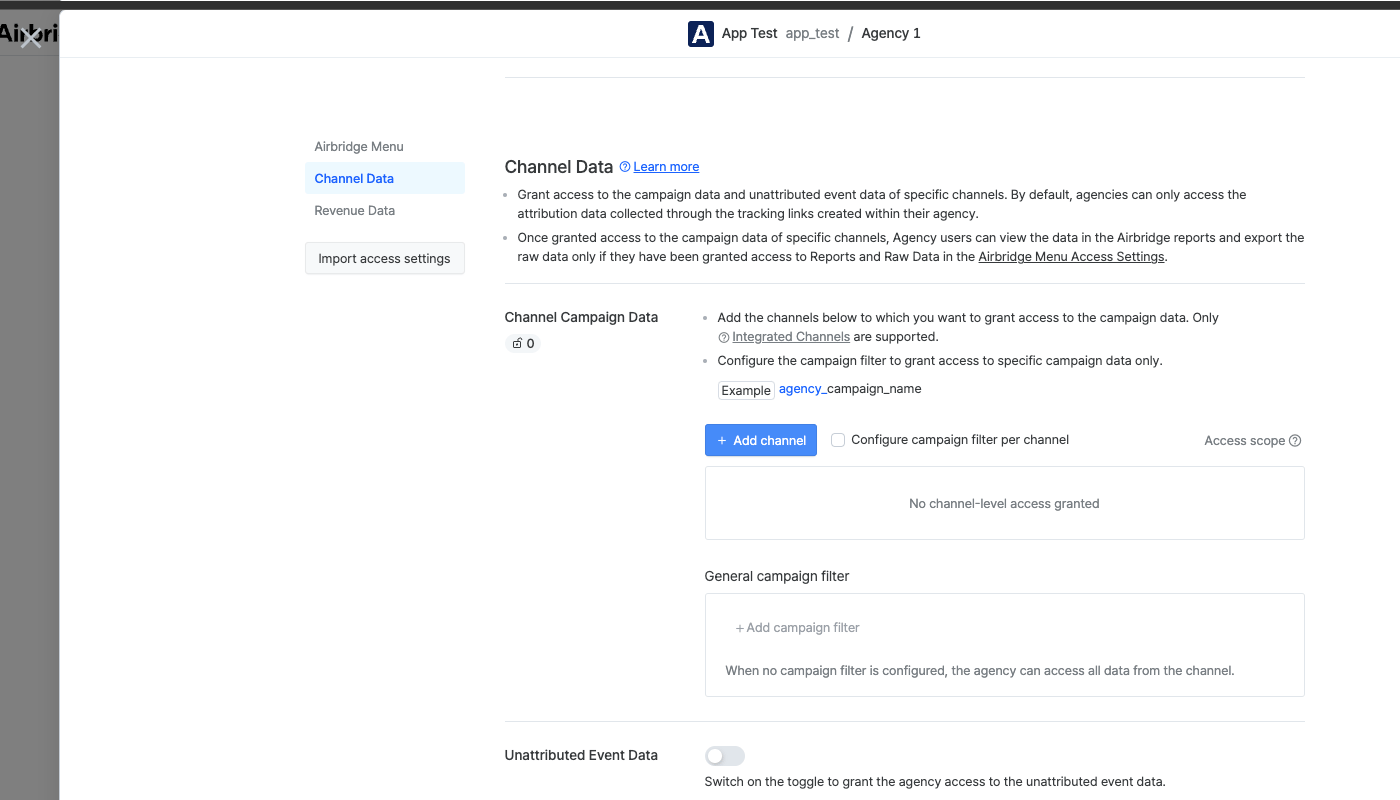
Grant the agency access to specific channel data and unattributed event data.
#### Channel data
**Note**
Even if the agency has no access to specific channel data, the Agency users can access the data collected through the tracking links created by their agency and export the raw data by default.
Grant agencies access to the campaign data and integration settings of specific channels. Only [Integrated Channels](/en/guides/what-is-a-channels#intergrated-channels) are supported.
The access scope is as follows. It is not possible to be selective about the access scope.
* **View data**: Agency users can view all data from the channel collected through tracking links and integrations supported by Airbridge and export the raw data.
* **Edit settings**: Agency users can add and delete their agency's ad account connections. The integration toggle can not be edited by Agency users. This applies to channels with [channel integration](/en/guides/integrating-ad-channels#ad-channel-integration), [cost integration](/en/guides/integrating-ad-channels#cost-integration), or [SKAN integration](/en/guides/integrating-ad-channels#skadnetwork-integration). Refer to the list of the channels below.
When granting agencies access to the campaign data of the following channels, access to the channel integration settings is also granted.
* Google Ads
* Apple Ads
* Meta ads
* TikTok For Business
* Naver Ads
* Kakao Moment
* Moloco
* Unity Ads
* RTB House
* Personal.y
* Appier
* Petal Ads
Follow the steps below to grant agencies access to the campaign data and integration settings of specific channels.
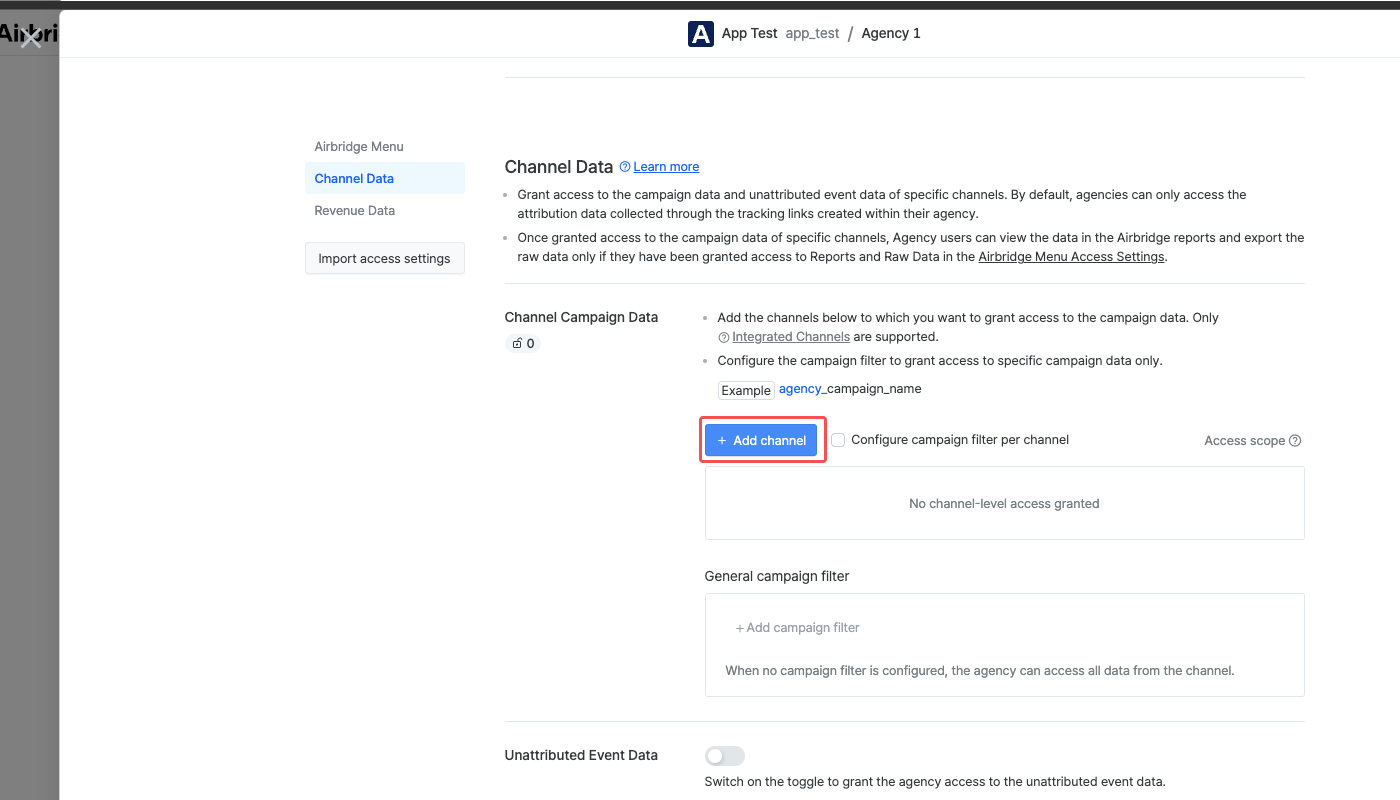
1. In the **Channel Data** section, click **Add channel**.
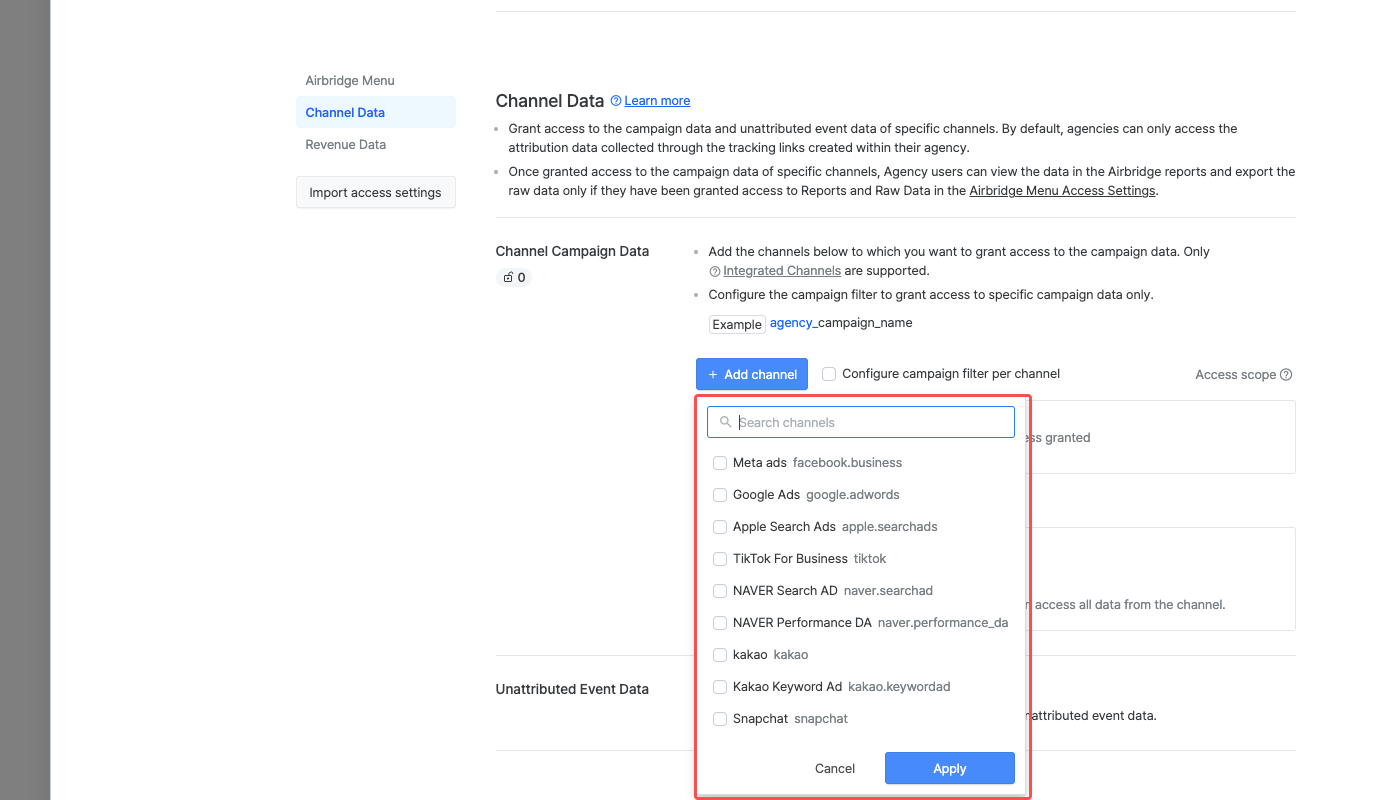
2. Select the channel you want to grant the agency access to the campaign data and click **Apply**. Multiple channels can be selected.
3. Campaign filters can be added to allow agencies to access data collected from the campaigns managed by their agency only. The filter consists of the operator and the agency tag. The agency tags must be less than 30 characters long and must contain only letters and hyphens.
| Operator | Description | Example |
| ----------- | -------------------------------------------------------------------------------------------------------------- | ------------------------------------------------------------------------------------------------------------------------------ |
| starts with | Campaigns that start with the agency tag are allowed for the agency to access. `_` comes after the agency tag. | If the agency tag is `agencyX`; - agencyX\_campaign: Agency X can access - campaign\_agencyX: Agency X cannot access |
| ends with | Campaigns that end with the agency tag are allowed for the agency to access. `_` comes before the agency tag. | If the agency tag is `agencyX`; - agencyX\_campaign: Agency X cannot access - campaign\_agencyX: Agency X can access |
The general campaign filter settings are applied to all channels. When clicking **Add campaign filter**, a filter is automatically added like the following. You can then make edits to the filter.
* Campaign `starts_with`**agency tag**`_`
4. If you want to set different filters for different channels, check the **Configure the campaign filter per channel** checkbox and add filters per channel.
When no campaign filter is configured, the Agency users can view all data from the channel, including the data of the campaigns managed by other agencies.
#### Unattributed event data
Switch on the toggle to grant the agency access to unattributed event data. By default, agencies cannot access any unattributed event data.
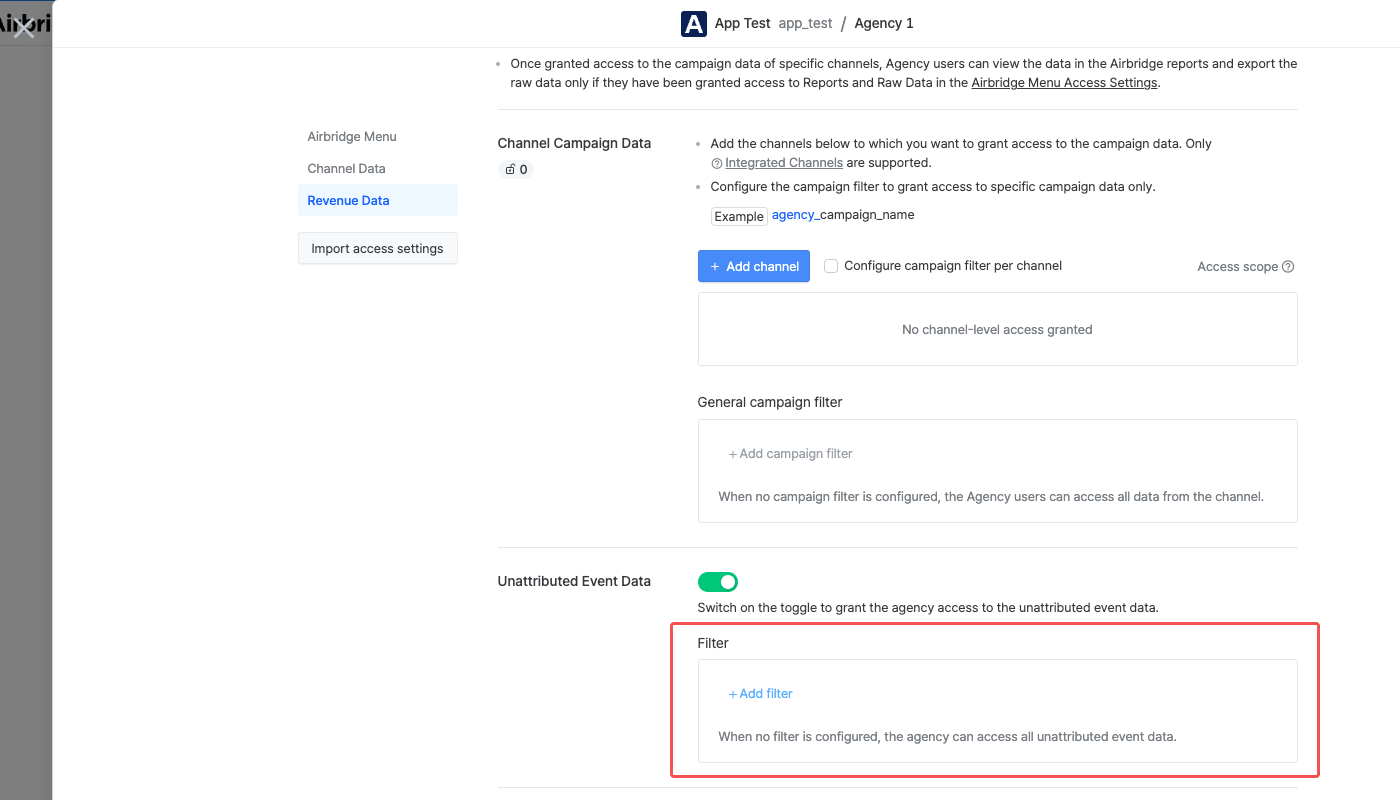
Configure the filter if necessary. The available filter option is `Client IP Country`.
### Revenue data access settings
Remove the revenue events that should not be accessed by the agency. Only Standard Events are supported.
For revenue events that have not been granted access, the revenue data will be displayed 0 in the Airbridge reports or raw data. Refer to this [article](/en/guides/managing-user-account-faq#how-is-the-revenue-event-data-without-access-displayed).
## Supported Features
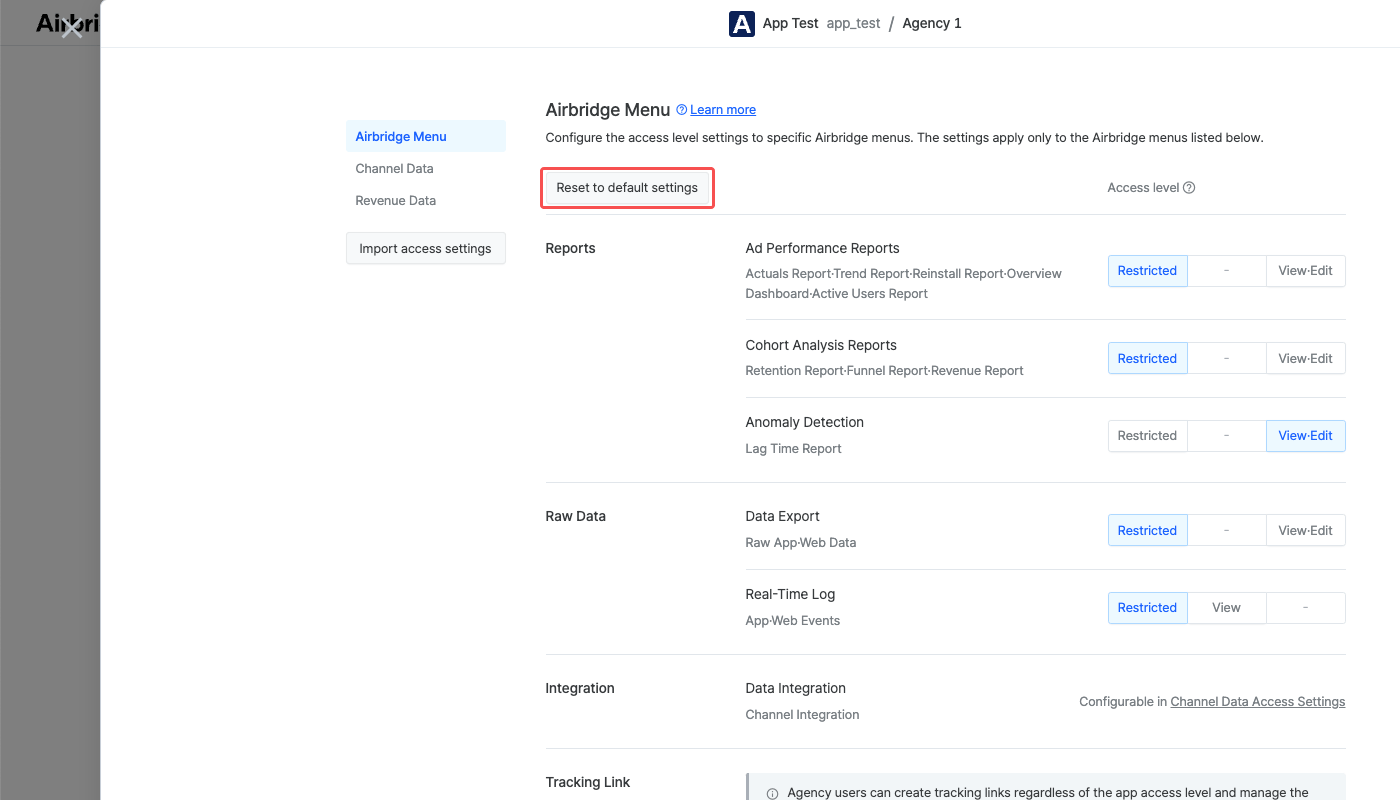
Click **Reset to default settings** to revert the Airbridge menu access settings to the [default settings](/en/guides/agency-app-access-management#default-app-access-settings-of-agency-users).
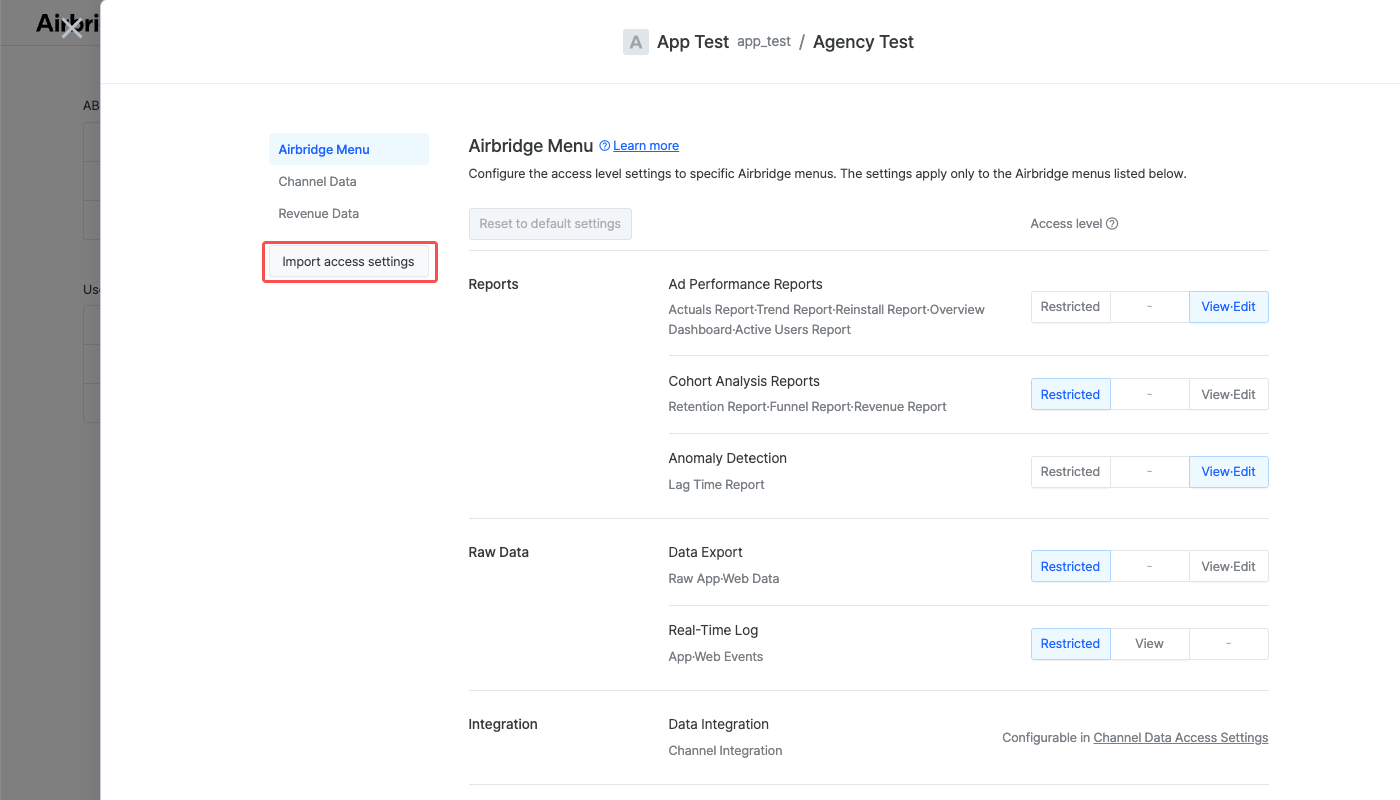
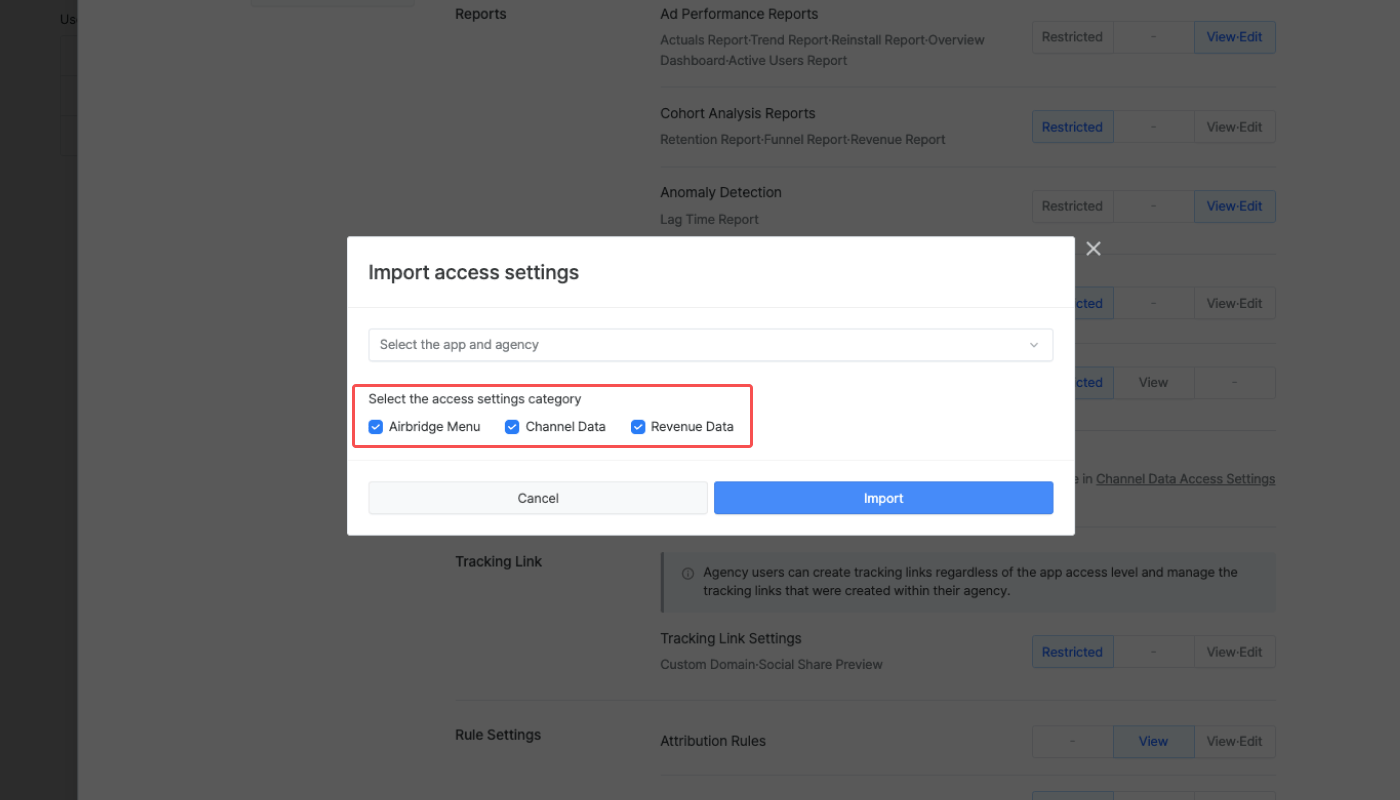
Follow the steps below to import the access settings of a different agency to configure the settings of an agency.
1. On the **App/Agency** page, click **Import access settings** on the left sidebar.
2. Select the App and Agency pair you want to import the access settings.
3. Select the category you want to import and click **Import**.
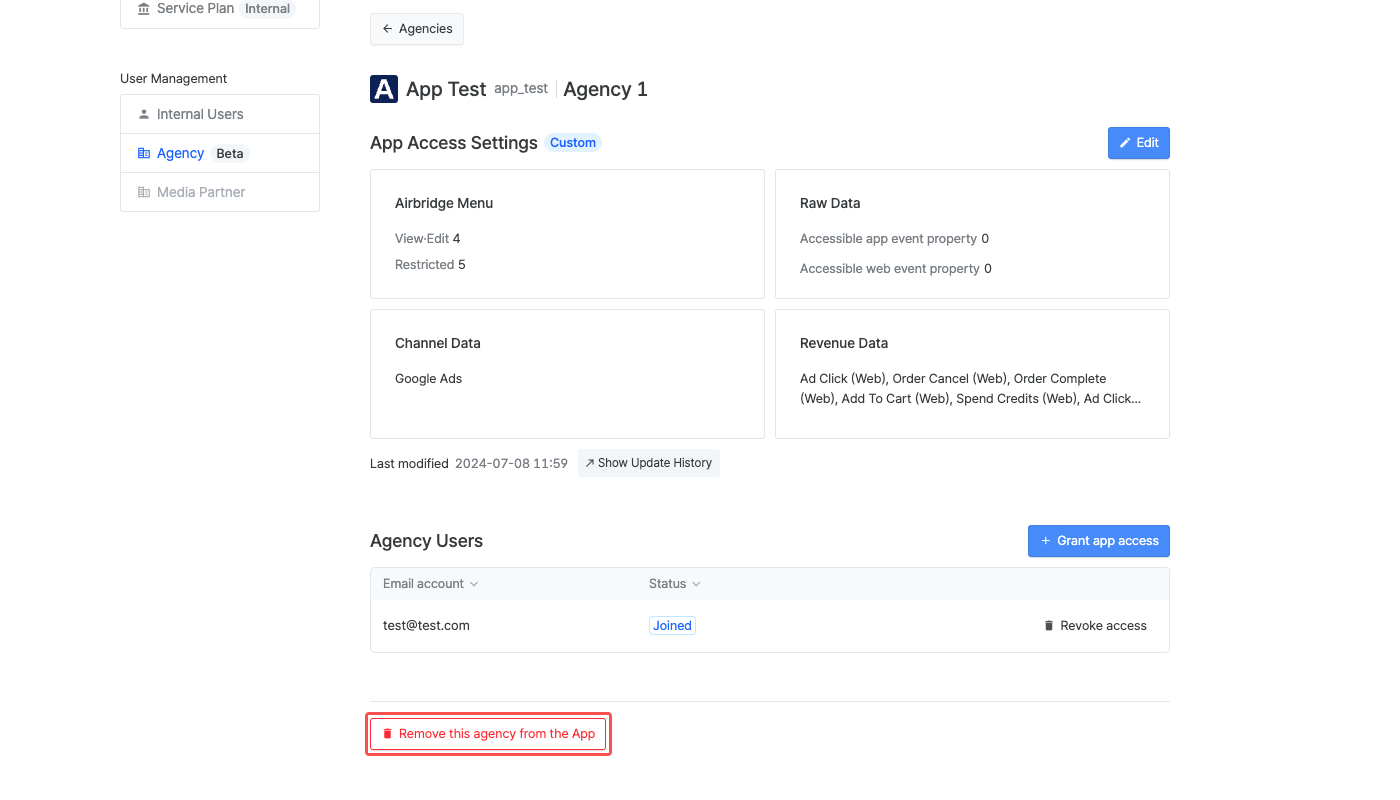
Agencies can be removed from the Airbridge App they have access to. Once removed, the agency will no longer have any access to the Airbridge App, and the API token the Agency users were assigned will expire. The data already collected through the tracking links created by the Agency users will remain in Airbridge. To remove an agency from an App, follow the steps below.
1. On the **\[Agency]** page, click **View details** to open the **App/Agency** page.
2. Scroll down to the bottom of the page and click **Remove agency from the App**.
## Attention
When setting the access level for the **Real-time Log** menu to `View`, the agency can access all data in the real-time log, including restricted app and web event data.
Be careful, as sensitive data, such as unattributed conversion data and data managed by Admins, Managers, and Agency users from a different agency, may be exposed unintentionally.
The Airbridge menu access, channel data access, and revenue data access settings influence each other. For example, regardless of the Airbridge menu access settings, the data that the Agency users can access may be restricted due to the influence of the revenue data access settings.
For more detailed information, refer to this [article](/en/guides/managing-user-account-faq#i-have-granted-the-agency-app-access-but-the-agency-cannot-access-the-data-in-the-airbridge-reports-or-export-the-raw-data-why-is-it-so).
 ### **App access settings overview**
The following information is displayed in the app access settings overview dashboard:
* [Access level status](/en/guides/agency-app-access-management#access-settings-status)
* Number of Airbridge menus the Agency users can view, view and edit, or cannot access
* Number of accessible app and web event properties by the Agency users
* The channels to which the Agency users have access to attribution and cost data
* The revenue events the Agency users have access to in the Airbridge reports and can export as raw data
### **App access settings overview**
The following information is displayed in the app access settings overview dashboard:
* [Access level status](/en/guides/agency-app-access-management#access-settings-status)
* Number of Airbridge menus the Agency users can view, view and edit, or cannot access
* Number of accessible app and web event properties by the Agency users
* The channels to which the Agency users have access to attribution and cost data
* The revenue events the Agency users have access to in the Airbridge reports and can export as raw data
 ## Editing the Access Settings of an Agency
 Click **Save** to apply changes.
### Airbridge menu access settings
In the **Airbridge Menu** section, you can configure the agency's access levels by each Airbridge menu.
Click **Save** to apply changes.
### Airbridge menu access settings
In the **Airbridge Menu** section, you can configure the agency's access levels by each Airbridge menu.
 Read on to learn about the different access levels that can be configured for agencies.
 #### Channel data
 2. Select the channel you want to grant the agency access to the campaign data and click **Apply**. Multiple channels can be selected.
 3. Campaign filters can be added to allow agencies to access data collected from the campaigns managed by their agency only. The filter consists of the operator and the agency tag. The agency tags must be less than 30 characters long and must contain only letters and hyphens.
| Operator | Description | Example |
| ----------- | -------------------------------------------------------------------------------------------------------------- | ------------------------------------------------------------------------------------------------------------------------------ |
| starts with | Campaigns that start with the agency tag are allowed for the agency to access. `_` comes after the agency tag. | If the agency tag is `agencyX`;
3. Campaign filters can be added to allow agencies to access data collected from the campaigns managed by their agency only. The filter consists of the operator and the agency tag. The agency tags must be less than 30 characters long and must contain only letters and hyphens.
| Operator | Description | Example |
| ----------- | -------------------------------------------------------------------------------------------------------------- | ------------------------------------------------------------------------------------------------------------------------------ |
| starts with | Campaigns that start with the agency tag are allowed for the agency to access. `_` comes after the agency tag. | If the agency tag is `agencyX`;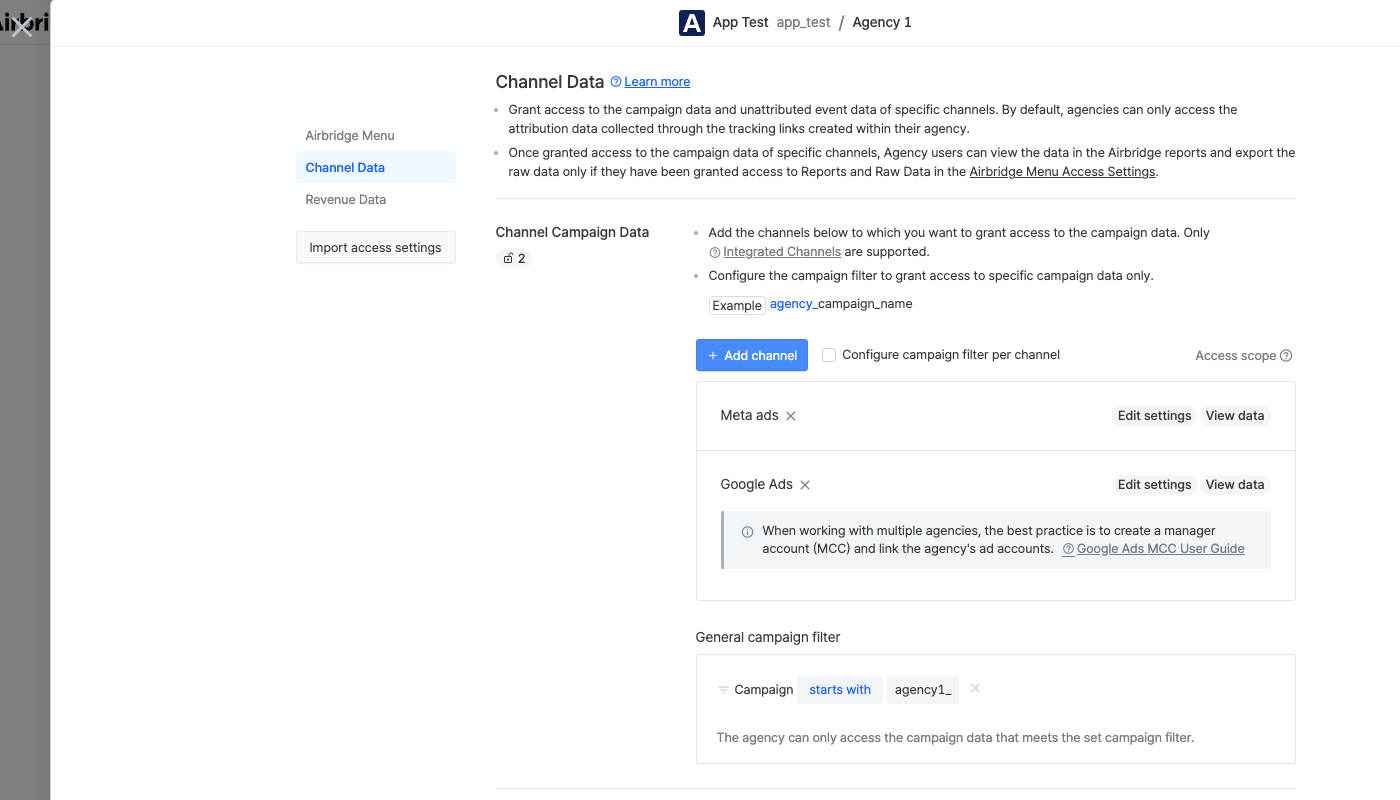 4. If you want to set different filters for different channels, check the **Configure the campaign filter per channel** checkbox and add filters per channel.
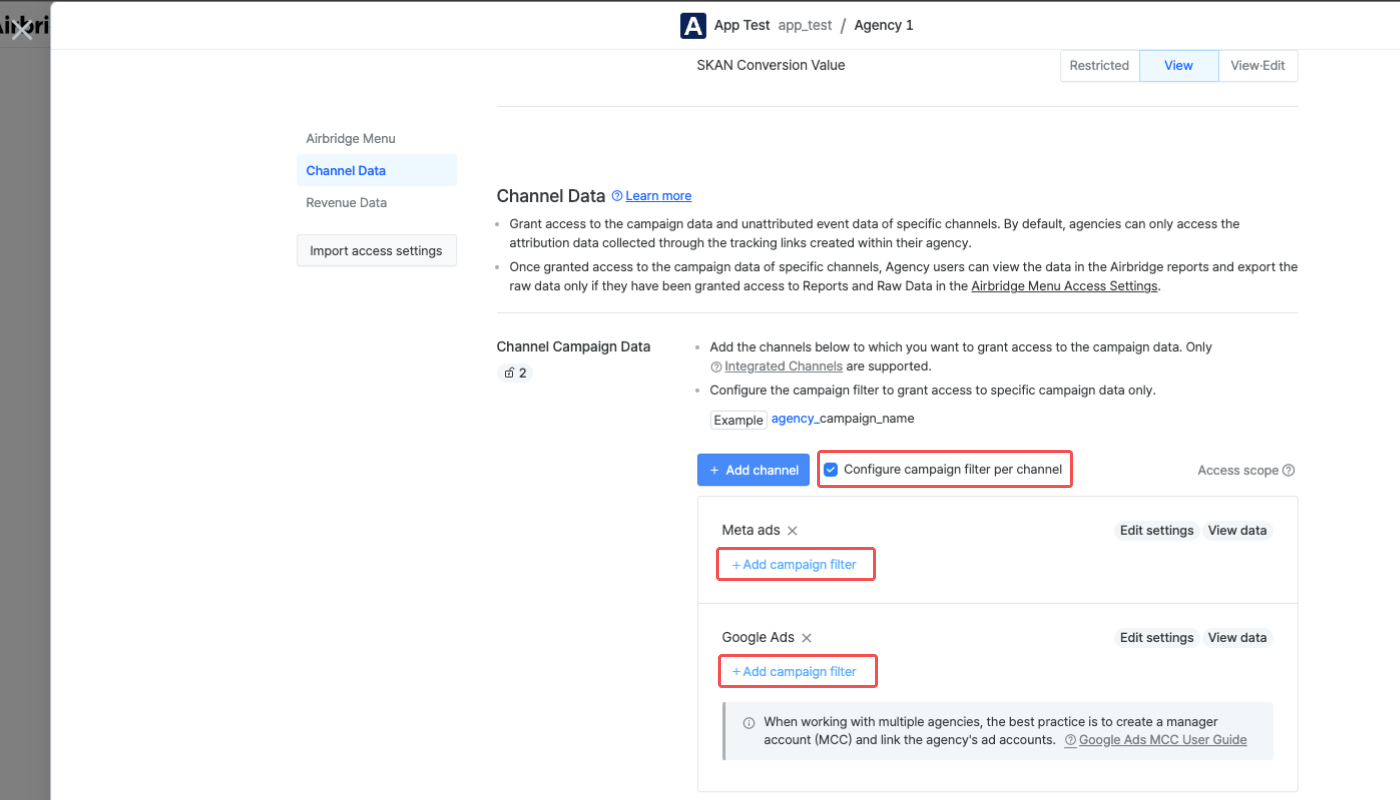 When no campaign filter is configured, the Agency users can view all data from the channel, including the data of the campaigns managed by other agencies.
#### Unattributed event data
Switch on the toggle to grant the agency access to unattributed event data. By default, agencies cannot access any unattributed event data.
When no campaign filter is configured, the Agency users can view all data from the channel, including the data of the campaigns managed by other agencies.
#### Unattributed event data
Switch on the toggle to grant the agency access to unattributed event data. By default, agencies cannot access any unattributed event data.
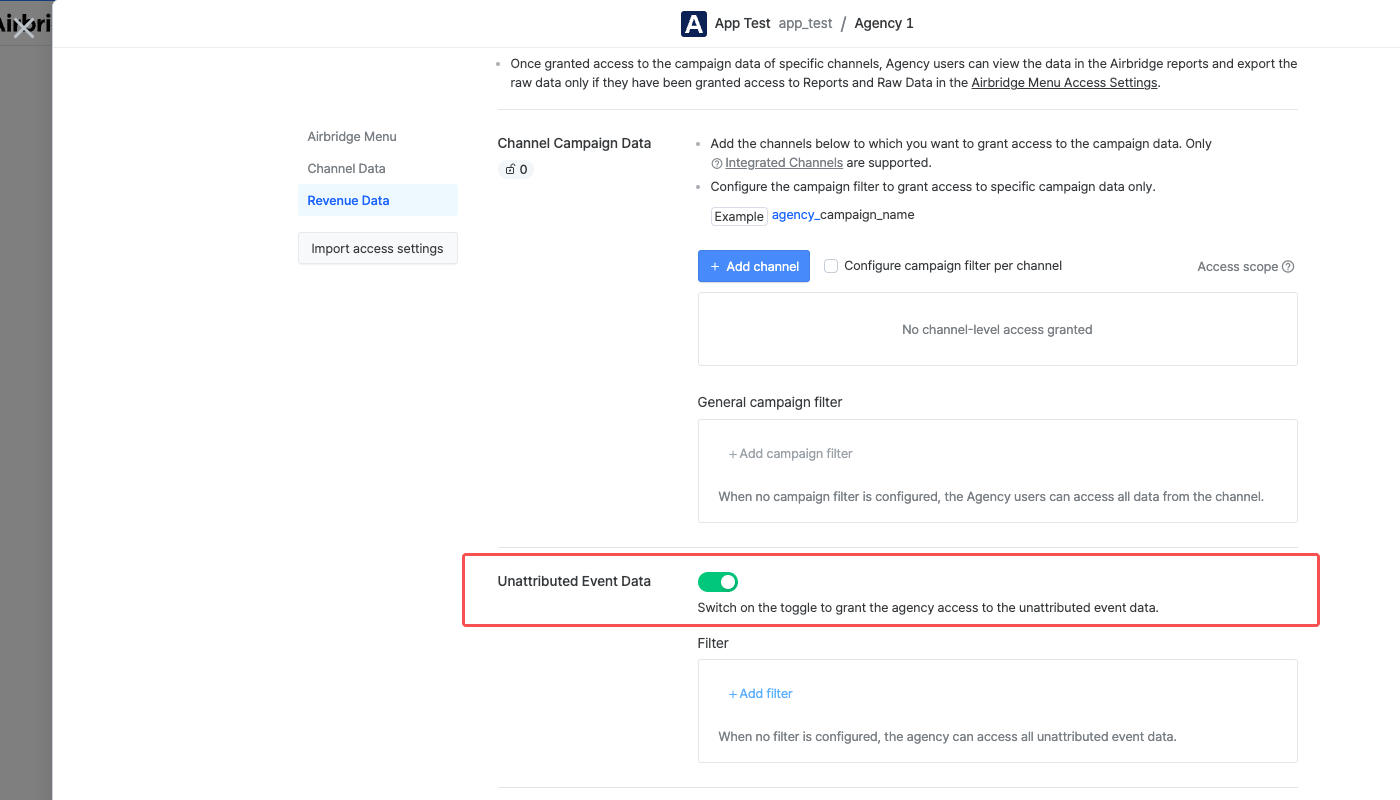 Configure the filter if necessary. The available filter option is `Client IP Country`.
 ### Revenue data access settings
Remove the revenue events that should not be accessed by the agency. Only Standard Events are supported.
### Revenue data access settings
Remove the revenue events that should not be accessed by the agency. Only Standard Events are supported.
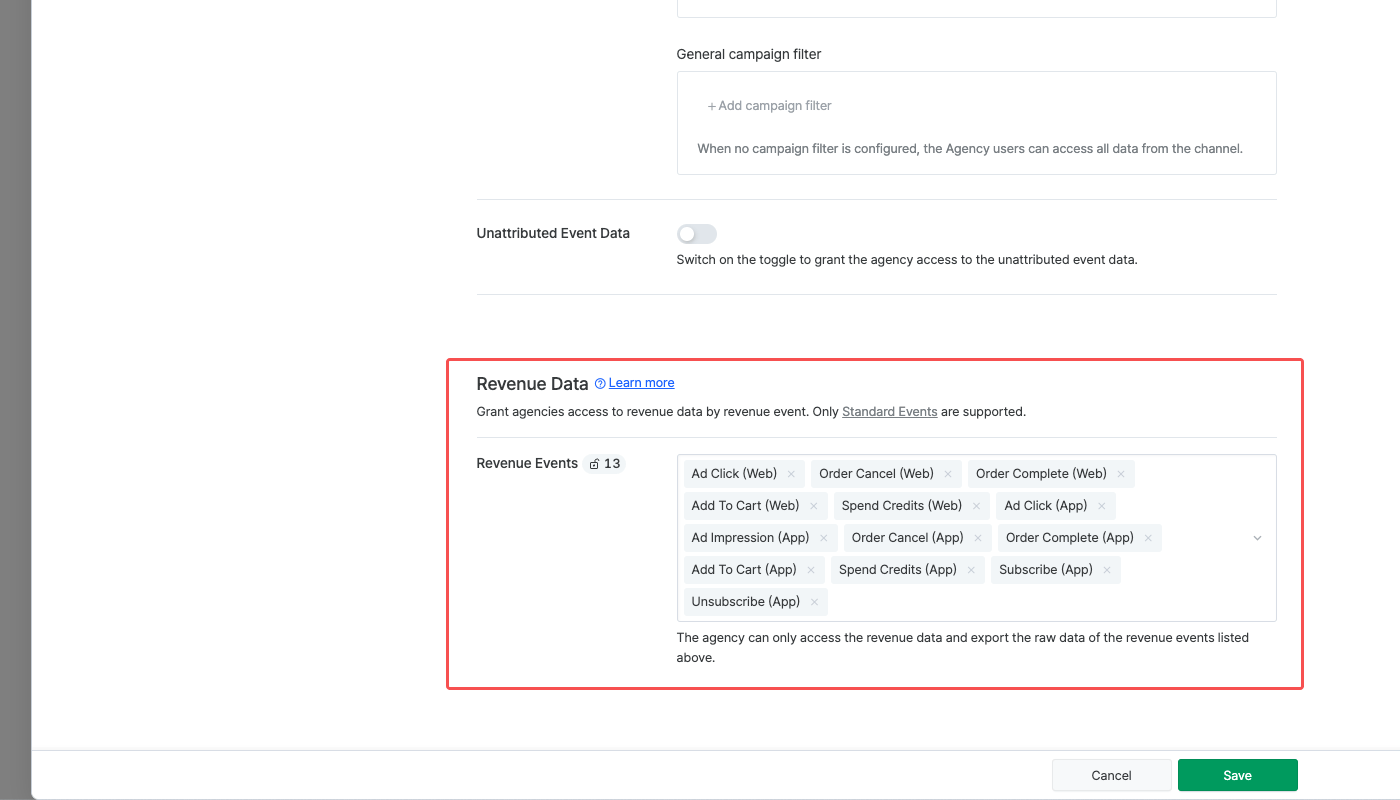 For revenue events that have not been granted access, the revenue data will be displayed 0 in the Airbridge reports or raw data. Refer to this [article](/en/guides/managing-user-account-faq#how-is-the-revenue-event-data-without-access-displayed).
## Supported Features
For revenue events that have not been granted access, the revenue data will be displayed 0 in the Airbridge reports or raw data. Refer to this [article](/en/guides/managing-user-account-faq#how-is-the-revenue-event-data-without-access-displayed).
## Supported Features
 2. Select the App and Agency pair you want to import the access settings.
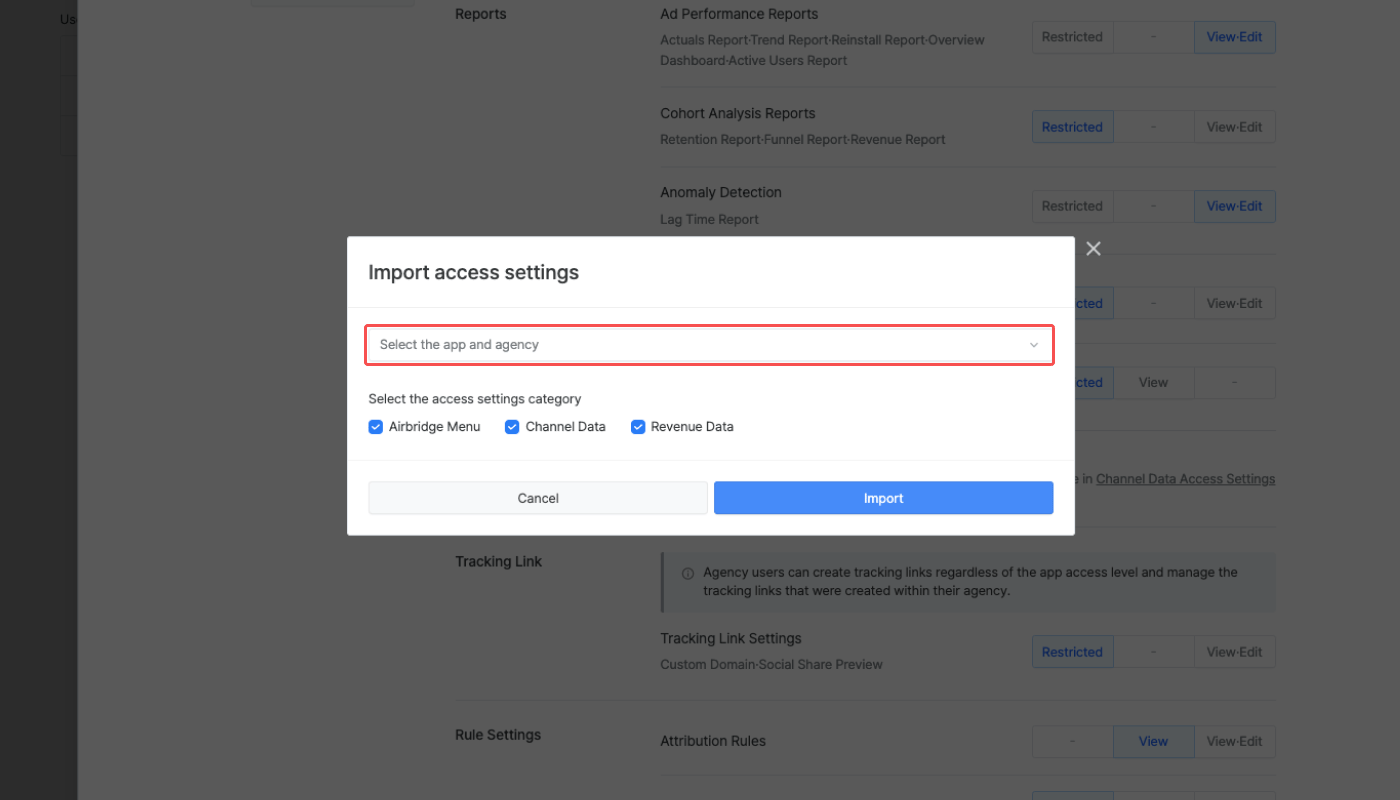 3. Select the category you want to import and click **Import**.
 2. Scroll down to the bottom of the page and click **Remove agency from the App**.