> ## Documentation Index
> Fetch the complete documentation index at: https://help.airbridge.io/llms.txt
> Use this file to discover all available pages before exploring further.
# Creating an Actuals Report
The Actuals Report displays data collected by Airbridge in real time.
## Configure the Actuals Report
In the Actuals Report, set the date range, metrics, GroupBys, filter, and date option to view the data you need. Group selected metrics by GroupBy, or apply a filter to narrow down to specific GroupBys.
### Date range
A date range consists of three parts: condition, date, and time zone.
**Warning**
Due to the privacy policy, some metrics attributed to Google Ads, Meta Ads, and TikTok For Business before December 21, 2025 are counted as 0 and reported as “unattributed”. For details, refer to [FAQ - Real-time Reporting](/en/guides/actuals-report-faq#privacy-policy).
##### Date range conditions
There are three condition types.
| Condition | Reference date | Date range |
| --------- | -------------------- | -------------------------------------------- |
| Between | Start date, end date | From start date to end date |
| Since | Start date | From start date to today |
| Last | Number (n) | From n days (weeks, months) ago to yesterday |
'Last' supports 'Include today', 'Include this month', and 'Offset'. When you include today or this month, the date range extends from n days ago to today or this month. Clicking 'Offset' and entering a number shifts the range backward by that number of days. For example, if you set the cycle to 'Daily' and the condition to 'Last 30 days', the report shows data from 30 days ago to 1 day ago. Turning off 'Include today' and adding 'Offset 3 days' changes the range to 33 days ago through 4 days ago.
##### Date
Date selection follows these rules.
* Earliest available start date: February 1, 2023
* Maximum date range per query: 400 days
##### Time zone
Time zone is the time zone used to view the report. The default matches the [app timezone](/en/guides/set-app-timezone#app-timezone).
### Metrics
Metrics are quantified indicators of data Airbridge collects through tracking links, SDKs, and APIs. You can select 1 to 20 metrics. Metrics without collected data do not appear. There are three metric types: basic metrics, cohort metrics, and custom metrics. For details, see [Airbridge Report Metrics](/en/guides/airbridge-report-metrics#metric-types).
##### Basic metrics
Basic metrics are provided by default in Airbridge. There are four types based on what they measure.
* **Event count**: Most Airbridge metrics fall into this type. They share names with the Airbridge events defined in the [event taxonomy](/en/guides/airbridge-event-taxonomy#design-the-airbridge-event-taxonomy). For example, the Installs (App) metric shows the number of app install events generated during the selected date range.
* **User count of an event**: Metrics with 'users' in the name. They show the count of unique users who performed the event. The same user performing the same event multiple times counts as 1. User count metrics update hourly.
* **Value collected with an event**: Metrics with 'revenue' or 'amount' in the name. They show the values collected when the event is generated. Only events defined with [Value](/en/guides/airbridge-event-elements#value) in the event taxonomy are aggregated.
* **SKAdNetwork (SKAN)**: Metrics whose names start with 'SKAN'. They show data collected via SKAdNetwork (SKAN). To view data with these metrics, you need to set up the Conversion Value.
##### Cohort metrics
Cohort metrics show revenue and retention data on the Nth day after a user enters via a start event. They are used for indicators like N-day retention user count or rate, N-day ARPU, and N-day ARPPU. In the Actuals Report, GroupBys are applied by start event. To define new cohort metrics, see [Creating Cohort Metrics](/en/guides/creating-metrics#cohort-metrics).
##### Custom metrics
Custom metrics combine metrics, numbers, and operators into formulas. They are used to create indicators like ROAS or conversion rate. They are available across all apps in your organization, but if the formula includes a metric not defined in some apps, the metric appears as 0 for those apps. To define new custom metrics, see [Creating Custom Metrics](/en/guides/custom-metric-manager).
### GroupBys
GroupBys are dimensions for splitting metrics. Selected GroupBys break down metrics in the results. For example, selecting Channel shows metrics per ad channel. You can select 0 to 10 GroupBys. Each metric type applies GroupBys differently.
* Basic metrics, custom metrics: Applied per metric.
* Cohort metrics: Applied by start event.
### Filter
Filters narrow down which GroupBys appear. The format is A is B, where A is a GroupBy and B is the value to filter by. Filter values (B) include only values collected at least once in Airbridge. The default condition is is. All available conditions are below.
| Filter condition | Usage | Description |
| ---------------- | -------------------- | --------------------------------------- |
| is | A is B | Returns data where A is B |
| is not | A is not B | Returns data where A is not B |
| contains | A contains B | Returns data where A contains B |
| does not contain | A does not contain B | Returns data where A does not contain B |
| exists | A exists | Returns data that has A |
| does not exist | A does not exist | Returns data that does not have A |
### Date option
Date option is the basis for aggregating ad performance. There are three options: Event Date, Target Event Date, and Touchpoint Date. For details, see [Date option definitions](/en/guides/actuals-report-aggregation-criteria).
## View the Actuals Report
After configuring the report, you can view the results. Results appear in a table, with sums and averages for each row.
In the Airbridge dashboard, go to \[Reports]>\[Actuals Report] and configure the following.
* Date range: Set the period you want to view.
* Metric: Select 'Installs (App)'.
* GroupBy: Select 'Channel'.
## Save the Actuals Report
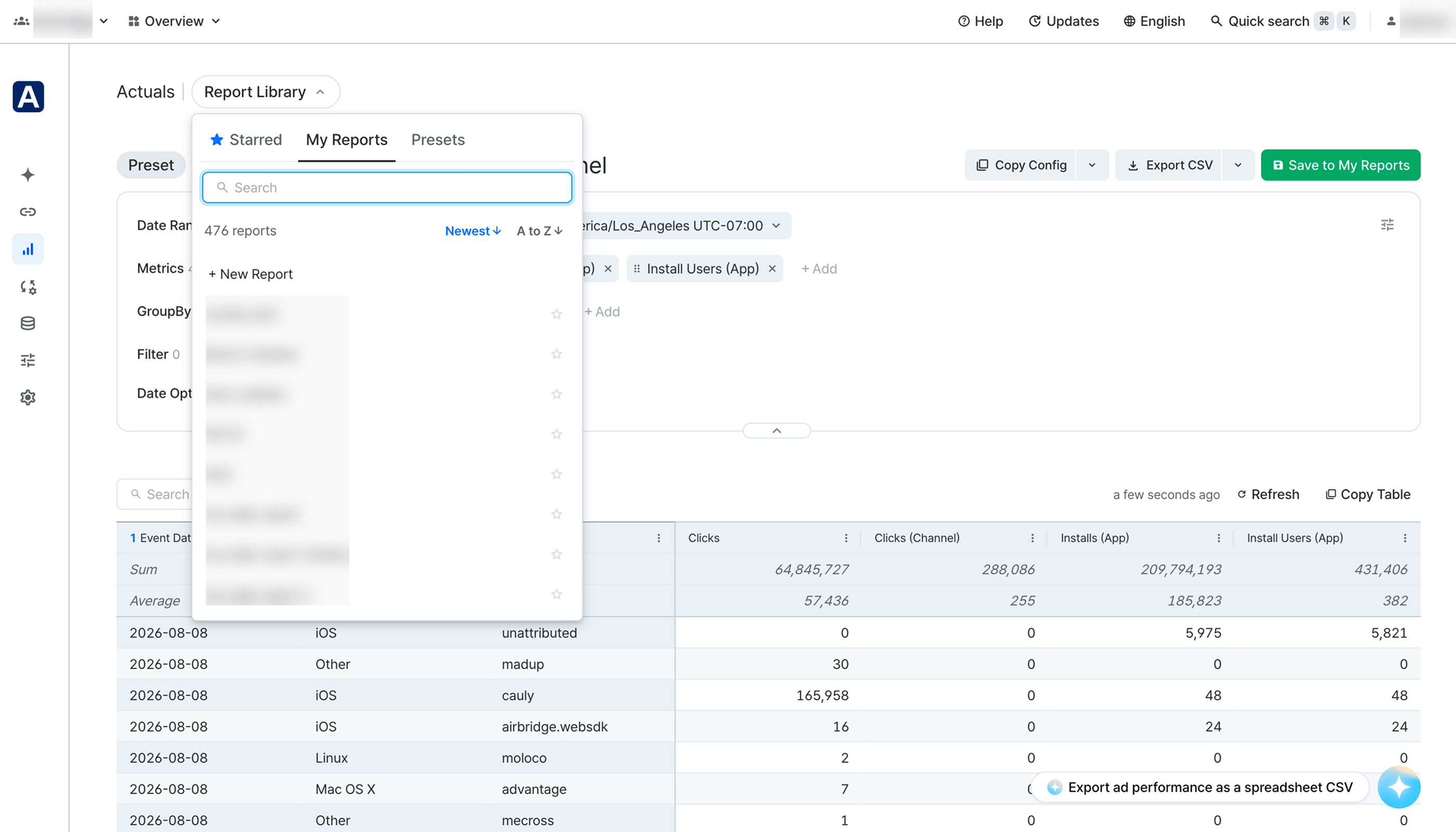
The \[Report Library] at the top of the Actuals report has the following three tabs.
| Tab | Description |
| ---------- | ------------------------------------------------------------------------------------------------------------------------------------------------------------------------------------------------------------------------------------------------------------------------------------------------------------------ |
| Presets | - Report templates that Airbridge provides with recommended settings for each plan and industry. If you're not sure where to start, begin with a preset. - You cannot save changes to a preset or create a sharelink from a preset. To keep your changes or create a sharelink, click **Save to My Reports**. |
| My Reports | Reports you saved. Once a report is saved, you can create a sharelink for it. |
| Starred | Saved reports you starred. To star a report, select the star icon to the right of the report's name in **\[My Reports]**. Use this tab to narrow your saved reports down to the ones you use most often. |
## Share the Actuals Report
Share results using the following features.
| **Feature** | **Description** |
| --------------------- | ---------------------------------------------------------------------------------------------------------------------------------------------------------------------------------------------------------------------------------------------------------------------------------------------------------------------------------------------------------------------------- |
| Report saving | When you save a report with your settings, other users with access can see it with your settings applied. Saved reports appear under **\[Report Library]>\[My Reports]**. |
| Copy and paste config | Share report settings with any Airbridge user, regardless of registered apps or permissions. The recipient can apply the same settings in the Actuals Report via **\[Paste config]** or **\[Open in editor]**. You can paste Actuals Report configs into the Trend Report to view results, but some configs may not transfer depending on the number of metrics and GroupBys |
| Report URL | A Report URL is the URL generated each time you view a report. Without saving the report, share the URL with users who have access to view the same report |
| Copy table | Copy individual cells or the entire table from the results and paste into Excel, Google Sheets, or similar tools |
| File download | Download Airbridge report results in the format you select |
| Sharelink | A Sharelink is a URL for downloading a CSV file with Actuals Report data. The data a Sharelink provides depends on the app role of the Airbridge user who created it. Sharelink data updates hourly. |
### Sharelink
A Sharelink is a URL that downloads the report data as a CSV file. You can create a sharelink only after you save the report. To create one, click the share icon to the right of the report's name. Sharelink data updates hourly. For details, see [Share Report Data using Sharelink](/en/guides/actuals-report-sharelink).
## Actuals Report Features and Limits
Features and limits of the Actuals Report.
| **Feature/Limit** | **Description** |
| --------------------------------------------------- | ------------------------------------------------------------------ |
| Maximum metrics | 20 |
| Maximum GroupBys | 10 |
| Self-serve metrics, custom metrics, custom GroupBys | Supported |
| Time zone | Follows app timezone by default. Can be changed in report settings |
| Currency | Follows the configured app base currency |
| Data format | Table |
| Data update frequency | Real-time. User count metrics update hourly |
| Available data | App event data, web event data, SKAN data, cost data |
| Custom events | Supported |
| Maximum rows in Airbridge dashboard | 10,000 rows |
| Maximum rows in CSV / Google Sheets | 500,000 rows |
| Maximum rows in Sharelink | 50,000 rows |
| Data retention | 5 years |
| Maximum date range per query | 400 days |
## Basic Features
Features common to all reports. Some features are not available in some reports.
| **Name** | **Description** |
| ----------------- | ---------------------------------------------------------------------------------------------------------------------------------------- |
| Refresh | Re-fetch the results while keeping the current Airbridge report settings. The elapsed time since the last query appears next to Refresh. |
| Wide mode | Configure reports on a wider screen. |
| Search | Search for results in the Airbridge report. |
| Collapse | Collapse or expand the Airbridge report settings. |
| Report name input | Enter a report name. A name is required to save the report. |
## Notes
Keep the following in mind.
### Meta's privacy policy
Per Meta's privacy policy, some Meta Ads ([facebook.business](https://facebook.business)) data is masked in reports during the selected date range if you have not agreed to the Advanced Mobile Measurement (AMM) Terms. Masking conditions are as follows.
* The sum of impressions and engaged views from a Meta Ads campaign is under 1,000
* Data provided by Meta Ads via channel integration or cost integration
Masked data is excluded from aggregation and appears as follows.
| Notation | Masked scope | Description |
| ------------- | ------------ | ------------------------------------------- |
| Privacy Block | All data | Privacy Block appears in place of the value |
| +α, ±α | Partial data | Appears next to the value |
**Note**
To view all Meta Ads campaign data in reports, agree to Meta's AMM Terms. For details, see [FAQ - Meta Business](/en/guides/meta-business-faq#why-is-some-data-attributed-to-meta-ads-not-displayed-properly-in-reports).
If Meta Ads data still appears masked after agreeing to the terms, try the following.
* Change or extend the date in the date range. Only data after the agreement date is provided unmasked.
* Change or remove some GroupBys and filters.
### Custom metrics that use metrics defined in only some apps
Custom metrics are available across all apps in your organization. However, if the formula of a custom metric includes a metric defined in only some apps, the result may not be what you expect.
App A and App B are in the same organization. Both apps use the following custom events and self-serve metric.
| Event/Metric | push\_sent (custom event) | in\_app\_sent (custom event) | push\_clicked (self-serve metric) |
| ------------ | ------------------------- | ---------------------------- | --------------------------------- |
| App A | Collected | Collected | Collected |
| App B | Collected | Collected | Not collected |
Assume custom metrics are defined as follows.
* message\_sent = push\_sent + in\_app\_sent
* push\_click\_rate = (push\_clicked / push\_sent) \* 100
In the results for each app, App A can see both custom metrics. However, App B shows push\_click\_rate as 0 because App B does not collect the push\_clicked metric.
| App | message\_sent | push\_click\_rate |
| ----- | ------------- | ---------------------------------------------------------------------- |
| App A | Available | Available |
| App B | Available | Unavailable (Shown as 0 because push\_clicked metric is not collected) |
 ## Share the Actuals Report
Share results using the following features.
| **Feature** | **Description** |
| --------------------- | ---------------------------------------------------------------------------------------------------------------------------------------------------------------------------------------------------------------------------------------------------------------------------------------------------------------------------------------------------------------------------- |
| Report saving | When you save a report with your settings, other users with access can see it with your settings applied. Saved reports appear under **\[Report Library]>\[My Reports]**. |
| Copy and paste config | Share report settings with any Airbridge user, regardless of registered apps or permissions. The recipient can apply the same settings in the Actuals Report via **\[Paste config]** or **\[Open in editor]**. You can paste Actuals Report configs into the Trend Report to view results, but some configs may not transfer depending on the number of metrics and GroupBys |
| Report URL | A Report URL is the URL generated each time you view a report. Without saving the report, share the URL with users who have access to view the same report |
| Copy table | Copy individual cells or the entire table from the results and paste into Excel, Google Sheets, or similar tools |
| File download | Download Airbridge report results in the format you select |
| Sharelink | A Sharelink is a URL for downloading a CSV file with Actuals Report data. The data a Sharelink provides depends on the app role of the Airbridge user who created it. Sharelink data updates hourly. |
### Sharelink
A Sharelink is a URL that downloads the report data as a CSV file. You can create a sharelink only after you save the report. To create one, click the share icon to the right of the report's name. Sharelink data updates hourly. For details, see [Share Report Data using Sharelink](/en/guides/actuals-report-sharelink).
## Actuals Report Features and Limits
Features and limits of the Actuals Report.
| **Feature/Limit** | **Description** |
| --------------------------------------------------- | ------------------------------------------------------------------ |
| Maximum metrics | 20 |
| Maximum GroupBys | 10 |
| Self-serve metrics, custom metrics, custom GroupBys | Supported |
| Time zone | Follows app timezone by default. Can be changed in report settings |
| Currency | Follows the configured app base currency |
| Data format | Table |
| Data update frequency | Real-time. User count metrics update hourly |
| Available data | App event data, web event data, SKAN data, cost data |
| Custom events | Supported |
| Maximum rows in Airbridge dashboard | 10,000 rows |
| Maximum rows in CSV / Google Sheets | 500,000 rows |
| Maximum rows in Sharelink | 50,000 rows |
| Data retention | 5 years |
| Maximum date range per query | 400 days |
## Basic Features
Features common to all reports. Some features are not available in some reports.
| **Name** | **Description** |
| ----------------- | ---------------------------------------------------------------------------------------------------------------------------------------- |
| Refresh | Re-fetch the results while keeping the current Airbridge report settings. The elapsed time since the last query appears next to Refresh. |
| Wide mode | Configure reports on a wider screen. |
| Search | Search for results in the Airbridge report. |
| Collapse | Collapse or expand the Airbridge report settings. |
| Report name input | Enter a report name. A name is required to save the report. |
## Notes
Keep the following in mind.
### Meta's privacy policy
Per Meta's privacy policy, some Meta Ads ([facebook.business](https://facebook.business)) data is masked in reports during the selected date range if you have not agreed to the Advanced Mobile Measurement (AMM) Terms. Masking conditions are as follows.
* The sum of impressions and engaged views from a Meta Ads campaign is under 1,000
* Data provided by Meta Ads via channel integration or cost integration
Masked data is excluded from aggregation and appears as follows.
| Notation | Masked scope | Description |
| ------------- | ------------ | ------------------------------------------- |
| Privacy Block | All data | Privacy Block appears in place of the value |
| +α, ±α | Partial data | Appears next to the value |
## Share the Actuals Report
Share results using the following features.
| **Feature** | **Description** |
| --------------------- | ---------------------------------------------------------------------------------------------------------------------------------------------------------------------------------------------------------------------------------------------------------------------------------------------------------------------------------------------------------------------------- |
| Report saving | When you save a report with your settings, other users with access can see it with your settings applied. Saved reports appear under **\[Report Library]>\[My Reports]**. |
| Copy and paste config | Share report settings with any Airbridge user, regardless of registered apps or permissions. The recipient can apply the same settings in the Actuals Report via **\[Paste config]** or **\[Open in editor]**. You can paste Actuals Report configs into the Trend Report to view results, but some configs may not transfer depending on the number of metrics and GroupBys |
| Report URL | A Report URL is the URL generated each time you view a report. Without saving the report, share the URL with users who have access to view the same report |
| Copy table | Copy individual cells or the entire table from the results and paste into Excel, Google Sheets, or similar tools |
| File download | Download Airbridge report results in the format you select |
| Sharelink | A Sharelink is a URL for downloading a CSV file with Actuals Report data. The data a Sharelink provides depends on the app role of the Airbridge user who created it. Sharelink data updates hourly. |
### Sharelink
A Sharelink is a URL that downloads the report data as a CSV file. You can create a sharelink only after you save the report. To create one, click the share icon to the right of the report's name. Sharelink data updates hourly. For details, see [Share Report Data using Sharelink](/en/guides/actuals-report-sharelink).
## Actuals Report Features and Limits
Features and limits of the Actuals Report.
| **Feature/Limit** | **Description** |
| --------------------------------------------------- | ------------------------------------------------------------------ |
| Maximum metrics | 20 |
| Maximum GroupBys | 10 |
| Self-serve metrics, custom metrics, custom GroupBys | Supported |
| Time zone | Follows app timezone by default. Can be changed in report settings |
| Currency | Follows the configured app base currency |
| Data format | Table |
| Data update frequency | Real-time. User count metrics update hourly |
| Available data | App event data, web event data, SKAN data, cost data |
| Custom events | Supported |
| Maximum rows in Airbridge dashboard | 10,000 rows |
| Maximum rows in CSV / Google Sheets | 500,000 rows |
| Maximum rows in Sharelink | 50,000 rows |
| Data retention | 5 years |
| Maximum date range per query | 400 days |
## Basic Features
Features common to all reports. Some features are not available in some reports.
| **Name** | **Description** |
| ----------------- | ---------------------------------------------------------------------------------------------------------------------------------------- |
| Refresh | Re-fetch the results while keeping the current Airbridge report settings. The elapsed time since the last query appears next to Refresh. |
| Wide mode | Configure reports on a wider screen. |
| Search | Search for results in the Airbridge report. |
| Collapse | Collapse or expand the Airbridge report settings. |
| Report name input | Enter a report name. A name is required to save the report. |
## Notes
Keep the following in mind.
### Meta's privacy policy
Per Meta's privacy policy, some Meta Ads ([facebook.business](https://facebook.business)) data is masked in reports during the selected date range if you have not agreed to the Advanced Mobile Measurement (AMM) Terms. Masking conditions are as follows.
* The sum of impressions and engaged views from a Meta Ads campaign is under 1,000
* Data provided by Meta Ads via channel integration or cost integration
Masked data is excluded from aggregation and appears as follows.
| Notation | Masked scope | Description |
| ------------- | ------------ | ------------------------------------------- |
| Privacy Block | All data | Privacy Block appears in place of the value |
| +α, ±α | Partial data | Appears next to the value |