> ## Documentation Index
> Fetch the complete documentation index at: https://help.airbridge.io/llms.txt
> Use this file to discover all available pages before exploring further.
# Uninstall Tracking Setup - Android SDK (Deprecated)
Airbridge sends silent push notifications to users who have performed any app event at least once in the past 6 months to check if they have deleted the app. These notifications are sent daily between 3:00 PM and 4:00 PM (UTC). Uninstall events can be monitored in the Airbridge reports and raw data export files.
Airbridge uses Firebase Cloud Messaging in Android uninstall tracking.
**Note**
Uninstall tracking is supported for Airbridge Android SDK v2.6.0 and later.
## Submit Credentials
Submit the Firebase credentials to Airbridge to enable uninstall tracking.
### Get the credentials from Google Cloud console
#### Create a Custom Role
Create a custom role following the steps below.
1. Sign in to the Google Cloud console. From the project selector, select a project to create a custom role.
2. Navigate to **\[IAM & Admin]>\[Roles]**. Click **+ Create Role**.
3. Enter the following details:
* Title: Airbridge Uninstalls
* ID: abr\_uninstalls
* Role launch stage: General Availability
4. Click **+Add Permissions**.
5. In the **Enter property name or value** field, enter "cloudmessaging.messages.create" and select it from the search results. Check the checkbox and click **Add**.
6. Click **Create** to finish creating the custom role.
#### Create a service account
Create a service account by following the steps below.
1. Navigate to **\[IAM & Admin]>\[Service Accounts]**. Click **+ Create Service Account**.
2. Enter “ABR Uninstall Service Account” as the service account name. Click **Create and Continue**.
3. From the **Select a role** drop-down list, search and select "Airbridge Uninstalls." Click **Continue**.
4. Click **Done** to finish creating the service account.
#### Create a private key
Create a private key file for the service account.
1. Navigate to **\[IAM & Admin]>\[Service Accounts]**. From the service account list, click the email of the service account whose name is "ABR Uninstall Service Account."
2. Select the **Keys** tab. Click **Add Key** and select **Create new key**.
3. Select **JSON** as the key type and click **Create**. The JSON file containing the key file will be downloaded. Make sure to store the JSON file securely.
### Submit the credentials to Airbridge
Follow the steps below to submit the credentials to Airbridge.
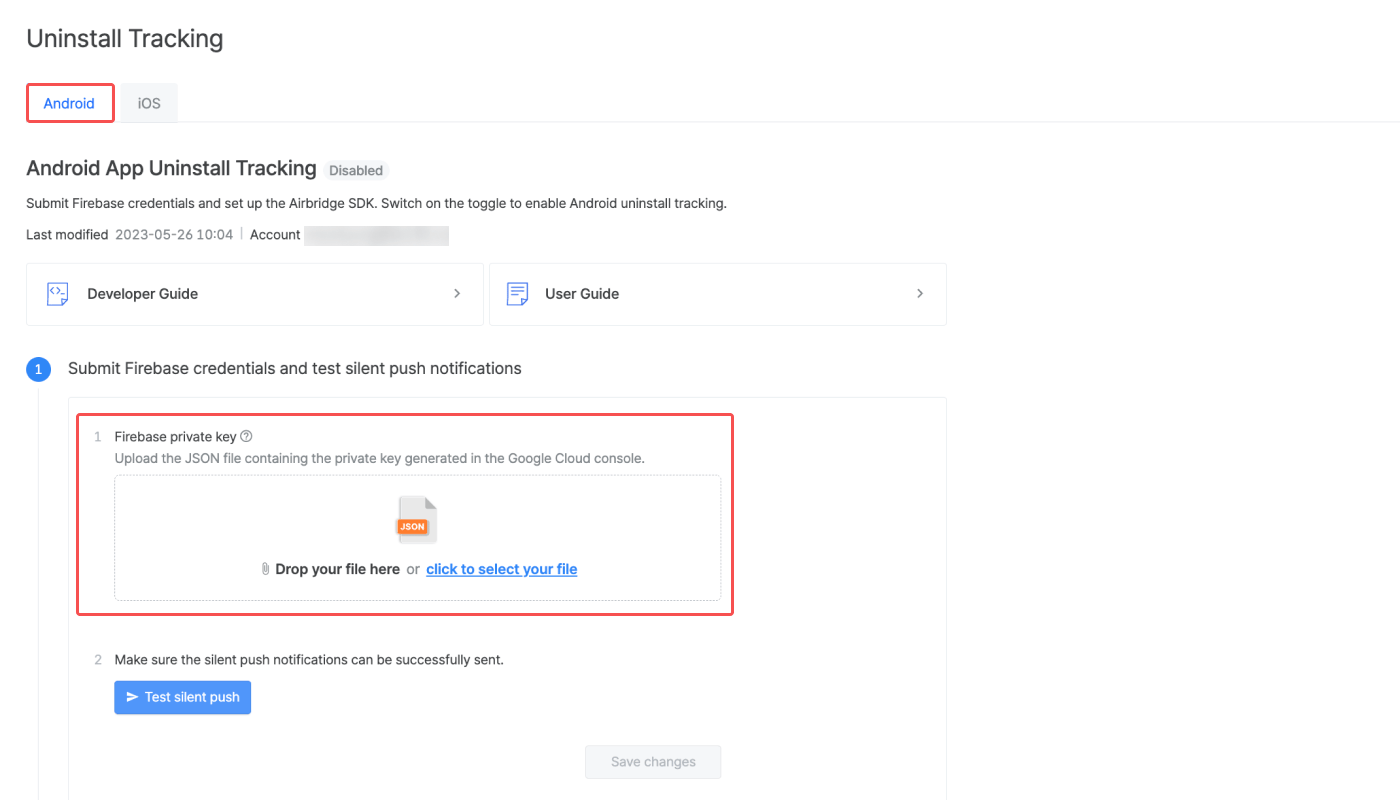
1. Navigate to **\[Settings]>\[Uninstall Tracking]** in the Airbridge dashboard.
2. Select the **\[Android]** tab.
3. Upload the JSON key file by dropping the file or clicking to select the file.
### Test silent push notifications
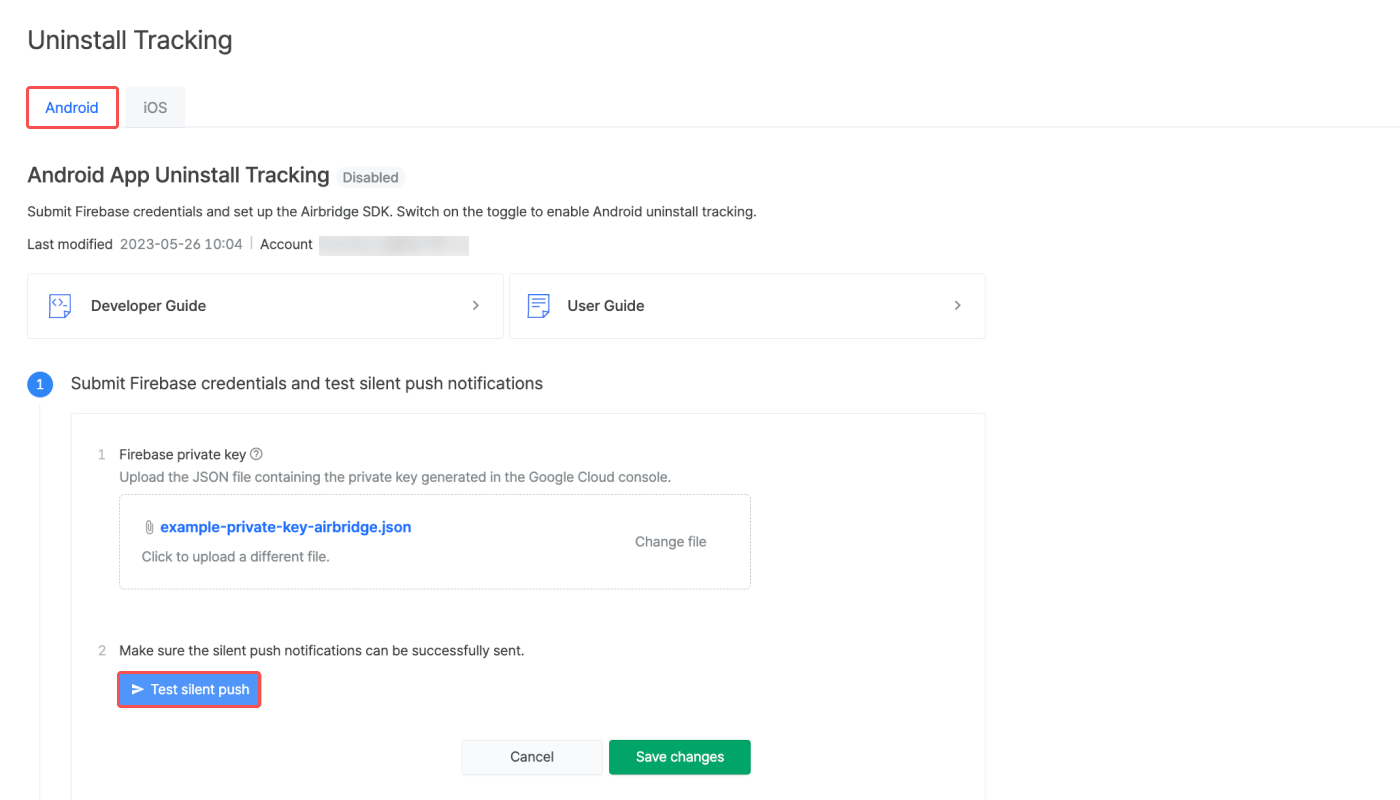
Test silent push notifications to make sure the notifications are successfully sent to devices. To proceed with the test, click **Test silent push** and enter the FCM registration token of your test device. For detailed instructions on how to access your FCM registration token, refer to the [Firebase documentation](https://firebase.google.com/docs/cloud-messaging/android/first-message#access_the_registration_token).
A success message will be shown when a silent push notification is successfully sent to your test device where the app is installed. A fail message containing the 404 error code will be shown when a silent push notification is successfully sent to a test device where the app is uninstalled.
Find the complete list of error codes below. For details about the error codes, refer to the [Firebase documentation](https://firebase.google.com/docs/reference/fcm/rest/v1/ErrorCode).
| Error code | HTTP Error Code | Description |
| ------------------------- | --------------- | --------------------------------------------------------------------------------------------------------------------------------- |
| INVALID\_ARGUMENT | 400 | Invalid request parameters. Check the package name, data key, etc. |
| THIRD\_PARTY\_AUTH\_ERROR | 401 | Invalid or missing APN certificate or web push auth key. Check the validity of your credentials. |
| SENDER\_ID\_MISMATCH | 403 | The authorized sender ID and the sender ID of the registered token don't match. Check the sender ID. |
| UNREGISTERED | 404 | Invalid token, which Airbridge assumes that the app has been uninstalled. Airbridge can successfully collect the Uninstall event. |
| QUOTA\_EXCEEDED | 429 | The sending limit was exceeded. |
| INTERNAL | 500 | An error occurred in the Firebase server. Retry after a moment. If this error persists, contact Firebase for troubleshooting. |
| UNAVAILABLE | 503 | The Firebase server is overloaded. Retry after a moment. |
Testing silent push notifications does not affect the uninstall event count available in Airbridge reports and raw data export files. Note that testing silent push notifications does not result in the actual uninstall event collection.
## Set Up the Airbridge SDK
For uninstall tracking, you must complete the Airbridge SDK setup by following the instructions below.
Add the following code snippet to AndroidManifest.xml.
```xml lines theme={"theme":{"light":"github-dark-dimmed","dark":"github-dark-dimmed"}}
```
Send the push token created in the Firebase Cloud Messaging (FCM) through the Airbridge SDK.
```kotlin Kotlin lines theme={"theme":{"light":"github-dark-dimmed","dark":"github-dark-dimmed"}}
class MyFirebaseMessagingService : FirebaseMessagingService() {
override fun onMessageReceived(remoteMessage: RemoteMessage) {
super.onMessageReceived(remoteMessage)
}
override fun onNewToken(token: String) {
super.onNewToken(token)
Airbridge.registerPushToken(token)
}
}
```
```java Java lines theme={"theme":{"light":"github-dark-dimmed","dark":"github-dark-dimmed"}}
public class MyFirebaseMessagingService extends FirebaseMessagingService {
@Override
public void onMessageReceived(RemoteMessage remoteMessage) {
super.onMessageReceived(remoteMessage);
}
@Override
public void onNewToken(String token) {
super.onNewToken(token);
Airbridge.registerPushToken(token);
}
}
```
A push token may already have been issued in the Firebase Cloud Messaging. Add the code snippets below to send the existing push token as well.
```kotlin Kotlin lines theme={"theme":{"light":"github-dark-dimmed","dark":"github-dark-dimmed"}}
class MyApplication : Application() {
override fun onCreate() {
super.onCreate()
...
FirebaseMessaging.getInstance()
.token
.addOnSuccessListener {
Airbridge.registerPushToken(it)
}
...
}
}
```
```java Java lines theme={"theme":{"light":"github-dark-dimmed","dark":"github-dark-dimmed"}}
public class MyApplication extends Application {
@Override
public void onCreate() {
super.onCreate();
FirebaseMessaging.getInstance()
.getToken()
.addOnSuccessListener(new OnSuccessListener() {
@Override
public void onSuccess(String token) {
Airbridge.registerPushToken(token);
}
});
}
}
```
**Attention**
Make sure the above functions are called after the SDK initialization.
A silent push sends a silent notification without any data. However, depending on the implementation of the `onMessageReceived` function in the Firebase Cloud Messaging, the silent push notification may be shown to the user. By adding the exception handling code as below, the silent push will not be exposed to the user.
```kotlin Kotlin lines theme={"theme":{"light":"github-dark-dimmed","dark":"github-dark-dimmed"}}
class MyFirebaseMessagingService : FirebaseMessagingService() {
override fun onMessageReceived(remoteMessage: RemoteMessage) {
super.onMessageReceived(remoteMessage)
if (remoteMessage.data.containsKey("airbridge-uninstall-tracking")) {
return
} else {
// handleNotification(remoteMessage)
}
}
override fun onNewToken(token: String) {
super.onNewToken(token)
Airbridge.registerPushToken(token)
}
}
```
```java Java lines theme={"theme":{"light":"github-dark-dimmed","dark":"github-dark-dimmed"}}
public class MyFirebaseMessagingService extends FirebaseMessagingService {
@Override
public void onMessageReceived(RemoteMessage remoteMessage) {
super.onMessageReceived(remoteMessage);
if (remoteMessage.getData().containsKey("airbridge-uninstall-tracking")) {
return;
} else {
// handleNotification(remoteMessage);
}
}
@Override
public void onNewToken(String token) {
super.onNewToken(token);
Airbridge.registerPushToken(token);
}
}
```
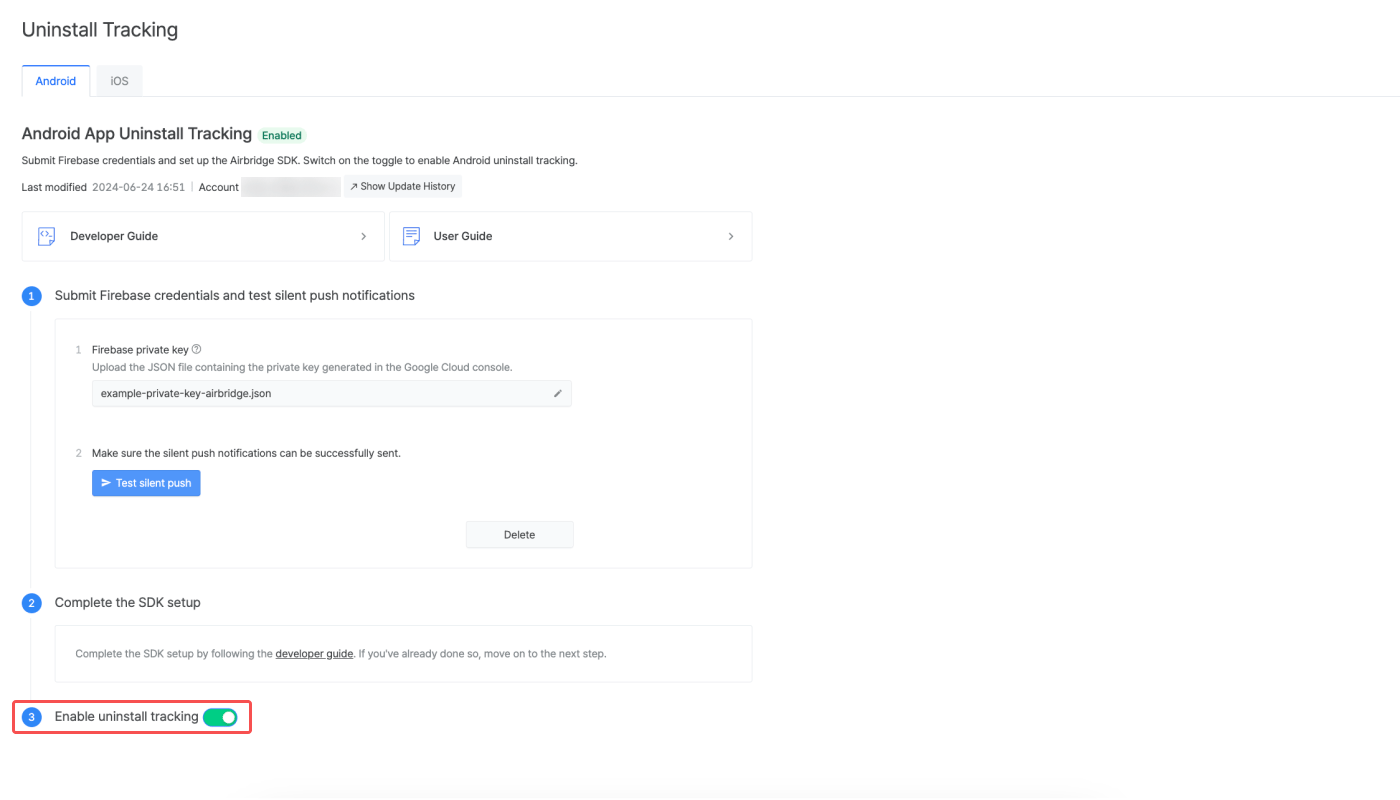
## Enable Uninstall Tracking
After submitting the credentials to Airbridge and completing the SDK setup, the **\[Enable uninstall tracking]** toggle will be activated. Switch on the toggle to start tracking uninstall events.
For more details about uninstall tracking, refer to this [article](/en/guides/uninstall-event-tracking).
 ### Test silent push notifications
Test silent push notifications to make sure the notifications are successfully sent to devices. To proceed with the test, click **Test silent push** and enter the FCM registration token of your test device. For detailed instructions on how to access your FCM registration token, refer to the [Firebase documentation](https://firebase.google.com/docs/cloud-messaging/android/first-message#access_the_registration_token).
### Test silent push notifications
Test silent push notifications to make sure the notifications are successfully sent to devices. To proceed with the test, click **Test silent push** and enter the FCM registration token of your test device. For detailed instructions on how to access your FCM registration token, refer to the [Firebase documentation](https://firebase.google.com/docs/cloud-messaging/android/first-message#access_the_registration_token).
 A success message will be shown when a silent push notification is successfully sent to your test device where the app is installed. A fail message containing the 404 error code will be shown when a silent push notification is successfully sent to a test device where the app is uninstalled.
Find the complete list of error codes below. For details about the error codes, refer to the [Firebase documentation](https://firebase.google.com/docs/reference/fcm/rest/v1/ErrorCode).
A success message will be shown when a silent push notification is successfully sent to your test device where the app is installed. A fail message containing the 404 error code will be shown when a silent push notification is successfully sent to a test device where the app is uninstalled.
Find the complete list of error codes below. For details about the error codes, refer to the [Firebase documentation](https://firebase.google.com/docs/reference/fcm/rest/v1/ErrorCode).