> ## Documentation Index
> Fetch the complete documentation index at: https://help.airbridge.io/llms.txt
> Use this file to discover all available pages before exploring further.
# SDK Quickstart
## Dashboard Setup
1. Sign in to your [Airbridge](https://app.airbridge.io/app) account.
2. Click **Add a new app**.
3. Add your app to Airbridge. Once you're done, go to **\[Tracking Links]>\[Deep Links]** and submit the deep link information to Airbridge.
**Android URI Scheme**
Input the URI scheme of the deep links you will use. The deep links you use to create tracking links for user redirection must use this URI Scheme.
**Android Package Name**
Input the app's package name. Example: `com.example.application`
**sha256\_cert\_fingerprints**
Input the SHA256 hash value of the `KeyStore` file used to sign the app. To find the hash values, refer to the information below.
```bash Shell lines theme={"theme":{"light":"github-dark-dimmed","dark":"github-dark-dimmed"}}
keytool -J-Duser.language=en -list -v -keystore YOUR_KEYSTORE.keystore
```
```bash Result lines theme={"theme":{"light":"github-dark-dimmed","dark":"github-dark-dimmed"}}
Certificate fingerprints:
MD5: 4C:65:04:52:F0:3F:F8:65:08:D3:71:86:FC:EF:C3:49
SHA1: C8:BF:B7:B8:94:EA:5D:9D:38:59:FE:99:63:ED:47:B2:D9:5A:4E:CC
SHA256: B5:EF:4D:F9:DC:95:E6:9B:F3:9A:5E:E9:D6:E0:D8:F6:7B:AB:79:C8:78:67:34:D9:A7:01:AB:6A:86:01:0E:99
```
**iOS URI Scheme**
Input the URI scheme of the deep links you will use. The deep links you use to create tracking links for user redirection must use this URI Scheme.
**iOS App ID**
Go to the [Apple Developer](https://idmsa.apple.com/IDMSWebAuth/signin?appIdKey=891bd3417a7776362562d2197f89480a8547b108fd934911bcbea0110d07f757\&path=%2Faccount%2Fresources%2F\&rv=1), find the App ID Prefix and the Bundle ID, and input them in the format of `App ID Prefix` + . + `Bundle ID`.
## SDK Setup
Install the Airbridge SDK in your app and complete the essential setup.
For complete documentation, refer to [Android SDK](/en/developers/android-sdk-v4).
### SDK installation
To install the Airbridge Android SDK, declare the SDK repository in the file containing `repositories` block (either `build.gradle` or `settings.gradle` in the project). Then, add the SDK package to the app's `build.gradle` file.
Replace `$HERE_LATEST_VERSION` with the latest version from the [SDK version list](https://sdk-download.airbridge.io/maven/io/airbridge/sdk-android/index.html).
In project `build.gradle` or `settings.gradle` file:
```groovy build.gradle (Groovy) lines theme={"theme":{"light":"github-dark-dimmed","dark":"github-dark-dimmed"}}
allprojects {
repositories {
maven { url = uri("https://sdk-download.airbridge.io/maven") }
}
}
```
```kotlin build.gradle (Kotlin DSL) lines theme={"theme":{"light":"github-dark-dimmed","dark":"github-dark-dimmed"}}
allprojects {
repositories {
maven { url = uri("https://sdk-download.airbridge.io/maven") }
}
}
```
```groovy settings.gradle (Groovy) lines theme={"theme":{"light":"github-dark-dimmed","dark":"github-dark-dimmed"}}
dependencyResolutionManagement {
repositories {
maven { url = uri("https://sdk-download.airbridge.io/maven") }
}
}
```
```kotlin settings.gradle (Kotlin DSL) lines theme={"theme":{"light":"github-dark-dimmed","dark":"github-dark-dimmed"}}
dependencyResolutionManagement {
repositories {
maven { url = uri("https://sdk-download.airbridge.io/maven") }
}
}
```
In app `build.gradle` file:
```groovy Groovy lines theme={"theme":{"light":"github-dark-dimmed","dark":"github-dark-dimmed"}}
dependencies {
// Replace $HERE_LATEST_VERSION with latest version
// - Versions: https://sdk-download.airbridge.io/maven
// - Example: implementation "io.airbridge:sdk-android:0.0.0"
implementation "io.airbridge:sdk-android:$HERE_LATEST_VERSION"
}
```
```kotlin Kotlin DSL lines theme={"theme":{"light":"github-dark-dimmed","dark":"github-dark-dimmed"}}
dependencies {
// Replace $HERE_LATEST_VERSION with latest version
// - Versions: https://sdk-download.airbridge.io/maven
// - Example: implementation "io.airbridge:sdk-android:0.0.0"
implementation("io.airbridge:sdk-android:$HERE_LATEST_VERSION")
}
```
### SDK initialization
Create a `MainApplication` class and add it to `AndroidManifest.xml`. Then initialize the SDK in the class's `onCreate` function. You can find `YOUR_APP_NAME` and `YOUR_APP_SDK_TOKEN` in the Airbridge dashboard **\[Settings]>\[Tokens]**.
```xml AndroidManifest.xml lines theme={"theme":{"light":"github-dark-dimmed","dark":"github-dark-dimmed"}}
```
```kotlin Kotlin lines theme={"theme":{"light":"github-dark-dimmed","dark":"github-dark-dimmed"}}
import android.app.Application
import co.ab180.airbridge.Airbridge
import co.ab180.airbridge.AirbridgeOption
import co.ab180.airbridge.AirbridgeOptionBuilder
class MainApplication: Application() {
override fun onCreate() {
super.onCreate()
// YOUR_APP_NAME: Input your app name
// YOUR_APP_SDK_TOKEN: Input your app token
val option = AirbridgeOptionBuilder("YOUR_APP_NAME", "YOUR_APP_SDK_TOKEN")
.build()
Airbridge.initializeSDK(this, option)
}
}
```
```java Java lines theme={"theme":{"light":"github-dark-dimmed","dark":"github-dark-dimmed"}}
import android.app.Application;
import co.ab180.airbridge.Airbridge;
import co.ab180.airbridge.AirbridgeOption;
import co.ab180.airbridge.AirbridgeOptionBuilder;
public class MainApplication extends Application {
@Override
public void onCreate() {
super.onCreate();
// YOUR_APP_NAME: Input your app name
// YOUR_APP_SDK_TOKEN: Input your app token
AirbridgeOption option = new AirbridgeOptionBuilder("YOUR_APP_NAME", "YOUR_APP_SDK_TOKEN")
.build();
Airbridge.initializeSDK(this, option);
}
}
```
### Backup rule setup
Configure backup rules in your `AndroidManifest.xml` file based on your existing tags.
* Add content to `xmlns:tools` in the `` tag.
* If `` tag includes `android:allowBackup`, add the value to `tools:replace`.
* If `` tag includes `android:dataExtractionRules`, add the value to `tools:replace`, and add the rules below to the file.
* If `` tag includes `android:fullBackupContent`, add the value to `tools:replace`, and add the rules below to the file.
```xml AndroidManifest.xml lines theme={"theme":{"light":"github-dark-dimmed","dark":"github-dark-dimmed"}}
```
```xml dataExtractionRules lines theme={"theme":{"light":"github-dark-dimmed","dark":"github-dark-dimmed"}}
```
```xml fullBackupContent lines theme={"theme":{"light":"github-dark-dimmed","dark":"github-dark-dimmed"}}
```
### Deep linking setup
Complete all three configurations below to enable deep linking.
#### Enable deep links to open your app
Create an `Activity` class to handle deep links and add it to `AndroidManifest.xml`. Then, add `Intent Filters` for three Airbridge deep links. When a tracking link is activated, Airbridge opens the app using the most appropriate deep link based on the browser, app installation status, and other factors.
You can find `YOUR_SCHEME` in the Airbridge dashboard **\[Tracking Link]>\[Deep Links]**. Note that you should remove the `://` portion. You can find `YOUR_APP_NAME` and `YOUR_APP_SDK_TOKEN` in the Airbridge dashboard **\[Settings]>\[Tokens]**.
```xml AndroidManifest.xml lines theme={"theme":{"light":"github-dark-dimmed","dark":"github-dark-dimmed"}}
...
...
...
...
```
#### Enable deep links to redirect users
In the `onResume` function of your deep link handling `Activity`, call `handleDeeplink` function to convert Airbridge deep links to the original deep links configured in the tracking links. Then, redirect users to the appropriate app pages.
When the app is opened via an Airbridge deep link, `isAirbridgeDeeplink` is `true`, and the configured deep link is delivered to the callback function's `uri`.
When the app is opened via a non-Airbridge deep link, `isAirbridgeDeeplink` is `false`, and the callback function is not called.
```kotlin Kotlin lines theme={"theme":{"light":"github-dark-dimmed","dark":"github-dark-dimmed"}}
import android.content.Intent
import androidx.appcompat.app.AppCompatActivity
import co.ab180.airbridge.Airbridge
class DeeplinkActivity: AppCompatActivity() {
override fun onResume() {
super.onResume()
val isAirbridgeDeeplink = Airbridge.handleDeeplink(intent) { uri ->
// when app is opened with airbridge deeplink
// show proper content using url (YOUR_SCHEME://...)
}
if (isAirbridgeDeeplink) return
// when app is opened with other deeplink
// use existing logic as it is
}
override fun onNewIntent(intent: Intent) {
super.onNewIntent(intent)
setIntent(intent)
}
}
```
```java Java lines theme={"theme":{"light":"github-dark-dimmed","dark":"github-dark-dimmed"}}
import android.content.Intent;
import androidx.appcompat.app.AppCompatActivity;
import co.ab180.airbridge.Airbridge;
public class DeeplinkActivity extends AppCompatActivity {
@Override
protected void onResume() {
super.onResume();
boolean isAirbridgeDeeplink = Airbridge.handleDeeplink(getIntent(), uri -> {
// when app is opened with airbridge deeplink
// show proper content using url (YOUR_SCHEME://...)
});
if (isAirbridgeDeeplink) return;
// when app is opened with other deeplink
// use existing logic as it is
}
@Override
protected void onNewIntent(Intent intent) {
super.onNewIntent(intent);
setIntent(intent);
}
}
```
#### Enable deferred deep links to redirect users
When the app is opened according to its lifecycle, call `handleDeferredDeeplink` function to retrieve the deep link configured in the tracking link that was activated before the app was installed. Then, redirect users to the appropriate destinations. You can call `handleDeferredDeeplink` function from any class or function at any point in your app's lifecycle.
When the function is called for the first time after app installation, `isFirstCalled` is `true`. The callback's `uri` contains the configured deep link if the tracking link was activated before the installation, otherwise `null`.
When the function is called after app installation, `isFirstCalled` is `false`, and the callback is not called.
```kotlin Kotlin lines theme={"theme":{"light":"github-dark-dimmed","dark":"github-dark-dimmed"}}
import android.os.Bundle
import androidx.appcompat.app.AppCompatActivity
import co.ab180.airbridge.Airbridge
class MainActivity: AppCompatActivity() {
override fun onCreate(savedInstanceState: Bundle?) {
super.onCreate(savedInstanceState)
val isFirstCalled = Airbridge.handleDeferredDeeplink { uri ->
// when handleDeferredDeeplink is called firstly after install
if (uri != null) {
// show proper content using uri (YOUR_SCHEME://...)
}
}
if (isFirstCalled) return
// when handleDeferredDeeplink is called secondly or later after install
// use existing logic as it is
}
}
```
```java Java lines theme={"theme":{"light":"github-dark-dimmed","dark":"github-dark-dimmed"}}
import android.os.Bundle;
import androidx.annotation.Nullable;
import androidx.appcompat.app.AppCompatActivity;
import co.ab180.airbridge.Airbridge;
public class MainActivity extends AppCompatActivity {
@Override
protected void onCreate(@Nullable Bundle savedInstanceState) {
super.onCreate(savedInstanceState);
boolean isFirstCalled = Airbridge.handleDeferredDeeplink(uri -> {
// when app is opened with airbridge deeplink
if (uri != null) {
// show proper content using uri (YOUR_SCHEME://...)
}
});
if (isFirstCalled) return;
// when app is opened with other deeplink
// use existing logic as it is
}
}
```
**Attention**
When the app is opened via a deep link, Airbridge passes null to onSuccess regardless of whether a deferred deep link exists or not, ensuring that only the deep link is processed.
### Send events
Call the `trackEvent` function to send events. We recommend using Airbridge's standard categories and semantic attributes, though you can also define custom categories and custom attributes. For more details, refer to [Android SDK](/en/developers/android-sdk-v4#send-in-app-events).
```kotlin Kotlin lines theme={"theme":{"light":"github-dark-dimmed","dark":"github-dark-dimmed"}}
Airbridge.trackEvent(
// StandardCategory
// or "CustomEvent" (CustomCategory)
AirbridgeCategory.ORDER_COMPLETED,
// SemanticAttributes
mapOf(
AirbridgeAttribute.VALUE to 11,
AirbridgeAttribute.TRANSACTION_ID to "8065ef16-162b-4a82-b683-e51aefdda7d5",
AirbridgeAttribute.CURRENCY to "USD",
AirbridgeAttribute.IN_APP_PURCHASED to true,
),
// CustomAttributes
mapOf(
"key" to "value",
)
)
```
```java Java lines theme={"theme":{"light":"github-dark-dimmed","dark":"github-dark-dimmed"}}
Airbridge.trackEvent(
// StandardCategory
// or "CustomEvent" (CustomCategory)
AirbridgeCategory.ORDER_COMPLETED,
// SemanticAttributes
new HashMap() {{
put(AirbridgeAttribute.VALUE, 11);
put(AirbridgeAttribute.TRANSACTION_ID, "8065ef16-162b-4a82-b683-e51aefdda7d5");
put(AirbridgeAttribute.CURRENCY, "USD");
put(AirbridgeAttribute.IN_APP_PURCHASED, true);
}},
// CustomAttributes
new HashMap() {{
put("key", "value");
}}
);
```
For complete documentation, refer to [iOS SDK](/en/developers/ios-sdk-v4).
### SDK installation
Use one of the following methods to install the Airbridge iOS SDK:
1. Navigate to **\[File]>\[Add Packages...]** in Xcode.
2. Enter the following address into the search bar and click **Add Package**.
* [https://github.com/ab180/airbridge-ios-sdk-deployment](https://github.com/ab180/airbridge-ios-sdk-deployment)
3. Click **Add** **Package** again.
4. The Airbridge iOS SDK will be added to **Package Dependencies**.
**Attention**
Before installing the iOS SDK, navigate to **\[YOUR\_PROJECT]>\[Build Settings]** in your Xcode and make sure to set the **User Script Sandboxing** to "No." For more details, refer to the [CocoaPods document](https://github.com/CocoaPods/CocoaPods/issues/11946).
1. Install CocoaPods with `brew install cocoapods`.
2. Create a Podfile with `pod init`.
3. Add the SDK as a dependency with the code below in the Podfile. Check the latest SDK version from [this page](/en/developers/release-note-ios-sdk) and replace `$HERE_LATEST_VERSION` with the latest version number.
```ruby Podfile lines theme={"theme":{"light":"github-dark-dimmed","dark":"github-dark-dimmed"}}
target '[Project Name]' do
...
# Replace $HERE_LATEST_VERSION with latest version
# - Versions: https://help.airbridge.io/developers/release-note-ios-sdk
# - Example: pod 'airbridge-ios-sdk', '4.X.X'
pod 'airbridge-ios-sdk', '$HERE_LATEST_VERSION'
...
end
```
4. The installation will start when you enter `pod install --repo-update`.
5. Run `YOUR_PROJECT.xcworkspace` to verify that the Airbridge iOS SDK is successfully installed.
**Attention**
You cannot install the Airbridge iOS SDK with Tuist's[ XcodeProj-based integration](https://docs.tuist.dev/en/guides/develop/projects/dependencies#tuists-xcodeprojbased-integration). Make sure to install the iOS SDK through [Xcode's default integration](https://docs.tuist.dev/en/guides/develop/projects/dependencies#xcodes-default-integration).
1. Run the `tuist edit` command.
2. Add `remote` to `project.packages`. Add SDK as `package` to `project.targets[...].target.dependencies` and the dependency framework as `sdk`. Then Check the latest SDK version from [this page](/en/developers/release-note-ios-sdk) and replace `$HERE_LATEST_VERSION` with the latest version number. For the dependency framework list, refer to the table below.
| Framework | Description |
| --------------------------------- | ---------------------------------------------------------- |
| AdSupport.framework | Used for IDFA collection |
| CoreTelephony.framework | Used for carrier information collection |
| StoreKit.framework | Used for SKAdNetwork data collection |
| AppTrackingTransparency.framework | Used for user consent information collection |
| AdServices.framework | Used for Apple Ads attribution data collection (iOS 14.3+) |
| WebKit.framework | Used for event collection through web SDK integration |
```swift lines theme={"theme":{"light":"github-dark-dimmed","dark":"github-dark-dimmed"}}
import ProjectDescription
let project = Project(
packages: [
.remote(
url: "https://github.com/ab180/airbridge-ios-sdk-deployment",
// Replace $HERE_LATEST_VERSION with latest version
// - Versions: https://help.airbridge.io/developers/release-note-ios-sdk
// - Example: requirement: .exact(from: "4.X.X")
requirement: .exact(from: "$HERE_LATEST_VERSION")
),
...
],
targets: [
.target(
dependencies: [
.package(product: "Airbridge", type: .runtime),
.sdk(name: "AdSupport", type: .framework, status: .optional),
.sdk(name: "AdServices", type: .framework, status: .optional),
.sdk(name: "CoreTelephony", type: .framework, status: .optional),
.sdk(name: "StoreKit", type: .framework, status: .optional),
.sdk(name: "AppTrackingTransparency", type: .framework, status: .optional),
.sdk(name: "WebKit", type: .framework, status: .optional),
...
]
),
...
],
...
)
```
3. Run the `tuist generate` command.
4. Airbridge is added to the Package Dependencies in Xcode.
1. Download the Airbridge iOS SDK from the link below.
* [https://sdk-download.airbridge.io/airbridge-ios-sdk/latest/Airbridge.zip](https://sdk-download.airbridge.io/airbridge-ios-sdk/latest/Airbridge.zip)
2. Add **Airbridge.xcframework** to your project. Navigate to **\[Project File]>\[General]>\[Frameworks, Libraries, and Embedded Content]** in Xcode and click **+**.
3. Click **Add Files...** under **\[Add Other...]** and select **Airbridge.xcframework**.
4. Set the **Embed** of **Airbridge.xcframework** to "Embed & Sign".
### SDK initialization
Initialize the SDK when the app opens according to its lifecycle. You can find `YOUR_APP_NAME` and `YOUR_APP_SDK_TOKEN` in the Airbridge dashboard **\[Settings]>\[Tokens]**.
```swift SceneDelegate (Swift) lines theme={"theme":{"light":"github-dark-dimmed","dark":"github-dark-dimmed"}}
import UIKit
import Airbridge
@main
class AppDelegate: UIResponder, UIApplicationDelegate {
func application(
_ application: UIApplication,
didFinishLaunchingWithOptions launchOptions: [UIApplication.LaunchOptionsKey: Any]?
) -> Bool {
let option = AirbridgeOptionBuilder(name: "YOUR_APP_NAME", token: "YOUR_APP_SDK_TOKEN")
.build()
Airbridge.initializeSDK(option: option)
return true
}
}
```
```swift AppDelegate (Swift) lines theme={"theme":{"light":"github-dark-dimmed","dark":"github-dark-dimmed"}}
import UIKit
import Airbridge
@main
class AppDelegate: UIResponder, UIApplicationDelegate {
func application(
_ application: UIApplication,
didFinishLaunchingWithOptions launchOptions: [UIApplication.LaunchOptionsKey: Any]?
) -> Bool {
let option = AirbridgeOptionBuilder(name: "YOUR_APP_NAME", token: "YOUR_APP_SDK_TOKEN")
.build()
Airbridge.initializeSDK(option: option)
return true
}
}
```
```swift SwiftUI (Swift) lines theme={"theme":{"light":"github-dark-dimmed","dark":"github-dark-dimmed"}}
import SwiftUI
import Airbridge
@main
struct ExampleApp: App {
init() {
let option = AirbridgeOptionBuilder(name: "YOUR_APP_NAME", token: "YOUR_APP_SDK_TOKEN")
.build()
Airbridge.initializeSDK(option: option)
}
}
```
```objective-c SceneDelegate (Objective-C) lines theme={"theme":{"light":"github-dark-dimmed","dark":"github-dark-dimmed"}}
#import "AppDelegate.h"
#import
@interface AppDelegate ()
@end
@implementation AppDelegate
- (BOOL)application:(UIApplication *)application didFinishLaunchingWithOptions:(NSDictionary *)launchOptions {
AirbridgeOptionBuilder* optionBuilder = [[AirbridgeOptionBuilder alloc] initWithName:@"YOUR_APP_NAME"
token:@"YOUR_APP_SDK_TOKEN"];
AirbridgeOption* option = [optionBuilder build];
[Airbridge initializeSDKWithOption:option];
return YES;
}
@end
```
```objective-c AppDelegate (Objective-C) lines theme={"theme":{"light":"github-dark-dimmed","dark":"github-dark-dimmed"}}
#import "AppDelegate.h"
#import
@interface AppDelegate ()
@end
@implementation AppDelegate
- (BOOL)application:(UIApplication *)application didFinishLaunchingWithOptions:(NSDictionary *)launchOptions {
AirbridgeOptionBuilder* optionBuilder = [[AirbridgeOptionBuilder alloc] initWithName:@"YOUR_APP_NAME"
token:@"YOUR_APP_SDK_TOKEN"];
AirbridgeOption* option = [optionBuilder build];
[Airbridge initializeSDKWithOption:option];
return YES;
}
@end
```
### ATT prompt setup
Enter the description that will be displayed in the [ATT prompt](https://developer.apple.com/app-store/user-privacy-and-data-use/#permission-to-track) as the value for the `NSUserTrackingUsageDescription` key in the `Info.plist` file.
1. Navigate to **\[YOUR\_PROJECT]>\[Info]>\[Custom iOS Target Properties]** in Xcode.
2. Hover your mouse over the key items, click **+** that appears, and enter `Privacy - Tracking Usage Description`.
3. Enter the text for the ATT prompt as value.
1. Run the `tuist edit` command.
2. Enter `NSUserTrackingUsageDescription` as key to `.extendingDefault` in `project.targets[...].infoPlist`.
3. Enter the text for the ATT prompt as value.
```swift lines theme={"theme":{"light":"github-dark-dimmed","dark":"github-dark-dimmed"}}
import ProjectDescription
let project = Project(
targets: [
.target(
infoPlist: .extendingDefault(
with: [
"NSUserTrackingUsageDescription": "YOUR_DESCRIPTION",
...
]
),
...
),
...
]
...
)
```
Display the ATT prompt on the device immediately after app open or at your desired time.
```swift Swift lines theme={"theme":{"light":"github-dark-dimmed","dark":"github-dark-dimmed"}}
import AppTrackingTransparency
...
var observer: Any?
observer = NotificationCenter.default.addObserver(
forName: UIApplication.didBecomeActiveNotification,
object: nil,
queue: nil
) { [weak self] _ in
if #available(iOS 14, *) {
ATTrackingManager.requestTrackingAuthorization { _ in }
}
if let observer = self?.observer {
NotificationCenter.default.removeObserver(observer)
}
}
```
```objective-c Objective-C lines theme={"theme":{"light":"github-dark-dimmed","dark":"github-dark-dimmed"}}
#import
#import
...
__weak id observer;
observer = [NSNotificationCenter.defaultCenter addObserverForName:UIApplicationDidBecomeActiveNotification
object:nil
queue:nil
usingBlock:^(NSNotification * _Nonnull notification) {
if (@available(iOS 14, *)) {
[ATTrackingManager requestTrackingAuthorizationWithCompletionHandler:^(ATTrackingManagerAuthorizationStatus status) {}];
}
if (observer != nil) {
[NSNotificationCenter.defaultCenter removeObserver:observer];
}
}];
```
You can set a timeout to control how long the SDK waits for the user's response to the ATT prompt before collecting install events and activating deferred deep links. The default timeout is 30 seconds, and you can set it up to 1 hour. If you don't use the ATT prompt, set the timeout to 0 seconds.
```swift Swift lines theme={"theme":{"light":"github-dark-dimmed","dark":"github-dark-dimmed"}}
import Airbridge
...
let option = AirbridgeOptionBuilder(name: "YOUR_APP_NAME",
token: "YOUR_APP_SDK_TOKEN")
.setAutoDetermineTrackingAuthorizationTimeout(second: 30)
.build()
Airbridge.initializeSDK(option: option)
```
```objective-c Objective-C lines theme={"theme":{"light":"github-dark-dimmed","dark":"github-dark-dimmed"}}
#import
...
AirbridgeOptionBuilder* optionBuilder = [[AirbridgeOptionBuilder alloc] initWithName:@"YOUR_APP_NAME"
token:@"YOUR_APP_SDK_TOKEN"];
[optionBuilder setAutoDetermineTrackingAuthorizationTimeoutWithSecond:30];
AirbridgeOption* option = [optionBuilder build];
[Airbridge initializeSDKWithOption:option];
```
### Deep linking setup
Complete all three configurations below to enable deep linking.
#### Enable deep links to open your app
Configure three types of Airbridge deep links in your app. When a tracking link is activated, Airbridge opens the app using the most appropriate deep link based on the browser, app installation status, and other factors.
You can find `YOUR_SCHEME` in the Airbridge dashboard **\[Tracking Link]>\[Deep Links]**. Note that you should remove the `://` portion. You can find `YOUR_APP_NAME` and `YOUR_APP_SDK_TOKEN` in the Airbridge dashboard **\[Settings]>\[Tokens]**.
**Scheme deep link setup in the app**
In Xcode, go to **\[YOUR\_PROJECT]>\[Info]>\[URL Types]**. Then, click “+” and enter `YOUR_SCHEME`.
**Universal Link setup in the app**
In Xcode, go to **\[YOUR\_PROJECT]>\[Signing & Capabilities]**. Then, click “+ Capability” and select “Associated Domains”. Lastly, add `applinks:YOUR_APP_NAME.airbridge.io` and `applinks:YOUR_APP_NAME.abr.ge`.
#### Enable deep links to redirect users
When the app opens via a deep link according to its lifecycle, call `trackDeeplink` function to enable the SDK to collect the deep link event. Then, call `handleDeeplink` function to convert Airbridge deep link to the scheme deep link configured in the tracking link. Lastly, redirect users to appropriate app pages.
When the app is opened via an Airbridge deep link, `isAirbridgeDeeplink` is `true`, and the configured deep link is delivered to the callback function's `url`.
When the app is opened via a non-Airbridge deep link, `isAirbridgeDeeplink` is `false`, and the callback function is not called.
```swift SceneDelegate (Swift) lines theme={"theme":{"light":"github-dark-dimmed","dark":"github-dark-dimmed"}}
import UIKit
import Airbridge
@main
class SceneDelegate: UIResponder, UIWindowSceneDelegate {
// when app is opened with airbridge deeplink
func handleAirbridgeDeeplink(url: URL) {
// show proper content using url (YOUR_SCHEME://...)
}
// when terminated app is opened with scheme deeplink or universal links
func scene(
_ scene: UIScene,
willConnectTo session: UISceneSession,
options connectionOptions: UIScene.ConnectionOptions
) {
// when app is opened with scheme deeplink
if let url = connectionOptions.urlContexts.first?.url {
// track deeplink
Airbridge.trackDeeplink(url: url)
// handle deeplink
var isAirbridgeDeeplink = Airbridge.handleDeeplink(url: url) { url in
// when app is opened with airbridge deeplink
// show proper content using url (YOUR_SCHEME://...)
handleAirbridgeDeeplink(url: url)
}
if isAirbridgeDeeplink { return }
// when app is opened with other deeplink
// use existing logic as it is
}
// when app is opened with universal links
else if let userActivity = connectionOptions.userActivities.first {
// track deeplink
Airbridge.trackDeeplink(userActivity: userActivity)
// handle deeplink
var isAirbridgeDeeplink = Airbridge.handleDeeplink(userActivity: userActivity) { url in
// when app is opened with airbridge deeplink
// show proper content using url (YOUR_SCHEME://...)
handleAirbridgeDeeplink(url: url)
}
if isAirbridgeDeeplink { return }
// when app is opened with other deeplink
// use existing logic as it is
}
}
// when backgrounded app is opened with scheme deeplink
func scene(
_ scene: UIScene,
openURLContexts URLContexts: Set
) {
guard let url = URLContexts.first?.url else { return }
// track deeplink
Airbridge.trackDeeplink(url: url)
// handle deeplink
var isAirbridgeDeeplink = Airbridge.handleDeeplink(url: url) { url in
// when app is opened with airbridge deeplink
// show proper content using url (YOUR_SCHEME://...)
handleAirbridgeDeeplink(url: url)
}
if isAirbridgeDeeplink { return }
// when app is opened with other deeplink
// use existing logic as it is
}
// when backgrounded app is opened with universal links
func scene(
_ scene: UIScene,
continue userActivity: NSUserActivity
) {
// track deeplink
Airbridge.trackDeeplink(userActivity: userActivity)
// handle deeplink
var isAirbridgeDeeplink = Airbridge.handleDeeplink(userActivity: userActivity) { url in
// when app is opened with airbridge deeplink
// show proper content using url (YOUR_SCHEME://...)
handleAirbridgeDeeplink(url: url)
}
if isAirbridgeDeeplink { return }
// when app is opened with other deeplink
// use existing logic as it is
}
}
```
```swift AppDelegate (Swift) lines theme={"theme":{"light":"github-dark-dimmed","dark":"github-dark-dimmed"}}
import UIKit
import Airbridge
@main
class AppDelegate: UIResponder, UIApplicationDelegate {
// when app is opened with airbridge deeplink
func handleAirbridgeDeeplink(url: URL) {
// show proper content using url (YOUR_SCHEME://...)
}
// when app is opened with scheme deeplink
func application(
_ app: UIApplication,
open url: URL,
options: [UIApplication.OpenURLOptionsKey : Any] = [:]
) -> Bool {
// track deeplink
Airbridge.trackDeeplink(url: url)
// handle deeplink
var isAirbridgeDeeplink = Airbridge.handleDeeplink(url: url) { url in
// when app is opened with airbridge deeplink
// show proper content using url (YOUR_SCHEME://...)
handleAirbridgeDeeplink(url: url)
}
if isAirbridgeDeeplink { return }
// when app is opened with other deeplink
// use existing logic as it is
return isAirbridgeDeeplink
}
// when app is opened with universal links
func application(
_ application: UIApplication,
continue userActivity: NSUserActivity,
restorationHandler: @escaping ([UIUserActivityRestoring]?) -> Void
) -> Bool {
// track deeplink
Airbridge.trackDeeplink(userActivity: userActivity)
// handle deeplink
var isAirbridgeDeeplink = Airbridge.handleDeeplink(userActivity: userActivity) { url in
// when app is opened with airbridge deeplink
// show proper content using url (YOUR_SCHEME://...)
handleAirbridgeDeeplink(url: url)
}
if isAirbridgeDeeplink { return }
// when app is opened with other deeplink
// use existing logic as it is
return isAirbridgeDeeplink
}
}
```
```swift SwiftUI (Swift) lines theme={"theme":{"light":"github-dark-dimmed","dark":"github-dark-dimmed"}}
import SwiftUI
import Airbridge
@main
struct ActualApp: App {
var body: some Scene {
WindowGroup {
ContentView()
// when app is opened with scheme deeplink or universal links
.onOpenURL { url in
// track deeplink
Airbridge.trackDeeplink(url: url)
// handle deeplink
var isAirbridgeDeeplink = Airbridge.handleDeeplink(url: url) { url in
// when app is opened with airbridge deeplink
// show proper content using url (YOUR_SCHEME://...)
}
if isAirbridgeDeeplink { return }
// when app is opened with other deeplink
// use existing logic as it is
}
}
}
}
```
```objective-c SceneDelegate (Objective-C) lines theme={"theme":{"light":"github-dark-dimmed","dark":"github-dark-dimmed"}}
#import "AppDelegate.h"
#import
@interface SceneDelegate ()
@end
@implementation SceneDelegate
// when app is opened with airbridge deeplink
- (void)handleAirbridgeDeeplink:(NSURL *)url {
// show proper content using url (YOUR_SCHEME://...)
}
// when terminated app is opened with scheme deeplink or universal links
- (void)scene:(UIScene *)scene willConnectToSession:(UISceneSession *)session options:(UISceneConnectionOptions *)connectionOptions {
// when app is opened with scheme deeplink
NSURL* url = connectionOptions.URLContexts.allObjects.firstObject.URL;
NSUserActivity* userActivity = connectionOptions.userActivities.allObjects.firstObject;
if (url != nil) {
// track deeplink
[Airbridge trackDeeplinkWithUrl:url];
// handle deeplink
BOOL isAirbridgeDeeplink = [Airbridge handleDeeplinkWithUrl:url onSuccess:^(NSURL* url) {
// when app is opened with airbridge deeplink
// show proper content using url (YOUR_SCHEME://...)
[self handleAirbridgeDeeplink:url];
}];
if (isAirbridgeDeeplink) { return; }
// when app is opened with other deeplink
// use existing logic as it is
}
else if (userActivity != nil) {
// track deeplink
[Airbridge trackDeeplinkWithUserActivity:userActivity];
// handle deeplink
BOOL isAirbridgeDeeplink = [Airbridge handleDeeplinkWithUserActivity:userActivity onSuccess:^(NSURL* url) {
// when app is opened with airbridge deeplink
// show proper content using url (YOUR_SCHEME://...)
[self handleAirbridgeDeeplink:url];
}];
if (isAirbridgeDeeplink) { return; }
// when app is opened with other deeplink
// use existing logic as it is
}
}
// when backgrounded app is opened with scheme deeplink
- (void)scene:(UIScene *)scene openURLContexts:(NSSet *)URLContexts {
NSURL* url = URLContexts.allObjects.firstObject.URL;
if (url == nil) { return; }
// track deeplink
[Airbridge trackDeeplinkWithUrl:url];
// handle deeplink
BOOL isAirbridgeDeeplink = [Airbridge handleDeeplinkWithUrl:url onSuccess:^(NSURL* url) {
// when app is opened with airbridge deeplink
// show proper content using url (YOUR_SCHEME://...)
[self handleAirbridgeDeeplink:url];
}];
if (isAirbridgeDeeplink) { return; }
// when app is opened with other deeplink
// use existing logic as it is
}
// when backgrounded app is opened with universal links
- (void)scene:(UIScene *)scene continueUserActivity:(NSUserActivity *)userActivity {
// track deeplink
[Airbridge trackDeeplinkWithUserActivity:userActivity];
// handle deeplink
BOOL isAirbridgeDeeplink = [Airbridge handleDeeplinkWithUserActivity:userActivity onSuccess:^(NSURL* url) {
// when app is opened with airbridge deeplink
// show proper content using url (YOUR_SCHEME://...)
[self handleAirbridgeDeeplink:url];
}];
if (isAirbridgeDeeplink) { return; }
// when app is opened with other deeplink
// use existing logic as it is
}
@end
```
```objective-c AppDelegate (Objective-C) lines theme={"theme":{"light":"github-dark-dimmed","dark":"github-dark-dimmed"}}
#import "AppDelegate.h"
#import
@interface AppDelegate ()
@end
@implementation AppDelegate
// when app is opened with airbridge deeplink
- (void)handleAirbridgeDeeplink:(NSURL *)url {
// show proper content using url (YOUR_SCHEME://...)
}
// when app is opened with scheme deeplink
- (BOOL)application:(UIApplication *)app openURL:(NSURL *)url options:(NSDictionary *)options {
// track deeplink
[Airbridge trackDeeplinkWithUrl:url];
// handle deeplink
BOOL isAirbridgeDeeplink = [Airbridge handleDeeplinkWithUrl:url onSuccess:^(NSURL* url) {
// when app is opened with airbridge deeplink
// show proper content using url (YOUR_SCHEME://...)
[self handleAirbridgeDeeplink:url];
}];
if (isAirbridgeDeeplink) { return; }
// when app is opened with other deeplink
// use existing logic as it is
return isAirbridgeDeeplink;
}
// when app is opened with universal links
- (BOOL)application:(UIApplication *)application continueUserActivity:(NSUserActivity *)userActivity restorationHandler:(void (^)(NSArray> * _Nullable))restorationHandler {
// track deeplink
[Airbridge trackDeeplinkWithUserActivity:userActivity];
// handle deeplink
BOOL isAirbridgeDeeplink = [Airbridge handleDeeplinkWithUserActivity:userActivity onSuccess:^(NSURL* url) {
// when app is opened with airbridge deeplink
// show proper content using url (YOUR_SCHEME://...)
[self handleAirbridgeDeeplink:url];
}];
if (isAirbridgeDeeplink) { return; }
// when app is opened with other deeplink
// use existing logic as it is
return isAirbridgeDeeplink;
}
@end
```
#### Enable deferred deep links to redirect users
When the app opens according to its lifecycle, call `handleDeferredDeeplink` function to retrieve the deep link configured in the tracking link that was activated before the app was installed. Then, redirect users to the appropriate destinations. You can call `handleDeferredDeeplink` function from any class or function at any point in your app's lifecycle.
When the function is called for the first time after app installation, `isFirstCalled` is `true`, and the callback's `uri` contains the configured deep link if the tracking link was activated before the installation, otherwise `null`.
When the function is called after app installation, `isFirstCalled` is `false`, and the callback is not called.
```swift SceneDelegate (Swift) lines theme={"theme":{"light":"github-dark-dimmed","dark":"github-dark-dimmed"}}
import UIKit
import Airbridge
@main
class AppDelegate: UIResponder, UIApplicationDelegate {
func application(
_ application: UIApplication,
didFinishLaunchingWithOptions launchOptions: [UIApplication.LaunchOptionsKey: Any]?
) -> Bool {
let option = AirbridgeOptionBuilder(name: "YOUR_APP_NAME", token: "YOUR_APP_SDK_TOKEN")
.build()
Airbridge.initializeSDK(option: option)
let isFirstCalled = Airbridge.handleDeferredDeeplink() { url in
// when handleDeferredDeeplink is called firstly after install
if let url {
// show `proper content using url (YOUR_SCHEME://...)
}
}
if (isFirstCalled) { return true }
// when handleDeferredDeeplink is called secondly or later after install
// use existing logic as it is
return true
}
}
```
```swift AppDelegate (Swift) lines theme={"theme":{"light":"github-dark-dimmed","dark":"github-dark-dimmed"}}
import UIKit
import Airbridge
@main
class AppDelegate: UIResponder, UIApplicationDelegate {
func application(
_ application: UIApplication,
didFinishLaunchingWithOptions launchOptions: [UIApplication.LaunchOptionsKey: Any]?
) -> Bool {
let option = AirbridgeOptionBuilder(name: "YOUR_APP_NAME", token: "YOUR_APP_SDK_TOKEN")
.build()
Airbridge.initializeSDK(option: option)
let isFirstCalled = Airbridge.handleDeferredDeeplink() { url in
// when handleDeferredDeeplink is called firstly after install
if let url {
// show `proper content using url (YOUR_SCHEME://...)
}
}
if (isFirstCalled) { return true }
// when handleDeferredDeeplink is called secondly or later after install
// use existing logic as it is
return true
}
}
```
```swift SwiftUI (Swift) lines theme={"theme":{"light":"github-dark-dimmed","dark":"github-dark-dimmed"}}
import SwiftUI
import Airbridge
@main
struct ExampleApp: App {
init() {
let option = AirbridgeOptionBuilder(name: "YOUR_APP_NAME", token: "YOUR_APP_SDK_TOKEN")
.build()
Airbridge.initializeSDK(option: option)
let isFirstCalled = Airbridge.handleDeferredDeeplink() { url in
// when handleDeferredDeeplink is called firstly after install
if let url {
// show `proper content using url (YOUR_SCHEME://...)
}
}
if (isFirstCalled) { return true }
// when handleDeferredDeeplink is called secondly or later after install
// use existing logic as it is
}
}
```
```objective-c SceneDelegate (Objective-C) lines theme={"theme":{"light":"github-dark-dimmed","dark":"github-dark-dimmed"}}
#import "AppDelegate.h"
#import
@interface AppDelegate ()
@end
@implementation AppDelegate
- (BOOL)application:(UIApplication *)application didFinishLaunchingWithOptions:(NSDictionary *)launchOptions {
AirbridgeOptionBuilder* optionBuilder = [[AirbridgeOptionBuilder alloc] initWithName:@"YOUR_APP_NAME"
token:@"YOUR_APP_SDK_TOKEN"];
AirbridgeOption* option = [optionBuilder build];
[Airbridge initializeSDKWithOption:option];
BOOL isFirstCalled = [Airbridge handleDeferredDeeplinkOnSuccess:^(NSURL* url) {
// when handleDeferredDeeplink is called firstly after install
if let url {
// show `proper content using url (YOUR_SCHEME://...)
}
}];
if (isFirstCalled) { return YES; }
// when handleDeferredDeeplink is called secondly or later after install
// use existing logic as it is
return YES;
}
@end
```
```objective-c AppDelegate (Objective-C) lines theme={"theme":{"light":"github-dark-dimmed","dark":"github-dark-dimmed"}}
#import "AppDelegate.h"
#import
@interface AppDelegate ()
@end
@implementation AppDelegate
- (BOOL)application:(UIApplication *)application didFinishLaunchingWithOptions:(NSDictionary *)launchOptions {
AirbridgeOptionBuilder* optionBuilder = [[AirbridgeOptionBuilder alloc] initWithName:@"YOUR_APP_NAME"
token:@"YOUR_APP_SDK_TOKEN"];
AirbridgeOption* option = [optionBuilder build];
[Airbridge initializeSDKWithOption:option];
BOOL isFirstCalled = [Airbridge handleDeferredDeeplinkOnSuccess:^(NSURL* url) {
// when handleDeferredDeeplink is called firstly after install
if let url {
// show `proper content using url (YOUR_SCHEME://...)
}
}];
if (isFirstCalled) { return YES; }
// when handleDeferredDeeplink is called secondly or later after install
// use existing logic as it is
return YES;
}
@end
```
**Attention**
When the app is opened via a deep link, Airbridge passes null to onSuccess regardless of whether a deferred deep link exists or not, ensuring that only the deep link is processed.
### Send events
Call the `trackEvent` function to send events. We recommend using Airbridge's standard categories and semantic attributes, though you can also define custom categories and custom attributes. For more details, refer to [iOS SDK](/en/developers/ios-sdk-v4#send-in-app-events).
```swift Swift lines theme={"theme":{"light":"github-dark-dimmed","dark":"github-dark-dimmed"}}
Airbridge.trackEvent(
// StandardCategory
// or "CustomEvent" (CustomCategory)
category: AirbridgeCategory.ORDER_COMPLETED,
// SemanticAttributes
semanticAttributes: [
AirbridgeAttribute.VALUE: 11,
AirbridgeAttribute.TRANSACTION_ID: "8065ef16-162b-4a82-b683-e51aefdda7d5",
AirbridgeAttribute.CURRENCY: "USD",
AirbridgeAttribute.IN_APP_PURCHASED: true,
],
// CustomAttributes
customAttributes: [
"key": "value",
]
)
```
```objective-c Objective-C lines theme={"theme":{"light":"github-dark-dimmed","dark":"github-dark-dimmed"}}
// StandardCategory
// or "CustomEvent" (CustomCategory)
[Airbridge trackEventWithCategory:@"event" semanticAttributes:@{
// SemanticAttributes
AirbridgeAttribute.VALUE: @(11),
AirbridgeAttribute.TRANSACTION_ID: @"8065ef16-162b-4a82-b683-e51aefdda7d5",
AirbridgeAttribute.CURRENCY: @"USD",
AirbridgeAttribute.IN_APP_PURCHASED: @(YES),
} customAttributes:@{
// CustomAttributes
@"key": @"value",
}];
```
For the complete documentation, refer to [Web SDK](/en/developers/web-sdk).
### SDK installation
Add the following code to install the Airbridge Web SDK:
```html script lines theme={"theme":{"light":"github-dark-dimmed","dark":"github-dark-dimmed"}}
```
```bash npm lines theme={"theme":{"light":"github-dark-dimmed","dark":"github-dark-dimmed"}}
npm install airbridge-web-sdk-loader
```
```bash yarn lines theme={"theme":{"light":"github-dark-dimmed","dark":"github-dark-dimmed"}}
yarn add airbridge-web-sdk-loader
```
```bash pnpm lines theme={"theme":{"light":"github-dark-dimmed","dark":"github-dark-dimmed"}}
pnpm install airbridge-web-sdk-loader
```
If you install via npm, yarn, or pnpm, import `airbridge` as shown below. If you install via script tag, `airbridge` is automatically added to the `window`.
```javascript lines theme={"theme":{"light":"github-dark-dimmed","dark":"github-dark-dimmed"}}
import airbridge from 'airbridge-web-sdk-loader'
```
### SDK initialization
Add the following code to initialize the SDK when your website loads. You can find `YOUR_APP_NAME` and `YOUR_WEB_SDK_TOKEN` in the Airbridge dashboard **\[Settings]>\[Tokens]**.
```javascript lines theme={"theme":{"light":"github-dark-dimmed","dark":"github-dark-dimmed"}}
airbridge.init({
app: 'YOUR_APP_NAME',
webToken: 'YOUR_WEB_SDK_TOKEN',
})
```
### Deep linking setup
Call the `openDeeplink` function to redirect users from the website to the app. Specify destinations to redirect users with the app installed to the app, and users without the app to the app store or website.
```javascript lines theme={"theme":{"light":"github-dark-dimmed","dark":"github-dark-dimmed"}}
airbridge.openDeeplink({
deeplinks: {
ios: 'example://detail?id=1',
android: 'example://detail?id=1',
desktop: 'https://example.com/detail?id=1'
},
fallbacks: {
ios: 'itunes-appstore', // or 'https://example.com'
android: 'google-play' // or 'https://example.com'
}
})
```
### Sent events
Call the `events.send` function to send events. We recommend using Airbridge's standard categories and semantic attributes, though you can also define custom categories and custom attributes. For more details, refer to [Web SDK](/en/developers/web-sdk#send-web-events).
```javascript lines theme={"theme":{"light":"github-dark-dimmed","dark":"github-dark-dimmed"}}
// StandardCategory
// or "CustomEvent" (CustomCategory)
airbridge.events.send('airbridge.ecommerce.order.completed', {
value: 11,
// SemanticAttributes
semanticAttributes: {
transactionID: '8065ef16-162b-4a82-b683-e51aefdda7d5',
currency: 'USD',
inAppPurchased: true,
},
// CustomAttributes
customAttributes: {
key: 'value',
}
})
```
For complete documentation, refer to [React Native SDK](/en/developers/react-native-sdk-v4).
### SDK installation
Add the following code to install the Airbridge React Native SDK.
```bash npm lines theme={"theme":{"light":"github-dark-dimmed","dark":"github-dark-dimmed"}}
npm install airbridge-react-native-sdk
cd ios; pod install
```
### SDK initialization
Add the following code to initialize the SDK when your app opens. You can find `YOUR_APP_NAME` and `YOUR_APP_SDK_TOKEN` in the Airbridge dashboard **\[Settings]>\[Tokens]**.
**iOS**
In the `ios/YOUR_PROJECT_NAME/AppDelegate.m` file:
```swift Swift lines theme={"theme":{"light":"github-dark-dimmed","dark":"github-dark-dimmed"}}
import AirbridgeReactNative
...
func application(_ application: UIApplication, didFinishLaunchingWithOptions launchOptions: [UIApplication.LaunchOptionsKey: Any]?) -> Bool {
AirbridgeReactNative.initializeSDK(name: "YOUR_APP_NAME", token:"YOUR_APP_SDK_TOKEN")
...
}
```
```objective-c Objective-C lines theme={"theme":{"light":"github-dark-dimmed","dark":"github-dark-dimmed"}}
#import
...
- (BOOL)application:(UIApplication *)application didFinishLaunchingWithOptions:(NSDictionary *)launchOptions {
[AirbridgeReactNative initializeSDKWithName:@"YOUR_APP_NAME" token:@"YOUR_APP_SDK_TOKEN"];
...
}
```
**Android**
In the `android/app/src/main/java/.../MainApplication.kt` file:
```kotlin Kotlin lines theme={"theme":{"light":"github-dark-dimmed","dark":"github-dark-dimmed"}}
import co.ab180.airbridge.reactnative.AirbridgeReactNative
...
override fun onCreate() {
super.onCreate()
AirbridgeReactNative.initializeSDK(this, "YOUR_APP_NAME", "YOUR_APP_SDK_TOKEN")
...
}
```
```java Java lines theme={"theme":{"light":"github-dark-dimmed","dark":"github-dark-dimmed"}}
import co.ab180.airbridge.reactnative.AirbridgeReactNative;
...
@Override
public void onCreate() {
super.onCreate();
AirbridgeReactNative.initializeSDK(this, "YOUR_APP_NAME", "YOUR_APP_SDK_TOKEN");
...
}
```
### SDK setup
Configure the settings required to use the Airbridge React Native SDK.
```json lines theme={"theme":{"light":"github-dark-dimmed","dark":"github-dark-dimmed"}}
{
"sdkEnabled": boolean,
"logLevel": "debug" | "info" | "warning" | "error" | "fault",
"autoStartTrackingEnabled": boolean,
"autoDetermineTrackingAuthorizationTimeoutInSecond": number,
"trackMetaDeferredAppLinkEnabled": boolean,
"sessionTimeoutInSecond": number,
"metaInstallReferrerAppID": string,
"trackAirbridgeDeeplinkOnlyEnabled": boolean,
"trackingLinkCustomDomains": [string],
"hashUserInformationEnabled": boolean,
"sdkSignatureID": string,
"sdkSignatureSecret": string,
"clearEventBufferOnInitializeEnabled": boolean,
"eventBufferCountLimit": number,
"eventBufferSizeLimitInGibibyte": number,
"eventTransmitIntervalInSecond": number,
"isHandleAirbridgeDeeplinkOnly": boolean,
"collectTCFDataEnabled": boolean,
"trackingBlocklist": [string],
"calculateSKAdNetworkByServerEnabled": boolean
}
```
1. Create an `airbridge.json` file in the root directory of your React Native project, and enter the settings in JSON format as shown above.
2. Omit any keys for settings that are not required.
### Backup rule setup
Configure backup rules in your `AndroidManifest.xml` file based on your existing tags.
* Add content to `xmlns:tools` in the `` tag.
* If `` tag includes `android:allowBackup`, add the value to `tools:replace`.
* If `` tag includes `android:dataExtractionRules`, add the value to `tools:replace` and add the rules below to the file.
* If `` tag includes `android:fullBackupContent`, add the value to `tools:replace`, and add the rules below to the file.
```xml AndroidManifest.xml lines theme={"theme":{"light":"github-dark-dimmed","dark":"github-dark-dimmed"}}
```
```xml dataExtractionRules lines theme={"theme":{"light":"github-dark-dimmed","dark":"github-dark-dimmed"}}
```
```xml fullBackupContent lines theme={"theme":{"light":"github-dark-dimmed","dark":"github-dark-dimmed"}}
```
### ATT prompt setup
Display the [ATT prompt](https://developer.apple.com/app-store/user-privacy-and-data-use/#permission-to-track) at your desired time. Follow [Apple's guidelines](https://developer.apple.com/documentation/apptrackingtransparency) for implementation.
You can set a timeout to control how long the SDK waits for the user's response to the ATT prompt before collecting install events and delivering deferred deep links. The default timeout is 30 seconds, and you can set it up to 1 hour. If you don't use the ATT prompt, set the timeout to 0 seconds.
Create an `airbridge.json` file in the root directory of your React Native project and configure the timeout:
```json lines theme={"theme":{"light":"github-dark-dimmed","dark":"github-dark-dimmed"}}
{
"autoDetermineTrackingAuthorizationTimeoutInSecond": 30
}
```
### Deep linking setup
Complete all three configurations below to enable deep linking.
#### Enable deep links to open your app
Configure three types of Airbridge deep links in your app. When a tracking link is activated, Airbridge opens the app using the most appropriate deep link based on the browser, app installation status, and other factors.
You can find `YOUR_SCHEME` in the Airbridge dashboard **\[Tracking Link]>\[Deep Links]**. Note that you should remove the `://` portion. You can find `YOUR_APP_NAME` and `YOUR_APP_SDK_TOKEN` in the Airbridge dashboard **\[Settings]>\[Tokens]**.
**iOS**
In the `ios/YOUR_PROJECT_NAME.xcodeproj` file:
**Scheme deep link setup in the app**
In Xcode, go to **\[YOUR\_PROJECT]>\[Info]>\[URL Types]**. Then, click “+” and enter `YOUR_SCHEME`.
**Universal Link setup in the app**
In Xcode, go to **\[YOUR\_PROJECT]>\[Signing & Capabilities]**. Then, click “+ Capability” and select “Associated Domains”. Lastly, add `applinks:YOUR_APP_NAME.airbridge.io` and `applinks:YOUR_APP_NAME.abr.ge`.
**Android**
In the `android/app/src/main/AndroidManifest.xml` file:
```xml AndroidManifest.xml lines theme={"theme":{"light":"github-dark-dimmed","dark":"github-dark-dimmed"}}
...
...
...
...
```
#### Enable deep links to redirect users
When the app is opened via a deep link, call the `trackDeeplink` function to enable the SDK to collect the deep link event.
**iOS**
In the `ios/YOUR_PROJECT_NAME/AppDelegate.m` file:
```swift Swift lines theme={"theme":{"light":"github-dark-dimmed","dark":"github-dark-dimmed"}}
import AirbridgeReactNative
...
// when app is opened with scheme deeplink
func application(
_ app: UIApplication,
open url: URL,
options: [UIApplication.OpenURLOptionsKey : Any] = [:]
) -> Bool {
// track deeplink
AirbridgeReactNative.trackDeeplink(url: url)
return true
}
...
// when app is opened with universal links
func application(
_ application: UIApplication,
continue userActivity: NSUserActivity,
restorationHandler: @escaping ([UIUserActivityRestoring]?) -> Void
) -> Bool {
// track deeplink
AirbridgeReactNative.trackDeeplink(userActivity: userActivity)
return true
}
```
```objective-c Objective-C lines theme={"theme":{"light":"github-dark-dimmed","dark":"github-dark-dimmed"}}
#import
...
// when app is opened with scheme deeplink
- (BOOL)application:(UIApplication *)app openURL:(NSURL *)url options:(NSDictionary *)options {
// track deeplink
[AirbridgeReactNative trackDeeplinkWithUrl:url];
return YES;
}
...
// when app is opened with universal links
- (BOOL)application:(UIApplication *)application continueUserActivity:(NSUserActivity *)userActivity restorationHandler:(void (^)(NSArray> * _Nullable))restorationHandler {
// track deeplink
[AirbridgeReactNative trackDeeplinkWithUserActivity:userActivity];
return YES;
}
```
**Android**
In the `android/app/src/main/java/.../MainActivity.kt` file:
```kotlin Kotlin lines theme={"theme":{"light":"github-dark-dimmed","dark":"github-dark-dimmed"}}
import co.ab180.airbridge.reactnative.AirbridgeReactNative
...
override fun onResume() {
super.onResume()
AirbridgeReactNative.trackDeeplink(intent)
}
...
override fun onNewIntent(intent: Intent) {
super.onNewIntent(intent)
setIntent(intent)
}
```
```java Java lines theme={"theme":{"light":"github-dark-dimmed","dark":"github-dark-dimmed"}}
import co.ab180.airbridge.reactnative.AirbridgeReactNative;
...
@Override
protected void onResume() {
super.onResume();
AirbridgeReactNative.trackDeeplink(getIntent());
}
...
@Override
public void onNewIntent(Intent intent) {
super.onNewIntent(intent);
setIntent(intent);
}
```
Call the `setOnDeeplinkReceived` function to enable the SDK to convert an Airbridge deep link to the original deep link configured in the tracking link. Then, redirect users to the appropriate destinations.
```javascript lines theme={"theme":{"light":"github-dark-dimmed","dark":"github-dark-dimmed"}}
import { Airbridge } from 'airbridge-react-native-sdk'
...
Airbridge.setOnDeeplinkReceived((url) => {
// show proper content using url
})
```
#### Enable deferred deep links to redirect users
No additional configuration is needed since deferred deep links are automatically delivered to the `OnDeeplinkReceived` callback.
### Send events
Call the `trackEvent` function to send events. We recommend using Airbridge's standard categories and semantic attributes, though you can also define custom categories and custom attributes. For more details, refer to [React Native SDK](/en/developers/react-native-sdk-v4#send-in-app-events).
```javascript lines theme={"theme":{"light":"github-dark-dimmed","dark":"github-dark-dimmed"}}
import { Airbridge, AirbridgeCategory, AirbridgeAttribute } from 'airbridge-react-native-sdk'
// StandardCategory
// or "CustomEvent" (CustomCategory)
Airbridge.trackEvent(AirbridgeCategory.ORDER_COMPLETED, {
// SemanticAttributes
[AirbridgeAttribute.VALUE]: 11,
[AirbridgeAttribute.TRANSACTION_ID]: '8065ef16-162b-4a82-b683-e51aefdda7d5',
[AirbridgeAttribute.CURRENCY]: 'USD',
[AirbridgeAttribute.IN_APP_PURCHASED]: true,
}, {
// CustomAttributes
'key': 'value',
})
```
For the complete documentation, refer to [Flutter SDK](/en/developers/flutter-sdk-v4).
### SDK installation
To install the Airbridge Flutter SDK, add the following to the `dependencies` block in your `pubspec.yaml` file. Replace `$HERE_LATEST_VERSION` with the latest version from the [SDK version list](https://pub.dev/packages/airbridge_flutter_sdk/versions).
```yaml lines theme={"theme":{"light":"github-dark-dimmed","dark":"github-dark-dimmed"}}
dependencies:
# Replace $HERE_LATEST_VERSION with latest version
# - Versions: https://pub.dev/packages/airbridge_flutter_sdk/versions
# - Example: airbridge_flutter_sdk: 0.0.0
airbridge_flutter_sdk: $HERE_LATEST_VERSION
```
Open a `Terminal` in the root directory of the project, and run the following command:
```bash Shell lines theme={"theme":{"light":"github-dark-dimmed","dark":"github-dark-dimmed"}}
flutter pub get
```
The Airbridge Flutter SDK requires Flutter 1.20.0 or higher and Dart 2.12.0 or higher.
### SDK initialization
Add the following code to initialize the SDK when your app opens. You can find `YOUR_APP_NAME` and `YOUR_APP_SDK_TOKEN` in the Airbridge dashboard **\[Settings]>\[Tokens]**.
**iOS**
In the `ios/YOUR_PROJECT_NAME/AppDelegate.m` file:
```swift Swift lines theme={"theme":{"light":"github-dark-dimmed","dark":"github-dark-dimmed"}}
import airbridge_flutter_sdk
...
func application(_ application: UIApplication, didFinishLaunchingWithOptions launchOptions: [UIApplication.LaunchOptionsKey: Any]?) -> Bool {
AirbridgeFlutter.initializeSDK(name: "YOUR_APP_NAME", token:"YOUR_APP_SDK_TOKEN")
...
}
```
```objective-c Objective-C lines theme={"theme":{"light":"github-dark-dimmed","dark":"github-dark-dimmed"}}
#import
...
- (BOOL)application:(UIApplication *)application didFinishLaunchingWithOptions:(NSDictionary *)launchOptions {
[AirbridgeFlutter initializeSDKWithName:@"YOUR_APP_NAME" token:@"YOUR_APP_SDK_TOKEN"];
...
}
```
**Android**
In the `android/app/src/main/java/.../MainApplication.kt` file:
```kotlin Kotlin lines theme={"theme":{"light":"github-dark-dimmed","dark":"github-dark-dimmed"}}
import co.ab180.airbridge.flutter.AirbridgeFlutter
...
override fun onCreate() {
super.onCreate()
AirbridgeFlutter.initializeSDK(this, "YOUR_APP_NAME", "YOUR_APP_SDK_TOKEN")
...
}
```
```java Java lines theme={"theme":{"light":"github-dark-dimmed","dark":"github-dark-dimmed"}}
import co.ab180.airbridge.flutter.AirbridgeFlutter;
...
@Override
public void onCreate() {
super.onCreate();
AirbridgeFlutter.initializeSDK(this, "YOUR_APP_NAME", "YOUR_APP_SDK_TOKEN");
...
}
```
### SDK setup
Configure the settings required to use the Airbridge Flutter SDK.
```json lines theme={"theme":{"light":"github-dark-dimmed","dark":"github-dark-dimmed"}}
{
"sdkEnabled": boolean,
"logLevel": "debug" | "info" | "warning" | "error" | "fault",
"autoStartTrackingEnabled": boolean,
"autoDetermineTrackingAuthorizationTimeoutInSecond": number,
"trackMetaDeferredAppLinkEnabled": boolean,
"sessionTimeoutInSecond": number,
"metaInstallReferrerAppID": string,
"trackAirbridgeDeeplinkOnlyEnabled": boolean,
"trackingLinkCustomDomains": [string],
"hashUserInformationEnabled": boolean,
"sdkSignatureID": string,
"sdkSignatureSecret": string,
"clearEventBufferOnInitializeEnabled": boolean,
"eventBufferCountLimit": number,
"eventBufferSizeLimitInGibibyte": number,
"eventTransmitIntervalInSecond": number,
"isHandleAirbridgeDeeplinkOnly": boolean,
"collectTCFDataEnabled": boolean,
"trackingBlocklist": [string],
"calculateSKAdNetworkByServerEnabled": boolean
}
```
1. Create an `airbridge.json` file in the root directory of the Flutter project, and enter the settings in JSON format as shown above.
2. Omit any keys for settings that are not required.
### Backup rule setup
Configure backup rules in your `AndroidManifest.xml` file based on your existing tags.
* Add content to `xmlns:tools` in the `` tag.
* If `` tag includes `android:allowBackup`, add the value to `tools:replace`.
* If `` tag includes `android:dataExtractionRules`, add the value to `tools:replace` and add the rules below to the file.
* If `` tag includes `android:fullBackupContent`, add the value to `tools:replace`, and add the rules below to the file.
```xml AndroidManifest.xml lines theme={"theme":{"light":"github-dark-dimmed","dark":"github-dark-dimmed"}}
```
```xml dataExtractionRules lines theme={"theme":{"light":"github-dark-dimmed","dark":"github-dark-dimmed"}}
```
```xml fullBackupContent lines theme={"theme":{"light":"github-dark-dimmed","dark":"github-dark-dimmed"}}
```
### ATT prompt setup
Display the [ATT prompt](https://developer.apple.com/app-store/user-privacy-and-data-use/#permission-to-track) at your desired time. Follow [Apple's guidelines](https://developer.apple.com/documentation/apptrackingtransparency) for implementation.
You can set a timeout to control how long the SDK waits for the user's response to the ATT prompt before collecting install events and delivering deferred deep links. The default timeout is 30 seconds, and you can set it up to 1 hour. If you don't use the ATT prompt, set the timeout to 0 seconds.
Create an `airbridge.json` file in the root directory of the Flutter project and configure the timeout:
```json lines theme={"theme":{"light":"github-dark-dimmed","dark":"github-dark-dimmed"}}
{
"autoDetermineTrackingAuthorizationTimeoutInSecond": 30
}
```
### Deep linking setup
Complete all three configurations below to enable deep linking.
#### Enable deep links to open your app
Configure three types of Airbridge deep links in your app. When a tracking link is activated, Airbridge opens the app using the most appropriate deep link based on the browser, app installation status, and other factors.
You can find `YOUR_SCHEME` in the Airbridge dashboard **\[Tracking Link]>\[Deep Links]**. Note that you should remove the `://` portion. You can find `YOUR_APP_NAME` and `YOUR_APP_SDK_TOKEN` in the Airbridge dashboard **\[Settings]>\[Tokens]**.
**iOS**
In the `ios/YOUR_PROJECT_NAME.xcodeproj` file:
**Scheme deep link setup in the app**
In Xcode, go to **\[YOUR\_PROJECT]>\[Info]>\[URL Types]**. Then, click “+” and enter `YOUR_SCHEME`.
**Universal Link setup in the app**
In Xcode, go to **\[YOUR\_PROJECT]>\[Signing & Capabilities]**. Then, click “+ Capability” and select “Associated Domains”. Lastly, add `applinks:YOUR_APP_NAME.airbridge.io` and `applinks:YOUR_APP_NAME.abr.ge`.
**Android**
In the `android/app/src/main/AndroidManifest.xml` file:
```xml AndroidManifest.xml lines theme={"theme":{"light":"github-dark-dimmed","dark":"github-dark-dimmed"}}
...
...
...
...
```
#### Enable deep links to redirect users
When the app is opened via a deep link, call the `trackDeeplink` function to enable the SDK to collect the deep link event.
**iOS**
In the `ios/YOUR_PROJECT_NAME/AppDelegate.m` file:
```swift Swift lines theme={"theme":{"light":"github-dark-dimmed","dark":"github-dark-dimmed"}}
import airbridge_flutter_sdk
...
// when app is opened with scheme deeplink
override func application(
_ app: UIApplication,
open url: URL,
options: [UIApplication.OpenURLOptionsKey : Any] = [:]
) -> Bool {
// track deeplink
AirbridgeFlutter.trackDeeplink(url: url)
return true
}
...
// when app is opened with universal links
override func application(
_ application: UIApplication,
continue userActivity: NSUserActivity,
restorationHandler: @escaping ([UIUserActivityRestoring]?) -> Void
) -> Bool {
// track deeplink
AirbridgeFlutter.trackDeeplink(userActivity: userActivity)
return true
}
```
```objective-c Objective-C lines theme={"theme":{"light":"github-dark-dimmed","dark":"github-dark-dimmed"}}
#import
...
// when app is opened with scheme deeplink
- (BOOL)application:(UIApplication *)app openURL:(NSURL *)url options:(NSDictionary *)options {
// track deeplink
[AirbridgeFlutter trackDeeplinkWithUrl:url];
return YES;
}
...
// when app is opened with universal links
- (BOOL)application:(UIApplication *)application continueUserActivity:(NSUserActivity *)userActivity restorationHandler:(void (^)(NSArray> * _Nullable))restorationHandler {
// track deeplink
[AirbridgeFlutter trackDeeplinkWithUserActivity:userActivity];
return YES;
}
```
**Android**
In the `android/app/src/main/java/.../MainActivity.kt` file:
```kotlin Kotlin lines theme={"theme":{"light":"github-dark-dimmed","dark":"github-dark-dimmed"}}
import co.ab180.airbridge.flutter.AirbridgeFlutter
...
override fun onResume() {
super.onResume()
AirbridgeFlutter.trackDeeplink(intent)
}
...
override fun onNewIntent(intent: Intent) {
super.onNewIntent(intent)
setIntent(intent)
}
```
```java Java lines theme={"theme":{"light":"github-dark-dimmed","dark":"github-dark-dimmed"}}
import co.ab180.airbridge.flutter.AirbridgeFlutter;
...
@Override
protected void onResume() {
super.onResume();
AirbridgeFlutter.trackDeeplink(getIntent());
}
...
@Override
public void onNewIntent(Intent intent) {
super.onNewIntent(intent);
setIntent(intent);
}
```
Call the `setOnDeeplinkReceived` function to enable the SDK to convert an Airbridge deep link to the original deep link configured in the tracking link. Then, redirect users to the appropriate destinations.
```dart lines theme={"theme":{"light":"github-dark-dimmed","dark":"github-dark-dimmed"}}
import 'package:airbridge_flutter_sdk/airbridge_flutter_sdk.dart';
...
Airbridge.setOnDeeplinkReceived((url) {
// show proper content using url
});
```
#### Enable deferred deep links to redirect users
No additional configuration is needed since deferred deep links are automatically delivered to the `OnDeeplinkReceived` callback.
### Send events
Call the `trackEvent` function to send events. We recommend using Airbridge's standard categories and semantic attributes, though you can also define custom categories and custom attributes. For more details, refer to [Flutter SDK](/en/developers/flutter-sdk-v4#send-in-app-events).
```dart lines theme={"theme":{"light":"github-dark-dimmed","dark":"github-dark-dimmed"}}
// StandardCategory
// or "CustomEvent" (CustomCategory)
Airbridge.trackEvent(
category: AirbridgeCategory.ORDER_COMPLETED,
semanticAttributes: {
// SemanticAttributes
AirbridgeAttribute.VALUE: 11,
AirbridgeAttribute.TRANSACTION_ID: '8065ef16-162b-4a82-b683-e51aefdda7d5',
AirbridgeAttribute.CURRENCY: 'USD',
AirbridgeAttribute.IN_APP_PURCHASED: true
},
customAttributes: {
// CustomAttributes
'key': 'value',
}
)
```
For the complete documentation, refer to [Cordova-Ionic SDK](/en/developers/cordova-sdk-v4).
### SDK installation
Add the following code to install the Airbridge Cordova-Ionic SDK:
```bash Cordova lines theme={"theme":{"light":"github-dark-dimmed","dark":"github-dark-dimmed"}}
cordova plugin add airbridge-cordova-sdk
```
```bash Ionic lines theme={"theme":{"light":"github-dark-dimmed","dark":"github-dark-dimmed"}}
ionic cordova plugin add airbridge-cordova-sdk
```
### SDK initialization
Add the following code to initialize the SDK when your app opens. You can find `YOUR_APP_NAME` and `YOUR_APP_SDK_TOKEN` in the Airbridge dashboard **\[Settings]>\[Tokens]**.
**iOS**
In the `ios/YOUR_PROJECT_NAME/AppDelegate.m`file:
```swift Swift lines theme={"theme":{"light":"github-dark-dimmed","dark":"github-dark-dimmed"}}
import AirbridgeCordova
...
func application(_ application: UIApplication, didFinishLaunchingWithOptions launchOptions: [UIApplication.LaunchOptionsKey: Any]?) -> Bool {
AirbridgeCordova.initializeSDK(name: "YOUR_APP_NAME", token:"YOUR_APP_SDK_TOKEN")
...
}
```
```objective-c Objective-C lines theme={"theme":{"light":"github-dark-dimmed","dark":"github-dark-dimmed"}}
#import
...
- (BOOL)application:(UIApplication *)application didFinishLaunchingWithOptions:(NSDictionary *)launchOptions {
[AirbridgeCordova initializeSDKWithName:@"YOUR_APP_NAME" token:@"YOUR_APP_SDK_TOKEN"];
...
}
```
**Android**
In the `android/app/src/main/java/.../MainApplication.kt` file:
```kotlin Kotlin lines theme={"theme":{"light":"github-dark-dimmed","dark":"github-dark-dimmed"}}
import co.ab180.airbridge.cordova.AirbridgeCordova
...
override fun onCreate() {
super.onCreate()
AirbridgeCordova.initializeSDK(this, "YOUR_APP_NAME", "YOUR_APP_SDK_TOKEN")
...
}
```
```java Java lines theme={"theme":{"light":"github-dark-dimmed","dark":"github-dark-dimmed"}}
import co.ab180.airbridge.cordova.AirbridgeCordova;
...
@Override
public void onCreate() {
super.onCreate();
AirbridgeCordova.initializeSDK(this, "YOUR_APP_NAME", "YOUR_APP_SDK_TOKEN");
...
}
```
### SDK setup
Configure the settings required to use the Airbridge Cordova-Ionic SDK.
```json lines theme={"theme":{"light":"github-dark-dimmed","dark":"github-dark-dimmed"}}
{
"sdkEnabled": boolean,
"logLevel": "debug" | "info" | "warning" | "error" | "fault",
"autoStartTrackingEnabled": boolean,
"autoDetermineTrackingAuthorizationTimeoutInSecond": number,
"trackMetaDeferredAppLinkEnabled": boolean,
"sessionTimeoutInSecond": number,
"metaInstallReferrerAppID": string,
"trackAirbridgeDeeplinkOnlyEnabled": boolean,
"trackingLinkCustomDomains": [string],
"hashUserInformationEnabled": boolean,
"sdkSignatureID": string,
"sdkSignatureSecret": string,
"clearEventBufferOnInitializeEnabled": boolean,
"eventBufferCountLimit": number,
"eventBufferSizeLimitInGibibyte": number,
"eventTransmitIntervalInSecond": number,
"isHandleAirbridgeDeeplinkOnly": boolean,
"collectTCFDataEnabled": boolean,
"trackingBlocklist": [string],
"calculateSKAdNetworkByServerEnabled": boolean
}
```
1. Create an `airbridge.json` file in the root directory of your Cordova-Ionic project, and enter the settings in JSON format as shown above.
2. Omit any keys for settings that are not required.
### ATT prompt setup
Display the [ATT prompt](https://developer.apple.com/app-store/user-privacy-and-data-use/#permission-to-track) at your desired time. Follow [Apple's guidelines](https://developer.apple.com/documentation/apptrackingtransparency) for implementation.
You can set a timeout to control how long the SDK waits for the user's response to the ATT prompt before collecting install events and delivering deferred deep links. The default timeout is 30 seconds, and you can set it up to 1 hour. If you don't use the ATT prompt, set the timeout to 0 seconds.
Create an `airbridge.json` file in the root directory of your Cordova-Ionic project and configure the timeout:
```json lines theme={"theme":{"light":"github-dark-dimmed","dark":"github-dark-dimmed"}}
{
"autoDetermineTrackingAuthorizationTimeoutInSecond": 30
}
```
### Deep linking setup
Complete all three configurations below to enable deep linking.
#### Enable deep links to open your app
Configure three types of Airbridge deep links in your app. When a tracking link is activated, Airbridge opens the app using the most appropriate deep link based on the browser, app installation status, and other factors.
You can find `YOUR_SCHEME` in the Airbridge dashboard **\[Tracking Link]>\[Deep Links]**. Note that you should remove the `://` portion. You can find `YOUR_APP_NAME` and `YOUR_APP_SDK_TOKEN` in the Airbridge dashboard **\[Settings]>\[Tokens]**.
**iOS**
In the `ios/YOUR_PROJECT_NAME.xcodeproj` file:
**Scheme deep link setup in the app**
In Xcode, go to **\[YOUR\_PROJECT]>\[Info]>\[URL Types]**. Then, click “+” and enter `YOUR_SCHEME`.
**Universal Link setup in the app**
In Xcode, go to **\[YOUR\_PROJECT]>\[Signing & Capabilities]**. Then, click “+ Capability” and select “Associated Domains”. Lastly, add `applinks:YOUR_APP_NAME.airbridge.io` and `applinks:YOUR_APP_NAME.abr.ge`.
**Android**
In the `android/app/src/main/AndroidManifest.xml` file:
```xml AndroidManifest.xml lines theme={"theme":{"light":"github-dark-dimmed","dark":"github-dark-dimmed"}}
...
...
...
...
```
#### Enable deep links to redirect users
When the app is opened via a deep link, call the `trackDeeplink` function to enable the SDK to collect the deep link event.
**iOS**
In the `ios/YOUR_PROJECT_NAME/AppDelegate.m` file:
```swift Swift lines theme={"theme":{"light":"github-dark-dimmed","dark":"github-dark-dimmed"}}
import AirbridgeCordova
...
// when app is opened with scheme deeplink
func application(
_ app: UIApplication,
open url: URL,
options: [UIApplication.OpenURLOptionsKey : Any] = [:]
) -> Bool {
// track deeplink
AirbridgeCordova.trackDeeplink(url: url)
return true
}
...
// when app is opened with universal links
func application(
_ application: UIApplication,
continue userActivity: NSUserActivity,
restorationHandler: @escaping ([UIUserActivityRestoring]?) -> Void
) -> Bool {
// track deeplink
AirbridgeCordova.trackDeeplink(userActivity: userActivity)
return true
}
```
```objective-c Objective-C lines theme={"theme":{"light":"github-dark-dimmed","dark":"github-dark-dimmed"}}
#import
...
// when app is opened with scheme deeplink
- (BOOL)application:(UIApplication *)app openURL:(NSURL *)url options:(NSDictionary *)options {
// track deeplink
[AirbridgeCordova trackDeeplinkWithUrl:url];
return YES;
}
...
// when app is opened with universal links
- (BOOL)application:(UIApplication *)application continueUserActivity:(NSUserActivity *)userActivity restorationHandler:(void (^)(NSArray> * _Nullable))restorationHandler {
// track deeplink
[AirbridgeCordova trackDeeplinkWithUserActivity:userActivity];
return YES;
}
```
**Android**
In the `android/app/src/main/java/.../MainActivity.kt` file:
```kotlin Kotlin lines theme={"theme":{"light":"github-dark-dimmed","dark":"github-dark-dimmed"}}
import co.ab180.airbridge.cordova.AirbridgeCordova
...
override fun onResume() {
super.onResume()
AirbridgeCordova.trackDeeplink(intent)
}
...
override fun onNewIntent(intent: Intent) {
super.onNewIntent(intent)
setIntent(intent)
}
```
```java Java lines theme={"theme":{"light":"github-dark-dimmed","dark":"github-dark-dimmed"}}
import co.ab180.airbridge.cordova.AirbridgeCordova;
...
@Override
protected void onResume() {
super.onResume();
AirbridgeCordova.trackDeeplink(getIntent());
}
...
@Override
public void onNewIntent(Intent intent) {
super.onNewIntent(intent);
setIntent(intent);
}
```
Call the `setOnDeeplinkReceived` function to enable the SDK to convert an Airbridge deep link to the original deep link configured in the tracking link. Then, redirect users to the appropriate destinations.
```javascript lines theme={"theme":{"light":"github-dark-dimmed","dark":"github-dark-dimmed"}}
import { Airbridge } from 'airbridge-cordova-sdk'
...
Airbridge.setOnDeeplinkReceived(function (url) {
// show proper content using url
});
```
#### Enable deferred deep links to redirect users
No additional configuration is needed since deferred deep links are automatically delivered to the `OnDeeplinkReceived` callback.
### Send events
Call the `trackEvent` function to send events. We recommend using Airbridge's standard categories and semantic attributes, though you can also define custom categories and custom attributes. For more details, refer to [Cordova-Ionic SDK](/en/developers/cordova-sdk-v4#send-in-app-events).
```javascript lines theme={"theme":{"light":"github-dark-dimmed","dark":"github-dark-dimmed"}}
// StandardCategory
// or "CustomEvent" (CustomCategory)
Airbridge.trackEvent(AirbridgeCategory.ORDER_COMPLETED, {
// SemanticAttributes
[AirbridgeAttribute.VALUE]: 11,
[AirbridgeAttribute.TRANSACTION_ID]: '8065ef16-162b-4a82-b683-e51aefdda7d5',
[AirbridgeAttribute.CURRENCY]: 'USD',
[AirbridgeAttribute.IN_APP_PURCHASED]: true,
}, {
// CustomAttributes
'key': 'value',
})
```
For complete documentation, refer to [Expo SDK](/en/developers/expo-sdk-v4).
### SDK installation
Add the following code to install the Airbridge Expo SDK.
```bash npm lines theme={"theme":{"light":"github-dark-dimmed","dark":"github-dark-dimmed"}}
npm install --save airbridge-expo-sdk
npm install --save airbridge-react-native-sdk
```
### SDK initialization
Add the following code to initialize the SDK when your app opens according to its lifecycle. You can find `YOUR_APP_NAME` and `YOUR_APP_SDK_TOKEN` in the Airbridge dashboard **\[Settings]>\[Tokens]**.
```json app.json lines theme={"theme":{"light":"github-dark-dimmed","dark":"github-dark-dimmed"}}
{
"expo": {
...
"plugins": [
...
[
"airbridge-expo-sdk",
{
"appName": "APP_NAME",
"appToken": "APP_TOKEN"
}
]
]
}
}
```
### SDK setup
Configure the settings required to use the Airbridge Expo SDK.
```json lines theme={"theme":{"light":"github-dark-dimmed","dark":"github-dark-dimmed"}}
{
"sdkEnabled": boolean,
"logLevel": "debug" | "info" | "warning" | "error" | "fault",
"autoStartTrackingEnabled": boolean,
"autoDetermineTrackingAuthorizationTimeoutInSecond": number,
"trackMetaDeferredAppLinkEnabled": boolean,
"sessionTimeoutInSecond": number,
"metaInstallReferrerAppID": string,
"trackAirbridgeDeeplinkOnlyEnabled": boolean,
"trackingLinkCustomDomains": [string],
"hashUserInformationEnabled": boolean,
"sdkSignatureID": string,
"sdkSignatureSecret": string,
"clearEventBufferOnInitializeEnabled": boolean,
"eventBufferCountLimit": number,
"eventBufferSizeLimitInGibibyte": number,
"eventTransmitIntervalInSecond": number,
"isHandleAirbridgeDeeplinkOnly": boolean,
"collectTCFDataEnabled": boolean,
"trackingBlocklist": [string],
"calculateSKAdNetworkByServerEnabled": boolean
}
```
1. Create an `airbridge.json` file in the root directory of your Expo project, and enter the settings in JSON format as shown above.
2. Omit any keys for settings that are not required.
### Backup rule setup
Configure backup rules in your `AndroidManifest.xml` file based on your existing tags.
* Add content to `xmlns:tools` in the `` tag.
* If `` tag includes `android:allowBackup`, add the value to `tools:replace`.
* If `` tag includes `android:dataExtractionRules`, add the value to `tools:replace` and add the rules below to the file.
* If `` tag includes `android:fullBackupContent`, add the value to `tools:replace`, and add the rules below to the file.
```xml AndroidManifest.xml lines theme={"theme":{"light":"github-dark-dimmed","dark":"github-dark-dimmed"}}
```
```xml dataExtractionRules lines theme={"theme":{"light":"github-dark-dimmed","dark":"github-dark-dimmed"}}
```
```xml fullBackupContent lines theme={"theme":{"light":"github-dark-dimmed","dark":"github-dark-dimmed"}}
```
### ATT prompt setup
Display the [ATT prompt](https://developer.apple.com/app-store/user-privacy-and-data-use/#permission-to-track) at your desired time. Follow [Apple's guidelines](https://developer.apple.com/documentation/apptrackingtransparency) for implementation.
You can set a timeout to control how long the SDK waits for the user's response to the ATT prompt before collecting install events and delivering deferred deep links. The default timeout is 30 seconds, and you can set it up to 1 hour. If you don't use the ATT prompt, set the timeout to 0 seconds.
Create an `airbridge.json` file in the root directory of your Expo project and configure the timeout:
```json lines theme={"theme":{"light":"github-dark-dimmed","dark":"github-dark-dimmed"}}
{
"autoDetermineTrackingAuthorizationTimeoutInSecond": 30
}
```
### Deep linking setup
Complete all three configurations below to enable deep linking.
#### Enable deep links to open your app
Configure three types of Airbridge deep links in your app. When a tracking link is activated, Airbridge opens the app using the most appropriate deep link based on the browser, app installation status, and other factors.
You can find `YOUR_SCHEME` in the Airbridge dashboard **\[Tracking Link]>\[Deep Links]**. Note that you should remove the `://` portion. You can find `YOUR_APP_NAME` and `YOUR_APP_SDK_TOKEN` in the Airbridge dashboard **\[Settings]>\[Tokens]**.
```json app.json lines theme={"theme":{"light":"github-dark-dimmed","dark":"github-dark-dimmed"}}
{
"expo": {
...
"scheme": "YOUR_SCHEME",
"android": {
...
"intentFilters": [{
"autoVerify": true,
"action": "VIEW",
"data": { "scheme": "https", "host": "APP_NAME.airbridge.io" },
"category": ["BROWSABLE", "DEFAULT"]
}, {
"autoVerify": true,
"action": "VIEW",
"data": { "scheme": "https", "host": "APP_NAME.abr.ge" },
"category": ["BROWSABLE", "DEFAULT"]
}, {
"autoVerify": true,
"action": "VIEW",
"data": { "scheme": "http", "host": "APP_NAME.airbridge.io" },
"category": ["BROWSABLE", "DEFAULT"]
}, {
"autoVerify": true,
"action": "VIEW",
"data": { "scheme": "http", "host": "APP_NAME.abr.ge" },
"category": ["BROWSABLE", "DEFAULT"]
}]
},
"ios": {
...
"associatedDomains": [
"applinks:APP_NAME.airbridge.io",
"applinks:APP_NAME.abr.ge"
]
}
}
}
```
#### Enable deep links to redirect users
Call the `setOnDeeplinkReceived` function to enable the SDK to convert an Airbridge deep link to the original deep link configured in the tracking link. Then, redirect users to the appropriate destinations.
```javascript lines theme={"theme":{"light":"github-dark-dimmed","dark":"github-dark-dimmed"}}
import { Airbridge } from 'airbridge-react-native-sdk'
...
Airbridge.setOnDeeplinkReceived((url) => {
// show proper content using url
})
```
#### Enable deferred deep links to redirect users
No additional configuration is needed since deferred deep links are automatically delivered to the `OnDeeplinkReceived` callback.
### Send events
Call the `trackEvent` function to send events. We recommend using Airbridge's standard categories and semantic attributes, though you can also define custom categories and custom attributes. For more details, refer to [Expo SDK](/en/developers/expo-sdk-v4#send-in-app-events).
```javascript lines theme={"theme":{"light":"github-dark-dimmed","dark":"github-dark-dimmed"}}
import { Airbridge, AirbridgeCategory, AirbridgeAttribute } from 'airbridge-react-native-sdk'
// StandardCategory
// or "CustomEvent" (CustomCategory)
Airbridge.trackEvent(AirbridgeCategory.ORDER_COMPLETED, {
// SemanticAttributes
[AirbridgeAttribute.VALUE]: 11,
[AirbridgeAttribute.TRANSACTION_ID]: '8065ef16-162b-4a82-b683-e51aefdda7d5',
[AirbridgeAttribute.CURRENCY]: 'USD',
[AirbridgeAttribute.IN_APP_PURCHASED]: true,
}, {
// CustomAttributes
'key': 'value',
})
```
For the complete documentation, refer to [Unity SDK](/en/developers/unity-sdk-v4).
### SDK installation
Follow the steps below to install the Airbridge Unity SDK:
1. Download the latest version of the [Airbridge Unity SDK](https://sdk-download.airbridge.io/unity/airbridge-unity-4.4.0.unitypackage) package.
2. In Unity top menu bar, select **\[Assets]**, then select **\[Import Package]>\[Custom Package...]** to add the downloaded package.
3. The **Airbridge** tab will appear in the top menu bar when the installation is complete.
### SDK initialization
When [setting up the SDK](#sdk-setup-6), enter the correct `App Name` and `App Token`, which can be found in the Airbridge dashboard **\[Settings]>\[Tokens]**.
### SDK setup
Configure the settings required to use the Airbridge Unity SDK.
1. In the Unity top menu bar, select **\[Airbridge]>\[Airbridge Settings]** to open the configuration window shown above, then enter the required settings.
2. Skip any settings that are not required.
### Backup rule setup
Configure backup rules as needed in your custom main manifest file (`Assets/Plugins/Android/AndroidManifest.xml`) based on the content of each tag.
* Add the `tools` namespace to the `` tag.
* If `` tag includes `android:allowBackup`, add the value to `tools:replace`.
* If `` tag includes `android:dataExtractionRules`, add the value to `tools:replace`, and add the rules below to the file.
* If `` tag includes `android:fullBackupContent`, add the value to `tools:replace`, and add the rules below to the file.
```xml AndroidManifest.xml lines theme={"theme":{"light":"github-dark-dimmed","dark":"github-dark-dimmed"}}
```
```xml dataExtractionRules lines theme={"theme":{"light":"github-dark-dimmed","dark":"github-dark-dimmed"}}
```
```xml fullBackupContent lines theme={"theme":{"light":"github-dark-dimmed","dark":"github-dark-dimmed"}}
```
### ATT prompt setup
Display the [ATT prompt](https://developer.apple.com/app-store/user-privacy-and-data-use/#permission-to-track) at your desired time. Follow [Apple's guidelines](https://developer.apple.com/documentation/apptrackingtransparency) for implementation.
You can set a timeout to control how long the SDK waits for the user's response to the ATT prompt before collecting install events and delivering deferred deep links. The default timeout is 30 seconds, and you can set it up to 1 hour. If you don't use the ATT prompt, set the timeout to 0 seconds.
Go to [SDK setup](#sdk-setup-6) and set the timeout value in the `iOS Tracking Authorize Timeout Seconds` field.
### Deep linking setup
Complete all three configurations below to enable deep linking.
#### Enable deep links to open your app
Configure three types of Airbridge deep links in your app. When a tracking link is activated, Airbridge opens the app using the most appropriate deep link based on the browser, app installation status, and other factors.
Go to [SDK setup](#sdk-setup-6) and enter `YOUR_SCHEME` in `iOS URI Scheme` and `Android URI Scheme` fields. You can find `YOUR_SCHEME` in the Airbridge dashboard **\[Tracking Link]>\[Deep Links]**. Note that you should remove the `://` portion.
#### Enable deep links to redirect users
When the app is opened via a deep link, call the `trackDeeplink` function to enable the SDK to collect the deep link event.
Call the `SetOnDeeplinkReceived` function to enable the SDK to convert an Airbridge deep link to the original deep link configured in the tracking link. Then, redirect users to the appropriate destinations.
```c# lines theme={"theme":{"light":"github-dark-dimmed","dark":"github-dark-dimmed"}}
Airbridge.SetOnDeeplinkReceived((string deeplink) =>
{
// show proper content using url
});
```
#### Enable deferred deep links to redirect users
No additional configuration is needed since deferred deep links are automatically delivered to the `OnDeeplinkReceived` callback.
### Send events
Call the `TrackEvent` function to send events. We recommend using Airbridge's standard categories and semantic attributes, though you can also define custom categories and custom attributes. For more details, refer to [Unity SDK](/en/developers/unity-sdk-v4#send-in-app-events).
```c# lines theme={"theme":{"light":"github-dark-dimmed","dark":"github-dark-dimmed"}}
Airbridge.TrackEvent(
// StandardCategory
// or "CustomEvent" (CustomCategory)
category: AirbridgeCategory.ORDER_COMPLETED,
// SemanticAttributes
semanticAttributes: new Dictionary()
{
{ AirbridgeAttribute.VALUE, 11 },
{ AirbridgeAttribute.TRANSACTION_ID, "8065ef16-162b-4a82-b683-e51aefdda7d5" },
{ AirbridgeAttribute.CURRENCY, "USD" },
{ AirbridgeAttribute.IN_APP_PURCHASED, true }
},
// CustomAttributes
customAttributes: new Dictionary()
{
{ "key", "value" }
}
);
```
For the complete documentaion, refer to [Unreal SDK](/en/developers/unreal-sdk-v4).
### SDK installation
Follow the steps below to install the Airbridge Unreal SDK.
1. Download the latest version of the [Airbridge Unreal SDK](https://sdk-download.airbridge.io/unreal/airbridge-unreal-4.4.0.zip).
2. Create a `Plugins` folder in the root directory of the Unreal Engine project.
3. Move the Airbridge Unreal SDK into the `Plugins` folder.
### SDK initialization
When [setting up the SDK](#sdk-setup-7), enter the correct `App Name` and `App Token`, which can be found in the Airbridge dashboard **\[Settings]>\[Tokens]**.
### SDK setup
Configure the settings required to use the Airbridge Unreal SDK.
1. In Unreal Engine, open the **\[Project Settings]** window, then under **Plugins** section select **Airbridge Unreal SDK** to open the configuration window shown above.
2. Enter the required settings. Skip any settings that are not required.
3. After entering the required settings, select the **Set as Default** button.
### Backup rule setup
Configure backup rules as needed in your custom main manifest file (`Assets/Plugins/Android/AndroidManifest.xml`) based on the content of each tag.
* Add the `tools` namespace to the `` tag.
* If `` tag includes `android:allowBackup`, add the value to `tools:replace`.
* If `` tag includes `android:dataExtractionRules`, add the value to `tools:replace`, and add the rules below to the file.
* If `` tag includes `android:fullBackupContent`, add the value to `tools:replace`, and add the rules below to the file.
```xml AndroidManifest.xml lines theme={"theme":{"light":"github-dark-dimmed","dark":"github-dark-dimmed"}}
```
```xml dataExtractionRules lines theme={"theme":{"light":"github-dark-dimmed","dark":"github-dark-dimmed"}}
```
```xml fullBackupContent lines theme={"theme":{"light":"github-dark-dimmed","dark":"github-dark-dimmed"}}
```
### ATT prompt setup
Display the [ATT prompt](https://developer.apple.com/app-store/user-privacy-and-data-use/#permission-to-track) at your desired time. Follow [Apple's guidelines](https://developer.apple.com/documentation/apptrackingtransparency) for implementation.
You can set a timeout to control how long the SDK waits for the user's response to the ATT prompt before collecting install events and delivering deferred deep links. The default timeout is 30 seconds, and you can set it up to 1 hour. If you don't use the ATT prompt, set the timeout to 0 seconds.
Go to [SDK setup](#sdk-setup-7) and set the timeout in the `iOS Tracking Authorize Timeout Seconds` field.
### Deep linking setup
Complete all three configurations below to enable deep linking.
#### Enable deep links to open your app
Configure three types of Airbridge deep links in your app. When a tracking link is activated, Airbridge opens the app using the most appropriate deep link based on the browser, app installation status, and other factors.
Go to [SDK setup](#sdk-setup-7) and enter `YOUR_SCHEME` in `iOS URI Scheme` and `Android URI Scheme` fields. You can find `YOUR_SCHEME` in the Airbridge dashboard **\[Tracking Link]>\[Deep Links]**. Note that you should remove the `://` portion.
#### Enable deep links to redirect users
When the app is opened via a deep link, call the `trackDeeplink` function to enable the SDK to collect the deep link event.
Call the `SetOnDeeplinkReceived` function to enable the SDK to convert an Airbridge deep link to the original deep link configured in the tracking link. Then, redirect users to the appropriate destinations.
```cpp lines theme={"theme":{"light":"github-dark-dimmed","dark":"github-dark-dimmed"}}
FAirbridge::SetOnDeeplinkReceived([](const FString& Url)
{
// show proper content using url
});
```
#### Enable deferred deep links to redirect users
No additional configuration is needed since deferred deep links are automatically delivered to the `OnDeeplinkReceived` callback.
### Send events
Call the `TrackEvent` function to send events. We recommend using Airbridge's standard categories and semantic attributes, though you can also define custom categories and custom attributes. For more details, refer to [Unreal SDK](/en/developers/unreal-sdk-v4#send-in-app-events).
```cpp lines theme={"theme":{"light":"github-dark-dimmed","dark":"github-dark-dimmed"}}
FAirbridge::TrackEvent(
// StandardCategory
// or "CustomEvent" (CustomCategory)
AirbridgeCategory::ORDER_COMPLETED,
// SemanticAttributes
UAirbridgeMap::CreateObject()
->Set(AirbridgeAttribute::VALUE, 11)
->Set(AirbridgeAttribute::TRANSACTION_ID, "8065ef16-162b-4a82-b683-e51aefdda7d5")
->Set(AirbridgeAttribute::CURRENCY, "USD")
->Set(AirbridgeAttribute::IN_APP_PURCHASED, true)
// CustomAttributes
UAirbridgeMap::CreateObject()
->Set("key", "value")
);
```
## Testing
Follow the steps below to verify that the SDK has been successfully installed.
### App install collection
* Navigate to **\[Settings]>\[Testing Console]>\[Attributed Installs]**.
* Enter the ADID of the test device, which is GAID or IDFA.
* Delete your app from the test device and scan the QR code.
* Check the results.
* If the test fails, revisit the SDK setup and SDK initialization steps and make sure the SDK is properly implemented.
### Deep linking
* Navigate to **\[Settings]>\[Testing Console]>\[Deep Linking]**.
* Input the deep link of the app you want to test. It should be entered in the format of `scheme://product/12345`.
* Complete the Essential Test 1, 2, and 3 by following the instructions on the dashboard.
* Check the results.
* If the test fails, revisit the dashboard setup, SDK setup, and deep link setup steps and make sure the SDK is properly implemented.
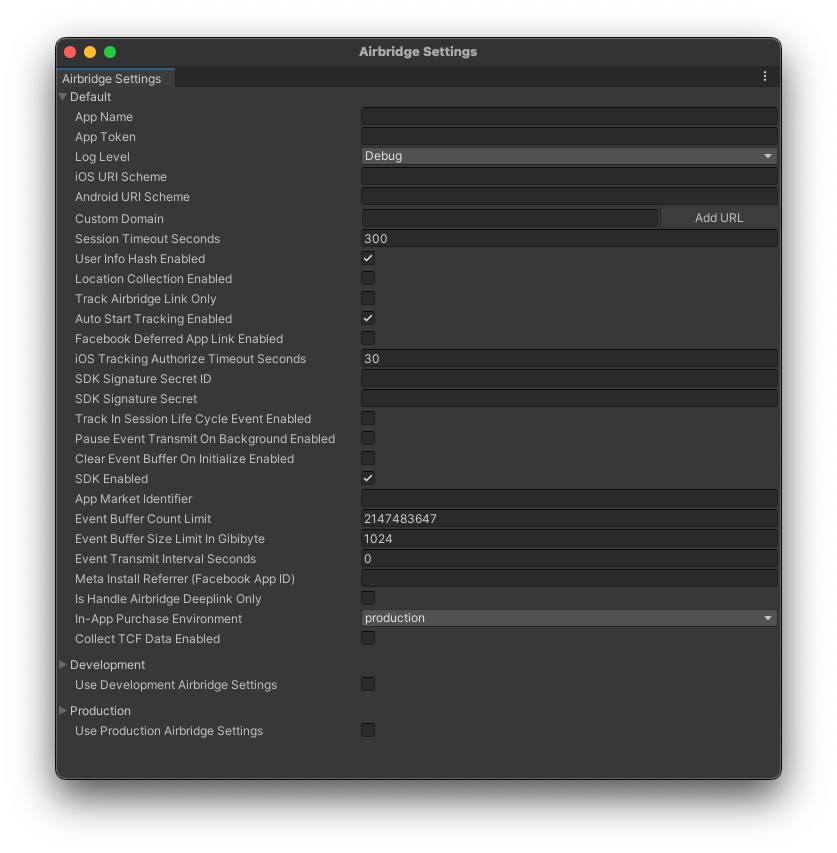 1. In the Unity top menu bar, select **\[Airbridge]>\[Airbridge Settings]** to open the configuration window shown above, then enter the required settings.
2. Skip any settings that are not required.
### Backup rule setup
Configure backup rules as needed in your custom main manifest file (`Assets/Plugins/Android/AndroidManifest.xml`) based on the content of each tag.
* Add the `tools` namespace to the `
1. In the Unity top menu bar, select **\[Airbridge]>\[Airbridge Settings]** to open the configuration window shown above, then enter the required settings.
2. Skip any settings that are not required.
### Backup rule setup
Configure backup rules as needed in your custom main manifest file (`Assets/Plugins/Android/AndroidManifest.xml`) based on the content of each tag.
* Add the `tools` namespace to the `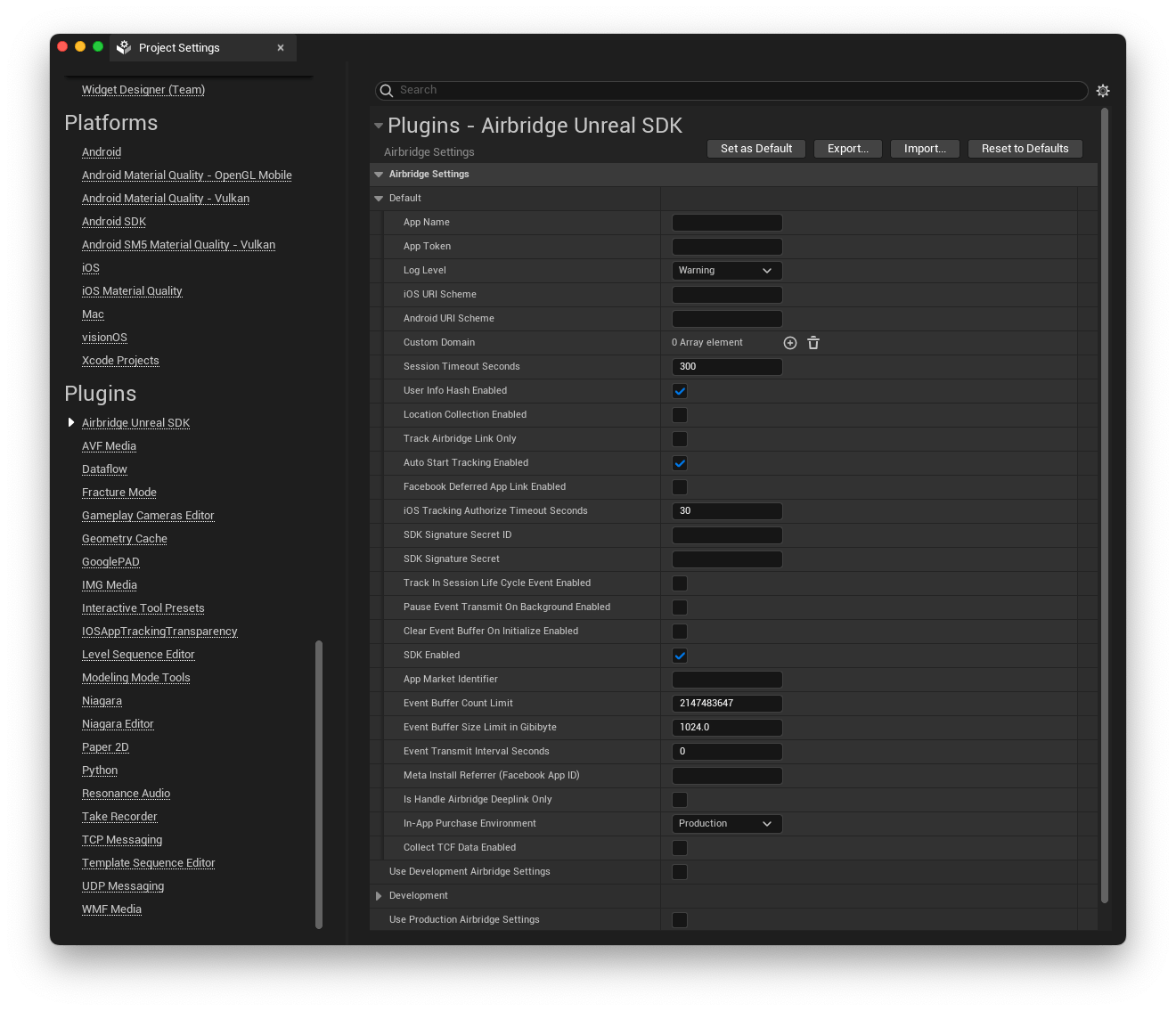 1. In Unreal Engine, open the **\[Project Settings]** window, then under **Plugins** section select **Airbridge Unreal SDK** to open the configuration window shown above.
2. Enter the required settings. Skip any settings that are not required.
3. After entering the required settings, select the **Set as Default** button.
### Backup rule setup
Configure backup rules as needed in your custom main manifest file (`Assets/Plugins/Android/AndroidManifest.xml`) based on the content of each tag.
* Add the `tools` namespace to the `
1. In Unreal Engine, open the **\[Project Settings]** window, then under **Plugins** section select **Airbridge Unreal SDK** to open the configuration window shown above.
2. Enter the required settings. Skip any settings that are not required.
3. After entering the required settings, select the **Set as Default** button.
### Backup rule setup
Configure backup rules as needed in your custom main manifest file (`Assets/Plugins/Android/AndroidManifest.xml`) based on the content of each tag.
* Add the `tools` namespace to the `