> ## Documentation Index
> Fetch the complete documentation index at: https://help.airbridge.io/llms.txt
> Use this file to discover all available pages before exploring further.
# Google Tag Manager Setup - Web SDK
## Install the SDK using the Google Tag Manager
This document describes how to install the Airbridge Web SDK using [Google Tag Manager](https://tagmanager.google.com/).
For instructions on installing the Web SDK and sending events, refer to [Install the Web SDK](/en/developers/web-sdk#web-sdk-설치하기), [Send Web Events](/en/developers/web-sdk#웹-이벤트-전송하기).
### Install the Web SDK
1. In the container, click **Workspace → Overview → Add a new tag**, or **Workspace → Tags → New**.
2. Click **Tag Configuration → Choose tag type → Custom HTML**.
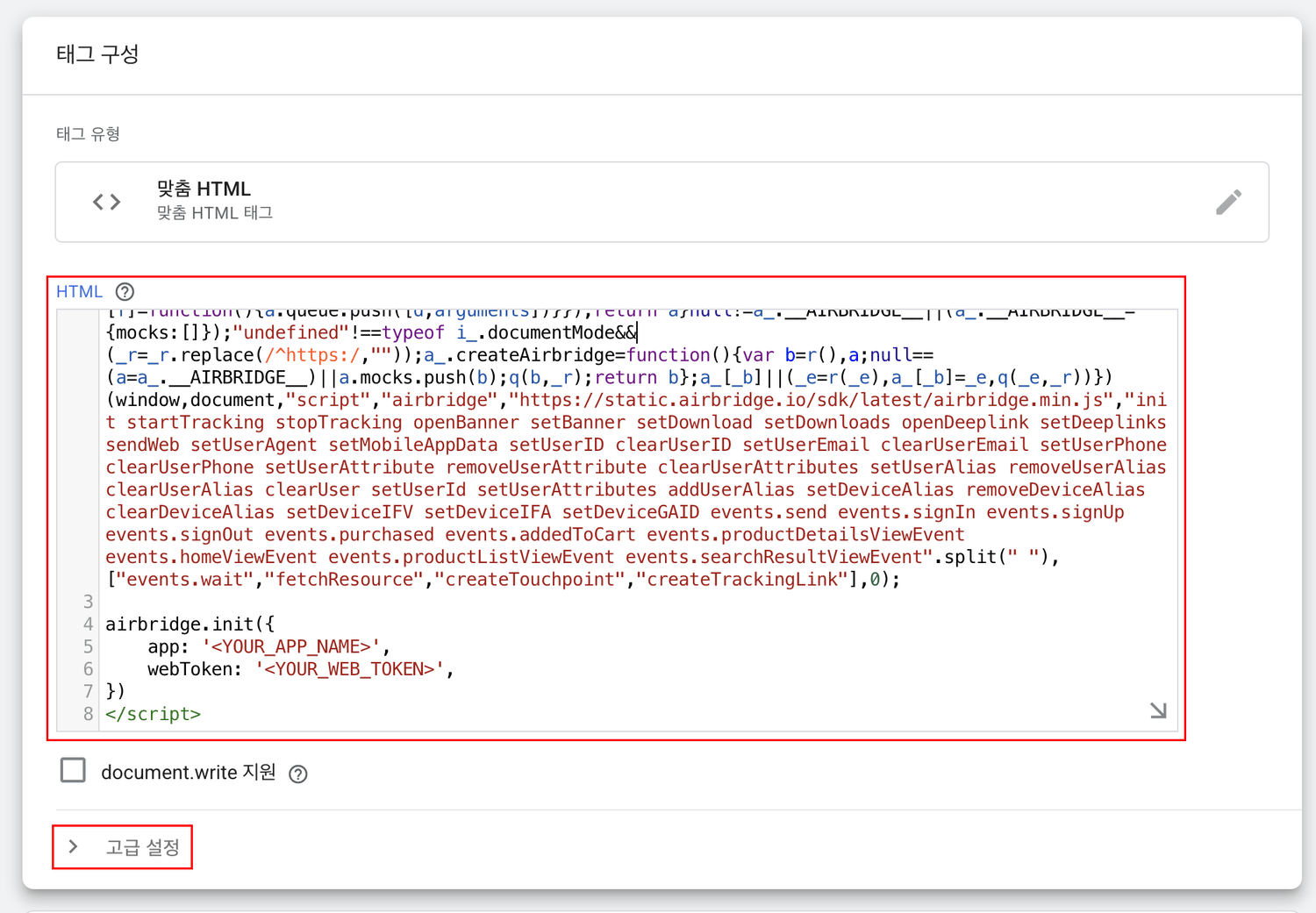
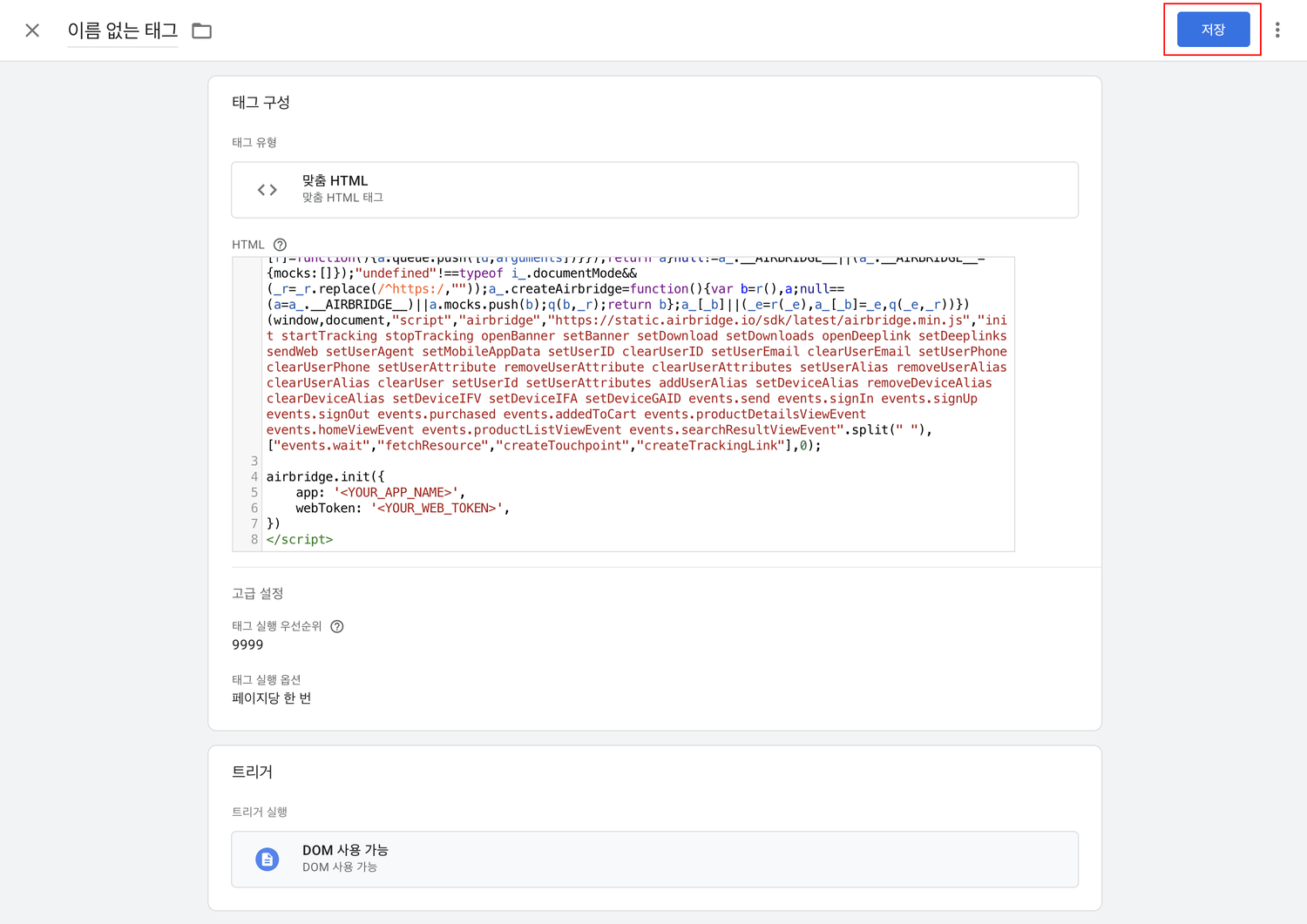
3. Write the Web SDK installation script in the **HTML** editor.
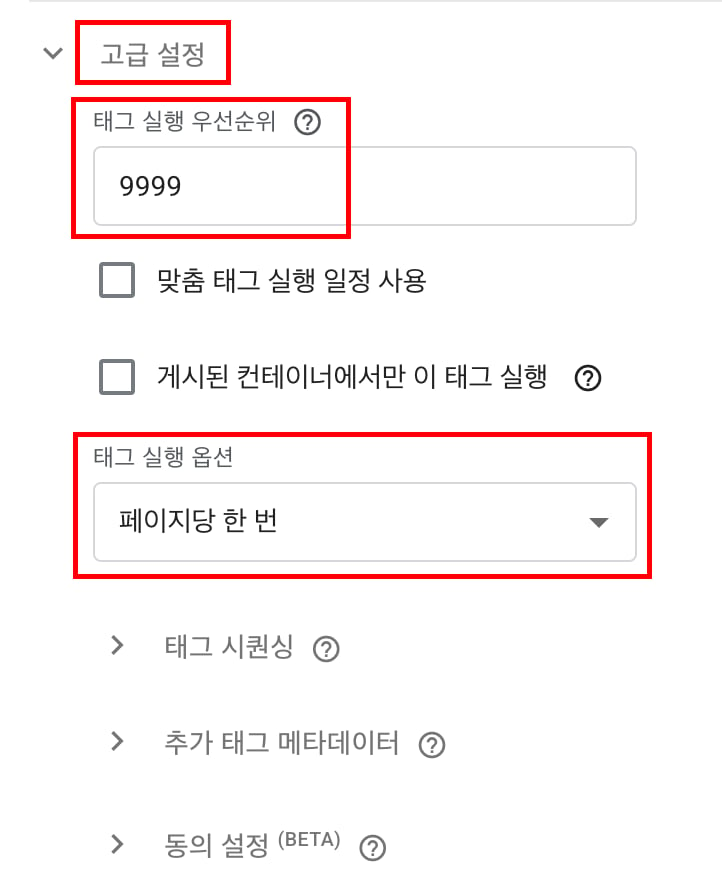
4. The Web SDK `init` function must run before any other functions. In **Advanced Settings**, enter a **Tag firing priority** greater than 0 (e.g., 9999).
5. The Web SDK `init` function must run only once. In **Advanced Settings**, set **Tag firing options** to **Once per page**.
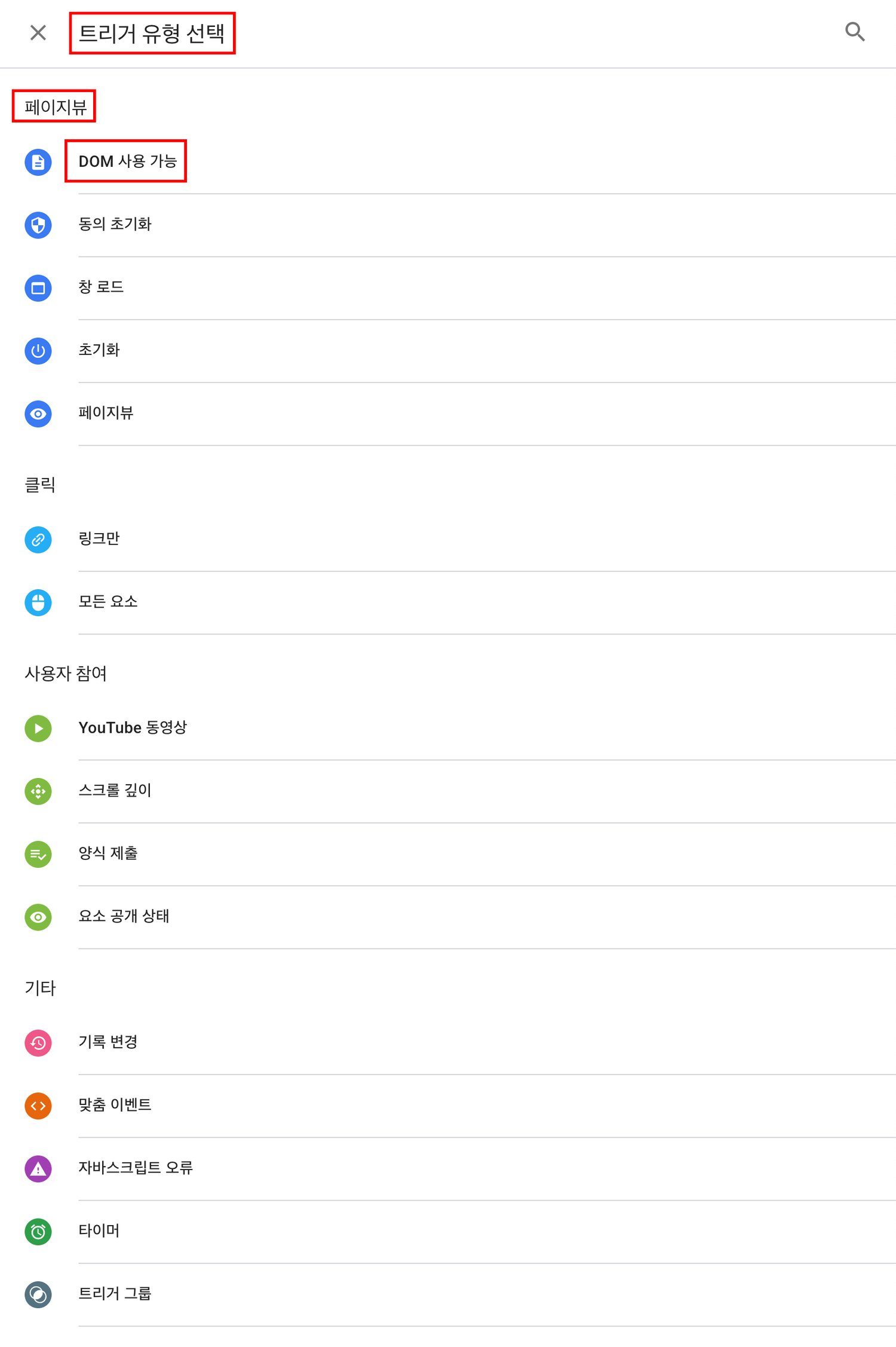
6. Click **Triggering** and select a trigger whose **Trigger Type** is **DOM Ready**.
1. If no trigger has been created yet, click the **+ button** and select **Page View** → **DOM Ready** to create a trigger.
7. Click **Save** to create the tag.
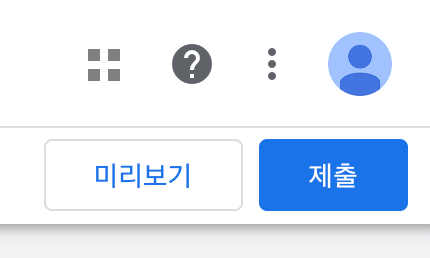
8. Click **Submit** to apply the changes.
9. Check if events appear in **Web Real-time Log** in the Airbridge dashboard.
### Track events
1. In the container, click **Workspace → Overview → Add a new tag**, or **Workspace → Tags → New**.
2. Click **Tag Configuration → Choose tag type → Custom → Custom HTML**.
3. Write the Web SDK event tracking script in the **HTML** editor.
4. Depending on when the event occurs, in **Advanced Settings**, set **Tag firing options** to **Unlimited**, **Once per event**, or **Once per page**.
5. Click **Triggering** and select a trigger that matches the situation in which the event occurs.
6. Click **Save** to create the tag.
7. Click **Submit** to apply the changes.
8. Check if events appear in **Web Real-time Log** in the Airbridge dashboard.
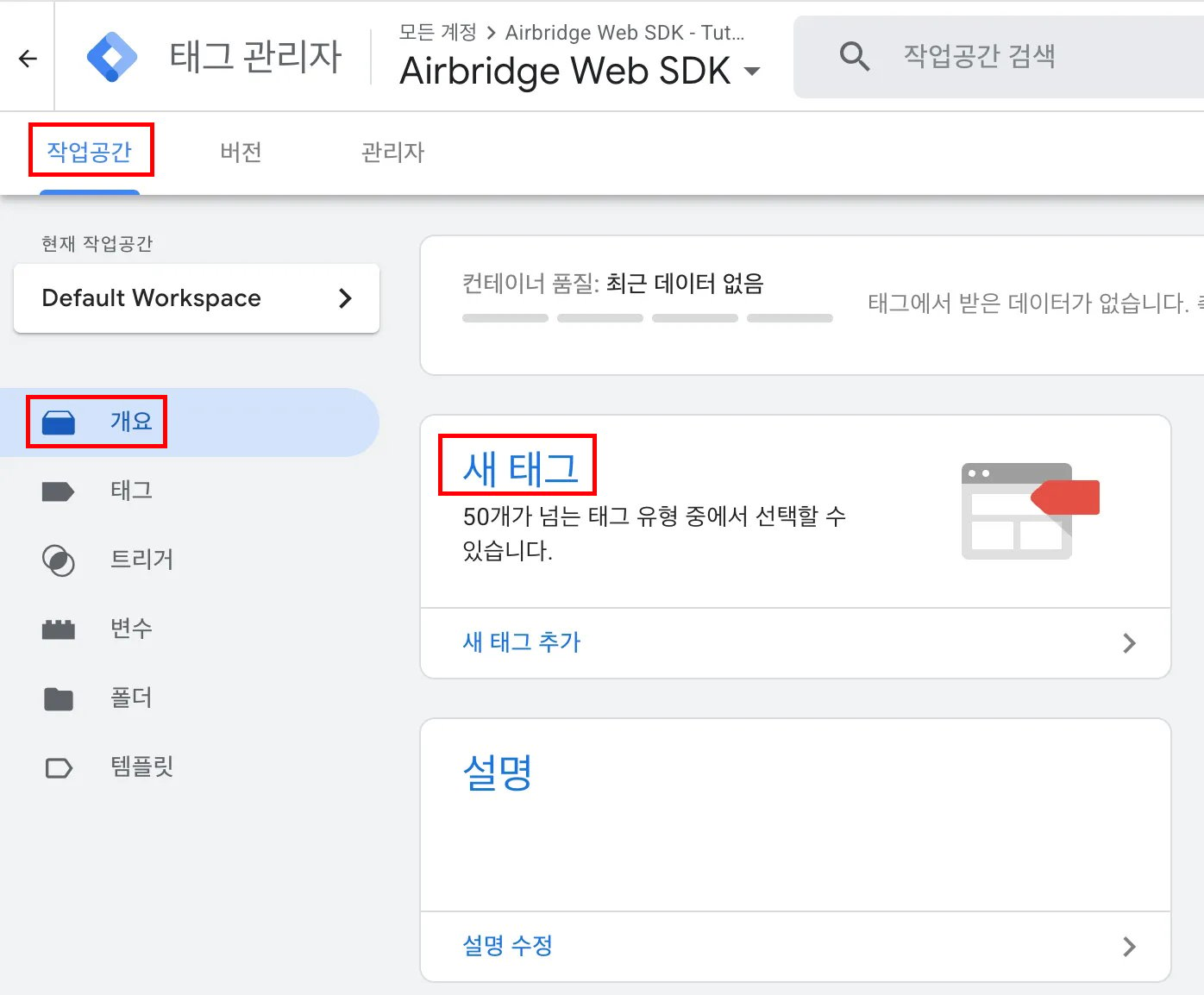 2. Click **Tag Configuration → Choose tag type → Custom HTML**.
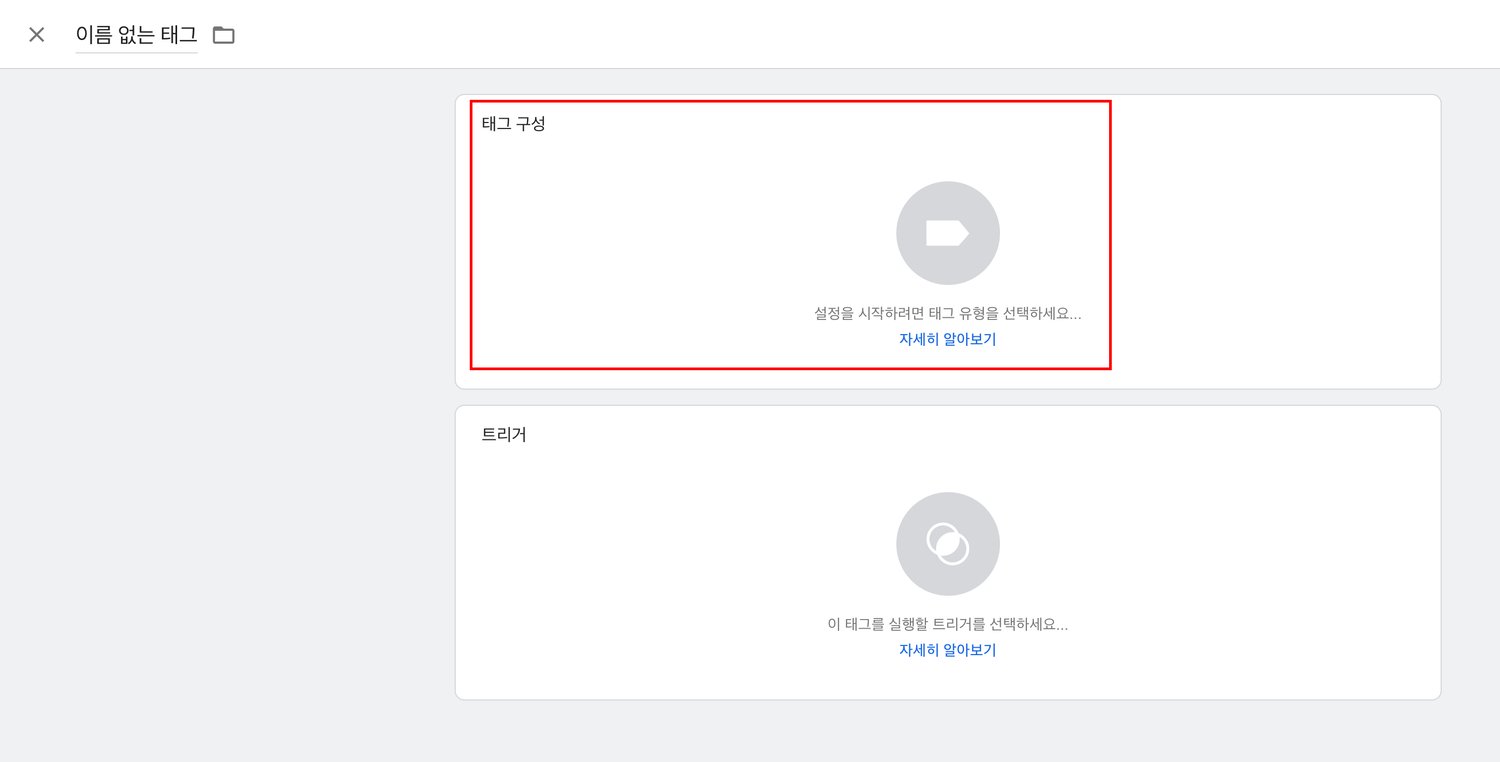 3. Write the Web SDK installation script in the **HTML** editor.
 4. The Web SDK `init` function must run before any other functions. In **Advanced Settings**, enter a **Tag firing priority** greater than 0 (e.g., 9999).
5. The Web SDK `init` function must run only once. In **Advanced Settings**, set **Tag firing options** to **Once per page**.
4. The Web SDK `init` function must run before any other functions. In **Advanced Settings**, enter a **Tag firing priority** greater than 0 (e.g., 9999).
5. The Web SDK `init` function must run only once. In **Advanced Settings**, set **Tag firing options** to **Once per page**.
 6. Click **Triggering** and select a trigger whose **Trigger Type** is **DOM Ready**.
 1. If no trigger has been created yet, click the **+ button** and select **Page View** → **DOM Ready** to create a trigger.

 7. Click **Save** to create the tag.
 8. Click **Submit** to apply the changes.
 9. Check if events appear in **Web Real-time Log** in the Airbridge dashboard.
### Track events
1. In the container, click **Workspace → Overview → Add a new tag**, or **Workspace → Tags → New**.
9. Check if events appear in **Web Real-time Log** in the Airbridge dashboard.
### Track events
1. In the container, click **Workspace → Overview → Add a new tag**, or **Workspace → Tags → New**.
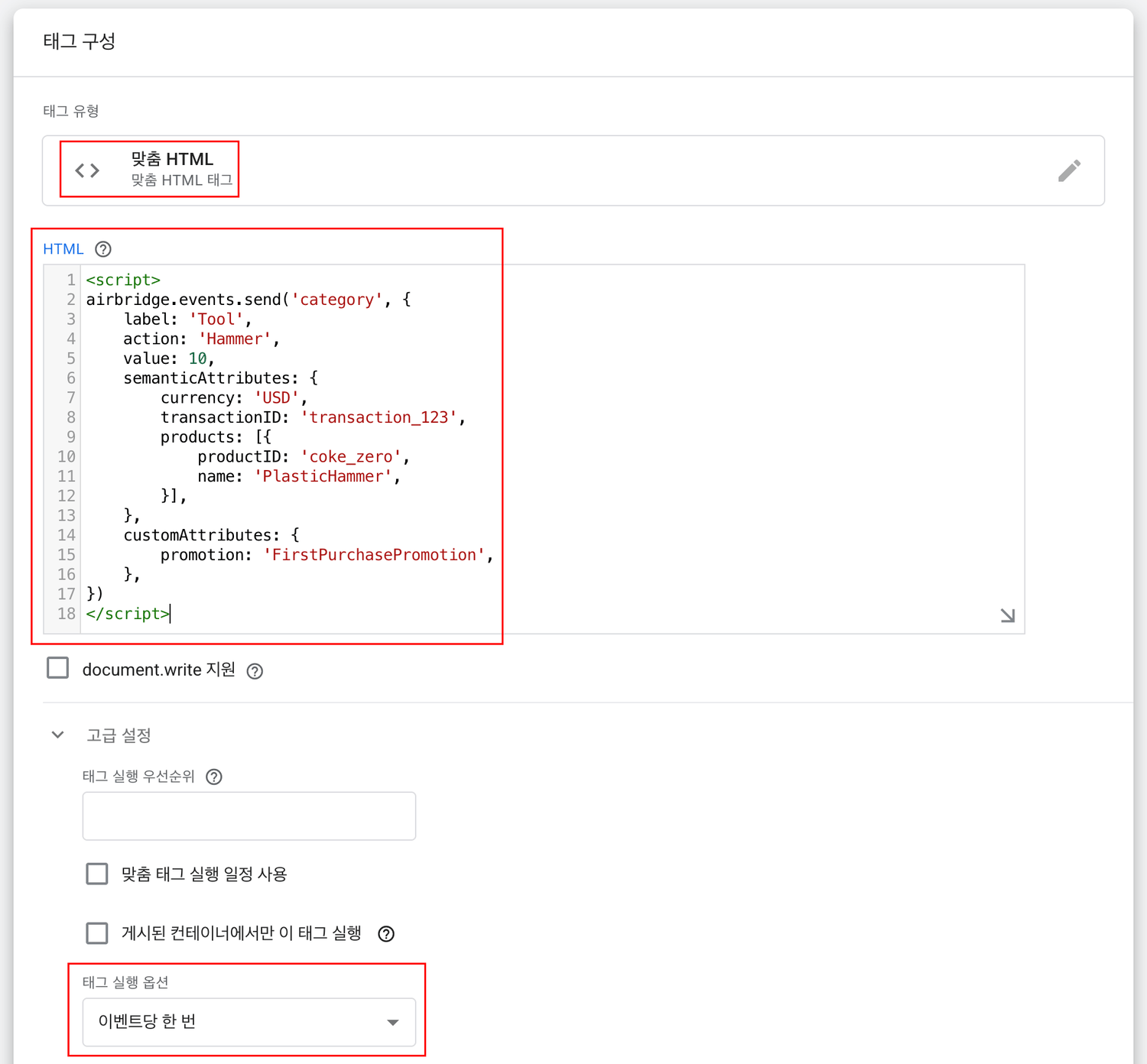 4. Depending on when the event occurs, in **Advanced Settings**, set **Tag firing options** to **Unlimited**, **Once per event**, or **Once per page**.
5. Click **Triggering** and select a trigger that matches the situation in which the event occurs.
6. Click **Save** to create the tag.
7. Click **Submit** to apply the changes.
8. Check if events appear in **Web Real-time Log** in the Airbridge dashboard.
4. Depending on when the event occurs, in **Advanced Settings**, set **Tag firing options** to **Unlimited**, **Once per event**, or **Once per page**.
5. Click **Triggering** and select a trigger that matches the situation in which the event occurs.
6. Click **Save** to create the tag.
7. Click **Submit** to apply the changes.
8. Check if events appear in **Web Real-time Log** in the Airbridge dashboard.