> ## Documentation Index
> Fetch the complete documentation index at: https://help.airbridge.io/llms.txt
> Use this file to discover all available pages before exploring further.

# Expo SDK

<img alt="NPM Version" src="https://img.shields.io/npm/v/airbridge-expo-sdk?label=airbridge-expo-sdk" />

<img alt="NPM Version" src="https://img.shields.io/npm/v/airbridge-expo-sdk?label=airbridge-react-native-sdk" />

Install the Airbridge Expo SDK and implement the necessary settings following the steps below.

<h2 id="install-sdk">
  Install SDK
</h2>

The Airbridge Unreal SDK can be installed using the method below. After installation, you can confirm whether the SDK has been properly installed through the Expo SDK Test.

Use npm to install `airbridge-expo-sdk` and `airbridge-react-native-sdk`.

```bash lines theme={"theme":{"light":"github-dark-dimmed","dark":"github-dark-dimmed"}}
npm install --save airbridge-expo-sdk
npm install --save airbridge-react-native-sdk
```

<h3 id="initialize-sdk">
  Initialize SDK
</h3>

Add the following code to the `app.json`.

```json app.json lines theme={"theme":{"light":"github-dark-dimmed","dark":"github-dark-dimmed"}}
{
  "expo": {
    ...
    "plugins": [
      ...
      [
        "airbridge-expo-sdk",
        {
          "appName": "APP_NAME",
          "appToken": "APP_TOKEN"
        }
      ]
    ]
  }
}
```

<Note>
  `APP_NAME` is the App Name and `APP_TOKEN` is the App SDK Token that can be found on the \[Settings]>\[Tokens] page in the Airbridge dashboard.
</Note>

<h3 id="configure-sdk-settings">
  Configure SDK settings
</h3>

Configure the SDK settings to use the Airbridge Expo SDK.

```json lines theme={"theme":{"light":"github-dark-dimmed","dark":"github-dark-dimmed"}}
{
    "sdkEnabled": boolean,
    "logLevel": "debug" | "info" | "warning" | "error" | "fault",
    "autoStartTrackingEnabled": boolean,
    "autoDetermineTrackingAuthorizationTimeoutInSecond": number,
    "trackMetaDeferredAppLinkEnabled": boolean,
    "sessionTimeoutInSecond": number,
    "metaInstallReferrerAppID": string,
    "trackAirbridgeDeeplinkOnlyEnabled": boolean,
    "trackingLinkCustomDomains": [string],
    "hashUserInformationEnabled": boolean,
    "sdkSignatureID": string,
    "sdkSignatureSecret": string,
    "clearEventBufferOnInitializeEnabled": boolean,
    "eventBufferCountLimit": number,
    "eventBufferSizeLimitInGibibyte": number,
    "eventTransmitIntervalInSecond": number,
    "isHandleAirbridgeDeeplinkOnly": boolean,
    "collectTCFDataEnabled": boolean,
    "trackingBlocklist": [string],
    "calculateSKAdNetworkByServerEnabled": boolean
}
```

1. Create an airbridge.json file at the top level of the Expo project folder, input the JSON as above, and configure the SDK settings.

2. Don't input values for keys that are not necessary for your service.

Refer to the links below for detailed guidance on the individual key values.

<Accordion title="References for configuring the SDK settings">
  <div style={{ overflowX: 'auto' }}>
    <table style={{ display: 'table' }}>
      <thead>
        <tr>
          <th>
            Key Value
          </th>

          <th>
            Reference
          </th>
        </tr>
      </thead>

      <tbody>
        <tr>
          <td>
            sdkEnabled
          </td>

          <td>
            [Initialize the Airbridge SDK with all functions disabled](#initialize-the-airbridge-sdk-with-all-functions-disabled)
          </td>
        </tr>

        <tr>
          <td>
            logLevel
          </td>

          <td>
            [SDK logs](#sdk-logs)
          </td>
        </tr>

        <tr>
          <td>
            autoStartTrackingEnabled
          </td>

          <td>
            [Opt-in setup](#opt-in-setup)<br />[Opt-out setup](#opt-out-setup)
          </td>
        </tr>

        <tr>
          <td>
            autoDetermineTrackingAuthorizationTimeoutInSecond
          </td>

          <td>
            [Configure ATT prompt](#configure-att-prompt)
          </td>
        </tr>

        <tr>
          <td>
            trackMetaDeferredAppLinkEnabled
          </td>

          <td>
            [Set up Meta deferred app links](#set-up-meta-deferred-app-links)
          </td>
        </tr>

        <tr>
          <td>
            sessionTimeoutInSecond
          </td>

          <td>
            [Configure in-app event sessions](#configure-in-app-event-sessions)
          </td>
        </tr>

        <tr>
          <td>
            metaInstallReferrerAppID
          </td>

          <td>
            [Set up Meta Install Referrer collection](#set-up-meta-install-referrer-collection)
          </td>
        </tr>

        <tr>
          <td>
            trackAirbridgeDeeplinkOnlyEnabled
          </td>

          <td>
            [Track only Airbridge Deep Links](#track-only-airbridge-deep-links)
          </td>
        </tr>

        <tr>
          <td>
            trackingLinkCustomDomains
          </td>

          <td>
            [Set up custom domain](#set-up-custom-domain)
          </td>
        </tr>

        <tr>
          <td>
            hashUserInformationEnabled
          </td>

          <td>
            [Hash user information](#hash-user-information)
          </td>
        </tr>

        <tr>
          <td>
            sdkSignatureID
          </td>

          <td>
            [SDK Signature](#sdk-signature)
          </td>
        </tr>

        <tr>
          <td>
            sdkSignatureSecret
          </td>

          <td>
            [SDK Signature](#sdk-signature)
          </td>
        </tr>

        <tr>
          <td>
            clearEventBufferOnInitializeEnabled
          </td>

          <td>
            [Clear unsent in-app events](#clear-unsent-in-app-events)
          </td>
        </tr>

        <tr>
          <td>
            eventBufferCountLimit
          </td>

          <td>
            [Configure in-app event storage](#configure-in-app-event-storage)
          </td>
        </tr>

        <tr>
          <td>
            eventBufferSizeLimitInGibibyte
          </td>

          <td>
            [Configure in-app event storage](#configure-in-app-event-storage)
          </td>
        </tr>

        <tr>
          <td>
            eventTransmitIntervalInSecond
          </td>

          <td>
            [Configure in-app event transmission frequency](#configure-in-app-event-transmission-frequency)
          </td>
        </tr>

        <tr>
          <td>
            isHandleAirbridgeDeeplinkOnly
          </td>

          <td>
            [Receive Airbridge Deep Links only](#receive-airbridge-deep-links-only)
          </td>
        </tr>

        <tr>
          <td>
            collectTCFDataEnabled
          </td>

          <td>
            [Compliance with Google DMA](#compliance-with-google-dma)
          </td>
        </tr>

        <tr>
          <td>
            trackingBlocklist
          </td>

          <td>
            [Restricting Identifier Tracking](#restricting-identifier-tracking)
          </td>
        </tr>

        <tr>
          <td>
            calculateSKAdNetworkByServerEnabled
          </td>

          <td>
            [Calculating SKAdNetwork Conversion Value on the Server](#calculating-skadnetwork-conversion-value-on-the-server)
          </td>
        </tr>
      </tbody>
    </table>
  </div>
</Accordion>

<h3 id="configure-att-prompt">
  Configure ATT prompt
</h3>

<div id="note" />

<Info>
  **Note**

  The functions necessary to ensure compliance with privacy policies should be reviewed with legal counsel.
</Info>

In the iOS environment, the [IDFA](https://developer.apple.com/documentation/adsupport/asidentifiermanager/advertisingidentifier) can only be collected when users provide consent for data tracking through the [App Tracking Transparency (ATT)](https://developer.apple.com/app-store/user-privacy-and-data-use/) prompt.

Event collection should be delayed until the user allows tracking. If the install event is collected before the user allows tracking through the ATT prompt, the install event data will lack an identifier, making performance measurement difficult. We recommend setting a sufficient delay time for event collection to collect identifiers.

1. Prepare the text you will use in the ATT prompt.

2. Provide the ATT prompt following this [guide](https://developer.apple.com/documentation/apptrackingtransparency) provided by Apple.

3. If the install event is not collected, the Airbridge Expo SDK delays collecting install events for 30 seconds until the user allows tracking each time the app is launched. If the user exits the app before deciding whether to allow tracking, the SDK will not collect the install event and will try again at the next app launch.

In the [SDK settings](#configure-sdk-settings), configure the `autoDetermineTrackingAuthorizationTimeoutInSecond` to set a sufficient delay time for collecting install events. The default value is 30 seconds, and it can be set to up to 3600 seconds (1 hour).

<div id="attention" />

<Danger>
  **Attention**

  Set a sufficient delay time to collect the app install event. If the SDK collects install events before users can allow tracking on the ATT prompt, the IDFA won't be collected along with the install events.
</Danger>

<h3 id="opt-in-setup">
  Opt-in setup
</h3>

<div id="attention-2" />

<Info>
  **Attention**

  Optional settings. Configure only if necessary.
</Info>

The opt-in policy requires user consent before using user data.

In the [SDK settings](#configure-sdk-settings), set the `autoStartTrackingEnabled` to `false` and call the `startTracking` function at the point of time when you can collect events. The SDK will start collecting events when the `startTracking` function is called.

```typescript lines theme={"theme":{"light":"github-dark-dimmed","dark":"github-dark-dimmed"}}
import { Airbridge } from 'airbridge-react-native-sdk'
...
Airbridge.startTracking()
```

<h3 id="opt-out-setup">
  Opt-out setup
</h3>

<div id="attention-3" />

<Info>
  **Attention**

  Optional settings. Configure only if necessary.
</Info>

The opt-out policy allows the use of user information until the user explicitly declines.

In the [SDK settings](#configure-sdk-settings), set the `autoStartTrackingEnabled` to `true` and call the `stopTracking` function at the point of time when you can no longer collect events. The SDK will stop collecting events when the `stopTracking` function is called.

```typescript lines theme={"theme":{"light":"github-dark-dimmed","dark":"github-dark-dimmed"}}
import { Airbridge } from 'airbridge-react-native-sdk'
...
Airbridge.stopTracking()
```

<h3 id="sdk-signature">
  SDK Signature
</h3>

<div id="attention-4" />

<Info>
  **Attention**

  Optional settings. Configure only if necessary.
</Info>

With the SDK Signature, you can prevent SDK spoofing and use verified events to measure ad performance.

The SDK Signature credentials, which are the Secret ID and the Secret, are required for the SDK Signature setup. They can be found on the **\[Management]>\[Fraud Validation Rules]>\[SDK Signature]** page in the Airbridge dashboard. For more details on how to find the SDK Signature credentials, refer to this [Airbridge guide](/en/guides/sdk-signature).

Once you have the credentials, go to the [SDK settings](#configure-sdk-settings) and enter the Secret ID as sdkSignatureID and the Secret as `sdkSignatureSecret`.

<h2 id="deep-linking">
  Deep Linking
</h2>

Deep linking allows you to redirect users from ads to specific locations within your app. The data collected from the tracking link enables you to monitor the performance of the deep link in Airbridge.

* [Understanding Tracking Links (User Guide)](/en/guides/understanding-tracking-link)
* [Understanding Deep Links (User Guide)](/en/guides/understanding-deep-link)

<h3 id="how-airbridge-deep-links-work">
  How Airbridge Deep Links work
</h3>

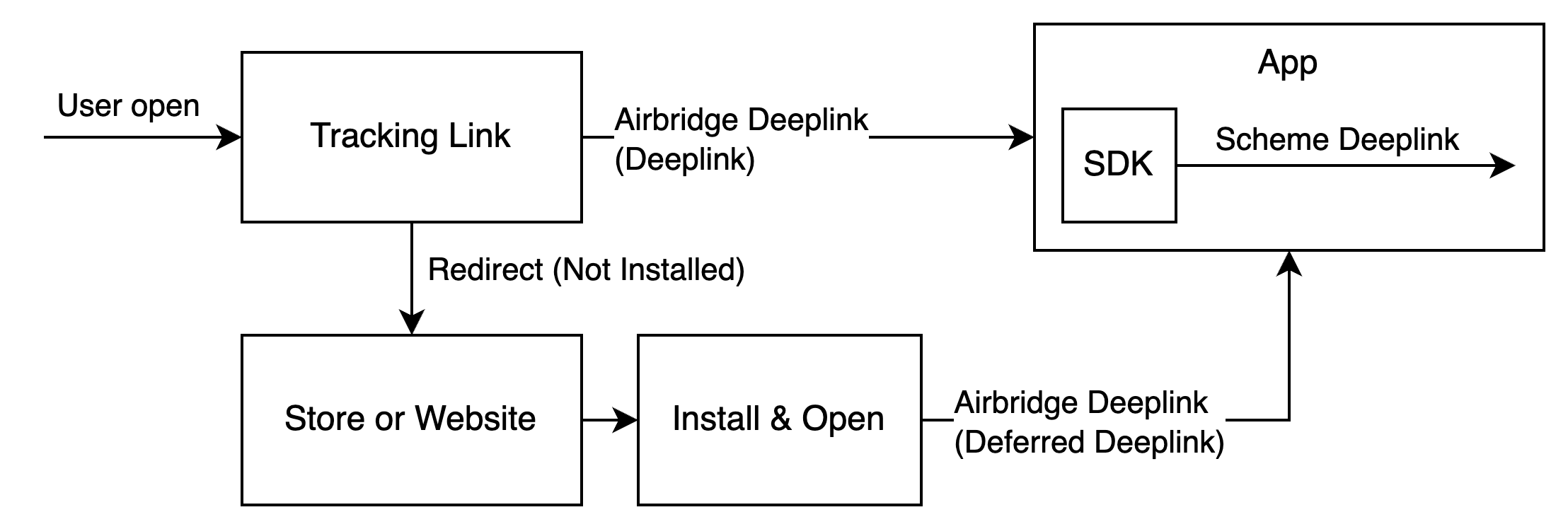
When a user clicks on the Airbridge tracking link, the scheme deep link embedded in the tracking link is converted into an Airbridge Deep Link, which can be either an HTTP deep link or a scheme deep link. This Airbridge Deep Link redirects the user to the desired app location. Then, the Airbridge SDK converts the Airbridge Deep Link back to the original scheme deep link embedded in the tracking link and passes it to the app.

* Example scheme deep link embedded in the tracking link: YOUR\_SCHEME://product/12345
* Examples of Airbridge Deep Links

  * HTTP deep link format 1: https<span>://</span>YOUR\_APP\_NAME.airbridge.io/\~\~\~
  * HTTP deep link format 2: https<span>://</span>YOUR\_APP\_NAME.abr.ge/\~\~\~
  * Scheme deep link format: YOUR\_SCHEME://product/12345?airbridge\_referrer=\~\~\~

When the app is installed on the device and the tracking link is clicked, the app opens through the Airbridge Deep Link. The Airbridge SDK converts the Airbridge Deep Link into the scheme deep embedded in the tracking link and passes it to the app.

When the app is not installed on the device and the tracking link is clicked, the Airbridge SDK saves the Airbridge Deep Link. After the user is redirected to the app store or website and the app is installed and launched, the Airbridge SDK converts the saved Airbridge Deep Link into the scheme deep link embedded in the tracking link and passes it to the app.

<Frame>
  <img src="https://mintcdn.com/airbridge-help-center/Htx4FOCjbD1i8oed/images/ca4fk0iik512/1zFsKkUhhtquqQxMlTXiNm/fef1b56be608e57abea15b0b341acd45/AirbridgeDeeplinkSimpleStructure.drawio.png?fit=max&auto=format&n=Htx4FOCjbD1i8oed&q=85&s=af84ad3d507781bbcaa67fb51910c8f4" alt="Simple structure of Airbridge Deeplink" width="2216" height="748" data-path="images/ca4fk0iik512/1zFsKkUhhtquqQxMlTXiNm/fef1b56be608e57abea15b0b341acd45/AirbridgeDeeplinkSimpleStructure.drawio.png" />
</Frame>

<h3 id="set-up-deep-linking">
  Set up deep linking
</h3>

For the deep linking setup, the following information is required.

* Deep link information submitted in the Airbridge dashboard
* In-app location address for user redirection

First, submit the deep link information to the Airbridge dashboard.

<Accordion title="How to enter the deep link information into Airbridge dashboard">
  For the deep linking setup, the following information must be entered into the Airbridge dashboard.

  #### iOS

  * iOS URI scheme: The Airbridge Deep Link is converted to a scheme deep link using the iOS URI scheme.
  * iOS App ID: The universal link domain of the Airbridge Deep Link is set using the iOS App ID.

  #### Android

  * Android URI scheme: The Airbridge deep link is converted to a scheme deep link using the Android URI scheme. This information is necessary for the App Link and URI scheme.
  * Package name: This is the Android app identifier necessary for the App Link and URI scheme.
  * [Android sha256\_cert\_fingerprints](https://developer.android.com/training/app-links/verify-android-applinks): This is used for setting the App Link domain. This information is necessary for the App Link.

  <div id="attention-5" />

  <Danger>
    **Attention**

    To properly redirect users as intended, submit different information for the production app and the development app.
  </Danger>

  Follow the steps below to submit the necessary information to the Airbridge dashboard.

  #### iOS

  1. Navigate to **\[Tracking Link]>\[Deep Links]** in the Airbridge dashboard.

  2. Enter the iOS URI scheme in the **iOS URI Scheme** field. Include `://`. For example, if the iOS URI scheme is `demo`, enter `demo://`.

  3. In the [Apple Developer Dashboard](https://developer.apple.com/account/resources), navigate to **\[Identifier]** of the app you want to set up the deep link. Find the **App ID Prefix** and **Bundle ID**.

  4. The iOS App ID is in the format of `App ID Prefix+ . + Bundle ID`. Enter the iOS App ID into the **iOS App ID** field. For example, if the App ID Prefix is `prefix` and the Bundle ID is `example`, the iOS App ID is `prefix.example`.

  #### Android

  For apps that use Google Play's Play App Signing, Google's servers re-sign the APK after the developer uploads it. This changes the Android sha256\_cert\_fingerprints, so you must register the final signing value from the Google Play Console—not from your local keystore—for App Links to work correctly. Register the Android URI scheme, package name, and Android sha256\_cert\_fingerprints in Airbridge according to your signing method.

  <Tabs>
    <Tab title="Play App signing">
      1. Naviagate to **\[Tracking Link]>\[Deep Links]** in the Airbridge dashboard.
      2. Enter the Android URI scheme into the **Android URI Scheme** field. Include `://`. For example, if the URI scheme is `demo`, you must enter `demo://`.
      3. Enter the package name in the **Package name** field.
      4. Go to the Google Play Console and select your app.
      5. Navigate to **\[App integrity]**.
      6. Copy the SHA-256 certificate fingerprint from the **App signing key certificate** section.

               <div id="attention-6" />

               <Danger>
                 **Attention**

                 Make sure to copy from the correct section. This page contains two certificate entries:

                 * **App signing key certificate** ← Use this value
                 * **Upload key certificate** ← Do NOT use this value

                 These are two different values. Registering the upload key certificate will cause App Links to stop working.
               </Danger>
      7. Enter the SHA256 value into the **sha256\_cert\_fingerprints** field.
    </Tab>

    <Tab title="using original key">
      1. Naviagate to **\[Tracking Link]>\[Deep Links]** in the Airbridge dashboard.
      2. Enter the Android URI scheme into the **Android URI Scheme** field. Include `://`. For example, if the URI scheme is `demo`, you must enter `demo://`.
      3. Enter the package name in the **Package name** field.
      4. You need to find the sha256\_cert\_fingerprints. Run the following command from the keystore file you are deploying.

         ```bash lines theme={"theme":{"light":"github-dark-dimmed","dark":"github-dark-dimmed"}}
         keytool -J-Duser.language=en -list -v -keystore YOUR_KEYSTORE.keystore
         ```
      5. Find the SHA256 value in the results. The SHA256 value is the  sha256\_cert\_fingerprints.

         ```bash lines theme={"theme":{"light":"github-dark-dimmed","dark":"github-dark-dimmed"}}
         Certificate fingerprints:
             MD5:  4C:65:04:52:F0:3F:F8:65:08:D3:71:86:FC:EF:C3:49
             SHA1: C8:BF:B7:B8:94:EA:5D:9D:38:59:FE:99:63:ED:47:B2:D9:5A:4E:CC
             SHA256: B5:EF:4D:F9:DC:95:E6:9B:F3:9A:5E:E9:D6:E0:D8:F6:7B:AB:79:C8:78:67:34:D9:A7:01:AB:6A:86:01:0E:99
         ```
      6. Enter the SHA256 value into the **sha256\_cert\_fingerprints** field.
    </Tab>
  </Tabs>
</Accordion>

After entering the deep link information into the Airbridge dashboard, an additional setup is required to enable the following.

* App launch with Airbridge Deep Links
* Airbridge Deep Link event collection
* User redirection with Airbridge Deep Links

For detailed instructions, refer to the information below.

<AccordionGroup>
  <Accordion title="Enable app launch with Airbridge Deep Links">
    To enable app launch with Airbridge Deep Links, add the following code to the `app.json`.

    ```json app.json lines theme={"theme":{"light":"github-dark-dimmed","dark":"github-dark-dimmed"}}
    {
      "expo": {
        ...
        "scheme": "YOUR_SCHEME",
        "android": {
          ...
          "intentFilters": [{
            "autoVerify": true,
            "action": "VIEW",
            "data": { "scheme": "https", "host": "APP_NAME.airbridge.io" },
            "category": ["BROWSABLE", "DEFAULT"]
          }, {
            "autoVerify": true,
            "action": "VIEW",
            "data": { "scheme": "https", "host": "APP_NAME.abr.ge" },
            "category": ["BROWSABLE", "DEFAULT"]
          }, {
            "autoVerify": true,
            "action": "VIEW",
            "data": { "scheme": "http", "host": "APP_NAME.airbridge.io" },
            "category": ["BROWSABLE", "DEFAULT"]
          }, {
            "autoVerify": true,
            "action": "VIEW",
            "data": { "scheme": "http", "host": "APP_NAME.abr.ge" },
            "category": ["BROWSABLE", "DEFAULT"]
          }]
        },
        "ios": {
          ...
          "associatedDomains": [
            "applinks:APP_NAME.airbridge.io",
            "applinks:APP_NAME.abr.ge"
          ]
        }
      }
    }
    ```

    <Note>
      `YOUR_SCHEME` is the URI Scheme that can be found on the  \[Tracking Link]>\[Deep Links] page in the Airbridge dashboard.
    </Note>
  </Accordion>

  <Accordion title="Enable user redirection with Airbridge Deep Links">
    When an Airbridge Deep Link is executed, it is converted into a scheme deep link and passed to the `OnDeeplinkReceived` callback. If a deep link that is not an Airbridge Deep Link is executed, the deep link is passed directly to the callback without any conversion.

    Use the deep link passed to the callback to redirect the user to the intended destination.

    ```typescript lines theme={"theme":{"light":"github-dark-dimmed","dark":"github-dark-dimmed"}}
    import { Airbridge } from 'airbridge-react-native-sdk'
    ...
    Airbridge.setOnDeeplinkReceived((url) => {
        // show proper content using url
    })
    ```
  </Accordion>
</AccordionGroup>

<h3 id="set-up-deferred-deep-linking">
  Set up deferred deep linking
</h3>

When a user clicks on a tracking link with deferred deep linking capabilities and your app is not installed on the device, the Airbridge SDK collects the deep link as follows.

<Accordion title="How the Airbridge SDK collects deferred deep links">
  The Airbridge SDK attempts to collect a deep link after initializing the SDK when all the following conditions are met. If the app is closed during collection, the Airbridge SDK treats it as if there is no stored Airbridge deep link.

  * The `Airbridge.startTracking` function is called with the opt-in settings in place. Or, opt-in has not been set.
  * The ATT tracking response has been determined. Or, the event collection delay time set in the ATT prompt has expired.
</Accordion>

Deferred deep links are automatically passed to [OnDeeplinkReceived](#user-redirection-with-airbridge-deep-links), so no additional setup is required.

<h3 id="set-up-custom-domain">
  Set up custom domain
</h3>

<div id="attention-7" />

<Info>
  **Attention**

  Optional settings. Configure only if necessary.
</Info>

1. Enter the custom domain address into the Airbridge dashboard by referring to this [article](/en/guides/custom-domain)
2. In the [SDK Settings](#configure-sdk-settings), enter the custom domain address in the `trackingLinkCustomDomains` . The

   `YOUR_APP_CUSTOM_DOMAIN` should be the Fully Qualified Domain Name (FQDN).

   ```json lines theme={"theme":{"light":"github-dark-dimmed","dark":"github-dark-dimmed"}}
   {
       "trackingLinkCustomDomains": ["YOUR_APP_CUSTOM_DOMAIN"]
   }
   ```

   <div id="attention-8" />

   <Danger>
     **Attention**

     The custom domain address you add to the SDK should be the same as the custom domain address entered into the Airbridge dashboard.
   </Danger>

<h2 id="in-app-events">
  In-app Events
</h2>

The Airbridge SDK collects user actions from the app as per settings and sends them as in-app events.

* [Understanding Airbridge Events ](/en/guides/airbridge-event)

<h3 id="send-in-app-events">
  Send in-app events
</h3>

<div id="sdk-setup-for-hybrid-apps" />

<Note>
  **SDK setup for hybrid apps**

  You can set up the React Native SDK to handle Airbridge-related tasks within the in-app website without changing the website's code for your hybrid app.

  * [Hybrid App Setup (v4)](/en/developers/hybrid-app-settings-react-native-sdk-v4)
</Note>

Call the `Airbridge.trackEvent` function to send events. Refer to the information below about the required  `Airbridge.trackEvent` function components and their types.

```typescript lines theme={"theme":{"light":"github-dark-dimmed","dark":"github-dark-dimmed"}}
static trackEvent(
    category: string,
): void

static trackEvent(
    category: string,
    semanticAttributes: Record<string, any>,
): void

static trackEvent(
    category: string,
    semanticAttributes: Record<string, any>,
    customAttributes: Record<string, any>,
): void
```

| Component          | Required or Optional | Type                 | Description                       |
| ------------------ | -------------------- | -------------------- | --------------------------------- |
| category           | Required             | string               | Event name                        |
| semanticAttributes | Optional             | Record\<string, any> | Semantic attributes of the events |
| customAttributes   | Optional             | Record\<string, any> | Custom attributes of the event    |

Refer to the component definition and available strings below.

<AccordionGroup>
  <Accordion title="Event Category">
    The Standard Event Categories provided by the Airbridge SDK can be found in the AirbridgeCategory. You can also enter the Event Categories from the list of Standard Events.

    * [Lists of Standard Events](/en/guides/airbridge-event-types#list-of-standard-events)

    Custom events can be sent by entering the event names in the [event taxonomy](/en/guides/airbridge-event-taxonomy).

    Refer to the example below.

    ```typescript lines theme={"theme":{"light":"github-dark-dimmed","dark":"github-dark-dimmed"}}
    import { Airbridge, AirbridgeCategory } from 'airbridge-react-native-sdk'
    ...
    // track standard event (provided by sdk)
    Airbridge.trackEvent(AirbridgeCategory.ORDER_COMPLETED)
    // track standard event (not provided by sdk)
    Airbridge.trackEvent('airbridge.ecommerce.order.canceled')
    // track custom event
    Airbridge.trackEvent('eventViewed')
    ```
  </Accordion>

  <Accordion title="Attributes">
    <div id="attention-9" />

    <Danger>
      **Attention**

      The Airbridge SDK v4 attributes differ from the previous version. The previous version's attributes do not include action, label, and value.
    </Danger>

    Additional information about the event can be collected using attributes.

    * Action, Label: Collect information that can be used as GroupBys in the Airbridge reports
    * Value: Collect information that can be used for sales analysis. Airbridge can perform calculations using the collected data.
    * Semantic Attribute: Collect predefined attributes by Airbridge.
    * Custom Attributes: Collect attributes defined by Airbridge users.

    You can enter Action, Label, Value, and Semantic Attributes using the semanticAttributes parameter of the `Airbridge.trackEvent` function and enter Custom Attributes using the customAttributes parameter.

    In the `Airbridge.trackEvent` function, you can enter Action, Label, Value, and Semantic Attributes using the `semanticAttributes` parameter and Custom Attributes using the `customAttributes` parameter.

    The semantic attributes predefined by Airbridge can be found in the user guide below.

    * [List of semantic attributes](/en/guides/airbridge-event-elements#list-of-semantic-attributes)

    Refer to the example below.

    ```typescript lines theme={"theme":{"light":"github-dark-dimmed","dark":"github-dark-dimmed"}}
    import { Airbridge, AirbridgeCategory, AirbridgeAttribute } from 'airbidge-react-native-sdk'
    ...
    Airbridge.trackEvent(
        AirbridgeCategory.ORDER_COMPLETED,
        {
            // action
            [AirbridgeAttribute.ACTION]: 'Tool',
            // label
            [AirbridgeAttribute.LABEL]: 'Hammer',
            // value
            [AirbridgeAttribute.VALUE]: 10,
            // semantic attribute (provided by sdk)
            [AirbridgeAttribute.CURRENCY]: 'USD',
            [AirbridgeAttribute.PRODUCTS]: [
                {
                    // semantic attribute value (provided by sdk)
                    [AirbridgeAttribute.PRODUCT_ID]: '12345',
                    // semantic attribute value (not provided by sdk)
                    'name': 'PlasticHammer',
                },
            ],
            // semantic attribute (not provided by sdk)
            'totalQuantity': 1,
        },
        {
            // custom attribute
            'promotion': 'FirstPurchasePromotion',
        }
    )
    ```

    <div id="attention-10" />

    <Danger>
      **Attention**

      Semantic attributes and custom attributes only allow JSON as a data type.

      * JSON types: string, number, boolean, Record\<string, JSON>, Array\<JSON>
      * Types that cannot be used in semantic attributes and custom attributes: Class, etc.
    </Danger>
  </Accordion>
</AccordionGroup>

The Event Category of Standard Events and Semantic Attributes provided by the SDK are as follows.

<AccordionGroup>
  <Accordion title="Event Category of Standard Events provided by the SDK (AirbridgeCategory)">
    | Key                     | Data                                     |
    | ----------------------- | ---------------------------------------- |
    | SIGN\_UP                | airbridge.user.signup                    |
    | SIGN\_IN                | airbridge.user.signin                    |
    | SIGN\_OUT               | airbridge.user.signout                   |
    | HOME\_VIEWED            | airbridge.ecommerce.home.viewed          |
    | PRODUCT\_LIST\_VIEWED   | airbridge.ecommerce.productList.viewed   |
    | SEARCH\_RESULTS\_VIEWED | airbridge.ecommerce.searchResults.viewed |
    | PRODUCT\_VIEWED         | airbridge.ecommerce.product.viewed       |
    | ADD\_PAYMENT\_INFO      | airbridge.addPaymentInfo                 |
    | ADD\_TO\_WISHLIST       | airbridge.addToWishlist                  |
    | ADDED\_TO\_CART         | airbridge.ecommerce.product.addedToCart  |
    | INITIATE\_CHECKOUT      | airbridge.initiateCheckout               |
    | ORDER\_COMPLETED        | airbridge.ecommerce.order.completed      |
    | ORDER\_CANCELED         | airbridge.ecommerce.order.canceled       |
    | START\_TRIAL            | airbridge.startTrial                     |
    | SUBSCRIBE               | airbridge.subscribe                      |
    | UNSUBSCRIBE             | airbridge.unsubscribe                    |
    | AD\_IMPRESSION          | airbridge.adImpression                   |
    | AD\_CLICK               | airbridge.adClick                        |
    | COMPLETE\_TUTORIAL      | airbridge.completeTutorial               |
    | ACHIEVE\_LEVEL          | airbridge.achieveLevel                   |
    | UNLOCK\_ACHIEVEMENT     | airbridge.unlockAchievement              |
    | RATE                    | airbridge.rate                           |
    | SHARE                   | airbridge.share                          |
    | SCHEDULE                | airbridge.schedule                       |
    | SPEND\_CREDITS          | airbridge.spendCredits                   |
  </Accordion>

  <Accordion title="Semantic Attributes provided by the SDK (AirbridgeAttribute)">
    | Key                                   | Data                            | Data type |
    | ------------------------------------- | ------------------------------- | --------- |
    | ACTION                                | action                          | string    |
    | LABEL                                 | label                           | string    |
    | VALUE                                 | value                           | float     |
    | CURRENCY                              | currency                        | string    |
    | PRODUCTS                              | products                        | array     |
    | PRODUCT\_ID                           | productID                       | string    |
    | PRODUCT\_NAME                         | name                            | string    |
    | PRODUCT\_PRICE                        | price                           | float     |
    | PRODUCT\_QUANTITY                     | quantity                        | int       |
    | PRODUCT\_CURRENCY                     | currency                        | string    |
    | PRODUCT\_POSITION                     | position                        | int       |
    | PRODUCT\_CATEGORY\_ID                 | categoryID                      | string    |
    | PRODUCT\_CATEGORY\_NAME               | categoryName                    | string    |
    | PRODUCT\_BRAND\_ID                    | brandID                         | string    |
    | PRODUCT\_BRAND\_NAME                  | brandName                       | string    |
    | PERIOD                                | period                          | string    |
    | IS\_RENEWAL                           | isRenewal                       | boolean   |
    | RENEWAL\_COUNT                        | renewalCount                    | int       |
    | PRODUCT\_LIST\_ID                     | productListID                   | string    |
    | CART\_ID                              | cartID                          | string    |
    | TRANSACTION\_ID                       | transactionID                   | string    |
    | TRANSACTION\_TYPE                     | transactionType                 | string    |
    | TRANSACTION\_PAIRED\_EVENT\_CATEGORY  | transactionPairedEventCategory  | string    |
    | TRANSACTION\_PAIRED\_EVENT\_TIMESTAMP | transactionPairedEventTimestamp | int       |
    | TOTAL\_QUANTITY                       | totalQuantity                   | int       |
    | QUERY                                 | query                           | string    |
    | IN\_APP\_PURCHASED                    | inAppPurchased                  | boolean   |
    | CONTRIBUTION\_MARGIN                  | contributionMargin              | float     |
    | LIST\_ID                              | listID                          | string    |
    | RATE\_ID                              | rateID                          | string    |
    | RATE                                  | rate                            | float     |
    | MAX\_RATE                             | maxRate                         | float     |
    | ACHIEVEMENT\_ID                       | achievementID                   | string    |
    | SHARED\_CHANNEL                       | sharedChannel                   | string    |
    | DATE\_TIME                            | datetime                        | string    |
    | DESCRIPTION                           | description                     | string    |
    | IS\_REVENUE                           | isRevenue                       | boolean   |
    | PLACE                                 | place                           | string    |
    | SCHEDULE\_ID                          | scheduleID                      | string    |
    | TYPE                                  | type                            | string    |
    | LEVEL                                 | level                           | string    |
    | SCORE                                 | score                           | float     |
    | AD\_PARTNERS                          | adPartners                      | array     |
    | IS\_FIRST\_PER\_USER                  | isFirstPerUser                  | boolean   |
  </Accordion>
</AccordionGroup>

Refer to the example codes for each data type below.

```typescript lines theme={"theme":{"light":"github-dark-dimmed","dark":"github-dark-dimmed"}}
import { Airbridge, AirbridgeAttribute } from 'airbridge-react-native-sdk'
...
Airbridge.trackEvent(
    'event',
    {
        [AirbridgeAttribute.VALUE]: 10,
    },
    {
        'string': 'string',
        'number': 1000,
        'boolean': true,
        'object': {'key': 'value'},
        'array': ['value'],
    },
)
```

<h3 id="additional-in-app-event-settings">
  Additional in-app event settings
</h3>

<div id="attention-11" />

<Info>
  **Attention**

  The default settings will apply if no additional settings are configured. Proceed after reviewing whether additional settings are necessary.
</Info>

Configure additional settings for sending in-app events if necessary.

<AccordionGroup>
  <Accordion title="Configure in-app event sessions">
    The Airbridge SDK includes session information when sending event data.

    When the app moves to the background or the process is terminated, the background entry time is recorded. When the app returns to the foreground or the process is restarted, the re-entry time is recorded. If the time difference between the last background entry and re-entry exceeds the session timeout, the previous session ends and a new session begins.

    The default session timeout is 300 seconds (5 minutes). In the [SDK settings](#configure-sdk-settings), you can configure `setSessionTimeout` up to 604,800 seconds (7 days).

    <div id="attention-12" />

    <Danger>
      **Attention**

      The Airbridge SDK collects Open events and Foreground events that initiate a new session. However, those events are not collected during a session. To collect them while the session is being maintained, [additional settings](#collect-in-session-lifecycle-events) are required.
    </Danger>
  </Accordion>

  <Accordion title="Configure in-app event transmission frequency">
    The default transmission interval is set to 0 seconds. In the [SDK settings](/en/developers/flutter-sdk-v4#configure-sdk-settings), you can adjust `setEventTransmitInterval` to modify it to a maximum of 86,400 seconds (1 day).
  </Accordion>

  <Accordion title="Configure in-app event storage">
    The following table shows the default and maximum values for the number of events and storage size.

    |                       | Number of Events | Storage Size |
    | --------------------- | ---------------- | ------------ |
    | Default Value         | INT\_MAX         | 1024 GiB     |
    | Maximum Value Allowed | INT\_MAX         | 1024 GiB     |

    In the [SDK settings](/en/developers/flutter-sdk-v4#configure-sdk-settings), If you want to limit the number of events the SDK stores, use the `eventBufferCountLimit`, and to limit the storage size of the SDK, use the `eventBufferSizeLimitInGibibyte`.
  </Accordion>

  <Accordion title="Clear unsent in-app events">
    When the event deletion option is activated, all in-app events that are not transmitted during the Airbridge SDK's initialization process are deleted. By default, the event deletion option is inactive.

    In the [SDK settings](/en/developers/flutter-sdk-v4#configure-sdk-settings), set `setClearEventBufferOnInitializeEnabled` to `true` to activate the event deletion option.

    <CodeGroup>
      ```swift Swift lines theme={"theme":{"light":"github-dark-dimmed","dark":"github-dark-dimmed"}}
      import Airbridge
      ...
      let option = AirbridgeOptionBuilder(name: "YOUR_APP_NAME", token: "YOUR_APP_TOKEN")
          .setClearEventBufferOnInitializeEnabled(true)
          .build()
      Airbridge.initializeSDK(option: option)
      ```

      ```objective-c Objective-C lines theme={"theme":{"light":"github-dark-dimmed","dark":"github-dark-dimmed"}}
      #import <Airbridge/Airbridge.h>
      ...
      AirbridgeOptionBuilder* optionBuilder = [[AirbridgeOptionBuilder alloc] initWithName:@"YOUR_APP_NAME"
                                                                                     token:@"YOUR_APP_TOKEN"];
      [optionBuilder setClearEventBufferOnInitializeEnabled:YES];
      AirbridgeOption* option = [optionBuilder build];
      [Airbridge initializeSDKWithOption:option];
      ```
    </CodeGroup>
  </Accordion>

  <Accordion title="Configure device IDs">
    The Airbridge SDK supports functions to include device identifiers in all events for transmission.

    <div style={{ overflowX: 'auto' }}>
      <table style={{ display: 'table' }}>
        <thead>
          <tr>
            <th>
              \#\{"width": "140px"}<br />Function
            </th>

            <th>
              \#\{"width": "240px"}<br />Description
            </th>
          </tr>
        </thead>

        <tbody>
          <tr>
            <td>
              `Airbridge.setDeviceAlias`
            </td>

            <td>
              Adds additional device identifiers. Up to 10 identifiers can be entered.<br />- key: Up to 128 characters. Must satisfy the regular expression `^[a-zA-Z_][a-zA-Z0-9_]*$`.<br />- value: Up to 128 characters.
            </td>
          </tr>

          <tr>
            <td>
              `Airbridge.removeDeviceAlias`
            </td>

            <td>
              Deletes only specified device identifiers.
            </td>
          </tr>

          <tr>
            <td>
              `Airbridge.clearDeviceAlias`
            </td>

            <td>
              Deletes all device identifiers.
            </td>
          </tr>
        </tbody>
      </table>
    </div>

    Refer to the example below.

    ```typescript lines theme={"theme":{"light":"github-dark-dimmed","dark":"github-dark-dimmed"}}
    import { Airbridge } from 'airbridge-react-native-sdk'
    ...
    Airbridge.setDeviceAlias('string', 'string')
    Airbridge.removeDeviceAlias('string')
    Airbridge.clearDeviceAlias()
    ```
  </Accordion>
</AccordionGroup>

<h3 id="example-codes">
  Example codes
</h3>

Airbridge collects in-app events that are classified as Standard Events and Custom Events. Standard Events are events predefined by Airbridge. Refer to the example codes below.

<AccordionGroup>
  <Accordion title="Sign-up, Sign-in, Sign-out, Home Screen, Product Catalog">
    ###### Sign up

    ```typescript lines theme={"theme":{"light":"github-dark-dimmed","dark":"github-dark-dimmed"}}
    import { Airbridge, AirbridgeCategory } from 'airbridge-react-native-sdk'
    ...
    Airbridge.setUserID('string')
    Airbridge.setUserAlias('string', 'string')
    Airbridge.setUserEmail('string')
    Airbridge.setUserPhone('string')
    Airbridge.setUserAttribute('string', 'string')

    Airbridge.trackEvent(
        AirbridgeCategory.SIGN_UP,
    )
    ```

    ###### Sign in

    ```typescript lines theme={"theme":{"light":"github-dark-dimmed","dark":"github-dark-dimmed"}}
    import { Airbridge, AirbridgeCategory } from 'airbridge-react-native-sdk'
    ...
    Airbridge.setUserID('string')
    Airbridge.setUserAlias('string', 'string')
    Airbridge.setUserEmail('string')
    Airbridge.setUserPhone('string')
    Airbridge.setUserAttribute('string', 'string')

    Airbridge.trackEvent(
        AirbridgeCategory.SIGN_IN,
    )
    ```

    ###### Sign out

    ```typescript lines theme={"theme":{"light":"github-dark-dimmed","dark":"github-dark-dimmed"}}
    import { Airbridge, AirbridgeCategory } from 'airbridge-react-native-sdk'
    ...
    Airbridge.trackEvent(
        AirbridgeCategory.SIGN_OUT,
    )

    Airbridge.clearUser()
    ```

    ###### Home screen view

    ```typescript lines theme={"theme":{"light":"github-dark-dimmed","dark":"github-dark-dimmed"}}
    import { Airbridge, AirbridgeCategory } from 'airbridge-react-native-sdk'
    ...
    Airbridge.trackEvent(
        AirbridgeCategory.HOME_VIEWED,
    )
    ```

    ###### Product list view

    ```typescript lines theme={"theme":{"light":"github-dark-dimmed","dark":"github-dark-dimmed"}}
    import { Airbridge, AirbridgeCategory, AirbridgeAttribute } from 'airbridge-react-native-sdk'
    ...
    Airbridge.trackEvent(
        AirbridgeCategory.PRODUCT_LIST_VIEWED, 
        {
            [AirbridgeAttribute.LIST_ID]: '84e6e236-38c4-48db-9b49-16e4cc064386',
            [AirbridgeAttribute.CURRENCY]: 'USD',
            [AirbridgeAttribute.PRODUCTS]: [
                {
                    [AirbridgeAttribute.PRODUCT_ID]: '0117b32a-5a6c-4d4c-b64c-7858e07dba78',
                    [AirbridgeAttribute.PRODUCT_NAME]: 'PlasticHammer',
                    [AirbridgeAttribute.PRODUCT_PRICE]: 10,
                    [AirbridgeAttribute.PRODUCT_QUANTITY]: 1,
                    [AirbridgeAttribute.PRODUCT_CURRENCY]: 'USD',
                },
                {
                    [AirbridgeAttribute.PRODUCT_ID]: 'd6ab2fbe-decc-4362-b719-d257a131e91e',
                    [AirbridgeAttribute.PRODUCT_NAME]: 'PlasticFork',
                    [AirbridgeAttribute.PRODUCT_PRICE]: 1,
                    [AirbridgeAttribute.PRODUCT_QUANTITY]: 1,
                    [AirbridgeAttribute.PRODUCT_CURRENCY]: 'USD',
                },
            ],
        },
    )
    ```
  </Accordion>

  <Accordion title="Search Results, Product View, Add Payment Info, Add to Wishlist, Add to Cart">
    ###### Search results view

    ```typescript lines theme={"theme":{"light":"github-dark-dimmed","dark":"github-dark-dimmed"}}
    import { Airbridge, AirbridgeCategory, AirbridgeAttribute } from 'airbridge-react-native-sdk'
    ...
    Airbridge.trackEvent(
        AirbridgeCategory.SEARCH_RESULTS_VIEWED, 
        {
            [AirbridgeAttribute.QUERY]: 'Plastic',
            [AirbridgeAttribute.CURRENCY]: 'USD',
            [AirbridgeAttribute.PRODUCTS]: [
                {
                    [AirbridgeAttribute.PRODUCT_ID]: '0117b32a-5a6c-4d4c-b64c-7858e07dba78',
                    [AirbridgeAttribute.PRODUCT_NAME]: 'PlasticHammer',
                    [AirbridgeAttribute.PRODUCT_PRICE]: 10,
                    [AirbridgeAttribute.PRODUCT_QUANTITY]: 1,
                    [AirbridgeAttribute.PRODUCT_CURRENCY]: 'USD',
                },
                {
                    [AirbridgeAttribute.PRODUCT_ID]: 'd6ab2fbe-decc-4362-b719-d257a131e91e',
                    [AirbridgeAttribute.PRODUCT_NAME]: 'PlasticFork',
                    [AirbridgeAttribute.PRODUCT_PRICE]: 1,
                    [AirbridgeAttribute.PRODUCT_QUANTITY]: 1,
                    [AirbridgeAttribute.PRODUCT_CURRENCY]: 'USD',
                },
            ],
        },
    )
    ```

    ###### Product detail page view

    ```typescript lines theme={"theme":{"light":"github-dark-dimmed","dark":"github-dark-dimmed"}}
    import { Airbridge, AirbridgeCategory, AirbridgeAttribute } from 'airbridge-react-native-sdk'
    ...
    Airbridge.trackEvent(
        AirbridgeCategory.PRODUCT_VIEWED, 
        {
            [AirbridgeAttribute.CURRENCY]: 'USD',
            [AirbridgeAttribute.PRODUCTS]: [
                {
                    [AirbridgeAttribute.PRODUCT_ID]: '0117b32a-5a6c-4d4c-b64c-7858e07dba78',
                    [AirbridgeAttribute.PRODUCT_NAME]: 'PlasticHammer',
                    [AirbridgeAttribute.PRODUCT_PRICE]: 10,
                    [AirbridgeAttribute.PRODUCT_QUANTITY]: 1,
                    [AirbridgeAttribute.PRODUCT_CURRENCY]: 'USD',
                },
            ],
        },
    )
    ```

    ###### Payment method registration

    ```typescript lines theme={"theme":{"light":"github-dark-dimmed","dark":"github-dark-dimmed"}}
    import { Airbridge, AirbridgeCategory, AirbridgeAttribute } from 'airbridge-react-native-sdk'
    ...
    Airbridge.trackEvent(
        AirbridgeCategory.ADD_PAYMENT_INFO, 
        {
            [AirbridgeAttribute.TYPE]: 'CreditCard',
        },
    )
    ```

    ###### Adding to wishlist

    ```typescript lines theme={"theme":{"light":"github-dark-dimmed","dark":"github-dark-dimmed"}}
    import { Airbridge, AirbridgeCategory, AirbridgeAttribute } from 'airbridge-react-native-sdk'
    ...
    Airbridge.trackEvent(
        AirbridgeCategory.ADD_TO_WISHLIST, 
        {
            [AirbridgeAttribute.LIST_ID]: '189a2f8b-83ee-4074-8158-726be54e57d4',
            [AirbridgeAttribute.CURRENCY]: 'USD',
            [AirbridgeAttribute.PRODUCTS]: [
                {
                    [AirbridgeAttribute.PRODUCT_ID]: '0117b32a-5a6c-4d4c-b64c-7858e07dba78',
                    [AirbridgeAttribute.PRODUCT_NAME]: 'PlasticHammer',
                    [AirbridgeAttribute.PRODUCT_PRICE]: 10,
                    [AirbridgeAttribute.PRODUCT_QUANTITY]: 1,
                    [AirbridgeAttribute.PRODUCT_CURRENCY]: 'USD',
                },
            ],
        },
    )
    ```

    ###### Adding to cart

    ```typescript lines theme={"theme":{"light":"github-dark-dimmed","dark":"github-dark-dimmed"}}
    import { Airbridge, AirbridgeCategory, AirbridgeAttribute } from 'airbridge-react-native-sdk'
    ...
    Airbridge.trackEvent(
        AirbridgeCategory.ADDED_TO_CART, 
        {
            [AirbridgeAttribute.CART_ID]: '421eaeb7-6e80-4694-933e-f2e1a55e9cbd',
            [AirbridgeAttribute.CURRENCY]: 'USD',
            [AirbridgeAttribute.PRODUCTS]: [
                {
                    [AirbridgeAttribute.PRODUCT_ID]: '0117b32a-5a6c-4d4c-b64c-7858e07dba78',
                    [AirbridgeAttribute.PRODUCT_NAME]: 'PlasticHammer',
                    [AirbridgeAttribute.PRODUCT_PRICE]: 10,
                    [AirbridgeAttribute.PRODUCT_QUANTITY]: 1,
                    [AirbridgeAttribute.PRODUCT_CURRENCY]: 'USD',
                },
            ],
        },
    )
    ```
  </Accordion>

  <Accordion title="Initiate Checkout, Order Complete, Order Cancel, Start Trial, Subscribe, Unsubscribe">
    ###### Start payment

    ```typescript lines theme={"theme":{"light":"github-dark-dimmed","dark":"github-dark-dimmed"}}
    import { Airbridge, AirbridgeCategory, AirbridgeAttribute } from 'airbridge-react-native-sdk'
    ...
    Airbridge.trackEvent(
        AirbridgeCategory.INITIATE_CHECKOUT, 
        {
            [AirbridgeAttribute.TRANSACTION_ID]: '0a7ee1ec-33da-4ffb-b775-89e80e75978a',
            [AirbridgeAttribute.CURRENCY]: 'USD',
            [AirbridgeAttribute.PRODUCTS]: [
                {
                    [AirbridgeAttribute.PRODUCT_ID]: '0117b32a-5a6c-4d4c-b64c-7858e07dba78',
                    [AirbridgeAttribute.PRODUCT_NAME]: 'PlasticHammer',
                    [AirbridgeAttribute.PRODUCT_PRICE]: 10,
                    [AirbridgeAttribute.PRODUCT_QUANTITY]: 1,
                    [AirbridgeAttribute.PRODUCT_CURRENCY]: 'USD',
                },
                {
                    [AirbridgeAttribute.PRODUCT_ID]: 'd6ab2fbe-decc-4362-b719-d257a131e91e',
                    [AirbridgeAttribute.PRODUCT_NAME]: 'PlasticFork',
                    [AirbridgeAttribute.PRODUCT_PRICE]: 1,
                    [AirbridgeAttribute.PRODUCT_QUANTITY]: 1,
                    [AirbridgeAttribute.PRODUCT_CURRENCY]: 'USD',
                },
            ],
        },
    )
    ```

    ###### Purchase complete

    ```typescript lines theme={"theme":{"light":"github-dark-dimmed","dark":"github-dark-dimmed"}}
    import { Airbridge, AirbridgeCategory, AirbridgeAttribute } from 'airbridge-react-native-sdk'
    ...
    Airbridge.trackEvent(
        AirbridgeCategory.ORDER_COMPLETED, 
        {
            [AirbridgeAttribute.VALUE]: 11,
            [AirbridgeAttribute.TRANSACTION_ID]: '8065ef16-162b-4a82-b683-e51aefdda7d5',
            [AirbridgeAttribute.CURRENCY]: 'USD',
            [AirbridgeAttribute.IN_APP_PURCHASED]: true,
            [AirbridgeAttribute.PRODUCTS]: [
                {
                    [AirbridgeAttribute.PRODUCT_ID]: '0117b32a-5a6c-4d4c-b64c-7858e07dba78',
                    [AirbridgeAttribute.PRODUCT_NAME]: 'PlasticHammer',
                    [AirbridgeAttribute.PRODUCT_PRICE]: 10,
                    [AirbridgeAttribute.PRODUCT_QUANTITY]: 1,
                    [AirbridgeAttribute.PRODUCT_CURRENCY]: 'USD',
                },
                {
                    [AirbridgeAttribute.PRODUCT_ID]: 'd6ab2fbe-decc-4362-b719-d257a131e91e',
                    [AirbridgeAttribute.PRODUCT_NAME]: 'PlasticFork',
                    [AirbridgeAttribute.PRODUCT_PRICE]: 1,
                    [AirbridgeAttribute.PRODUCT_QUANTITY]: 1,
                    [AirbridgeAttribute.PRODUCT_CURRENCY]: 'USD',
                },
            ],
        },
    )
    ```

    ###### Purchase cancellation

    ```typescript lines theme={"theme":{"light":"github-dark-dimmed","dark":"github-dark-dimmed"}}
    import { Airbridge, AirbridgeCategory, AirbridgeAttribute } from 'airbridge-react-native-sdk'
    ...
    Airbridge.trackEvent(
        AirbridgeCategory.ORDER_CANCELED, 
        {
            [AirbridgeAttribute.VALUE]: 11,
            [AirbridgeAttribute.TRANSACTION_ID]: '8065ef16-162b-4a82-b683-e51aefdda7d5',
            [AirbridgeAttribute.CURRENCY]: 'USD',
            [AirbridgeAttribute.IN_APP_PURCHASED]: true,
            [AirbridgeAttribute.PRODUCTS]: [
                {
                    [AirbridgeAttribute.PRODUCT_ID]: '0117b32a-5a6c-4d4c-b64c-7858e07dba78',
                    [AirbridgeAttribute.PRODUCT_NAME]: 'PlasticHammer',
                    [AirbridgeAttribute.PRODUCT_PRICE]: 10,
                    [AirbridgeAttribute.PRODUCT_QUANTITY]: 1,
                    [AirbridgeAttribute.PRODUCT_CURRENCY]: 'USD',
                },
                {
                    [AirbridgeAttribute.PRODUCT_ID]: 'd6ab2fbe-decc-4362-b719-d257a131e91e',
                    [AirbridgeAttribute.PRODUCT_NAME]: 'PlasticFork',
                    [AirbridgeAttribute.PRODUCT_PRICE]: 1,
                    [AirbridgeAttribute.PRODUCT_QUANTITY]: 1,
                    [AirbridgeAttribute.PRODUCT_CURRENCY]: 'USD',
                },
            ],
        },
    )
    ```

    ###### Start trial

    ```typescript lines theme={"theme":{"light":"github-dark-dimmed","dark":"github-dark-dimmed"}}
    import { Airbridge, AirbridgeCategory, AirbridgeAttribute } from 'airbridge-react-native-sdk'
    ...
    Airbridge.trackEvent(
        AirbridgeCategory.START_TRIAL, 
        {
            [AirbridgeAttribute.TRANSACTION_ID]: 'ef1e5271-0370-407c-b1e9-669a8df1dc2c',
            [AirbridgeAttribute.CURRENCY]: 'USD',
            [AirbridgeAttribute.PERIOD]: 'P1M',
            [AirbridgeAttribute.PRODUCTS]: [
                {
                    [AirbridgeAttribute.PRODUCT_ID]: '306a57cb-f653-4220-a208-8405d8e4d506',
                    [AirbridgeAttribute.PRODUCT_NAME]: 'MusicStreamingMemebership',
                    [AirbridgeAttribute.PRODUCT_PRICE]: 15,
                    [AirbridgeAttribute.PRODUCT_CURRENCY]: 'USD',
                },
            ],
        },
    )
    ```

    ###### Subscription

    ```typescript lines theme={"theme":{"light":"github-dark-dimmed","dark":"github-dark-dimmed"}}
    import { Airbridge, AirbridgeCategory, AirbridgeAttribute } from 'airbridge-react-native-sdk'
    ...
    Airbridge.trackEvent(
        AirbridgeCategory.SUBSCRIBE, 
        {
            [AirbridgeAttribute.VALUE]: 15,
            [AirbridgeAttribute.CURRENCY]: 'USD',
            [AirbridgeAttribute.TRANSACTION_ID]: 'cbe718c7-e44e-4707-b5cd-4a6a29f29649',
            [AirbridgeAttribute.PERIOD]: 'P1M',
            [AirbridgeAttribute.IS_RENEWAL]: true,
            [AirbridgeAttribute.PRODUCTS]: [
                {
                    [AirbridgeAttribute.PRODUCT_ID]: '306a57cb-f653-4220-a208-8405d8e4d506',
                    [AirbridgeAttribute.PRODUCT_NAME]: 'MusicStreamingMemebership',
                    [AirbridgeAttribute.PRODUCT_PRICE]: 15,
                    [AirbridgeAttribute.PRODUCT_CURRENCY]: 'USD',
                },
            ],
        },
    )
    ```

    ###### Unsubscribe

    ```typescript lines theme={"theme":{"light":"github-dark-dimmed","dark":"github-dark-dimmed"}}
    import { Airbridge, AirbridgeCategory, AirbridgeAttribute } from 'airbridge-react-native-sdk'
    ...
    Airbridge.trackEvent(
        AirbridgeCategory.UNSUBSCRIBE, 
        {
            [AirbridgeAttribute.VALUE]: 15,
            [AirbridgeAttribute.CURRENCY]: 'USD',
            [AirbridgeAttribute.TRANSACTION_ID]: 'cbe718c7-e44e-4707-b5cd-4a6a29f29649',
            [AirbridgeAttribute.IS_RENEWAL]: true,
            [AirbridgeAttribute.PRODUCTS]: [
                {
                    [AirbridgeAttribute.PRODUCT_ID]: '306a57cb-f653-4220-a208-8405d8e4d506',
                    [AirbridgeAttribute.PRODUCT_NAME]: 'MusicStreamingMemebership',
                    [AirbridgeAttribute.PRODUCT_PRICE]: 15,
                    [AirbridgeAttribute.PRODUCT_CURRENCY]: 'USD',
                },
            ],
        },
    )
    ```
  </Accordion>

  <Accordion title="Ad Impression, Ad Click, Complete Tutorial, Achieve Level, Unlock Achievement">
    ###### Ad exposure

    ```javascript lines theme={"theme":{"light":"github-dark-dimmed","dark":"github-dark-dimmed"}}
    import { Airbridge, AirbridgeCategory, AirbridgeAttribute } from 'airbridge-react-native-sdk'
    ...
    Airbridge.trackEvent(
        AirbridgeCategory.AD_IMPRESSION, 
        {
            [AirbridgeAttribute.VALUE]: 0.01,
            [AirbridgeAttribute.AD_PARTNERS]: {
                'mopub': {
                    'app_version': '5.18.0',
                    'adunit_id': '12345',
                    'adunit_name': '12345',
                    'adunit_format': 'Banner',
                    'id': '12345',
                    'currency': 'USD',
                    'publisher_revenue': 12345.123,
                    'adgroup_id': '12345',
                    'adgroup_name': '12345',
                    'adgroup_type': '12345',
                    'adgroup_priority': '12345',
                    'country': 'kr',
                    'precision': 'publisher_defined',
                    'network_name': '12345',
                    'network_placement_id': '12345',
                    'demand_partner_data': '12345',
                },
            },
        },
    )
    ```

    ###### Ad click

    ```typescript lines theme={"theme":{"light":"github-dark-dimmed","dark":"github-dark-dimmed"}}
    import { Airbridge, AirbridgeCategory, AirbridgeAttribute } from 'airbridge-react-native-sdk'
    ...
    Airbridge.trackEvent(
        AirbridgeCategory.AD_CLICK, 
        {
            [AirbridgeAttribute.VALUE]: 0.1,
            [AirbridgeAttribute.AD_PARTNERS]: {
                'mopub': {
                    'app_version': '5.18.0',
                    'adunit_id': '12345',
                    'adunit_name': '12345',
                    'adunit_format': 'Banner',
                    'id': '12345',
                    'currency': 'USD',
                    'publisher_revenue': 12345.123,
                    'adgroup_id': '12345',
                    'adgroup_name': '12345',
                    'adgroup_type': '12345',
                    'adgroup_priority': '12345',
                    'country': 'kr',
                    'precision': 'publisher_defined',
                    'network_name': '12345',
                    'network_placement_id': '12345',
                    'demand_partner_data': '12345',
                },
            },
        },
    )
    ```

    ###### Tutorial completion

    ```typescript lines theme={"theme":{"light":"github-dark-dimmed","dark":"github-dark-dimmed"}}
    import { Airbridge, AirbridgeCategory, AirbridgeAttribute } from 'airbridge-react-native-sdk'
    ...
    Airbridge.trackEvent(
        AirbridgeCategory.COMPLETE_TUTORIAL, 
        {
            [AirbridgeAttribute.DESCRIPTION]: 'Finish Initial Tutorial',
        },
    )
    ```

    ###### Level achievement

    ```typescript lines theme={"theme":{"light":"github-dark-dimmed","dark":"github-dark-dimmed"}}
    import { Airbridge, AirbridgeCategory, AirbridgeAttribute } from 'airbridge-react-native-sdk'
    ...
    Airbridge.trackEvent(
        AirbridgeCategory.ACHIEVE_LEVEL, 
        {
            [AirbridgeAttribute.LEVEL]: 13,
        },
    )
    ```

    ###### Task completion

    ```typescript lines theme={"theme":{"light":"github-dark-dimmed","dark":"github-dark-dimmed"}}
    import { Airbridge, AirbridgeCategory, AirbridgeAttribute } from 'airbridge-react-native-sdk'
    ...
    Airbridge.trackEvent(
        AirbridgeCategory.UNLOCK_ACHIEVEMENT, 
        {
            [AirbridgeAttribute.ACHIEVEMENT_ID]: '36a0f0bb-b153-4be1-a3e0-3cb5b2b076c1',
            [AirbridgeAttribute.DESCRIPTION]: 'Get Score Over 50',
            [AirbridgeAttribute.SCORE]: 80,
        },
    )
    ```
  </Accordion>

  <Accordion title="Rate, Share, Schedule, Spend Credits">
    ###### Evaluation

    ```typescript lines theme={"theme":{"light":"github-dark-dimmed","dark":"github-dark-dimmed"}}
    import { Airbridge, AirbridgeCategory, AirbridgeAttribute } from 'airbridge-react-native-sdk'
    ...
    Airbridge.trackEvent(
        AirbridgeCategory.RATE, 
        {
            [AirbridgeAttribute.RATE_ID]: '531c64b3-4704-4780-a306-89014ec18daf',
            [AirbridgeAttribute.RATE]: 4.5,
            [AirbridgeAttribute.MAX_RATE]: 5,
            [AirbridgeAttribute.CURRENCY]: 'USD',
            [AirbridgeAttribute.PRODUCTS]: [
                {
                    [AirbridgeAttribute.PRODUCT_ID]: '0117b32a-5a6c-4d4c-b64c-7858e07dba78',
                    [AirbridgeAttribute.PRODUCT_NAME]: 'PlasticHammer',
                    [AirbridgeAttribute.PRODUCT_PRICE]: 10,
                    [AirbridgeAttribute.PRODUCT_CURRENCY]: 'USD',
                },
            ],
        },
    )
    ```

    ###### Sharing

    ```typescript lines theme={"theme":{"light":"github-dark-dimmed","dark":"github-dark-dimmed"}}
    import { Airbridge, AirbridgeCategory, AirbridgeAttribute } from 'airbridge-react-native-sdk'
    ...
    Airbridge.trackEvent(
        AirbridgeCategory.SHARE, 
        {
            [AirbridgeAttribute.DESCRIPTION]: 'Share Promotion',
            [AirbridgeAttribute.SHARED_CHANNEL]: 'CopyLink',
        },
    )
    ```

    ###### Schedule reservation

    ```typescript lines theme={"theme":{"light":"github-dark-dimmed","dark":"github-dark-dimmed"}}
    import { Airbridge, AirbridgeCategory, AirbridgeAttribute } from 'airbridge-react-native-sdk'
    ...
    Airbridge.trackEvent(
        AirbridgeCategory.SCHEDULE, 
        {
            [AirbridgeAttribute.SCHEDULE_ID]: '75712915-2cd9-4e42-a85e-8d42f356f4c6',
            [AirbridgeAttribute.DATE_TIME]: '2024-01-01T00:00:00+00:00',
            [AirbridgeAttribute.PLACE]: 'ConferenceRoom',
            [AirbridgeAttribute.PRODUCTS]: [
                {
                    [AirbridgeAttribute.PRODUCT_ID]: 'abb3e65d-17bc-4b28-89e3-5e356c0ea697',
                    [AirbridgeAttribute.PRODUCT_NAME]: 'ConferenceRoom',
                },
            ],
        },
    )
    ```

    ###### Credit use

    ```typescript lines theme={"theme":{"light":"github-dark-dimmed","dark":"github-dark-dimmed"}}
    import { Airbridge, AirbridgeCategory, AirbridgeAttribute } from 'airbridge-react-native-sdk'
    ...
    Airbridge.trackEvent(
        AirbridgeCategory.SPEND_CREDITS, 
        {
            [AirbridgeAttribute.TRANSACTION_ID]: '22eb193d-be11-4fe4-95da-c91a196faf1c',
            [AirbridgeAttribute.CURRENCY]: 'USD',
            [AirbridgeAttribute.PRODUCTS]: [
                {
                    [AirbridgeAttribute.PRODUCT_ID]: '0117b32a-5a6c-4d4c-b64c-7858e07dba78',
                    [AirbridgeAttribute.PRODUCT_NAME]: 'PlasticHammer',
                    [AirbridgeAttribute.PRODUCT_PRICE]: 10,
                    [AirbridgeAttribute.PRODUCT_CURRENCY]: 'USD',
                },
            ],
        },
    )
    ```
  </Accordion>
</AccordionGroup>

Custom Events are events defined by Airbridge users to track user actions that are unique to their services. Refer to the example code below.

```typescript lines theme={"theme":{"light":"github-dark-dimmed","dark":"github-dark-dimmed"}}
import { Airbridge, AirbridgeAttribute } from 'airbridge-react-native-sdk'
...
Airbridge.trackEvent(
    'event',
    {
        [AirbridgeAttribute.VALUE]: 10,
    },
    {
        'string': 'string',
        'number': 1000,
        'boolean': true,
        'object': {'key': 'value'},
        'array': ['value'],
    },
)
```

<h2 id="user-data">
  User Data
</h2>

Airbridge sends user data along with events. User data allows for a more accurate ad performance measurement.

<h3 id="set-up-user-id">
  Set up User ID
</h3>

User IDs refer to the user identifier used in a service. User IDs should be unique IDs that can identify unique users across websites and apps.

<div style={{ overflowX: 'auto' }}>
  <table style={{ display: 'table' }}>
    <thead>
      <tr>
        <th width="140px">
          Function
        </th>

        <th width="240px">
          Description
        </th>
      </tr>
    </thead>

    <tbody>
      <tr>
        <td>
          `Airbridge.setUserID`
        </td>

        <td>
          Inputs the user ID.
        </td>
      </tr>

      <tr>
        <td>
          `Airbridge.clearUserID`
        </td>

        <td>
          Deletes the user ID.
        </td>
      </tr>

      <tr>
        <td>
          `Airbridge.setUserAlias`
        </td>

        <td>
          Adds additional user identifiers. Up to 10 items can be added.<br />- key: Up to 128 characters. Must follow the regular expression `^[a-zA-Z_][a-zA-Z0-9_]*$`.<br />- value: Up to 1024 characters.
        </td>
      </tr>

      <tr>
        <td>
          `Airbridge.removeUserAlias`
        </td>

        <td>
          Deletes only specified identifiers.
        </td>
      </tr>

      <tr>
        <td>
          `Airbridge.clearUserAlias`
        </td>

        <td>
          Deletes all additional user identifiers.
        </td>
      </tr>
    </tbody>
  </table>
</div>

Refer to the example below.

```typescript lines theme={"theme":{"light":"github-dark-dimmed","dark":"github-dark-dimmed"}}
import { Airbridge } from 'airbridge-react-native-sdk'
...
// identifier
Airbridge.setUserID('string')
Airbridge.clearUserID()
// addtional identifier
Airbridge.setUserAlias('string', 'string')
Airbridge.removeUserAlias('string')
Airbridge.clearUserAlias()
```

<h3 id="send-additional-user-information">
  Send additional user information
</h3>

<div id="attention-13" />

<Danger>
  **Attention**

  Sensitive user information may be included. Send after a thorough review with a legal advisor.
</Danger>

Refer to the functions below to send additional user information.

<div style={{ overflowX: 'auto' }}>
  <table style={{ display: 'table' }}>
    <thead>
      <tr>
        <th width="140px">
          Function
        </th>

        <th width="240px">
          Description
        </th>
      </tr>
    </thead>

    <tbody>
      <tr>
        <td>
          `Airbridge.setUserEmail`
        </td>

        <td>
          Inputs user's email. The data is hashed using SHA256.
        </td>
      </tr>

      <tr>
        <td>
          `Airbridge.clearUserEmail`
        </td>

        <td>
          Deletes the user email.
        </td>
      </tr>

      <tr>
        <td>
          `Airbridge.setUserPhone`
        </td>

        <td>
          Inputs user's phone number.  The data is hashed using SHA256.
        </td>
      </tr>

      <tr>
        <td>
          `Airbridge.clearUserPhone`
        </td>

        <td>
          Deletes the user's phone number.
        </td>
      </tr>

      <tr>
        <td>
          `Airbridge.setUserAttribute`
        </td>

        <td>
          Adds additional user attributes. Up to 100 items can be added.<br />- key: Up to 128 characters. Must satisfy the regular expression: `^[a-zA-Z_][a-zA-Z0-9_]*$`.<br />- value: Only supports string, number, and Boolean types. Up to 1024 characters supported.
        </td>
      </tr>

      <tr>
        <td>
          `Airbridge.removeUserAttribute`
        </td>

        <td>
          Deletes only specified attributes from the additional attributes.
        </td>
      </tr>

      <tr>
        <td>
          `Airbridge.clearUserAttributes`
        </td>

        <td>
          Deletes all additional user attributes.
        </td>
      </tr>
    </tbody>
  </table>
</div>

Refer to the example below.

```typescript lines theme={"theme":{"light":"github-dark-dimmed","dark":"github-dark-dimmed"}}
import { Airbridge } from 'airbridge-react-native-sdk'
...
// email, phone
Airbridge.setUserEmail('string')
Airbridge.clearUserEmail()
Airbridge.setUserPhone('string')
Airbridge.clearUserPhone()
// addtional attribute
Airbridge.setUserAttribute('string', 'string')
Airbridge.setUserAttribute('number', 1000)
Airbridge.removeUserAttribute('string')
Airbridge.clearUserAttributes()
```

<h4 id="hash-user-information">
  Hash user information
</h4>

When `hashUserInformationEnabled` is set to `false` in the [SDK settings](#configure-sdk-settings), user emails and phone numbers are passed without being hashed. The default setting is `true`.

<h3 id="clear-user-data">
  Clear user data
</h3>

You can reset user information with the `Airbridge.clearUser` function.

```typescript lines theme={"theme":{"light":"github-dark-dimmed","dark":"github-dark-dimmed"}}
import { Airbridge } from 'airbridge-react-native-sdk'
...
Airbridge.clearUser()
```

<h3 id="include-user-information-in-install-open-events">
  Include User Information in Install/Open Events
</h3>

The SDK automatically sends install and open events immediately after the app launches. Therefore, if you call user information functions right after the app launches, the user information may not be included in the install/open events depending on the event transmission timing.

To ensure user information is included in install/open events, control the timing of event transmission through [Opt-In setup](#opt-in-setup).

Implement in the following order:

1. Set the `autoStartTrackingEnabled` option to `false` when [Configure SDK settings](#configure-sdk-settings).
2. Call user information functions to set user information.
3. Call the `startTracking()` function to start event collection.

<h2 id="additional-sdk-settings">
  Additional SDK Settings
</h2>

Follow the instructions below for additional setup.

<div id="attention-14" />

<Info>
  **Attention**

  Optional settings. Configure only if necessary.
</Info>

<h3 id="calculating-skadnetwork-conversion-value-on-the-server">
  Calculating SKAdNetwork Conversion Value on the Server
</h3>

<div id="attention-15" />

<Info>
  **Attention**

  Expo SDK v.4.8.0 or later is required.
</Info>

By default, the ConversionValue in SKAdNetwork is calculated using the values from the SDK. If you want to measure events collected server-side through SKAN instead of the SDK, In [SDK settings](#configure-sdk-settings), set the `calculateSKAdNetworkByServerEnabled` option to `true`.

<div id="attention-16" />

<Danger>
  **Attention**

  If you are currently using conversion values calculated by the SDK via SKAdNetwork, please exercise caution when making changes. Altering the conversion value calculation method may cause inconsistencies between existing and new data.
</Danger>

<h3 id="restricting-identifier-tracking">
  Restricting Identifier Tracking
</h3>

You can restrict the SDK from tracking identifier data.

<AccordionGroup>
  <Accordion title="Restricting Identifiers During SDK Initialization">
    <div id="attention-17" />

    <Info>
      **Attention**

      Expo SDK v.4.7.0 or later is required.
    </Info>

    In [SDK settings](#configure-sdk-settings), set the `trackingBlocklist` to specify which identifiers should be blocked. Events collected after this configuration will exclude the specified identifiers.

    Check the restricted data in the [identifier restriction list](#identifier-restriction-list).
  </Accordion>

  <Accordion title="Restricting Identifiers During SDK runtime">
    <div id="attention-18" />

    <Info>
      **Attention**

      Expo SDK v.4.9.0 or later is required.
    </Info>

    While the SDK is running, you can use the `allowTrackingItem` and `blockTrackingItem` functions to set the data to be restricted. The specified identifier items will be excluded or included. This does not affect events that have already been stored.

    ```javascript lines theme={"theme":{"light":"github-dark-dimmed","dark":"github-dark-dimmed"}}
    static allowTrackingItem(item: AirbridgeTrackingBlocklist): void

    static blockTrackingItem(item: AirbridgeTrackingBlocklist): void
    ```

    Check the restricted data in the [identifier restriction list](#identifier-restriction-list).
  </Accordion>

  <Accordion title="Identifier Restriction List">
    An identifier restriction list is provided through `AirbridgeTrackingBlocklist`.

    | Identifier  | Platform | Description                                                                              |
    | ----------- | -------- | ---------------------------------------------------------------------------------------- |
    | IDFA        | iOS      | Restricts the collection of IDFA.                                                        |
    | IDFV        | iOS      | Restricts the collection of IDFV.                                                        |
    | SKAdNetwork | iOS      | Even if SKAdNetwork calculation is performed, the SKAdNetwork value will not be updated. |
    | GAID        | Android  | Restricts the collection of GAID(Google Advertising ID).                                 |
    | OAID        | Android  | Restricts the collection of OAID(Huawei Advertising ID).                                 |
    | FAID        | Android  | Restricts the collection of FAID(FireOS Advertising ID).                                 |
    | AppSetID    | Android  | Restricts the collection of Google Play App Set ID.                                      |
  </Accordion>
</AccordionGroup>

<h3 id="sdk-settings-by-build-settings">
  SDK settings by build settings
</h3>

<div id="attention-19" />

<Info>
  **Attention**

  Expo SDK v.4.5.1 or later is required.
</Info>

The Airbridge Expo SDK is initialized based on the top-level SDK settings file in the project folder. You can apply different settings files for different build settings using `AIRBRIDGE_ENVIRONMENT`.

If the `AIRBRIDGE_ENVIRONMENT` is not specified, the SDK is initialized based on the `airbridge.json` which is the default settings file in the root folder.

The following table shows the SDK settings file that is applied depending on the set `AIRBRIDGE_ENVIRONMENT` value.

| AIRBRIDGE\_ENVIRONMENT Value | SDK Settings File            |
| ---------------------------- | ---------------------------- |
| Not specified                | airbridge.json               |
| `development`                | airbridge.`development`.json |
| `production`                 | airbridge.`production`.json  |

Below are examples codes regarding the AIRBRIDGE\_ENVIRONMENT setup.

```bash lines theme={"theme":{"light":"github-dark-dimmed","dark":"github-dark-dimmed"}}
$ AIRBRIDGE_ENVIRONMENT=development; npx expo run:android
$ AIRBRIDGE_ENVIRONMENT=development; npx expo run:ios
```

<h3 id="integrate-google-s-icm-attribution-data">
  Integrate Google's ICM attribution data
</h3>

<div id="attention-20" />

<Info>
  **Attention**

  React Native SDK v.4.4.0 or later is required.
</Info>

[Integrated Conversion Measurement (ICM)](https://support.google.com/google-ads/answer/16203286) is Google’s privacy-driven solution for filling in conversion tracking gaps caused by stricter tracking limitations. Google provides the ICM attribution data, which is the non-deterministic attribution data provided by Google's privacy-preserving conversion modeling.

To integrate the ICM attribution data, the Google's On-Device Conversion Measurement (ODM) SDK must be installed. For detailed information, refer to this [article](https://firebase.google.com/docs/tutorials/ads-ios-on-device-measurement). or contact Google.

<h3 id="create-tracking-links-within-the-app">
  Create tracking links within the app
</h3>

<div id="attention-21" />

<Info>
  **Attention**

  Expo SDK v.4.3.0 or later is required.
</Info>

Tracking links are links that are embedded to ads for data collection. When users click on the ad, the tracking link is used to pass the touchpoint data to Airbridge, allowing for ad attribution.

Also, users who click on the ad with a tracking link can be redirected to a specific destination.

Use the `createTrackingLink` function to create tracking links. Refer to the code examples and the parameter details below.

```typescript lines theme={"theme":{"light":"github-dark-dimmed","dark":"github-dark-dimmed"}}
static createTrackingLink(
    channel: string,
    option: Record<string, any>,
    onSuccess: (airbridgeTrackingLink: AirbridgeTrackingLink) => void,
    onFailure?: (error: Error) => void
): void
```

| Name      | Required or Optional | Type                                                   | Description                              |
| --------- | -------------------- | ------------------------------------------------------ | ---------------------------------------- |
| channel   | Required             | String                                                 | The ad channel the tracking link is used |
| option    | Require              | Record\<String, Object>                                | Options for creating tracking links      |
| onSuccess | Required             | (airbridgeTrackingLink: AirbridgeTrackingLink) => void | Success callback                         |
| onFailure | Optional             | (error: Error) => void                                 | Fail callback                            |

Use the `option` parameter in the `createTrackingLink` function to configure tracking link options.

<Accordion title="Create trackingLink option">
  <div style={{ overflowX: 'auto' }}>
    <table style={{ display: 'table' }}>
      <thead>
        <tr>
          <th>
            Key
          </th>

          <th>
            Type
          </th>

          <th>
            Description
          </th>
        </tr>
      </thead>

      <tbody>
        <tr>
          <td>
            AirbridgeTrackingLinkOption.CAMPAIGN
          </td>

          <td>
            String
          </td>

          <td>
            The campaign credited with the winning touchpoint or conversion.
          </td>
        </tr>

        <tr>
          <td>
            AirbridgeTrackingLinkOption.AD\_GROUP
          </td>

          <td>
            String
          </td>

          <td>
            The ad group credited with the winning touchpoint or conversion.
          </td>
        </tr>

        <tr>
          <td>
            AirbridgeTrackingLinkOption.AD\_CREATIVE
          </td>

          <td>
            String
          </td>

          <td>
            The ad creative credited with the winning touchpoint or conversion.
          </td>
        </tr>

        <tr>
          <td>
            AirbridgeTrackingLinkOption.CONTENT
          </td>

          <td>
            String
          </td>

          <td>
            The content credited with the winning touchpoint or conversion.
          </td>
        </tr>

        <tr>
          <td>
            AirbridgeTrackingLinkOption.TERM
          </td>

          <td>
            String
          </td>

          <td>
            The search term credited with the winning touchpoint or conversion.
          </td>
        </tr>

        <tr>
          <td>
            AirbridgeTrackingLinkOption.SUB\_ID
          </td>

          <td>
            String
          </td>

          <td>
            The sub publisher that generated the touchpoint.<br />Sub media values are usually provided by predefined "integrated" channels.
          </td>
        </tr>

        <tr>
          <td>
            AirbridgeTrackingLinkOption.SUB\_ID\_1
          </td>

          <td>
            String
          </td>

          <td>
            The 1st level sub-sub publisher that generated the touchpoint.<br />Sub media values are usually provided by predefined "integrated" channels.
          </td>
        </tr>

        <tr>
          <td>
            AirbridgeTrackingLinkOption.SUB\_ID\_2
          </td>

          <td>
            String
          </td>

          <td>
            The 2nd level sub-sub publisher that generated the touchpoint.<br />Sub media values are usually provided by predefined "integrated" channels.
          </td>
        </tr>

        <tr>
          <td>
            AirbridgeTrackingLinkOption.SUB\_ID\_3
          </td>

          <td>
            String
          </td>

          <td>
            The 3rd level sub-sub publisher that generated the touchpoint.<br />Sub media values are usually provided by predefined "integrated" channels.
          </td>
        </tr>

        <tr>
          <td>
            AirbridgeTrackingLinkOption.DEEPLINK\_URL
          </td>

          <td>
            (Custom Scheme URL String)
          </td>

          <td>
            Deeplink URL
          </td>
        </tr>

        <tr>
          <td>
            AirbridgeTrackingLinkOption.DEEPLINK\_STOPOVER
          </td>

          <td>
            Boolean
          </td>

          <td>
            Whether to enable the stopover feature of Deeplink<br />true : enable<br />false : disable
          </td>
        </tr>

        <tr>
          <td>
            AirbridgeTrackingLinkOption.FALLBACK\_IOS
          </td>

          <td>
            ("store" | Web URL String)
          </td>

          <td>
            ios fallback when app is not installed
          </td>
        </tr>

        <tr>
          <td>
            AirbridgeTrackingLinkOption.FALLBACK\_ANDROID
          </td>

          <td>
            ("store" | Web URL String)
          </td>

          <td>
            android fallback when app is not installed
          </td>
        </tr>

        <tr>
          <td>
            AirbridgeTrackingLinkOption.FALLBACK\_DESKTOP
          </td>

          <td>
            (Web URL String)
          </td>

          <td>
            desktop fallback when app is not installed
          </td>
        </tr>

        <tr>
          <td>
            AirbridgeTrackingLinkOption.FALLBACK\_IOS\_STORE\_PPID
          </td>

          <td>
            String
          </td>

          <td>
            The ppid for the Custom Product Page in the Apple App Store.<br />Enable the custom product page to be shown when landing in the App Store.
          </td>
        </tr>

        <tr>
          <td>
            AirbridgeTrackingLinkOption.FALLBACK\_ANDROID\_STORE\_LISTING
          </td>

          <td>
            String
          </td>

          <td>
            The Custom Store Listing listing value for the Google Play Store.<br />Enables the display of your custom store listing when landing on the Google Play Store.
          </td>
        </tr>

        <tr>
          <td>
            AirbridgeTrackingLinkOption.OGTAG\_TITLE
          </td>

          <td>
            String
          </td>

          <td>
            `og:title` for tracking link
          </td>
        </tr>

        <tr>
          <td>
            AirbridgeTrackingLinkOption.OGTAG\_DESCRIPTION
          </td>

          <td>
            String
          </td>

          <td>
            `og:description` for tracking link
          </td>
        </tr>

        <tr>
          <td>
            AirbridgeTrackingLinkOption.OGTAG\_IMAGE\_URL
          </td>

          <td>
            (Web URL String)
          </td>

          <td>
            `og:image` for tracking link
          </td>
        </tr>

        <tr>
          <td>
            AirbridgeTrackingLinkOption.OGTAG\_WEBSITE\_CRAWL
          </td>

          <td>
            ("desktop")
          </td>

          <td>
            When the tracking link is shared, the social media platform directly crawls the Open Graph of the desktop URL specified in fallbackPaths and uses it for the social share preview. Dynamic URLs are also supported, and any change to the Open Graph is reflected automatically from the next time the link is shared. The values set for title, description, and imageUrl will be ignored.
          </td>
        </tr>

        <tr>
          <td>
            AirbridgeTrackingLinkOption.CUSTOM\_SHORT\_ID
          </td>

          <td>
            String
          </td>

          <td>
            Configure the short ID of tracking links depending on your campaign or contents.<br />If not passed, a random short ID will be generate, and can not be changed once generated.
          </td>
        </tr>

        <tr>
          <td>
            AirbridgeTrackingLinkOption.IS\_REENGAGEMENT
          </td>

          <td>
            ("off" | "on\_true" | "on\_false")
          </td>

          <td>
            Configure the Re-engagement parameter. The Re-engagement parameter has three options.<br />off: OFF is the default setting. The touchpoint can be attributed to both install events and post-install events (in-app events).<br />on\_true: ON-TRUE is used for re-engagement campaigns for installed users. The touchpoint generated by the tracking link is attributed only to the deeplink open and the following in-app events, not to the install event.<br />on\_false: ON-FALSE is used for user acquisition campaigns targeting uninstalled users. The touchpoint generated by the tracking link is attributed only to the install event and the following in-app events, not to the 'deeplink open' event.
          </td>
        </tr>
      </tbody>
    </table>
  </div>
</Accordion>

Use the `onSuccess` callback in the `createTrackingLink` function to pass the `AirbridgeTrackingLink`.

```typescript lines theme={"theme":{"light":"github-dark-dimmed","dark":"github-dark-dimmed"}}
/**
 * Holds variable types of tracking-link that move user
 * to specific page of app and track click-event.
 */
export type AirbridgeTrackingLink = {
    /// A tracking-link url contains short mapping-id of option
    shortURL: string
    /// A qrcode image-url of tracking-link
    qrcodeURL: string
}
```

| Name      | Type   | Description                          |
| --------- | ------ | ------------------------------------ |
| shortURL  | String | The short URL of the tracking link   |
| qrcodeURL | String | The QR code URL of the tracking link |

Refer to the example codes below.

<AccordionGroup>
  <Accordion title="Create tracking links that launch the app or redirect users to the app store">
    ```typescript lines theme={"theme":{"light":"github-dark-dimmed","dark":"github-dark-dimmed"}}
    Airbridge.createTrackingLink(
        "test_channel",
        {
            [AirbridgeTrackingLinkOption.CAMPAIGN]: 'test_campaign',
            [AirbridgeTrackingLinkOption.DEEPLINK_URL]: 'YOUR_SCHEME://...',
            [AirbridgeTrackingLinkOption.FALLBACK_IOS]: 'store',
            [AirbridgeTrackingLinkOption.FALLBACK_ANDROID]: 'store',
            [AirbridgeTrackingLinkOption.FALLBACK_DESKTOP]: 'https://example.com/'
        },
        (trackingLink) => {
            // Handling created tracking-link
        },
        (error) => {
            // Handling error
        }
    )
    ```
  </Accordion>

  <Accordion title="Create tracking links that launch the app or redirect users to a webpage">
    ```typescript lines theme={"theme":{"light":"github-dark-dimmed","dark":"github-dark-dimmed"}}
    Airbridge.createTrackingLink(
        "test_channel",
        {
            [AirbridgeTrackingLinkOption.CAMPAIGN]: 'test_campaign',
            [AirbridgeTrackingLinkOption.DEEPLINK_URL]: 'sample://home',
            [AirbridgeTrackingLinkOption.FALLBACK_IOS]: 'https://example.com/',
            [AirbridgeTrackingLinkOption.FALLBACK_ANDROID]: 'https://example.com/',
            [AirbridgeTrackingLinkOption.FALLBACK_DESKTOP]: 'https://example.com/'
        },
        (trackingLink) => {
            // Handling created tracking-link
        },
        (error) => {
            // Handling error

        }
    )
    ```
  </Accordion>

  <Accordion title="Create tracking links that redirect users to the app store only">
    ```typescript lines theme={"theme":{"light":"github-dark-dimmed","dark":"github-dark-dimmed"}}
    Airbridge.createTrackingLink(
        "test_channel",
        {
            [AirbridgeTrackingLinkOption.CAMPAIGN]: 'test_campaign',
            [AirbridgeTrackingLinkOption.FALLBACK_IOS]: 'store',
            [AirbridgeTrackingLinkOption.FALLBACK_ANDROID]: 'store',
            [AirbridgeTrackingLinkOption.FALLBACK_DESKTOP]: 'https://example.com/'
        },
        (trackingLink) => {
            // Handling created tracking-link
        },
        (error) => {
            // Handling error
        }
    )
    ```
  </Accordion>

  <Accordion title="Create tracking links that redirect users to a webpage only">
    ```typescript lines theme={"theme":{"light":"github-dark-dimmed","dark":"github-dark-dimmed"}}
    Airbridge.createTrackingLink(
        "test_channel",
        {
            [AirbridgeTrackingLinkOption.CAMPAIGN]: 'test_campaign',
            [AirbridgeTrackingLinkOption.FALLBACK_IOS]: 'https://example.com/',
            [AirbridgeTrackingLinkOption.FALLBACK_ANDROID]: 'https://example.com/',
            [AirbridgeTrackingLinkOption.FALLBACK_DESKTOP]: 'https://example.com/'
        },
        (trackingLink) => {
            // Handling created tracking-link
        },
        (error) => {
            // Handling error
        }
    )
    ```
  </Accordion>
</AccordionGroup>

<h3 id="receive-airbridge-deep-links-only">
  Receive Airbridge Deep Links only
</h3>

<div id="note-2" />

<Info>
  **Note**

  The Airbridge Expo SDK must be v4.2.0 or later.
</Info>

The deep links passed through the `setOnDeeplinkReceived` method of the Airbridge Expo SDK include not only Airbridge Deep Links but also deep links from other solutions.

```javascript lines theme={"theme":{"light":"github-dark-dimmed","dark":"github-dark-dimmed"}}
import { Airbridge } from 'airbridge-react-native-sdk';
...
Airbridge.setOnDeeplinkReceived((url) => {
    // show proper content using url
})
```

By configuring `isHandleAirbridgeDeeplinkOnly` to `true` in the [SDK settings](#configure-sdk-settings), only Airbridge Deep Links will be passed to the `setOnDeeplinkReceived` callback. In this way, you can handle the deep links from other solutions separately from the Airbridge Deep Links.

<h3 id="use-tracking-links-within-the-app">
  Use tracking links within the app
</h3>

Depending on how links are opened, it may be challenging to properly use the tracking link within the app.

By using the `Airbridge.click` function or the `Airbridge.impression` function, you can properly use the tracking link within the app without sending users to an external browser.

<AccordionGroup>
  <Accordion title="When the user clicks a tracking link within the app">
    When a user clicks a tracking link within the app, the `Airbridge.click` function is triggered. Depending on the tracking link settings, the scheme deep link is passed, or the user is redirected to the app store or website.

    <CodeGroup>
      ```swift Swift lines theme={"theme":{"light":"github-dark-dimmed","dark":"github-dark-dimmed"}}
      import Airbridge
      ...
      let isHandled = Airbridge.click(trackingLink: url) {
          // when url is tracking link and succeed
      } onFailure: { error in
          // when url is tracking link and failed
          // example: url is another app's tracking link, internet is not connected
      }
      if !isHandled {
          // when url is not tracking link
      }
      ```

      ```objective-c Objective-C lines theme={"theme":{"light":"github-dark-dimmed","dark":"github-dark-dimmed"}}
      #import <Airbridge/Airbridge.h>
      ...
      BOOL isHandled = [Airbridge clickWithTrackingLink:url onSuccess:^{
          // when url is tracking link and succeed
      } onFailure:^(NSError * _Nonnull) {
          // when url is tracking link and failed
          // example: url is another app's tracking link, internet is not connected
      }];
      if (!isHandled) {
          // when url is not tracking link
      }
      ```
    </CodeGroup>
  </Accordion>

  <Accordion title="When the user engages with a tracking link within the app">
    When a user engages with the tracking link, the `Airbridge.impression` function is called, and the impression event data is collected.

    <CodeGroup>
      ```swift Swift lines theme={"theme":{"light":"github-dark-dimmed","dark":"github-dark-dimmed"}}
      import Airbridge
      ...
      let isHandled = Airbridge.impression(trackingLink: url) {
          // when url is tracking link and succeed
      } onFailure: { error in
          // when url is tracking link and failed
      }
      if !isHandled {
          // when url is not tracking link
      }
      ```

      ```objective-c Objective-C lines theme={"theme":{"light":"github-dark-dimmed","dark":"github-dark-dimmed"}}
      #import <Airbridge/Airbridge.h>
      ...
      BOOL isHandled = [Airbridge impressionWithTrackingLink:url onSuccess:^{
          // when url is tracking link and succeed
      } onFailure:^(NSError * _Nonnull) {
          // when url is tracking link and failed
      }];
      if (!isHandled) {
          // when url is not tracking link
      }
      ```
    </CodeGroup>
  </Accordion>
</AccordionGroup>

<div id="attention-22" />

<Danger>
  **Attention**

  When you set up the Airbridge SDK to use tracking links within apps, every time a tracking link is used within the app, Deeplink Pageviews are aggregated as [Target Events](/en/guides/airbridge-attribution-model#target-events). The deep link performance may be affected when Deeplink Pageviews occur frequently right after Deeplink Opens.

  The attribution window for Deeplink Pageviews is set to 3 days by default. If you want to change the attribution window for Deeplink Pageviews, contact your Airbridge CSM. If you don't have a designated CSM, contact the [Airbridge Help Center](https://app.airbridge.io/supports).
</Danger>

<h3 id="get-attribution-results">
  Get attribution results
</h3>

<div id="attention-23" />

<Danger>
  **Attention**

  It takes some time for the Airbridge SDK to collect attribution results. We do not recommend using attribution results for functionalities requiring real-time processing.
</Danger>

Use the `Airbridge.setOnAttributionReceived` function to get the attribution data of install events.

```typescript lines theme={"theme":{"light":"github-dark-dimmed","dark":"github-dark-dimmed"}}
import { Airbridge } from 'airbridge-react-native-sdk'
...
Airbridge.setOnAttributionReceived((attribution) => {
    // when attribution is received
})
```

Depending on whether the attribution result exists or not, data is passed as follows.

<AccordionGroup>
  <Accordion title="When the attribution result exists">
    If the attribution result exists, a dictionary including the values below will be passed to the callback. All keys provide the attribution data. For example, `attributedChannel` contains information about the ad channel to which the ad performance is attributed.

    The attribution results are passed to the callback within 1 minute after SDK initialization. If the app is closed before the attribution result is passed, the previous attribution results will be passed to the callback within 1 minute the next time the app is launched. Depending on network conditions and other factors, there may be a delay of up to 5 minutes.

    | Key                        | Type   | Description         |
    | -------------------------- | ------ | ------------------- |
    | attributedChannel          | String | Channel             |
    | attributedCampaign         | String | Campaign            |
    | attributedAdGroup          | String | Ad Group            |
    | attributedAdCreative       | String | Ad Creative         |
    | attributedContent          | String | Content             |
    | attributedTerm             | String | Keyword             |
    | attributedSubPublisher     | String | Sub Publisher       |
    | attributedSubSubPublisher1 | String | Sub Sub Publisher 1 |
    | attributedSubSubPublisher2 | String | Sub Sub Publisher 2 |
    | attributedSubSubPublisher3 | String | Sub Sub Publisher 3 |
  </Accordion>

  <Accordion title="When no attribution result exists (Organic)">
    If there is no attribution result, the following dictionary will be sent to the callback.

    ```json lines theme={"theme":{"light":"github-dark-dimmed","dark":"github-dark-dimmed"}}
    {
        "attributedChannel": "unattributed"
    }
    ```
  </Accordion>
</AccordionGroup>

<h3 id="track-only-airbridge-deep-links">
  Track only Airbridge Deep Links
</h3>

The Airbridge SDK collects deep link events when the app is opened through a deep link, even if the deep link is not an Airbridge Deep Link. Configure `trackAirbridgeDeeplinkOnlyEnabled` in the [SDK settings](#configure-sdk-settings) to `true` to collect deep link events only if the app is opened through an Airbridge Deep Link and prevent unnecessary event collection.

<h3 id="compliance-with-google-dma">
  Compliance with Google DMA
</h3>

To comply with the Digital Markets Act (DMA), the user consent data must be sent to Airbridge. For more information about the DMA and whether it applies to your service, refer to the [Airbridge user guide](/en/guides/supporting-the-updated-google-eu-user-consent-policy).

<div id="attention-24" />

<Danger>
  **Attention**

  Advertisers must collect user consent data from all existing and new users in the EEA at least once starting March 6, 2024.
</Danger>

If you are collecting user consent data using a consent management platform that complies with the Transparency and Consent Framework v2.2 protocol, refer to the following method to pass the user consent data to the Airbridge SDK.

<Accordion title="Collecting user consent data through consent management platforms">
  <div id="note-3" />

  <Info>
    **Note**

    Expo SDK v.4.4.0 or later is required.
  </Info>

  1. In the [SDK settings](#configure-sdk-settings), set the `collectTCFDataEnabled` to `true` and the `autoStartTrackingEnabled` to `false`.

  ```json lines theme={"theme":{"light":"github-dark-dimmed","dark":"github-dark-dimmed"}}
  {
      "autoStartTrackingEnabled": false,
      "collectTCFDataEnabled": true
  }
  ```

  2. After the user consent data is stored in the consent management platform, call the `startTracking` function.

  ```javascript lines theme={"theme":{"light":"github-dark-dimmed","dark":"github-dark-dimmed"}}
  // Explicitly start tracking
  Airbridge.startTracking()
  ```
</Accordion>

For all other cases, refer to the following method.

<Accordion title="Collecting user consent data using Airbridge.setDeviceAlias">
  <div id="note-4" />

  <Info>
    **Note**

    Airbridge cannot provide guidance on storing the user consent data and implementing the prompts. For assistance, consult legal professionals.
  </Info>

  1. Check the location of the users who launched the app. If their location is within the EEA, check whether the user consent data has been previously collected. If not, user consent data collection is not required.

  In the [SDK settings](#configure-sdk-settings), set the `autoStartTrackingEnabled` to `false`

  ```json lines theme={"theme":{"light":"github-dark-dimmed","dark":"github-dark-dimmed"}}
  {
      "autoStartTrackingEnabled": false
  }
  ```

  2. If no user consent data has been collected previously, you may collect the data using a prompt or other means. The user consent data fields that need to be collected are `adPersonalization`, `adUserData.`

  Send the user consent data and the user location data (`eea`) to the Airbridge SDK using the `Airbridge.setDeviceAlias` function.

  ```typescript lines theme={"theme":{"light":"github-dark-dimmed","dark":"github-dark-dimmed"}}
  import { Airbridge } from 'airbridge-react-native-sdk'
  ...
  // deliver informations to sdk using device alias
  // based on actual region
  Airbridge.setDeviceAlias('eea', '0' or '1')
  // based on actual user consent
  Airbridge.setDeviceAlias('adPersonalization', '0' or '1')
  Airbridge.setDeviceAlias('adUserData', '0' or '1')
  ```

  Refer to the table below for the user consent data and the user location data that need to be sent to the Airbridge SDK. Note that the Airbridge field names listed in the table below must be used to successfully send data.

  <div style={{ overflowX: 'auto' }}>
    <table style={{ display: 'table' }}>
      <thead>
        <tr>
          <th width="80px">
            Airbridge Field Name
          </th>

          <th width="80px">
            Google Field Name
          </th>

          <th width="160px">
            Description
          </th>
        </tr>
      </thead>

      <tbody>
        <tr>
          <td>
            `eea`<br />\<string>
          </td>

          <td>
            `eea`
          </td>

          <td>
            Data indicating whether the user location is within the EEA or not<br />- `0`: Non-EEA. DMA not applicable.<br />- `1`: EEA. DMA applicable.
          </td>
        </tr>

        <tr>
          <td>
            `adPersonalization`<br />\<string>
          </td>

          <td>
            `ad_personalization`
          </td>

          <td>
            Data indicating whether the user allowed data tracking for ad personalization<br />- `0`: User didn't allow tracking.<br />- `1`: User allowed tracking.
          </td>
        </tr>

        <tr>
          <td>
            `adUserData`<br />\<string>
          </td>

          <td>
            `ad_user_data`
          </td>

          <td>
            Data indicating whether the user allowed data sharing with Google<br />- `0`: User didn't allow sharing.<br />- `1`: User allowed sharing.
          </td>
        </tr>
      </tbody>
    </table>
  </div>

  3. After the user consent data and the user location data are sent to the Airbridge SDK, call the `startTracking` function.

  ```javascript lines theme={"theme":{"light":"github-dark-dimmed","dark":"github-dark-dimmed"}}
  // Explicitly start tracking
  Airbridge.startTracking()
  ```
</Accordion>

<h3 id="set-up-meta-deferred-app-links">
  Set up Meta deferred app links
</h3>

Follow the steps below to use [deferred deep linking](#set-up-deferred-deep-linking) in Meta ads. The Airbridge SDK collects the Meta deferred app links before it collects the Airbridge deferred deep links. If there are no Meta deferred app links, the Airbridge deferred deep links are collected.

Note that Meta does not support Meta deferred app links for SKAdNetwork campaigns.

1. Install the Facebook SDK by referring to the Meta ads documentation for[ iOS](https://developers.facebook.com/docs/ios/) and[ Android](https://developers.facebook.com/docs/android/).

2. Configure the `trackMetaDeferredAppLinkEnabled` in the [SDK settings](#configure-sdk-settings) to `true`.

<h3 id="initialize-the-airbridge-sdk-with-all-functions-disabled">
  Initialize the Airbridge SDK with all functions disabled
</h3>

<div id="attention-25" />

<Danger>
  **Attention**

  If the SDK is not enabled immediately after the SDK initialization, the Install, Open, and Deeplink Openbvevents may not be collected.
</Danger>

Upon initialization, all functions of the SDK are enabled by default. By configuring `sdkEnabled` in the [SDK settings](#configure-sdk-settings) to `false`, the SDK can be initialized with all functions disabled.

You can also check the activation status of the Airbridge SDK and enable or disable all functions, as in the following example.

```typescript lines theme={"theme":{"light":"github-dark-dimmed","dark":"github-dark-dimmed"}}
import { Airbridge } from 'airbridge-react-native-sdk'
...
Airbridge.isSDKEnabled()
Airbridge.enableSDK()
Airbridge.disableSDK()
```

<h3 id="set-up-meta-install-referrer-collection">
  Set up Meta Install Referrer collection
</h3>

To collect the Meta Install Referrer, enter the Meta App ID as the key value for `metaInstallReferrerAppID` in the [SDK settings](#configure-sdk-settings).

Note that the decryption key must be submitted to the Airbridge dashboard to read the decrypted Meta Install Referrer. Refer to this [user guide](/en/guides/meta-business-channel-integration#how-to-provide-the-app-id-and-the-decryption-key) to learn how to enter the decryption key.

<h3 id="set-up-uninstall-tracking">
  Set up uninstall tracking
</h3>

Airbridge sends a silent push every day between 3:00 PM and 4:00 PM (UTC) to users who performed an app event at least once in the last 6 months to check if the app has been deleted. You can check the uninstall event in the Airbridge reports and raw data export files.

Refer to the article below for the detailed setup instructions.

* [Uninstall Tracking Setup - Expo SDK (v4)](/en/developers/uninstall-tracking-expo-sdk-v4)

<h3 id="integrate-with-third-party-solutions">
  Integrate with third-party solutions
</h3>

An additional SDK setup is required to integrate with some third-party solutions. It is recommended that you complete this setup before collecting data with the Airbridge SDK.

Refer to the articles listed below for integrating with third-party solutions.

<Accordion title="Third-party platforms integrated with Airbridge">
  * [Amplitude](/en/guides/amplitude)
  * [Google Analytics 4 (GA4)](/en/guides/google-analytics-4)
  * [Mixpanel](/en/guides/mixpanel)
  * [MoEngage](/en/guides/moengage)
  * [Braze](/en/guides/braze)
  * [CleverTap](/en/guides/clevertap)
  * [RevenueCat](/en/guides/revenuecat)
  * [Adapty](/en/guides/adapty)
  * [AppLovin MAX](/en/guides/applovin-max)
  * [GameAnalytics](/en/guides/gameanalytics)
  * [App Store Connect](/en/guides/app-store-connect)
  * [SearchAds.com](/en/guides/search-ads-dot-com)
  * [Segment](/en/guides/segment)
  * [Unity LevelPlay (ironSource)](/en/guides/unity-levelplay)
</Accordion>

<h3 id="sdk-logs">
  SDK logs
</h3>

The logs provided by the Airbridge SDK are categorized into `Debug`, `Info`, `Warning`, `Error`, and `Fault` levels. The `Debug` level is the least critical log, while the `Fault` level is the most critical log.

By default, the Airbridge SDK provides logs at `Warning`, `Error`, and `Fault` levels. By entering a specific log level as the `setLogLevel` value in the [SDK settings](#configure-sdk-settings), the logs from that specified level up to the `Fault` level will be available.

<link rel="alternate" hrefLang="en" href="https://help.airbridge.io/en/developers/expo-sdk-v4" />

<link rel="alternate" hrefLang="ko" href="https://help.airbridge.io/ko/developers/expo-sdk-v4" />