> ## Documentation Index
> Fetch the complete documentation index at: https://help.airbridge.io/llms.txt
> Use this file to discover all available pages before exploring further.
# DeepLink - Creating Tracking Links in Bulk Using the Generator Template
The Tracking Link Generator Template is a Google spreadsheet file for creating Airbridge tracking links using the tracking link API and [Google Apps Script](https://developers.google.com/apps-script/overview). It allows you to easily generate tracking links in bulk.
## Pre-setup
Complete the following steps before using the Generator Template.
1. Go to [Google Workspace Marketplace](https://workspace.google.com/marketplace/app/airbridge_tracking_link_generator/9223133159) and install the **Airbridge Tracking Link Generator**. We recommend logging in to your Google account first before clicking **Install**.
2. When the pop-up window opens asking for your permission, click **Continue**.
3. Choose a Google account to continue.
4. Scroll down and click **Allow**.
5. When the pop-up window opens confirming the install, click **Done**.
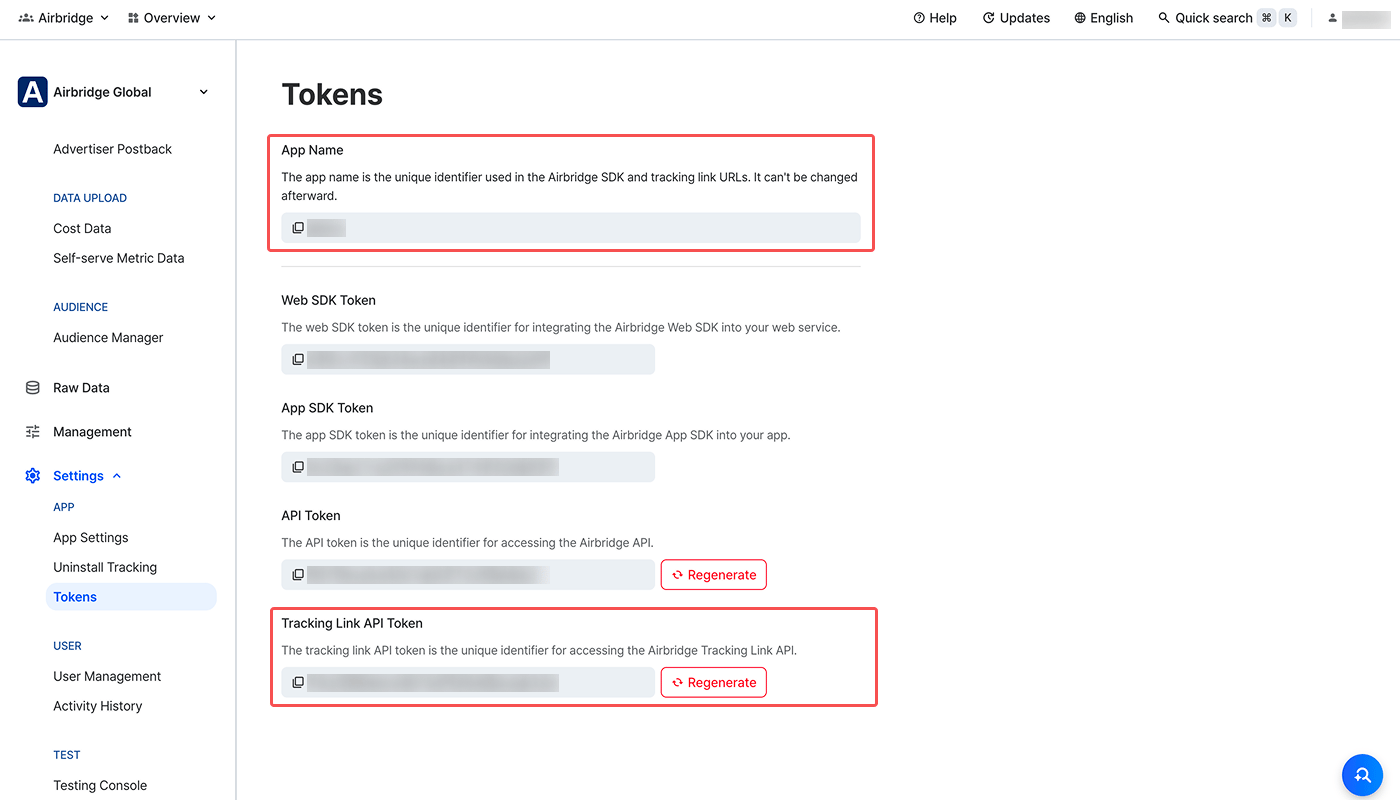
The **App Name** and **Tracking Link API Token** can be found on the **\[Settings]>\[Tokens]** page. You can copy the values by clicking on them.
### Creating Tracking Links in Bulk
Click the link below to create a copy of the Airbridge Tracking Link Generator Template (DeepLink Plan).
* [Airbridge Tracking Link Generator Template (DeepLink Plan)](https://docs.google.com/spreadsheets/d/113lQVaFI3o5f0xyvJ4t0CEMUV3blrj0so8ls7gHh6Xc/copy)
Follow the steps below to create tracking links using the Generator Template.
1. Create a copy of the [Airbridge Tracking Link Generator Template (DeepLink Plan)](https://docs.google.com/spreadsheets/d/113lQVaFI3o5f0xyvJ4t0CEMUV3blrj0so8ls7gHh6Xc/copy). The new copy will be saved in your Google Drive. You'll need to be logged in to your Google account.
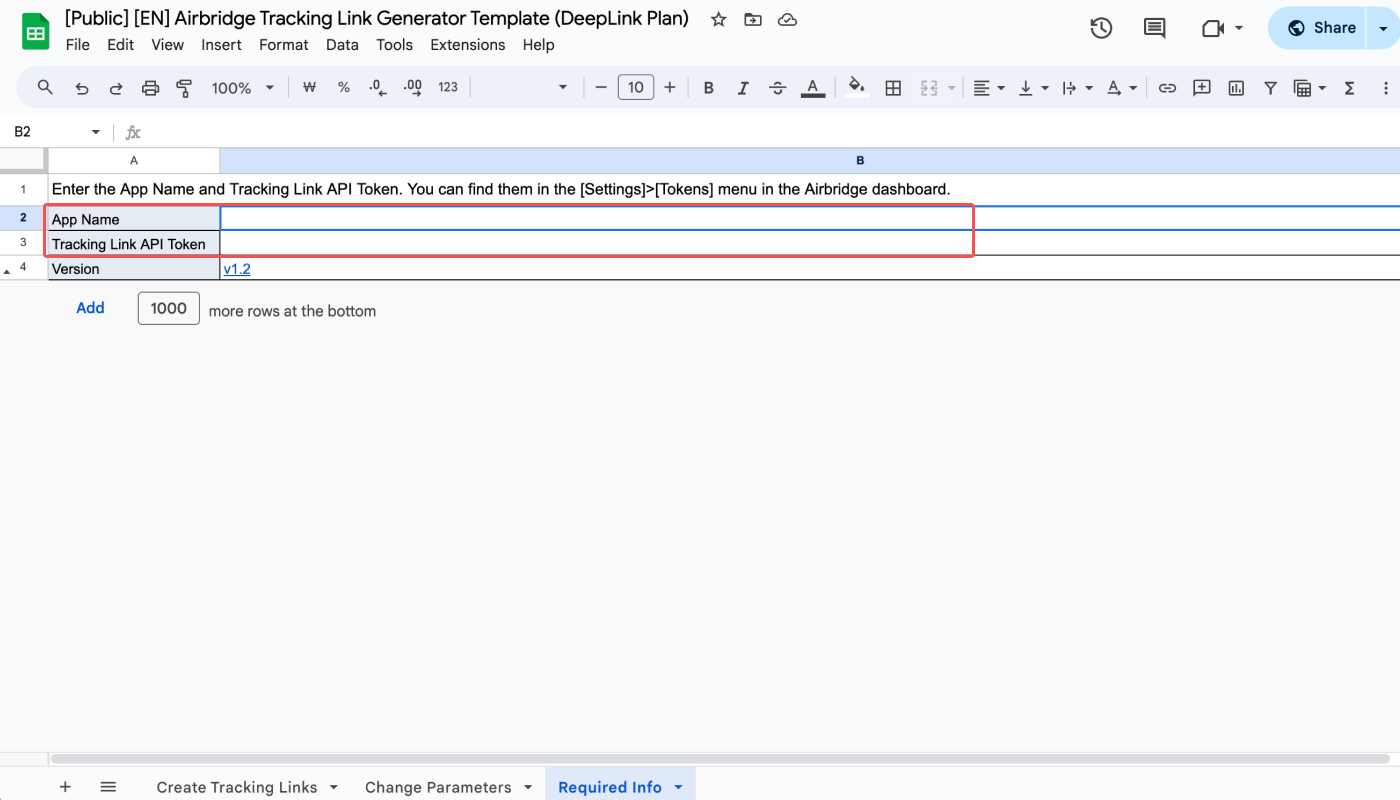
2. In the **\[Required info]** tab, enter the **App Name** and **Tracking Link API Token**, which can be found on the **\[Settings]>\[Token]** page of the Airbridge dashboard.
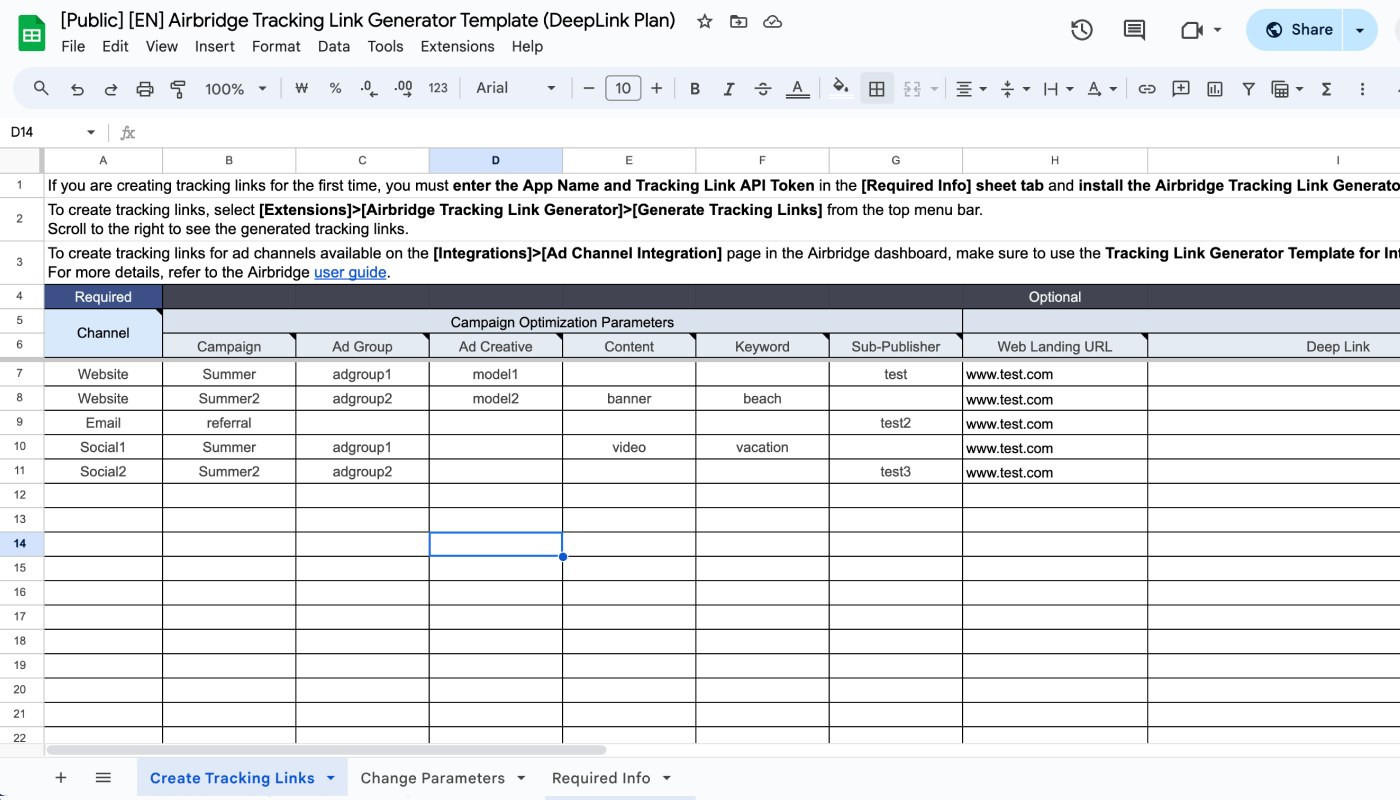
3. Enter the parameter values in the **\[Create Tracking Links]** tab. The **Channel** parameter is a required field. Others are not required to create a tracking link. Only lowercase letters, numbers, and underscores are supported. Do not enter special characters or spaces.
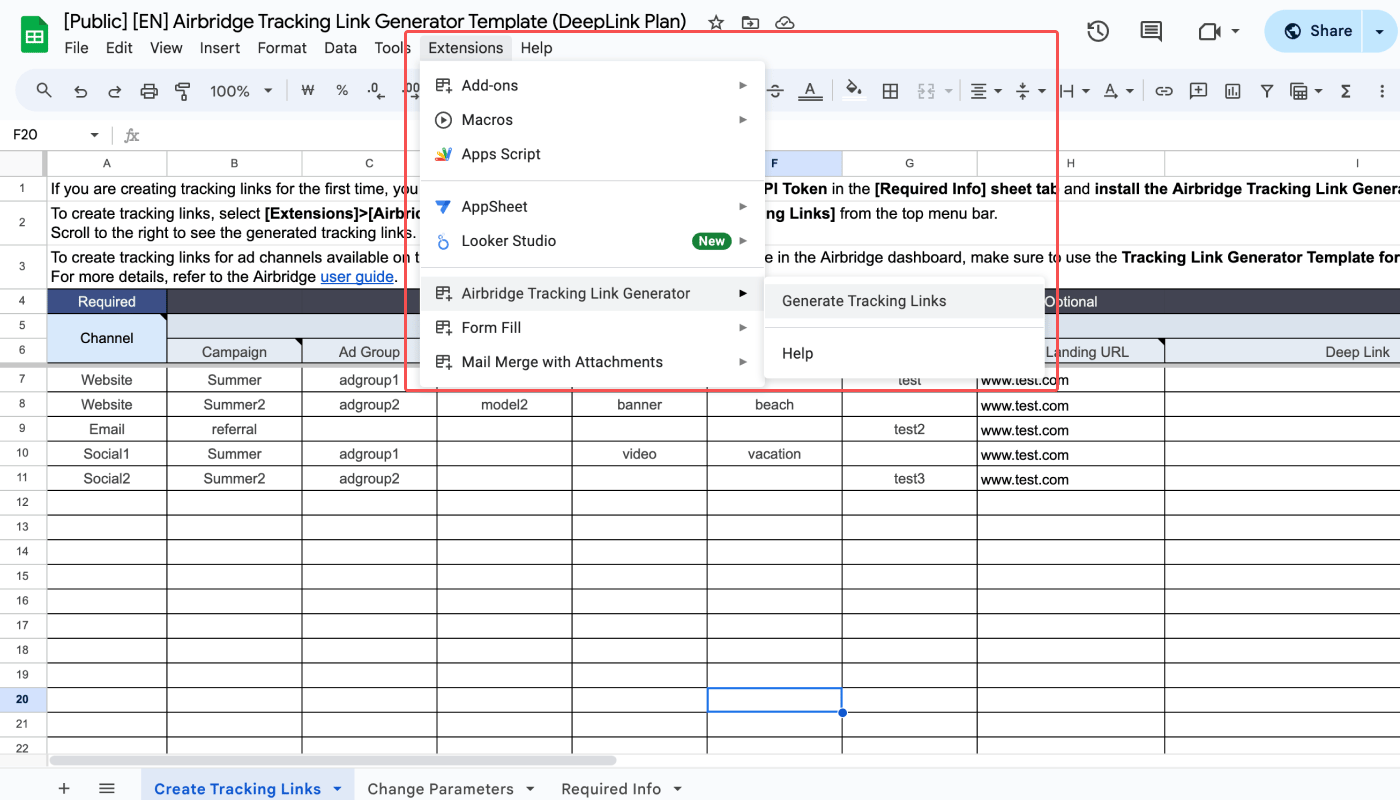
4. Select **\[Extensions]>\[Airbridge Tracking Link Generator]>\[Generate Tracking Links]** from the top menu bar to create tracking links.
If you don't see the **\[Extensions]>\[Airbridge Tracking Link Generator]>\[Generate Tracking Links]** in the menu bar, refresh the sheet or reinstall the [Airbridge Tracking Link Generator](https://workspace.google.com/marketplace/app/airbridge_tracking_link_generator/9223133159).
**Editing parameters of a tracking link**
Once a tracking link is created, the changes made to the parameter values in the Generator Template won't be applied. If you want to make changes to the parameters of a tracking link, delete the tracking link and create a new one.
When you create a tracking link using the Tracking Link Generator Template, up to 2 types of tracking links are generated.
* A tracking link with click as `ad_type`
* A short version of the tracking link
The tracking links created from the Generator Template can be found on the **\[Tracking Link]>\[Link Management]** page in the Airbridge dashboard. Even if you delete a tracking link from the Generator Template, it will remain on the **\[Link Management]** page.
### Parameters
Refer to the information below to learn about different parameters.
The **Channel** parameter is a required field. Only lowercase letters, numbers, and underscores are supported. Do not enter special characters or spaces.
Campaign optimization parameters are used to collect data for campaign optimization. The parameters can be selected as GroupBys or a filter option in the Airbridge reports.
| Parameter | Description |
| ------------- | ------------------------------- |
| Campaign | Campaign name |
| Ad group | Ad group name |
| Ad creative | Ad creative name |
| Content | Ad type |
| Keyword | Ad keyword |
| Sub-publisher | Sub-publisher of the ad channel |
The destination path is the URL where users are directed after clicking an ad with the tracking link embedded.
| Destination | Description | Note |
| ------------------------------------------------------------------------------ | -------------------------------------------------------------------------------------------------------------------------------------------------------------------------------------------------------- | ------------------------------------------------------------------------------------------------------------------------------------------------------------------------------------------------------------------------------------------------------------------------------------------------------------------------------------------------------- |
| Web Landing URL | The destination all users are sent to, regardless of their operating system or whether they have the app installed | If the Web Landing URL is entered, other destinations cannot be entered |
| Deep Link | The in-app page that users are sent to if they have the app installed | - |
| Stopover Airpage | When selecting “Add Airpage,” iOS users who click the tracking link from an app other than Safari are sent to a Stopover Airpage before being redirected to the intended destination to avoid bound-offs | - |
| Android Fallback Path | The destination where Android users who haven’t installed the app are sent to | - Users are sent to **Google Play Store** when entering `google-play` or leaving the field blank - Users are sent to the **Google Play Custom Store Listing page** when entering the entire webpage URL starting with “http” |
| iOS Fallback Path | The destination where iOS users who haven’t installed the app are sent to | - Users are sent to **App Store** when entering `itunes-appstore` or leaving the field blank - Users are sent to the [App Store Custom Product Page](https://developer.apple.com/app-store/custom-product-pages/) when entering the entire webpage URL starting with “http” - Users are sent to the desired destination when entering the URL |
| Desktop Fallback Path | The destination where desktop users who haven’t installed the app are sent to | - Users are sent to the **Airpage** when leaving the field blank - Users are sent to the desired webpage when entering the webpage URL |
**Sending users to specific destinations per platform**
By filling in the "Android Fallback," "iOS Fallback," and "Desktop Fallback" fields with the respective destination URLs while leaving the "Web Landing URL" and "Deep Link" fields empty, users will always be redirected to the respective destinations.
There are 2 ways to configure the social share preview of the tracking link for custom channels.
**Configuring the thumbnail, title, and description by entering values**
You can configure the social share preview by entering values for the \[Image URL], \[Title], and \[Description] fields.
**Attention**
If you leave any field for the \[Image URL], \[Title], and \[Description] columns blank, unintended images, titles, or descriptions may appear.
**Using the OG tags from the desktop webpage URL**
When selecting “Use OG tags” for the \[OG tags of the web desktop URL] field, the image, title, and description in the social share preview are pulled from the OG tags of the web landing URL or the desktop fallback URL. This option can't be used if you enter the image, title, and description into the respective fields.
When selecting “Use OG tags” without configuring the destination for user redirection (web landing URL or the desktop fallback path), Airbridge will pull the OG tag information of the website URL configured on the **\[App Settings]** page in the Airbridge dashboard to create the social share preview.
If unintended thumbnails, titles, and descriptions appear, the following tips might be helpful.
* Make sure the desktop URL is correctly entered. It must include `http://` or `https://`.
* Make sure you don't enter any value for the \[Image URL], \[Title], and \[Description] fields.
* Make sure the OG tags of the desktop URL are properly configured. The problem could stem from the URL or network error.
The social share preview settings cannot be changed using the Generator Template if you have selected "Use OG tags” for the \[OG tags of the web desktop URL] field to configure the social share preview. If you need to change the settings, go to **\[Tracking Link]>\[Link Management]** in the Airbridge dashboard, find the tracking link, click **\[Action]>\[View details · Edit]>\[Social Share Preview]**, and update the settings. If you have updated the OG tag information, click **Refresh** on the **\[Link Management]** page to make sure the social share previews appear accordingly.
Enter the short link ID for tracking link branding. If not entered, it will be randomly set and can’t be changed afterward. To be able to use this feature, you need to set your custom domain in your Airbridge dashboard.
## Changing parameter values
If you want to edit the parameter values of tracking links you created in the Generator Template, you can do so in the **\[Change Parameters]** tab of the Generator Template.
While the Tracking Link API is used to create tracking links in the **\[Create Tracking Links]** tab, the **REGEXREPLACE** function allows for quick parameter value replacement in the **\[Change Parameters]** tab.
Moreover, unlike the **\[Create Tracking Links]** tab, the **\[Change Parameters]** tab is not subject to [Google Apps Script's script runtime limitation](https://developers.google.com/apps-script/guides/services/quotas#current_limitations).
### How to change parameter values
1. From the **\[Create tracking links]** tab, enter link names for tracking links in the **Link Name** column. The link names serve as the identifier for individual tracking links and shall be unique.
**Link names must be unique**
If a single link name is entered for multiple tracking links, you can't edit the parameter values of different tracking links in the **\[Change Parameter**s] tab properly because only the first tracking link with the entered link name from the list will be considered for the parameter value replacement.
2. In the **\[Change parameters]** tab, select the tracking link name from the **Link Name** drop-down list of which you want to edit the parameter value.
3. Enter the parameter values in the white fields. The grey fields indicate the parameters that are not configured in the selected tracking link.
4. The updated tracking links appear in column K. They are click-types and are updated in real-time whenever the parameter values are updated.
 3. Enter the parameter values in the **\[Create Tracking Links]** tab. The **Channel** parameter is a required field. Others are not required to create a tracking link. Only lowercase letters, numbers, and underscores are supported. Do not enter special characters or spaces.
 4. Select **\[Extensions]>\[Airbridge Tracking Link Generator]>\[Generate Tracking Links]** from the top menu bar to create tracking links.
If you don't see the **\[Extensions]>\[Airbridge Tracking Link Generator]>\[Generate Tracking Links]** in the menu bar, refresh the sheet or reinstall the [Airbridge Tracking Link Generator](https://workspace.google.com/marketplace/app/airbridge_tracking_link_generator/9223133159).
4. Select **\[Extensions]>\[Airbridge Tracking Link Generator]>\[Generate Tracking Links]** from the top menu bar to create tracking links.
If you don't see the **\[Extensions]>\[Airbridge Tracking Link Generator]>\[Generate Tracking Links]** in the menu bar, refresh the sheet or reinstall the [Airbridge Tracking Link Generator](https://workspace.google.com/marketplace/app/airbridge_tracking_link_generator/9223133159).