> ## Documentation Index
> Fetch the complete documentation index at: https://help.airbridge.io/llms.txt
> Use this file to discover all available pages before exploring further.
# DeepLink - iOS SDK
Install the Airbridge iOS SDK and implement the necessary settings following the steps below.
## Install SDK
The Airbridge iOS SDK can be installed using the method below. After installation, you can verify whether the SDK has been properly installed through the [iOS SDK Test](#testing).
1. Navigate to **\[File]>\[Add Packages...]** in Xcode.
2. Enter the following address into the search bar and click **Add Package**.
* [https://github.com/ab180/airbridge-ios-sdk-deployment](https://github.com/ab180/airbridge-ios-sdk-deployment)
3. Click **Add** **Package** again.
4. The Airbridge iOS SDK will be added to **Package Dependencies**.
**Attention**
Before installing the iOS SDK, navigate to **\[YOUR\_PROJECT]>\[Build Settings]** in your Xcode and make sure to set the **User Script Sandboxing** to "No." For more details, refer to the [CocoaPods document](https://github.com/CocoaPods/CocoaPods/issues/11946).
1. Install CocoaPods with `brew install cocoapods`.
2. Create a Podfile with `pod init`.
3. Add the SDK as a dependency with the code below in the Podfile. Check the latest SDK version from [this page](/en/developers/release-note-ios-sdk) and replace `$HERE_LATEST_VERSION` with the latest version number.
```ruby Podfile lines theme={"theme":{"light":"github-dark-dimmed","dark":"github-dark-dimmed"}}
target '[Project Name]' do
...
# Replace $HERE_LATEST_VERSION with latest version
# - Versions: https://help.airbridge.io/developers/release-note-ios-sdk
# - Example: pod 'airbridge-ios-sdk', '4.X.X'
pod 'airbridge-ios-sdk', '$HERE_LATEST_VERSION'
...
end
```
4. The installation will start when you enter `pod install --repo-update`.
5. Run `YOUR_PROJECT.xcworkspace` to verify that the Airbridge iOS SDK is successfully installed.
**Attention**
You cannot install the Airbridge iOS SDK with Tuist's[ XcodeProj-based integration](https://docs.tuist.dev/en/guides/develop/projects/dependencies#tuists-xcodeprojbased-integration). Make sure to install the iOS SDK through [Xcode's default integration](https://docs.tuist.dev/en/guides/develop/projects/dependencies#xcodes-default-integration).
1. Run the `tuist edit` command.
2. Add `remote` to `project.packages`. Add SDK as `package` to `project.targets[...].target.dependencies` and the dependency framework as `sdk`. Then Check the latest SDK version from [this page](/en/developers/release-note-ios-sdk) and replace `$HERE_LATEST_VERSION` with the latest version number. For the dependency framework list, refer to the table below.
| Framework | Description |
| --------------------------------- | ---------------------------------------------------------- |
| AdSupport.framework | Used for IDFA collection |
| CoreTelephony.framework | Used for carrier information collection |
| StoreKit.framework | Used for SKAdNetwork data collection |
| AppTrackingTransparency.framework | Used for user consent information collection |
| AdServices.framework | Used for Apple Ads attribution data collection (iOS 14.3+) |
| WebKit.framework | Used for event collection through web SDK integration |
```swift lines theme={"theme":{"light":"github-dark-dimmed","dark":"github-dark-dimmed"}}
import ProjectDescription
let project = Project(
packages: [
.remote(
url: "https://github.com/ab180/airbridge-ios-sdk-deployment",
// Replace $HERE_LATEST_VERSION with latest version
// - Versions: https://help.airbridge.io/developers/release-note-ios-sdk
// - Example: requirement: .exact(from: "4.X.X")
requirement: .exact(from: "$HERE_LATEST_VERSION")
),
...
],
targets: [
.target(
dependencies: [
.package(product: "Airbridge", type: .runtime),
.sdk(name: "AdSupport", type: .framework, status: .optional),
.sdk(name: "AdServices", type: .framework, status: .optional),
.sdk(name: "CoreTelephony", type: .framework, status: .optional),
.sdk(name: "StoreKit", type: .framework, status: .optional),
.sdk(name: "AppTrackingTransparency", type: .framework, status: .optional),
.sdk(name: "WebKit", type: .framework, status: .optional),
...
]
),
...
],
...
)
```
3. Run the `tuist generate` command.
4. Airbridge is added to the Package Dependencies in Xcode.
1. Download the Airbridge iOS SDK from the link below.
* [https://sdk-download.airbridge.io/airbridge-ios-sdk/latest/Airbridge.zip](https://sdk-download.airbridge.io/airbridge-ios-sdk/latest/Airbridge.zip)
2. Add **Airbridge.xcframework** to your project. Navigate to **\[Project File]>\[General]>\[Frameworks, Libraries, and Embedded Content]** in Xcode and click **+**.
3. Click **Add Files...** under **\[Add Other...]** and select **Airbridge.xcframework**.
4. Set the **Embed** of **Airbridge.xcframework** to "Embed & Sign".
### Install Restricted SDK
**Note**
Install only one version of the SDK, either the general SDK or the restricted SDK.
Depending on policies and environments, restrictions on collecting device IDs like GAID and IDFA may be required. When installing the Restricted SDK version, the device IDs are not collected.
Install the Restricted SDK using the method below.
1. Navigate to **\[File]>\[Add Packages...]** in Xcode.
2. Enter the following address into the search bar and click **Add Package**.
* [https://github.com/ab180/airbridge-ios-sdk-restricted-deployment](https://github.com/ab180/airbridge-ios-sdk-restricted-deployment)
3. Click **Add Package** again.
4. The Airbridge iOS SDK will be added to **Package Dependencies**.
5. Add the framework corresponding to the dependency of SDK to the project. Navigate to **\[Project File]>\[General]>\[Frameworks, Libraries, and Embedded Content]** in Xcode and click **+**.
6. Add all the frameworks below. Set the **Embed** of the added frameworks to "Do not Embed." Then, navigate to **\[Project File]>\[Build Phase]>\[Link Binary With Libraries]** in the Xcode and set the **Status** to "Optional."
| Framework | Description |
| ----------------------- | ---------------------------------------------------------------------------------------- |
| CoreTelephony.framework | The framework used to collect carrier information. |
| StoreKit.framework | The framework used to collect SKAdNetwork information. |
| AdServices.framework | The framework used to collect Apple Ads' attribution information for iOS 14.3 and later. |
| WebKit.framework | Used to collect events using integration with Web SDK. |
**Attention**
Before installing the iOS SDK, navigate to **\[YOUR\_PROJECT]>\[Build Settings]** in your Xcode and make sure to set the **User Script Sandboxing** to "No." For more details, refer to the [CocoaPods document](https://github.com/CocoaPods/CocoaPods/issues/11946).
1. Install CocoaPods with `brew install cocoapods`.
2. Create a Podfile with `pod init`.
3. Add the SDK as a dependency with the code below in the Podfile. Check the latest SDK version from [this page](/en/developers/release-note-ios-sdk) and replace `$HERE_LATEST_VERSION` with the latest version number.
```ruby Podfile lines theme={"theme":{"light":"github-dark-dimmed","dark":"github-dark-dimmed"}}
target '[Project Name]' do
...
# Replace $HERE_LATEST_VERSION with latest version
# - Versions: https://help.airbridge.io/developers/release-note-ios-sdk
# - Example: pod 'airbridge-ios-sdk-restricted', '4.X.X'
pod 'airbridge-ios-sdk-restricted', '$HERE_LATEST_VERSION'
...
end
```
4. The installation will start when you enter `pod install --repo-update`.
5. Run `YOUR_PROJECT.xcworkspace` to verify that the Airbridge iOS SDK is successfully installed.
**Attention**
You cannot install the Airbridge iOS SDK with Tuist's[ XcodeProj-based integration](https://docs.tuist.dev/en/guides/develop/projects/dependencies#tuists-xcodeprojbased-integration). Make sure to install the iOS SDK through [Xcode's default integration](https://docs.tuist.dev/en/guides/develop/projects/dependencies#xcodes-default-integration).
1. Run the `tuist edit` command.
2. Add remote to `project.packages`. Add the `package` to `project.targets [...].target.dependencies`. Refer to the code below.
Add `remote` to `project.packages`. Add SDK as `package` to `project.targets[...].target.dependencies` and the dependency framework as `sdk`. Then Check the latest SDK version from [this page](/en/developers/release-note-ios-sdk) and replace `$HERE_LATEST_VERSION` with the latest version number. For the dependency framework list, refer to the table below.
| Framework | Description |
| ----------------------- | ---------------------------------------------------------- |
| CoreTelephony.framework | Used for carrier information collection |
| StoreKit.framework | Used for SKAdNetwork data collection |
| AdServices.framework | Used for Apple Ads attribution data collection (iOS 14.3+) |
| WebKit.framework | Used for event collection through web SDK integration |
```swift lines theme={"theme":{"light":"github-dark-dimmed","dark":"github-dark-dimmed"}}
import ProjectDescription
let project = Project(
packages: [
.remote(
url: "https://github.com/ab180/airbridge-ios-sdk-restricted-deployment",
// Replace $HERE_LATEST_VERSION with latest version
// - Versions: https://help.airbridge.io/developers/release-note-ios-sdk
// - Example: requirement: .exact(from: "4.X.X")
requirement: .exact(from: "$HERE_LATEST_VERSION")
),
...
],
targets: [
.target(
dependencies: [
.package(product: "Airbridge", type: .runtime),
.sdk(name: "AdServices", type: .framework, status: .optional),
.sdk(name: "CoreTelephony", type: .framework, status: .optional),
.sdk(name: "StoreKit", type: .framework, status: .optional),
.sdk(name: "WebKit", type: .framework, status: .optional),
...
]
),
...
],
...
)
```
3. Run the `tuist generate` command.
4. Airbridge is added to the Package Dependencies in Xcode.
1. Download the Airbridge iOS SDK from the link below.
* [https://sdk-download.airbridge.io/airbridge-ios-sdk-restricted/latest/Airbridge.zip](https://sdk-download.airbridge.io/airbridge-ios-sdk-restricted/latest/Airbridge.zip)
2. Add **Airbridge.xcframework** to your project. Navigate to **\[Project File]>\[General]>\[Frameworks, Libraries, and Embedded Content]** in Xcode and click **+**.
3. Click **Add Files...** under **\[Add Other...]** and select **Airbridge.xcframework**.
4. Set the **Embed** of **Airbridge.xcframework** to "Embed & Sign".
5. Add the framework corresponding to the dependency of SDK to the project. Navigate to **\[Project File]>\[General]>\[Frameworks, Libraries, and Embedded Content]** in Xcode and click **+**.
6. Add all the frameworks below. Set the **Embed** of the added frameworks to "Do not Embed." Then, navigate to **\[Project File]>\[Build Phase]>\[Link Binary With Libraries]** in the Xcode and set the **Status** to "Optional."
| Framework | Description |
| ----------------------- | ---------------------------------------------------------------------------------------- |
| CoreTelephony.framework | The framework used to collect carrier information. |
| StoreKit.framework | The framework used to collect SKAdNetwork information. |
| AdServices.framework | The framework used to collect Apple Ads' attribution information for iOS 14.3 and later. |
| WebKit.framework | Used to collect events using integration with Web SDK. |
### Initialize SDK
SDK initialization methods vary depending on the system architecture. For SceneDelegate Lifecycle or AppDelegate Lifecycle, refer to the method for AppDelegate. For SwiftUI Lifecycle, refer to the method for SwiftUI.
The YOUR\_APP\_NAME and YOUR\_APP\_SDK\_TOKEN can be found on the **\[Settings]>\[Tokens]** page in the Airbridge dashboard.
Call the `Airbridge.initializeSDK` function at the very top of AppDelegate's `application(_:didFinishLaunchingWithOptions:)` function.
```swift lines theme={"theme":{"light":"github-dark-dimmed","dark":"github-dark-dimmed"}}
import UIKit
import Airbridge
@main
class AppDelegate: UIResponder, UIApplicationDelegate {
func application(
_ application: UIApplication,
didFinishLaunchingWithOptions launchOptions: [UIApplication.LaunchOptionsKey: Any]?
) -> Bool {
let option = AirbridgeOptionBuilder(name: "YOUR_APP_NAME", token: "YOUR_APP_SDK_TOKEN")
.build()
Airbridge.initializeSDK(option: option)
return true
}
}
```
**Attention**
Make sure that the `Airbridge.initializeSDK` function is called within the `application(_:didFinishLaunchingWithOptions:)` of the `AppDelegate` for proper functionality.
Call the `Airbridge.initializeSDK` function at the very top of AppDelegate's `application(_:didFinishLaunchingWithOptions:)` function.
```objective-c lines theme={"theme":{"light":"github-dark-dimmed","dark":"github-dark-dimmed"}}
#import "AppDelegate.h"
#import
@interface AppDelegate ()
@end
@implementation AppDelegate
- (BOOL)application:(UIApplication *)application didFinishLaunchingWithOptions:(NSDictionary *)launchOptions {
AirbridgeOptionBuilder* optionBuilder = [[AirbridgeOptionBuilder alloc] initWithName:@"YOUR_APP_NAME"
token:@"YOUR_APP_SDK_TOKEN"];
AirbridgeOption* option = [optionBuilder build];
[Airbridge initializeSDKWithOption:option];
return YES;
}
@end
```
**Attention**
Make sure that the `Airbridge.initializeSDK` function is called within the `application(_:didFinishLaunchingWithOptions:)` of the `AppDelegate` for proper functionality.
Call the `Airbridge.initializeSDK` function at the top of `init`.
```swift lines theme={"theme":{"light":"github-dark-dimmed","dark":"github-dark-dimmed"}}
import SwiftUI
import Airbridge
@main
struct ExampleApp: App {
init() {
let option = AirbridgeOptionBuilder(name: "YOUR_APP_NAME", token: "YOUR_APP_SDK_TOKEN")
.build()
Airbridge.initializeSDK(option: option)
}
var body: some Scene {
WindowGroup {
ContentView()
}
}
}
```
**Attention**
Make sure that the `Airbridge.initializeSDK` function is called within the `init` of the `App` for proper functionality.
**Attention**
The SwiftUI Lifecycle method does not provide a Referrer URL, so the [Organic Referrer Attribution](/en/guides/organic-referrer-attribution) cannot be used. Even with the use of UIApplicationDelegateAdaptor, the Organic Referrer Attribution cannot be used in the SwiftUI Lifecycle method.
### Configure ATT Prompt
**Note**
The functions necessary to ensure compliance with privacy policies should be reviewed with legal counsel.
The [IDFA](https://developer.apple.com/documentation/adsupport/asidentifiermanager/advertisingidentifier) can only be collected if users consent to data tracking via the [App Tracking Transparency (ATT)](https://developer.apple.com/app-store/user-privacy-and-data-use/) prompt.
Event collection should be delayed until the user allows tracking. If the install event is collected before the user allows tracking on the ATT prompt, the install event data will lack an identifier, making performance measurement difficult. We recommend setting a sufficient delay time for event collection to collect identifiers.
1. Prepare the text you will use in the ATT prompt.
2. Enter the prepared text in the `NSUserTrackingUsageDescription` key of the `Info.plist` file.
1) Navigate to **\[YOUR\_PROJECT]>\[Info]>\[Custom iOS Target Properties]** in Xcode.
2) Hover your mouse over the key items, click **+** that appears, and enter `Privacy - Tracking Usage Description`.
3) Enter the text for the ATT prompt as value.
1. Run the `tuist edit` command.
2. Enter `NSUserTrackingUsageDescription` as key to `.extendingDefault` in `project.targets[...].infoPlist`.
3. Enter the text for the ATT prompt as value.
```swift lines theme={"theme":{"light":"github-dark-dimmed","dark":"github-dark-dimmed"}}
import ProjectDescription
let project = Project(
targets: [
.target(
infoPlist: .extendingDefault(
with: [
"NSUserTrackingUsageDescription": "YOUR_DESCRIPTION",
...
]
),
...
),
...
]
...
)
```
3. Set the point of time for displaying the ATT prompt on the app.
The `ATTrackingManager.requestTrackingAuthorization` function should be called at the desired time you want to display the ATT prompt.
```swift Swift lines theme={"theme":{"light":"github-dark-dimmed","dark":"github-dark-dimmed"}}
import AppTrackingTransparency
...
ATTrackingManager.requestTrackingAuthorization { _ in }
```
```objective-c Objective-C lines theme={"theme":{"light":"github-dark-dimmed","dark":"github-dark-dimmed"}}
#import
...
[ATTrackingManager requestTrackingAuthorizationWithCompletionHandler:^(ATTrackingManagerAuthorizationStatus status) {}];
```
**Attention**
The `ATTrackingManager.requestTrackingAuthorization` function does not provide the ATT prompt if the app that called it is not in an active state.
The ATT prompt can be displayed as soon as the app is launched.
```swift AppDelegate (Swift) lines theme={"theme":{"light":"github-dark-dimmed","dark":"github-dark-dimmed"}}
import UIKit
import Airbridge
import AppTrackingTransparency
@main
class AppDelegate: UIResponder, UIApplicationDelegate {
var observer: Any?
func application(
_ application: UIApplication,
didFinishLaunchingWithOptions launchOptions: [UIApplication.LaunchOptionsKey: Any]?
) -> Bool {
let option = AirbridgeOptionBuilder(name: "YOUR_APP_NAME", token: "YOUR_APP_SDK_TOKEN")
.build()
Airbridge.initializeSDK(option: option)
observer = NotificationCenter.default.addObserver(
forName: UIApplication.didBecomeActiveNotification,
object: nil,
queue: nil
) { [weak self] _ in
if #available(iOS 14, *) {
ATTrackingManager.requestTrackingAuthorization { _ in }
}
if let observer = self?.observer {
NotificationCenter.default.removeObserver(observer)
}
}
return true
}
}
```
```objective-c AppDelegate (Objective-C) lines theme={"theme":{"light":"github-dark-dimmed","dark":"github-dark-dimmed"}}
#import "AppDelegate.h"
#import
#import
@interface AppDelegate ()
@end
@implementation AppDelegate {
id observer;
}
- (BOOL)application:(UIApplication *)application didFinishLaunchingWithOptions:(NSDictionary *)launchOptions {
AirbridgeOptionBuilder* optionBuilder = [[AirbridgeOptionBuilder alloc] initWithName:@"YOUR_APP_NAME"
token:@"YOUR_APP_SDK_TOKEN"];
AirbridgeOption* option = [optionBuilder build];
[Airbridge initializeSDKWithOption:option];
__weak typeof(self) weakSelf = self;
observer = [NSNotificationCenter.defaultCenter addObserverForName:UIApplicationDidBecomeActiveNotification
object:nil
queue:nil
usingBlock:^(NSNotification * _Nonnull notification) {
if (@available(iOS 14, *)) {
[ATTrackingManager requestTrackingAuthorizationWithCompletionHandler:^(ATTrackingManagerAuthorizationStatus status) {}];
}
if (weakSelf != nil && weakSelf->observer != nil) {
[NSNotificationCenter.defaultCenter removeObserver:observer];
}
}];
return YES;
}
@end
```
```swift SwiftUI lines theme={"theme":{"light":"github-dark-dimmed","dark":"github-dark-dimmed"}}
import SwiftUI
import Airbridge
import AppTrackingTransparency
@main
struct ExampleApp: App {
init() {
let option = AirbridgeOptionBuilder(name: "YOUR_APP_NAME", token: "YOUR_APP_SDK_TOKEN")
.build()
Airbridge.initializeSDK(option: option)
var observer: Any?
observer = NotificationCenter.default.addObserver(
forName: UIApplication.didBecomeActiveNotification,
object: nil,
queue: nil
) { _ in
if #available(iOS 14, *) {
ATTrackingManager.requestTrackingAuthorization { _ in }
}
if let observer {
NotificationCenter.default.removeObserver(observer)
}
}
}
var body: some Scene {
WindowGroup {
ContentView()
}
}
}
```
4. If the install event is not collected, the Airbridge iOS SDK delays collecting install events for 30 seconds until the user allows tracking each time the app is launched. If the user exits the app before deciding whether to allow tracking, the SDK will not collect the install event and will try again at the next app launch.
**Recommended time setting for "setAutoDetermineTrackingAuthorizationTimeout" function**
When using the DeepLink Plan, it is recommended that the `setAutoDetermineTrackingAuthorizationTimeout` parameter be set to 0 seconds when configuring the ATT prompt.
As the DeepLink Plan does not support attribution using identifiers, the `setAutoDetermineTrackingAuthorizationTimeout` parameter should be set to 0 seconds to seamlessly redirect users who have already installed the app to the intended in-app location as configured in the deferred deep link.
The `autoDetermineTrackingAuthorizationTimeout`function can be used to set a sufficient delay before event collection. The default setting is 30 seconds and can be set to up to 3600 seconds (1 hour).
```swift Swift lines theme={"theme":{"light":"github-dark-dimmed","dark":"github-dark-dimmed"}}
import Airbridge
...
let option = AirbridgeOptionBuilder(name: "YOUR_APP_NAME",
token: "YOUR_APP_SDK_TOKEN")
.setAutoDetermineTrackingAuthorizationTimeout(second: 30)
.build()
Airbridge.initializeSDK(option: option)
```
```objective-c Objective-C lines theme={"theme":{"light":"github-dark-dimmed","dark":"github-dark-dimmed"}}
#import
...
AirbridgeOptionBuilder* optionBuilder = [[AirbridgeOptionBuilder alloc] initWithName:@"YOUR_APP_NAME"
token:@"YOUR_APP_SDK_TOKEN"];
[optionBuilder setAutoDetermineTrackingAuthorizationTimeoutWithSecond:30];
AirbridgeOption* option = [optionBuilder build];
[Airbridge initializeSDKWithOption:option];
```
**Attention**
Set a sufficient delay time to collect the app install event. If the SDK collects install events before users can allow tracking on the ATT prompt, the IDFA won't be collected along with the install events.
## Deep Linking
Deep linking allows you to redirect users from ads to specific locations within your app. The data collected from the tracking link enables you to monitor the performance of the deep link in Airbridge.
### How Airbridge Deep Links work
When a user clicks on the Airbridge tracking link, the scheme deep link embedded in the tracking link is converted into an Airbridge Deep Link, which can be either an HTTP deep link or a scheme deep link. This Airbridge Deep Link redirects the user to the desired app location. Then, the Airbridge SDK converts the Airbridge Deep Link back to the original scheme deep link embedded in the tracking link and passes it to the app.
* Example scheme deep link embedded in the tracking link: `YOUR_SCHEME://product/12345`
* Examples of Airbridge Deep Links
* HTTP deep link format 1: `https://YOUR_APP_NAME.airbridge.io/~~~`
* HTTP deep link format 2: `https://YOUR_APP_NAME.abr.ge/~~~`
* Scheme deep link format: `YOUR_SCHEME://product/12345?airbridge_referrer=~~~`
When the app is installed on the device and the tracking link is clicked, the app opens through the Airbridge Deep Link. The Airbridge SDK converts the Airbridge Deep Link into the scheme deep embedded in the tracking link and passes it to the app.
When the app is not installed on the device and the tracking link is clicked, the Airbridge SDK saves the Airbridge Deep Link. After the user is redirected to the app store or website and the app is installed and launched, the Airbridge SDK converts the saved Airbridge Deep Link into the scheme deep link embedded in the tracking link and passes it to the app.
### Set up deep linking
For the deep linking setup, the following information is required.
* Deep link information submitted in the Airbridge dashboard
* In-app location address for user redirection
First, enter the deep link information into the Airbridge dashboard.
Navigate to **\[Tracking Link]>\[Deep Links]** in the Airbridge dashboard and enter the following information.
**iOS URI Scheme**
Enter the scheme of your deep links. Airbridge will perform deep linking using the entered scheme only. (e.g., `scheme://`)
**iOS App ID**
1. In the [Apple Developer Dashboard](https://developer.apple.com/account/resources), go to the **\[Identifier]** of the app you want to set up the deep link and find the App ID Prefix and Bundle ID value.
2. Enter the iOS App ID in the format of `App ID Prefix+ .+ Bundle ID`. (e.g. `9JA89QQLNQ.com.apple.wwdc`)
**Attention**
To ensure proper user redirection, the iOS URI scheme and iOS App ID must be entered differently for the production app and the development app.
After entering the deep link information into the Airbridge dashboard, an additional setup is required to enable the following.
* App launch with Airbridge Deep Links
* User redirection with Airbridge Deep Links
For detailed instructions, refer to the information below.
Perform the following setup to enable app launch with Airbridge Deep Links after the user clicks on a tracking link.
**Scheme Deep Link setup**
1. Navigate to **\[YOUR\_PROJECT]>\[Info]>\[URL Types]** in Xcode.
2. Click **+** and enter the iOS URI scheme you submitted to the Airbridge dashboard into the **URL Schemes** field.
**Attention**
Enter the iOS URL scheme without `://`.
**Universal Link setup**
1. Navigate to **\[YOUR\_PROJECT]>\[Signing & Capabilities]** in Xcode.
2. Click **+ Capability** to add **Associated Domains**.
3. Add `applinks:YOUR_APP_NAME.airbridge.io` and `applinks:YOUR_APP_NAME.abr.ge` to Associated Domains. YOUR\_APP\_NAME is the App Name, which can be found on the **\[Settings]>\[App Settings]** page in the Airbridge dashboard.
**Attention**
If you are using or plan to use the Password AutoFill feature, you must add the Webcredentials domain. A situation may arise where the domain of the password saved through the Password AutoFill feature appears as `airbridge.io` or `abr.ge` to users of the app.
When the app is launched via a deep link, call the `trackDeeplink` function to collect the Deeplink Open events through the SDK. Then call the `handleDeeplink` function to convert the Airbridge Deep Link into the original scheme deep link that was used to create the tracking link. Lastly, redirect the user to the intended in-app location.
When the app is launched via an Airbridge Deep Link `isAirbridgeDeeplink` is `true` and the scheme deep link is sent to the callback uri. When the app is launched via other links `isAirbridgeDeeplink` is `false` and no callbacks are triggered. You can handle the Airbridge Deep Links separately by using this logic.
```swift Swift lines theme={"theme":{"light":"github-dark-dimmed","dark":"github-dark-dimmed"}}
import Airbridge
...
/** when app is opened with deeplink */
// track deeplink
Airbridge.trackDeeplink(url: url)
// handle deeplink
var isAirbridgeDeeplink = Airbridge.handleDeeplink(url: url) { url in
// when app is opened with airbridge deeplink
// show proper content using url (YOUR_SCHEME://...)
handleAirbridgeDeeplink(url: url)
}
if isAirbridgeDeeplink { return }
// when app is opened with other deeplink
// use existing logic as it is
```
```objective-c Objective-C lines theme={"theme":{"light":"github-dark-dimmed","dark":"github-dark-dimmed"}}
#import
...
/** when app is opened with deeplink */
// track deeplink
[Airbridge trackDeeplinkWithUrl:url];
// handle deeplink
BOOL isAirbridgeDeeplink = [Airbridge handleDeeplinkWithUrl:url onSuccess:^(NSURL* url) {
// when app is opened with airbridge deeplink
// show proper content using url (YOUR_SCHEME://...)
}];
if (isAirbridgeDeeplink) { return; }
// when app is opened with other deeplink
// use existing logic as it is
```
Whenever the app is opened via a deep link, make sure to call the `trackDeeplink` and `handleDeeplink` functions to track the Deep Link Open event and navigate the user to the intended in-app location.
If both `SceneDelegate` and `AppDelegate` are present, set up the following callbacks in the `SceneDelegate` class. If only `AppDelegate` is used, set them up in the `AppDelegate` class. If neither is present and you are using SwiftUI, configure them in the `App` class.
The callbacks invoked in the SceneDelegate class when the app is opened via a deep link are as follows.
| Deep link open scenario | Callback |
| ------------------------------------------------------------------------------ | ------------------------------ |
| When the app is terminated and opened via a `URL scheme` or a `Universal Link` | `scene:willConnectTo:options:` |
| When the app is in the background and opened via a `URL scheme` | `scene:openURLContexts:` |
| When the app is in the background and opened via a `Universal Link` | `scene:continue:` |
1. Implement a function to navigate the user when the app is opened via an Airbridge deep link.
```swift lines theme={"theme":{"light":"github-dark-dimmed","dark":"github-dark-dimmed"}}
import UIKit
import Airbridge
...
class SceneDelegate: UIResponder, UIWindowSceneDelegate {
...
// when app is opened with airbridge deeplink
func handleAirbridgeDeeplink(url: URL) {
// show proper content using url (YOUR_SCHEME://...)
}
...
}
```
2. Set up the `scene:willConnectTo:options:` callback. Call the `trackDeeplink` and `handleDeeplink` functions to collect Deeplink Open events, and call the function implemented above to navigate the user.
```swift lines theme={"theme":{"light":"github-dark-dimmed","dark":"github-dark-dimmed"}}
import UIKit
import Airbridge
...
class SceneDelegate: UIResponder, UIWindowSceneDelegate {
...
// when terminated app is opened with scheme deeplink or universal links
func scene(
_ scene: UIScene,
willConnectTo session: UISceneSession,
options connectionOptions: UIScene.ConnectionOptions
) {
// track deeplink
Airbridge.trackDeeplink(connectionOptions: connectionOptions)
// handle deeplink
var isAirbridgeDeeplink = Airbridge.handleDeeplink(connectionOptions: connectionOptions) { url in
// when app is opened with airbridge deeplink
// show proper content using url (YOUR_SCHEME://...)
handleAirbridgeDeeplink(url: url)
}
if isAirbridgeDeeplink { return }
// when app is opened with other deeplink
// use existing logic as it is
}
...
}
```
3. Set up the `scene:openURLContexts:` callback. Call the `trackDeeplink` and `handleDeeplink` functions to collect Deeplink Open events, and call the function implemented above to navigate the user.
```swift lines theme={"theme":{"light":"github-dark-dimmed","dark":"github-dark-dimmed"}}
import UIKit
import Airbridge
...
class SceneDelegate: UIResponder, UIWindowSceneDelegate {
...
// when backgrounded app is opened with scheme deeplink
func scene(
_ scene: UIScene,
openURLContexts URLContexts: Set
) {
// track deeplink
Airbridge.trackDeeplink(openURLContexts: openURLContexts)
// handle deeplink
var isAirbridgeDeeplink = Airbridge.handleDeeplink(openURLContexts: openURLContexts) { url in
// when app is opened with airbridge deeplink
// show proper content using url (YOUR_SCHEME://...)
handleAirbridgeDeeplink(url: url)
}
if isAirbridgeDeeplink { return }
// when app is opened with other deeplink
// use existing logic as it is
}
...
}
```
4. Set up the `scene:continue:` callback. Call the `trackDeeplink` and `handleDeeplink` functions to collect Deeplink Open events, and call the function implemented above to navigate the user.
```swift lines theme={"theme":{"light":"github-dark-dimmed","dark":"github-dark-dimmed"}}
import UIKit
import Airbridge
...
class SceneDelegate: UIResponder, UIWindowSceneDelegate {
...
// when backgrounded app is opened with universal links
func scene(
_ scene: UIScene,
continue userActivity: NSUserActivity
) {
// track deeplink
Airbridge.trackDeeplink(userActivity: userActivity)
// handle deeplink
var isAirbridgeDeeplink = Airbridge.handleDeeplink(userActivity: userActivity) { url in
// when app is opened with airbridge deeplink
// show proper content using url (YOUR_SCHEME://...)
handleAirbridgeDeeplink(url: url)
}
if isAirbridgeDeeplink { return }
// when app is opened with other deeplink
// use existing logic as it is
}
...
}
```
The callbacks invoked in the AppDelegate class when the app is opened via a deep link are as follows.
| Deep link open scenario | Callback |
| --------------------------------------------------------------------------------- | ------------------------------------------ |
| When the app is terminated or in the background and opened via a `URL scheme` | `application:open:options:` |
| When the app is terminated or in the background and opened via a `Universal Link` | `application:continue:restorationHandler:` |
1. Implement a function to navigate the user when the app is opened via an Airbridge deep link. This function should be added to each callback to redirect the user to the intended screen.
```swift lines theme={"theme":{"light":"github-dark-dimmed","dark":"github-dark-dimmed"}}
import UIKit
import Airbridge
...
class AppDelegate: UIResponder, UIApplicationDelegate {
...
// when app is opened with airbridge deeplink
func handleAirbridgeDeeplink(url: URL) {
// show proper content using url (YOUR_SCHEME://...)
}
...
}
```
2. Set up the `application:open:options:` callback. Call the `trackDeeplink` and `handleDeeplink` functions to collect Deeplink Open events, and call the function implemented above to navigate the user.
```swift lines theme={"theme":{"light":"github-dark-dimmed","dark":"github-dark-dimmed"}}
import UIKit
import Airbridge
...
class AppDelegate: UIResponder, UIApplicationDelegate {
...
// when app is opened with scheme deeplink
func application(
_ app: UIApplication,
open url: URL,
options: [UIApplication.OpenURLOptionsKey : Any] = [:]
) -> Bool {
// track deeplink
Airbridge.trackDeeplink(url: url)
// handle deeplink
var isAirbridgeDeeplink = Airbridge.handleDeeplink(url: url) { url in
// when app is opened with airbridge deeplink
// show proper content using url (YOUR_SCHEME://...)
handleAirbridgeDeeplink(url: url)
}
if isAirbridgeDeeplink { return true }
// when app is opened with other deeplink
// use existing logic as it is
return isAirbridgeDeeplink
}
...
}
```
3. Set up the `application:continue:restorationHandler:` callback. Call the `trackDeeplink` and `handleDeeplink` functions to collect Deeplink Open events, and call the function implemented above to navigate the user.
```swift lines theme={"theme":{"light":"github-dark-dimmed","dark":"github-dark-dimmed"}}
import UIKit
import Airbridge
...
class AppDelegate: UIResponder, UIApplicationDelegate {
...
// when app is opened with universal links
func application(
_ application: UIApplication,
continue userActivity: NSUserActivity,
restorationHandler: @escaping ([UIUserActivityRestoring]?) -> Void
) -> Bool {
// track deeplink
Airbridge.trackDeeplink(userActivity: userActivity)
// handle deeplink
var isAirbridgeDeeplink = Airbridge.handleDeeplink(userActivity: userActivity) { url in
// when app is opened with airbridge deeplink
// show proper content using url (YOUR_SCHEME://...)
handleAirbridgeDeeplink(url: url)
}
if isAirbridgeDeeplink { return true }
// when app is opened with other deeplink
// use existing logic as it is
return isAirbridgeDeeplink
}
...
}
```
The callbacks invoked in the App class when the app is opened via a deep link are as follows.
| Deep link open scenario | Callback |
| --------------------------------------------------------------------------------------------------- | ----------- |
| When the app is terminated or in the background and opened via a `URL Scheme` or a `Universal Link` | `onOpenURL` |
1. Set up the `onOpenURL` callback. Call the `trackDeeplink` and `handleDeeplink` functions to collect Deeplink Open events, and call the function implemented above to navigate the user.
```swift lines theme={"theme":{"light":"github-dark-dimmed","dark":"github-dark-dimmed"}}
import SwiftUI
import Airbridge
@main
struct ActualApp: App {
var body: some Scene {
WindowGroup {
ContentView()
// when app is opened with scheme deeplink or universal links
.onOpenURL { url in
// track deeplink
Airbridge.trackDeeplink(url: url)
// handle deeplink
var isAirbridgeDeeplink = Airbridge.handleDeeplink(url: url) { url in
// when app is opened with airbridge deeplink
// show proper content using url (YOUR_SCHEME://...)
}
if isAirbridgeDeeplink { return }
// when app is opened with other deeplink
// use existing logic as it is
}
}
}
}
```
The callbacks invoked in the SceneDelegate class when the app is opened via a deep link are as follows.
| Deep link open scenario | Callback |
| ------------------------------------------------------------------------------ | ------------------------------------- |
| When the app is terminated and opened via a `URL scheme` or a `Universal Link` | `scene:willConnectToSession:options:` |
| When the app is in the background and opened via a `URL scheme` | `scene:openURLContexts:` |
| When the app is in the background and opened via a `Universal Link` | `scene:continueUserActivity:` |
1. Implement a function to navigate the user when the app is opened via an Airbridge deep link. This function should be added to each callback to redirect the user to the intended screen.
```objective-c lines theme={"theme":{"light":"github-dark-dimmed","dark":"github-dark-dimmed"}}
#import "SceneDelegate.h"
#import
@interface SceneDelegate ()
@end
@implementation SceneDelegate
...
// when app is opened with airbridge deeplink
- (void)handleAirbridgeDeeplink:(NSURL *)url {
// show proper content using url (YOUR_SCHEME://...)
}
...
@end
```
2. Set up the `scene:willConnectToSession:options:` callback. Call the `trackDeeplink` and `handleDeeplink` functions to collect Deeplink Open events, and call the function implemented above to navigate the user.
Separate configurations are required for when the app is opened via a `URL scheme` and a `Universal Link`.
```objective-c lines theme={"theme":{"light":"github-dark-dimmed","dark":"github-dark-dimmed"}}
#import "SceneDelegate.h"
#import
@interface SceneDelegate ()
@end
@implementation SceneDelegate
...
// when terminated app is opened with scheme deeplink or universal links
- (void)scene:(UIScene *)scene willConnectToSession:(UISceneSession *)session options:(UISceneConnectionOptions *)connectionOptions {
// track deeplink
[Airbridge trackDeeplinkWithConnectionOptions:connectionOptions];
// handle deeplink
BOOL isAirbridgeDeeplink = [Airbridge handleDeeplinkWithConnectionOptions:connectionOptions onSuccess:^(NSURL* url) {
// when app is opened with airbridge deeplink
// show proper content using url (YOUR_SCHEME://...)
[self handleAirbridgeDeeplink:url];
}];
if (isAirbridgeDeeplink) { return; }
// when app is opened with other deeplink
// use existing logic as it is
}
...
@end
```
3. Set up the `scene:openURLContexts:` callback. Call the `trackDeeplink` and `handleDeeplink` functions to collect Deeplink Open events, and call the function implemented above to navigate the user.
```objective-c lines theme={"theme":{"light":"github-dark-dimmed","dark":"github-dark-dimmed"}}
#import "SceneDelegate.h"
#import
@interface SceneDelegate ()
@end
@implementation SceneDelegate
...
// when backgrounded app is opened with scheme deeplink
- (void)scene:(UIScene *)scene openURLContexts:(NSSet *)URLContexts {
// track deeplink
[Airbridge trackDeeplinkWithOpenURLContexts:URLContexts];
// handle deeplink
BOOL isAirbridgeDeeplink = [Airbridge handleDeeplinkWithOpenURLContexts:URLContexts onSuccess:^(NSURL* url) {
// when app is opened with airbridge deeplink
// show proper content using url (YOUR_SCHEME://...)
[self handleAirbridgeDeeplink:url];
}];
if (isAirbridgeDeeplink) { return; }
// when app is opened with other deeplink
// use existing logic as it is
}
...
@end
```
4. Set up the `scene:continueUserActivity:` callback. Call the `trackDeeplink` and `handleDeeplink` functions to collect Deeplink Open events, and call the function implemented above to navigate the user.
```objective-c lines theme={"theme":{"light":"github-dark-dimmed","dark":"github-dark-dimmed"}}
#import "SceneDelegate.h"
#import
@interface SceneDelegate ()
@end
@implementation SceneDelegate
...
// when backgrounded app is opened with universal links
- (void)scene:(UIScene *)scene continueUserActivity:(NSUserActivity *)userActivity {
// track deeplink
[Airbridge trackDeeplinkWithUserActivity:userActivity];
// handle deeplink
BOOL isAirbridgeDeeplink = [Airbridge handleDeeplinkWithUserActivity:userActivity onSuccess:^(NSURL* url) {
// when app is opened with airbridge deeplink
// show proper content using url (YOUR_SCHEME://...)
[self handleAirbridgeDeeplink:url];
}];
if (isAirbridgeDeeplink) { return; }
// when app is opened with other deeplink
// use existing logic as it is
}
...
@end
```
The callbacks invoked in the AppDelegate class when the app is opened via a deep link are as follows.
| Deep link open scenario | Callback |
| --------------------------------------------------------------------------------- | ------------------------------------------------------ |
| When the app is terminated or in the background and opened via a `URL scheme` | `application:openURL:options:` |
| When the app is terminated or in the background and opened via a `Universal Link` | `application:continueUserActivity:restorationHandler:` |
1. Implement a function to navigate the user when the app is opened via an Airbridge deep link. This function should be added to each callback to redirect the user to the intended screen.
```objective-c lines theme={"theme":{"light":"github-dark-dimmed","dark":"github-dark-dimmed"}}
#import "AppDelegate.h"
#import
@interface AppDelegate ()
@end
@implementation AppDelegate
...
// when app is opened with airbridge deeplink
- (void)handleAirbridgeDeeplink:(NSURL *)url {
// show proper content using url (YOUR_SCHEME://...)
}
...
@end
```
2. Set up the `application:openURL:options:` callback. Call the `trackDeeplink` and `handleDeeplink` functions to collect Deeplink Open events, and call the function implemented above to navigate the user.
```objective-c lines theme={"theme":{"light":"github-dark-dimmed","dark":"github-dark-dimmed"}}
#import "AppDelegate.h"
#import
@interface AppDelegate ()
@end
@implementation AppDelegate
...
// when app is opened with scheme deeplink
- (BOOL)application:(UIApplication *)app openURL:(NSURL *)url options:(NSDictionary *)options {
// track deeplink
[Airbridge trackDeeplinkWithUrl:url];
// handle deeplink
BOOL isAirbridgeDeeplink = [Airbridge handleDeeplinkWithUrl:url onSuccess:^(NSURL* url) {
// when app is opened with airbridge deeplink
// show proper content using url (YOUR_SCHEME://...)
[self handleAirbridgeDeeplink:url];
}];
if (isAirbridgeDeeplink) { return YES; }
// when app is opened with other deeplink
// use existing logic as it is
return isAirbridgeDeeplink;
}
...
@end
```
3. Set up the `application:continueUserActivity:restorationHandler:` callback. Call the `trackDeeplink` and `handleDeeplink` functions to collect Deeplink Open events, and call the function implemented above to navigate the user.
```objective-c lines theme={"theme":{"light":"github-dark-dimmed","dark":"github-dark-dimmed"}}
#import "AppDelegate.h"
#import
@interface AppDelegate ()
@end
@implementation AppDelegate
...
// when app is opened with universal links
- (BOOL)application:(UIApplication *)application continueUserActivity:(NSUserActivity *)userActivity restorationHandler:(void (^)(NSArray> * _Nullable))restorationHandler {
// track deeplink
[Airbridge trackDeeplinkWithUserActivity:userActivity];
// handle deeplink
BOOL isAirbridgeDeeplink = [Airbridge handleDeeplinkWithUserActivity:userActivity onSuccess:^(NSURL* url) {
// when app is opened with airbridge deeplink
// show proper content using url (YOUR_SCHEME://...)
[self handleAirbridgeDeeplink:url];
}];
if (isAirbridgeDeeplink) { return YES; }
// when app is opened with other deeplink
// use existing logic as it is
return isAirbridgeDeeplink;
}
...
@end
```
### Set up deferred deep linking
When a user clicks on a tracking link with deferred deep linking capabilities and your app is not installed on the device, the Airbridge SDK collects the deep link as follows.
The Airbridge SDK attempts to collect a deep link after initializing the SDK when all the following conditions are met. If the app is closed during collection, the Airbridge SDK treats it as if there is no stored Airbridge deep link.
* The `Airbridge.startTracking` function is called with the opt-in settings in place. Or, opt-in has not been set.
* The ATT tracking response has been determined. Or, the event collection delay time set in the ATT prompt has expired.
The `Airbridge.handleDeferredDeeplink` function retrieves the saved Airbridge deep link and converts it into a scheme deep link to pass it to the app. Users are redirected to the intended destination using the converted scheme deep link.
```swift Swift lines theme={"theme":{"light":"github-dark-dimmed","dark":"github-dark-dimmed"}}
import Airbridge
...
let option = AirbridgeOptionBuilder(name: "YOUR_APP_NAME", token: "YOUR_APP_SDK_TOKEN")
.build()
Airbridge.initializeSDK(option: option)
...
let isFirstCalled = Airbridge.handleDeferredDeeplink() { url in
// when handleDeferredDeeplink is called firstly after install
if let url {
// show proper content using url (YOUR_SCHEME://...)
}
}
```
```objective-c Objective-C lines theme={"theme":{"light":"github-dark-dimmed","dark":"github-dark-dimmed"}}
#import
...
AirbridgeOptionBuilder* optionBuilder = [[AirbridgeOptionBuilder alloc] initWithName:@"YOUR_APP_NAME"
token:@"YOUR_APP_SDK_TOKEN"];
AirbridgeOption* option = [optionBuilder build];
[Airbridge initializeSDKWithOption:option];
...
BOOL isFirstCalled = [Airbridge handleDeferredDeeplinkOnSuccess:^(NSURL* url) {
// when handleDeferredDeeplink is called firstly after install
if (url != nil) {
// show proper content using url (YOUR_SCHEME://...)
}
}];
```
The `Airbridge.handleDeferredDeeplink` function returns `true` if the app is installed and called for the first time, waits for the Airbridge deep link acquisition, and converts it to a scheme deep link to pass it to `onSuccess`. You can use this scheme deep link to send users to the set destination.
If there is no stored Airbridge deep link, it will deliver `nil` to `onSuccess`. If the SDK is not initialized or if the `Airbridge.handleDeferredDeeplink` function has not been called for the first time, it will return `false`.
The scheme deep link delivered is generally in the format of `YOUR_SCHEME://...` URL. If you use services like Meta Deferred App Links, it may be delivers in a different format.
**Attention**
When the app is opened via a deep link, Airbridge passes null to onSuccess regardless of whether a deferred deep link exists or not, ensuring that only the deep link is processed.
## Testing
The SDK functionality test and deep link test allow you to check whether the SDK and deep linking work as intended.
### Test SDK functionality
Check whether the Airbridge iOS SDK is operating properly. The Install events are collected by the iOS SDK regardless of whether the additional configurations have been completed or not.
#### Check Install event collection
Follow the steps below to check whether the Install events are being collected by the iOS SDK.
1. Prepare a test device where the app is not installed, or if the app is already installed, delete it before testing.
2. Set the SDK log level to `debug`.
```swift lines theme={"theme":{"light":"github-dark-dimmed","dark":"github-dark-dimmed"}}
let option = AirbridgeOptionBuilder(name: "YOUR_APP_NAME", token: "YOUR_APP_SDK_TOKEN")
.setLogLevel(.debug)
.build()
Airbridge.initializeSDK(option: option)
```
3. Install the app on the test device. After installing the app, launch it so that the Install event is collected.
The first Open event collected by Airbridge is recorded as an Install event. Therefore, the Open may not be recorded when the app install event is collected.
4. In the Xcode Console, check whether the event performed on the test device with a specific IDFA is logged properly. In the Console Filter, enter `Library:Airbridge`. If the Install events are being collected properly, you should see logs such as the following.
* `Send event packets to Airbridge: categories=9161`
* `Send event packets to Airbridge: categories=9163`
For the Xcode Console messages and their meaning, refer to the following.
* `Event packet is stored in storage: categories={event_category}`: The event category is stored.
* `Send event packets to Airbridge: categories={event_category}`: Sending the event category.
* `Client receive response: method=post url=https://event-track.airbridge.io/v1/apps/{app_name}`: Sent the event category successfully through the network.
5. If you can't see the logs in the Xcode Console even after a sufficient amount of time has passed, check whether the SDK has been initialized, the SDK configurations are completed as instructed, and the network status is stable.
If the problem persists, contact your Airbridge CSM and share your SDK logs. If you don't have a designated Airbridge CSM, contact the [Airbridge Help Center](https://app.airbridge.io/supports).
### Test deep links
The deep linking test is available in the **\[Deep Linking]** tab on the **\[Settings]>\[Test Console]** page in the Airbridge dashboard.
#### Pre-setup
Before testing the deep link, make sure the following items have been set up.
| Item | Description | Resources |
| ------------------ | ------------------------------------------------------------------------------------------------------------------------------------------------------------------------------------------------------------------------------------------------------------------------ | --------------------------------------------------------------------------------------------------------------------------------------------------- |
| Universal Links | Setup is required. | - [Dashboard Settings](/en/guides/retargeting-with-deep-links) - [Set up deep linking](/en/deeplink-developers/ios-sdk-v4#set-up-deep-linking) |
| Scheme Deep Link | Setup is required. | - [Dashboard Settings](/en/guides/retargeting-with-deep-links) - [Set up deep linking](/en/deeplink-developers/ios-sdk-v4#set-up-deep-linking) |
| Deferred Deep Link | The setup is completed automatically. No additional setup is required. | - [Set up deferred deep linking](/en/deeplink-developers/ios-sdk-v4#set-up-deferred-deep-linking) |
| Custom Domain | Setup is optional. | - [Dashboard Settings](/en/guides/custom-domain) |
| App Install | - If you don't need to test the deferred deep link, install the app on your test device in advance. - If you need to test the deferred deep link, the app should not be installed on the test device. If the app is installed, delete the app from the test device. | |
#### Test preparation
The deep link information and app information required to enable deep linking must be submitted to the Airbridge dashboard before starting the test. This stage won’t show in your dashboard if the deep link information and app information have already been submitted. You may move on to the actual testing.
##### Submit Deep Link Info
To test deep linking, make sure the required deep link information is submitted to the Airbridge dashboard for at least 1 platform. If you want to add or edit the deep link info, click **Go to Settings**. You can check and update the information on the **\[Tracking Link]>\[Deep Links]** page. For more details, refer to this [article](/en/guides/retargeting-with-deep-links#providing-deep-link-information).
**Refresh to see the latest version**
If you've completed the setup in a different browser tab, refresh the Airbridge dashboard tab to reflect the most recent changes.
##### Submit App Info
The deep link fallback path should be configured in advance so that users who haven’t installed the app on their devices are redirected to the app store. Click **Go to Settings** and fill in the “Platform” section on the **\[Settings]>\[App Settings]** page. For more details, refer to this [article](/en/guides/retargeting-with-deep-links#adding-the-fallback-path).
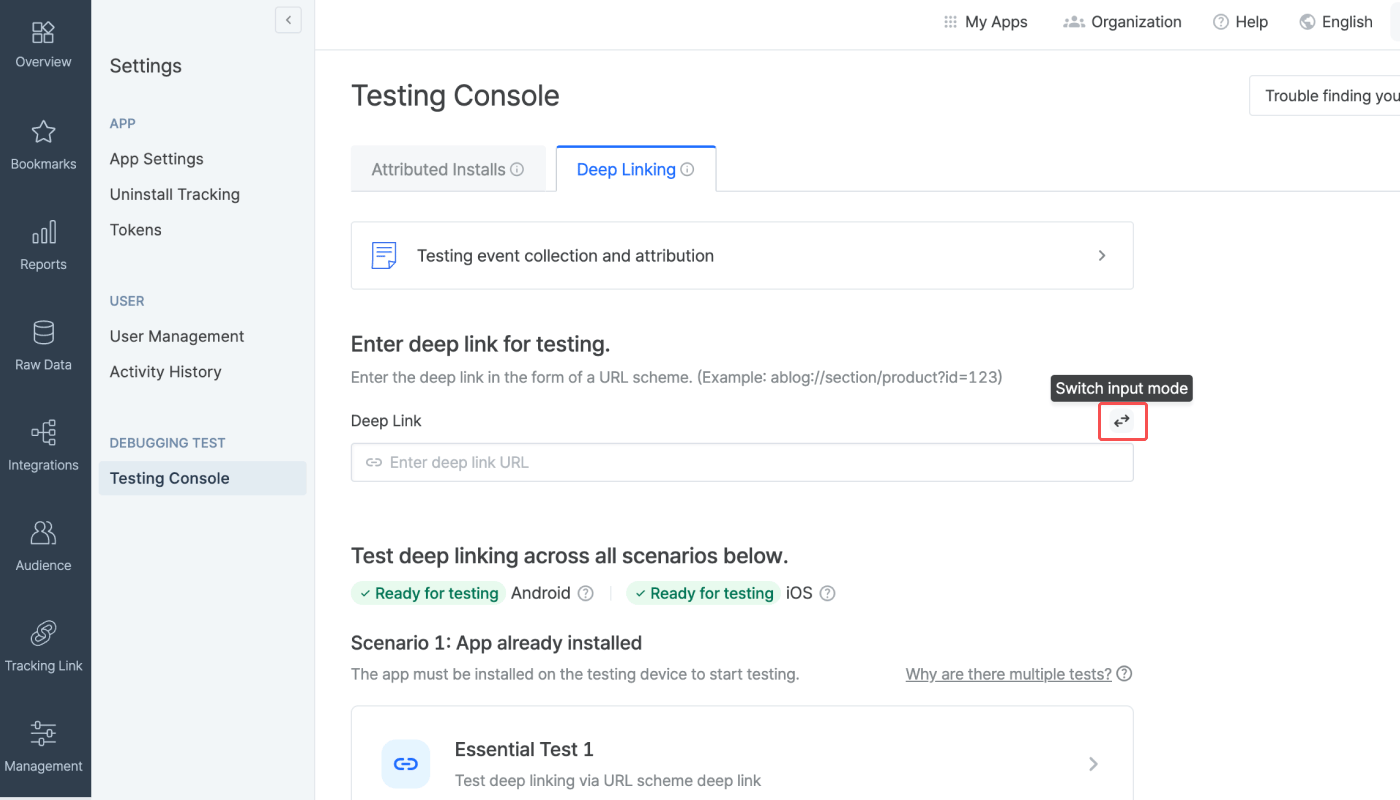
##### Enter deep link for testing
Enter the deep link configured for the app you want to test. The deep link must be in the form of the URL scheme deep link. It should preferably be set to a specific in-app location instead of the home screen.
**Attention**
Encode the deep link before entering it into the required field. If you don't, the link will not conform to the standard URL format, and deep linking will not function properly.
Click the **\[switch]** icon on the right to change the input method. This allows you to add the path and parameters separately to input a deep link.
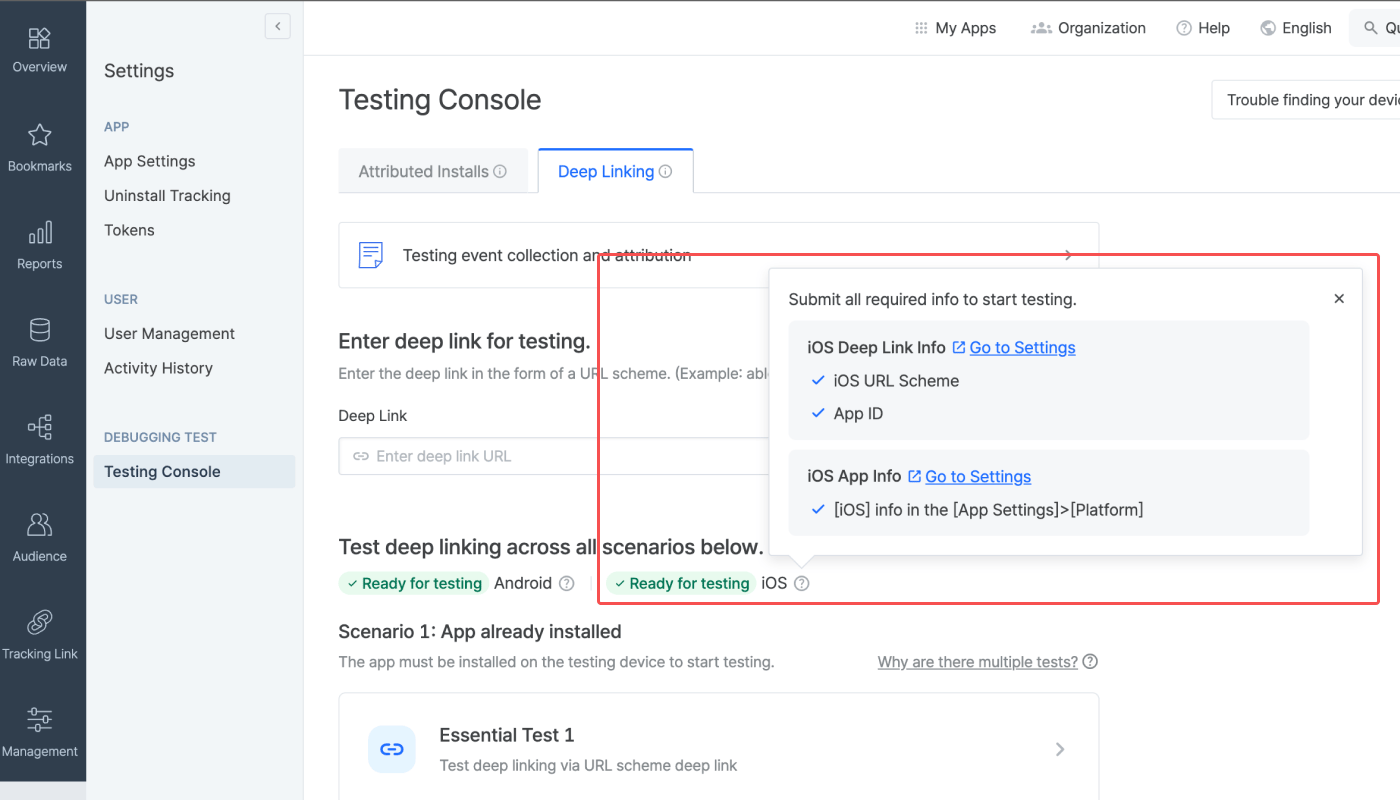
##### Check readiness for testing
Check if the info required for testing deep linking is submitted to the Airbridge dashboard. If all info is submitted for a platform, the “Ready for testing” tag will show. If not, the “Info incomplete” tag will show. Click the tooltip next to the platform name to see the required info for testing. If you see the “Info incomplete” tag for the platform you want to run the deep linking test, click **Go to Settings** to add or edit the required info to get ready for testing.
**Refresh to see the latest version**
If you've completed the setup in a different browser tab, refresh the Airbridge dashboard tab to reflect the most recent changes.
#### Testing
The testing console offers tests for 2 deep-linking scenarios. There are 3 tests for “Scenario 1: App already installed” and 1 test for “Scenario 2: App not installed." Complete all 4 tests if you are using a custom domain to create tracking links. If not, complete all tests except for the Custom Domain Test.
**Why are there multiple tests?**
Airbridge supports various deep linking methods, including URL scheme deep links, Universal Links, and App Links. When an app is launched, the system automatically selects the most suitable method based on factors such as the operating system, browser, and whether the app is installed. Test across all possible cases to ensure reliable deep-linking performance.
##### Testing for Scenario 1: App already installed
Testing Scenario 1 allows you to make sure the deep linking functions as intended for users who have already installed the app on their devices. You can run 3 types of tests, including a test for cases when the app is opened via URL scheme deep links, when the app is opened via Universal Links or App Links, and when the tracking link is created using a custom domain.
###### Preparation
Before you start the test, check the following items.
1. Prepare a mobile test device.
2. Check whether the app is installed on the test device. If not, download the app.
3. Open the app at least once after download.
4. Make sure the default browser setting is Chrome or Safari. The deep linking test may not work in other browsers.
5. Make sure you have a stable network connection.
**Note**
If there are no issues with the deep link settings and the deep linking tests have been successfully completed, Airbridge deep linking works on most browsers. Note that deep linking tests are only supported on Chrome and Safari.
###### How to run each test
1. Click the test you want to run.
2. Scan the QR code with the test device and access the testing page. If you're unable to scan the QR code, use the URL at the bottom of the QR code.
3. Once you access the testing website, click **Trigger deep linking**. The test will run automatically on the 5 items displayed. If an issue is identified, follow the instructions and refer to the Airbridge user guide to resolve it. Then, start the test again.
When the test is completed successfully, you can find the Deeplink Open event on the **\[Raw Data]>\[App Real-time Log]** page.
After completing the Essential Test 1, the following items can be found in the SDK log.
* `eventData.deeplink` is `{YOUR_SCHEME}://...` .
* The `{YOUR_SCHEME}://...` is passed to the deep link callback.
After completing the Essential Test 2, the following items can be found in the SDK log.
* `eventData.deeplink` is `https://{YOUR_APP_NAME}.airbridge.io...`
* The `{YOUR_SCHEME}://...` is passed to the deep link callback.
After completing the Custom Domain Test, the following items can be found in the SDK log.
* `eventData.deeplink` is `https://{YOUR_CUSTOM_DOMAIN}...`
* The `{YOUR_SCHEME}://...` is passed to the deep link callback.
4. After returning to the **\[Testing Console]** tab, click **Done** and close the test window.
##### Testing for Scenario 2: App not installed
Testing Scenario 2 allows you to make sure the deep linking functions as intended for users who have not installed the app on their devices. You can run 1 test for deferred deep linking.
###### Preparation
Before you start the test, check the following items.
1. Prepare a mobile test device.
2. Check whether the app is not installed on the test device. If installed, delete the app from the device.
3. Make sure the default browser setting is Chrome or Safari. The deep linking test may not work in other browsers.
4. Make sure you have a stable network connection.
###### How to run the test
1. Click the test you want to run.
2. Scan the QR code with the test device and access the testing page. If you're unable to scan the QR code, use the URL at the bottom of the QR code.
3. Once you access the testing page, click **Trigger deep linking**. The test will run automatically on the 3 items displayed. If an issue is identified, follow the instructions and refer to the Airbridge user guide to resolve it.
When the test is completed successfully, you can find the Deeplink Open event on the **\[Raw Data]>\[App Real-time Log]** page.
After completing the Deferred Deep Linking Test, the following items can be found in the SDK log.
* `eventData.deeplink` is `https://{YOUR_SCHEME}.airbridge.io...`
* The `{YOUR_SCHEME}://...` is passed to the deep link callback.
4. After returning to the **\[Testing Console]** tab, click **Done** and close the test window.
#### Troubleshooting
Refer to the information below for troubleshooting regarding deep links.
| Problem | Solution |
| ---------------------------------------------------------------------------------------------------------------------------- | --------------------------------------------------------------------------------------------------------------- |
| You clicked a deep link, but the app was not launched. Or the SDK logs show information that is not intended as per setting. | Check whether the deep link is set up correctly. |
| You clicked a deep link, and the app was launched, but you didn't land on the intended app page. | You need to write code that redirects the user to the deep link path that is passed by the `onSuccess`function. |
## Additional SDK Settings
Follow the instructions below for additional setup.
**Attention**
Optional settings. Configure only if necessary.
### Create tracking links within the app
**Attention**
Airbridge iOS SDK v.4.0.0 or later is required.
Tracking links are links that are embedded to ads for data collection. When users click on the ad, the tracking link is used to pass the touchpoint data to Airbridge, allowing for ad attribution.
Also, users who click on the ad with a tracking link can be redirected to a specific destination.
Use the `createTrackingLink` function to create tracking links. Refer to the code examples and the parameter details below.
```swift Swift lines theme={"theme":{"light":"github-dark-dimmed","dark":"github-dark-dimmed"}}
public static func createTrackingLink(
channel: String,
option: [String: Any],
onSuccess: @escaping (AirbridgeTrackingLink) -> Void
)
public static func createTrackingLink(
channel: String,
option: [String: Any],
onSuccess: @escaping (AirbridgeTrackingLink) -> Void,
onFailure: @escaping (Error) -> Void
)
```
```objective-c Objective-C lines theme={"theme":{"light":"github-dark-dimmed","dark":"github-dark-dimmed"}}
+ (void)createTrackingLinkWithChannel:(NSString*)channel
option:(NSDictionary*)option
onSuccess:(void (^)(AirbridgeTrackingLink*))onSuccess;
+ (void)createTrackingLinkWithChannel:(NSString*)channel
option:(NSDictionary*)option
onSuccess:(void (^)(AirbridgeTrackingLink*))onSuccess
onFailure:(void (^)(NSError*))onFailure;
```
| Name | Required or Optional | Type | Description |
| --------- | -------------------- | ------------------------------- | ---------------------------------------- |
| channel | Required | String | The ad channel the tracking link is used |
| option | Required | \[String: Any] | Options for creating tracking links |
| onSuccess | Required | (AirbridgeTrackingLink) -> Void | Success callback |
| onFailure | Optional | (Error) -> Void | Fail callback |
Use the `option` parameter in the `createTrackingLink` function to configure tracking link options.
| Key | Type | Description |
| ------------------------------------------------------------- | ------------------------------------ | ------------------------------------------------------------------------------------------------------------------------------------------------------------------------------------------------------------------------------------------------------------------------------------------------------------------------------------------------------------------------------------------------------------------------------------------------------------------------------------------------------------------------------------------------------------------------------------------------------------------------------------------------------------------------------------------------------------------- |
| AirbridgeTrackingLinkOption.CAMPAIGN | String | The campaign credited with the winning touchpoint or conversion. |
| AirbridgeTrackingLinkOption.AD\_GROUP | String | The ad group credited with the winning touchpoint or conversion. |
| AirbridgeTrackingLinkOption.AD\_CREATIVE | String | The ad creative credited with the winning touchpoint or conversion. |
| AirbridgeTrackingLinkOption.CONTENT | String | The content credited with the winning touchpoint or conversion. |
| AirbridgeTrackingLinkOption.TERM | String | The search term credited with the winning touchpoint or conversion. |
| AirbridgeTrackingLinkOption.SUB\_ID | String | The sub publisher that generated the touchpoint. Sub media values are usually provided by predefined "integrated" channels. |
| AirbridgeTrackingLinkOption.SUB\_ID\_1 | String | The 1st level sub-sub publisher that generated the touchpoint. Sub media values are usually provided by predefined "integrated" channels. |
| AirbridgeTrackingLinkOption.SUB\_ID\_2 | String | The 2nd level sub-sub publisher that generated the touchpoint. Sub media values are usually provided by predefined "integrated" channels. |
| AirbridgeTrackingLinkOption.SUB\_ID\_3 | String | The 3rd level sub-sub publisher that generated the touchpoint. Sub media values are usually provided by predefined "integrated" channels. |
| AirbridgeTrackingLinkOption.DEEPLINK\_URL | (Custom Scheme URL String) | Configure the Deeplink URL for redirect. |
| AirbridgeTrackingLinkOption.DEEPLINK\_STOPOVER | Boolean | Stopover Airpage feature of the Deep Link `true`: activate `false`: deactivate |
| AirbridgeTrackingLinkOption.FALLBACK\_IOS | ("store" \| Web URL String) | ios fallback when app is not installed |
| AirbridgeTrackingLinkOption.FALLBACK\_ANDROID | ("store" \| Web URL String) | android fallback when app is not installed |
| AirbridgeTrackingLinkOption.FALLBACK\_DESKTOP | (Web URL String) | desktop fallback when app is not installed |
| AirbridgeTrackingLinkOption.FALLBACK\_IOS\_STORE\_PPID | String | The ppid for the Custom Product Page in the Apple App Store. Enable the custom product page to be shown when landing in the App Store. |
| AirbridgeTrackingLinkOption.FALLBACK\_ANDROID\_STORE\_LISTING | String | The Custom Store Listing listing value for the Google Play Store. Enables the display of your custom store listing when landing on the Google Play Store. |
| AirbridgeTrackingLinkOption.OGTAG\_TITLE | String | `og:title` for tracking link |
| AirbridgeTrackingLinkOption.OGTAG\_DESCRIPTION | String | `og:description` for tracking link |
| AirbridgeTrackingLinkOption.OGTAG\_IMAGE\_URL | (Web URL String) | `og:image` for tracking link |
| AirbridgeTrackingLinkOption.OGTAG\_WEBSITE\_CRAWL | ("desktop") | When the tracking link is shared, the social media platform directly crawls the Open Graph of the desktop URL specified in fallbackPaths and uses it for the social share preview. Dynamic URLs are also supported, and any change to the Open Graph is reflected automatically from the next time the link is shared. The values set for title, description, and imageUrl will be ignored. |
| AirbridgeTrackingLinkOption.CUSTOM\_SHORT\_ID | String | Configure the short ID of tracking links depending on your campaign or contents. If not passed, a random short ID will be generate, and can not be changed once generated. |
| AirbridgeTrackingLinkOption.IS\_REENGAGEMENT | ("off" \| "on\_true" \| "on\_false") | Configure the Re-engagement parameter. The Re-engagement parameter has three options. off: OFF is the default setting. The touchpoint can be attributed to both install events and post-install events (in-app events). on\_true: ON-TRUE is used for re-engagement campaigns for installed users. The touchpoint generated by the tracking link is attributed only to the deeplink open and the following in-app events, not to the install event. on\_false: ON-FALSE is used for user acquisition campaigns targeting uninstalled users. The touchpoint generated by the tracking link is attributed only to the install event and the following in-app events, not to the 'deeplink open' event. |
Use the `onSuccess` callback in the `createTrackingLink` function to pass the `AirbridgeTrackingLink`.
```swift Swift lines theme={"theme":{"light":"github-dark-dimmed","dark":"github-dark-dimmed"}}
public final class AirbridgeTrackingLink: NSObject {
public let shortURL: URL
public let qrcodeURL: URL
}
```
```objective-c Objective-C lines theme={"theme":{"light":"github-dark-dimmed","dark":"github-dark-dimmed"}}
@interface AirbridgeTrackingLink : NSObject
+ (NSURL*)shortURL;
+ (NSURL*)qrcodeURL;
@end
```
| Name | Type | Description |
| --------- | ---- | ------------------------------------ |
| shortURL | URL | The short URL of the tracking link |
| qrcodeURL | URL | The QR code URL of the tracking link |
Refer to the example codes below.
```swift Swift lines theme={"theme":{"light":"github-dark-dimmed","dark":"github-dark-dimmed"}}
Airbridge.createTrackingLink(
channel: "test_channel",
option: [
AirbridgeTrackingLinkOption.CAMPAIGN: "test_campaign",
AirbridgeTrackingLinkOption.DEEPLINK_URL: "YOUR_SCHEME://...",
AirbridgeTrackingLinkOption.FALLBACK_IOS: "store",
AirbridgeTrackingLinkOption.FALLBACK_ANDROID: "store",
AirbridgeTrackingLinkOption.FALLBACK_DESKTOP: "https://example.com/"
],
onSuccess: { trackingLink in
// Handling created tracking-link
},
onFailure: { error in
// Handling error
}
)
```
```objective-c Objective-C lines theme={"theme":{"light":"github-dark-dimmed","dark":"github-dark-dimmed"}}
[Airbridge createTrackingLinkWithChannel:@"test_channel" option:@{
AirbridgeTrackingLinkOption.CAMPAIGN: @"test_campaign",
AirbridgeTrackingLinkOption.DEEPLINK_URL: @"YOUR_SCHEME://...",
AirbridgeTrackingLinkOption.FALLBACK_IOS: @"store",
AirbridgeTrackingLinkOption.FALLBACK_ANDROID: @"store",
AirbridgeTrackingLinkOption.FALLBACK_DESKTOP: @"https://example.com/"
} onSuccess:^(AirbridgeTrackingLink* trackingLink) {
// Handling created tracking-link
} onFailure:^(NSError* error) {
// Handling error
}];
```
```swift Swift lines theme={"theme":{"light":"github-dark-dimmed","dark":"github-dark-dimmed"}}
Airbridge.createTrackingLink(
channel: "test_channel",
option: [
AirbridgeTrackingLinkOption.CAMPAIGN: "test_campaign",
AirbridgeTrackingLinkOption.DEEPLINK_URL: "YOUR_SCHEME://...",
AirbridgeTrackingLinkOption.FALLBACK_IOS: "https://example.com/",
AirbridgeTrackingLinkOption.FALLBACK_ANDROID: "https://example.com/",
AirbridgeTrackingLinkOption.FALLBACK_DESKTOP: "https://example.com/"
],
onSuccess: { trackingLink in
// Handling created tracking-link
},
onFailure: { error in
// Handling error
}
)
```
```objective-c Objective-C lines theme={"theme":{"light":"github-dark-dimmed","dark":"github-dark-dimmed"}}
[Airbridge createTrackingLinkWithChannel:@"test_channel" option:@{
AirbridgeTrackingLinkOption.CAMPAIGN: @"test_campaign",
AirbridgeTrackingLinkOption.DEEPLINK_URL: @"YOUR_SCHEME://...",
AirbridgeTrackingLinkOption.FALLBACK_IOS: @"https://example.com/",
AirbridgeTrackingLinkOption.FALLBACK_ANDROID: @"https://example.com/",
AirbridgeTrackingLinkOption.FALLBACK_DESKTOP: @"https://example.com/"
} onSuccess:^(AirbridgeTrackingLink* trackingLink) {
// Handling created tracking-link
} onFailure:^(NSError* error) {
// Handling error
}];
```
```swift Swift lines theme={"theme":{"light":"github-dark-dimmed","dark":"github-dark-dimmed"}}
Airbridge.createTrackingLink(
channel: "test_channel",
option: [
AirbridgeTrackingLinkOption.CAMPAIGN: "test_campaign",
AirbridgeTrackingLinkOption.FALLBACK_IOS: "store",
AirbridgeTrackingLinkOption.FALLBACK_ANDROID: "store",
AirbridgeTrackingLinkOption.FALLBACK_DESKTOP: "https://example.com/"
],
onSuccess: { trackingLink in
// Handling created tracking-link
},
onFailure: { error in
// Handling error
}
)
```
```objective-c Objective-C lines theme={"theme":{"light":"github-dark-dimmed","dark":"github-dark-dimmed"}}
[Airbridge createTrackingLinkWithChannel:@"test_channel" option:@{
AirbridgeTrackingLinkOption.CAMPAIGN: @"test_campaign",
AirbridgeTrackingLinkOption.FALLBACK_IOS: @"store",
AirbridgeTrackingLinkOption.FALLBACK_ANDROID: @"store",
AirbridgeTrackingLinkOption.FALLBACK_DESKTOP: @"https://example.com/"
} onSuccess:^(AirbridgeTrackingLink* trackingLink) {
// Handling created tracking-link
} onFailure:^(NSError* error) {
// Handling error
}];
```
```swift Swift lines theme={"theme":{"light":"github-dark-dimmed","dark":"github-dark-dimmed"}}
Airbridge.createTrackingLink(
channel: "test_channel",
option: [
AirbridgeTrackingLinkOption.CAMPAIGN: "test_campaign",
AirbridgeTrackingLinkOption.FALLBACK_IOS: "https://example.com/",
AirbridgeTrackingLinkOption.FALLBACK_ANDROID: "https://example.com/",
AirbridgeTrackingLinkOption.FALLBACK_DESKTOP: "https://example.com/"
],
onSuccess: { trackingLink in
// Handling created tracking-link
},
onFailure: { error in
// Handling error
}
)
```
```objective-c Objective-C lines theme={"theme":{"light":"github-dark-dimmed","dark":"github-dark-dimmed"}}
[Airbridge createTrackingLinkWithChannel:@"test_channel" option:@{
AirbridgeTrackingLinkOption.CAMPAIGN: @"test_campaign",
AirbridgeTrackingLinkOption.FALLBACK_IOS: @"https://example.com/",
AirbridgeTrackingLinkOption.FALLBACK_ANDROID: @"https://example.com/",
AirbridgeTrackingLinkOption.FALLBACK_DESKTOP: @"https://example.com/"
} onSuccess:^(AirbridgeTrackingLink* trackingLink) {
// Handling created tracking-link
} onFailure:^(NSError* error) {
// Handling error
}];
```
 ### Set up deep linking
For the deep linking setup, the following information is required.
* Deep link information submitted in the Airbridge dashboard
* In-app location address for user redirection
First, enter the deep link information into the Airbridge dashboard.
### Set up deep linking
For the deep linking setup, the following information is required.
* Deep link information submitted in the Airbridge dashboard
* In-app location address for user redirection
First, enter the deep link information into the Airbridge dashboard.
 ##### Check readiness for testing
Check if the info required for testing deep linking is submitted to the Airbridge dashboard. If all info is submitted for a platform, the “Ready for testing” tag will show. If not, the “Info incomplete” tag will show. Click the tooltip next to the platform name to see the required info for testing. If you see the “Info incomplete” tag for the platform you want to run the deep linking test, click **Go to Settings** to add or edit the required info to get ready for testing.
##### Check readiness for testing
Check if the info required for testing deep linking is submitted to the Airbridge dashboard. If all info is submitted for a platform, the “Ready for testing” tag will show. If not, the “Info incomplete” tag will show. Click the tooltip next to the platform name to see the required info for testing. If you see the “Info incomplete” tag for the platform you want to run the deep linking test, click **Go to Settings** to add or edit the required info to get ready for testing.
 #### Testing
The testing console offers tests for 2 deep-linking scenarios. There are 3 tests for “Scenario 1: App already installed” and 1 test for “Scenario 2: App not installed." Complete all 4 tests if you are using a custom domain to create tracking links. If not, complete all tests except for the Custom Domain Test.
#### Testing
The testing console offers tests for 2 deep-linking scenarios. There are 3 tests for “Scenario 1: App already installed” and 1 test for “Scenario 2: App not installed." Complete all 4 tests if you are using a custom domain to create tracking links. If not, complete all tests except for the Custom Domain Test.
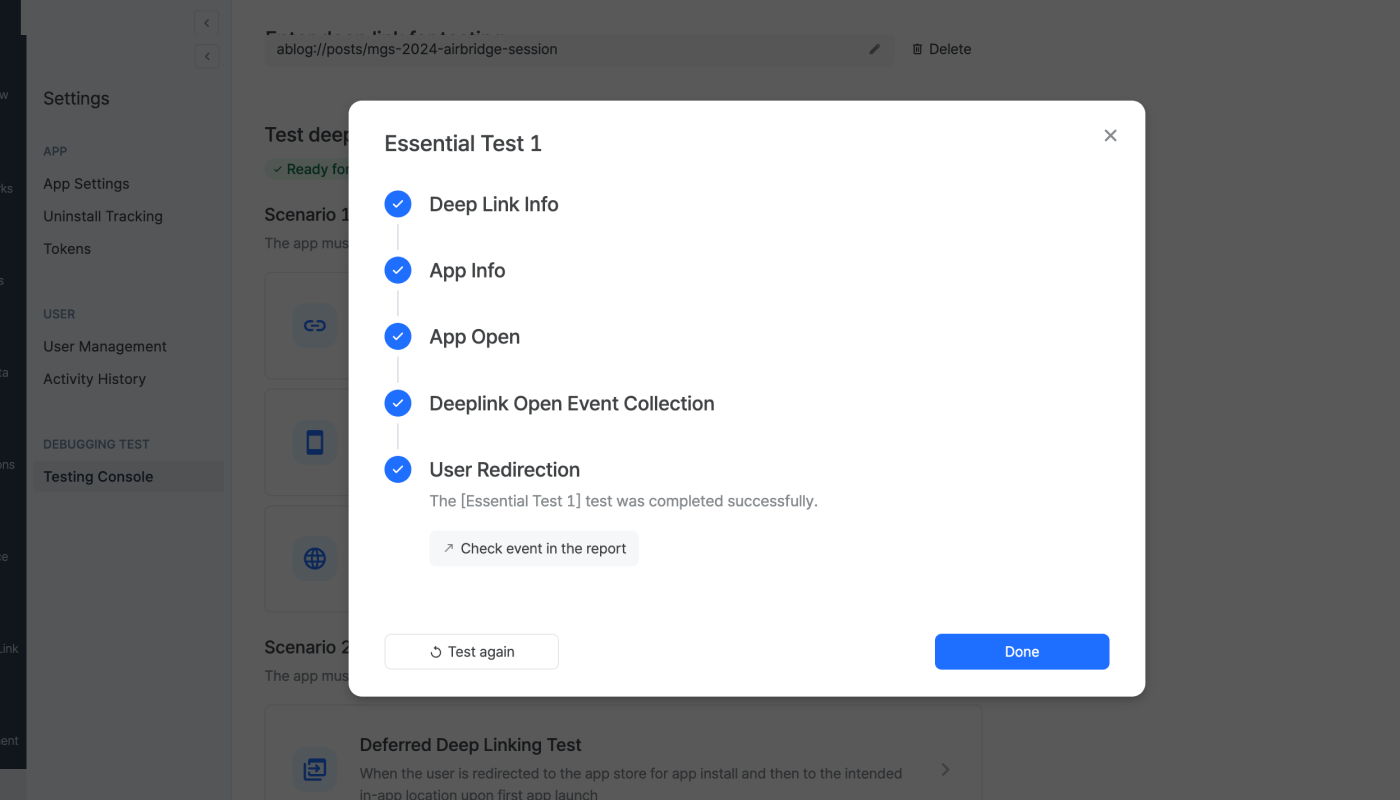 When the test is completed successfully, you can find the Deeplink Open event on the **\[Raw Data]>\[App Real-time Log]** page.
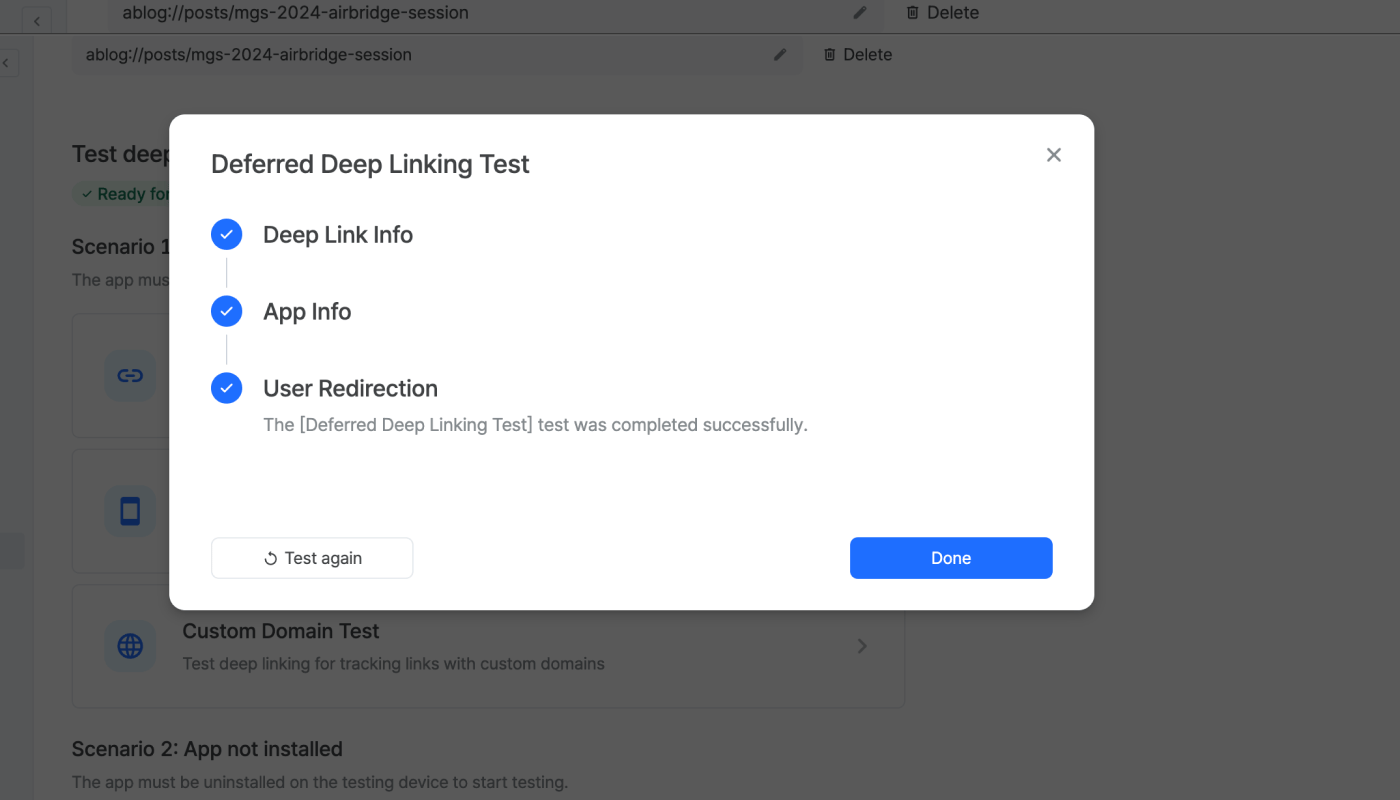 When the test is completed successfully, you can find the Deeplink Open event on the **\[Raw Data]>\[App Real-time Log]** page.