> ## Documentation Index
> Fetch the complete documentation index at: https://help.airbridge.io/llms.txt
> Use this file to discover all available pages before exploring further.
# DeepLink - Android SDK
Install the Airbridge Android SDK and implement the necessary settings following the steps below.
## Install SDK
The Airbridge Android SDK can be installed using the method below. After installation, check whether the SDK has been properly installed through the [Android SDK test](#testing).
1. Declare the Airbridge maven repository within the `repositories` block of your project's `build.gradle` file.
```groovy Groovy lines theme={"theme":{"light":"github-dark-dimmed","dark":"github-dark-dimmed"}}
allprojects {
repositories {
maven { url = uri("https://sdk-download.airbridge.io/maven") }
}
}
```
```kotlin Kotlin DSL lines theme={"theme":{"light":"github-dark-dimmed","dark":"github-dark-dimmed"}}
allprojects {
repositories {
maven { url = uri("https://sdk-download.airbridge.io/maven") }
}
}
```
2. Add the Airbridge Android SDK package to your app's `build.gradle` file. Then, click the link below to find the latest version and replace `$HERE_LATEST_VERSION` with the latest version.
* SDK version list: [Link](https://sdk-download.airbridge.io/maven/io/airbridge/sdk-android/index.html)
```groovy Groovy lines theme={"theme":{"light":"github-dark-dimmed","dark":"github-dark-dimmed"}}
dependencies {
// Replace $HERE_LATEST_VERSION with latest version
// - Versions: https://sdk-download.airbridge.io/maven
// - Example: implementation "io.airbridge:sdk-android:0.0.0"
implementation "io.airbridge:sdk-android:$HERE_LATEST_VERSION"
}
```
```groovy Kotlin DSL lines theme={"theme":{"light":"github-dark-dimmed","dark":"github-dark-dimmed"}}
dependencies {
// Replace $HERE_LATEST_VERSION with latest version
// - Versions: https://sdk-download.airbridge.io/maven
// - Example: implementation("io.airbridge:sdk-android:0.0.0")
implementation("io.airbridge:sdk-android:$HERE_LATEST_VERSION")
}
```
1. Declare the Airbridge maven repository within the `repositories` block of your project's `settings.gradle` file.
```groovy Groovy lines theme={"theme":{"light":"github-dark-dimmed","dark":"github-dark-dimmed"}}
dependencyResolutionManagement {
repositories {
maven { url = uri("https://sdk-download.airbridge.io/maven") }
}
}
```
```kotlin Kotlin DSL lines theme={"theme":{"light":"github-dark-dimmed","dark":"github-dark-dimmed"}}
dependencyResolutionManagement {
repositories {
maven { url = uri("https://sdk-download.airbridge.io/maven") }
}
}
```
2. Add the Airbridge Android SDK package to your app's `build.gradle` file.
```groovy Groovy lines theme={"theme":{"light":"github-dark-dimmed","dark":"github-dark-dimmed"}}
dependencies {
// Replace $HERE_LATEST_VERSION with latest version
// - Versions: https://sdk-download.airbridge.io/maven
// - Example: implementation "io.airbridge:sdk-android:0.0.0"
implementation "io.airbridge:sdk-android:$HERE_LATEST_VERSION"
}
```
```groovy Kotlin DSL lines theme={"theme":{"light":"github-dark-dimmed","dark":"github-dark-dimmed"}}
dependencies {
// Replace $HERE_LATEST_VERSION with latest version
// - Versions: https://sdk-download.airbridge.io/maven
// - Example: implementation("io.airbridge:sdk-android:0.0.0")
implementation("io.airbridge:sdk-android:$HERE_LATEST_VERSION")
}
```
**Note**
Airbridge Android SDK requires Kotlin stdlib and Kotlinx coroutines library version 1.6 or later.
The Airbridge Android SDK uses JetBrains' Kotlin and Coroutines libraries.
If you install directly through the `.aar`, you have to include the dependency library in your project. Refer to the following.
| Library | Link |
| -------------------------- | ----------------------------------------------------------------------------------------------- |
| Airbridge SDK | [Download](https://sdk-download.airbridge.io/maven/io/airbridge/sdk-android/index.html) |
| JetBrains Java Annotations | [Download](https://mvnrepository.com/artifact/org.jetbrains/annotations) |
| Kotlin Standard Library | [Download](https://mvnrepository.com/artifact/org.jetbrains.kotlin/kotlin-stdlib) |
| Kotlinx Coroutines Core | [Download](https://mvnrepository.com/artifact/org.jetbrains.kotlinx/kotlinx-coroutines-core) |
| Kotlinx Coroutines Android | [Download](https://mvnrepository.com/artifact/org.jetbrains.kotlinx/kotlinx-coroutines-android) |
| Play Services Appset | [Download](https://mvnrepository.com/artifact/com.google.android.gms/play-services-appset) |
**Note**
For the Gradle setup, refer to Gradle (build.gradle) if your project's `build.gradle` file contains `repositories` block, or refer to Gradle (settings.gradle) if your project's `settings.gradle` file contains `repositories` block.
### Install Restricted SDK
**Note**
Install only one version of the SDK, either the general SDK or the restricted SDK.
Depending on policies and environments, restrictions on collecting device IDs like GAID and IDFA may be required. When installing the Restricted SDK version, the device IDs are not collected.
Install the Restricted SDK using the method below.
1. Declare the Airbridge maven repository within the `repositories` block of your project's `build.gradle` file.
```groovy Groovy lines theme={"theme":{"light":"github-dark-dimmed","dark":"github-dark-dimmed"}}
allprojects {
repositories {
maven { url = uri("https://sdk-download.airbridge.io/maven") }
}
}
```
```kotlin Kotlin DSL lines theme={"theme":{"light":"github-dark-dimmed","dark":"github-dark-dimmed"}}
allprojects {
repositories {
maven { url = uri("https://sdk-download.airbridge.io/maven") }
}
}
```
2. Add the Airbridge Android SDK package in your app's `build.gradle` file.
```groovy Groovy lines theme={"theme":{"light":"github-dark-dimmed","dark":"github-dark-dimmed"}}
dependencies {
// Replace $HERE_LATEST_VERSION with latest version
// - Versions: https://sdk-download.airbridge.io/maven
// - Example: implementation "io.airbridge:sdk-android-restricted:0.0.0"
implementation "io.airbridge:sdk-android-restricted:$HERE_LATEST_VERSION"
}
```
```groovy Kotlin DSL lines theme={"theme":{"light":"github-dark-dimmed","dark":"github-dark-dimmed"}}
dependencies {
// Replace $HERE_LATEST_VERSION with latest version
// - Versions: https://sdk-download.airbridge.io/maven
// - Example: implementation("io.airbridge:sdk-android-restricted:0.0.0")
implementation("io.airbridge:sdk-android-restricted:$HERE_LATEST_VERSION")
}
```
1. Declare the Airbridge maven repository within the `repositories`block of your project's `settings.gradle` file.
```groovy Groovy lines theme={"theme":{"light":"github-dark-dimmed","dark":"github-dark-dimmed"}}
dependencyResolutionManagement {
repositories {
maven { url = uri("https://sdk-download.airbridge.io/maven") }
}
}
```
```kotlin Kotlin DSL lines theme={"theme":{"light":"github-dark-dimmed","dark":"github-dark-dimmed"}}
dependencyResolutionManagement {
repositories {
maven { url = uri("https://sdk-download.airbridge.io/maven") }
}
}
```
2. Add the Airbridge Android SDK package in your app's `build.gradle` file.
```groovy Groovy lines theme={"theme":{"light":"github-dark-dimmed","dark":"github-dark-dimmed"}}
dependencies {
// Replace $HERE_LATEST_VERSION with latest version
// - Versions: https://sdk-download.airbridge.io/maven
// - Example: implementation "io.airbridge:sdk-android-restricted:0.0.0"
implementation "io.airbridge:sdk-android-restricted:$HERE_LATEST_VERSION"
}
```
```groovy Kotlin DSL lines theme={"theme":{"light":"github-dark-dimmed","dark":"github-dark-dimmed"}}
dependencies {
// Replace $HERE_LATEST_VERSION with latest version
// - Versions: https://sdk-download.airbridge.io/maven
// - Example: implementation("io.airbridge:sdk-android-restricted:0.0.0")
implementation("io.airbridge:sdk-android-restricted:$HERE_LATEST_VERSION")
}
```
**Note**
Airbridge Android SDK requires Kotlin stdlib and Kotlinx coroutines library version 1.6 or later.
The Airbridge Android SDK uses JetBrains' Kotlin and Coroutines libraries together.
If you install the SDK manually through the `.aar`, you have to include the dependency libraries in your project. Refer to the following.
| Library | Link |
| -------------------------- | -------------------------------------------------------------------------------------------------- |
| Airbridge SDK Restricted | [Download](https://sdk-download.airbridge.io/maven/io/airbridge/sdk-android-restricted/index.html) |
| JetBrains Java Annotations | [Download](https://mvnrepository.com/artifact/org.jetbrains/annotations) |
| Kotlin Standard Library | [Download](https://mvnrepository.com/artifact/org.jetbrains.kotlin/kotlin-stdlib) |
| Kotlinx Coroutines Core | [Download](https://mvnrepository.com/artifact/org.jetbrains.kotlinx/kotlinx-coroutines-core) |
| Kotlinx Coroutines Android | [Download](https://mvnrepository.com/artifact/org.jetbrains.kotlinx/kotlinx-coroutines-android) |
| Play Services Appset | [Download](https://mvnrepository.com/artifact/com.google.android.gms/play-services-appset) |
**Attention**
For the Gradle setup, refer to [Gradle (build.gradle)](#gradle-build-gradle-2) if your project's `build.gradle` file contains `repositories` block, or refer to [Gradle (settings.gradle)](#gradle-settings-gradle-2) if your project's `settings.gradle` file contains `repositories` block.
### Initialize SDK
Initializing the Airbridge Android SDK in the [Android Application class](https://developer.android.com/reference/android/app/Application) is recommended.
1. Create an Application class.
```kotlin Kotlin lines theme={"theme":{"light":"github-dark-dimmed","dark":"github-dark-dimmed"}}
import android.app.Application
class AndroidApplication: Application() {
override fun onCreate() {
super.onCreate()
}
}
```
```java Java lines theme={"theme":{"light":"github-dark-dimmed","dark":"github-dark-dimmed"}}
import android.app.Application;
public class AndroidApplication extends Application {
@Override
public void onCreate() {
super.onCreate();
}
}
```
2. Set the generated Application in `AndroidManifest.xml`.
```xml AndroidManifest.xml lines theme={"theme":{"light":"github-dark-dimmed","dark":"github-dark-dimmed"}}
```
3. Get `Airbridge` from the Application class.
```kotlin Kotlin lines theme={"theme":{"light":"github-dark-dimmed","dark":"github-dark-dimmed"}}
import co.ab180.airbridge.Airbridge
```
```java Java lines theme={"theme":{"light":"github-dark-dimmed","dark":"github-dark-dimmed"}}
import co.ab180.airbridge.Airbridge;
```
4. Add the following code snippet to the Application class file registered in `AndroidManifest.xml`.
The YOUR\_APP\_NAME and YOUR\_APP\_SDK\_TOKEN can be found on the **\[Settings]>\[Tokens]** page in the Airbridge dashboard.
```kotlin Kotlin lines theme={"theme":{"light":"github-dark-dimmed","dark":"github-dark-dimmed"}}
override fun onCreate() {
super.onCreate()
// YOUR_APP_NAME: input your app name
// YOUR_APP_SDK_TOKEN: input your app token
val option = AirbridgeOptionBuilder("YOUR_APP_NAME", "YOUR_APP_SDK_TOKEN")
.build()
Airbridge.initializeSDK(this, option)
}
```
```java Java lines theme={"theme":{"light":"github-dark-dimmed","dark":"github-dark-dimmed"}}
@Override
public void onCreate() {
super.onCreate();
// YOUR_APP_NAME: input your app name
// YOUR_APP_SDK_TOKEN: input your app token
AirbridgeOption option = new AirbridgeOptionBuilder("YOUR_APP_NAME", "YOUR_APP_SDK_TOKEN")
.build();
Airbridge.initializeSDK(this, option);
}
```
**Attention**
To ensure initializeSDK works correctly, follow the conditions below.
* Must be called in the `Application` class's `onCreate`.
* Must be called on the `Main thread`.
5. Set the following permissions.
Airbridge Android SDK requires permission to transmit events through the network.
Add the following permissions to your application's `AndroidManifest.xml`.
```xml lines theme={"theme":{"light":"github-dark-dimmed","dark":"github-dark-dimmed"}}
...
...
```
According to [Google](https://support.google.com/googleplay/android-developer/answer/6048248?hl=en), apps targeting Android 13 (API 33) or above must declare the Google Play services general permissions in the `AndroidManifest.xml` file to acquire the device's ADID.
From V2.13.0, the Airbridge Android SDK automatically adds the AD\_ID permission that can acquire the ADID.
If you have not set LAT(LimitAdTracking) and GAID appears as 00000000-0000-0000-0000-000000000000, you will need to add AD\_ID permission with the following code snippet. The issue occurs because the AD\_ID permission has been excluded, for example, by other third-party libraries.
```xml lines theme={"theme":{"light":"github-dark-dimmed","dark":"github-dark-dimmed"}}
...
...
```
**Attention**
Starting from Airbridge Android SDK 4.9.0, backup rule configuration is not required. Only refer to the [backup rule configuration](/en/developers/troubleshooting-android-sdk-v4#airbridge-sdk-backup-rule-configuration-sdk-below-4-9-0) in the troubleshooting guide if you are using a version below 4.9.0.
## Deep Linking
Deep linking allows you to redirect users from ads to specific locations within your app. The data collected from the tracking link enables you to monitor the performance of the deep link in Airbridge.
### How Airbridge Deep Links work
When a user clicks on the Airbridge tracking link, the scheme deep link embedded in the tracking link is converted into an Airbridge Deep Link, which can be either an HTTP deep link or a scheme deep link. This Airbridge Deep Link redirects the user to the desired app location. Then, the Airbridge SDK converts the Airbridge Deep Link back to the original scheme deep link embedded in the tracking link and passes it to the app.
* Example scheme deep link embedded in the tracking link: `YOUR_SCHEME://product/12345`
* Examples of Airbridge Deep Links
* HTTP deep link format 1: `https://YOUR_APP_NAME.airbridge.io/~~~`
* HTTP deep link format 2: `https://YOUR_APP_NAME.abr.ge/~~~`
* Scheme deep link format: `YOUR_SCHEME://product/12345?airbridge_referrer=~~~`
When the app is installed on the device and the tracking link is clicked, the app opens through the Airbridge Deep Link. The Airbridge SDK converts the Airbridge Deep Link into the scheme deep embedded in the tracking link and passes it to the app.
When the app is not installed on the device and the tracking link is clicked, the Airbridge SDK saves the Airbridge Deep Link. After the user is redirected to the app store or website and the app is installed and launched, the Airbridge SDK converts the saved Airbridge Deep Link into the scheme deep link embedded in the tracking link and passes it to the app.
### Set up deep linking
For the deep linking setup, the deep link information entered to the Airbridge dashboard and the in-app location address for user redirection is required.
First, enter the deep link information into the Airbridge dashboard.
For the deep linking setup, the following information must be entered into the Airbridge dashboard.
* Android URI scheme: The Airbridge Deep Link is converted to a scheme deep link using the Android URI scheme. This information is necessary for the App Link and URI scheme.
* Package name: This is the Android app identifier necessary for the App Link and URI scheme.
* [Android sha256\_cert\_fingerprints](https://developer.android.com/training/app-links/verify-android-applinks): This is used for setting the App Link domain. This information is necessary for the App Link.
**Attention**
* To redirect users as intended, submit the Android URI scheme and the sha256\_cert\_fingerprints differently for the production app and the development app.
* You can register multiple sha256\_cert\_fingerprints on the dashboard by entering them separated by commas(**,**).
For apps that use Google Play's Play App Signing, Google's servers re-sign the APK after the developer uploads it. This changes the Android sha256\_cert\_fingerprints, so you must register the final signing value from the Google Play Console—not from your local keystore—for App Links to work correctly. Register the Android URI scheme, package name, and Android sha256\_cert\_fingerprints in Airbridge according to your signing method.
1. Naviagate to **\[Tracking Link]>\[Deep Links]** in the Airbridge dashboard.
2. Enter the Android URI scheme into the **Android URI Scheme** field. Include `://`. For example, if the URI scheme is `demo`, you must enter `demo://`.
3. Enter the package name in the **Package name** field.
4. Go to the Google Play Console and select your app.
5. Navigate to **\[App integrity]**.
6. Copy the SHA-256 certificate fingerprint from the **App signing key certificate** section.
**Attention**
Make sure to copy from the correct section. This page contains two certificate entries:
* **App signing key certificate** ← Use this value
* **Upload key certificate** ← Do NOT use this value
These are two different values. Registering the upload key certificate will cause App Links to stop working.
7. Enter the SHA256 value into the **sha256\_cert\_fingerprints** field.
1. Naviagate to **\[Tracking Link]>\[Deep Links]** in the Airbridge dashboard.
2. Enter the Android URI scheme into the **Android URI Scheme** field. Include `://`. For example, if the URI scheme is `demo`, you must enter `demo://`.
3. Enter the package name in the **Package name** field.
4. You need to find the sha256\_cert\_fingerprints. Run the following command from the keystore file you are deploying.
```bash lines theme={"theme":{"light":"github-dark-dimmed","dark":"github-dark-dimmed"}}
keytool -J-Duser.language=en -list -v -keystore YOUR_KEYSTORE.keystore
```
5. Find the SHA256 value in the results. The SHA256 value is the sha256\_cert\_fingerprints.
```bash lines theme={"theme":{"light":"github-dark-dimmed","dark":"github-dark-dimmed"}}
Certificate fingerprints:
MD5: 4C:65:04:52:F0:3F:F8:65:08:D3:71:86:FC:EF:C3:49
SHA1: C8:BF:B7:B8:94:EA:5D:9D:38:59:FE:99:63:ED:47:B2:D9:5A:4E:CC
SHA256: B5:EF:4D:F9:DC:95:E6:9B:F3:9A:5E:E9:D6:E0:D8:F6:7B:AB:79:C8:78:67:34:D9:A7:01:AB:6A:86:01:0E:99
```
6. Enter the SHA256 value into the **sha256\_cert\_fingerprints** field.
After entering the deep link information into the Airbridge dashboard, additional setup is required to enable the following.
* App launch with Airbridge deep links
* User redirection with Airbridge deep links
For detailed instructions, refer to the information below.
Follow the steps below to enable app launch with Airbridge Deep Links after the user clicks on a tracking link.
1. Add an Activity that handles the deep link. Add an Activity class file to the src.
```kotlin Kotlin lines theme={"theme":{"light":"github-dark-dimmed","dark":"github-dark-dimmed"}}
import android.os.Bundle
import androidx.appcompat.app.AppCompatActivity
class DeeplinkActivity: AppCompatActivity() {
override fun onCreate(savedInstanceState: Bundle?) {
super.onCreate(savedInstanceState)
}
}
```
```java Java lines theme={"theme":{"light":"github-dark-dimmed","dark":"github-dark-dimmed"}}
import android.os.Bundle;
import androidx.annotation.Nullable;
import androidx.appcompat.app.AppCompatActivity;
public class DeeplinkActivity extends AppCompatActivity {
@Override
protected void onCreate(@Nullable Bundle savedInstanceState) {
super.onCreate(savedInstanceState);
}
}
```
Add the Activity to the `AndroidManifest.xml` file.
```xml AndroidManifest.xml lines theme={"theme":{"light":"github-dark-dimmed","dark":"github-dark-dimmed"}}
```
2. For the scheme deep link setup, add an intent filter to the Activity that handles the deep link in the `AndroidManifest.xml`.
The intent filter you add must use the Android URI Scheme you entered into the Airbridge dashboard. Enter the Android URI scheme, excluding `://`.
```xml lines theme={"theme":{"light":"github-dark-dimmed","dark":"github-dark-dimmed"}}
...
...
```
**Attention**
Always use separate `` tags. If you add all `` tags to a single `` tag, deep links may not open your app properly.
3. For the App Links setup, add an intent filter under the Activity that handles the deep link in the `AndroidManifest.xml`. `YOUR_APP_NAME`is the App Name.
```xml lines theme={"theme":{"light":"github-dark-dimmed","dark":"github-dark-dimmed"}}
...
...
```
**Attention**
Always use separate `` tags. If you add all `` tags to a single `` tag, deep links may not open your app properly.
When an Airbridge Deep Link is executed, the Activity that handles the deep link uses the `Airbridge.handleDeeplink` function to convert the Airbridge Deep Link into a scheme deep link.
Use the converted scheme deep link to redirect users to the intended destination.
```kotlin Kotlin lines theme={"theme":{"light":"github-dark-dimmed","dark":"github-dark-dimmed"}}
// when activity is opened with scheme deeplink or app links
override fun onResume() {
super.onResume()
// handle airbridge deeplink
val isAirbridgeDeeplink = Airbridge.handleDeeplink(intent) {
// when app is opened with airbridge deeplink
// show proper content using url (YOUR_SCHEME://...)
}
if (isAirbridgeDeeplink) return
// when app is opened with other deeplink
// use existing logic as it is
}
override fun onNewIntent(intent: Intent?) {
super.onNewIntent(intent)
setIntent(intent)
}
```
```java Java lines theme={"theme":{"light":"github-dark-dimmed","dark":"github-dark-dimmed"}}
// when activity is opened with scheme deeplink or app links
@Override
protected void onResume() {
super.onResume();
boolean isAirbridgeDeeplink = Airbridge.handleDeeplink(
getIntent(),
uri -> {
// when app is opened with airbridge deeplink
// show proper content using url (YOUR_SCHEME://...)
}
);
if (isAirbridgeDeeplink) return;
// when app is opened with other deeplink
// use existing logic as it is
}
@Override
protected void onNewIntent(Intent intent) {
super.onNewIntent(intent);
setIntent(intent);
}
```
**Attention**
The `Airbridge.handleDeeplink` function passes `true` with the scheme deep link to `onSuccess` when an Airbridge Deep Link is input. For deep links other than Airbridge Deep Links, `false` is passed without a callback.
The `Airbridge.handleDeeplink` function does not support user redirection. The redirection must be implemented using the URI passed to `onSuccess` of the `Airbridge.handleDeeplink` function.
### Set up deferred deep linking
When a user clicks on a tracking link with deferred deep linking capabilities and your app is not installed on the device, the Airbridge SDK collects the deep link as follows.
After initialization, the Airbridge SDK attempts to collect a deep link when all of the following conditions are met. When the app is closed before collection, the Airbridge SDK considers it as if there has not been an Airbridge Deep Link.
* The `Airbridge.startTracking` function is called with the opt-in settings in place. Or, opt-in has not been set.
The `Airbridge.handleDeferredDeeplink` function collects the saved Airbridge deep link and converts it into a scheme deep link to pass it to the app. Users are redirected to the intended destination using the converted scheme deep link.
```kotlin Kotlin lines theme={"theme":{"light":"github-dark-dimmed","dark":"github-dark-dimmed"}}
val isFirstCalled = Airbridge.handleDeferredDeeplink { uri ->
// when handleDeferredDeeplink is called firstly after install
if (uri != null) {
// show proper content using uri (YOUR_SCHEME://...)
}
}
```
```java Java lines theme={"theme":{"light":"github-dark-dimmed","dark":"github-dark-dimmed"}}
boolean isFirstCalled = Airbridge.handleDeferredDeeplink(uri -> {
// when handleDeferredDeeplink is called firstly after install
if (uri != null) {
// show proper content using uri (YOUR_SCHEME://...)
}
});
```
The `Airbridge.handleDeferredDeeplink` function returns `true` if it has been called for the first time after the install and waits for the Airbridge deep link to be retrieved, converts it to a scheme deep link to pass it to `onSuccess`. You can use this scheme deep link to send users to the intended destination.
If there is no stored Airbridge deep link, `null` is passed to onSuccess. If the SDK is not initialized or if the `Airbridge.handleDeferredDeeplink` function has not been called for the first time, `false` will be returned.
The scheme deep link is usually a URL in the form of `YOUR_SCHEME://...` If you use services like Meta Deferred App Links, a different form of URL may be passed.
**Attention**
When the app is opened via a deep link, Airbridge passes null to onSuccess regardless of whether a deferred deep link exists or not, ensuring that only the deep link is processed.
## Testing
The SDK functionality test and deep link test allow you to check whether the SDK and deep linking work as intended.
### Test SDK functionality
Check whether the Airbridge Android SDK is operating properly. The Install events are collected by the Android SDK regardless of whether the additional configurations have been completed or not.
#### Check Install event collection
Follow the steps below to check whether the Install events are being collected by the Android SDK.
1. Prepare a test device where the app is not installed, or if the app is already installed, delete it before testing.
2. Set the SDK log level to `DEBUG`.
```kotlin Kotlin lines theme={"theme":{"light":"github-dark-dimmed","dark":"github-dark-dimmed"}}
// Default log level = Log.INFO
val option = AirbridgeOptionBuilder("YOUR_APP_NAME", "YOUR_APP_SDK_TOKEN")
.setLogLevel(AirbridgeLogLevel.DEBUG)
.build()
Airbridge.initializeSDK(this, option)
```
```java Java lines theme={"theme":{"light":"github-dark-dimmed","dark":"github-dark-dimmed"}}
AirbridgeOption option = new AirbridgeOptionBuilder("YOUR_APP_NAME", "YOUR_APP_SDK_TOKEN")
.setLogLevel(AirbridgeLogLevel.DEBUG)
.build();
Airbridge.initializeSDK(this, option);
```
3. Install the app on the test device. After installing the app, launch it so that the Install event is collected.
The first Open event collected by Airbridge is recorded as an Install event. Therefore, the Open may not be recorded when the app install event is collected.
4. Use LogCat in the Android Studio or the Android Debug Bridge (ADB) to check whether the event performed on the test device with a specific GAID is logged properly. If the Install events are being collected properly, you should see logs such as the following.
* `Send event packets to Airbridge: categories={9161}`
* `Send event packets to Airbridge: categories={9163}`
For the LogCat messages and their meaning, refer to the following.
* `Event packet is stored in storage: categories={...}`: The event category is stored.
* `Send event packets to Airbridge: categories={...}`: Sending the event category.
* `Succeed to send event packets to Airbridge: categories={...}`: Sent the event category successfully through the network.
5. If you can't see the logs in LogCat even after a sufficient amount of time has passed, check whether the SDK has been initialized, the SDK configurations are completed as instructed, and the network status is stable.
If the problem persists, contact your Airbridge CSM and share your SDK logs. If you don't have a designated Airbridge CSM, contact the [Airbridge Help Center](https://app.airbridge.io/supports).
### Test deep links
The deep linking test is available in the **\[Deep Linking]** tab on the **\[Settings]>\[Test Console]** page in the Airbridge dashboard.
#### Pre-setup
Before testing the deep link, make sure the following items have been set up.
| Item | Description | Resources |
| ------------------ | ------------------------------------------------------------------------------------------------------------------------------------------------------------------------------------------------------------------------------------------------------------------------ | ------------------------------------------------------------------------------------------------------------------------------------------------------- |
| App Links | Setup is required. | - [Dashboard Settings](/en/guides/retargeting-with-deep-links) - [Set up deep linking](/en/deeplink-developers/android-sdk-v4#set-up-deep-linking) |
| Scheme Deep Link | Setup is required. | - [Dashboard Settings](/en/guides/retargeting-with-deep-links) - [Set up deep linking](/en/deeplink-developers/android-sdk-v4#set-up-deep-linking) |
| Deferred Deep Link | The setup is completed automatically. No additional setup is required. | - [Set up deferred deep linking](/en/deeplink-developers/android-sdk-v4#set-up-deferred-deep-linking) |
| Custom Domain | Setup is optional. | - [Dashboard Settings](/en/guides/custom-domain) |
| App Install | - If you don't need to test the deferred deep link, install the app on your test device in advance. - If you need to test the deferred deep link, the app should not be installed on the test device. If the app is installed, delete the app from the test device. | |
#### Test preparation
The deep link information and app information required to enable deep linking must be submitted to the Airbridge dashboard before starting the test. This stage won’t show in your dashboard if the deep link information and app information have already been submitted. You may move on to the actual testing.
##### Submit Deep Link Info
To test deep linking, make sure the required deep link information is submitted to the Airbridge dashboard for at least 1 platform. If you want to add or edit the deep link info, click **Go to Settings**. You can check and update the information on the **\[Tracking Link]>\[Deep Links]** page. For more details, refer to this [article](/en/guides/retargeting-with-deep-links#providing-deep-link-information).
**Refresh to see the latest version**
If you've completed the setup in a different browser tab, refresh the Airbridge dashboard tab to reflect the most recent changes.
##### Submit App Info
The deep link fallback path should be configured in advance so that users who haven’t installed the app on their devices are redirected to the app store. Click **Go to Settings** and fill in the “Platform” section on the **\[Settings]>\[App Settings]** page. For more details, refer to this [article](/en/guides/retargeting-with-deep-links#adding-the-fallback-path).
##### Enter deep link for testing
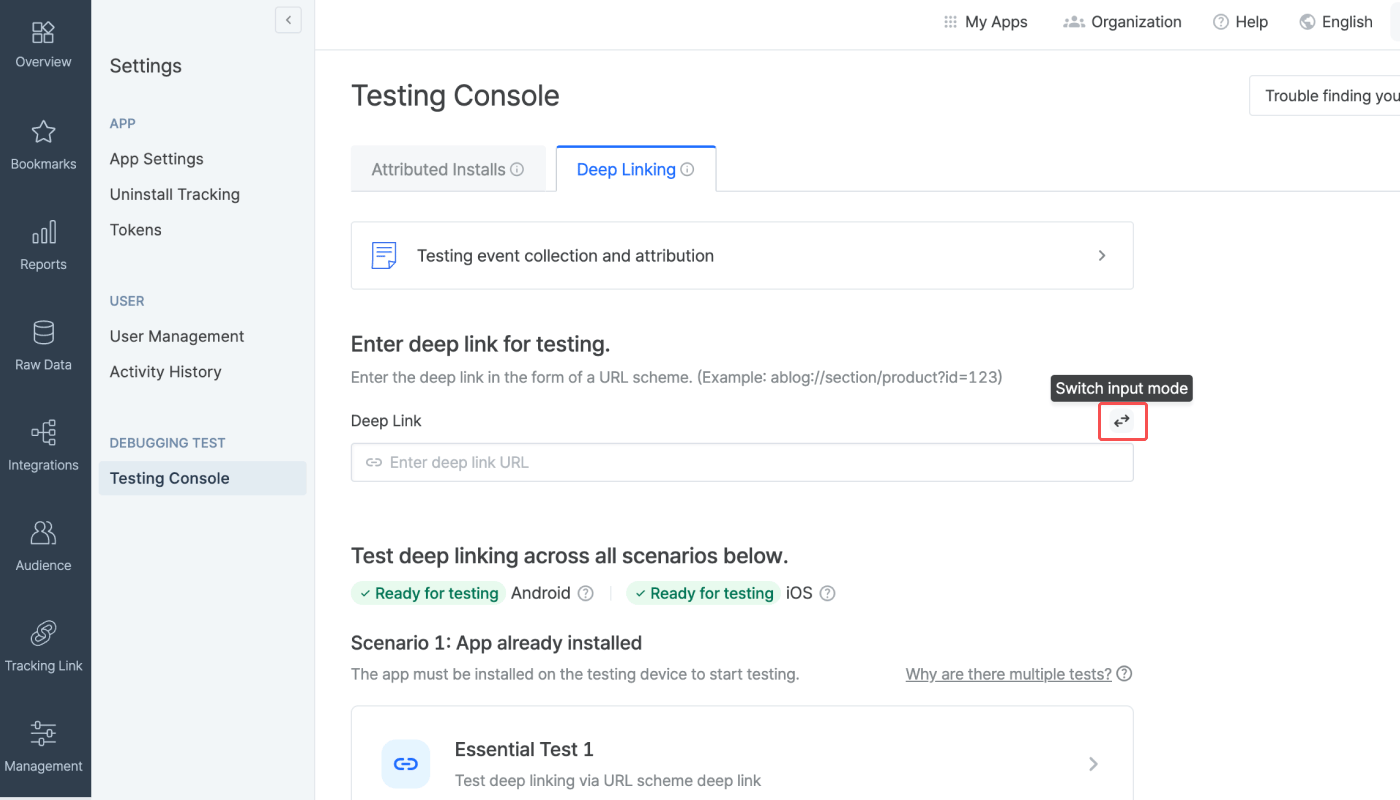
Enter the deep link configured for the app you want to test. The deep link must be in the form of the URL scheme deep link. It should preferably be set to a specific in-app location instead of the home screen.
**Attention**
Encode the deep link before entering it into the required field. If you don't, the link will not conform to the standard URL format, and deep linking will not function properly.
Click the **\[switch]** icon on the right to change the input method. This allows you to add the path and parameters separately to input a deep link.
##### Check readiness for testing
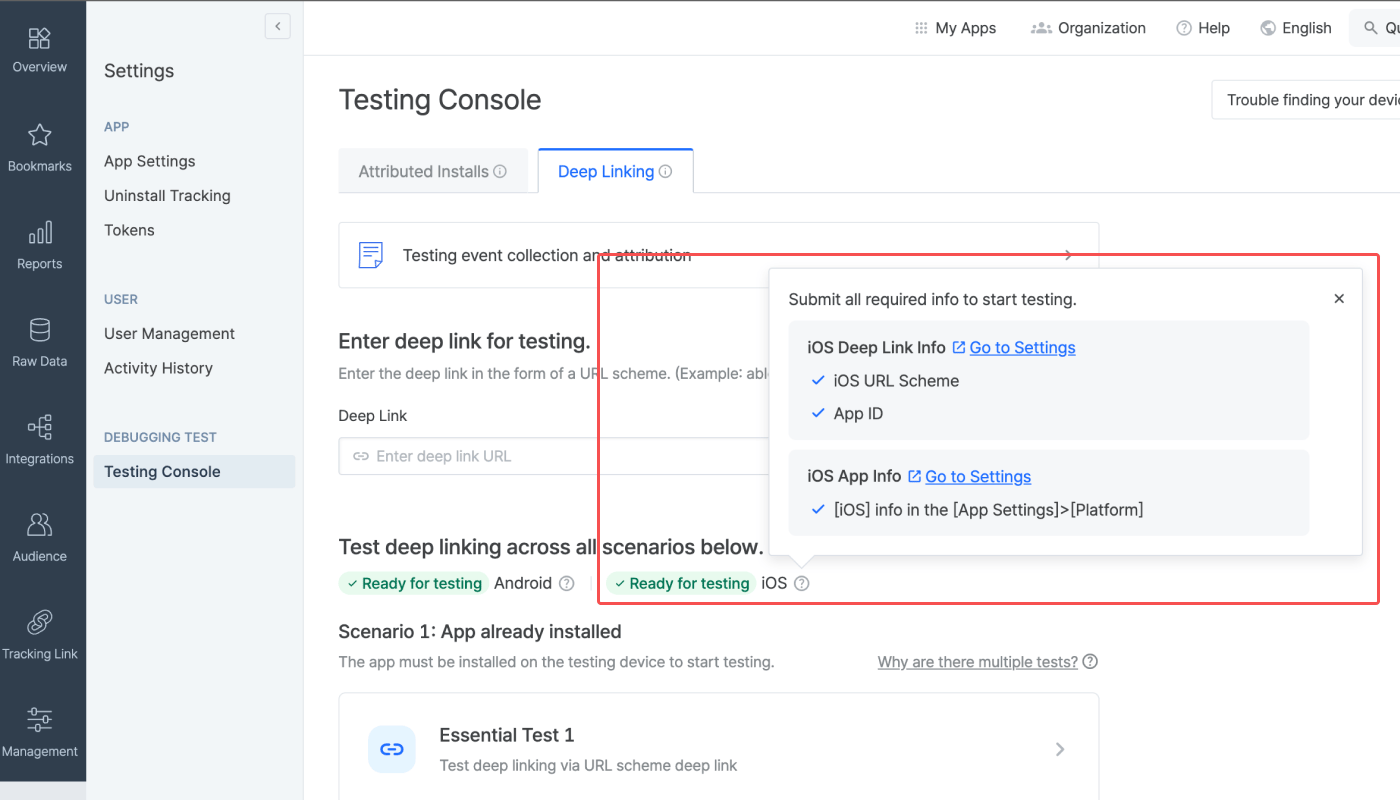
Check if the info required for testing deep linking is submitted to the Airbridge dashboard. If all info is submitted for a platform, the “Ready for testing” tag will show. If not, the “Info incomplete” tag will show. Click the tooltip next to the platform name to see the required info for testing. If you see the “Info incomplete” tag for the platform you want to run the deep linking test, click **Go to Settings** to add or edit the required info to get ready for testing.
**Refresh to see the latest version**
If you've completed the setup in a different browser tab, refresh the Airbridge dashboard tab to reflect the most recent changes.
#### Testing
The testing console offers tests for 2 deep-linking scenarios. There are 3 tests for “Scenario 1: App already installed” and 1 test for “Scenario 2: App not installed." Complete all 4 tests if you are using a custom domain to create tracking links. If not, complete all tests except for the Custom Domain Test.
**Why are there multiple tests?**
Airbridge supports various deep linking methods, including URL scheme deep links, Universal Links, and App Links. When an app is launched, the system automatically selects the most suitable method based on factors such as the operating system, browser, and whether the app is installed. Test across all possible cases to ensure reliable deep-linking performance.
##### Testing for Scenario 1: App already installed
Testing Scenario 1 allows you to make sure the deep linking functions as intended for users who have already installed the app on their devices. You can run 3 types of tests, including a test for cases when the app is opened via URL scheme deep links, when the app is opened via Universal Links or App Links, and when the tracking link is created using a custom domain.
###### Preparation
Before you start the test, check the following items.
1. Prepare a mobile test device.
2. Check whether the app is installed on the test device. If not, download the app.
3. Open the app at least once after download.
4. Make sure the default browser setting is Chrome or Safari. The deep linking test may not work in other browsers.
5. Make sure you have a stable network connection.
**Note**
If there are no issues with the deep link settings and the deep linking tests have been successfully completed, Airbridge deep linking works on most browsers. Note that deep linking tests are only supported on Chrome and Safari.
##### How to run each test
1. Click the test you want to run.
2. Scan the QR code with the test device and access the testing page. If you're unable to scan the QR code, use the URL at the bottom of the QR code.
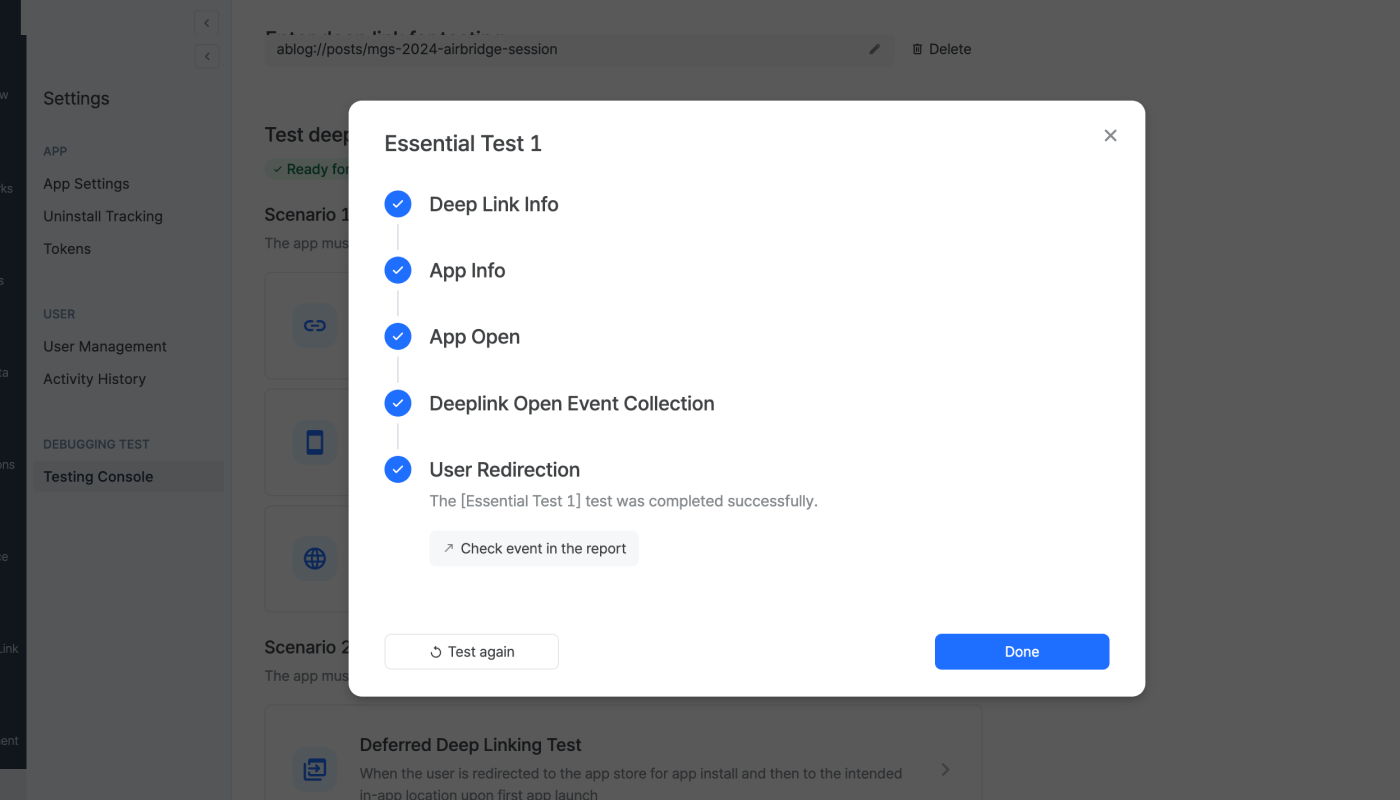
3. Once you access the testing website, click **Trigger deep linking**. The test will run automatically on the 5 items displayed. If an issue is identified, follow the instructions and refer to the Airbridge user guide to resolve it. Then, start the test again.
When the test is completed successfully, you can find the Deeplink Open event on the **\[Raw Data]>\[App Real-time Log]** page.
After completing the Essential Test 1, the following items can be found in the SDK log.
* `eventData.deeplink` is `{YOUR_SCHEME}://...` .
* The `{YOUR_SCHEME}://...` is passed to the deep link callback.
After completing the Essential Test 2, the following items can be found in the SDK log.
* `eventData.deeplink` is `https://{YOUR_APP_NAME}.airbridge.io...`
* The `{YOUR_SCHEME}://...` is passed to the deep link callback.
After completing the Custom Domain Test, the following items can be found in the SDK log.
* `eventData.deeplink` is `https://{YOUR_CUSTOM_DOMAIN}...`
* The `{YOUR_SCHEME}://...` is passed to the deep link callback.
4. After returning to the **\[Testing Console]** tab, click **Done** and close the test window.
##### Testing for Scenario 2: App not installed
Testing Scenario 2 allows you to make sure the deep linking functions as intended for users who have not installed the app on their devices. You can run 1 test for deferred deep linking.
###### Preparation
Before you start the test, check the following items.
1. Prepare a mobile test device.
2. Check whether the app is not installed on the test device. If installed, delete the app from the device.
3. Make sure the default browser setting is Chrome or Safari. The deep linking test may not work in other browsers.
4. Make sure you have a stable network connection.
###### How to run the test
1. Click the test you want to run.
2. Scan the QR code with the test device and access the testing page. If you're unable to scan the QR code, use the URL at the bottom of the QR code.
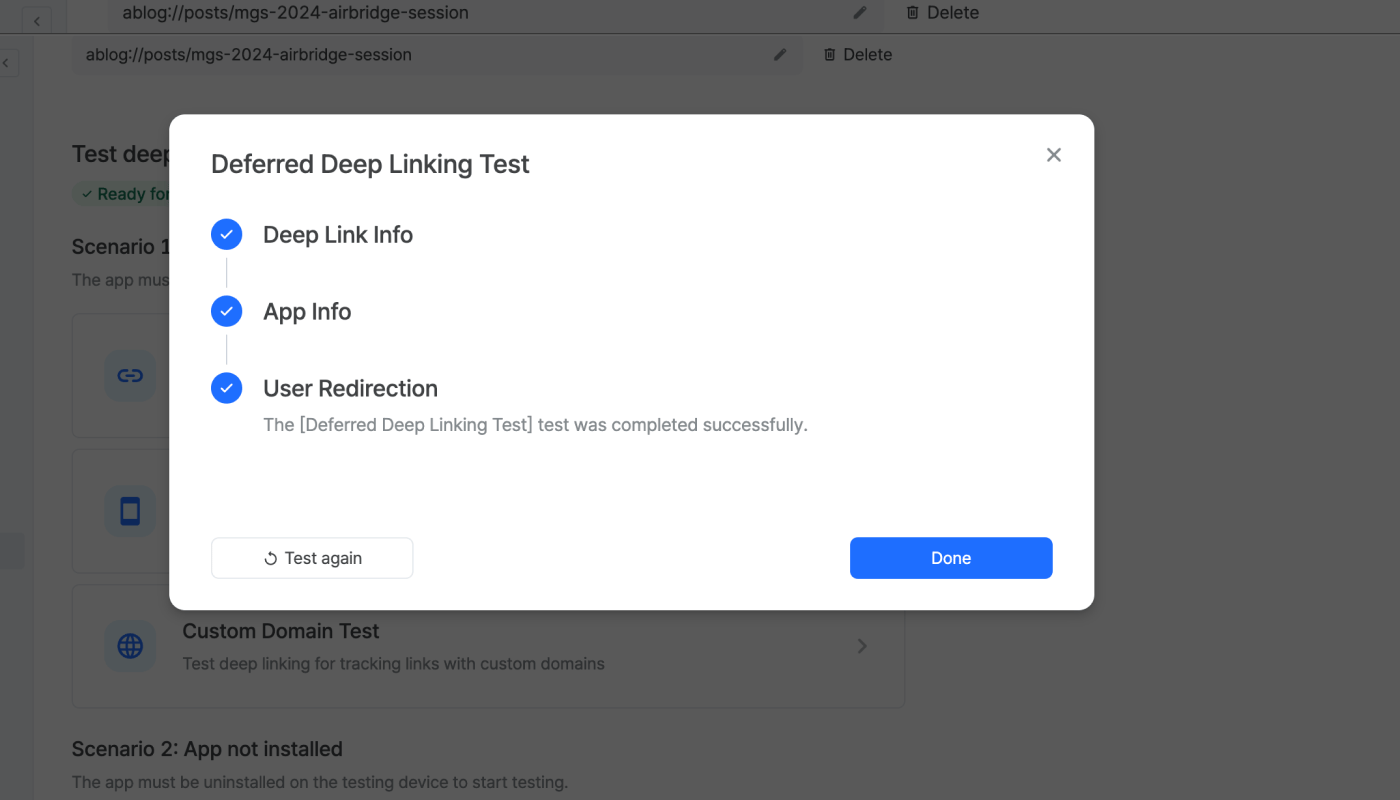
3. Once you access the testing page, click **Trigger deep linking**. The test will run automatically on the 3 items displayed. If an issue is identified, follow the instructions and refer to the Airbridge user guide to resolve it.
When the test is completed successfully, you can find the Deeplink Open event on the **\[Raw Data]>\[App Real-time Log]** page.
After completing the Deferred Deep Linking Test, the following items can be found in the SDK log.
* `eventData.deeplink` is `https://{YOUR_SCHEME}.airbridge.io...`
* The `{YOUR_SCHEME}://...` is passed to the deep link callback.
4. After returning to the **\[Testing Console]** tab, click **Done** and close the test window.
#### Troubleshooting
Refer to the information below for troubleshooting regarding deep links.
| Problem | Solution |
| ---------------------------------------------------------------------------------------------------------------------------- | --------------------------------------------------------------------------------------------------------------- |
| You clicked a deep link, but the app was not launched. Or the SDK logs show information that is not intended as per setting. | Check whether the deep link is set up correctly. |
| You clicked a deep link, and the app was launched, but you didn't land on the intended app page. | You need to write code that redirects the user to the deep link path that is passed by the `onSuccess`function. |
## Additional SDK Settings
Refer to the information below for additional setup.
**Attention**
Optional settings. Configure only if necessary.
### Create tracking links within the app
Android SDK v.4.3.0 or later is required.
Tracking links are links that are embedded in ads for data collection. When users click on the ad, the tracking link is used to pass the touchpoint data to Airbridge, allowing for ad attribution.
Also, users who click on the ad with a tracking link can be redirected to a specific destination.
Use the `createTrackingLink` function to create tracking links. Refer to the code examples and the parameter details below.
```kotlin Kotlin lines theme={"theme":{"light":"github-dark-dimmed","dark":"github-dark-dimmed"}}
fun createTrackingLink(
channel: String,
option: Map,
onSuccess: OnSuccess
)
fun createTrackingLink(
channel: String,
option: Map,
onSuccess: OnSuccess,
onFailure: OnFailure?
)
```
```java Java lines theme={"theme":{"light":"github-dark-dimmed","dark":"github-dark-dimmed"}}
public void createTrackingLink(
@NonNull String channel,
@NonNull Map option,
@NonNull OnSuccess onSuccess
)
public void createTrackingLink(
@NonNull String channel,
@NonNull Map option,
@NonNull OnSuccess onSuccess,
@Nullable OnFailure onFailure
)
```
| Name | Required or Optional | Type | Description |
| --------- | -------------------- | --------------------------------- | ---------------------------------------------- |
| channel | Required | String | The ad channel where the tracking link is used |
| option | Required | Map\ | Options for creating tracking links |
| onSuccess | Required | OnSuccess\ | Success callback |
| onFailure | Optional | OnFailure | Fail callback |
Use the `option` parameter in the `createTrackingLink` function to configure tracking link options.
| Key | Type | Description |
| ------------------------------------------------------------- | ------------------------------------ | ------------------------------------------------------------------------------------------------------------------------------------------------------------------------------------------------------------------------------------------------------------------------------------------------------------------------------------------------------------------------------------------------------------------------------------------------------------------------------------------------------------------------------------------------------------------------------------------------------------------------------------------------------------------------------------------------------------------- |
| AirbridgeTrackingLinkOption.CAMPAIGN | String | The campaign credited with the winning touchpoint or conversion. |
| AirbridgeTrackingLinkOption.AD\_GROUP | String | The ad group credited with the winning touchpoint or conversion. |
| AirbridgeTrackingLinkOption.AD\_CREATIVE | String | The ad creative credited with the winning touchpoint or conversion. |
| AirbridgeTrackingLinkOption.CONTENT | String | The content credited with the winning touchpoint or conversion. |
| AirbridgeTrackingLinkOption.TERM | String | The search term credited with the winning touchpoint or conversion. |
| AirbridgeTrackingLinkOption.SUB\_ID | String | The sub publisher that generated the touchpoint. Sub media values are usually provided by predefined "integrated" channels. |
| AirbridgeTrackingLinkOption.SUB\_ID\_1 | String | The 1st level sub-sub publisher that generated the touchpoint. Sub media values are usually provided by predefined "integrated" channels. |
| AirbridgeTrackingLinkOption.SUB\_ID\_2 | String | The 2nd level sub-sub publisher that generated the touchpoint. Sub media values are usually provided by predefined "integrated" channels. |
| AirbridgeTrackingLinkOption.SUB\_ID\_3 | String | The 3rd level sub-sub publisher that generated the touchpoint. Sub media values are usually provided by predefined "integrated" channels. |
| AirbridgeTrackingLinkOption.DEEPLINK\_URL | (Custom Scheme URL String) | Deeplink URL |
| AirbridgeTrackingLinkOption.DEEPLINK\_STOPOVER | Boolean | Whether to enable the stopover feature of Deeplink true : enable false : disable |
| AirbridgeTrackingLinkOption.FALLBACK\_IOS | ("store" \| Web URL String) | ios fallback when app is not installed |
| AirbridgeTrackingLinkOption.FALLBACK\_ANDROID | ("store" \| Web URL String) | android fallback when app is not installed |
| AirbridgeTrackingLinkOption.FALLBACK\_DESKTOP | (Web URL String) | desktop fallback when app is not installed |
| AirbridgeTrackingLinkOption.FALLBACK\_IOS\_STORE\_PPID | String | The ppid for the Custom Product Page in the Apple App Store. Enable the custom product page to be shown when landing in the App Store. |
| AirbridgeTrackingLinkOption.FALLBACK\_ANDROID\_STORE\_LISTING | String | The Custom Store Listing listing value for the Google Play Store. Enables the display of your custom store listing when landing on the Google Play Store. |
| AirbridgeTrackingLinkOption.OGTAG\_TITLE | String | `og:title` for tracking link |
| AirbridgeTrackingLinkOption.OGTAG\_DESCRIPTION | String | `og:description` for tracking link |
| AirbridgeTrackingLinkOption.OGTAG\_IMAGE\_URL | (Web URL String) | `og:image` for tracking link |
| AirbridgeTrackingLinkOption.OGTAG\_WEBSITE\_CRAWL | ("desktop") | When the tracking link is shared, the social media platform directly crawls the Open Graph of the desktop URL specified in fallbackPaths and uses it for the social share preview. Dynamic URLs are also supported, and any change to the Open Graph is reflected automatically from the next time the link is shared. The values set for title, description, and imageUrl will be ignored. |
| AirbridgeTrackingLinkOption.CUSTOM\_SHORT\_ID | String | Configure the short ID of tracking links depending on your campaign or contents. If not passed, a random short ID will be generate, and can not be changed once generated. |
| AirbridgeTrackingLinkOption.IS\_REENGAGEMENT | ("off" \| "on\_true" \| "on\_false") | Configure the Re-engagement parameter. The Re-engagement parameter has three options. off: OFF is the default setting. The touchpoint can be attributed to both install events and post-install events (in-app events). on\_true: ON-TRUE is used for re-engagement campaigns for installed users. The touchpoint generated by the tracking link is attributed only to the deeplink open and the following in-app events, not to the install event. on\_false: ON-FALSE is used for user acquisition campaigns targeting uninstalled users. The touchpoint generated by the tracking link is attributed only to the install event and the following in-app events, not to the 'deeplink open' event. |
Use the `onSuccess` callback in the `createTrackingLink` function to pass the `AirbridgeTrackingLink`.
```kotlin Kotlin lines theme={"theme":{"light":"github-dark-dimmed","dark":"github-dark-dimmed"}}
data class AirbridgeTrackingLink(
val shortURL: Uri,
val qrcodeURL: Uri
)
```
```java Java lines theme={"theme":{"light":"github-dark-dimmed","dark":"github-dark-dimmed"}}
public class AirbridgeTrackingLink {
Uri shortURL;
Uri qrcodeURL;
}
```
| Name | Type | Description |
| --------- | ---- | ------------------------------------ |
| shortURL | Uri | The short URL of the tracking link |
| qrcodeURL | Uri | The QR code URL of the tracking link |
Refer to the example codes below.
```kotlin Kotlin lines theme={"theme":{"light":"github-dark-dimmed","dark":"github-dark-dimmed"}}
Airbridge.createTrackingLink(
channel = "test_channel",
option = mapOf(
AirbridgeTrackingLinkOption.CAMPAIGN to "test_campaign",
AirbridgeTrackingLinkOption.DEEPLINK_URL to "YOUR_SCHEME://...",
AirbridgeTrackingLinkOption.FALLBACK_IOS to "store",
AirbridgeTrackingLinkOption.FALLBACK_ANDROID to "store",
AirbridgeTrackingLinkOption.FALLBACK_DESKTOP to "https://example.com/"),
onSuccess = { trackingLink ->
// Handling created tracking-link
},
onFailure = { error ->
// Handling error
}
)
```
```java Java lines theme={"theme":{"light":"github-dark-dimmed","dark":"github-dark-dimmed"}}
Airbridge.createTrackingLink(
"test_channel",
new HashMap() {{
put(AirbridgeTrackingLinkOption.CAMPAIGN, "test_campaign");
put(AirbridgeTrackingLinkOption.DEEPLINK_URL, "YOUR_SCHEME://...");
put(AirbridgeTrackingLinkOption.FALLBACK_IOS, "store");
put(AirbridgeTrackingLinkOption.FALLBACK_ANDROID, "store");
put(AirbridgeTrackingLinkOption.FALLBACK_DESKTOP, "https://example.com/");
}},
(OnSuccess) trackingLink -> {
},
(OnFailure) error -> {
}
);
```
```kotlin Kotlin lines theme={"theme":{"light":"github-dark-dimmed","dark":"github-dark-dimmed"}}
Airbridge.createTrackingLink(
channel = "test_channel",
option = mapOf(
AirbridgeTrackingLinkOption.CAMPAIGN to "test_campaign",
AirbridgeTrackingLinkOption.DEEPLINK_URL to "sample://home",
AirbridgeTrackingLinkOption.FALLBACK_IOS to "https://example.com/",
AirbridgeTrackingLinkOption.FALLBACK_ANDROID to "https://example.com/",
AirbridgeTrackingLinkOption.FALLBACK_DESKTOP to "https://example.com/"),
onSuccess = { trackingLink ->
// Handling created tracking-link
},
onFailure = { error ->
// Handling error
}
)
```
```java Java lines theme={"theme":{"light":"github-dark-dimmed","dark":"github-dark-dimmed"}}
Airbridge.createTrackingLink(
"test_channel",
new HashMap() {{
put(AirbridgeTrackingLinkOption.CAMPAIGN, "test_campaign");
put(AirbridgeTrackingLinkOption.DEEPLINK_URL, "sample://home");
put(AirbridgeTrackingLinkOption.FALLBACK_IOS, "https://example.com/");
put(AirbridgeTrackingLinkOption.FALLBACK_ANDROID, "https://example.com/");
put(AirbridgeTrackingLinkOption.FALLBACK_DESKTOP, "https://example.com/");
}},
(OnSuccess) trackingLink -> {
},
(OnFailure) error -> {
}
);
```
```kotlin Kotlin lines theme={"theme":{"light":"github-dark-dimmed","dark":"github-dark-dimmed"}}
Airbridge.createTrackingLink(
channel = "test_channel",
option = mapOf(
AirbridgeTrackingLinkOption.CAMPAIGN to "test_campaign",
AirbridgeTrackingLinkOption.FALLBACK_IOS to "store",
AirbridgeTrackingLinkOption.FALLBACK_ANDROID to "store",
AirbridgeTrackingLinkOption.FALLBACK_DESKTOP to "https://example.com/"),
onSuccess = { trackingLink ->
// Handling created tracking-link
},
onFailure = { error ->
// Handling error
}
)
```
```java Java lines theme={"theme":{"light":"github-dark-dimmed","dark":"github-dark-dimmed"}}
Airbridge.createTrackingLink(
"test_channel",
new HashMap() {{
put(AirbridgeTrackingLinkOption.CAMPAIGN, "test_campaign");
put(AirbridgeTrackingLinkOption.FALLBACK_IOS, "store");
put(AirbridgeTrackingLinkOption.FALLBACK_ANDROID, "store");
put(AirbridgeTrackingLinkOption.FALLBACK_DESKTOP, "https://example.com/");
}},
(OnSuccess) trackingLink -> {
},
(OnFailure) error -> {
}
);
```
```kotlin Kotlin lines theme={"theme":{"light":"github-dark-dimmed","dark":"github-dark-dimmed"}}
Airbridge.createTrackingLink(
channel = "test_channel",
option = mapOf(
AirbridgeTrackingLinkOption.CAMPAIGN to "test_campaign",
AirbridgeTrackingLinkOption.FALLBACK_IOS to "https://example.com/",
AirbridgeTrackingLinkOption.FALLBACK_ANDROID to "https://example.com/",
AirbridgeTrackingLinkOption.FALLBACK_DESKTOP to "https://example.com/"),
onSuccess = { trackingLink ->
// Handling created tracking-link
},
onFailure = { error ->
// Handling error
}
)
```
```java Java lines theme={"theme":{"light":"github-dark-dimmed","dark":"github-dark-dimmed"}}
Airbridge.createTrackingLink(
"test_channel",
new HashMap() {{
put(AirbridgeTrackingLinkOption.CAMPAIGN, "test_campaign");
put(AirbridgeTrackingLinkOption.FALLBACK_IOS, "https://example.com");
put(AirbridgeTrackingLinkOption.FALLBACK_ANDROID, "https://example.com");
put(AirbridgeTrackingLinkOption.FALLBACK_DESKTOP, "https://example.com");
}},
(OnSuccess) trackingLink -> {
},
(OnFailure) error -> {
}
);
```
 ### Set up deep linking
For the deep linking setup, the deep link information entered to the Airbridge dashboard and the in-app location address for user redirection is required.
First, enter the deep link information into the Airbridge dashboard.
### Set up deep linking
For the deep linking setup, the deep link information entered to the Airbridge dashboard and the in-app location address for user redirection is required.
First, enter the deep link information into the Airbridge dashboard.
 ##### Check readiness for testing
Check if the info required for testing deep linking is submitted to the Airbridge dashboard. If all info is submitted for a platform, the “Ready for testing” tag will show. If not, the “Info incomplete” tag will show. Click the tooltip next to the platform name to see the required info for testing. If you see the “Info incomplete” tag for the platform you want to run the deep linking test, click **Go to Settings** to add or edit the required info to get ready for testing.
##### Check readiness for testing
Check if the info required for testing deep linking is submitted to the Airbridge dashboard. If all info is submitted for a platform, the “Ready for testing” tag will show. If not, the “Info incomplete” tag will show. Click the tooltip next to the platform name to see the required info for testing. If you see the “Info incomplete” tag for the platform you want to run the deep linking test, click **Go to Settings** to add or edit the required info to get ready for testing.
 #### Testing
The testing console offers tests for 2 deep-linking scenarios. There are 3 tests for “Scenario 1: App already installed” and 1 test for “Scenario 2: App not installed." Complete all 4 tests if you are using a custom domain to create tracking links. If not, complete all tests except for the Custom Domain Test.
#### Testing
The testing console offers tests for 2 deep-linking scenarios. There are 3 tests for “Scenario 1: App already installed” and 1 test for “Scenario 2: App not installed." Complete all 4 tests if you are using a custom domain to create tracking links. If not, complete all tests except for the Custom Domain Test.
 When the test is completed successfully, you can find the Deeplink Open event on the **\[Raw Data]>\[App Real-time Log]** page.
 When the test is completed successfully, you can find the Deeplink Open event on the **\[Raw Data]>\[App Real-time Log]** page.